Give it a go before you give it up. Image: D. Griffin Jones/Cult of Mac
For the first time in 18 years, Apple redesigned the oft-overlooked Phone app. The overhaul in iOS 26 simplifies the Phone app’s layout, putting your favorites, call history and voicemails in one tab, and providing easier access to search.
Its fancy Liquid Glass-inspired layout goes hand-in-hand with the Phone app’s excellent call filtering features.
Here’s how you can learn to love the new design — and how to nope out of it if you don’t like it.
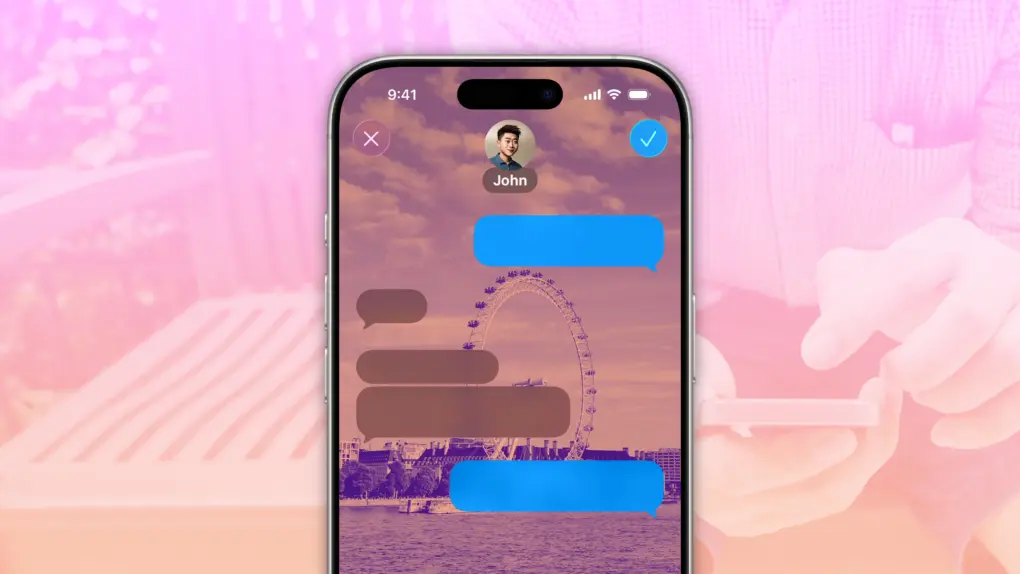
A background image can set a tone for the conversation. Image: D. Griffin Jones/Cult of Mac
Accidentally texting the wrong person can bring disastrous consequences, and yet it’s incredibly simple to mix up threads. Luckily, iOS 26 offers a great way to keep things straight: You can add specific backgrounds to various Messages conversations on your iPhone so you can easily tell them apart.
For instance, if you set a shimmery blue background for your group chat with co-workers, you’ll never confuse that conversation for a sensitive one-on-one text with your closest colleague. You’ll never accidentally send a message to your boss meant for your partner if the chats look obviously different.
Setting up an iPhone Messages background is super-easy — here’s how it works.
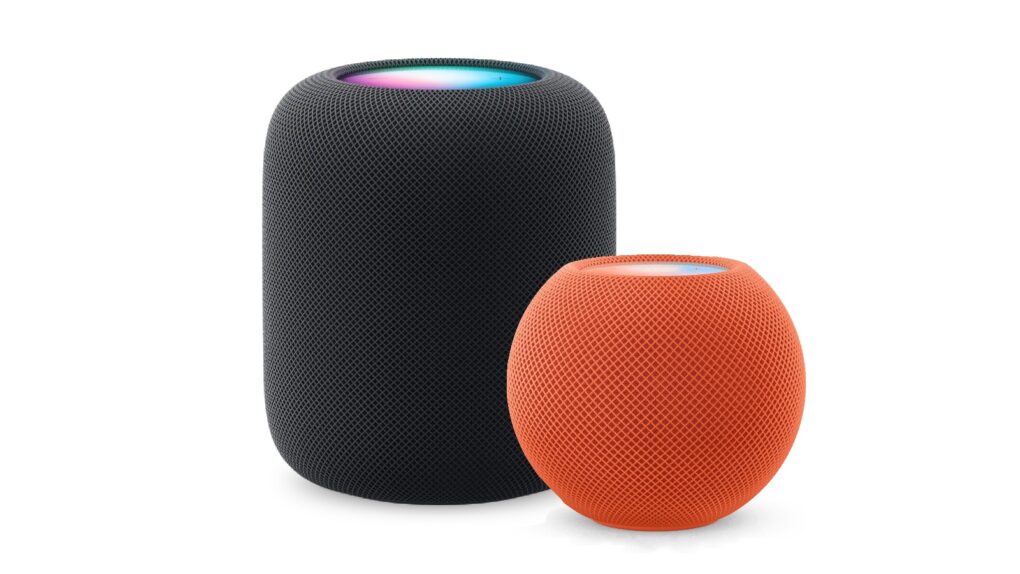
Here’s how to be sure you have the latest HomePod software update. Or stop your smart speaker from updating automatically. Photo: Apple
The HomePod operating system occasionally needs updating, because the device is a lot more than a simple speaker — it’s a computer. Here’s how to make sure your Apple smart speaker has the software version released last week. The new HomePod Software version 26.3 is a simple bug-fix update, but it’s still worth installing. Who wants bugs?
If you depend on automatic updates, it’s possible your smart speaker hasn’t yet installed the update. Here’s how to do so manually.
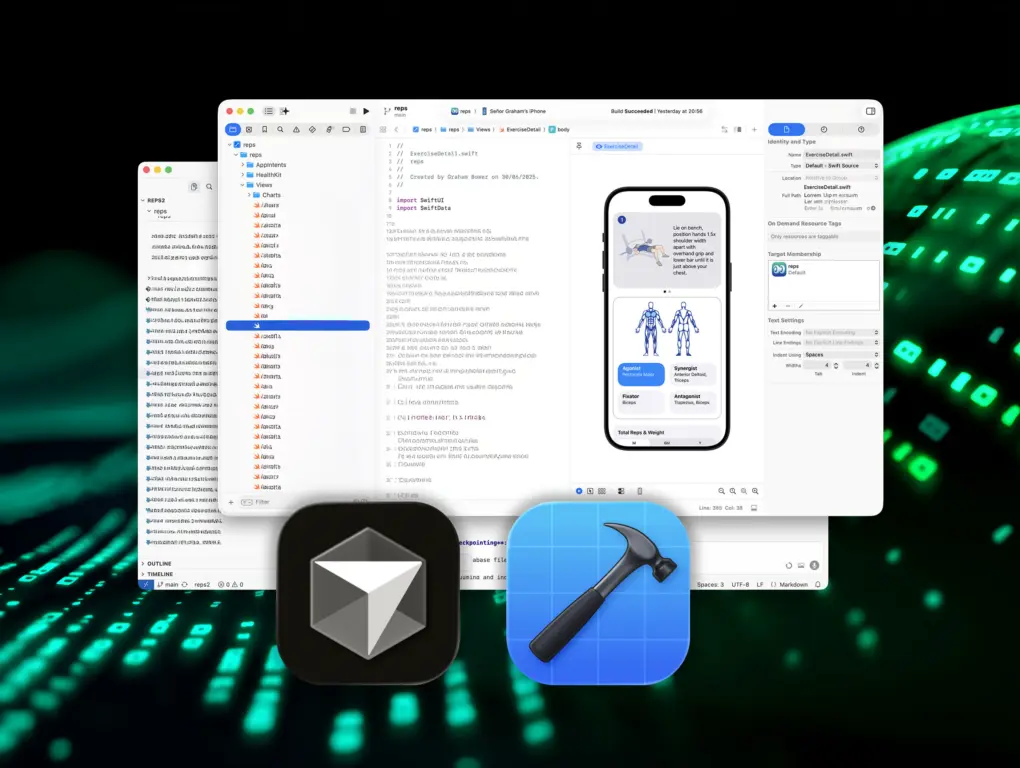
Reps & Sets was built with AI coding tools, but it took more than just a few prompts
A year ago, I had no clue how to write an iPhone app. Now I’ve shipped a fully-fledged strength training app, built with AI coding tools, or “vibe coding” as it’s become known.
A lot of people get vibe coding wrong. They think it’s just for prototypes and messing around. It’s not. Used properly, it’s a skill you can learn and master. And with modern AI tools like Cursor, and the new Coding Assistant in Xcode, it’s now more accessible than ever.
So, if you’re curious about vibe coding and keen to give it a go, here are ten lessons I learned the hard way.
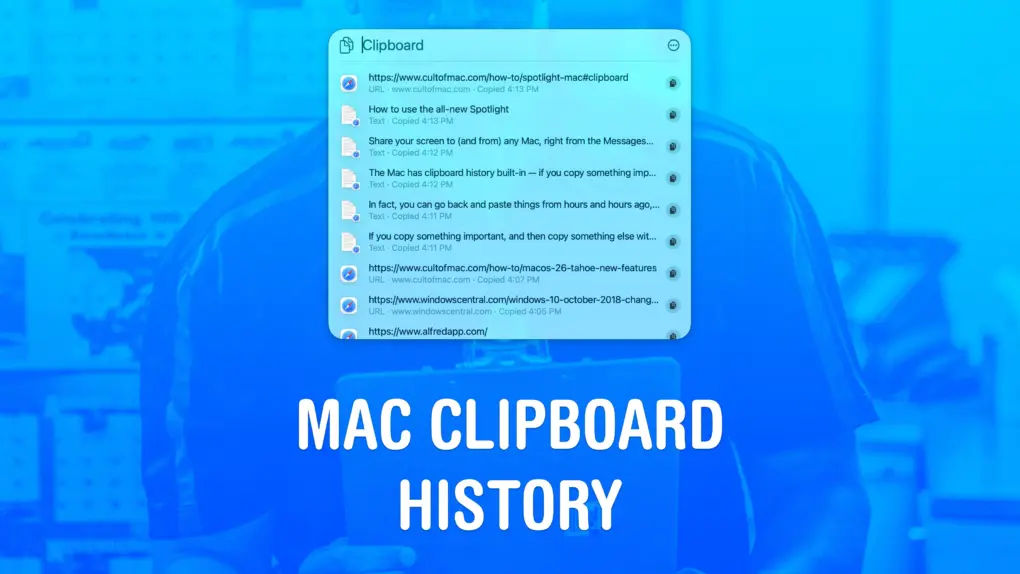
Copy and paste items from ye olden times of ... this morning. Image: D. Griffin Jones/Cult of Mac
Using a clipboard history manager on a Mac is a total game-changer. If you copy something important, then copy something else without thinking, the first item doesn’t disappear. You can go back and get it again. In fact, you can go back and paste things from hours and hours ago, like a link you copied earlier in the day.
You can also copy a bunch of things in a row and quickly paste them elsewhere, without switching back and forth and back and forth.
macOS 26 Tahoe added a built-in clipboard history that does all that for free. Here’s how it works.
Don't let your News+ subscription go to waste. Image: D. Griffin Jones/Cult of Mac
Apple News gives you a streamlined way to keep up with current events. It’s a sane, if somewhat generic-looking, way to stay on top of the news that matters to you. If you want more, Apple News+ offers paywall-free access to major publications, local news and magazines. And to sweeten the deal, it has fun daily puzzles, excellent recipes and audio stories.
Admittedly, not a lot of people pay for Apple News+ on its own. It’s hardly a fan favorite. But if you have the Apple One Premier bundle, you can enjoy all of its hidden benefits — here’s how to make the most of it. Keep reading or watch our quick video.
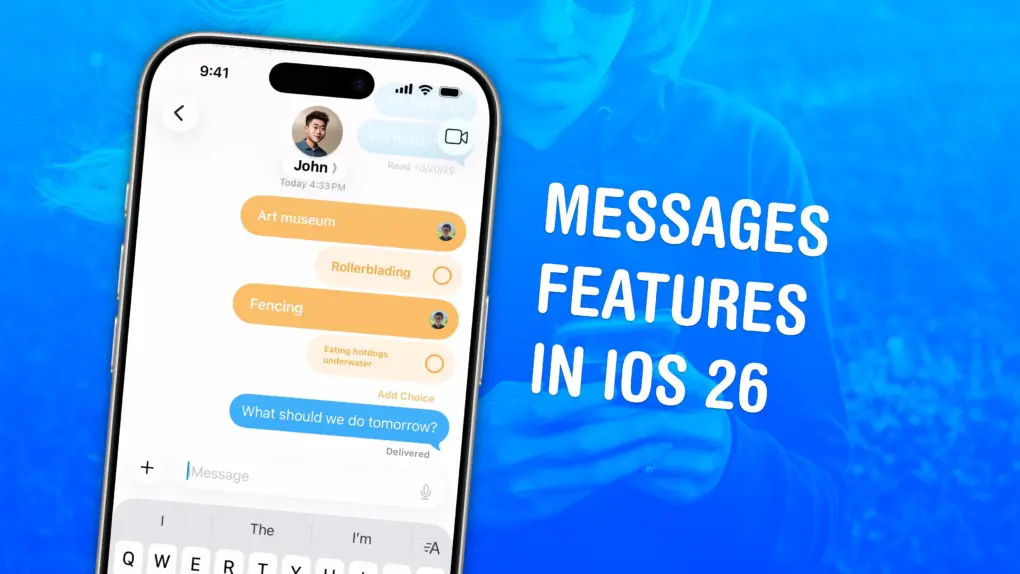
There's a bunch of great new features to check out. Image: D. Griffin Jones/Cult of Mac
The Messages app gains flashy new features in iOS 26 that make group chats far more fun and efficient. It also filters out spam texts, translates conversations and more.
As the iPhone’s default messaging app, Messages is one of Apple’s darlings. The app gains new features with every major update, but iOS 26 stands out as one of the best in years. Here’s how all the new Messages features work — keep reading or watch our quick video.
It’s like you get an extra 20 percent for free! Screenshot: D. Griffin Jones/Cult of Mac
You can charge your AirPods to 100% and get more battery life out of them by switching off the default setting, which limits them to 80%. The charge limit can help preserve your AirPods’ battery to extend their useful life. But that comes at the expense of more frequent charging every day. And if you find yourself in a situation where you need that extra battery life, this tip lets you unlock it — for one day or forever.
If you want to squeeze as much battery life out of your AirPods as possible, and you don’t mind upgrading every few years, here’s how to change the setting. Keep reading or watch our quick video.
Letting an AI agent handle the busywork. AI image: ChatGPT/Cult of Mac
Clawdbot. Moltbot. OpenClaw. The rapid rebranding might confuse you, but behind that name is a genuinely useful tool. OpenClaw is a self-hosted AI agent that you can run on your own Mac or PC.
More importantly, it can carry out actions on your behalf, like reading and modifying files, running shell commands, and even installing new tools. Think of OpenClaw as an AI agent running on your Mac that can act as your always-on digital butler.
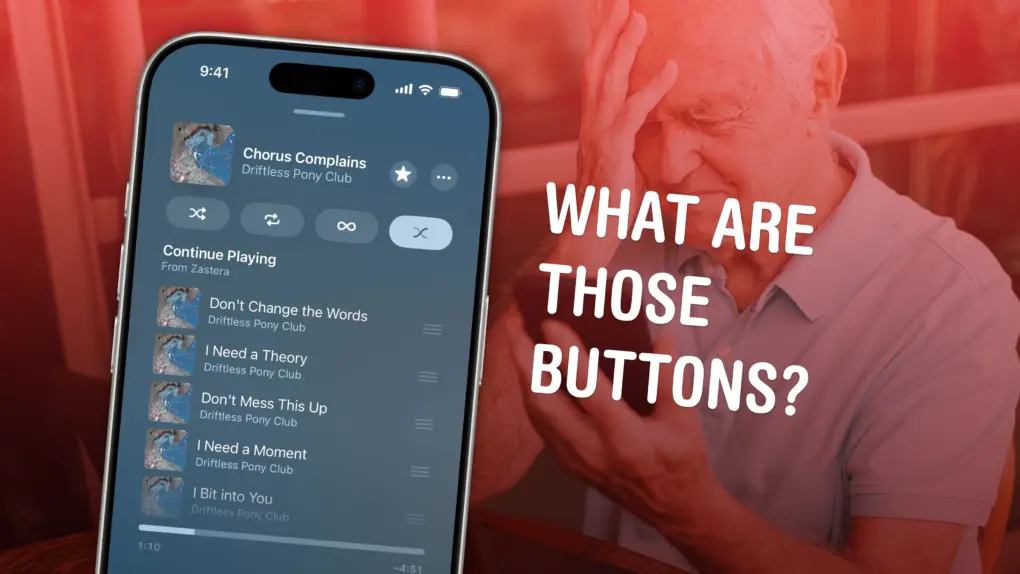
It's not really obvious what these buttons do. Image: D. Griffin Jones/Cult of Mac
All the tiny signs, symbols and icons on the Apple Music app’s Now Playing screen lack labels — and it’s not obvious at all what they do. Do you know what tapping the infinity symbol does? How about the two wavy lines?
This quick guide runs through all the Apple Music buttons and controls, so you can get acclimated to its interface. Keep reading or watch our short video.
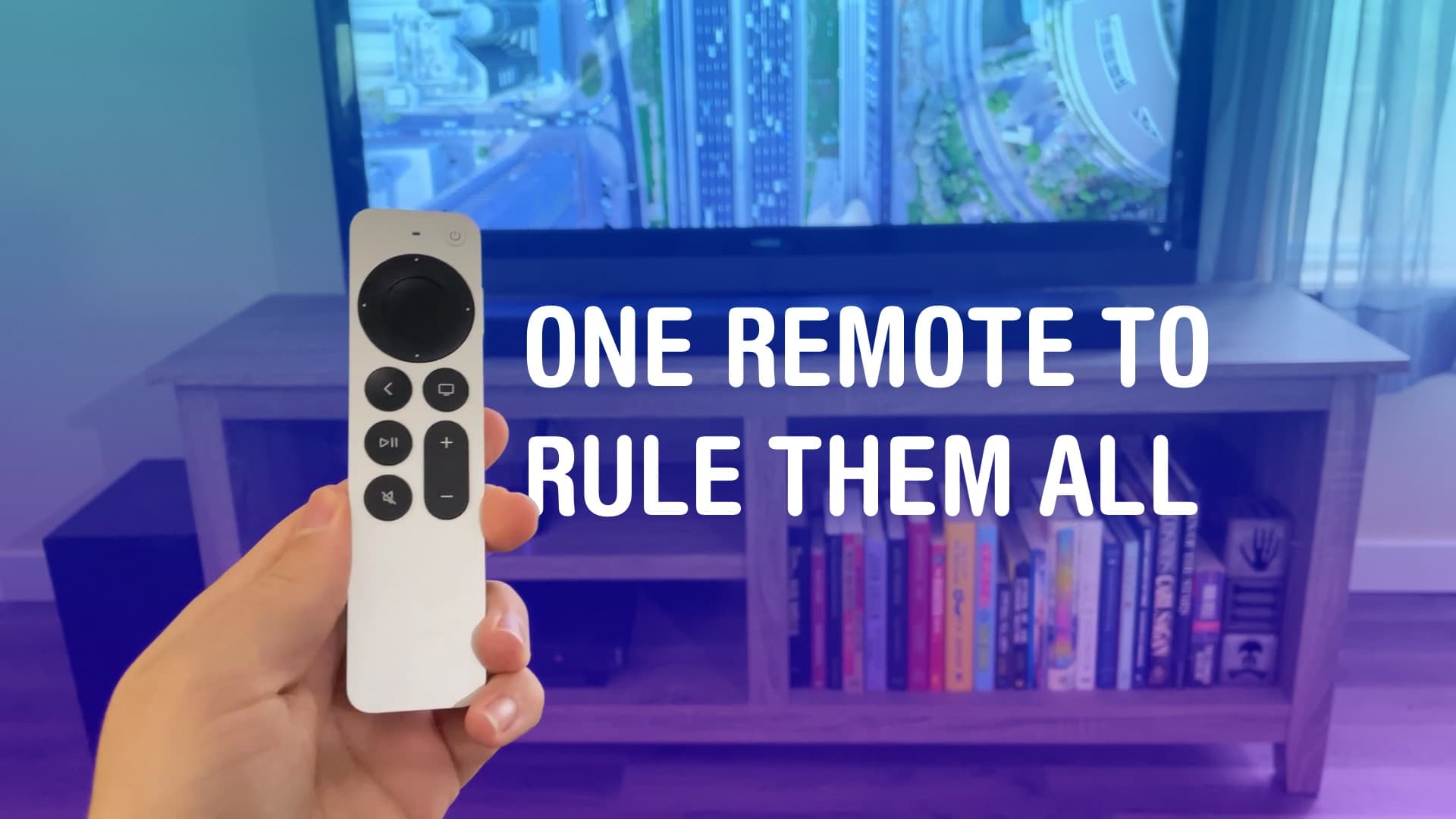
All hail the mighty Siri Remote. Image: D. Griffin Jones/Cult of Mac
You can set up your Apple TV’s Siri Remote to control the volume levels of a separate sound system. It might not work out of the box. But with a little poking around in Settings, you can set it up so you can use the convenient volume buttons built into the Siri Remote to control sound bars, etc.
That means you won’t need to keep two or three remotes lying around — you can make it all work from just one. It just takes a little setup.
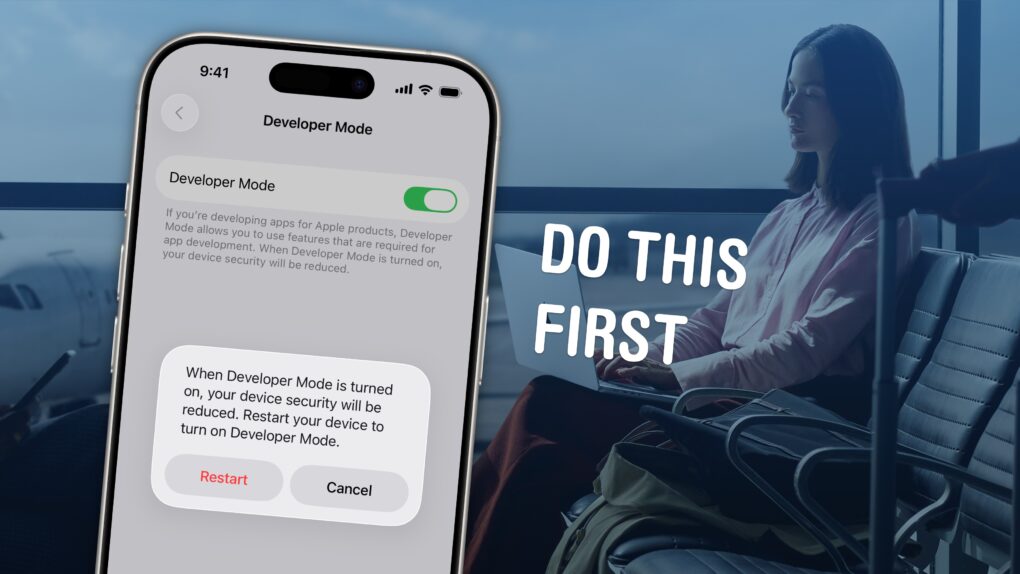
You'll need to turn on Developer Mode to put your own apps on your iPhone. Image: D. Griffin Jones/Cult of Mac
Developer Mode lets you run unsigned code on your iPhone or iPad. Enable it, and you can download and run apps that are not from the App Store (or alternative app marketplaces) or in TestFlight, Apple’s tool that lets developers invite users to beta-test new apps.
If you want to write your own apps in Xcode, you will need to enable Developer Mode on your iPhone or iPad before running your app.
Developer Mode is also essential if you want to sideload apps onto your device from a Mac, using an app like Sideloadly. This could include apps that aren’t allowed on the App Store (such as porn app Hot Tub) or apps that are no longer available from their original developers, like Apollo (the now-shuttered Reddit client). For sideloading to work, you will need to turn on Developer Mode.
Read on to see how to enable Developer Mode on your iPhone or iPad, as well as the potential security implications.
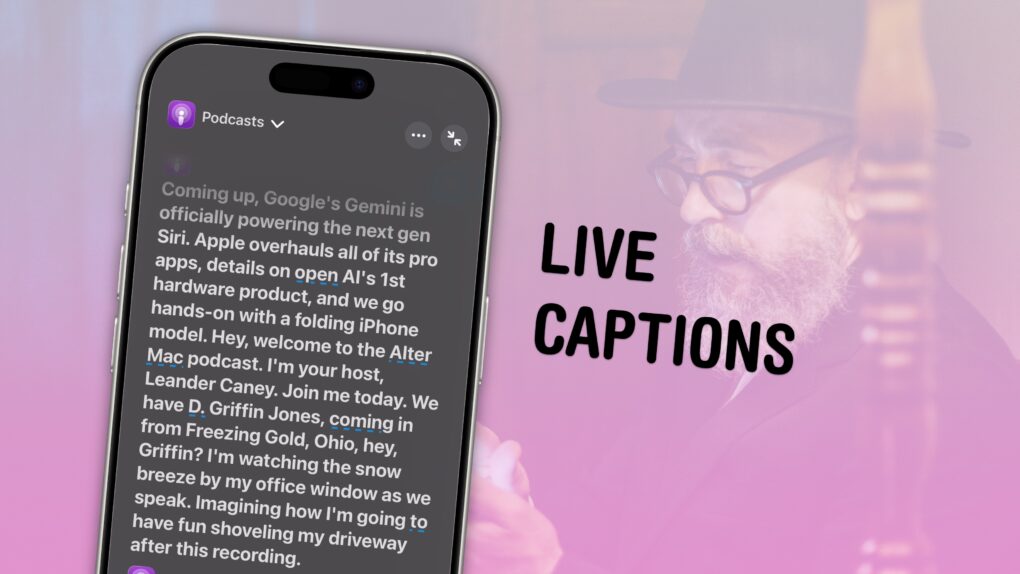
With Live Captions on, you can read a podcast ... kinda. Image: D. Griffin Jones/Cult of Mac
The iPhone’s Live Captions feature generates subtitles of any media playing on your device or heard by its microphone. Powered by the Neural Engine in Apple’s custom silicon, the ability to convert words from music, videos and real-time conversations into text on the fly is a boon to many users in many situations.
If you’re hard of hearing, for instance, the ability to see instant captions on the screen is a game-changer. Or, if you don’t have headphones when you’re sitting in bed late at night and your partner is asleep — or you’re in any situation where you don’t want to make noise, like on the bus or in an office — you can turn on Live Captions to get subtitles.
The applications are endless and exciting. Here’s how to use Live Captions on your iPhone.
It's surprisingly easy to add custom tracks to your Apple Music library. Image: D. Griffin Jones/Cult of Mac
If you come across a live concert recording, a demo track or an indie song that’s not already in Apple Music, you can add it to your Apple Music library really easily. It’s simple to upload music to Apple Music and, in fact, you don’t even need an Apple Music subscription — just a computer and your iPhone.
Adding music to your library manually used to be the only way to listen to music on your computer, way back before the iTunes Music Store made paid downloads popular and Apple Music entered the streaming area. Even after 25-plus years, Apple still supports the feature — and thankfully so, because I use it all the time.
It’s the top reason why I don’t use Spotify. While Spotify technically supports custom music as well, it’s a convoluted and clunky process. On Apple Music, it’s dead simple to add your own tracks and only takes minutes. All you need is a Mac or a Windows 10 PC with iTunes.
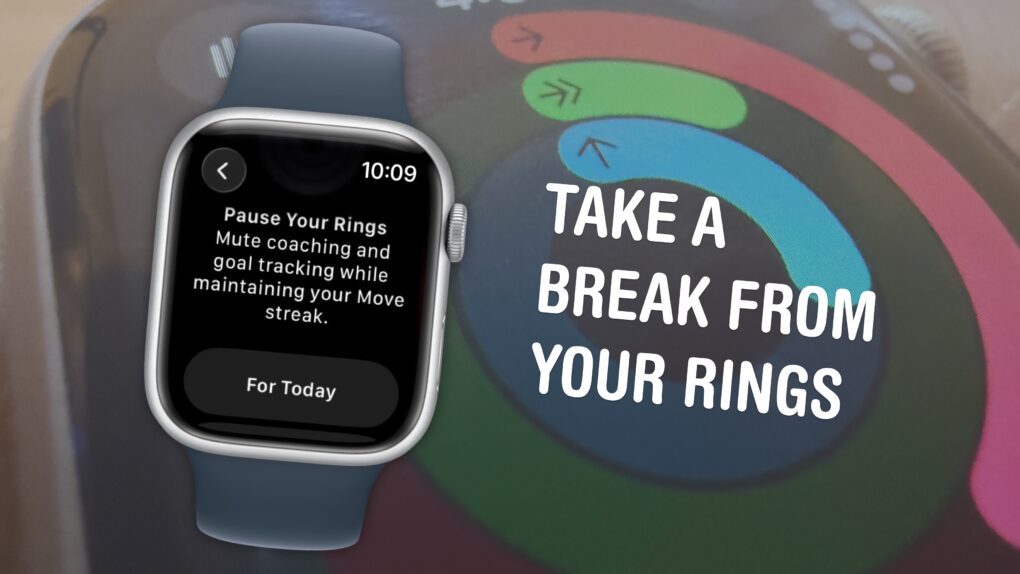
You can pause them without losing your streak. Image: D. Griffin Jones/Cult of Mac
The Apple Watch doesn’t just count your steps — its three Activity rings track different levels of energy you burn throughout the day. And the perpetual challenge to “close your rings” provides a motivational push that gamifies fitness.
Apple’s smartwatch gives you a bunch of options for customizing your Activity rings (and for taking a break when you need it). You can set different goals for each ring for different days of the week to fit your workout schedule. When you want a rest day or if you fall ill, you can take up to a month-long break without losing your streak.
If you’re all-in on the fitness tracking, you can add widgets that show your rings on your Apple Watch face and widgets on your iPhone. Or, on the other hand, if you find it all a bit annoying, you can turn off all the notifications so they won’t bother you anymore.
Here’s everything you need to know about the Apple Watch’s Activity rings.
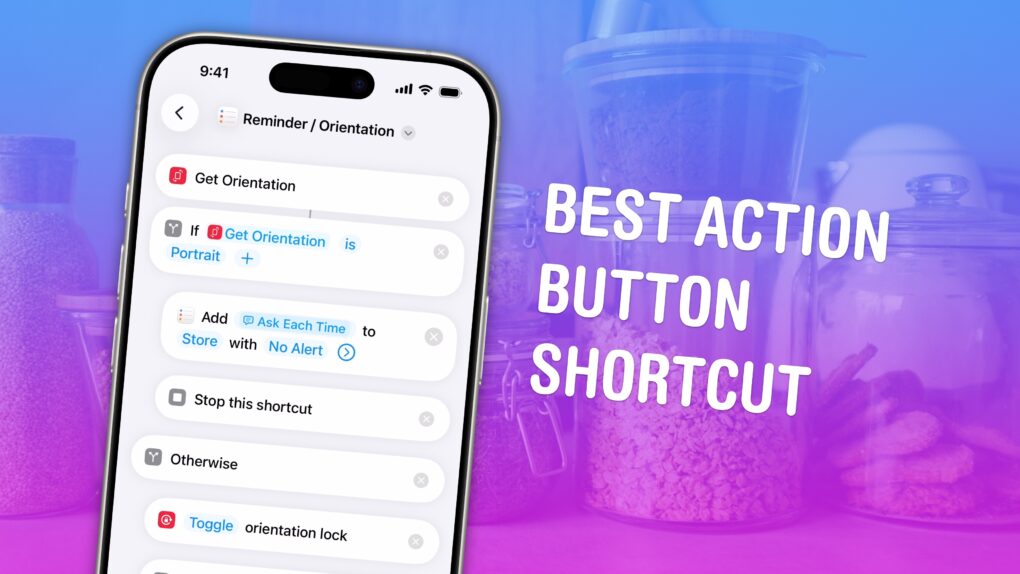
Two things I use all the time in one elegant shortcut. Image: D. Griffin Jones/Cult of Mac
I finally figured out the perfect set of controls to assign to the iPhone’s Action button. I created a shortcut that cleverly combines the two controls I want to use it for.
The Action button can toggle the flashlight, mute audio, toggle an accessibility feature, open the camera, start translation, run any shortcut of your choosing and more. It’s so open-ended that figuring out what to use it for can trigger decision fatigue.
Don’t panic — I discovered what you should use the iPhone’s action button for. And I’m sharing the shortcut, which combines two actions into one elegant system, so you can use it, too.
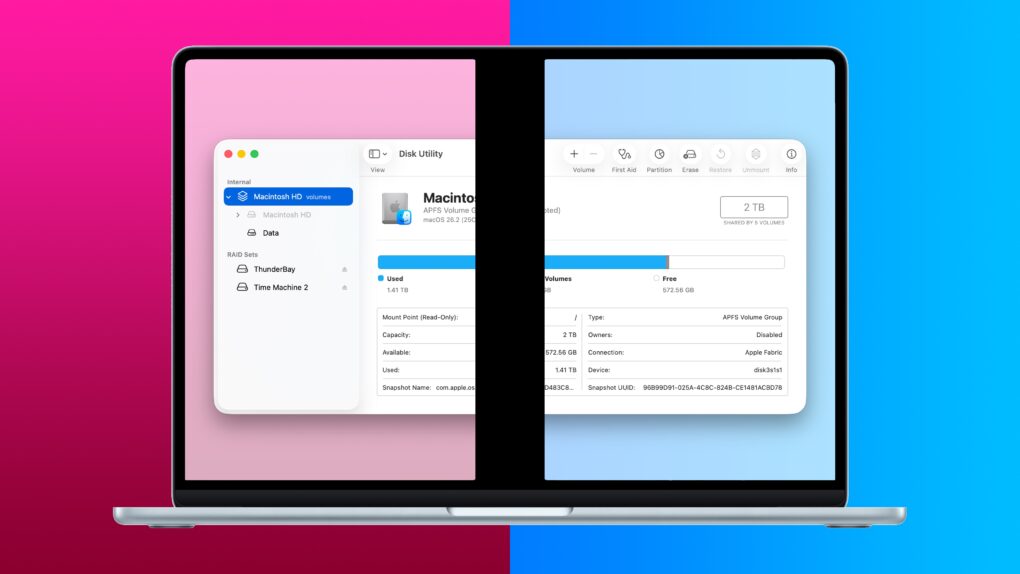
The built-in tools make it easy to partition your Mac hard drive. Image: D. Griffin Jones/Cult of Mac
If you want to install a beta version of macOS, either for software development or for simply poking around, the smartest way to do it is to partition your Mac’s hard drive. That will create a new storage area just for the different installation, with entirely separate data, so none of your precious documents are at risk.
You also might want to have different versions of macOS on hand for testing old versions of the operating system, too. It’s easier than keeping a pile of aging Macs around (my go-to strategy).
Luckily, the Mac comes with a very handy tool to partition your hard drive for free. Read on to find out how to partition your Mac’s hard drive with Disk Utility.
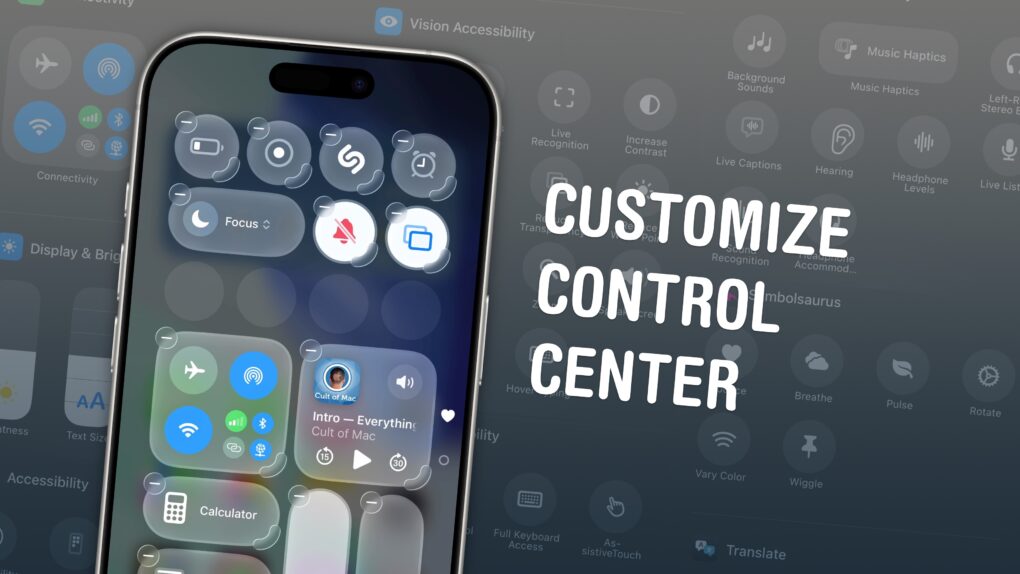
Make Control Center your own with these customization options. Image: D. Griffin Jones/Cult of Mac
If you want to make your iPhone easier to use, you can customize its Control Center to gain faster access to the buttons and toggles you rely upon to perform frequent tasks.
Plus, you can remove all the junk you never touch from the iPhone Contol Center, putting the vital controls you actually use front and center.
Keep reading to find out how and why you should customize the iPhone Control Center to make the device your own.
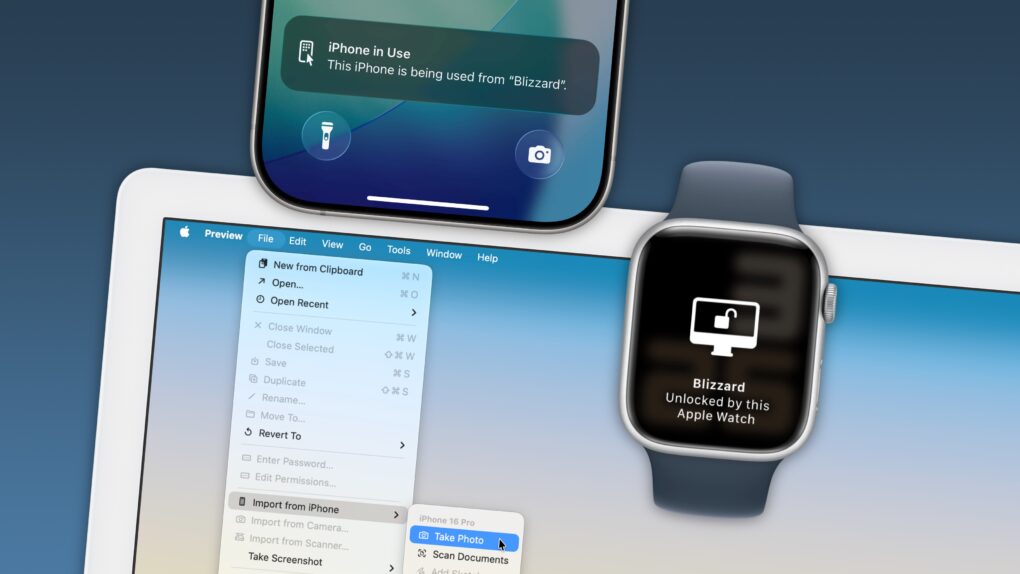
Your Apple devices can work together in more ways than you may expect. Image: D. Griffin Jones/Cult of Mac
Nothing illustrates the power of Apple’s ecosystem like the Continuity features that help your Mac, iPhone, iPad and Apple Watch work seamlessly together.
Thanks to Continuity, your iPhone can serve as your Mac’s webcam — and you can remotely control your iPhone from your Mac. You can start an email on one device and instantly pick it up on another. You can use the same keyboard and mouse with a Mac and iPad, copy and paste across devices and more.
These features flex the power of Apple’s hardware and software — and they would never be possible on a PC.
In this post (and the accompanying video), I will show you some of the time-saving, annoyance-busting Continuity features you can enjoy when you go all-in on the Apple ecosystem.
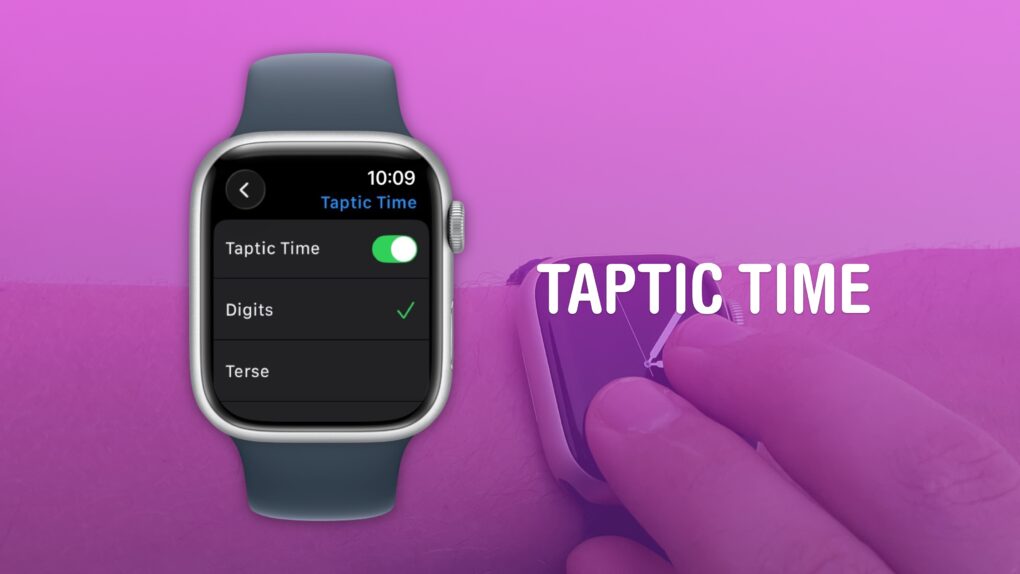
A clock you don’t even need to look at. What a time to be alive. Image: D. Griffin Jones/Cult of Mac
You can get the time without even looking at your Apple Watch using a little-known feature called Taptic Time. Simply hold two fingers on the device’s screen, and the watch will tap out the time on your wrist.
This is handy if you’re in a meeting and need to know the time, but you don’t want to look rude checking your watch. Or maybe you’re in the middle of a presidential debate.
Whatever the situation, turning on this little-known Apple Watch feature — and familiarizing yourself with how it works –can come in handy.
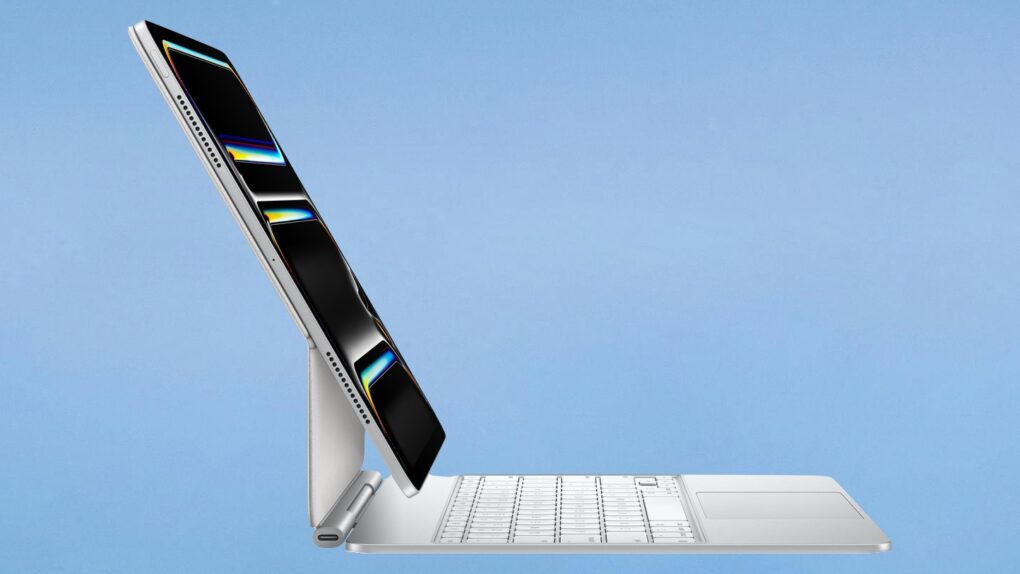
Your Apple Magic Keyboard for iPad might have a firmware update that needs installing. Image: Apple/Cult of Mac
On Tuesday, Apple released firmware updates for the Magic Keyboard designed for the iPad Pro and iPad Air. This is something the company does periodically.
Making sure the accessory is on the latest version ensures it works reliably and remains fully compatible with the latest versions of iPadOS.
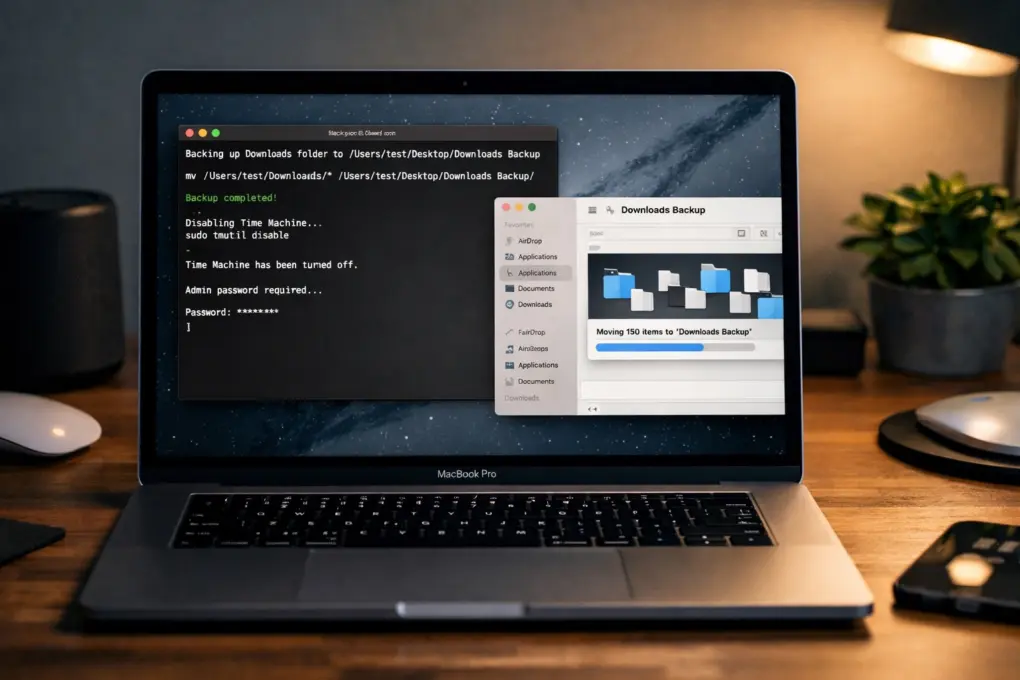
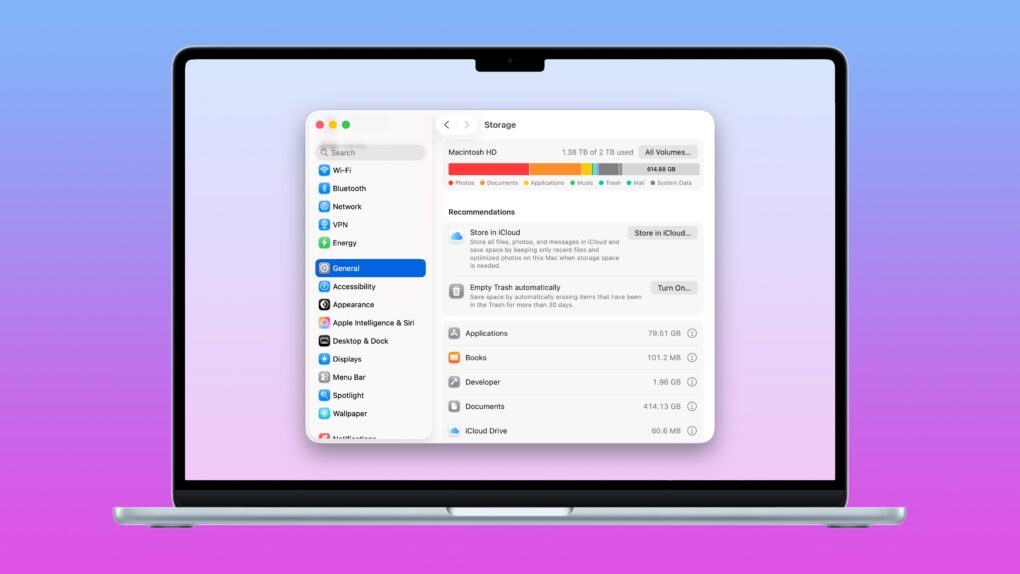
What to do when you run out of space on your Mac. Image: D. Griffin Jones/Cult of Mac
Death, taxes and running out of storage on your Mac — few things in life are as certain. If you’re experiencing the latter, before you go around deleting files, you should take stock of what’s filling up your computer. There are three easy ways to clear disk space on your Mac.
The Mac’s System Settings offers a built-in storage manager that lets you see which categories of files are filling up your drive. It makes clearing out useless junk fast and easy.
A pair of third-party apps can help out, too. Hyperspace removes duplicate data across your Mac’s hard drive, cleaning up your file system without deleting anything. And CleanMyMac can find the system files, junk and other cruft that can build up over time in places you don’t even think to check.
Whatever the reason you need more storage, read on to learn how to tidy up your Mac.
You can easily deactivate Liquid Glass in iOS 26 and macOS Tahoe if you really can’t tolerate it. Photo: Gemini/Cult of Mac
iOS 26’s Liquid Glass user interface brings dramatic change to the iPhone, so it’s no surprise that some people hate it. If the new translucent look is just not for you, you can tweak or turn off Liquid Glass in iOS 26.2. And it’s easy.
Plus, you will find the same settings in macOS Tahoe 26.2 and iPadOS 26.2, so you can turn off Liquid Glass on all your Apple devices if you like. Here’s how.
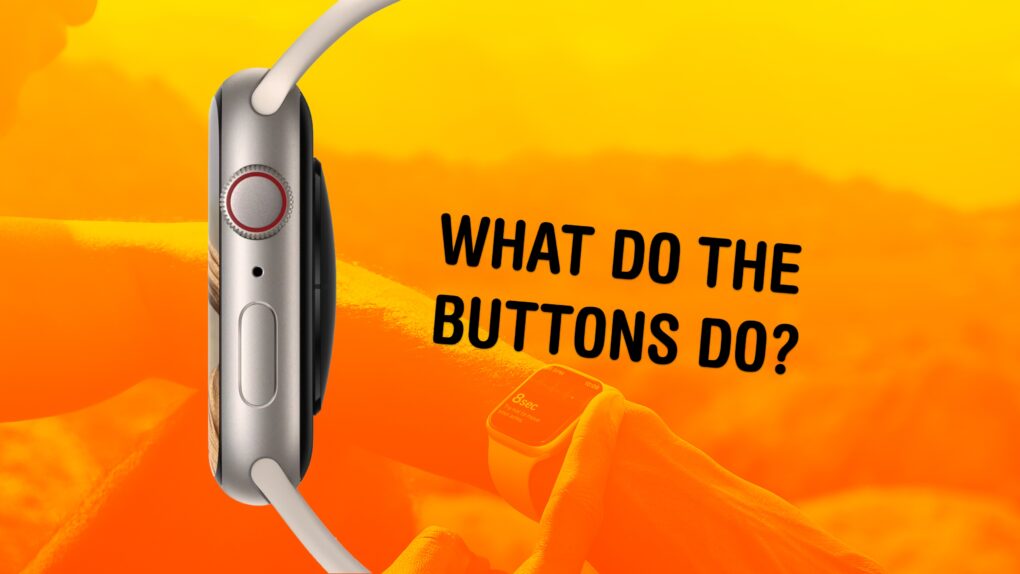
The buttons on the Apple Watch switch apps, activate Apple Pay, open Siri and more. Image: Apple/D. Griffin Jones/Cult of Mac
What do the buttons on the Apple Watch do? The Apple Watch borrows a lot from the iPhone, but the biggest difference between the two devices comes down to the way their buttons work. Each individual button does different things, depending on whether you click, double-click or hold them down.
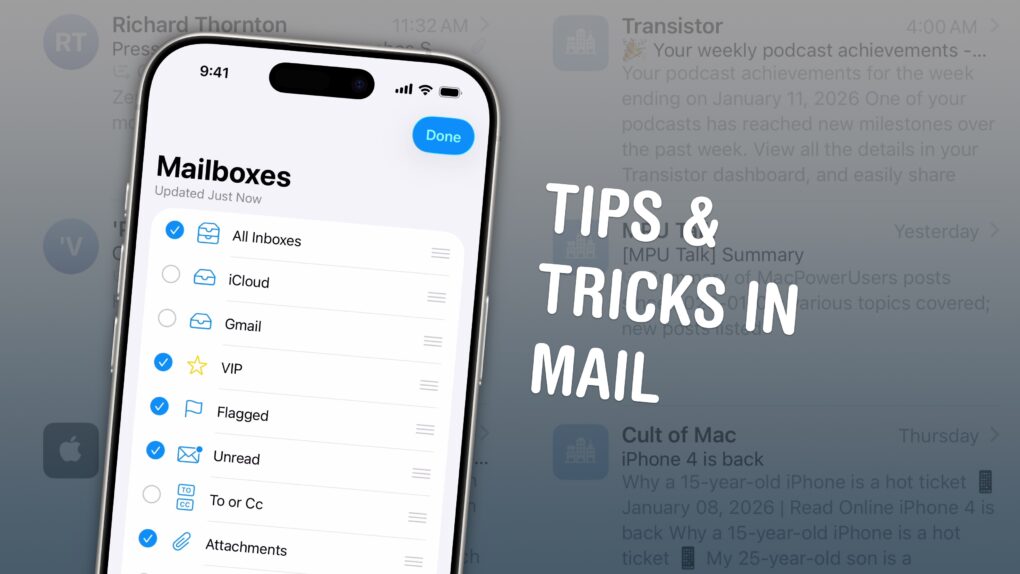
Take better care of your email inbox with these hidden features. Image: D. Griffin Jones/Cult of Mac
Some people achieve and maintain zero unread emails; some let that red badge climb into the thousands. It’s never too late to change your ways — you can become one of those clean inbox people like me. These six tips will help you get to Inbox Zero using features in Apple’s Mail app that you might not have known about.
The obvious Tip No. 0 is this: You should always hit the Unsubscribe button at the bottom of every unsolicited promotional email as soon as you get the first one.
After you kill all those unwanted subscriptions, these six lesser-known features of the Apple Mail app on iPhone, Mac and iPad will make you a true pro at managing your email.