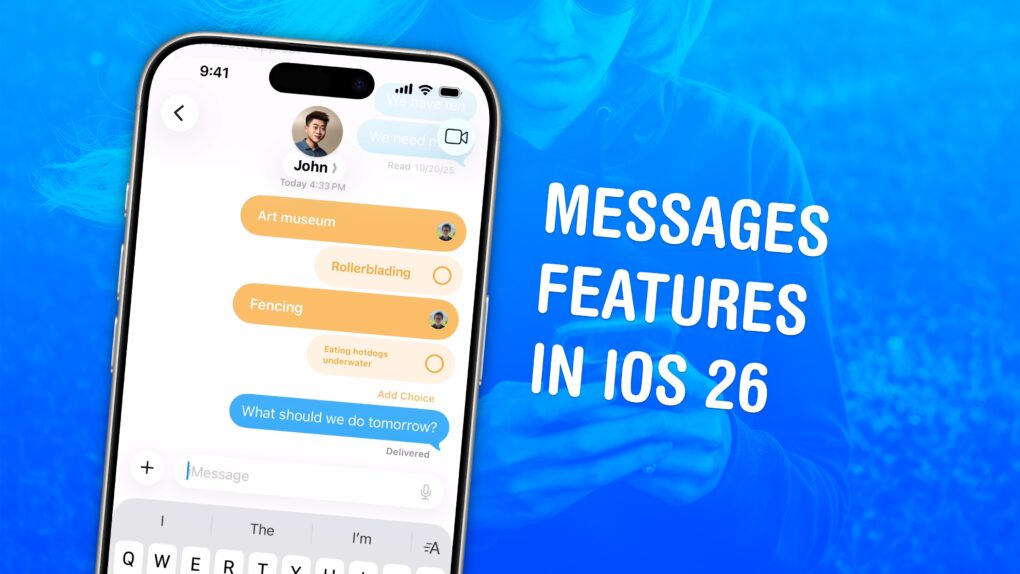
The Messages app gains flashy new features in iOS 26 that make group chats far more fun and efficient. It also filters out spam texts, translates conversations and more.
As the iPhone’s default messaging app, Messages is one of Apple’s darlings. The app gains new features with every major update, but iOS 26 stands out as one of the best in years. Here’s how all the new Messages features work — keep reading or watch our quick video.
6 great features in Messages in iOS 26
Messages is one of the most important and frequently used apps on many people’s iPhones. It keeps you in touch with family and friends, and also provides a platform for all kinds of social groups. In fact, having a blue bubble in group chats — which indicates a message sent using Apple’s proprietary iMessage service, with no Android heathens in the mix — is an important status symbol for some.
But Messages is more than just a fun way to chat with your in-group. Increasingly, the app offers a direct line to anyone you deal with, including major corporations. It’s becoming the preferred method to get customer support or lodge complaints.
In fact, Messages is almost becoming an “everything” app — and the latest update only makes it more indispensable.
If you and all your friends own iPhones, you should definitely check out these features. And if any of your friends remain on iOS 18, you should encourage them all to update to iOS 26 so you can take advantage of all the new Messages features in group chats.
Note: These features rely on iMessage, Apple’s proprietary “blue bubble” messaging system, which enables features exclusive to Apple devices. However, if you have a bunch of “green bubble” Android friends, don’t worry — you’ll enjoy some other improvements, too.
Table of contents: 6 great features in Messages in iOS 26
- Create a poll
- Set a background image
- Request group payments
- Hide texts from unknown numbers
- Automatically translate messages
- Typing indicators
- More features in Messages
Create a poll in the Messages app
Screenshot: D. Griffin Jones/Cult of Mac
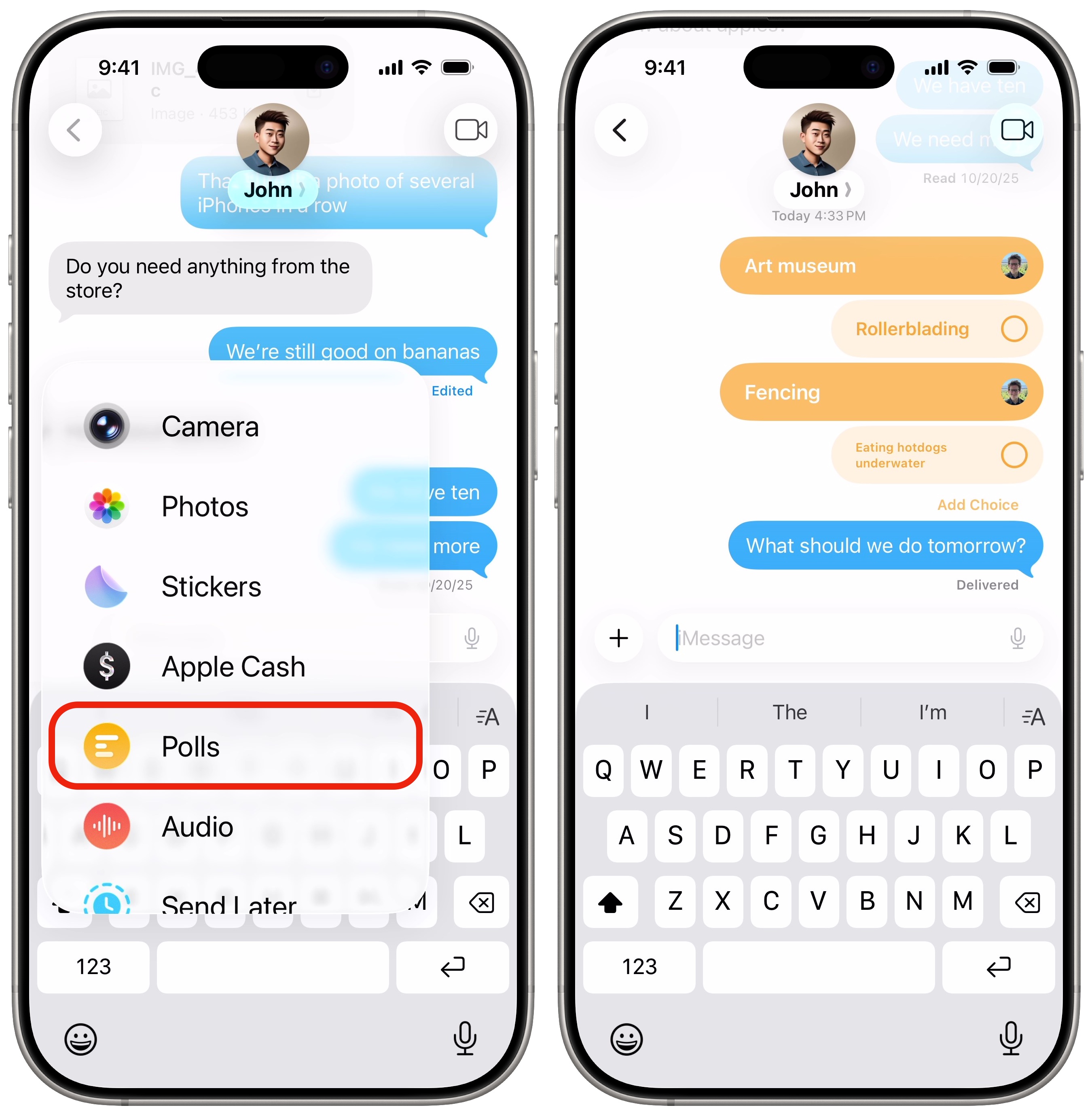
In Messages in iOS 26, you can create a poll that the members of a group chat can vote on. If you ever have a hard time deciding where to eat, what date works best for hanging out, or what movie to see, polls can help the group decide. Everyone in the group needs to be running iOS 26 to participate, and on iMessage — this isn’t supported in SMS or RCS messaging.
To set up a poll, tap the Add (+) menu to the left of the text field, then tap Polls. Type something into each of the Choice fields. If you fill in all three, a fourth will appear below. You can add up to 12 options to your poll.
After you send your poll, other people in the group can add their own items as well. You can vote for as many options as you want. You can also change your vote after the fact, if you change your mind.
Unfortunately, there aren’t any settings. You can’t restrict people from adding their own choices, nor can you force them to choose only one. But it’s still a handy feature.
Set a background image for a chat
Screenshot: D. Griffin Jones/Cult of Mac
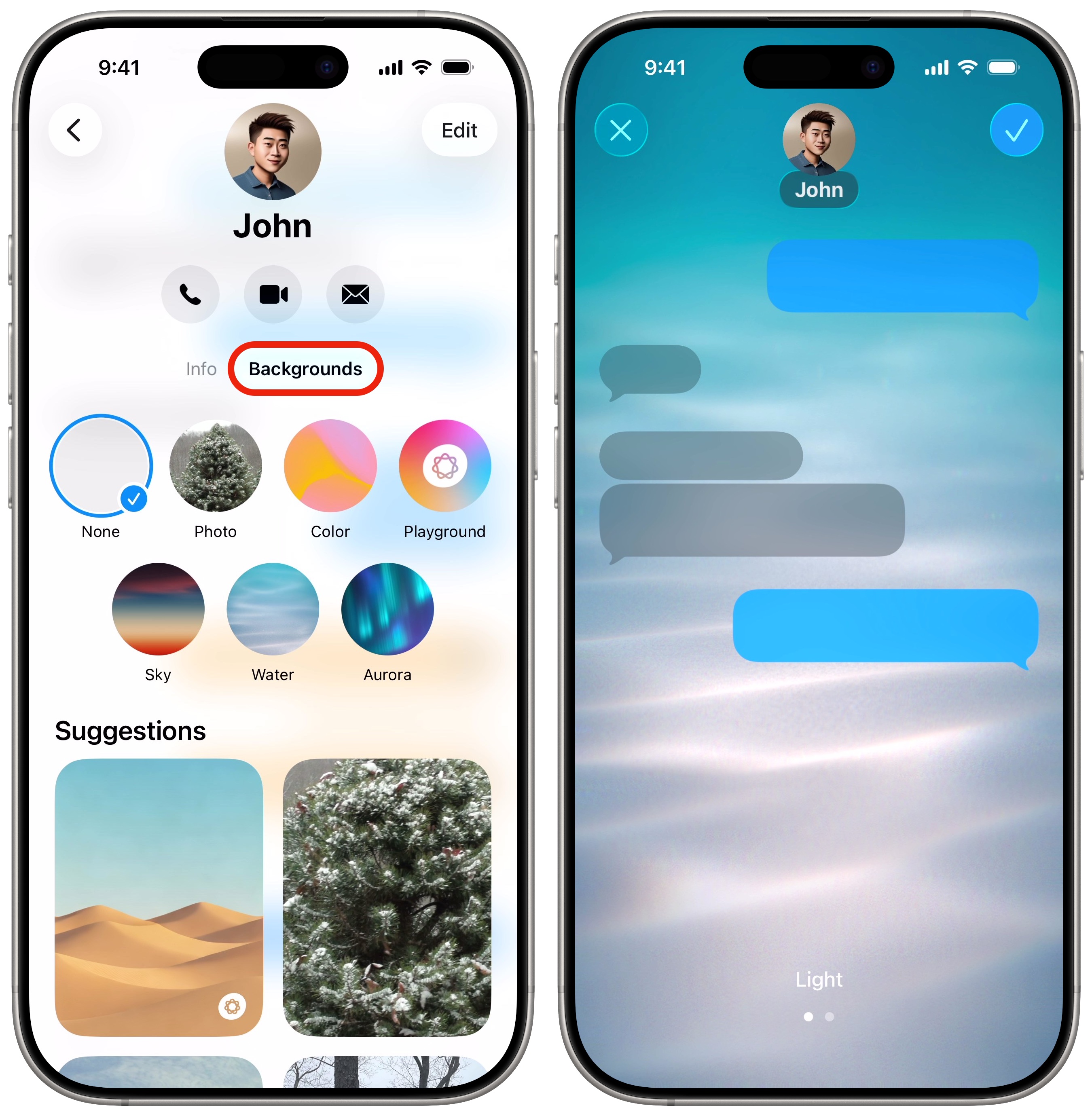
Just as you can change a group name or a group icon in Messages, you can now set a background image for group messages. (You can set a background for individual contacts, too.) This feature is also limited to iMessage conversations.
This can add some personality to a group chat and make it visually stand out from the rest of your conversations. Plus, if you set different backgrounds for your partner and your parents, you’ll be much less likely to text the wrong person accidentally.
Tap on the contact or group name at the top of the screen, then tap Backgrounds. You will see several choices:
- Photo will let you choose an image from your photo library.
- Apple includes a few animated backgrounds: Color, Sky, Water and Aurora. Each of these comes with a few different color options; swipe left or right to preview and choose.
- Playground lets you generate an image using Image Playground, if you’re using an iPhone that supports Apple Intelligence. (Read more about Apple’s tool: How to make AI images on your iPhone with Image Playground.)
- Suggestions will look for nice pictures in your photo library that could be background-worthy. Scroll through the list and tap on one for a preview.
- And, if you don’t like the background, you can tap None back at the top of the list for a plain background.
Personally, I only used background images ironically. But with the right crowd, it could be fun.
Request group payments in the Messages app
Screenshot: D. Griffin Jones/Cult of Mac
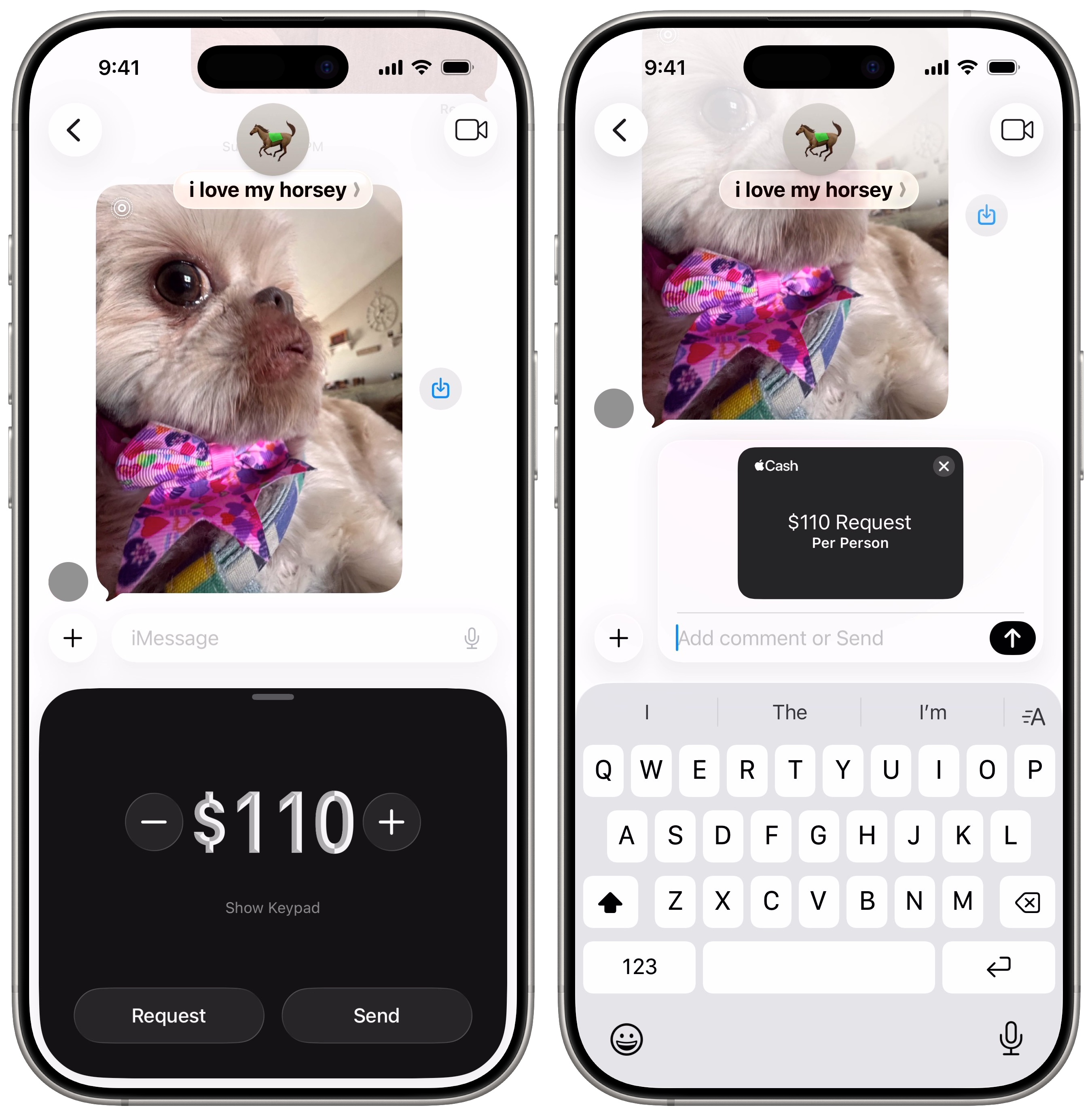
In iOS 26, you can now request group payments using Apple Cash right in the Messages app. You don’t need to go around requesting money from each person. Just drop the request in the group chat, and everyone can pay you back at once.
To request payment, tap the Add (+) menu to the left, then tap Apple Cash. You can tap the + and − to enter a number, or swipe up to type in a precise amount. Alternatively, tap Request Without Amount, and everyone can pay back different quantities. (Choose this if some people owe more than others.)
If you want, you can type a message to include. To issue the request, just tap Send. You’ll be notified when people fulfill your request.
Hide texts from unknown numbers
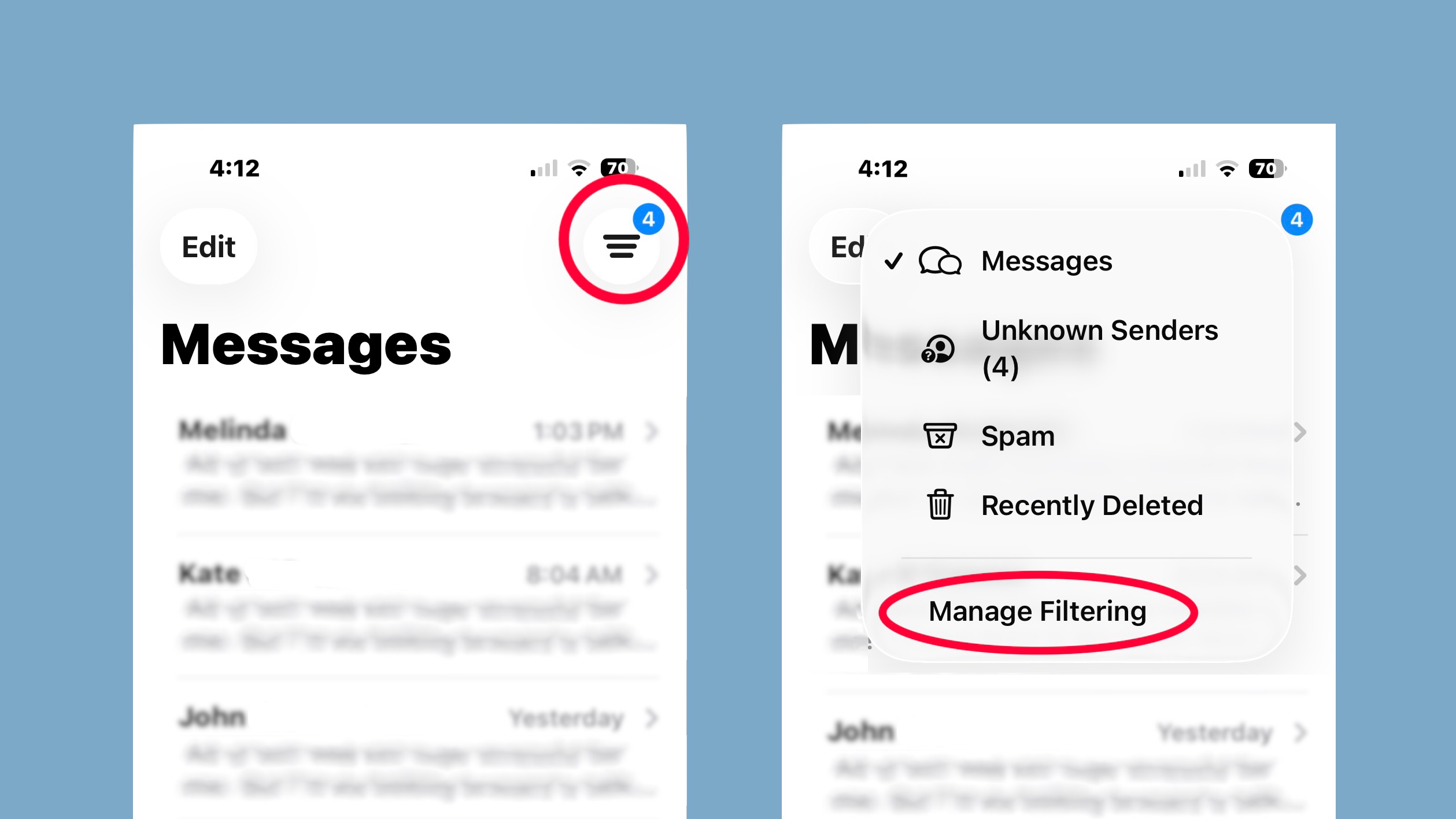
Screenshots: Ed Hardy/Cult of Mac
To cut down on spam, promotions and other irritating junk, the Messages app now automatically filters out texts from unknown numbers. (The new Phone app in iOS 26 does the same thing with unknown calls and voicemails. For more info, read: How to use the new Phone app or get the old one back.)
To see the messages from unknown numbers, tap the Filter button in the upper right of your Messages list. The app sorts them into a few different categories: Unknown Senders, Transactions, Promotions and Spam. Tap on a category to switch to that list; tap the Filter button and go back to Messages to see your normal conversations again.
You’ll also see Drafts if you have any messages you’ve started to type but haven’t finished.
Tap Recently Deleted to see texts and conversations you’ve erased. You have 30 days to recover them before they disappear forever.
If you don’t want the Messages app to hide messages from unknown numbers, tap Manage Filtering. That’ll take you to the screen in Settings where you can disable the feature. Turn off Screen Unknown Senders to see all messages in one list again. If you’re all right with being spammed as well, tap Text Message Filter and set it to None — but I really don’t recommend doing that.
Automatically translate messages
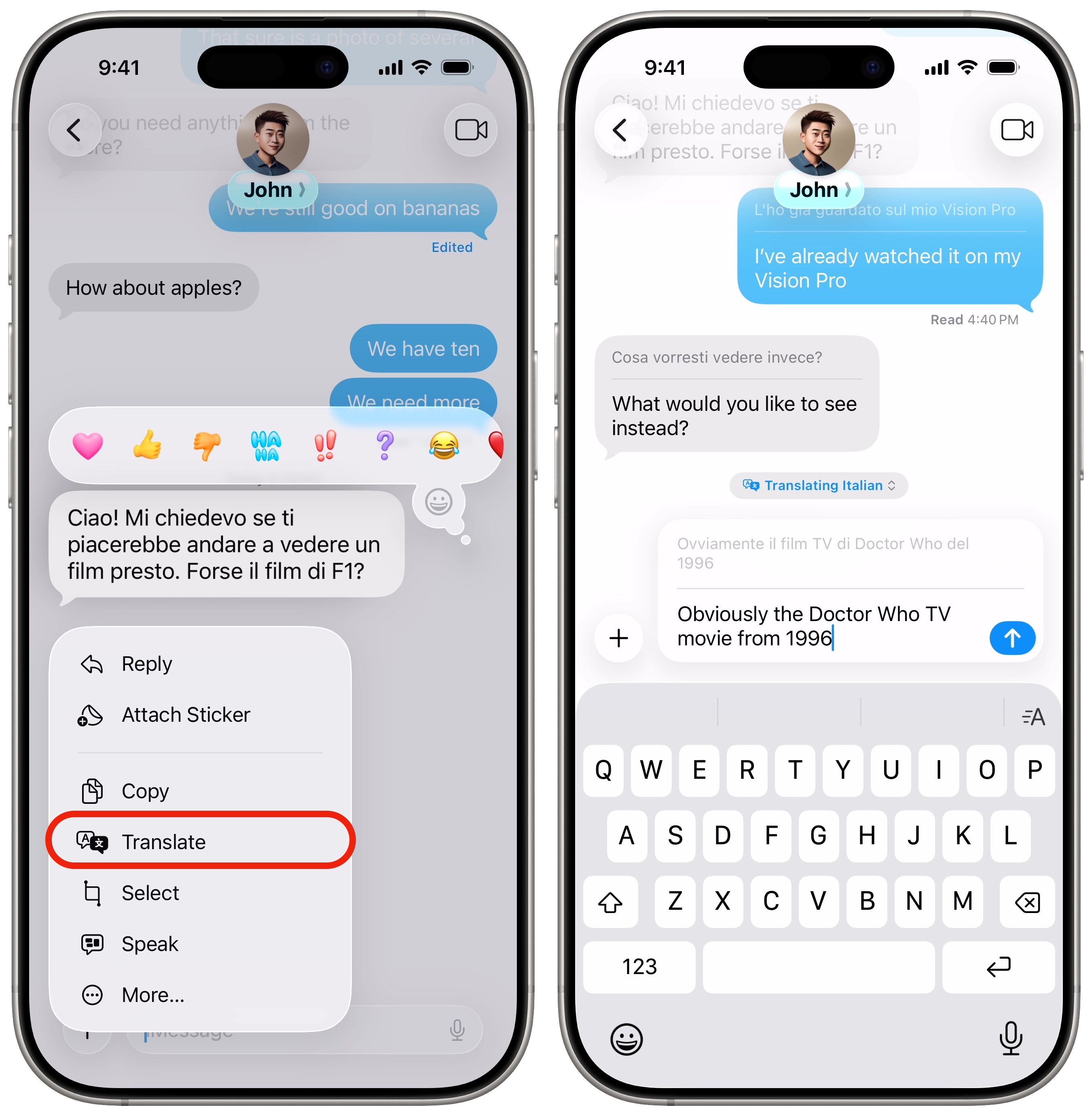
Screenshot: D. Griffin Jones/Cult of Mac
If your iPhone supports Apple Intelligence, you can see live translations of messages sent in another language. This feature is supported on the iPhone 15 Pro, iPhone 16 and all later models.
When you receive a message in a foreign language, tap and hold on it, then and tap Translate. You’ll see a pop-up that asks if you want to translate only the one message, or the whole conversation. Tap Translate Message and you’ll see a pop-up that translates the text into your system language.
Tap Translate Conversation if you want to carry on with a bilingual chat. You’ll need to choose and download a language to continue. As you type in a reply, a translation for the other language will appear in real time. Any follow-up messages the other person sends will have an inline translation as well.
You’ll see a button at the bottom of the conversation that says Translating. If you don’t need to see the other language, tap on it and tap English Only. (That will obviously vary if your device’s native language isn’t English.) You can also tap Stop Translation to turn off Messages’ translation feature.
And finally … iOS 26 brings typing indicators to group messages
Last, but certainly not least, you’ll now see typing indicators from other members in a group text who have updated to iOS 26. This tells you if someone’s in the middle of writing a reply. If you see the three dots popping up, you might as well wait to see what they say.
More features in Messages
- Edit or unsend messages, soon after sending them, if you make a mistake.
- Schedule texts to send later on iPhone to make sure you never forget to send a reminder, birthday greeting or early morning message for someone in a different time zone. You can schedule a whole slew of texts up to a week in advance, with links, photos, attachments and more.
- iMessage effects can add much more meaning, emotion and fun to your texting. You can add bold, italics, underline and
strikethroughtext, just like a formatted document, and even choose from a bunch of cool, animated effects. - Check In is an iPhone feature that tracks your travels and lets contacts know when you’ve safely reached your destination.

D. Griffin Jones was a writer, podcaster and video producer for Cult of Mac. Griffin has been a passionate computer enthusiast since 2002, when he got his first PC — but since getting a Mac in 2008, he hasn’t turned back. His skills in graphic and web design, along with video and podcast editing, are self-taught over 20+ years. Griffin has a bachelor’s degree in computer science and has written several (unpublished) apps for Mac and iOS. His collection of old computers is made up of 40+ desktops, laptops, PDAs and devices, dating back to the early ’80s.
Griffin writes for his personal blog, Extra Ordinary, and is currently looking for work.

