If you come across a live concert recording, a demo track or an indie song that’s not already in Apple Music, you can add it to your Apple Music library really easily. It’s simple to upload music to Apple Music and, in fact, you don’t even need an Apple Music subscription — just a computer and your iPhone.
Adding music to your library manually used to be the only way to listen to music on your computer, way back before the iTunes Music Store made paid downloads popular and Apple Music entered the streaming area. Even after 25-plus years, Apple still supports the feature — and thankfully so, because I use it all the time.
It’s the top reason why I don’t use Spotify. While Spotify technically supports custom music as well, it’s a convoluted and clunky process. On Apple Music, it’s dead simple to add your own tracks and only takes minutes. All you need is a Mac or a Windows 10 PC with iTunes.
Here’s how it works — keep reading or watch our quick video.
How to upload music to Apple Music
Apple Music‘s massive catalog contains “over 100 million songs,” according to Apple. But it doesn’t have everything. You can find tons of live concert recordings on YouTube and archive.org that don’t exist in Apple Music’s expansive library.
Luckily, adding your own songs to Apple Music is basically as simple as drag-and-drop. You can even fully edit all the metadata and artwork to make it your own. And if you do pay for an Apple Music subscription, the tracks you add will automatically appear on your iPhone, iPad and all your other Apple devices.
Spotify offers a much more limited version of this feature — which is why I’ve been a life-long iTunes (and later, Apple Music) user.
Table of contents: How to upload music to Apple Music
- Rip or download MP3 files
- Drag it into the Apple Music app
- Edit the metadata and artwork
- Make a copy of your polished tracks
- A few issues with custom music
- More Apple Music tips
Rip or download MP3 files
Screenshot: D. Griffin Jones/Cult of Mac
The first step in adding music to Apple Music is to … acquiring the music. Apple Music supports AAC, AIFF, MP3, WAV and HE-AAC files (whatever those are).
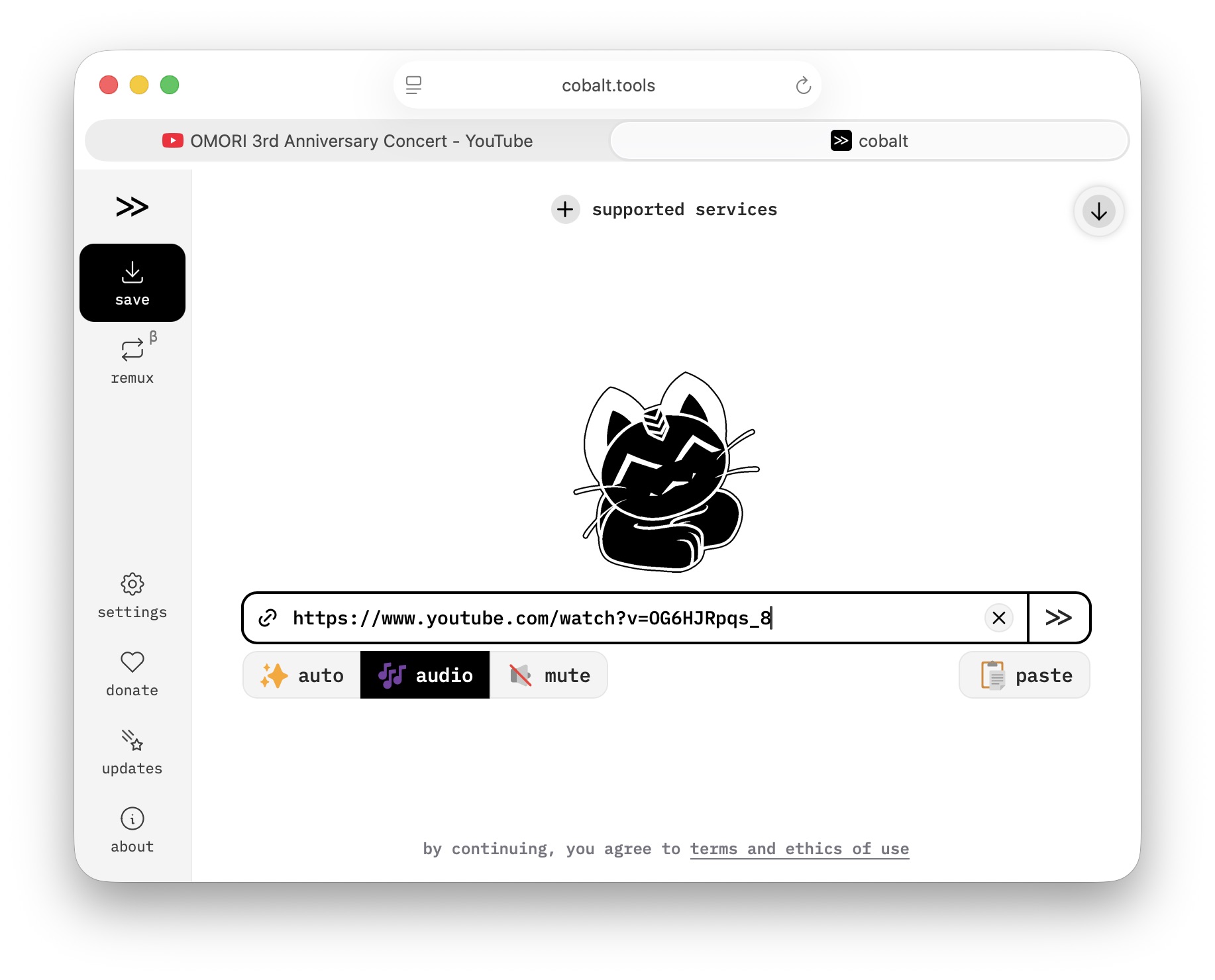
If you want to pull music from a YouTube video, you can use the free and convenient website cobalt.tools (or a video downloading app). On the cobalt.tools site, just click audio, paste in the YouTube URL, and click >>. After it processes, click Download to save the resulting MP3.
If you’re dealing with a concert that isn’t separated into individual tracks, you can separate them yourself using an audio editor like Audacity or GarageBand.
Upload your music files to the Apple Music app
Screenshot: D. Griffin Jones/Cult of Mac
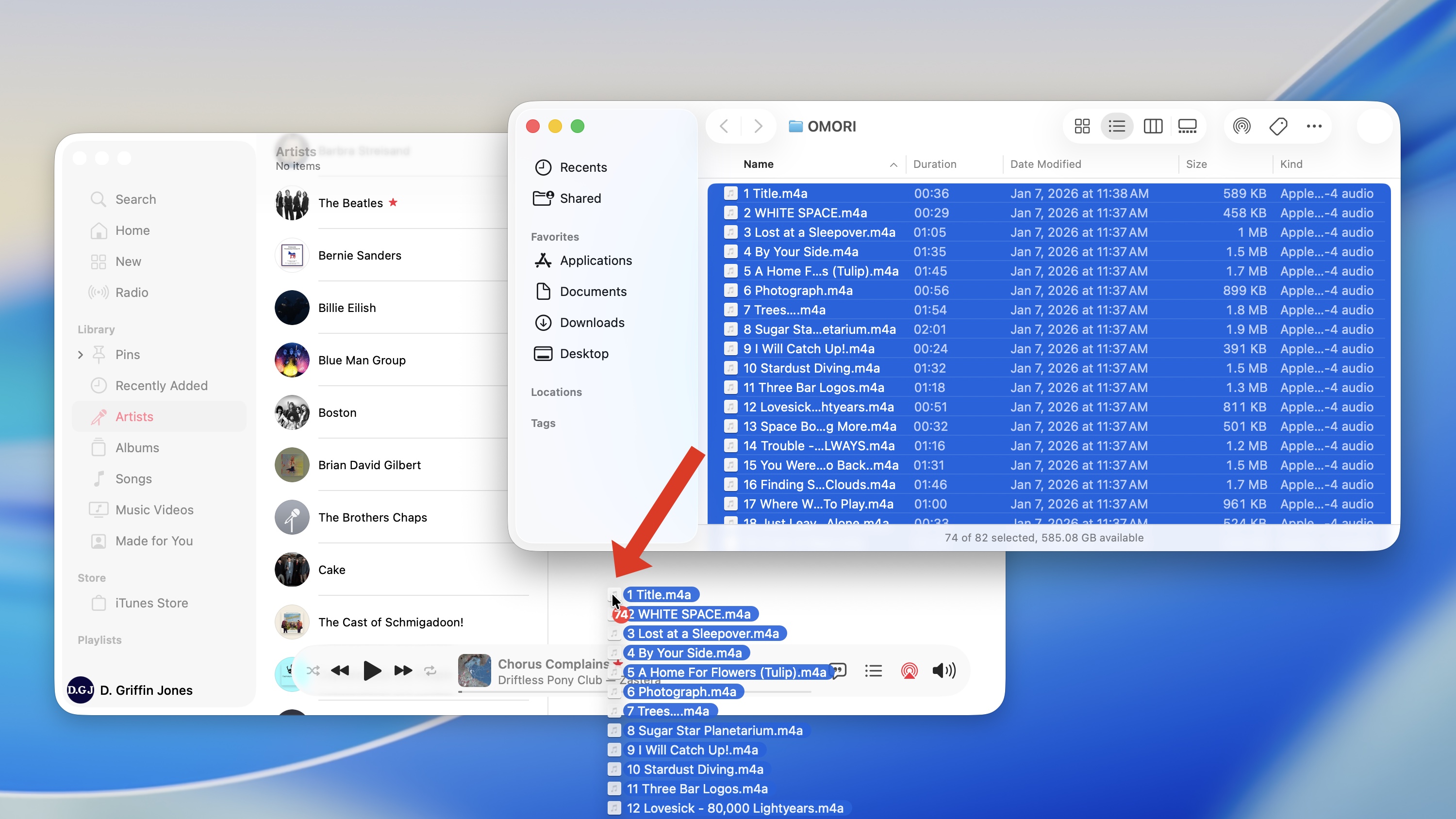
If you’ve downloaded music files, using the method above or otherwise, you will probably find them in your Downloads folder. To locate them, open the Finder, then go to Downloads (⌥⌘L). Select all the songs you want to add to Apple Music, then just drag the files into the Music app. (On a Windows PC, drag it into the iTunes app.)
If you have an Apple Music subscription, the tracks will automatically sync to your iPhone. Otherwise, you can plug your phone into your Mac and sync it from the Finder.
Edit the metadata and artwork
Screenshot: D. Griffin Jones/Cult of Mac
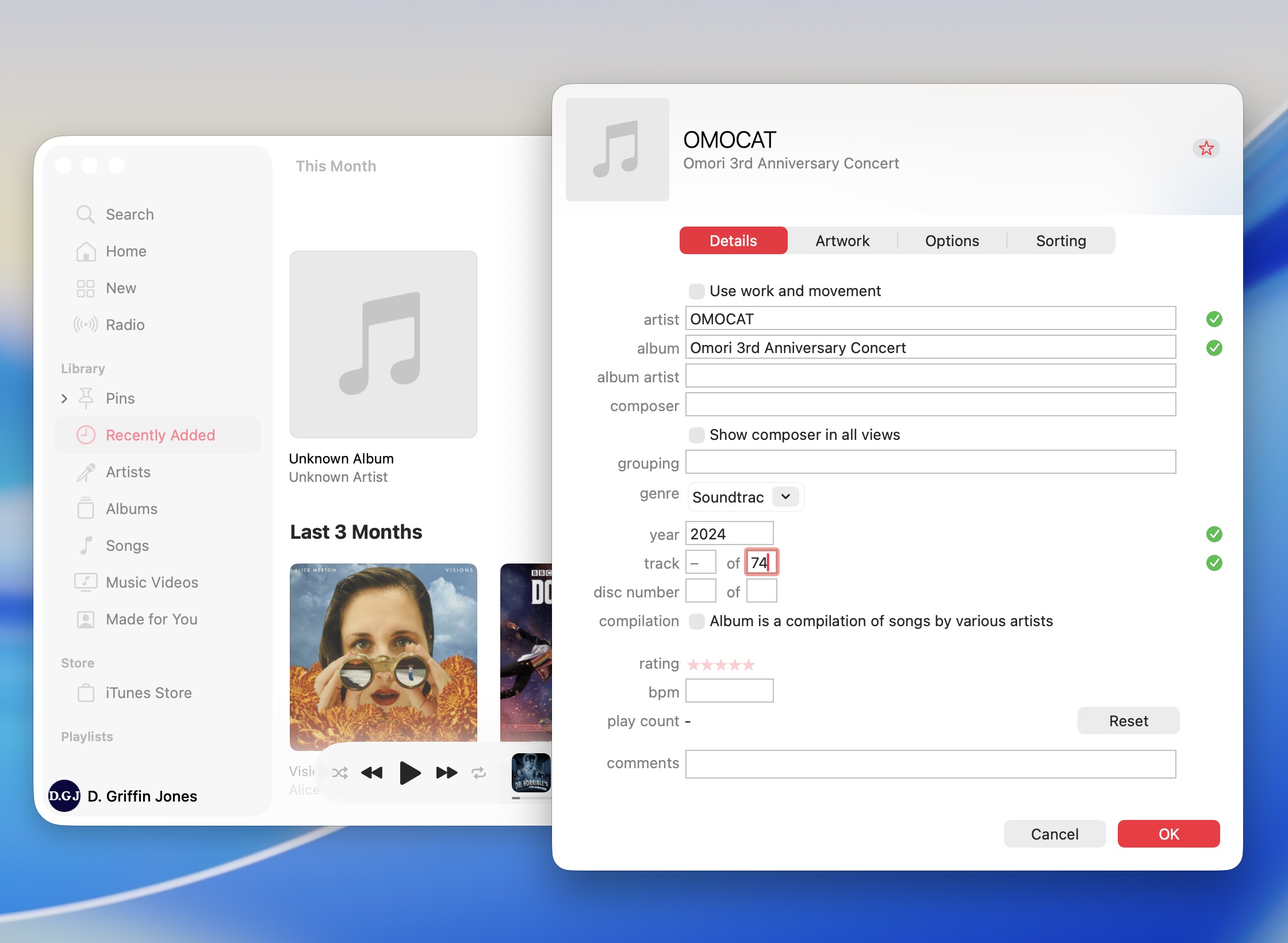
If the song titles, album name, artist name, track numbers and album artwork aren’t added automatically — or aren’t correct — you can edit all that metadata yourself.
In the Apple Music app (or iTunes for Windows), go to the Recently Added section. You should see the music you just added — it may have the generic name of “Unknown Album.”
Once you find the music you added, just right-click the album and select Get Info. You can enter the name for the artist and album; this will affect all the songs at once. I also add in the musical genre and year. In the Artwork tab, you can drag in a picture to use as the album image. Ideally, it should be a square image, 3,000 × 3,000 pixels. However, it’ll accept any JPEG you drop in. Click OK to save your edits.
Next, click into the album, right-click on one of the tracks, and select Get Info. From there, you can edit the song’s title and track number. If any of the data for a specific song is different from the rest of the album, you can change it as well. You can even add in lyrics — click the Lyrics tab, select Custom Lyrics, then type or paste in the lyrics. Click OK when you finish.
Any changes you make will sync to all your devices if you pay for an Apple Music subscription. If not, you can plug in your iPhone to sync changes from your computer.
Make a copy of your polished tracks
Screenshot: D. Griffin Jones/Cult of Mac
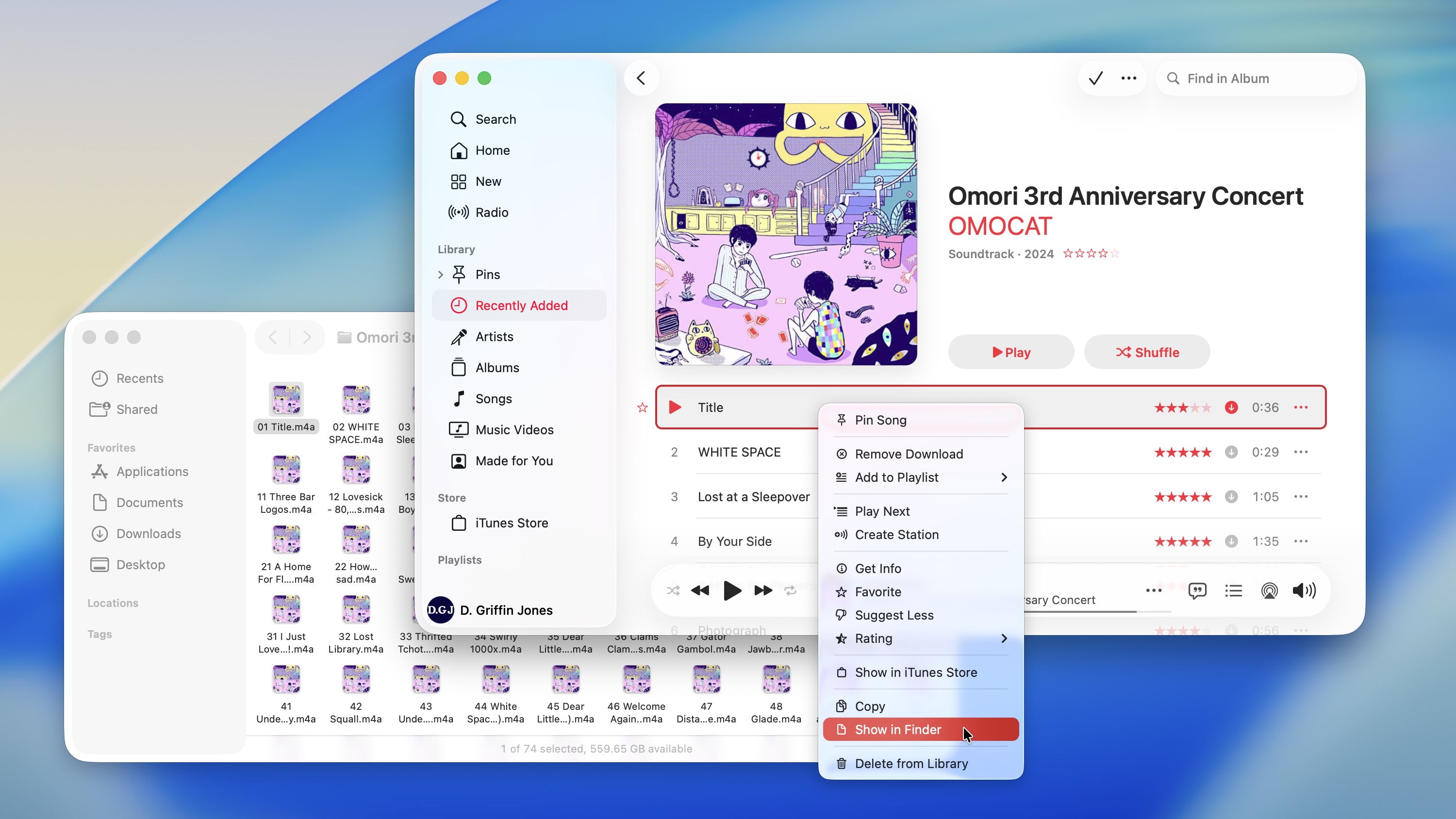
After editing and cleaning up the music in your library, the files in your Downloads folder won’t get the same changes. That’s because the Music app stores its version of the files in a different folder. Luckily, though, it’s easy to find — so if you want to share your music with someone else, they can get the version with all your edits in tact.
Right-click on any song in the album and click Show in Finder. That’ll take you to the folder with all the cleaned-up files. If you added album artwork, you’ll see that each of these files uses it as its thumbnail. You can easily identify these as the proper versions.
Go one level up to its parent folder (⌘▲) then copy the album folder (⌘C). I recommend going to your user folder (⇧⌘H), clicking on the Music folder and pasting it here (⌘V).
A few issues with custom music
A few Apple Music features don’t play nicely with custom music you’ve uploaded:
- You can’t add custom music to a shared playlist, only music that exists in the Apple Music catalog.
- Custom music doesn’t appear in your Apple Music Replay at the end of the year. Stats like top artist, top album and top songs for the month and year won’t be accurate.
- You can’t use karaoke mode on custom music.
More Apple Music tips
- Apple Music Replay shows you the top songs, artists, albums and more detailed stats for a whole year, and makes an annual playlist of your top tunes.
- Apple Music Classical is a bespoke app and interface (free with an Apple Music subscription) for playing classical music.
- You can queue songs to automatically build an Apple Music playlist. You can set a song, album or playlist to play next, or add it to the end of the queue, with simple gestures and controls.
- Apple Music’s karaoke mode turns down the vocals on tracks so you can sing along at a party or in the car.
- Music Haptics lets you feel the beat of the music right in your hand.

D. Griffin Jones was a writer, podcaster and video producer for Cult of Mac. Griffin has been a passionate computer enthusiast since 2002, when he got his first PC — but since getting a Mac in 2008, he hasn’t turned back. His skills in graphic and web design, along with video and podcast editing, are self-taught over 20+ years. Griffin has a bachelor’s degree in computer science and has written several (unpublished) apps for Mac and iOS. His collection of old computers is made up of 40+ desktops, laptops, PDAs and devices, dating back to the early ’80s.
Griffin writes for his personal blog, Extra Ordinary, and is currently looking for work.

