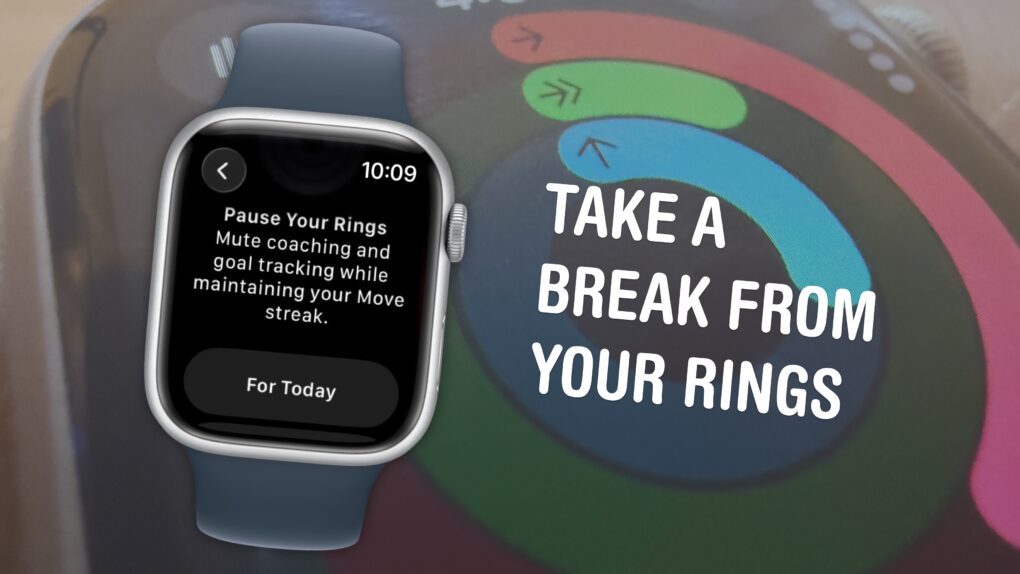
The Apple Watch doesn’t just count your steps — its three Activity rings track different levels of energy you burn throughout the day. And the perpetual challenge to “close your rings” provides a motivational push that gamifies fitness.
Apple’s smartwatch gives you a bunch of options for customizing your Activity rings (and for taking a break when you need it). You can set different goals for each ring for different days of the week to fit your workout schedule. When you want a rest day or if you fall ill, you can take up to a month-long break without losing your streak.
If you’re all-in on the fitness tracking, you can add widgets that show your rings on your Apple Watch face and widgets on your iPhone. Or, on the other hand, if you find it all a bit annoying, you can turn off all the notifications so they won’t bother you anymore.
Here’s everything you need to know about the Apple Watch’s Activity rings.
How to use Apple Watch Activity rings
In an era where gadgets can quantify everything from sleep to steps, the Apple Watch’s Activity rings stand out as a fun and effective way to encourage users to get off their duffs and exercise. The colorful concentric circles can either motivate or guilt-trip you through your day.
However, for some users, the Activity rings prove more cryptic than empowering. What, exactly, counts toward your daily Move, Exercise and Stand goals? How do those calories burned really add up? And how can you bend the Apple Watch‘s logic to your own rhythm?
Cult of Mac’s guide to the Apple Watch’s Activity rings decodes the rules of Apple’s fitness game so you can close your rings without feeling like you’re running on a hamster wheel.
Table of contents: How to use Apple Watch Activity rings
- Meaning of the Apple Watch rings
- Adjust your Activity ring goals
- Pause your rings and streak
- Add a widget or complication
- Turn off or change notifications
Meaning of the Apple Watch rings
There are three Apple Watch rings that represent different tiers of activity:
- Stand measures how many hours of the day you stand up for at least a minute.
- Move measures your active calories burned in the day.
- Exercise measures the number of minutes you spend being active.
You don’t need to work out every day to close your Activity rings. Anything can contribute to your daily activity, from jogging up a flight of stairs to running around with a dog outside. Apple defines exercise as anything “at or above a brisk walk.” (For a deep dive into how Apple Watch measures calories burned, read our how-to: Why your Apple Watch credits you with fewer calories than you expect.)
As you work toward your daily goal, the rings will progress toward completing a full circle. If you complete all three, your Apple Watch will send you a congratulatory message.
Adjust your Activity ring goals
Screenshot: D. Griffin Jones/Cult of Mac
You can adjust the Activity ring goals to match your activity level, whether you want something you can easily and realistically achieve in a day or prefer to set a tough goal you’ll need to work hard to finish.
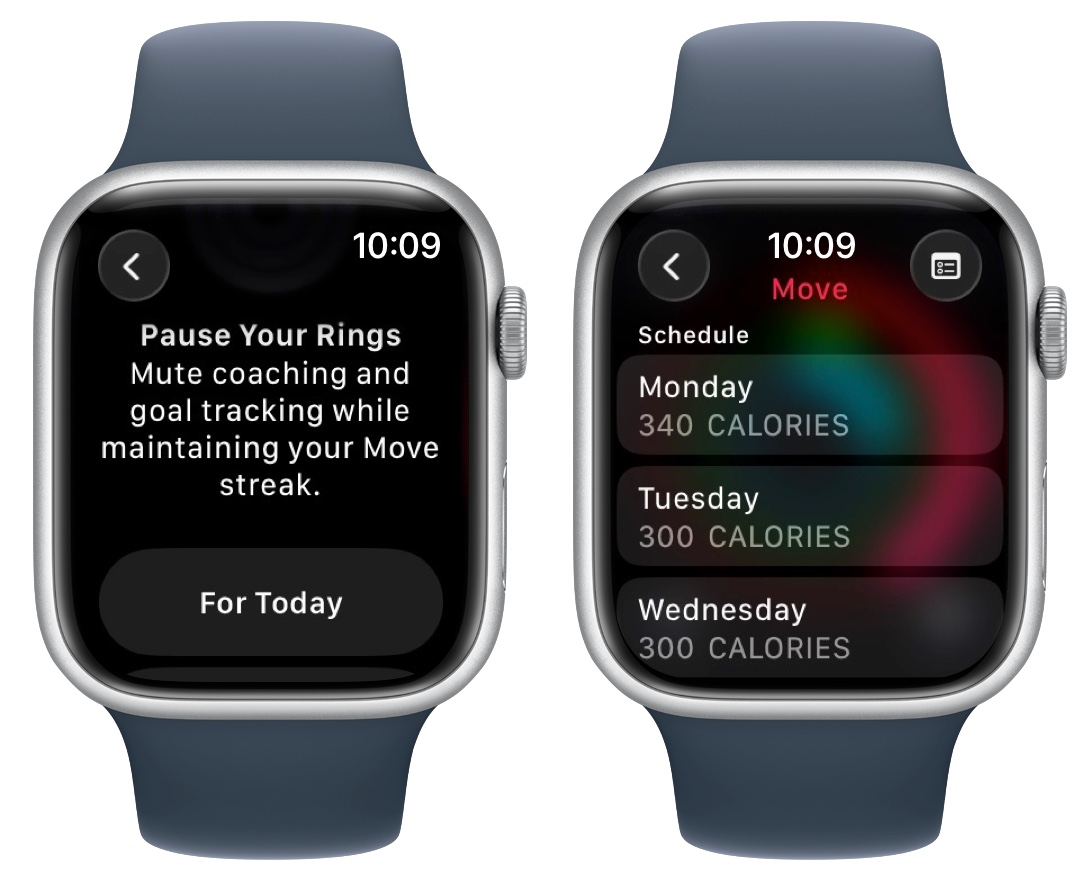
To tweak them on your Apple Watch, click the Digital Crown and then open the Activity app. Tap your rings and tap Change Goals. You can tap + or − to adjust the level, or spin the Digital Crown. The app will let you adjust each goal separately.
If you want to set different goals for different days of the week, tap the Goal Type button in the upper right and tap Schedule. Each Activity ring can have a different goal for each day of the week. This is handy if you work out on specific days of the week, or if you want to push yourself to stand more on weekdays at the office.
Pause your Activity rings and streak
You can take a break from exercising if you fall ill, suffer an accident, or simply want to take it easy for a spell. To pause your streak, just go to the Activity app on your Apple Watch, tap on your rings, and tap Pause Rings.
Scroll down and select how long of a break you want to take — today, a week, a whole month or a custom number of days up to a month. You won’t lose your streak, but the numbers won’t increase while it’s paused. Your streak will continue to increment where it left off when the break ends.
Add a widget or complication
Screenshot: D. Griffin Jones/Cult of Mac
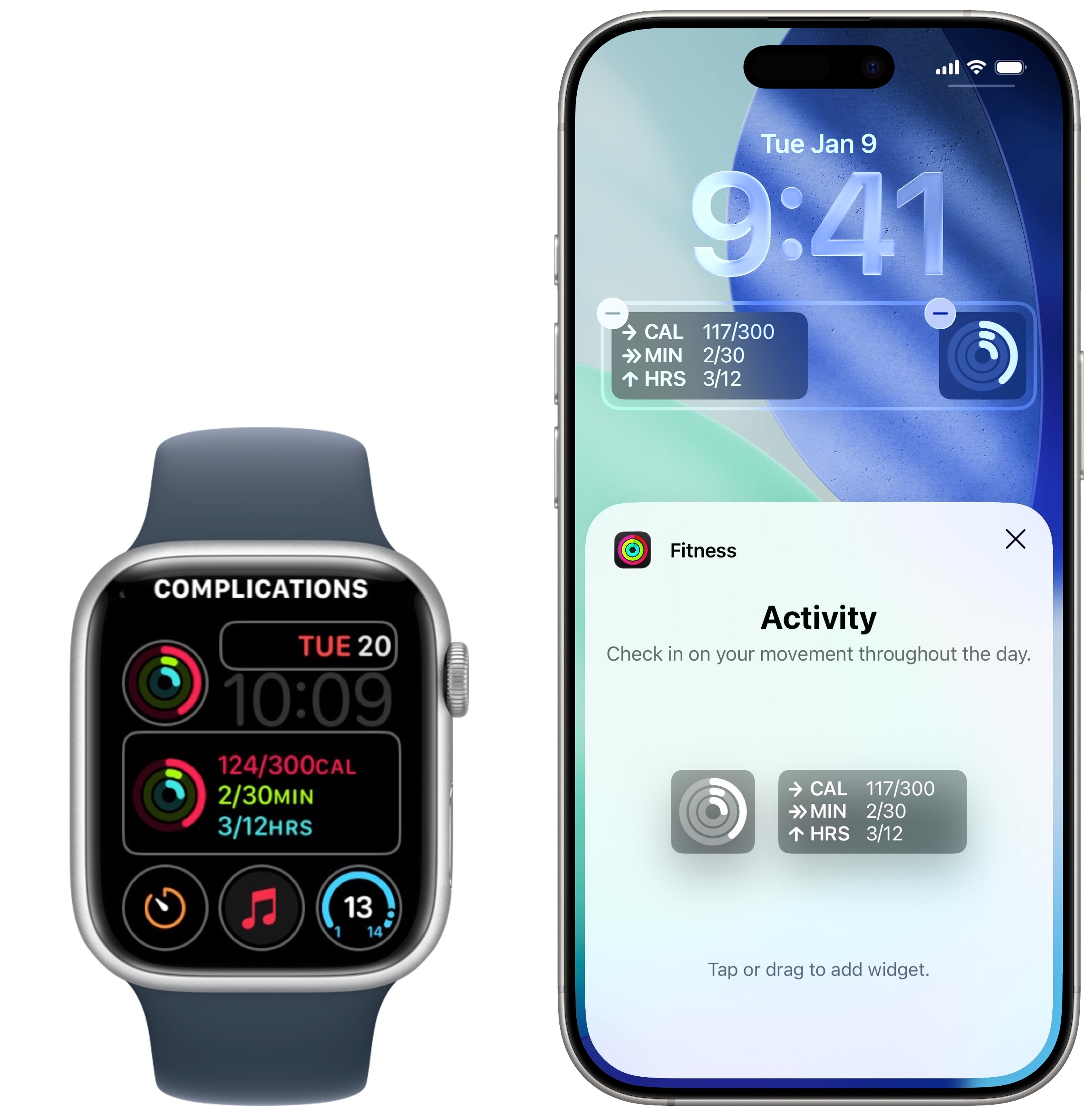
There are a bunch of ways you can keep an eye on your Activity rings throughout the day. Adding a widget on your iPhone or a complication on your Apple Watch face will put your rings front and center.
- To add an Activity complication on your Apple Watch, tap and hold on your watch face and tap Edit. Swipe left, over to the Complications tab, and tap on one you’d like to replace. Scroll up to Activity and select Rings.
- To add a widget to your iPhone’s Lock Screen, tap and hold on the Lock Screen, tap Customize, then tap Lock Screen. Tap the area underneath the clock, then tap Fitness to add your rings. You have the choice of a small widget with the rings icon or a detailed widget that shows all three numbers.
- You can add an even bigger and more obvious widget to your iPhone’s Home Screen. To do so, tap and hold on the Home Screen, then tap Edit > Add Widget. Scroll down to Fitness, then add a widget in the size you want.
Turn off or change Apple Watch’s Activity notifications
Personally, I find the Apple Watch’s stand notifications and activity reminders more irritating than helpful. Thankfully, you can customize these to suit what works best for you.
You can find these settings on your Apple Watch in Settings > Activity, or in the Watch app on your iPhone.
- Stand Reminders: Receive a reminder to stand if you’ve been sitting for the first 50 minutes of an hour.
- Daily Coaching: Get notifications that help you complete your Activity goals and Monthly Challenges.
- Goal Completions: Receive a notification when you close your Move, Exercise and Stand rings or earn an award.
- Special Challenges: Get notifications about limited-edition awards you can earn by completing a challenge.
- Activity Sharing Notifications: Receive a notification when someone who shares their Activity with you closes all three rings, finishes a workout or earns an award.
More Apple Watch how-tos
Learn more about your Apple Watch:
- What do the Apple Watch buttons do?
- How to customize Apple Watch widgets for easy access to your favorite apps
- How to use advanced Apple Watch sleep stage tracking
- How to use the Walkie-Talkie app on Apple Watch
- How to unlock your iPhone with Apple Watch
We originally published this article on Apple Watch Activity rings on October 8, 2024. We updated it with the latest information on January 27, 2026.

D. Griffin Jones was a writer, podcaster and video producer for Cult of Mac. Griffin has been a passionate computer enthusiast since 2002, when he got his first PC — but since getting a Mac in 2008, he hasn’t turned back. His skills in graphic and web design, along with video and podcast editing, are self-taught over 20+ years. Griffin has a bachelor’s degree in computer science and has written several (unpublished) apps for Mac and iOS. His collection of old computers is made up of 40+ desktops, laptops, PDAs and devices, dating back to the early ’80s.
Griffin writes for his personal blog, Extra Ordinary, and is currently looking for work.

