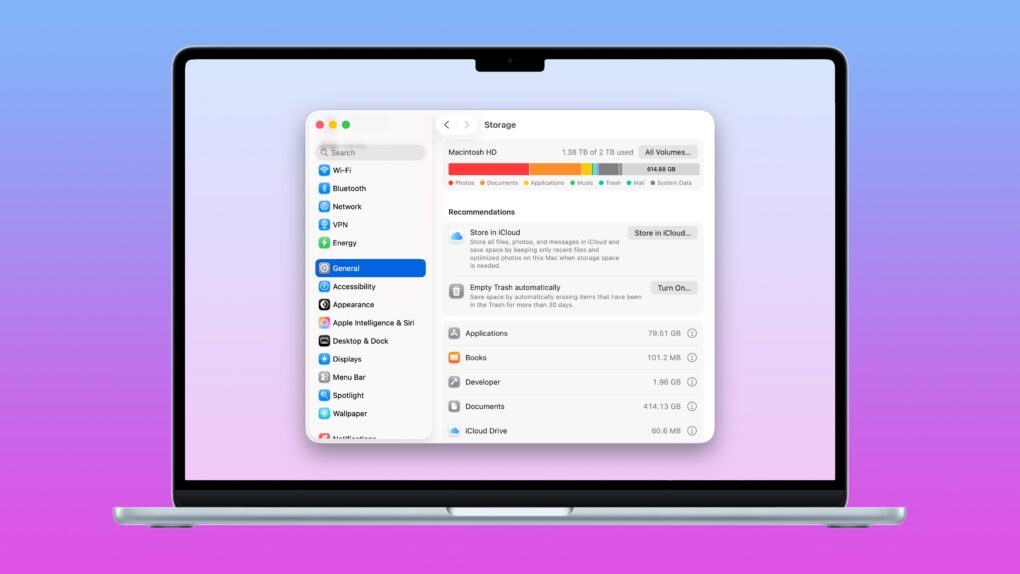
Death, taxes and running out of storage on your Mac — few things in life are as certain. If you’re experiencing the latter, before you go around deleting files, you should take stock of what’s filling up your computer. There are three easy ways to clear disk space on your Mac.
The Mac’s System Settings offers a built-in storage manager that lets you see which categories of files are filling up your drive. It makes clearing out useless junk fast and easy.
A pair of third-party apps can help out, too. Hyperspace removes duplicate data across your Mac’s hard drive, cleaning up your file system without deleting anything. And CleanMyMac can find the system files, junk and other cruft that can build up over time in places you don’t even think to check.
Whatever the reason you need more storage, read on to learn how to tidy up your Mac.
How to clear disk space on Mac
The latest Macs are all excellent computers. Since the switch from Intel chips to Apple silicon in 2020, every Mac has gotten enormously powerful. If you own one, you rarely need to think about your computer’s speed for everyday tasks.
But you’ll still likely need to deal with limited storage space. Apple charges ludicrous prices for storage upgrades. Unless you had deep pockets when you bought your Mac and splurged for maximum storage, you’ll probably need to clear up some space over time.
Here are the best strategies.
Table of contents: How to clear disk space on Mac
- Check Storage settings to clear space
- Clear duplicate data with Hyperspace
- Delete unnecessary files with CleanMyMac
- More Mac tips
Check Storage settings to clear space
Screenshot: D. Griffin Jones/Cult of Mac
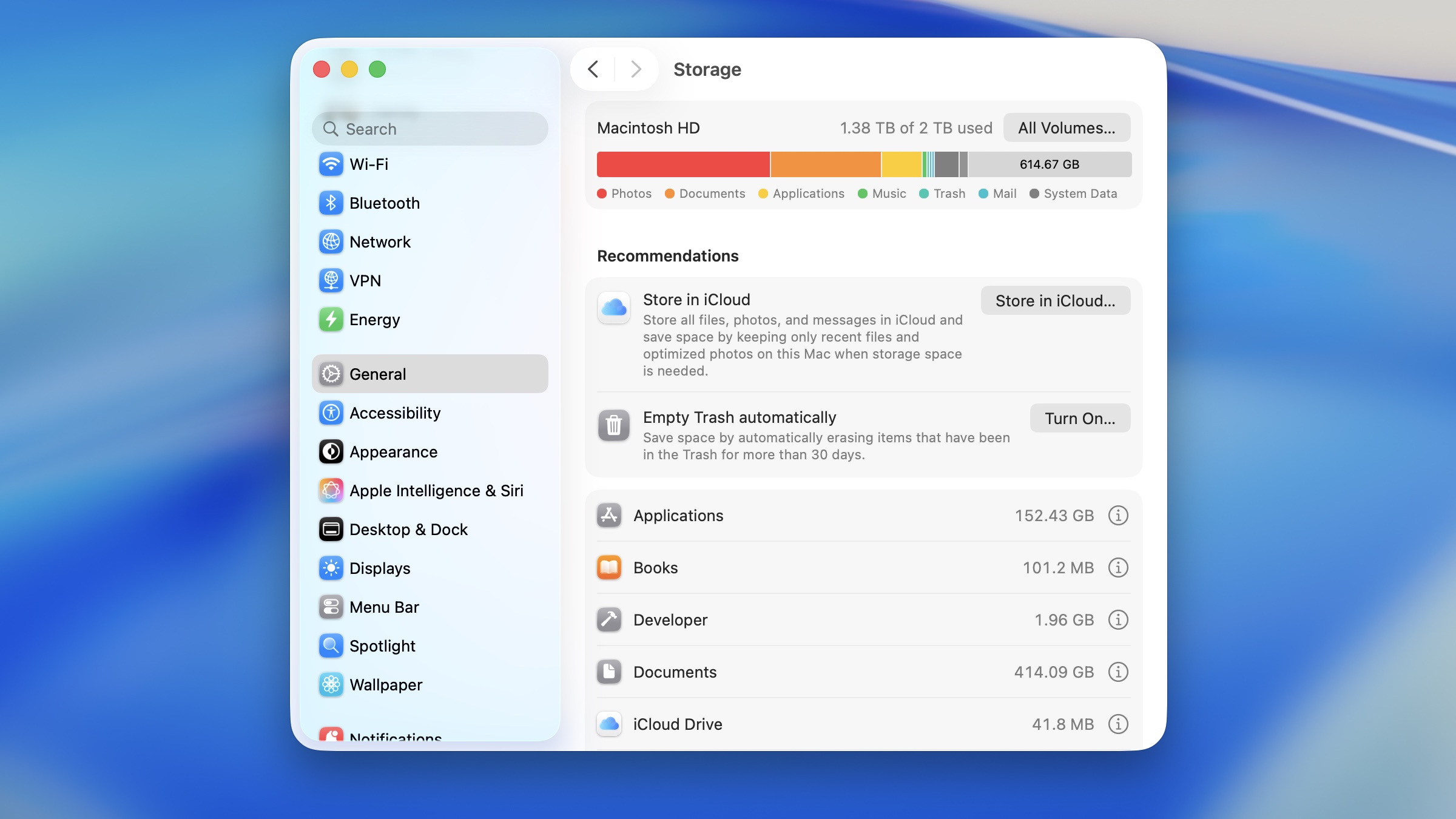
You can easily see what’s taking up the most space on your Mac’s drive. Open System Settings > General > Storage to see a breakdown. You’ll see categories like Documents, Apps, Photos, Music, Messages, System Data and Mail.
In the System Storage section, you can quickly enable some features that will free up space:
- Store in iCloud will put some of the files you don’t access very often in iCloud, clearing space from your Mac’s own storage.
- Enable Optimize Storage, and your Mac will automatically remove TV shows and movies you’ve already watched and email attachments from a long time ago.
- Empty Trash Automatically will delete files from your trash after 30 days. (You can still recover them from a Time Machine backup if you accidentally delete something.)
- Reduce Clutter will show you big files on your computer you might not need.
Note: These settings will not be visible if you previously enabled them.
See additional details about your files
Also, in each category listed below, you can click the ⓘ icon to see additional details about your files in a pop-up.
- The Applications and Documents categories show you the biggest apps and files on your Mac, so you can decide if you still need them.
- Click on the Photos category, and you can enable Optimize Photo Library, which keeps your library in iCloud and only stores your recents and favorites on your Mac.
- The Messages category shows you the largest photos and videos you’ve sent over iMessage. If it’s something worth keeping, you’ve probably already saved it to your Photos library — so you can delete them here.
- Music Creation and Developer are for GarageBand, Logic Pro and Xcode. If you don’t make music or develop apps, you can delete some of the assets there.
Clear duplicate data with Hyperspace
Screenshot: D. Griffin Jones/Cult of Mac
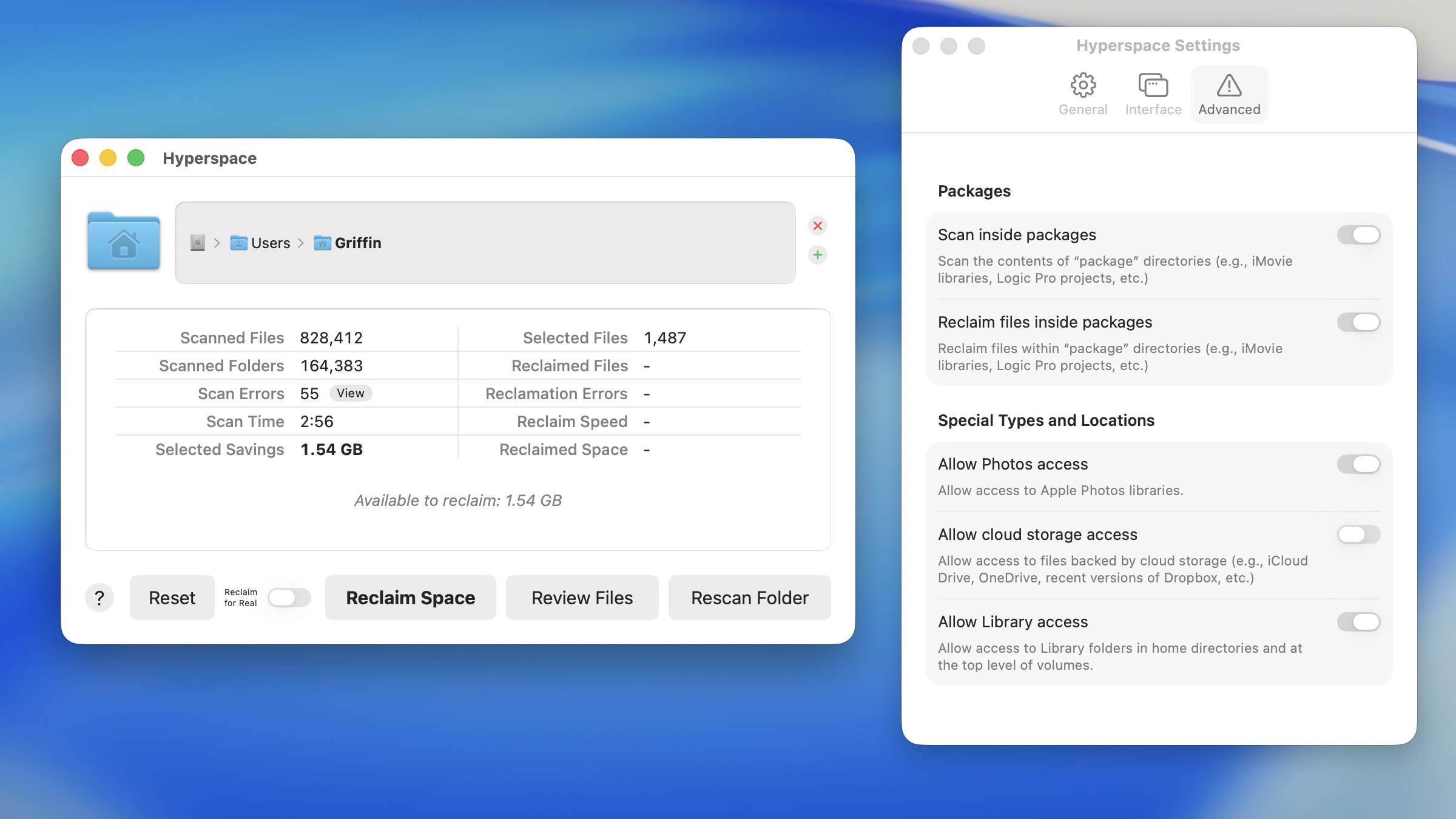
The Hyperspace app from developer Hypercritical can find duplicate data on your Mac. Due to a quirk in Apple’s file system, it’s possible you have a bunch of files with identical data that can be consolidated. Hyperspace will leave each version intact, but will mark them as duplicates, saving you space.
It’s free to make your first Hyperspace scan to see how much space the app will clear up. You only need to pay if you choose to reclaim the space. (Hypercritical offers a few choices, from one-time payments to a subscription.)
To use Hyperspace, click Choose Folder. Your user folder is a good place to start; select it, then click Open. You can add more folders by clicking +. When you’re ready, click Scan Folder. Scanning will take a few minutes, and you’ll see a few options when it’s done.
- Review Files will show you all the duplicates Hyperspace found. I recommend sorting the table by either Size or Source Path, and you can click the eye icon to see a preview of the file.
- Reclaim Space will de-duplicate your data and free up storage space on your Mac.
Dig deeper to find more files to delete from your Mac
If Hyperspace doesn’t initially find much space to clear up, but you know your hard drive is packed with projects, you might need to enable more types of files to scan. Go to Hyperspace > Settings > Advanced in the menu bar.
- Allow Photos access will let the app search through your photo library.
- Scan and Reclaim files inside packages finds duplicates inside Final Cut Pro libraries, Logic Pro projects and more. If you do a lot of creative work in Apple’s own apps, this could be a big help.
- Allow Library access scans inside the hidden Library folder of system files.
You have a few options to pay for Hyperspace. You can do a one-time purchase that unlocks the app for a month ($9.99), a year ($19.99) or forever ($49.99). Alternatively, you can opt for automatically renewing monthly or yearly subscriptions for the same prices.
Download Hyperspace from: Mac App Store
Delete unnecessary files with CleanMyMac
Screenshot: D. Griffin Jones/Cult of Mac
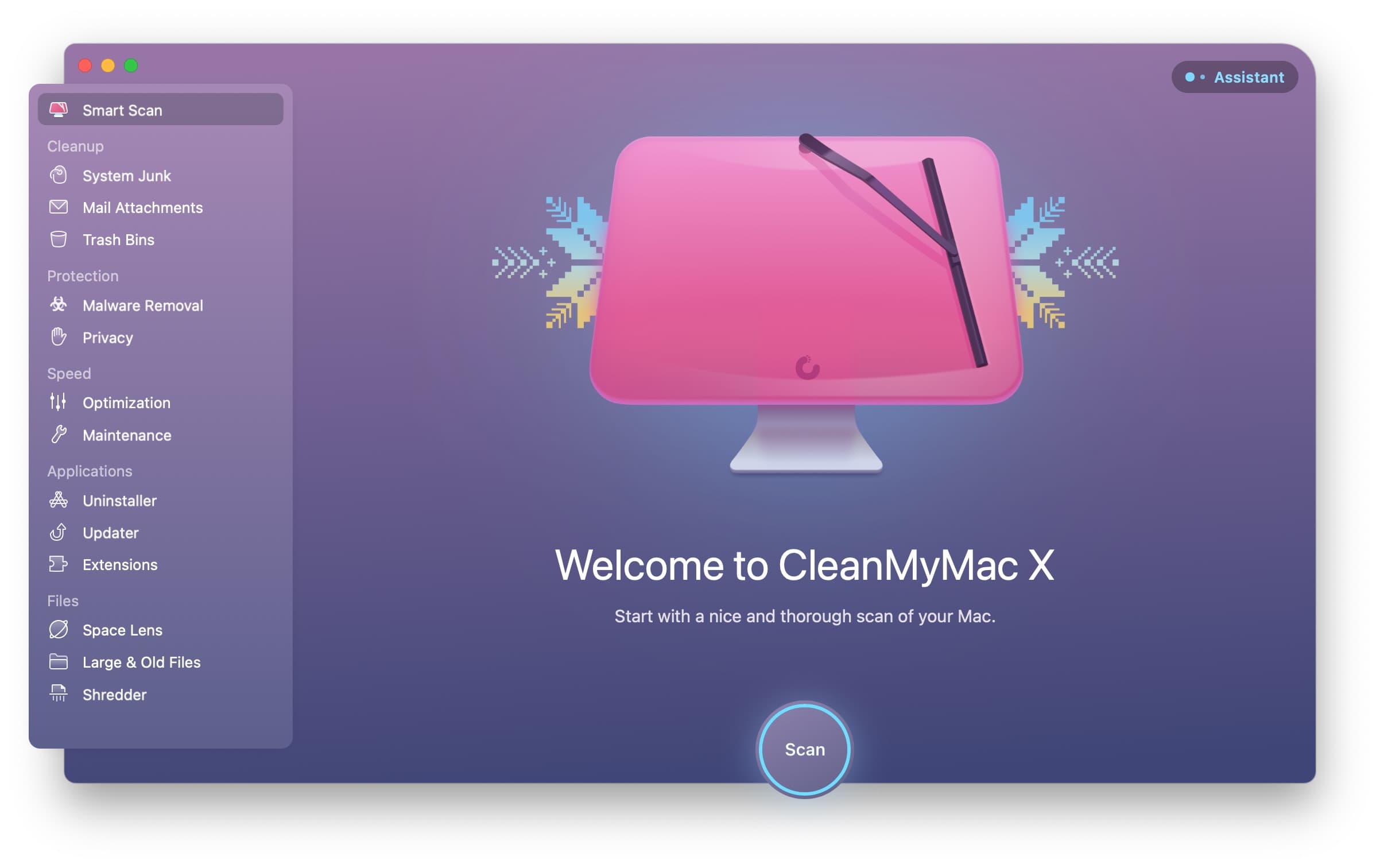
CleanMyMac, an app from Ukrainian developer MacPaw, checks every nook and cranny of your Mac’s drive. It aggressively clears out caches, removes remnants left behind by uninstalled apps, and more. It can also scan for malware, optimize performance, and keep your apps running smoothly.
You can download CleanMyMac from the MacPaw website or the Mac App Store. (The Mac App Store version is called CleanMyMac-MAS, so download the app from the website if you, like me, are bothered by that sort of thing.) The first time you open the app, you’ll be greeted by a delightful musical animation.
Before you start your first scan, you’ll need to give CleanMyMac access to all your files. Go to System Settings > Privacy & Security > Full Disk Access. Click the switch to enable CleanMyMac, authenticate with your password, then click Quit & Reopen.
Start smart
After that, open CleanMyMac and click Scan. It will run a basic scan that looks for things to clean up and delete, searches for threats, and sees what speed optimizations it can make.
When the scan finishes, click Review Details… to check out the recommendations before clicking Run to clean up. At this point, if you haven’t purchased CleanMyMac, you will need to register a product license ($39.95 for one Mac; volume discounts are available).
One more trick up CleanMyMac’s sleeve
Screenshot: D. Griffin Jones/Cult of Mac
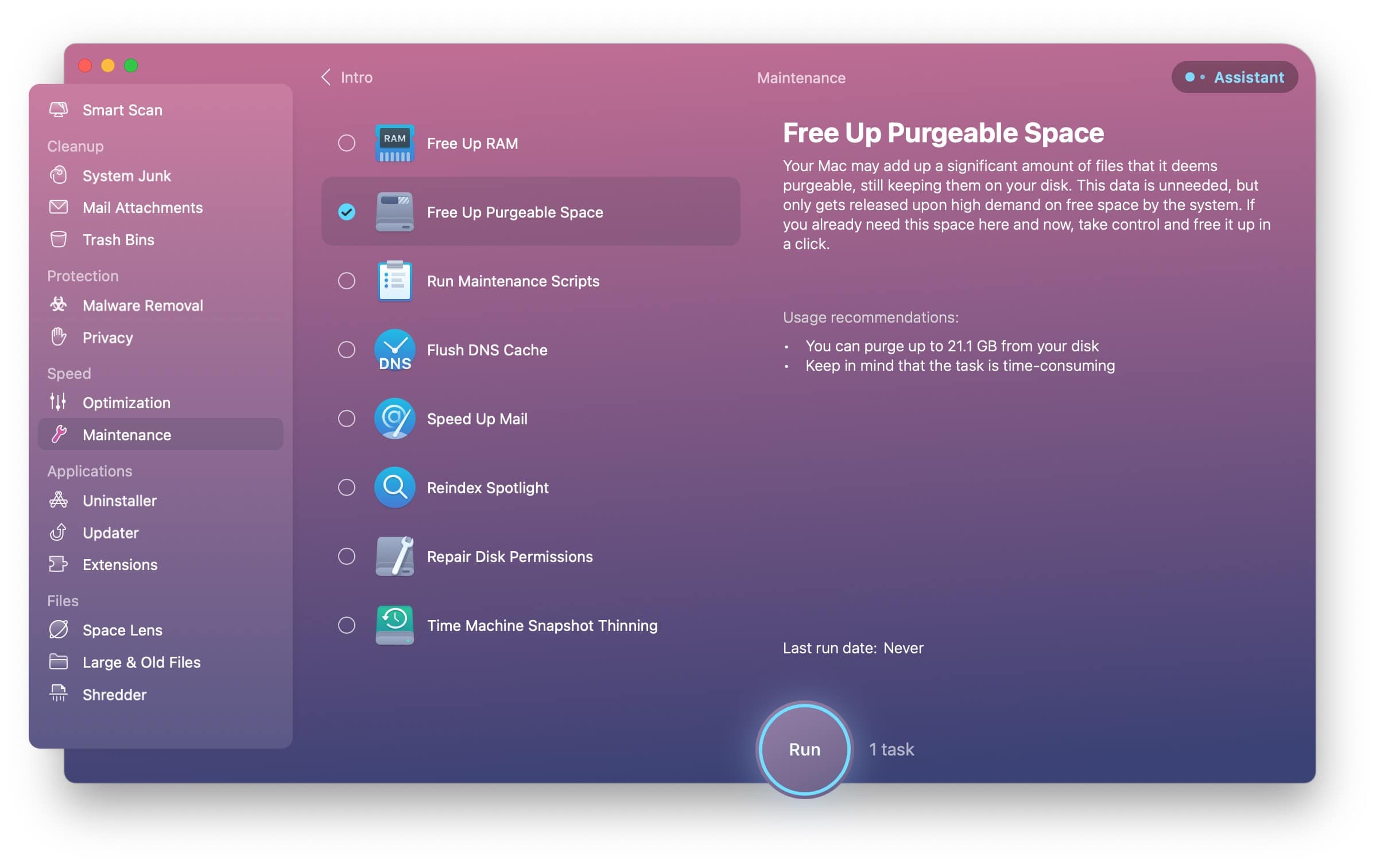
Your Mac keeps track of what files are safe to delete in case it runs low on space. This is supposed to happen automatically in the background, but the feature can be a little unreliable. You can clear out these files yourself using CleanMyMac.
To do so, open CleanMyMac, go to Maintenance, and check Free Up Purgeable Space to scan for and instantly delete these purgeable files. When I ran this, it cleared up more than 20GB of data (mostly in Xcode simulators, but hey, space is space).
After this cleanup, I recommend clicking CleanMyMac’s Assistant. It will give you more recommendations for how you can keep your Mac running snappily and show you the progress it’s made so far.
Download CleanMyMac from: MacPaw or Mac App Store.
More Mac tips
- Master Mac screenshots: Every shortcut and trick you need to know
- Everything you need to know about iPhone Mirroring on the Mac
- How to use the all-new Spotlight
- Rename multiple files on Mac the easy way
- 6 tricks to master Preview on the Mac
- How to use window snapping and tiling on the Mac
- Hidden Mac keyboard shortcuts you might not know
- How to set up the best Mac screensaver, Aerial
This article on how to clear disk space on a Mac was originally published on May 31, 2022. We updated it with the latest information on January 29, 2026.

D. Griffin Jones was a writer, podcaster and video producer for Cult of Mac. Griffin has been a passionate computer enthusiast since 2002, when he got his first PC — but since getting a Mac in 2008, he hasn’t turned back. His skills in graphic and web design, along with video and podcast editing, are self-taught over 20+ years. Griffin has a bachelor’s degree in computer science and has written several (unpublished) apps for Mac and iOS. His collection of old computers is made up of 40+ desktops, laptops, PDAs and devices, dating back to the early ’80s.
Griffin writes for his personal blog, Extra Ordinary, and is currently looking for work.

