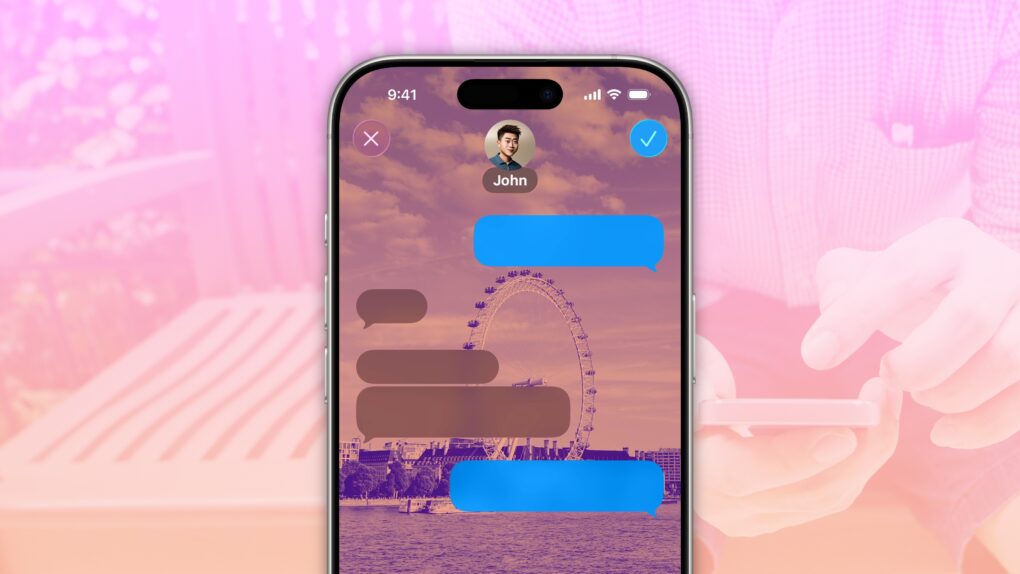
 Accidentally texting the wrong person can bring disastrous consequences, and yet it’s incredibly simple to mix up threads. Luckily, iOS 26 offers a great way to keep things straight: You can add specific backgrounds to various Messages conversations on your iPhone so you can easily tell them apart.
For instance, if you set a shimmery blue background for your group chat with co-workers, you’ll never confuse that conversation for a sensitive one-on-one text with your closest colleague. You’ll never accidentally send a message to your boss meant for your partner if the chats look obviously different.
Setting up an iPhone Messages background is super-easy — here’s how it works.
How to add a custom iPhone Messages background
Apple just keeps adding fun new features to the iPhone‘s Messages app every year. This time around, one of the biggest new features is something other messaging apps have had for a while: custom backgrounds.
iPhone Messages backgrounds provide a great way to personalize a specific chat. Just as you can give a group chat a specific name and image that appears for everybody, you can do the same with a background.
But the feature goes beyond aesthetics and can serve a very functional purpose: If you set a particular background for a particular person or group, it will be visually obvious who you’re sending a text to. Using distinctive backgrounds for various conversations makes it far less likely that you’ll get mixed up and send an embarrassing message to the wrong person or group.
Note: Apple added the iPhone Message backgrounds in iOS 26. You can set whatever background you want, but the other person won’t see it unless they’re running iOS 26, too. Plus, the custom backgrounds only work in iMessage groups — not the green bubble conversations that include Android owners.
Table of contents: How to add a custom iPhone Messages background
- Set a background from Apple’s built-in options
- Choose a custom photo
- Generate one with Image Playground
- Disable the background
- More features in Messages
Set a background from Apple’s built-in options
Screenshot: D. Griffin Jones/Cult of Mac
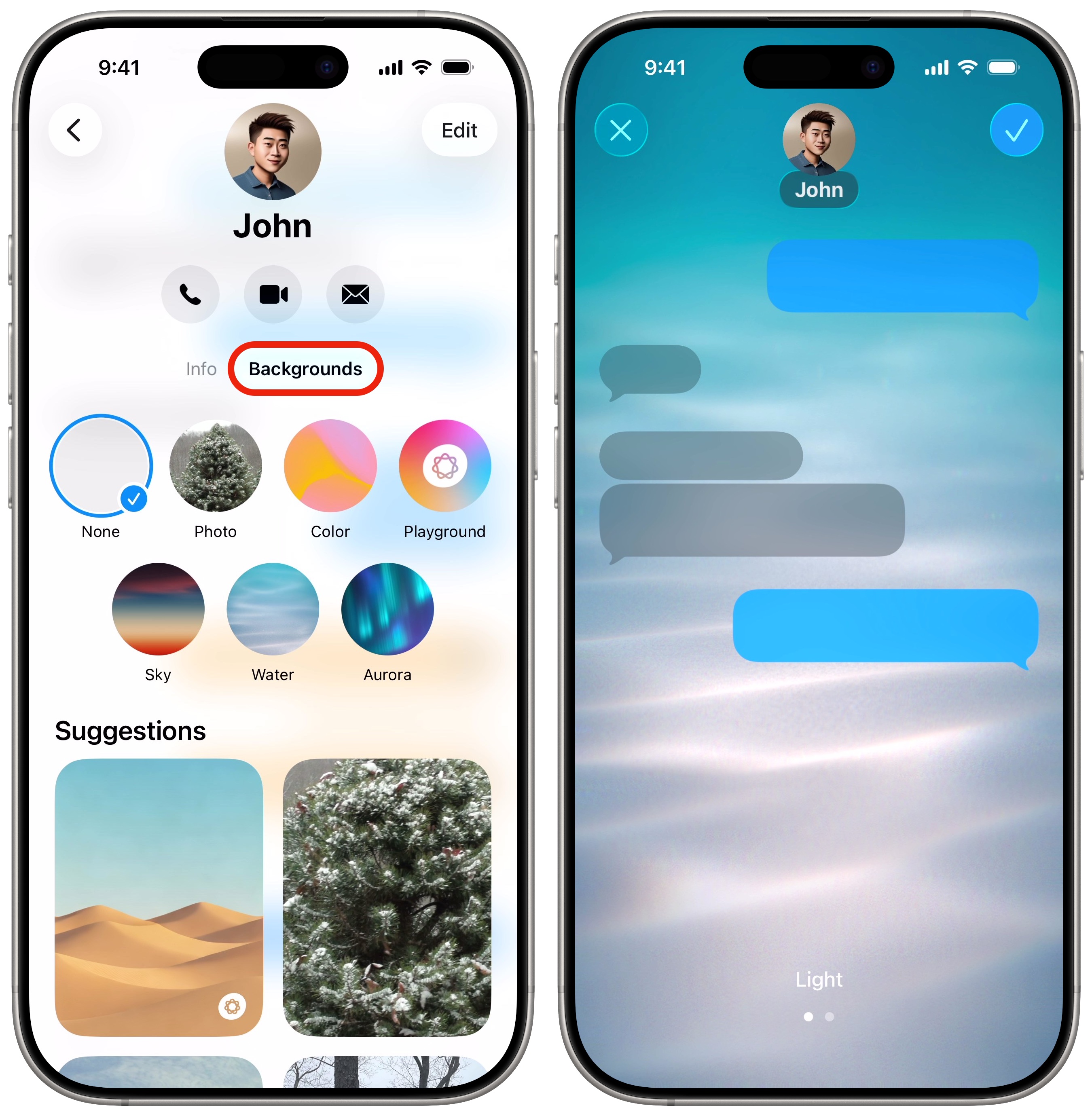
When setting up an iPhone Messages background, Apple gives you plenty of options. To choose a background for a specific thread, tap on the contact’s (or group’s) name at the top of the Messages screen, then tap the Backgrounds tab. You will see a bunch of built-in choices.
Apple offers four built-in animated ones:
- Color shows abstract colorful waves, slowly undulating like a lava lamp. Choose between mango, ice, plum, deep sea, green apple, cherry, bubblegum, tangerine, magenta, lime, silver, carbon and stone. If you want to pick your own colors, tap the color wells in the bottom left and right.
- Sky shows a clear horizon, with a few clouds slowly floating by. You can tweak this one with options like Dusk, Haze, Sunset, Clear, Sunrise and Dawn.
- Water shows some sand at the bottom of a shallow body of water, with blue light refracting onto the surface. You can choose between Light and Dark.
- Aurora shows northern lights dancing in the night sky. Apple gives you three color choices: green, purple and pink.
Tap on one to choose it, then swipe left or right to pick a color. Tap Done in the upper right (the blue checkmark button) to set your pick as the background for this Messages thread.
Choose a custom photo
Screenshot: D. Griffin Jones/Cult of Mac
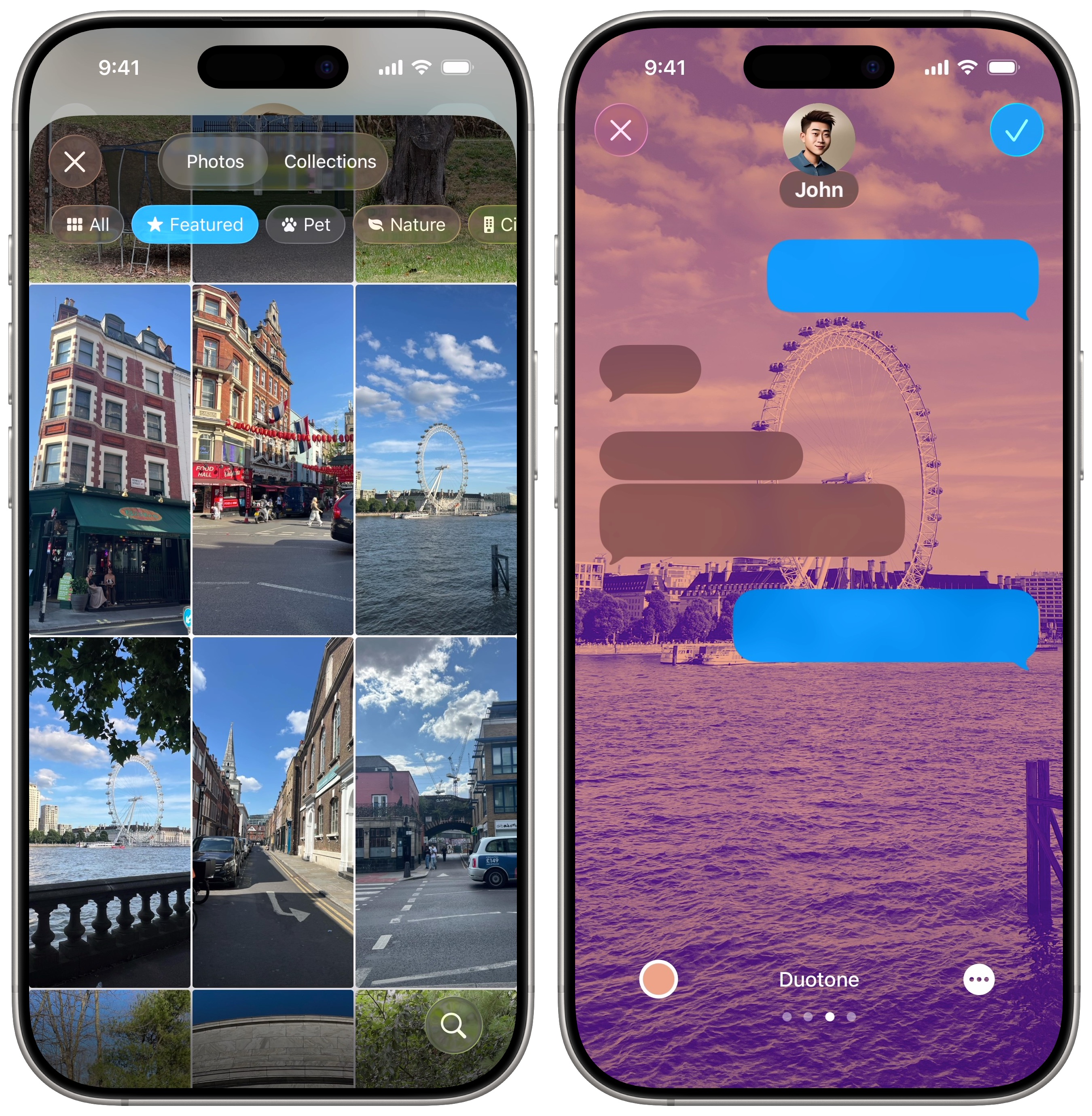
Want to make your iPhone Messages background even more personal? You can use an image from your Photos library. Tap Photo to pick one. By default, it opens to the Featured section, which shows only recommended photos. Tap All in the upper left to pick your own. Or, search through the Collections tab to quickly find the one you’re looking for.
You can browse through a list of suggested photos below, in the Suggestions section. Much like the system that chooses Lock Screen photos automatically, it’ll peruse your Photos library for the best potential backgrounds.
Tap on a photo to see a preview of how it will look as your iPhone Messages background. You can swipe left and right to apply color filters if you want. Once you find an image you like, tap Done (the blue checkmark) in the upper right to save it.
Generate a custom Messages background with Image Playground on your iPhone
Screenshot: D. Griffin Jones/Cult of Mac
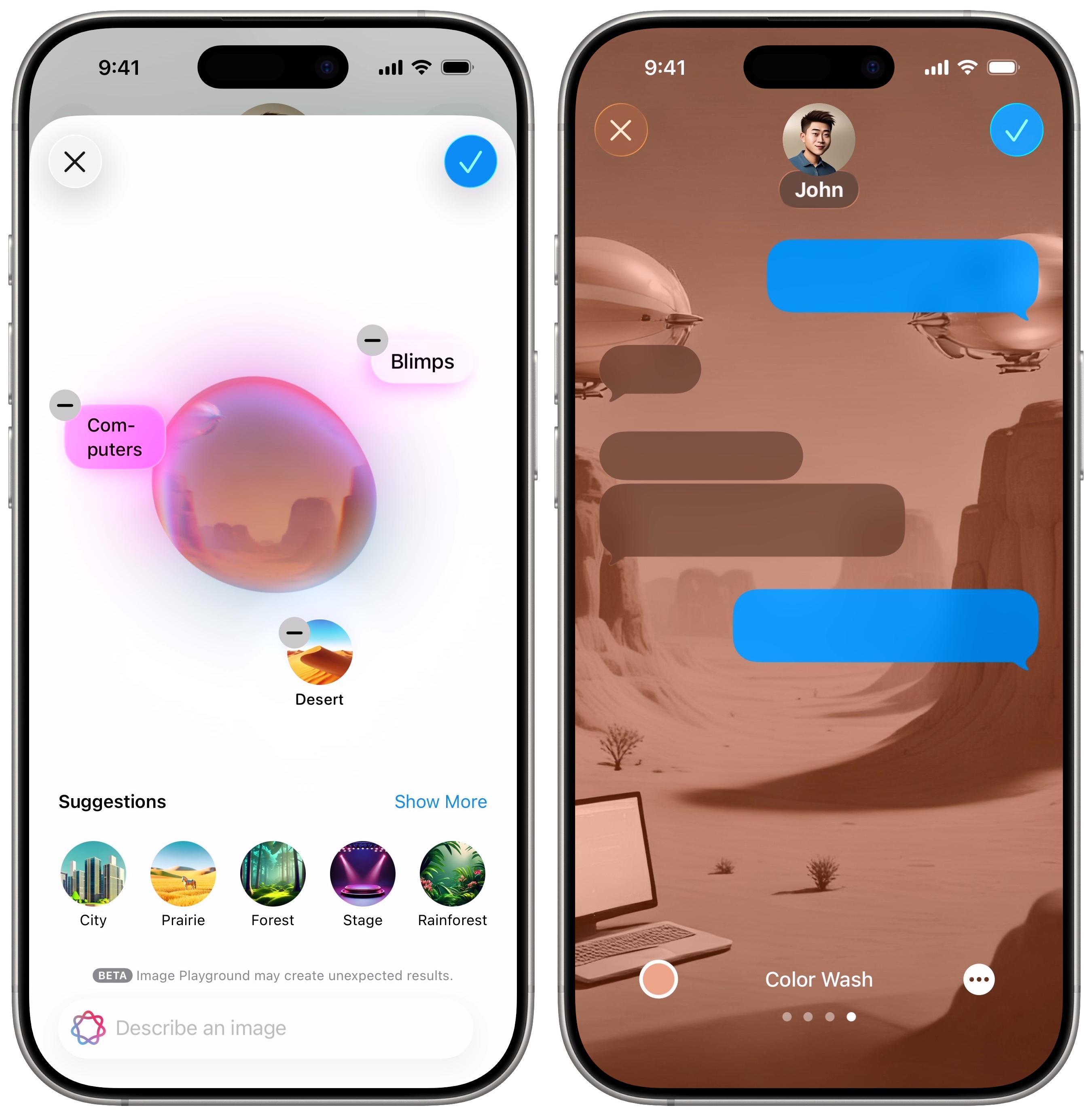
Apple also lets you use Image Playground, its underwhelming AI image generator, to create a custom Messages background on your iPhone. The results typically don’t thrill me, but if you want to give it a try, tap Playground. Then type in a prompt to get started, and Image Playground will begin generating images. You can add more short prompts to tweak the image, or tap on one of the suggestions toward the bottom of the screen. Swipe through the options, and Apple’s AI will continue generating more. Tap Done (the blue checkmark) in the upper right to save one you like.
Note: This feature is limited to devices that support Apple Intelligence — the iPhone 15 Pro, iPhone 16 or newer.
Disable the Messages background on iPhone
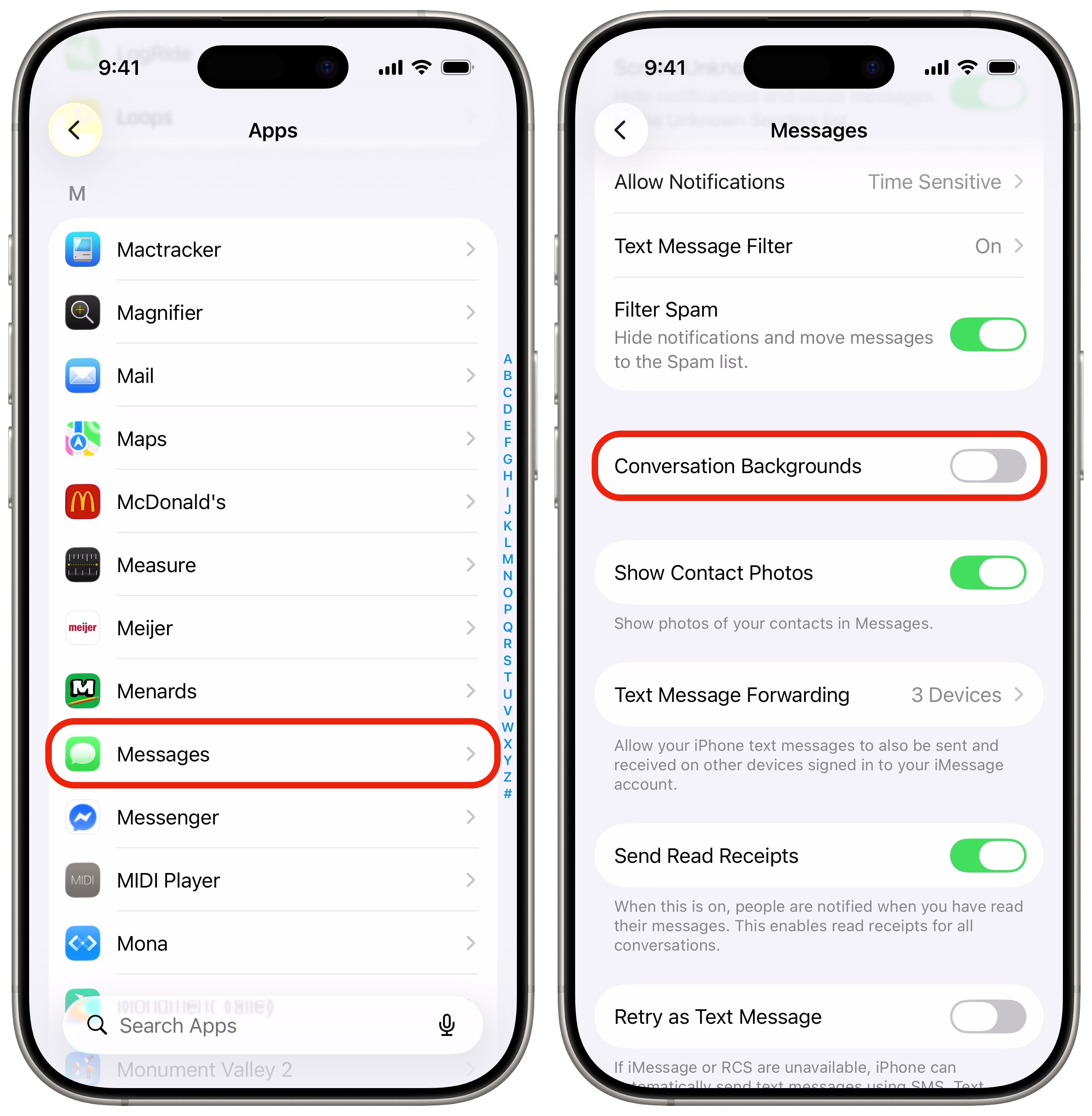
Screenshot: D. Griffin Jones/Cult of Mac
If you want to turn off Messages backgrounds on your iPhone (perhaps if someone else sets it to an Image Playground abomination), you can. Simply tap the contact or group name at the top, tap Backgrounds, then tap None. This will reset it to the basic white or black background.
If other people are insistent on having backgrounds, but you’re no fan, you can disable the feature entirely. Go to Settings > Apps > Messages, scroll down, and toggle off Conversation Backgrounds. Other people can continue setting the backgrounds to whatever they want, but they’ll never appear for you.
More features in Messages
After you set a Messages background on your iPhone, check out these other great features:
- iOS 26 adds five other great new features to Messages.
- Edit or unsend messages, soon after sending them, if you make a mistake.
- Schedule texts to send later on iPhone to make sure you never forget to send a reminder, a birthday greeting or early morning message for someone in a different time zone. You can schedule a whole slew of texts up to a week in advance, with links, photos, attachments and more.
- iMessage effects can add much more meaning, emotion and fun to your texting. You can add bold, italics, underline and
strikethroughtext, just like a formatted document, and even choose from a bunch of cool, animated effects. - Check In is an iPhone feature that tracks your travels and lets contacts know when you’ve safely reached your destination.

D. Griffin Jones was a writer, podcaster and video producer for Cult of Mac. Griffin has been a passionate computer enthusiast since 2002, when he got his first PC — but since getting a Mac in 2008, he hasn’t turned back. His skills in graphic and web design, along with video and podcast editing, are self-taught over 20+ years. Griffin has a bachelor’s degree in computer science and has written several (unpublished) apps for Mac and iOS. His collection of old computers is made up of 40+ desktops, laptops, PDAs and devices, dating back to the early ’80s.
Griffin writes for his personal blog, Extra Ordinary, and is currently looking for work.


One response to “Easy way to avoid the ultimate texting screwup [Pro Tip]”
That is assuming one can remember which recipient or group has which background. If you can mess that up when you see names themselves, I imagine it’s as easy (or easier) to do when trying to rememeber who has which background. Sure, one probably messages their spouse enough to remember, but friend one vs. two might be more difficult.