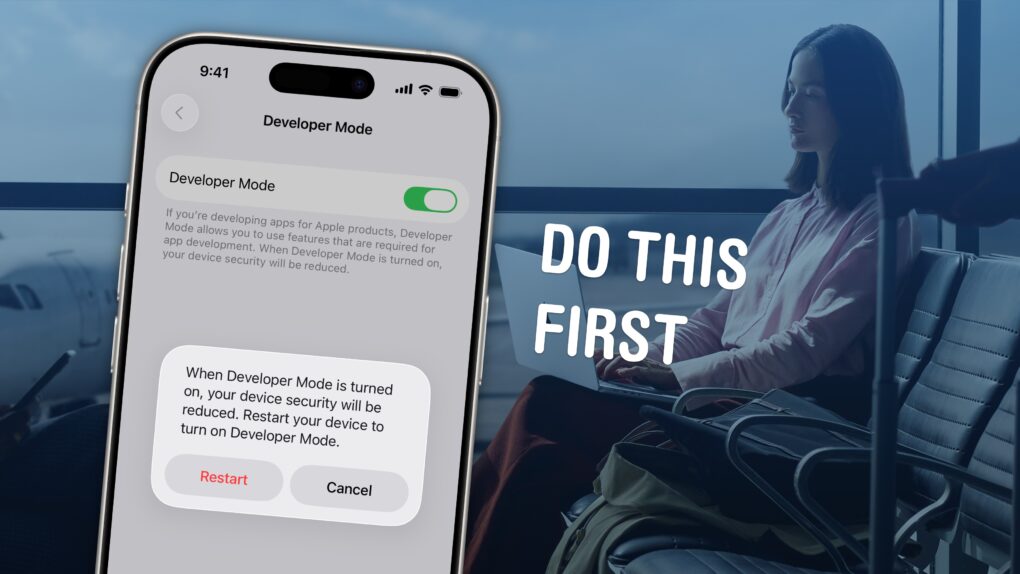
Developer Mode lets you run unsigned code on your iPhone or iPad. Enable it, and you can download and run apps that are not from the App Store (or alternative app marketplaces) or in TestFlight, Apple’s tool that lets developers invite users to beta-test new apps.
If you want to write your own apps in Xcode, you will need to enable Developer Mode on your iPhone or iPad before running your app.
Developer Mode is also essential if you want to sideload apps onto your device from a Mac, using an app like Sideloadly. This could include apps that aren’t allowed on the App Store (such as porn app Hot Tub) or apps that are no longer available from their original developers, like Apollo (the now-shuttered Reddit client). For sideloading to work, you will need to turn on Developer Mode.
Read on to see how to enable Developer Mode on your iPhone or iPad, as well as the potential security implications.
How to enable Developer Mode on iPhone and iPad
App development for iPhone is pretty simple. Apple’s own Swift coding language is modern and lauded for its ease of use. And Apple’s SwiftUI framework makes building user interfaces super-simple. Thanks to Apple’s developer tools, you can use the same code to build native apps for iPhone, iPad, Mac — and even Apple Watch, Vision Pro and Apple TV.
You can do your development using Xcode, Apple’s integrated development environment. Xcode is totally free and offers powerful tools (source code editor, debugger, etc.) you can use to create your own app.
“Xcode offers the tools you need to develop, test, and distribute apps for Apple platforms, including predictive code completion, generative intelligence powered by the best coding models, advanced profiling and debugging tools, and simulators for Apple devices,” according to Apple.
Xcode comes with built-in simulators that let you run apps on a virtual iPhone on your Mac. But nothing beats using the real thing. To run your apps on your own iPhone, you’ll need to enable Developer Mode first. Here’s how to do it.
Turn on Developer Mode in Settings
Screenshot: D. Griffin Jones/Cult of Mac
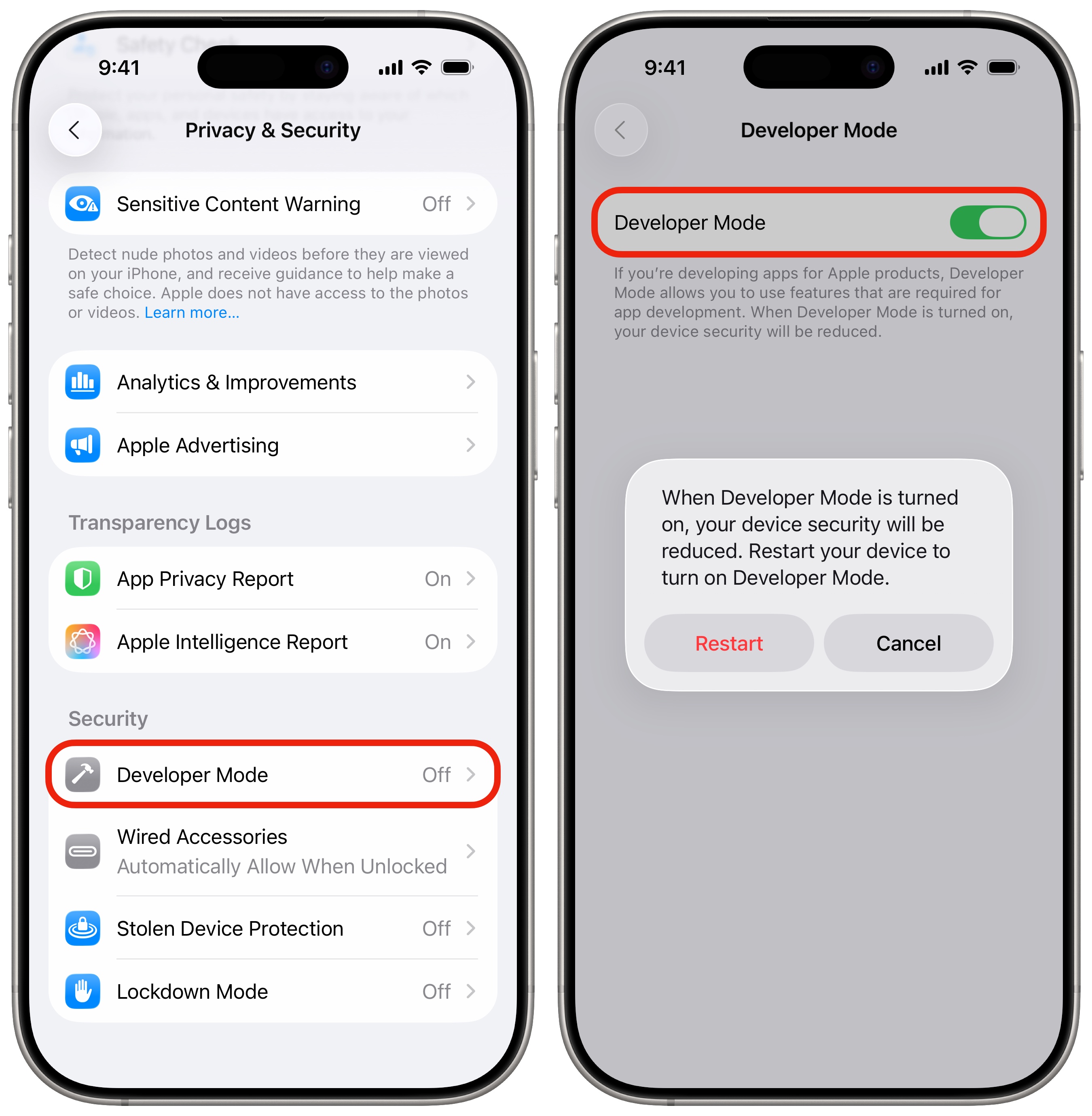
Enabling Developer Mode on iPhone is as simple as toggling a switch (although it’s buried in Settings).
To find it, go to Settings, scroll down to Privacy & Security, and then tap Developer Mode at the very bottom. Enable Developer Mode. You will see a warning: “When Developer Mode is turned on, your device security will be reduced. Restart your device to turn on Developer Mode.”
Tap Restart, and your iPhone will instantly restart with Developer Mode enabled; tap Cancel and nothing will happen.
Enable it again after rebooting
Screenshot: D. Griffin Jones/Cult of Mac
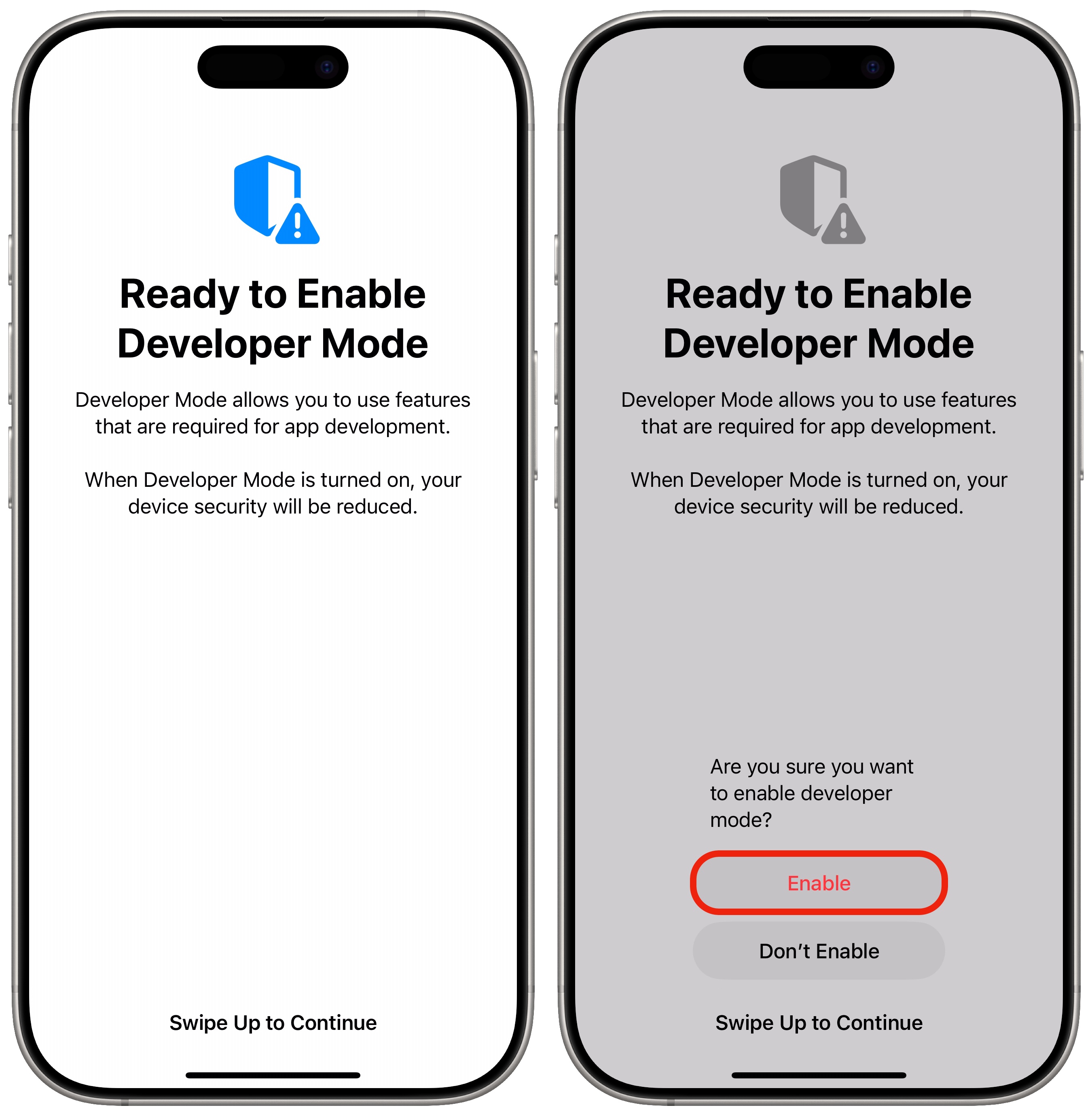
After restarting, you will be asked again whether you really want to enable Developer Mode. Swipe up from the bottom of the screen to choose. Tapping Turn On one last time and entering your passcode will enable it. Otherwise, you can tap Don’t Enable and it’ll remain turned off.
To turn Developer Mode off later, just go back to Settings > Privacy & Security > Developer Mode and uncheck Developer Mode. The change will happen instantly.
Developer Mode security
Once you enable Developer Mode, your iPhone security is only compromised insofar as any app you install on your device via Xcode or sideloading will run unchecked. If you’re simply learning Swift or testing an app you wrote, turning on Developer Mode doesn’t weaken your device to malware, unless you bizarrely decided to write malware for yourself in Xcode.
However, some malicious Xcode projects copy or mimic legitimate open-source projects, only to surreptitiously add spyware. If you are following directions to install an app and you are here because you need to enable Developer Mode to finish installing it, you should carefully consider whether you can trust the source. It could be using private APIs or breaking App Store rules. It’s possible you’re being pushed to install something you shouldn’t.
Do some research to double-check that the app you’re installing isn’t a scam of some kind.
More iPhone pro tips
- Create Focus modes to customize notification settings for different times of day, like work, driving, personal time and more.
- Reset your iPhone with your old passcode (up to three days after changing to a new one).
- Customize your iPhone’s Action button to toggle the flashlight, open the camera, run a custom Shortcut and more.
- Hide and lock apps with Face ID (or Touch ID) so they can’t be opened (or seen on your phone) by anyone else.
- Play ambient music and background sounds while you work for distraction-free tunes and vibes.
- Enable Game Mode for higher performance while you’re playing a mobile game.
We originally published this article on iPhone developer mode on August 24, 2022. We updated the article with new information on February 2, 2026.

D. Griffin Jones was a writer, podcaster and video producer for Cult of Mac. Griffin has been a passionate computer enthusiast since 2002, when he got his first PC — but since getting a Mac in 2008, he hasn’t turned back. His skills in graphic and web design, along with video and podcast editing, are self-taught over 20+ years. Griffin has a bachelor’s degree in computer science and has written several (unpublished) apps for Mac and iOS. His collection of old computers is made up of 40+ desktops, laptops, PDAs and devices, dating back to the early ’80s.
Griffin writes for his personal blog, Extra Ordinary, and is currently looking for work.


One response to “iOS’ handy Developer Mode lets you run your own code on your iPhone”
No Developer Mode setting in iPadOS 26.4 in Privacy & Security. Is it someplace else?