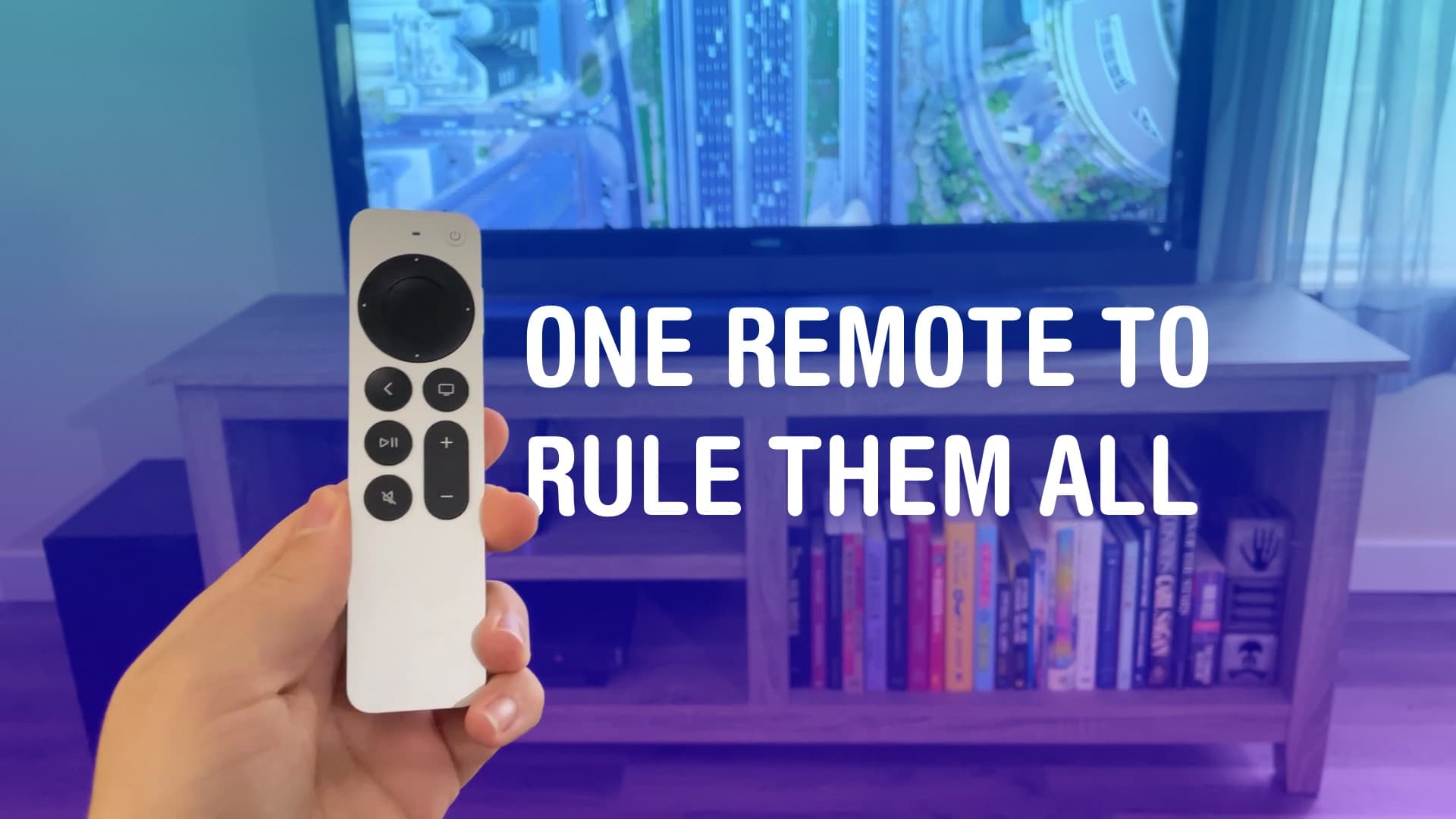
You can set up your Apple TV’s Siri Remote to control the volume levels of a separate sound system. It might not work out of the box. But with a little poking around in Settings, you can set it up so you can use the convenient volume buttons built into the Siri Remote to control sound bars, etc.
That means you won’t need to keep two or three remotes lying around — you can make it all work from just one. It just takes a little setup.
How to control volume with your Apple TV remote
The quick-and-dirty way is to pair your sound system to your Apple TV over Bluetooth (if your hardware supports it), but that’s probably not what you want. It can be tricky getting other devices plugged into your TV, like a game console, to use the same audio output.
Here’s how you can make it all work while keeping your sound bar connected to your TV.
Train your Apple TV on your sound bar remote
Screenshot: D. Griffin Jones/Cult of Mac
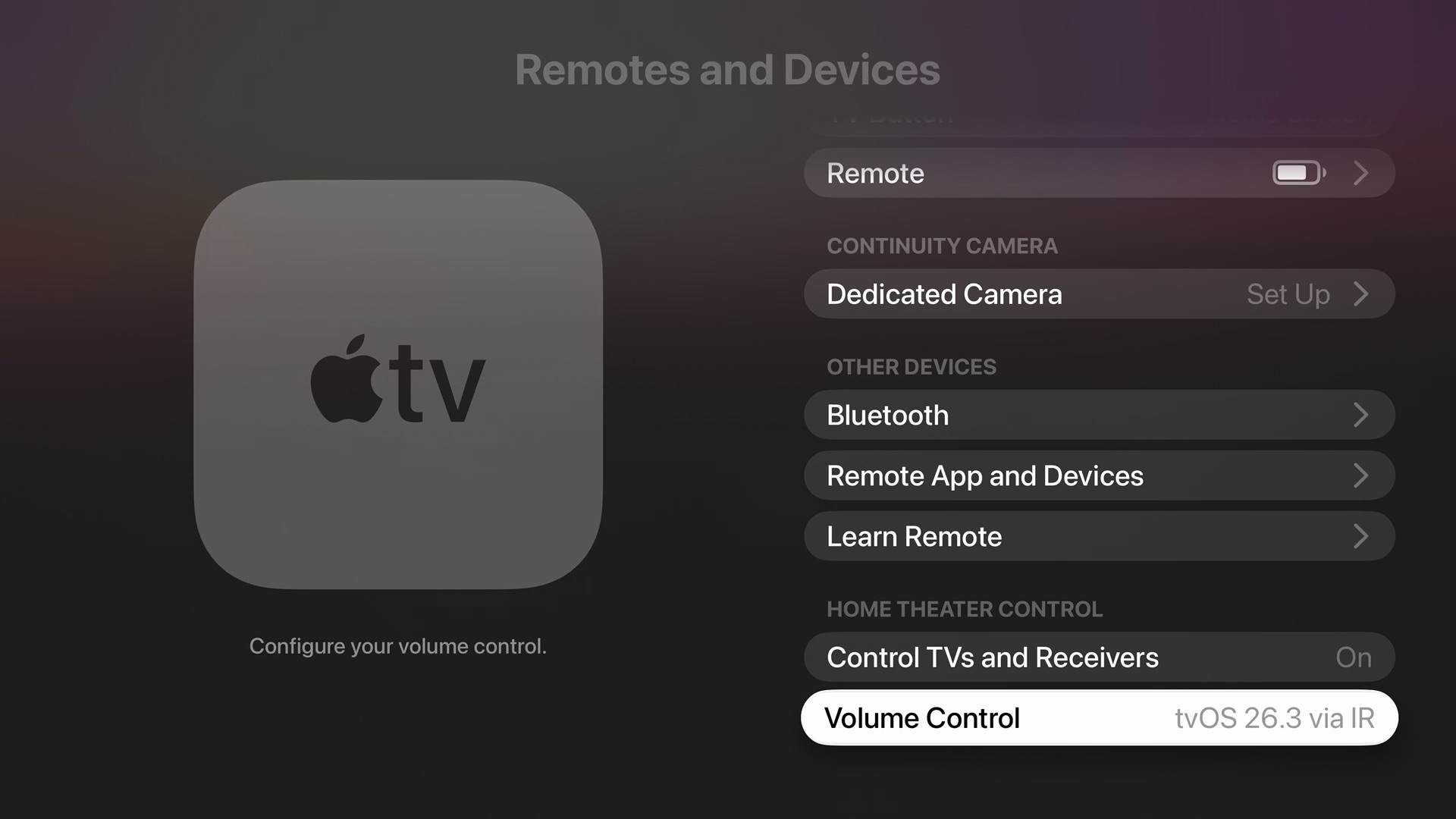
On your Apple TV, open the Settings app and go to Remotes and Devices. Scroll all the way down and click Volume Control. Then scroll down and click Learn New Device…
Grab your TV or sound system remote (whichever you use to control your speakers) and point it at your Apple TV. Following the on-screen directions, press and hold Volume Up, then repeat for Volume Down, and finally, click Mute.
Next, hold down the Siri button on your Apple TV remote. Then you can easily dictate a new name for your third-party remote. (Use something easy to remember, like “Sound Bar Remote” or “Sonos Remote.”)
Now, your Apple TV remote should be trained to work like your other remote. Test it out — try clicking the volume buttons on your Apple TV remote, and it should control your sound bar. You can cut out one more remote from your life! Hooray.
What to do if it doesn’t work
If this suddenly stops working (it can happen), there’s a quick solution. You just need to reboot your Apple TV remote. You can do this by holding down the TV and Volume Down buttons for five seconds.
This happened to me when I updated my Apple TV to tvOS 26, but rebooting the remote immediately fixed the problem.
More Apple TV tips
Did you know the Apple TV remote can scrub through a video like an iPod click wheel? Here’s how that works. And you can use your iPhone to find a lost Apple TV remote, too.
On Apple Support, you can read about how you can go the other route, too — use your regular TV remote to control your Apple TV.
Whe originally published this article on how to control volume with your Apple TV remote on January 25, 2024. We updated it with the latest information on October 11, 2024, and February 3, 2026.

D. Griffin Jones was a writer, podcaster and video producer for Cult of Mac. Griffin has been a passionate computer enthusiast since 2002, when he got his first PC — but since getting a Mac in 2008, he hasn’t turned back. His skills in graphic and web design, along with video and podcast editing, are self-taught over 20+ years. Griffin has a bachelor’s degree in computer science and has written several (unpublished) apps for Mac and iOS. His collection of old computers is made up of 40+ desktops, laptops, PDAs and devices, dating back to the early ’80s.
Griffin writes for his personal blog, Extra Ordinary, and is currently looking for work.

