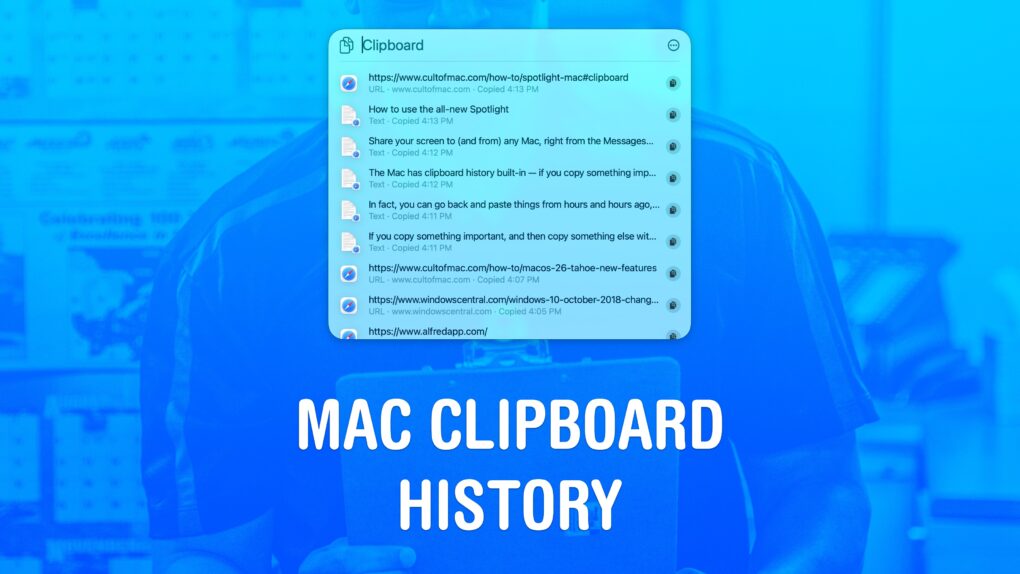
Using a clipboard history manager on a Mac is a total game-changer. If you copy something important, then copy something else without thinking, the first item doesn’t disappear. You can go back and get it again. In fact, you can go back and paste things from hours and hours ago, like a link you copied earlier in the day.
You can also copy a bunch of things in a row and quickly paste them elsewhere, without switching back and forth and back and forth.
macOS 26 Tahoe added a built-in clipboard history that does all that for free. Here’s how it works.
How to access Mac clipboard history from Spotlight
For decades, the Mac’s clipboard worked like this: Copy one thing, then another, and the first item vanished into the void. Power users papered over the problem with third-party utilities, while Windows users smugly tapped into built-in history. (Microsoft added a clipboard manager to Windows 10 in 2018.)
It seemed odd that the Mac lacked such a useful feature.
That finally changed last year with macOS 26 Tahoe, when Apple finally tucked a decent clipboard manager into Spotlight. Now your Mac can remember what you copied hours ago, and let you paste in rapid-fire batches. The new clipboard manager turns one of the Mac operating system’s oldest annoyances into a handy productivity tool.
Of course, if you want to go beyond Apple’s implementation with power features, or if you prefer a different interface, you can still use third-party apps in addition to Spotlight. Maccy, for example, uses a different keyboard shortcut — Shift-Command-C — and then lets you paste your nine most recent items using Command-1 through Command-9.
But you should give Apple’s clipboard history tool a shot first. Here’s how it works.
Table of contents: How to use Mac clipboard history in Spotlight
- Update to macOS 26 Tahoe
- Open Spotlight and enable Mac clipboard history
- Paste something you’ve copied before
- Change clipboard history settings
- More features in macOS
Update to macOS 26 Tahoe
To use the clipboard history feature in Spotlight, you need to be running macOS 26 Tahoe or later. macOS Tahoe requires (at least):
- MacBook Air (2020 or newer)
- MacBook Pro (2019 or newer)
- Mac mini (2020 or newer)
- Mac Studio (2022 or newer)
- iMac (2020 or newer)
- Mac Pro (2019 or newer)
On an older Mac that doesn’t support macOS Tahoe, you can use a third-party clipboard manager like Maccy — my personal favorite. (Read my review: Everyone should use this simple clipboard manager for Mac).
Alfred, another top pick, made Cult of Mac’s list of 5 Mac apps that can supercharge your productivity.
Open Spotlight and enable Mac clipboard history
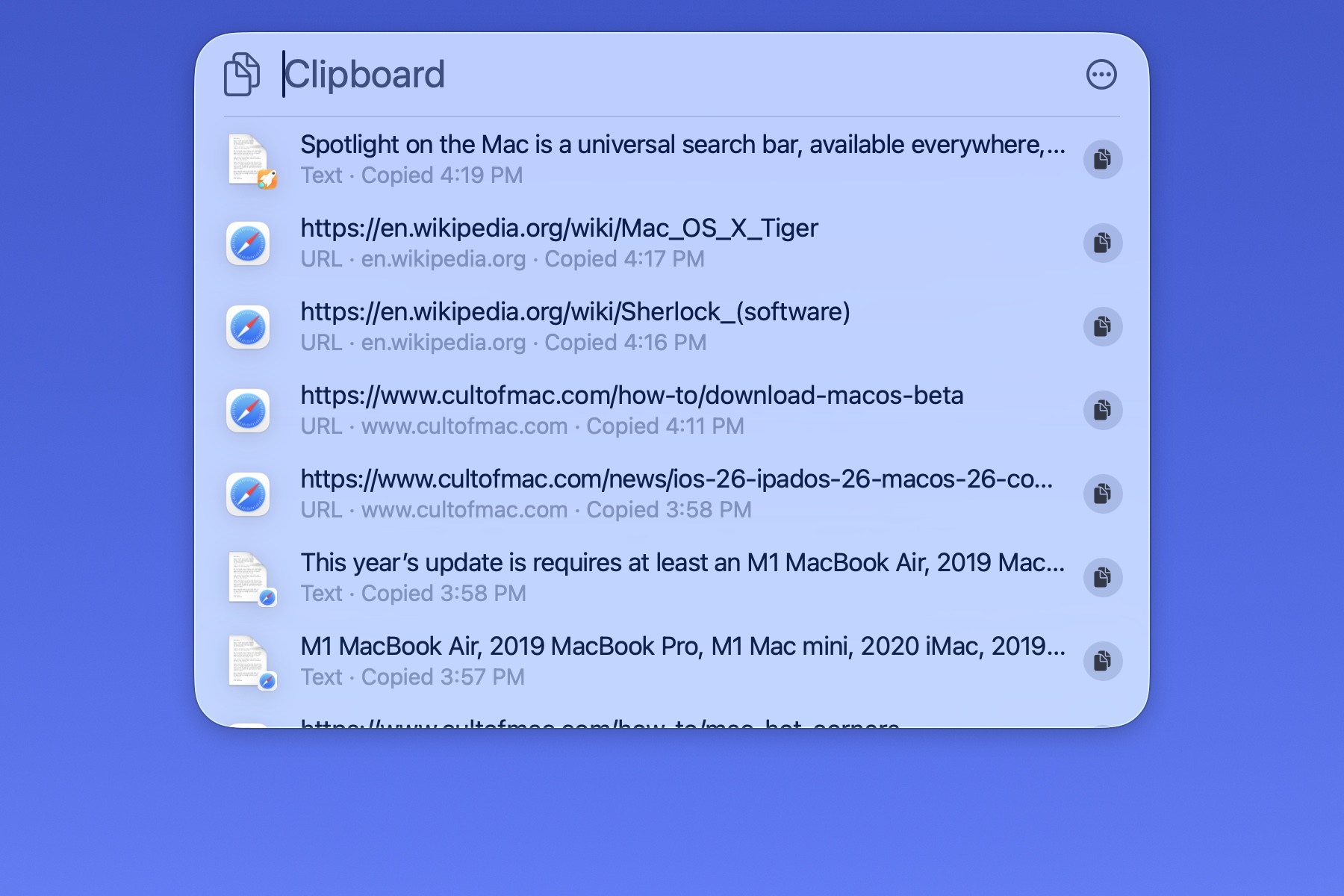
Screenshot: D. Griffin Jones/Cult of Mac
In macOS 26 Tahoe, Mac clipboard history is built into Spotlight, the universal search box. Launch it like this:
- Hit Command-Space (⌘␣) on the keyboard, then Command-4 (⌘4). You can do this in one quick move — keep your finger on the Command key, then hit Space and 4 in sequence.
- Click the Spotlight icon in the upper right corner of the menu bar, then click the Clipboard icon on the right of the Spotlight bar.
The first time you open Spotlight clipboard history, it’ll ask you if you want to turn on the feature. If you say yes, it will store your history from that point onward.
Paste something you’ve copied before
After opening Spotlight clipboard history (Command-Space, Command-4) you can scroll through the list using your mouse or keyboard arrow keys. Hit Return or click on an item to immediately paste it.
Pasting from Spotlight strips any text formatting. Even if you’ve just copied something, paste it from Spotlight if you don’t want it to be formatted. It’s easier to remember than the complicated Shift-Option-Command-V (⇧⌥⌘V) keyboard shortcut.
If you only want to move something to the top of the clipboard without immediately pasting it, click the Copy button to the right. That’s what’ll be pasted when you hit ⌘V the next time.
Change clipboard history settings
There’s (seemingly) no limit on how many items the Mac’s built-in clipboard history will store, but items expire after eight hours by default. As of macOS 26.1, you can increase this period to seven days for a longer history or shorten it to 30 minutes if you want more privacy and security. As Apple points out, “Personal and sensitive information may appear in search results.”
To set it how you want, open System Settings, click Spotlight in the left sidebar, then scroll all the way down to the bottom.
- You can set Clipboard history to 7 days if you want a longer history. Alternatively, you can shorten it to 30 minutes if you don’t want your secrets to stay available for long.
- You can also manually Clear Clipboard History if you want to delete the log.
- Turn clipboard history off entirely by disabling Results from Clipboard.
More features in macOS
- How to use the all-new Spotlight
- Share your screen to (and from) any Mac, right from the Messages app
- 6 tricks to master Preview on the Mac
- Rename multiple files on Mac the easy way
- Hidden Mac keyboard shortcuts you might not know
- Pro Tip: Hot Corners make it easy to mouse around your Mac

D. Griffin Jones was a writer, podcaster and video producer for Cult of Mac. Griffin has been a passionate computer enthusiast since 2002, when he got his first PC — but since getting a Mac in 2008, he hasn’t turned back. His skills in graphic and web design, along with video and podcast editing, are self-taught over 20+ years. Griffin has a bachelor’s degree in computer science and has written several (unpublished) apps for Mac and iOS. His collection of old computers is made up of 40+ desktops, laptops, PDAs and devices, dating back to the early ’80s.
Griffin writes for his personal blog, Extra Ordinary, and is currently looking for work.


One response to “Unlock your Mac’s hidden clipboard history with Spotlight’s new trick”
They were SO CLOSE on this. Win+V is so much easier to remember, and pops up a little context menu right where you’re trying to paste, instead of some middle-of-the-screen alacart of former copied objects. Come on Apple, you were RIGHT THERE at the finish line.