Mobile menu toggle

iPhone How-To

iPhone How-Tos: Cult of Mac Superguide
Learn about all the features of your phone.

The iPhone gets loaded with features every single year when major updates are released in September. It’s easy to lose track of all the awesome hidden capabilities.

Our articles track all the best features you can learn about on your iPhone. They’re written in plain language and feature plenty of annotated screenshots for you to follow along.

Browse the big list of articles below to learn more about the apps you use every day.

Table of Contents:

  1. System features
  2. Built-in apps
    1. Camera
    2. FaceTime
    3. Find My
    4. Health
    5. Mail
    6. Messages
    7. Music
    8. Phone
    9. Photos
    10. Reminders
    11. Safari
  3. Other apps
  4. Apple Intelligence
  5. Accessibility features
  6. Latest

System features

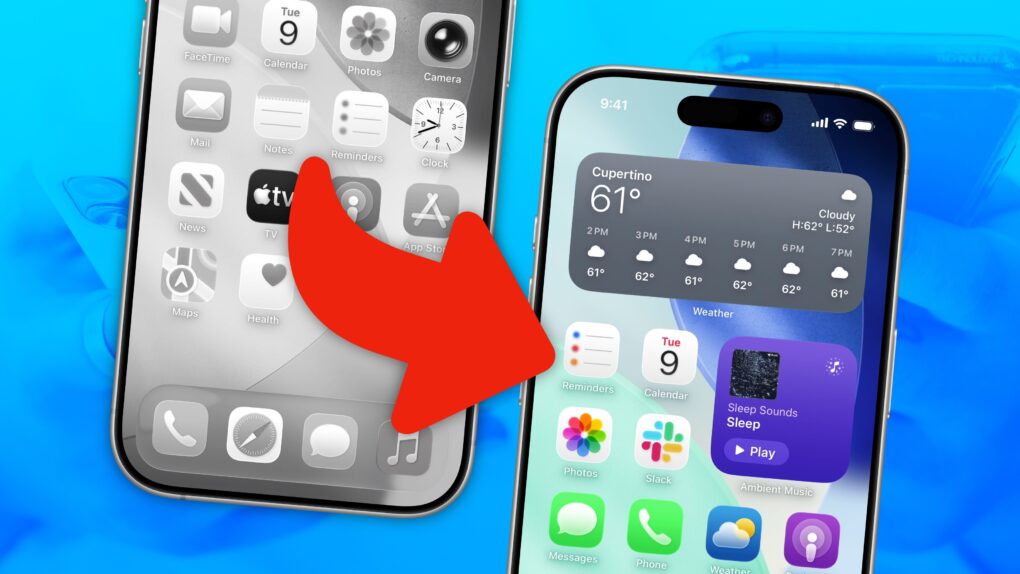
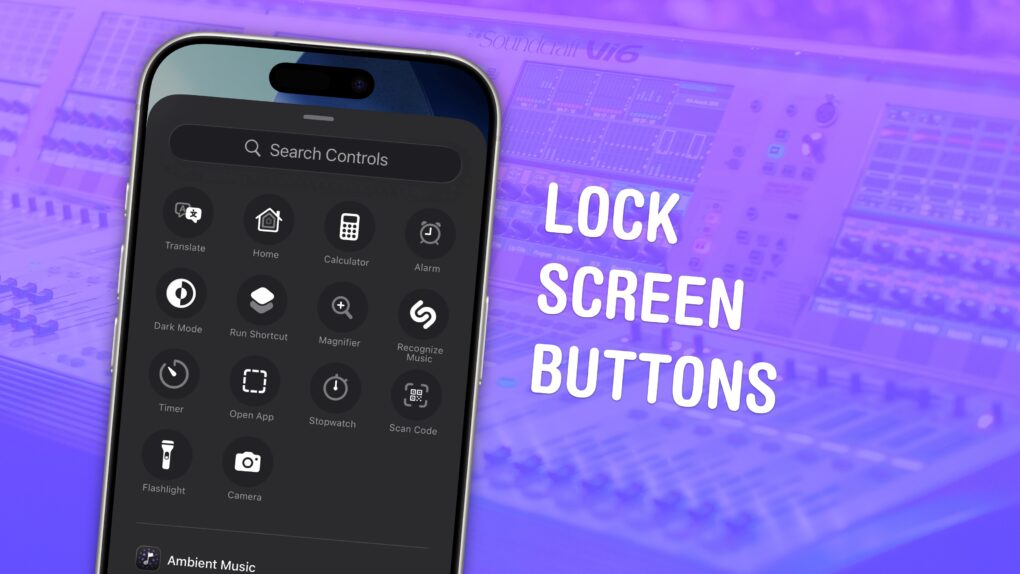
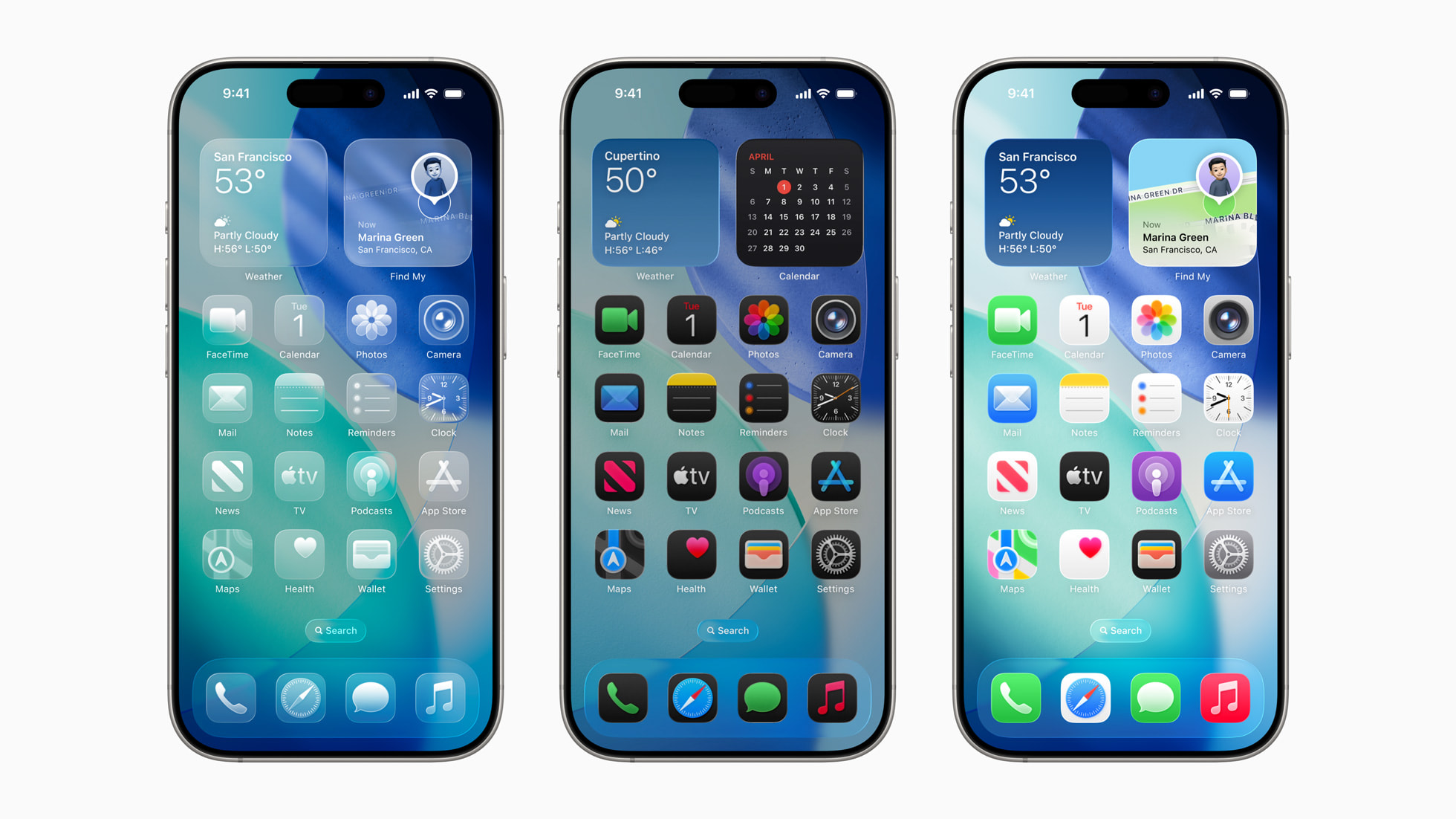
Home and Lock screens in iOS 26
Home Screen customization gets even more radical in iOS 26.

Built-in apps

Camera

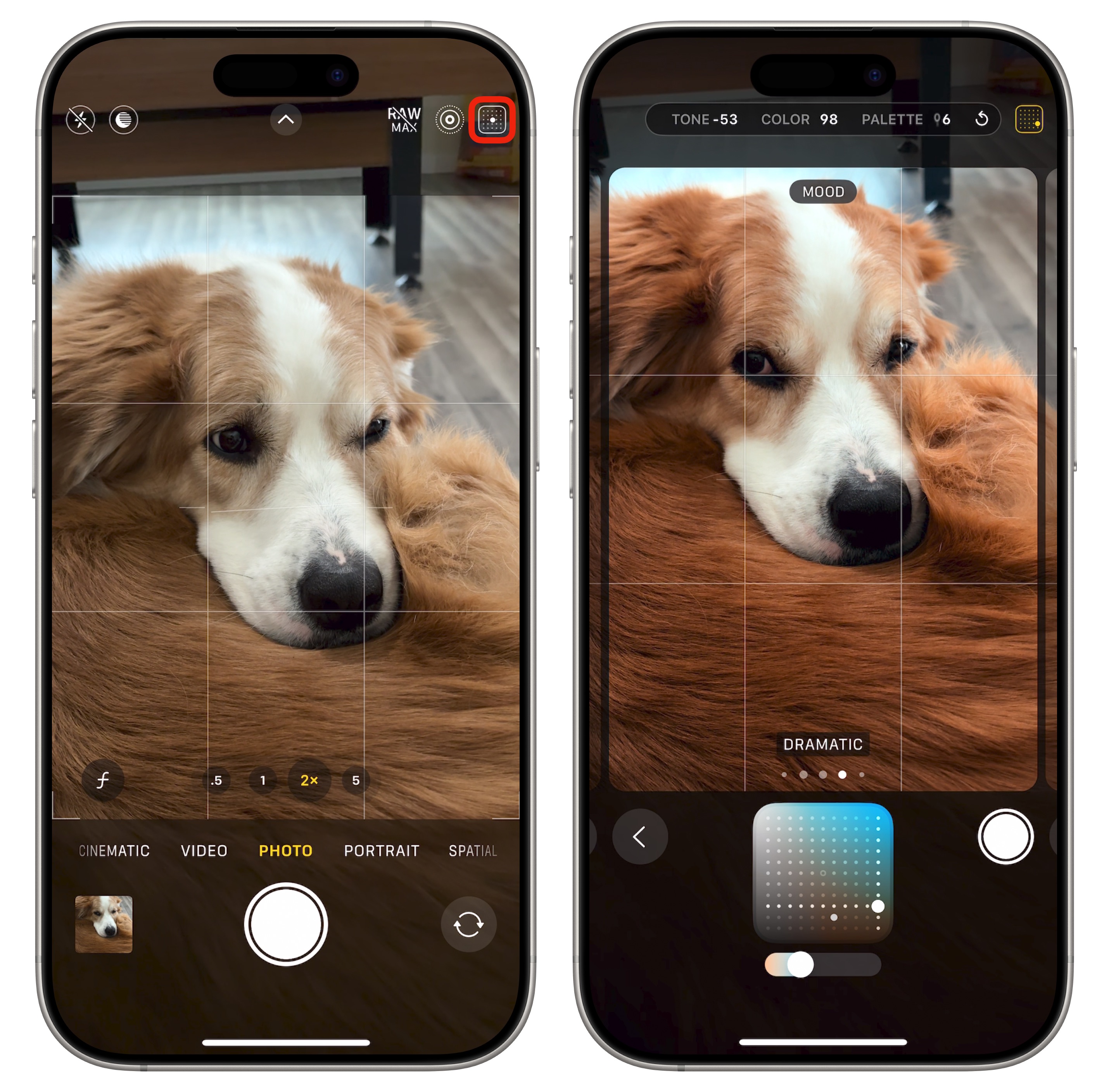
Photographic Styles in the iPhone camera
Swipe between fun color filters.
  • Photographic Styles built into your iPhone’s camera can give your pictures a radically different aesthetic.
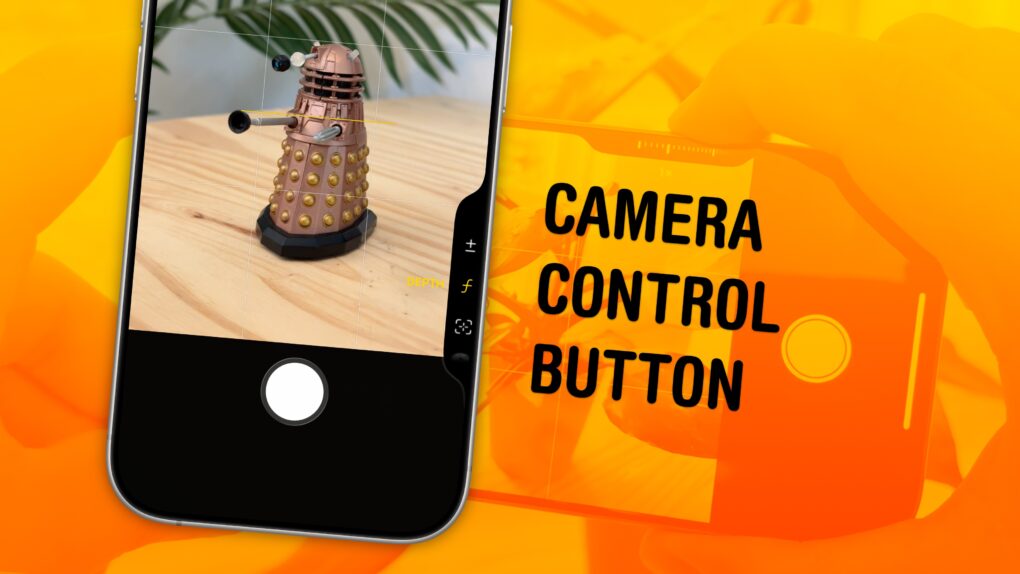
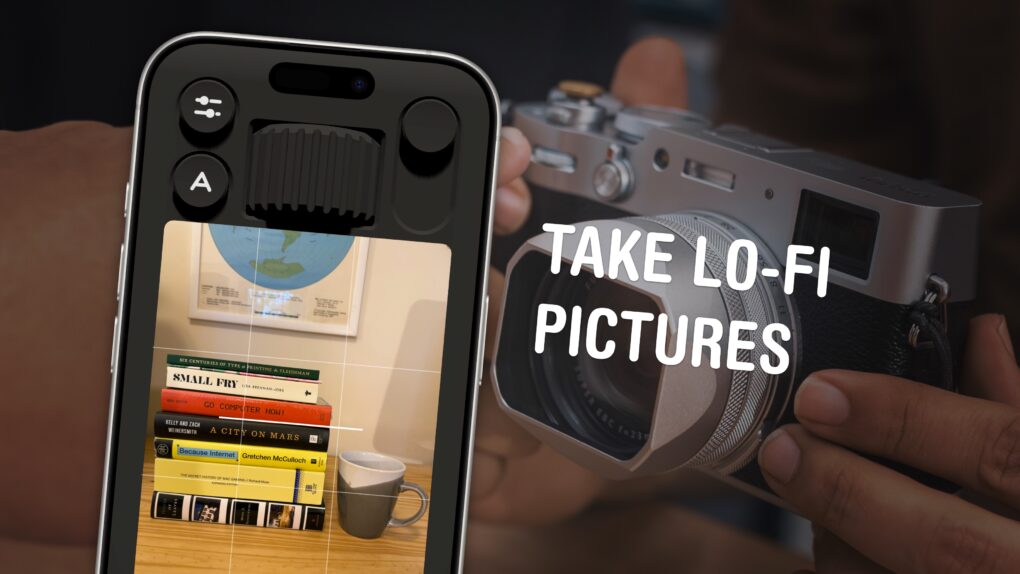
  • The new Camera Control button on the iPhone 16 lineup opens the Camera app, takes pictures and adjusts camera settings on the fly. It offers a quick shortcut to using one of the most popular and important iPhone features.
  • Take 48-megapixel photos that capture eagle-eye details at incredibly high resolution, shooting in Apple’s ProRAW format, on an iPhone 14 Pro and later Pro models.
  • Three tips to take better pictures and upgrade your photography skills.
  • Photograph fireworks with these special tips and achieve great results. Just pointing and shooting with no prior planning can lead to blurry, unexciting fireworks photos.

FaceTime

Find My

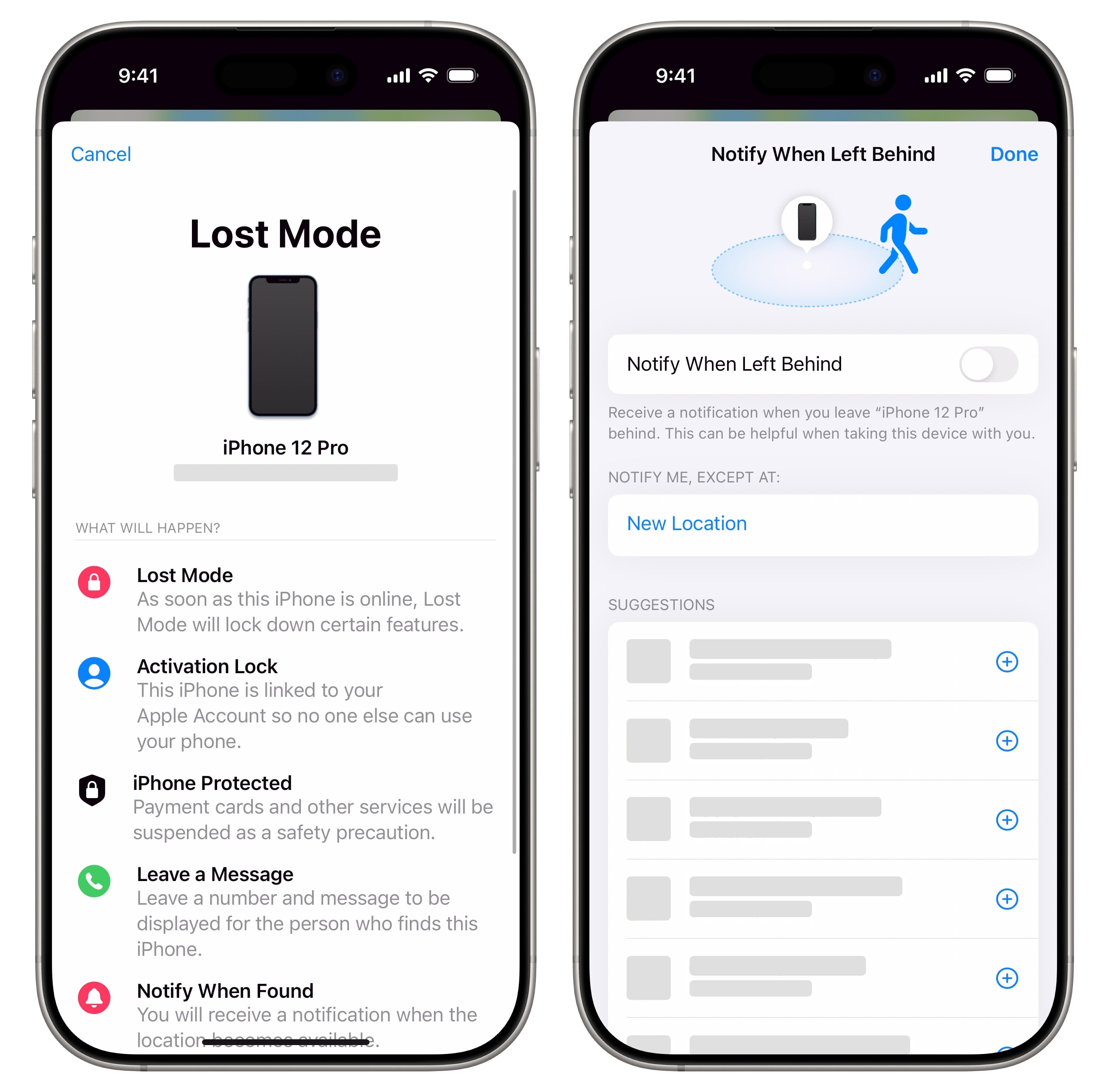
Find My iPhone setting up Lost Mode and Notify When Left Behind
Set your iPhone in Lost Mode — and get notified before you lose it again.

Health

  • Track your mental health to log your general feelings for the day or moment-by-moment changes. You can also compare your log against other data like how much exercise you’ve been getting, your time spent outside and how well you sleep to find some correlation.

Mail

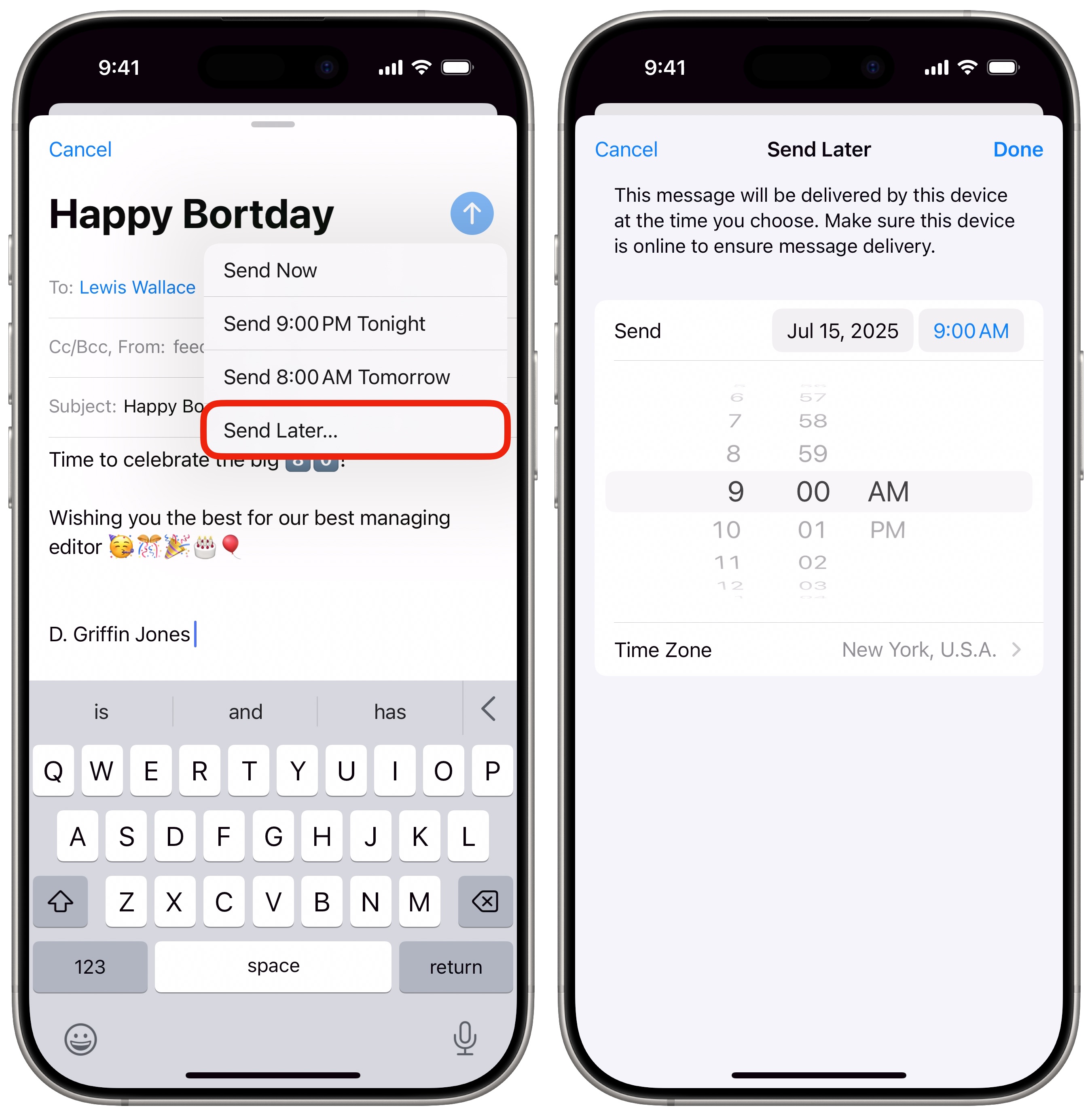
Schedule an email to send later
Don’t forget to send your important emails.

Maps

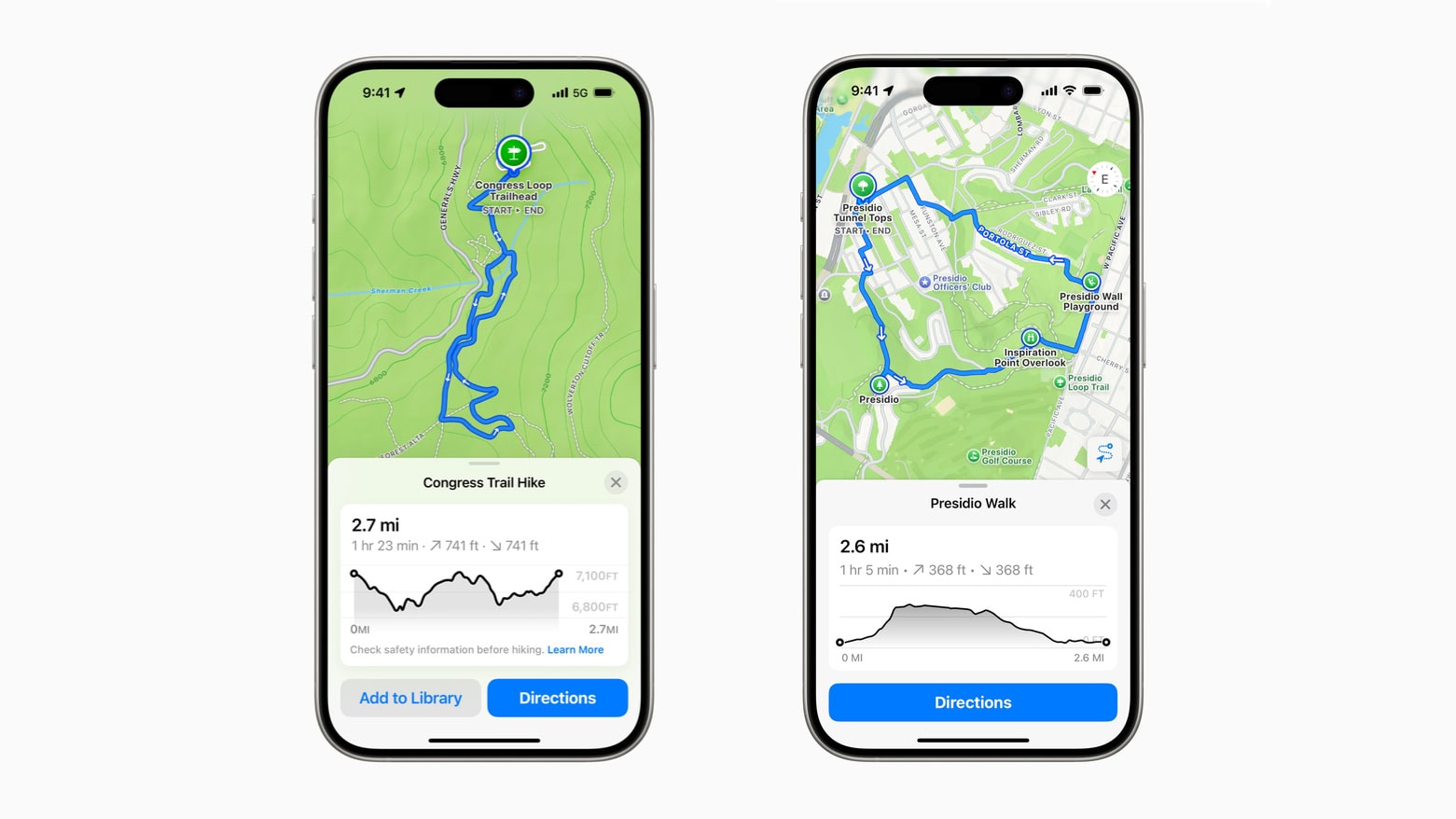
Apple Maps in iOS 18
Apple Maps in iOS 18 will help you plan your hikes, whether through the wilderness or a city.

Messages

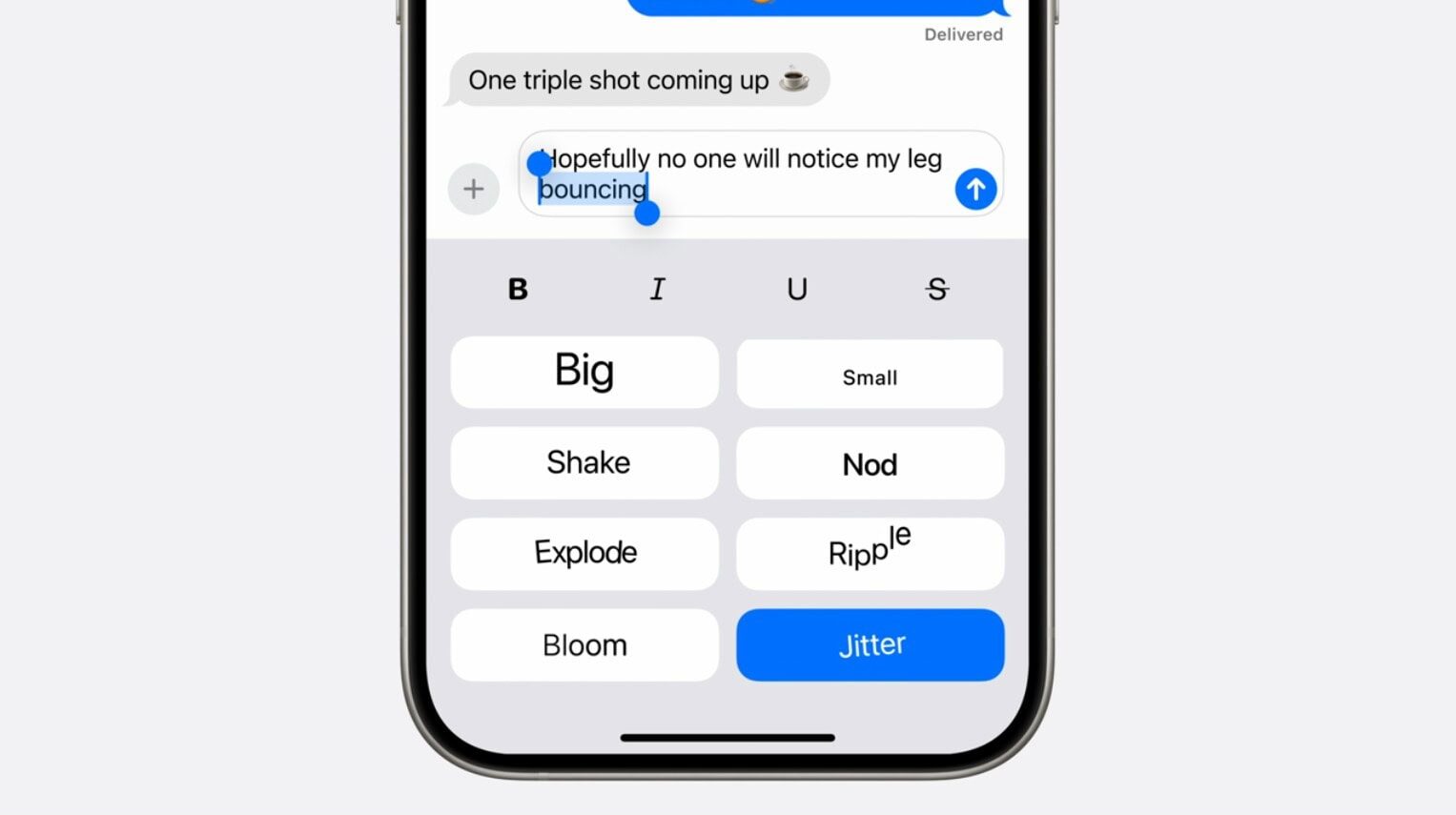
Some of the Text Effects coming to Messages in iOS 18.
Some of the Text Effects in Messages in iOS 18.
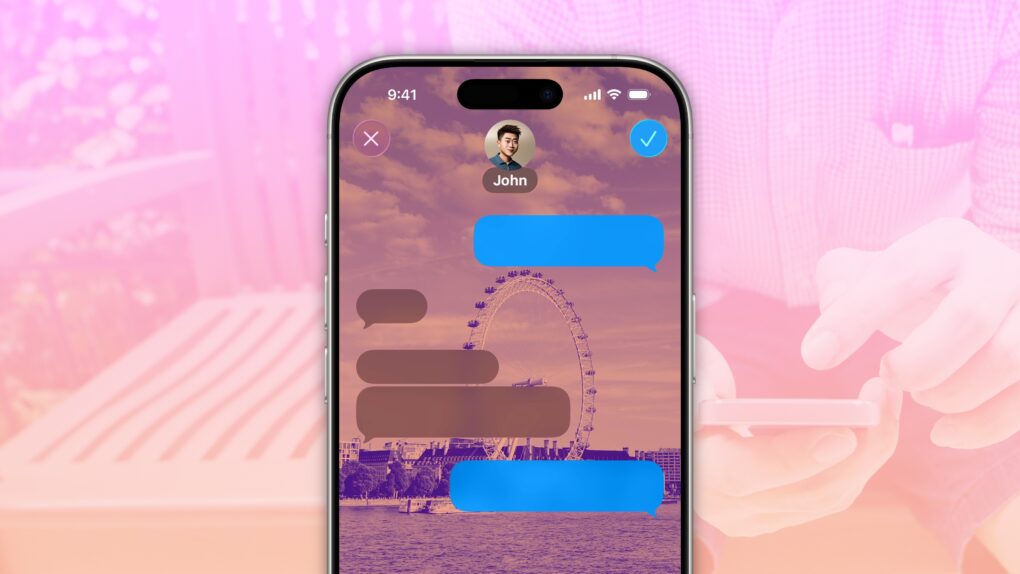
  • Edit or unsend messages, soon after sending them, if you make a mistake.
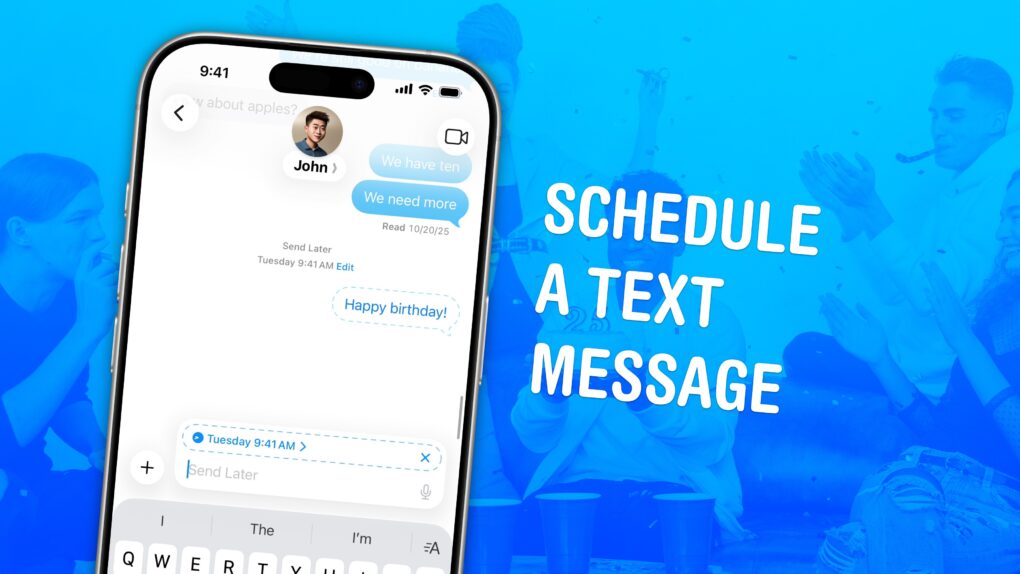
  • Schedule texts to send later on iPhone to make sure you never forget to send a reminder, birthday greeting or early morning message for someone in a different time zone. You can schedule a whole slew of texts up to a week in advance, with links, photos, attachments and more.
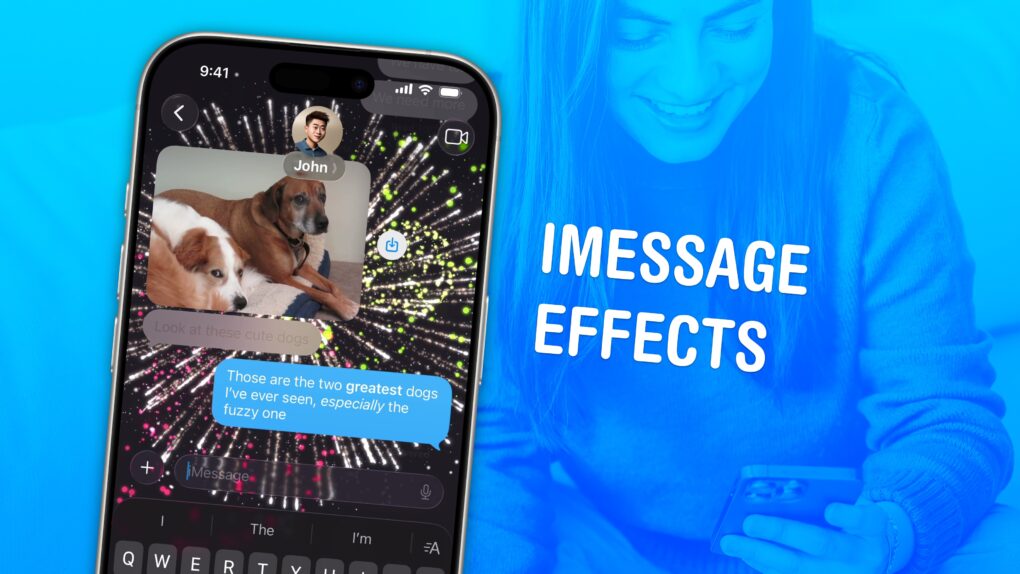
  • iMessage effects can add much more meaning, emotion and fun to your texting. You can add bolditalics, underline and strikethrough text, just like a formatted document, and even choose from a bunch of cool, animated effects.
  • Check In is an iPhone feature that tracks your travels and lets contacts know when you’ve safely reached your destination.
  • RCS messaging makes features like read receipts, video and file attachments and named group chats — previously exclusive to iMessage (and some apps) — possible between iPhone and Android.
  • Scheduled automatic Apple Cash payments to send money to your friends or family on a regular basis.
  • Send messages via satellite if you have an iPhone 14 or newer and you’re out of cell service.
  • Block nude images to put suspected nude images and videos behind a blurred gray background.

Music

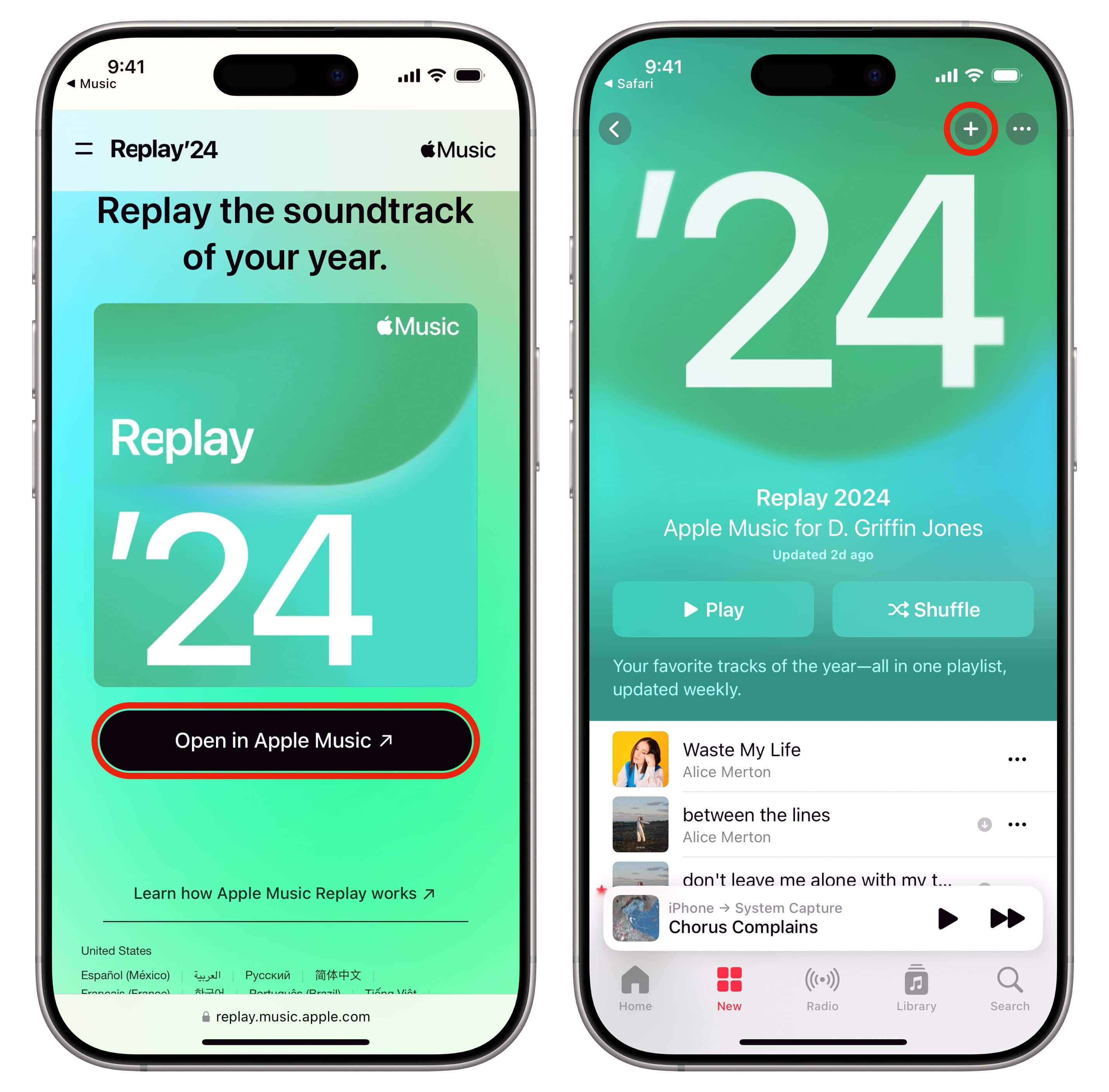
Share Apple Music Replay annual playlist
Get your annual playlist to reminisce in the years to come.
  • Apple Music Replay shows you the top songs, artists, albums and more detailed stats for a whole year, and makes an annual playlist of your top tunes.
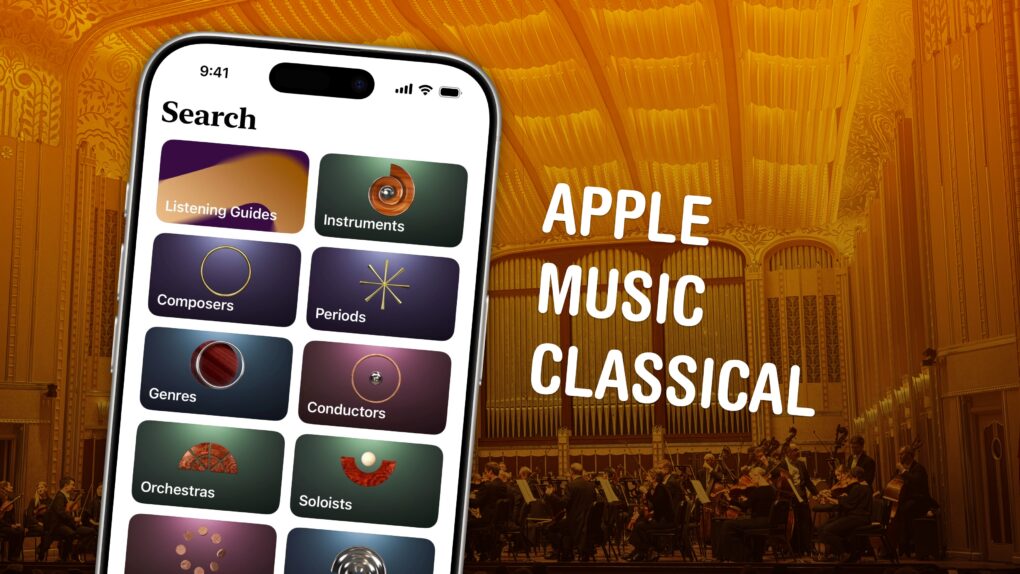
  • Apple Music Classical is a bespoke app and interface (free with an Apple Music subscription) for playing classical music.
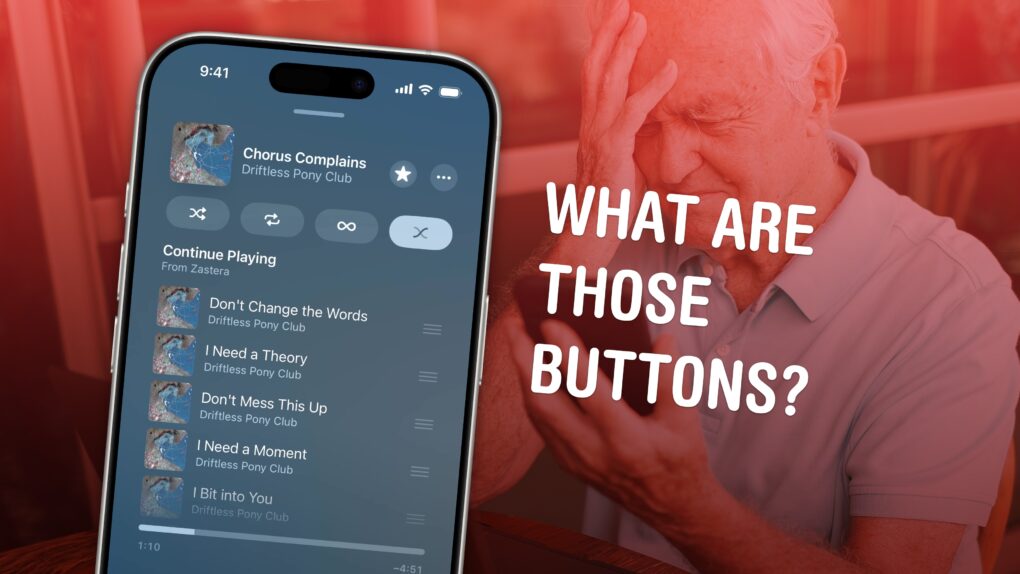
  • Queue songs to automatically build a playlist. You can set a song, album or playlist to play next, or add it to the end of the queue, with simple gestures and controls.  
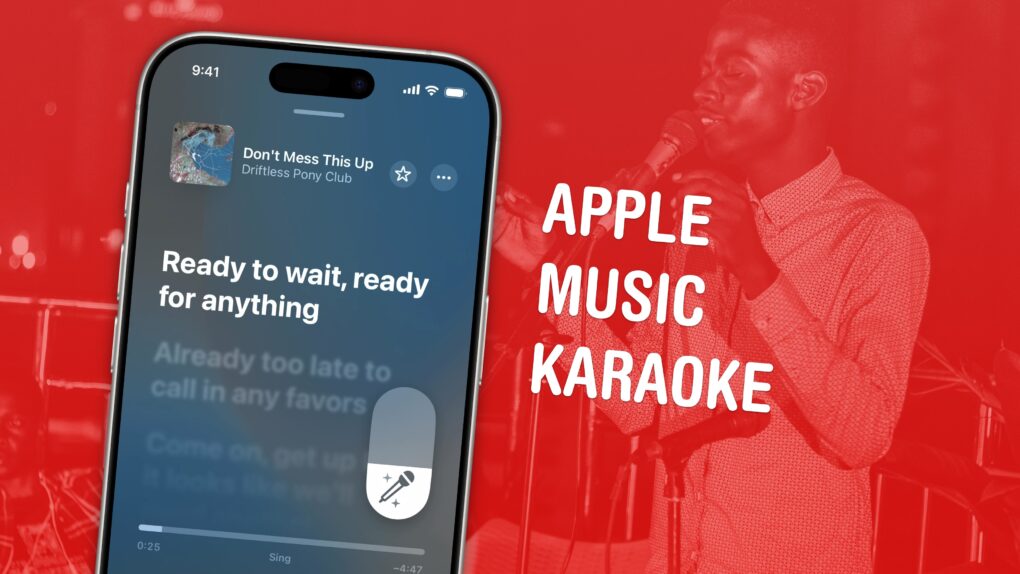
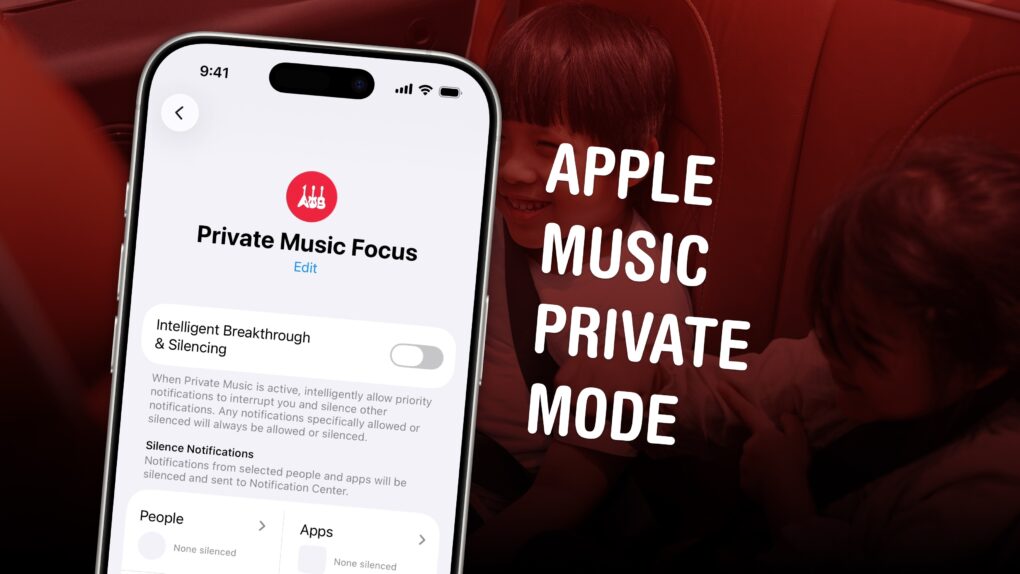
  • Karaoke Mode turns down the vocals so you can sing along at a party or in the car.
  • Music Haptics let you feel the beat of the music right in your hand.

Phone

  • Set up your Contact Poster to make a beautiful custom call screen for your contact.
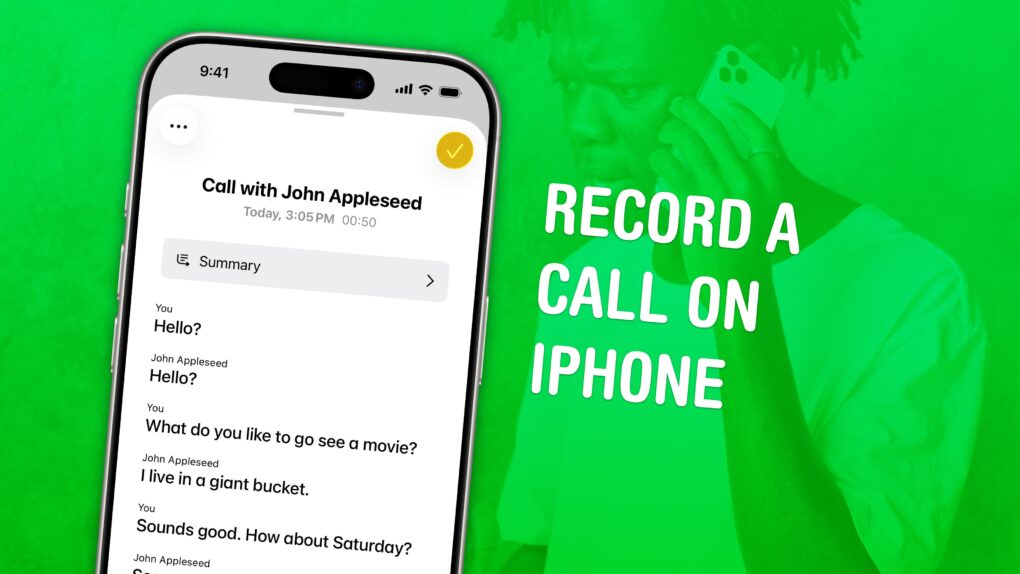
  • Record a phone call and transcribe it in the Notes app.
  • Live Voicemail lets you see a transcription of their voicemail message as it’s being recorded — and you can pick up at any point, if the call turns out to be important.
  • T9 dialing lets you look up a contact from the keypad by typing in the letters associated with each number — like it’s 2004 again.

Photos

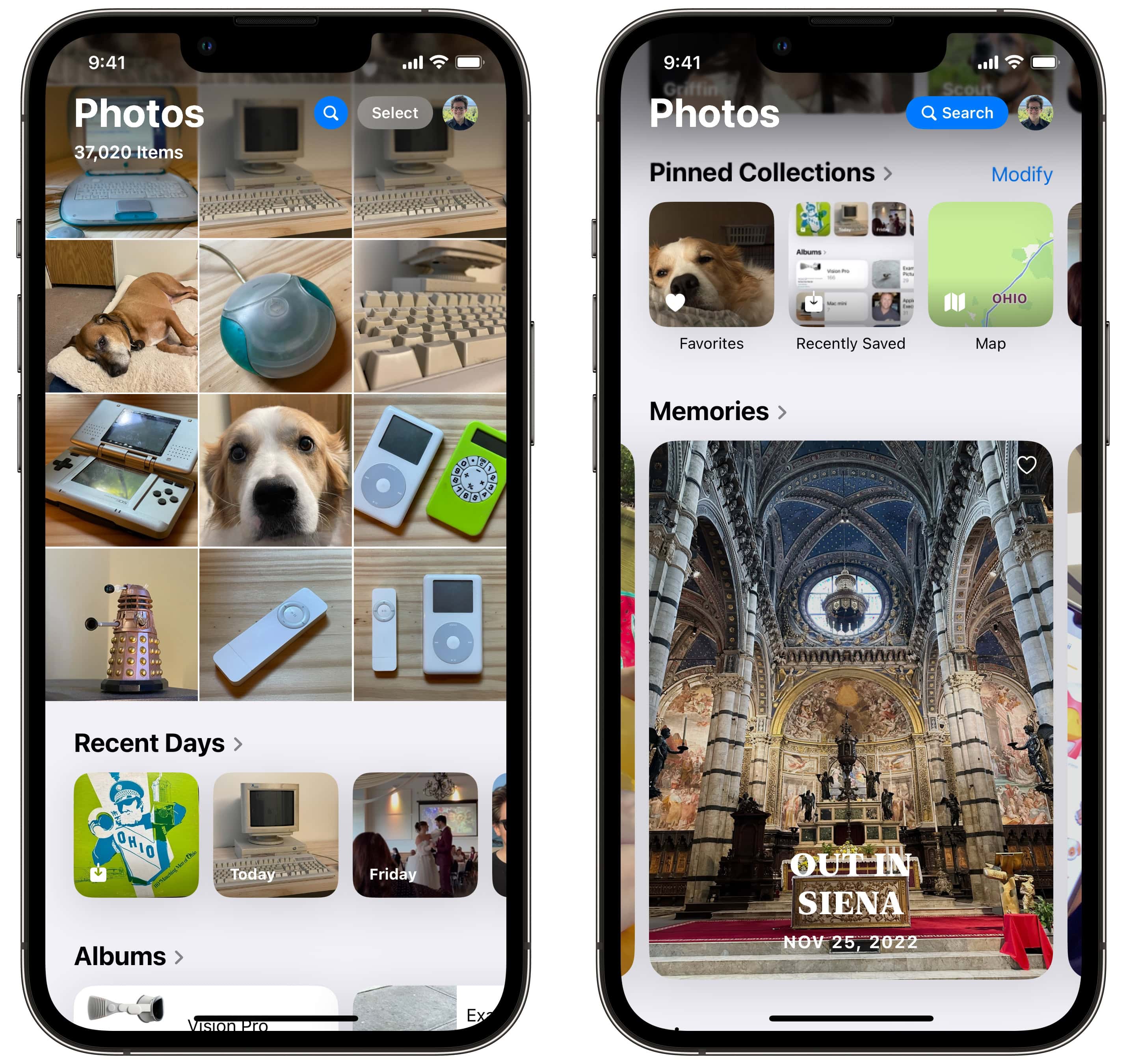
The new Photos app in iOS 18
The new design puts your library above and your collections down below.

Reminders

Safari

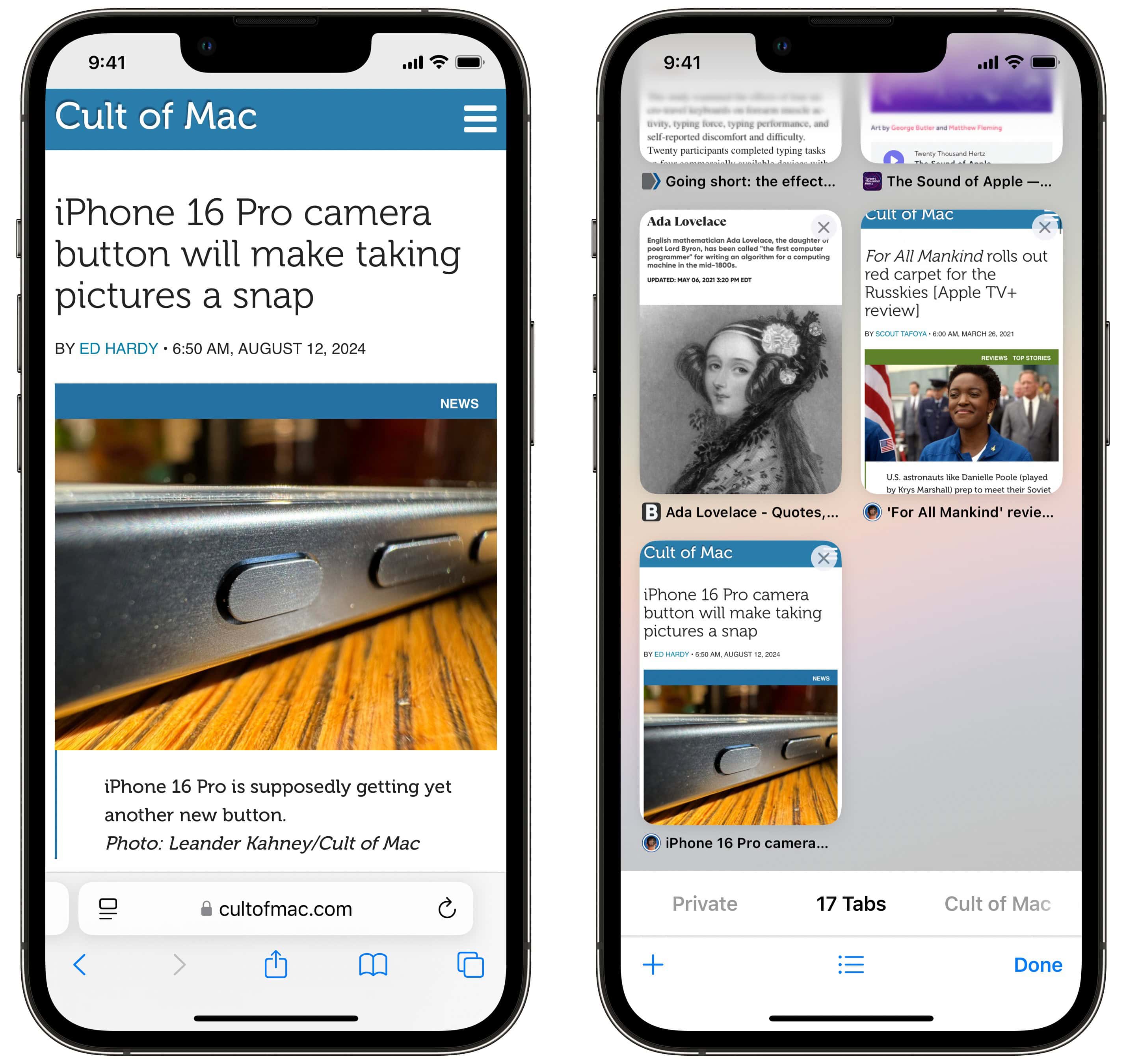
Safari on iPhone toolbar and user interface
The Safari user interface is simple, but there’s a lot of hidden features in the toolbars and interface.

Other apps

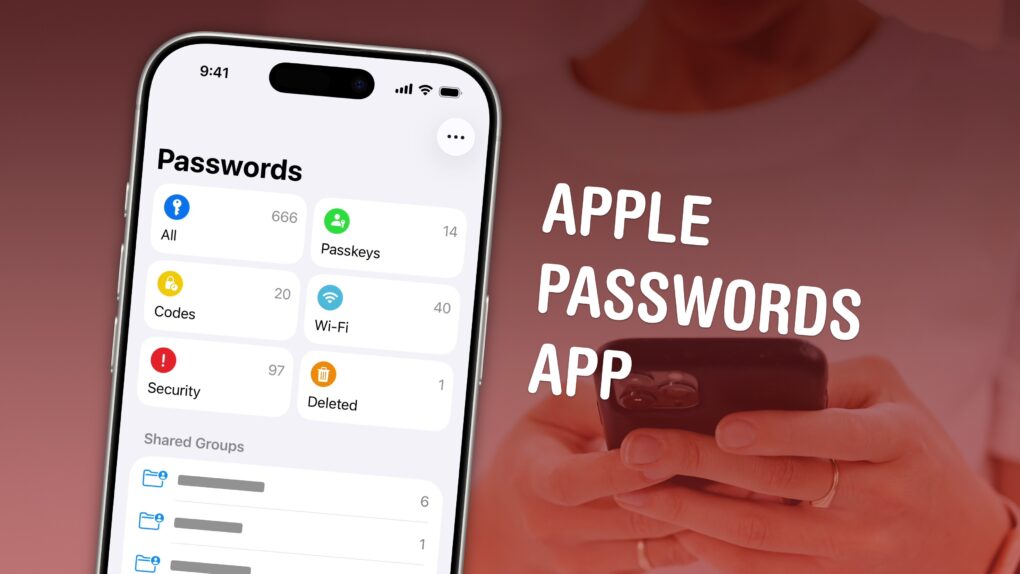
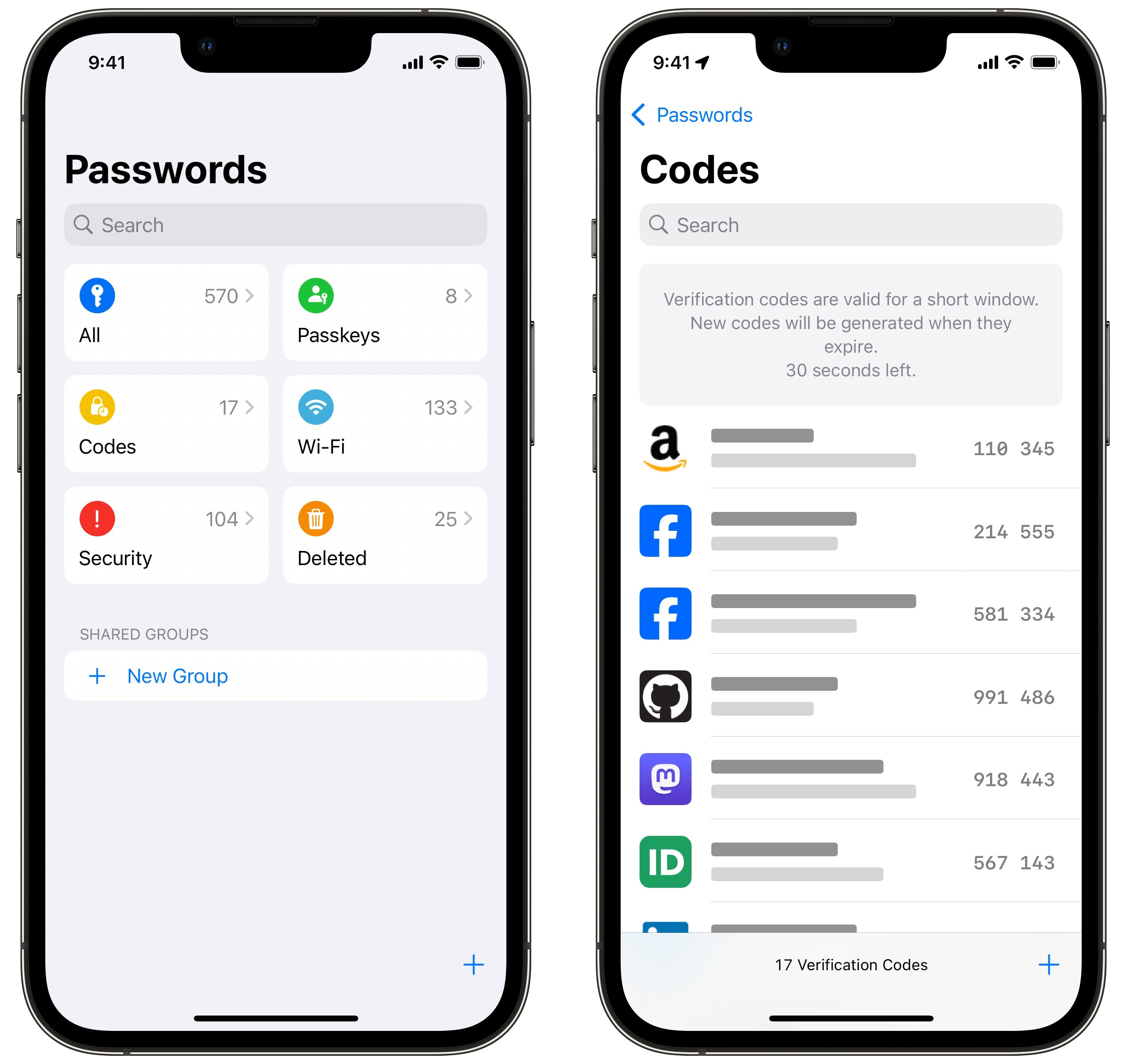
Apple Passwords app for iPhone in iOS 18
Use the new app, and its categories, to quickly find what passwords you’re looking for.
  • Broadcasts can tune in to online radio stations for livestreams and music.
  • Final Cut Camera is a bespoke pro camera app that puts more advanced manual controls in your hands.
  • Invites can help your party planning and organization with RSVPs that keep everybody up to date. It can even handle a shared music playlist and photo album that anyone can contribute to.
  • Journal makes keeping a diary a breeze. Your iPhone will pull together details from your photos, locations and events to give you prompts for memories worth writing about.
  • News has a daily crosswordQuartiles, sudoku and emoji game for Apple News+ subscribers.
  • Passwords is a convenient way to save, autofill, look up and share passwords — and they’re synced across all your devices.
  • Weather lets you see yesterday’s weather, daily and monthly average stats and the phase of the moon.
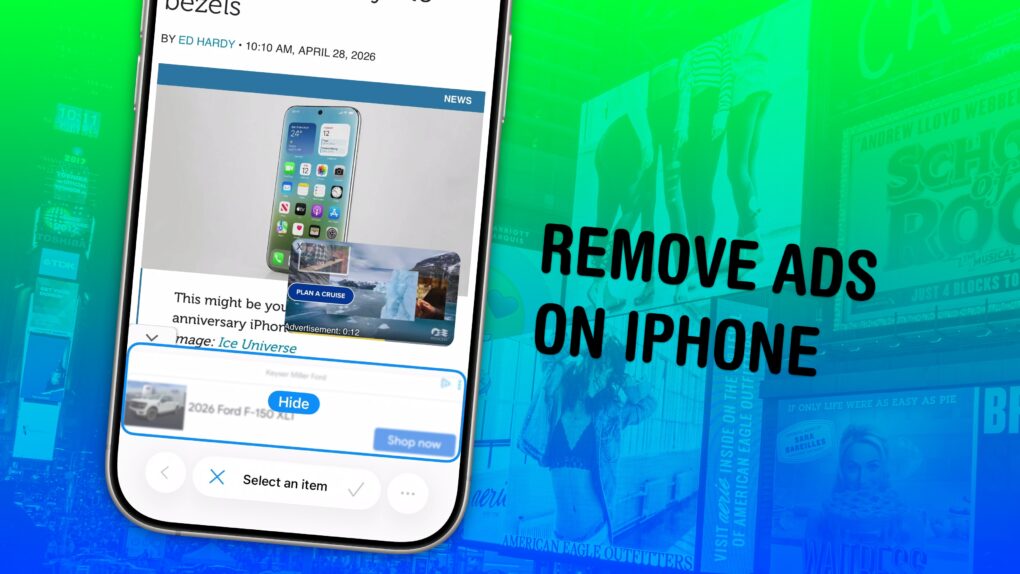
  • Vinegar is an excellent way to block YouTube ads in Safari, and enable features like background play and picture-in-picture, without paying for YouTube Premium.

Apple Intelligence

Animation showing Apple Intelligence on iPhone
Apple Intelligence is a powerful LLM that runs both in the cloud and on-device.

Accessibility features

Vehicle motion cues on iPhone
It’s a simple trick, but it works.
  • Vehicle Motion Cues will help reduce feelings of motion sickness. With the feature turned on, dots along the edge of your iPhone screen will animate in sync with the motion of the plane, train or automobile you’re riding in.
  • Eye Tracking lets you control your iPhone entirely with your eyes. You can use this feature in a pinch if you need to use your phone with soapy hands while doing the dishes.
  • Music Haptics add another dimension to audio: vibration. The feature brings to life a track of rhythmic vibrations and patterns timed to certain Apple Music songs.
  • Vocal Shortcuts let you control your phone by speaking a command out loud. Think “Hey Siri,” but for running your own custom actions from Apple’s Shortcuts app.
  • Live Speech plays whatever you type into the keyboard out of the speakers. And Personal Voice lets you train your phone to mimic your own voice.
  • Sound Recognition will continuously listen for certain sounds and will notify you when they’re recognized.
  • Guided Access locks down your iPhone to a single app before you hand it to a kid or someone else.

Latest how-tos

Read Cult of Mac’s latest posts on iPhone How-To:

Apple pushes new AirPods Pro firmware update with bug fixes and improvements

By

How to update AirPods
There’s new firmware for multiple AirPods Pro models. Get it today.
Image: Apple/Cult of Mac

Apple released new firmware for AirPods Pro 2 and AirPods Pro 3 on Thursday that offers bug fixes for a major recent firmware upgrade. Version 8B28 and 8B30 merely tweak the wireless earbuds, but every AirPods update is worth installing.

Apple recently explained exactly how to update your AirPods firmware. The process can happen automatically, in the background, but there is a way to speed things up. It’s a good idea to manually check that you’re running the latest version, which brings bug fixes and sometimes great new features.

Read on for more details, and find all current AirPods firmware versions, along with instructions for getting the AirPods update as quickly as possible.

How to find your music stats with Apple Music Replay 2025

By

Apple Music Replay graphic
Find your top songs of the year.
Image: D. Griffin Jones/Cult of Mac

Apple Music Replay is a great way to find your music stats for the past year: the most played songs, artists and albums in the last 12 months. Similar to Spotify Wrapped and the like, your annual Apple Music Replay is a fun way to see what tracks you listened to most.

Fun fact: Apple usually publicizes Apple Music Replay in December, but it’s actually updated weekly and available throughout the whole year! You can check in whenever you want to see how your year is shaping up.

We’ll show you how to find it and how to share your top music of the year to your friends and social media.

How to add your ID to Apple Wallet

By

Get a gorgeous ID in Apple Wallet.
Image:

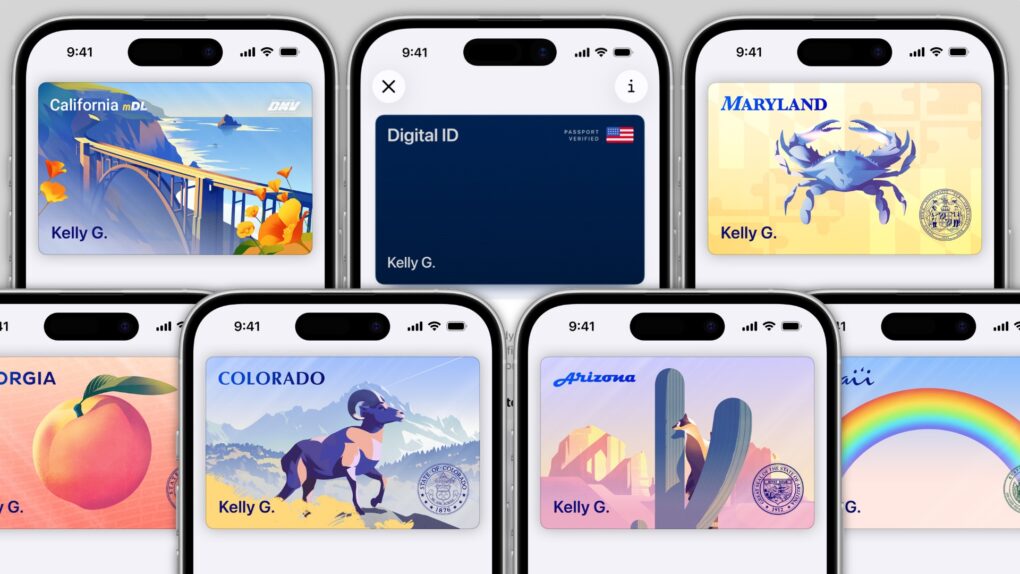
In several states, Apple’s state ID initiative enables iPhones and Apple Watches to hold a digital copy of the user’s driver’s license, in the same way these devices store credit cards and airline tickets. And across the United States, you can create an Apple Digital ID based on your passport that can get you through some airport security checks. 

The day when an iPhone can completely take the place of an old-fashioned wallet remains years away, but it’s a goal Apple is working toward. Apple Pay is making progress on replacing credit cards, you can put airline tickets in the Wallet app, and the same goes for loyalty cards.

But no wallet is complete unless it can hold an ID. And that’s where Apple’s digital ID initiative comes in. Here’s what you need to know to add your driver’s license, state ID or federal passport to your Apple Wallet.

Track your online orders the easy way — in your iPhone’s Wallet app

By

Order Tracking in Apple Wallet: “See What’s Coming”
Be on the lookout for your packages.
Image: D. Griffin Jones/Cult of Mac

You can use the built-in iPhone Wallet app for some basic order tracking with classic Apple ease of use. No need to fiddle with finding and copying tracking numbers — your orders will appear there automatically. 

If you order something from an online store that doesn’t automatically integrate with the Wallet app, there’s a solution for that as well. If your device supports Apple Intelligence, it’ll scan your email inbox and add in all those Amazon orders, too. 

Here’s how the iPhone’s order-tracking feature works. 

How to hide apps on your iPhone and iPad

By

Hide Your Secrets
There’s an easy way to keep your apps hidden.
Image: D. Griffin Jones/Cult of Mac

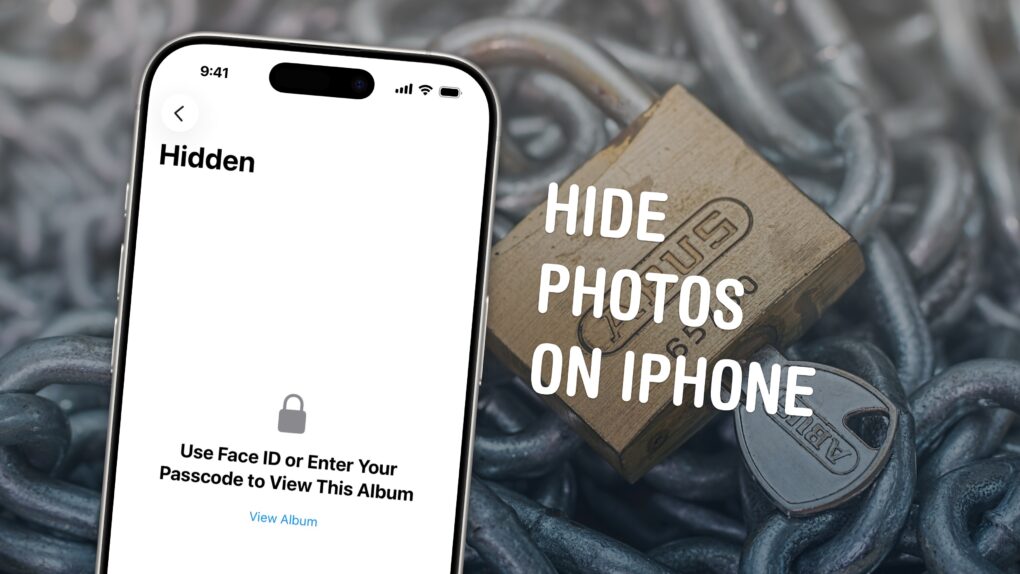
You can hide apps on your iPhone so they’re completely invisible, and you can lock all kinds of apps so they require Face ID to open.

Why would you want to? Maybe you have sensitive content you don’t want anyone to see, or you don’t want anyone to know you’re using dating or hookup apps. Hiding apps is also good for staying off social media or away from addictive games. Plus, it’s a great way to declutter your iPhone’s Home Screen. You can really clean things up without deleting apps you might want to keep.

There are, however, a few essential apps on your phone that can’t be hidden. Here’s how it all works.

How to unsend iPhone messages to avoid blowing up your life

By

Fix Yur Mistaeks
Correct the record.
Image: D. Griffin Jones/Cult of Mac

Knowing how to edit or unsend iMessages on your iPhone could come in clutch. Like when you text your mom, “Finally got laid today” when you meant to say “paid.”

Thankfully, it’s easy to rewrite history in iMessage. Let me show you how this lifesaving feature works.

Get paid back from everyone using Apple Cash in a group chat

By

Get Paid Back
Get money back from the whole group at once.
Image: D. Griffin Jones/Cult of Mac

In iOS 26, you can use Apple Cash in a group chat to make it super-easy to split a bill. You won’t need to chase down everyone separately if you use this incredibly convenient feature.

Here’s how to request money and send payments using Apple Cash from a group chat.

How to watch Apple’s ‘Awe Dropping’ September iPhone event

By

Awe Dropping
The iPhone 17 event is on Tuesday, September 9.
Image: Arne Müseler/Wikimedia Commons/Apple

How can you watch Apple’s iPhone event? You can stream the keynote on YouTube, on the apple.com website or on your smart TV. It starts at 10 a.m. Pacific time on Tuesday, September 9.

At the September event, Apple unveils new iPhones, Apple Watches and other accessories. The iPhone 17 series will be the highlight — with the iPhone 17 Air being a standout new model. Rumors point to the Apple Watch Ultra 3 getting a faster processor, satellite messaging and (possibly) blood pressure monitoring. Some of these features might make it to the Apple Watch Series 11. A couple of other new devices might put in an appearance at Apple’s September event, too. We’ve heard rumors of AirPods Pro 3, an updated Apple TV 4K and AirTag 2.

Here’s how you can watch it all live, whether you’re watching at home or secretly at work.

How to download the iOS 26 public beta (if you dare!)

By

Get New Features Early
Give me Liquid Glass now!
Image: D. Griffin Jones/Cult of Mac

Anyone interested can download the iOS 26 public beta for free — right now. You can get a look at the exciting new Liquid Glass design coming to the iPhone before the update is shipped to everyone. The iOS 26 public beta also comes with a new Camera and Phone app, new Apple Intelligence features, 3D photos and more.

Of course, there are a few things you should look out for. Beta software is buggy and can lead to data loss or apps that don’t work. Battery life will suffer and your phone will often get hot. You have been warned.

If you want to try it out, you should make sure you have a backup of your most important data with two copies of your photo library before you try installing. I’ll show you how.

How to autofill passwords, email addresses and more on iPhone

By

Instantly Autofill Anywhere
No more futzing around, looking up a password or email to copy and paste.
Image: D. Griffin Jones/Cult of Mac

AutoFill on iPhone is supposed to help you out when you’re entering a password or typing in your email. When it doesn’t work, it can be incredibly frustrating — especially if you don’t know some complicated password offhand. The phone’s supposed to remember it so you don’t have to!

Sure, you could switch over to the Passwords app — or you can instantly autofill passwords right from the text box. AutoFill works anywhere you can input text, including third-party browsers.

In addition to passwords, you can autofill credit cards, contacts and more. You can even autofill scanned text from documents, signs and more using the camera.

Here’s how it’s done.

How to use the built-in Translate app on iPhone

By

Don’t Leave Without This App
Apple’s Translate app is a great resource for those with wanderlust.
Image: D. Griffin Jones/Cult of Mac

The Translate app built into your iPhone is a hidden gem if you’re traveling abroad. It gives you the ability to download languages in advance, so you don’t have to worry about a dodgy cellular connection.

The camera lets you translate text in-line of a restaurant menu or parking meter — it could help you out of a sticky situation. The Translate app’s conversation view makes it easy having a back-and-forth with someone who doesn’t speak your native tongue.

Here’s how to make the most out of the built-in Translate app.

Make your texting snazzier with iMessage effects (including fireworks)

By

An image of an iPhone with a fireworks on the screen and the words
Spruce up your texting with iMessage effects.
Image: D. Griffin Jones/Cult of Mac

iMessage effects can add much more meaning, emotion and fun to your texting. You can add bolditalicsunderline and strikethrough text, just like a formatted document, and even choose from a bunch of cool, animated effects. Plus, you can use full-screen animated effects, including lasers, confetti and  fireworks — which seems perfectly appropriate on the Fourth of July.

With Apple’s text message effects, you can make quite an impression. You can make congratulations more bombastic (to rejoice in someone’s finest moments). Or, you can use formatting and effects to convey sarcasm, stress and sorrow more clearly.

These text effects are fun and incredibly useful. Keep reading below or watch our video.

How to take fabulous fireworks photos with your iPhone

By

These tips will help you take better fireworks photos.
Photo: Richard Dongses/Flickr CC

With a little know-how, you can photograph fireworks with an iPhone and achieve great results. But just pointing and shooting with no prior planning can lead to blurry, unexciting fireworks photos.

For instance, does this sound familiar? Last year’s fireworks made you say ooh and ahh, but when you look at your iPhone photos from that night, the sound you make is more of an ugh.

Don’t blame Siri or some engineer in Cupertino for previous photo fails. The iPhone camera, as mighty as it is, can’t do all the thinking for you — especially in challenging lighting conditions like a fireworks display. But with a little thought and preparation, you can make this holiday worth reliving on your iPhone camera roll.

Below are some simple tips to make your iPhone fireworks photos sizzle.

Last chance to claim settlement from Siri class-action lawsuit [Updated]

By

Submit Your Apple Siri class action lawsuit claim
Here's how to submit your Apple Siri class-action lawsuit claim.
Image: D. Griffin Jones/Cult of Mac

Thanks to a settlement in a class-action lawsuit related to Siri and data privacy, most U.S. Apple users can receive up to $100. You just need to fill out an online form by July 2, 2025. (Spoiler alert: That’s today.)

You’re eligible for a settlement if you live in the United States and used Siri between September 17, 2014, (when Apple released “Hey Siri” in iOS 8) and December 31, 2024. You can receive up to $20 per device, for up to five devices, if you’ve ever accidentally triggered Siri in the middle of a private conversation or meeting.

Here’s how Apple got in this mess, how to find out if you’re eligible, and how to submit your claim.

How to turn off autocorrect on your iPhone

By

how to turn off autocrorect
if you dont like being forced into capitalization, heres how to turn it off
image: d griffin jones/cult of mac

you can turn off autocorrect on your iphone if you want your texts to come across as casual and laid back. psychologically, lowercase writing that isnt punctuated with apostrophes or periods read as more informal and friendly

turning off autocorrect is super-easy. you can even turn off capitalization but leave on corrections for spelling and grammar. see how awesome it is? heres how to do it!!! :)

How to schedule texts and send messages later on iPhone

By

Image showing how to schedule a text message on iPhone, captioned “Schedule It For Later”
Let the computer send your text for you.
Image: D. Griffin Jones/Cult of Mac

If you know how to schedule texts on iPhone, you can make sure you never forget to send a reminder, birthday greeting or early morning message for someone in a different time zone. You can schedule a whole slew of texts up to a week in advance, with links, photos, attachments and more, using the iPhone’s Send Later feature.

This can save your bacon if you’re often the type of person to forget to text someone later. And it’s really easy to do, once you figure out how to use the somewhat hidden feature.

How and why to use iPhone Stolen Device Protection

By

How and why to use iPhone Stolen Device Protection
Activate Stolen Device Protection to make your iPhone less valuable to criminals.
Graphic: Ed Hardy/Cult of Mac

iPhone Stolen Device Protection offers increased safety for your accounts and financial information if someone steals your handset and its passcode.

Here’s how to activate the security feature, and — more importantly — why you should do it now.

How to play Apple’s daily crosswords on iPad and iPhone

By

Daily Puzzles in Apple News
Get a crossword every day in the Apple News app.
Image: Wil540 art/Wikimedia Commons/D. Griffin Jones/Cult of Mac

Apple has a daily crossword and crossword mini that you can play on your iPad and iPhone inside the News app. This feature is available to anyone with an Apple News+ subscription or the Apple One Premier bundle.

I absolutely love playing the crossword puzzles every day. I’m not very good at them, but it’s a fun challenge and it’s a well-designed app.

Here’s how it works.

Protect yourself online by changing bad old passwords

By

Change Your Bad, Old Passwords
Take the chance to upgrade your security.
Image: Ed Hardy/Cult of Mac

There’s been another big data leak of over 16 billion records, and that’s a great opportunity to do something you’ve probably been procrastinating on: Replace your website passwords that hackers stole because of some lax security. Fortunately, Apple’s new Passwords app makes it easy to find out which of your passwords leaked so you can change passwords right on your iPhone.

Stay one step ahead by fixing a potentially serious problem now, before something bad happens.

See the past week’s weather and other stats on your iPhone

By

Is It Actually Getting Hotter?
See yesterday's weather or if it's unusually hot this season.
Image: D. Griffin Jones/Cult of Mac

You can see the past week’s weather on your iPhone in the Apple Weather app. It shows all kinds of detailed weather data — not just temperature and rain, but wind, humidity, visibility, pressure and more.

You also can easily see how that info compares to the average weather data to see if this is an unusually heavy winter or a particularly hot summer. Apple Weather even shows you details on the phase of the moon, all in iOS 17.

Here’s how it works.

How to file Apple bug reports (and why you should do it ASAP)

By

Text “Work the Feedback System” next to a screenshot of Feedback on iPhone
There are unspoken rules and tricks to getting your bug reports fixed.
Image: Apple/D. Griffin Jones/Cult of Mac

June is the best time of year to give feedback to Apple on betas for iPhone, Mac, iPad and Apple Watch. Just after the company releases the initial betas of its upcoming software updates, this is when Apple engineers have the most time to address bugs and make changes. And that makes this the optimal time to file an Apple bug report.

It won’t be long before Apple engineers’ task lists fill up through the fall, when the new software will be released. After that, teams are rearranged to make the sprint toward the next year’s updates. So if you have any input, you’d best make yourself heard now.

How do you file a bug report or send in feedback to Apple? Apple made a tool called Feedback Assistant that will guide you through the process. It’s available if you’re running a developer or a public beta of iOS, macOS or iPadOS. Here’s how.

How to save text messages from iPhone to computer

By

A screenshot of an iPhone with a WhatsApp chat, and the words
Take control of your vital text message backups with TouchCopy.
Image: Wide Angle Software

The importance of backing up your iPhone messages is obvious. So, when you want to save text messages from iPhone, why settle for a backup that doesn’t let you access them?

Whether precious conversations with a loved one or vital information for a legal case, your messages deserve to be saved — and, more importantly, easily accessible on your computer.

How to make AI images on your iPhone with Image Playground

By

How To Use Image Playground for iPhone
Apple’s on-device image generating app.
Image: D. Griffin Jones/Cult of Mac

Apple’s Image Playground is a free app for iPhone and other Apple devices that lets you generate unlimited AI images for free. You can generate images based on your friends, from a text prompt or totally from scratch, in a wide variety of themes and styles.

It’s part of Apple Intelligence, the growing set of AI features that work on the latest iPhones, Macs and iPads. Here’s how to use Image Playground.

Crop, rotate and skew photos on iPhone

By

Fix Your Perspective
Straighten out images that were taken slightly askew.
Image: D. Griffin Jones/Cult of Mac

If you’re traveling this summer, there’s a neat editing trick to get spectacular shots of landmarks or murals. On the iPhone, you can crop, skew and rotate a photo using the Photos app’s advanced editing tools to make adjustments you might not have thought were possible.

You can quickly fix the perspective or angle a picture was taken from, correct the fisheye distortion on an ultra-wide photo and more. You can also precisely rotate and skew the perspective, for those times when you don’t realize until it’s too late that your shot is slightly to the side or slightly off-center.

The best part is you can can fix it all directly in the Photos app. Here’s how.

How to set up Game Center to pwn your friends

By

Game On With Game Center
Set up Game Center and you can compete with friends in the games you both play.
Image: Apple/D. Griffin Jones/Cult of Mac

Apple’s Game Center service lets you compete with friends and unlock achievements in the games you play. You can see where you rank among your friends — and globally. Achievements will give you a list of missions to accomplish to prove your mastery of the game. You can even play live multiplayer games on all your separate devices using SharePlay.

Up until iOS 10, Game Center existed as a separate app on iPhone and iPad, which made this all easier to manage. And rumor has it that Apple will replace Game Center with the next major version of iOS, to be announced next week at WWDC25.

How do you manage your Game Center account now, on iOS 18? What options do you have? How do you add friends?