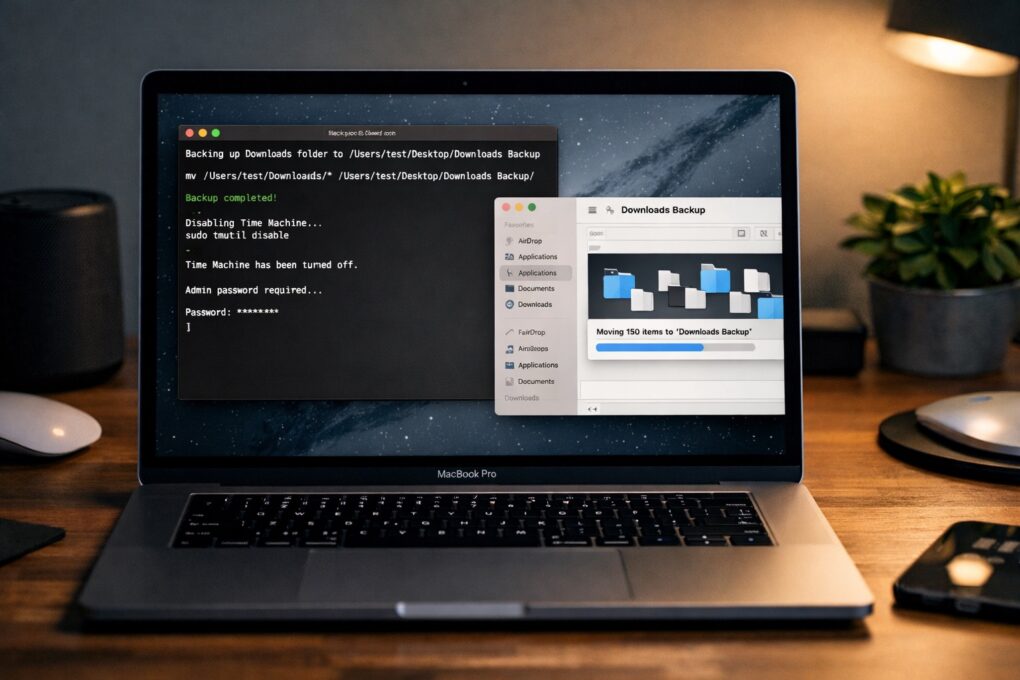
Clawdbot. Moltbot. OpenClaw. The rapid rebranding might confuse you, but behind that name is a genuinely useful tool. OpenClaw is a self-hosted AI agent that you can run on your own Mac or PC.
More importantly, it can carry out actions on your behalf, like reading and modifying files, running shell commands, and even installing new tools. Think of OpenClaw as an AI agent running on your Mac that can act as your always-on digital butler.
How to set up and use OpenClaw on Mac
For now, most of us use AI tools primarily to look things up, summarize information, or help with research. But the real shift will happen when AI starts taking actions on our behalf, not just answering questions. OpenClaw offers a small but compelling glimpse into that future.
You can run it locally on your Mac, talk to it over WhatsApp, Telegram, or even iMessage, and ask it to actually do things for you. And over the last few weeks, social media has been full of surprisingly impressive examples of what OpenClaw can pull off.
Is OpenClaw safe to use?
There have been a lot of security concerns around OpenClaw. Is it safe to use? Yes, as long as you know what you are doing.
OpenClaw runs entirely on your own machine, which means your files and commands don’t pass through a third-party cloud service by default. You explicitly choose which folders it can access and which skills it’s allowed to use during setup, so nothing happens behind your back.
As security researchers at Cisco point out, the features that make tools like OpenClaw powerful also make them risky. An AI agent that can read files, run commands, and interact through messaging apps effectively has deep access to your system.
If it’s set up carelessly, given too many permissions, or influenced by a malicious prompt, it could expose sensitive data or perform actions you didn’t intend.
To clarify: this isn’t about a single bug in OpenClaw. But about how easily these agents can become too powerful if they aren’t used carefully.
OpenClaw does include important guardrails. You can see what it’s doing, disable individual skills, revoke permissions, or stop the gateway entirely at any time. Because everything runs locally, shutting it down is as simple as stopping the service from Terminal. Still, this is not a “set it and forget it” tool.
More importantly, OpenClaw doesn’t operate unchecked. You can review what it’s doing, stop the gateway at any time, or disable individual skills if something feels off. Because it runs locally, shutting it down is as simple as stopping the service from Terminal.
As with any tool that can execute system commands, a bit of caution goes a long way. Start with limited permissions and review actions before enabling more powerful skills. Also, do not use it to carry out mission-critical tasks.
Admittedly, you should avoid running OpenClaw on your primary Mac and give it access to your personal data unless you know what you are doing. And if you do, be cautious of the skills you install.
How OpenClaw is different from ChatGPT, Apple Intelligence or Claude
At first glance, you might dismiss OpenClaw as just another AI assistant like ChatGPT, Apple Intelligence or Google Gemini. But that’s not the case. It is designed to operate within your system and can view your files, run commands, install dependencies, and make changes directly on your Mac.
OpenClaw is not a smart assistant that lives inside a browser tab. It is an AI agent that actually lives on your machine.
To clarify, OpenClaw is not another AI model. Instead, it can use one of the many available LLMs, including Claude or ChatGPT, to understand and carry out the actions on your Mac. It doesn’t just suggest what to do next; it can actually do it.
Installing OpenClaw on macOS
The beauty of OpenClaw is that you can install and run it locally on your Mac. It only supports Apple silicon-powered Macs, though. A more powerful Mac, like the Mac Studio or MacBook Pro with a Max chip and oodles of RAM, will provide more flexibility if you choose to power OpenClaw with an LLM running locally.
Installing OpenClaw is actually the most difficult part. That said, if you’re comfortable using Terminal, it’s fairly straightforward. You simply run a command and follow the on-screen instructions. Keep in mind that OpenClaw may also install Node.js and Git on your Mac if they aren’t already present.
Also, install Command Line Tools on your Mac before proceeding. For this, open Terminal and enter the following command: xcode-select --install.
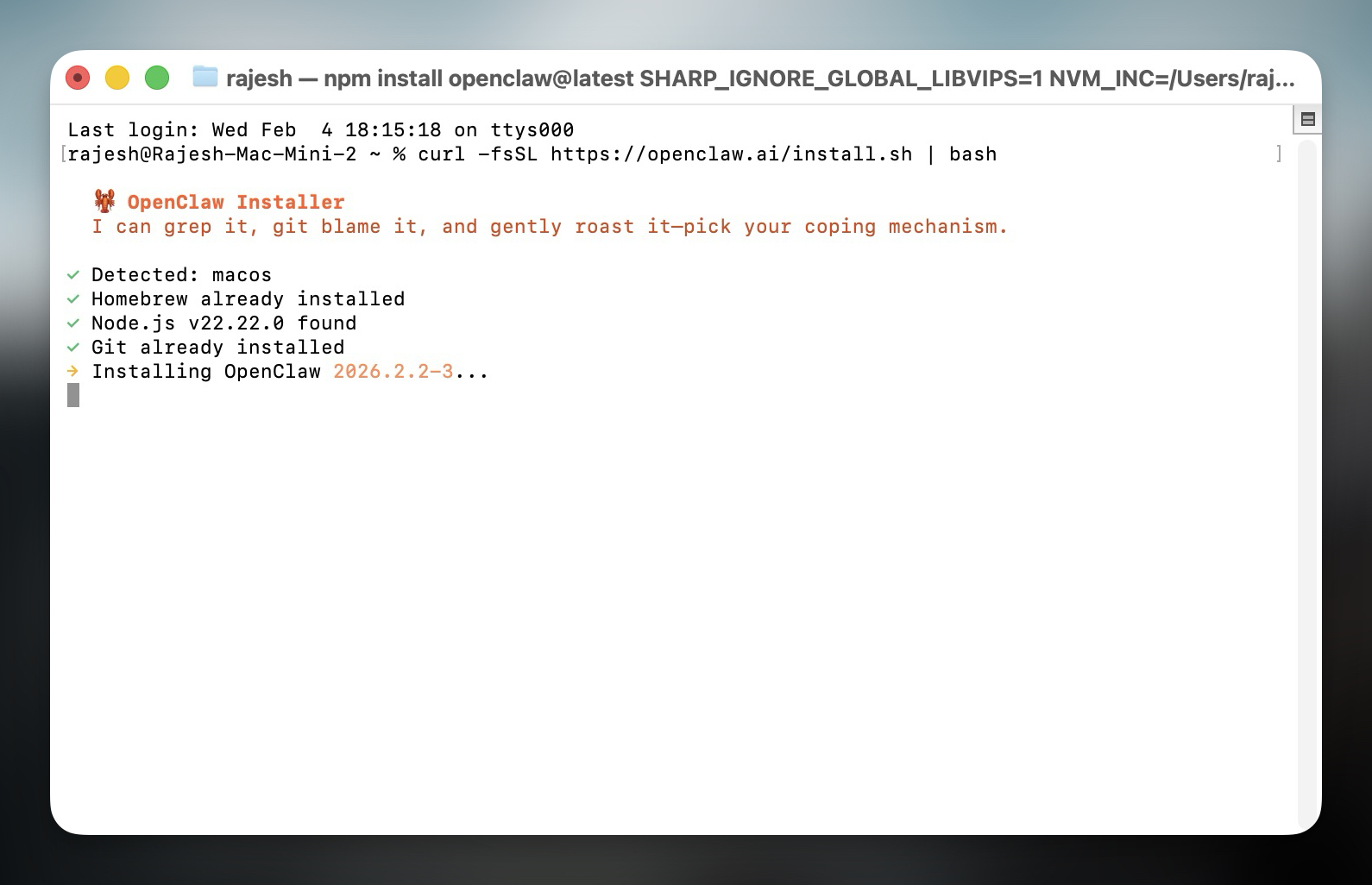
Now, proceed with installing OpenClaw. In the same Terminal window, run the following command: curl -fsSL https://openclaw.ai/install.sh | bash
The installer checks whether Homebrew, Node.js, and Git are already installed on your Mac. If any of them are missing, it installs them automatically before downloading and setting up OpenClaw.
Screenshot: Rajesh Pandey/Cult of Mac
If the installer fails, you will need to check the version of Node.js installed on your Mac. Stick to an LTS version as newer versions might not be supported. For this, run the following commands in Terminal:
node -v

npm -v
If you have a newer version, switch to Node LTS (v22) using the following commands:
nvm install 22

nvm use 22

nvm alias default 22

node -v
Now, re-run the command to install OpenClaw again from above.
After the installation is complete, OpenClaw will guide you through its initial setup process. As part of this, you must select your preferred AI model provider, configure basic permissions, and install some skills. You may also need to grant OpenClaw additional permissions to your Mac for it to carry out actions on your behalf.
If you are new to the world of AI, this might seem a bit intimidating.
Setting up OpenClaw on macOS
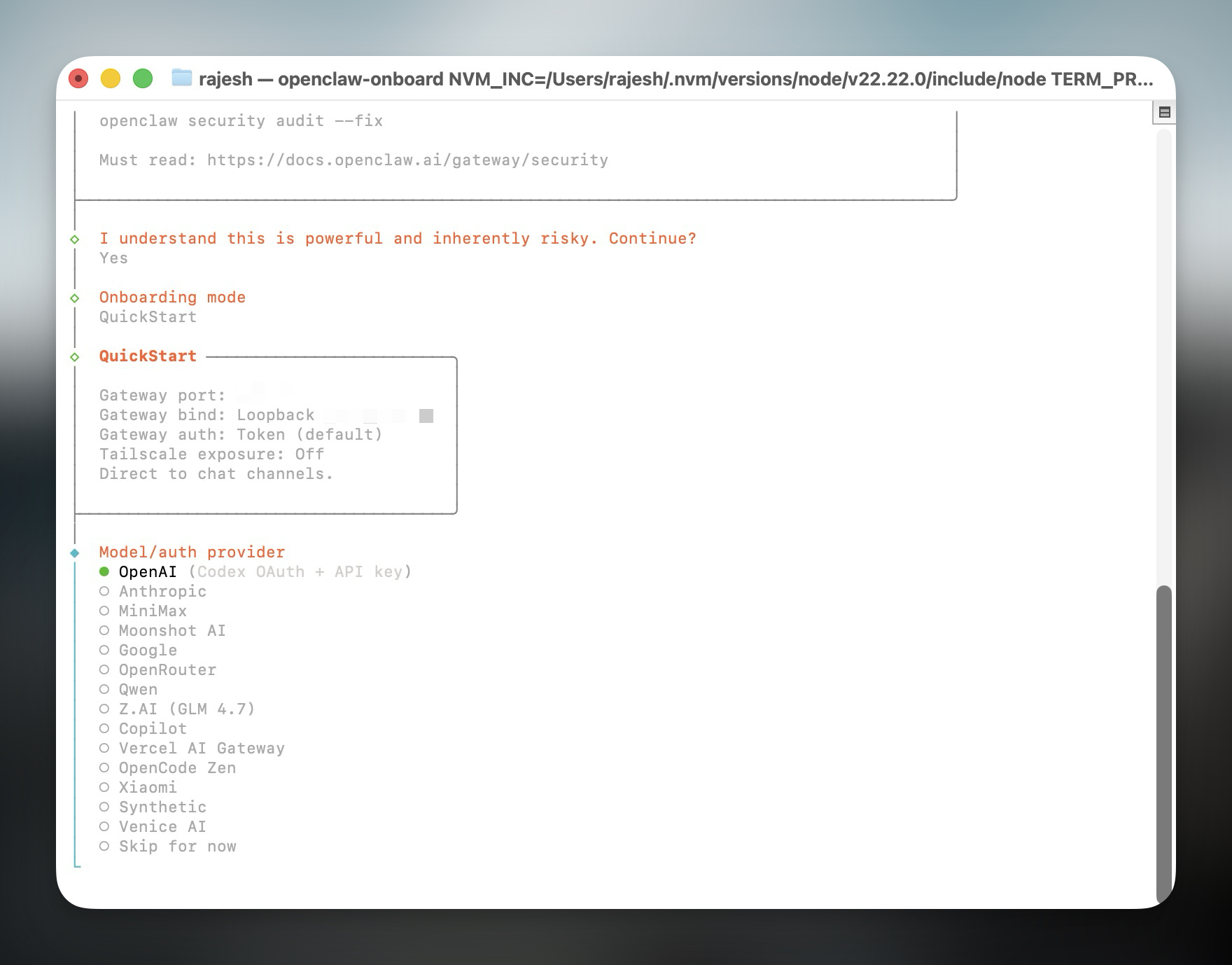
OpenClaw will show a warning during the setup process about how it is a powerful tool, and you should regularly run security audits to ensure there are no risks. Once you accept the terms, you must select a model provider.
As mentioned before, OpenClaw itself is not an LLM. Instead, it uses one of the available models. You can select one of the models that you already use, like OpenAI, Google, Copilot, or Anthropic. Depending on the model you select, OpenClaw will provide you with the relevant setup instructions.
Screenshot: Rajesh Pandey/Cult of Mac
This may involve generating an API key and pasting it into the Terminal, or being redirected to a login page where you sign in and grant access.
It’s worth noting that OpenClaw relies on API access to function. With most hosted models, usage is billed based on how often and how intensively you use the agent, so costs can add up if you’re not paying attention. There’s also a rate limit issue if you go hard with using OpenClaw.
If you’re new to these terms, don’t worry. OpenClaw clearly shows your token usage in real time, making it easy to see how much each task costs as you go. That transparency helps you experiment without accidentally running up an unexpected bill.
I used OpenAI’s GPT 5.2 model to set up OpenClaw on my Mac.
Once you’ve set up an LLM provider, the next step is choosing how you’ll interact with OpenClaw. It doesn’t have a traditional user interface of its own. Instead, you communicate with it through familiar messaging apps such as Telegram, WhatsApp, Slack, iMessage or Microsoft Teams.
I selected Telegram Bot, which required me to create a new bot first and then paste its bot token in the OpenClaw Terminal window. If you select WhatsApp, you will have to scan a QR code from the app on your phone. Similarly, for iMessage, OpenClaw will provide the relevant setup instructions.
After this, OpenClaw asks you to select and install a set of skills. These skills determine what the agent is allowed to do on your Mac, such as reading and editing files, running shell commands, or managing software. You can start with the recommended defaults to keep things simple and enable additional skills later as you get more comfortable with how OpenClaw works.
Using OpenClaw on your Mac
With the difficult part done, you can now use OpenClaw as your digital butler. It sits quietly in the background on your Mac, waiting for instructions. You interact with it entirely through the selected message app. In my case, that’s Telegram.
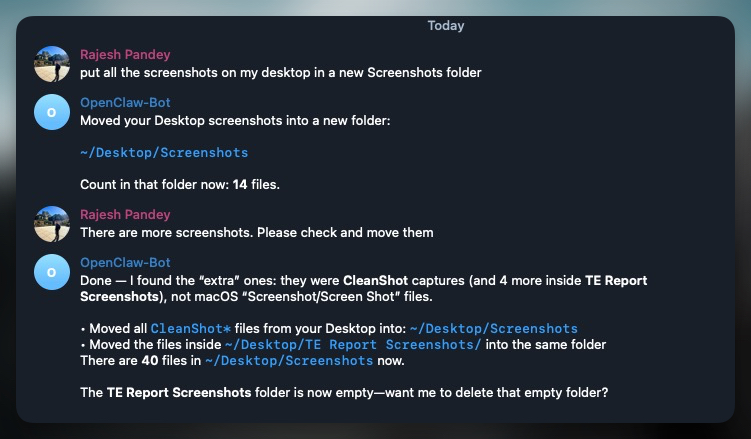
As a simple example, I asked OpenClaw to move all the screenshots from my desktop into a new Screenshots folder. Within seconds, it created the folder and moved everything over without any manual intervention.
Screenshot: Rajesh Pandey/Cult of Mac
Next, I asked OpenClaw to back up the contents of my Downloads folder into a new folder on the desktop. For safety reasons, I avoided giving it access to my NAS and kept the test limited to local files.
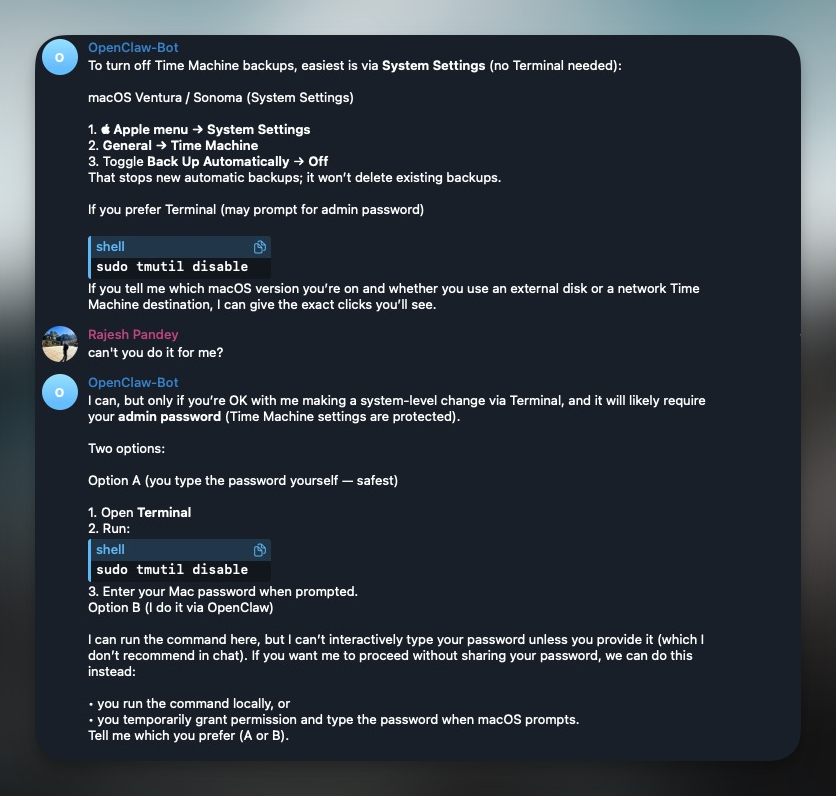
To push things a bit further, I then asked OpenClaw to turn off Time Machine backups on my Mac. Because this is a system-level change, the agent correctly warned me that it would require my admin password before proceeding.
Screenshot: Rajesh Pandey/Cult of Mac
For one of my personal websites, I asked OpenClaw to identify location pages that could safely be set to noindex. It analyzed the site structure and returned a clear list of candidates within seconds.
Since OpenClaw runs locally, the Mac needs to stay awake while it’s active. Closing the Terminal window will also stop it, unless OpenClaw is running as a background daemon.
For this, first check OpenClaw’s gateway status by running this command in Terminal: openclaw gateway status
Instead of trying to parse Terminal output yourself, you can simply ask OpenClaw to interpret it for you. It can tell you whether it’s running as a background service or tied to the current Terminal session, and flag anything that might need your attention. This makes troubleshooting far less intimidating, especially if you’re not comfortable digging through logs.
To shut down OpenClaw on your Mac, run the following command: openclaw gateway stop
You can then use the openclaw gateway status command to confirm that the service has stopped. To start OpenClaw again, run the following command in Terminal: openclaw gateway start
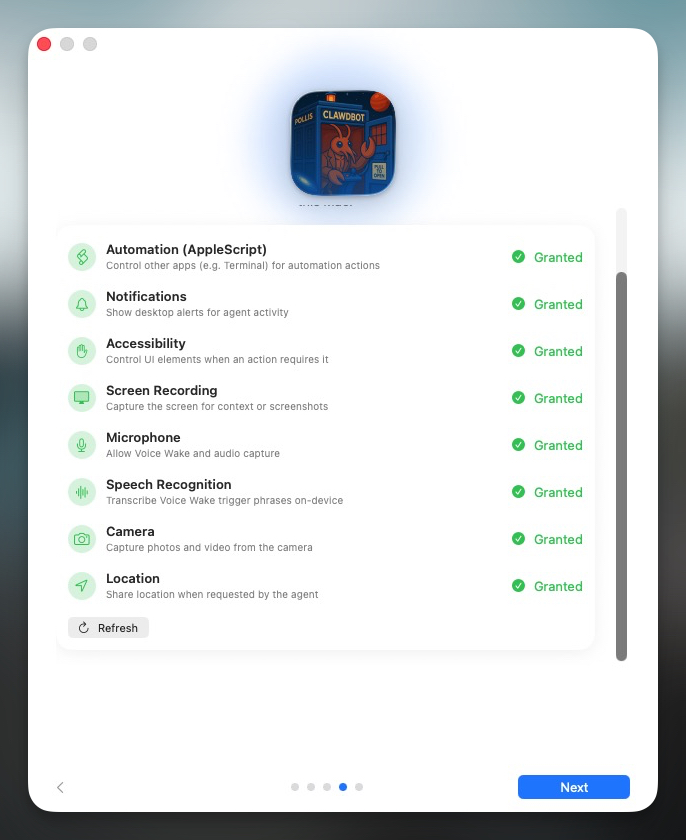
OpenClaw also offers a companion macOS app, available from the developer’s GitHub page. It provides quick access to the most commonly used settings, including managing skills and permissions, handling multiple instances, and even enabling a voice wake feature for hands-free interaction.
Screenshot: Rajesh Pandey/Cult of Mac
OpenClaw feels like the future of AI on macOS
OpenClaw gives us a peek into the future of how AI agents could eventually live on our Macs. The setup requires a bit of effort, and it’s clearly not meant for regular users. However, once you start using OpenClaw for organizing files, running commands or handling small tasks, it almost feels like magic.

Rajesh has been writing about consumer technology for over a decade, with a strong focus on iPhones, Macs and Apple’s ecosystem. He enjoys digging into Apple software updates, hardware changes, and discovering new Mac apps that make work faster and more enjoyable.
You can reach out to him at mail[at]rajeshpandey.me.

