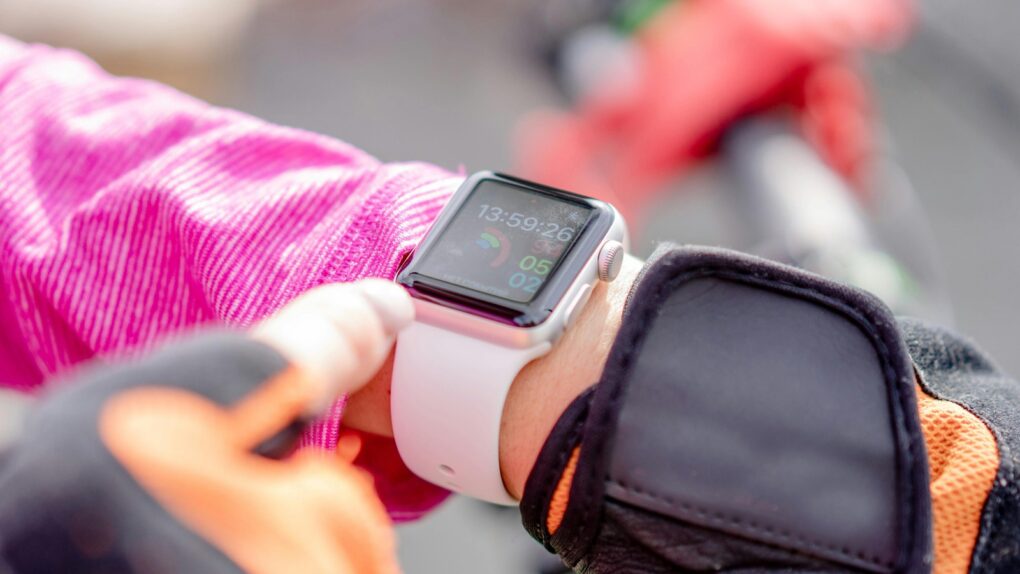
You'll find it easier to close your Apple Watch exercise rings with these tips. Photo: Atlantic Ambiance/Pexels
The Apple Watch helps people stay more active by encouraging wearers to stand, move around and exercise. But its workout tracking has a few quirks that users should understand.
Knowing about these Apple Watch exercise oddities — and how to work around them — can help you avoid frustration as you get fit.
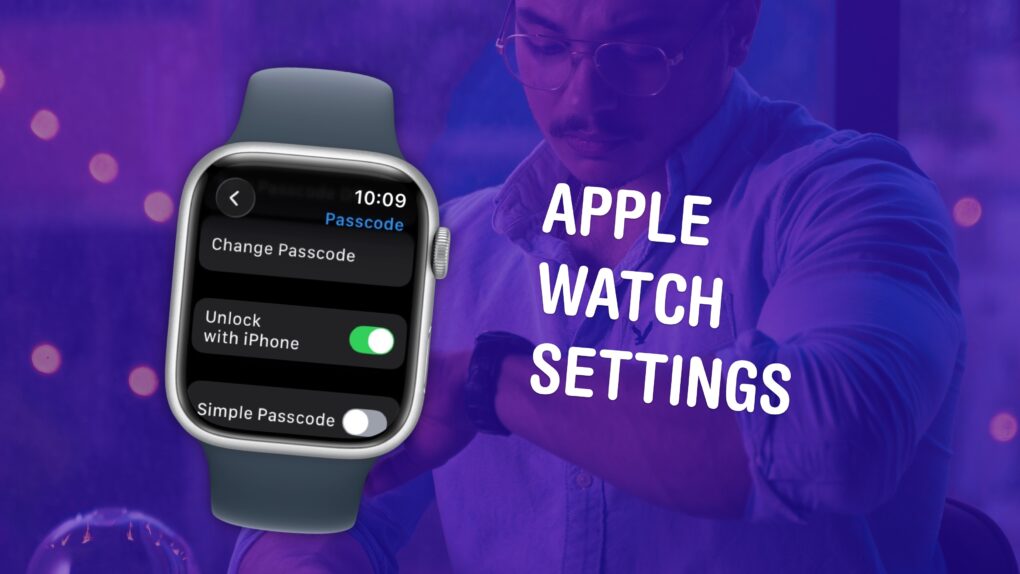
Make sure you have these settings set up correctly. Image: D. Griffin Jones/Cult of Mac
The small size and simplicity of the Apple Watch’s screen might fool you into thinking there aren’t a lot of settings you should tweak. But you would be sorely mistaken. It’s a powerful computer on your wrist, and thus, the Settings app is a deep rabbit hole.
You could lose hours going through every last setting, but I can save you the trouble. There are 10 Apple Watch settings I suggest everyone adjust. I’ll show you what they all do and how to change them.
Master your photos. No computer nor equipment required. Image: D. Griffin Jones/Cult of Mac
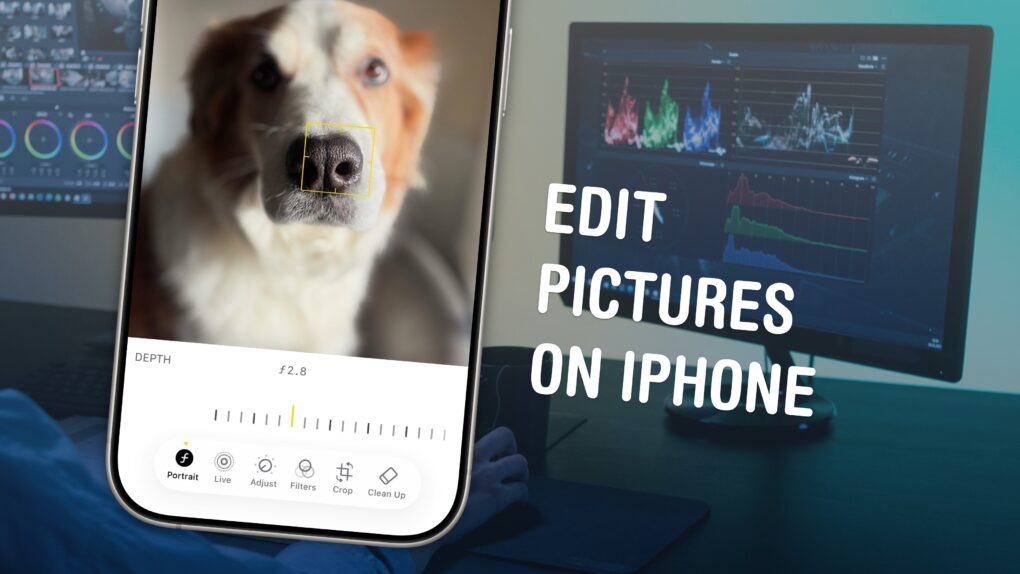
Who needs a computer or expensive photo editing software like Adobe Lightroom? You can edit pictures right on your iPhone with Apple’s free, built-in tools.
The Photos app comes with a ton of professional editing tools baked into it. If you didn’t line your shot up quite right, you can fix the crop and perspective. If you took it a split second too late, you can use Live Photo functionality to replace the shot. You can add a Portrait mode blur after the fact, and even change which part of the image is in focus.
Here are the eight great editing tools built right into your iPhone.
Updating AirTag firmware is easy. But it requires patience. Image: Apple/Cult of Mac
Apple is rolling out a firmware update for the AirTag 2. The new version 3.0.49 is a simple bug fix update, though, without new features.
Still, you’ll probably want it, but it turns out that updating the AirTag’s software is both easy and hard. You don’t need to jump through hoops, but neither do you have much control.
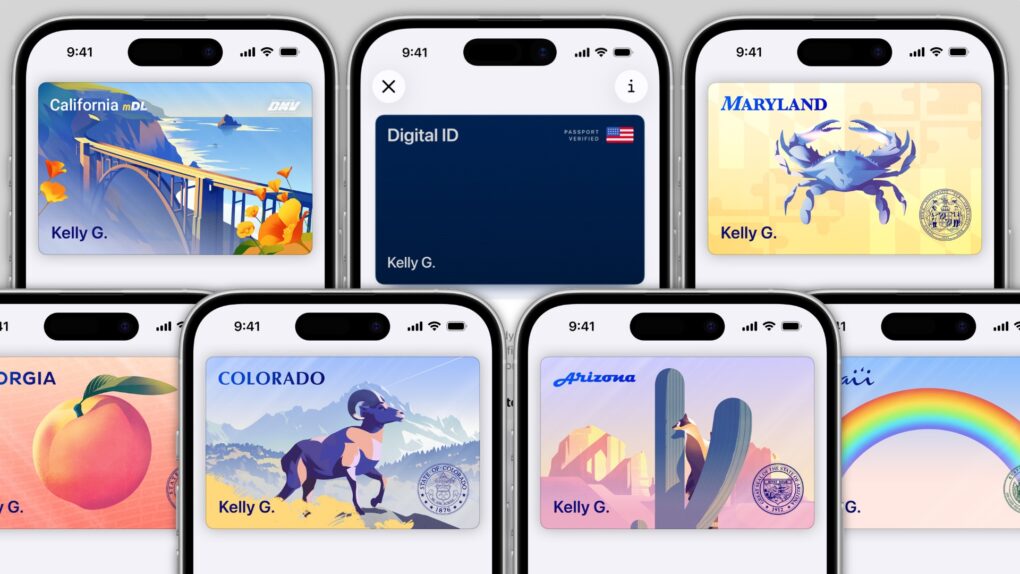
In several states, Apple’s state ID initiative enables iPhones and Apple Watches to hold a digital copy of the user’s driver’s license, in the same way these devices store credit cards and airline tickets. And across the United States, you can create an Apple Digital ID based on your passport that can get you through some airport security checks.
The day when an iPhone can completely take the place of an old-fashioned wallet remains years away, but it’s a goal Apple is working toward. Apple Pay is making progress on replacing credit cards, you can put airline tickets in the Wallet app, and the same goes for loyalty cards.
But no wallet is complete unless it can hold an ID. And that’s where Apple’s digital ID initiative comes in. Here’s what you need to know to add your driver’s license, state ID or federal passport to your Apple Wallet.
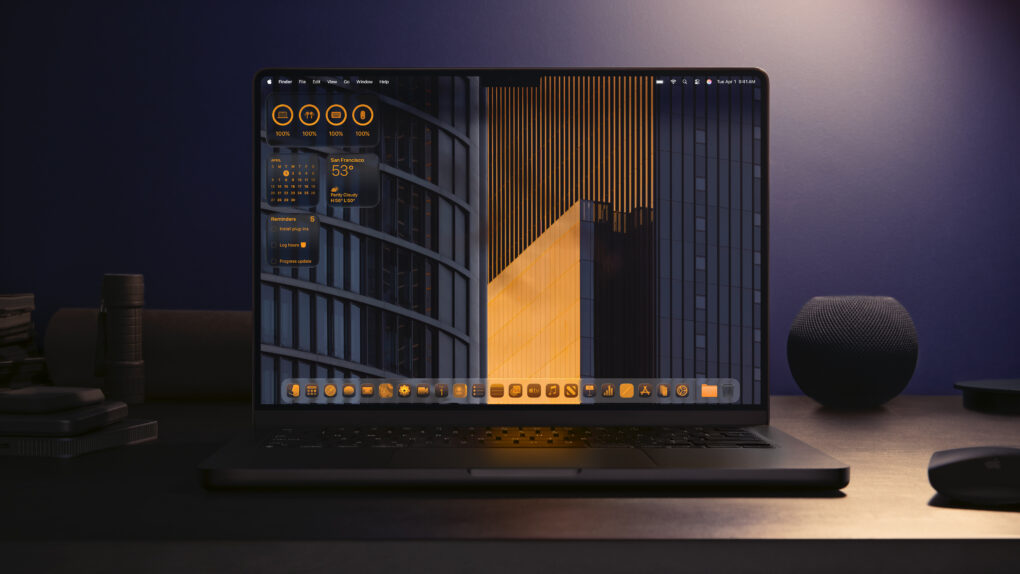
Go all-in on a beautiful theme for your Mac. Photo: Apple
If you learn how to personalize your Mac, you can make your computer feel like home. Every MacBook might look like a boring aluminum rectangle out of the box, but you can match any aesthetic with a few tips and tricks.
For starters, you could cover the backside with stickers or a colorful plastic case. But your work doesn’t end there. You can easily give your Mac’s desktop, app icons, desktop folders and theme colors a coordinated look.
Here’s how to customize your Mac to give it that personal touch.
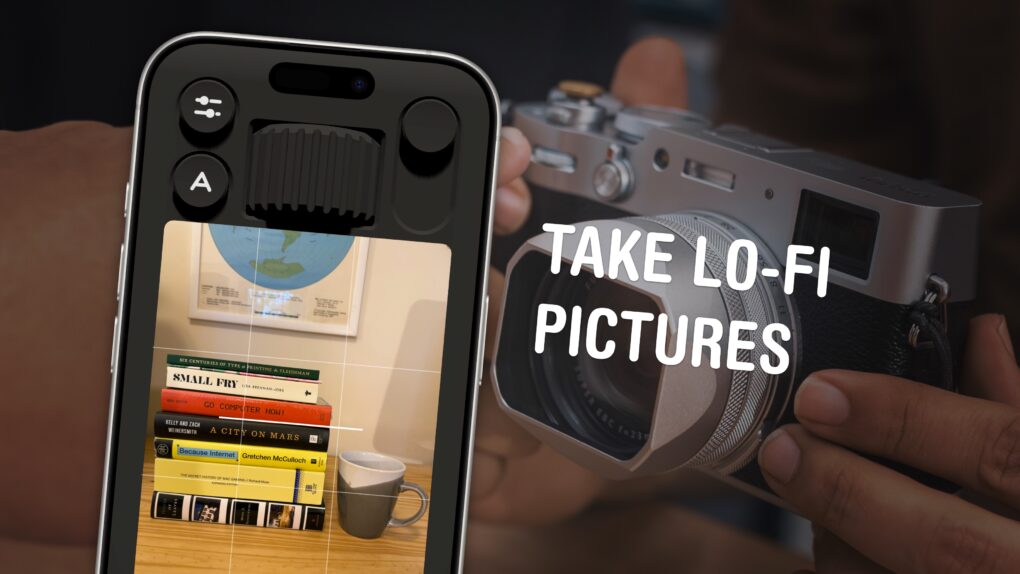
You can use your phone to take lo-fi pictures. You don’t need a separate point-and-shoot camera. Image: D. Griffin Jones/Cult of Mac
If you feel like every photo you take looks boring and overprocessed, you can change your iPhone camera settings to take natural, lo-fi pictures.
Turning down the exposure can prevent the photo from looking unnaturally bright (and more like something shot on an older digital camera). If you have a newer iPhone, you can even change its Photographic Style to “Natural,” for better-looking colors. A few quick trips into the Settings app can turn off the lens distortion on the Ultra Wide and selfie cameras, for that pure fisheye look.
You can even take things a step further and download a different camera app — one that captures totally unprocessed photos straight from your iPhone’s sensor.
Here are my top tips for taking lo-fi iPhone photos.
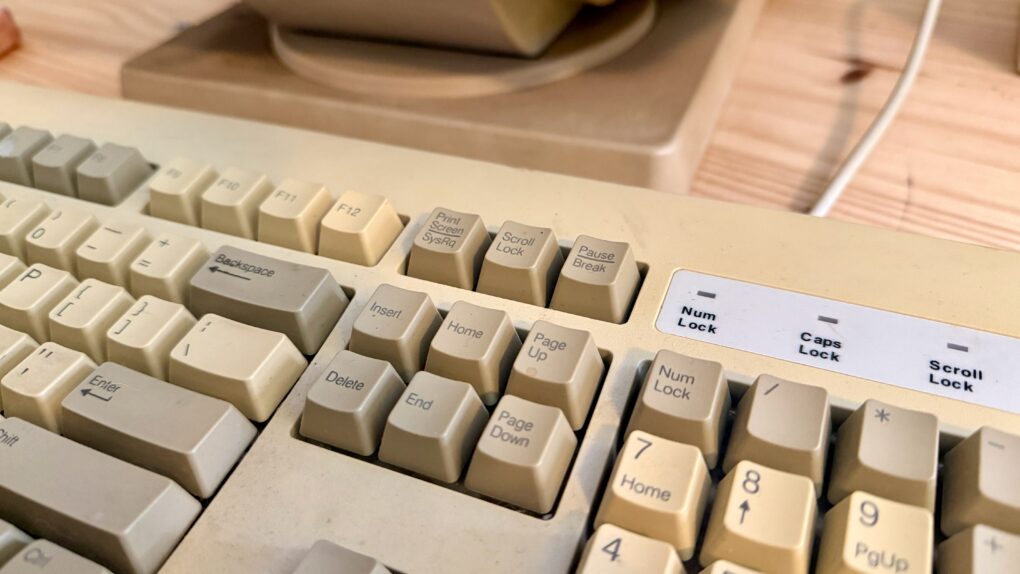
Change some of those keys to something more Mac-friendly. Photo: D. Griffin Jones/Cult of Mac
One of the most dramatic ways you can customize your computer is to remap your Mac keyboard keys. You can make it your own with custom functionality, powerful keyboard shortcuts and advanced features.
Using the free app Karabiner Elements, switching out one key for another is super-easy. It’s a must-have if you use a PC keyboard with your Mac. You can also go one step further, making custom keyboard shortcuts.
But if that sounds too fiddly to do yourself, you can simply install some customizations made by the Karabiner Elements community. Someone might have set up a rule for your specific keyboard!
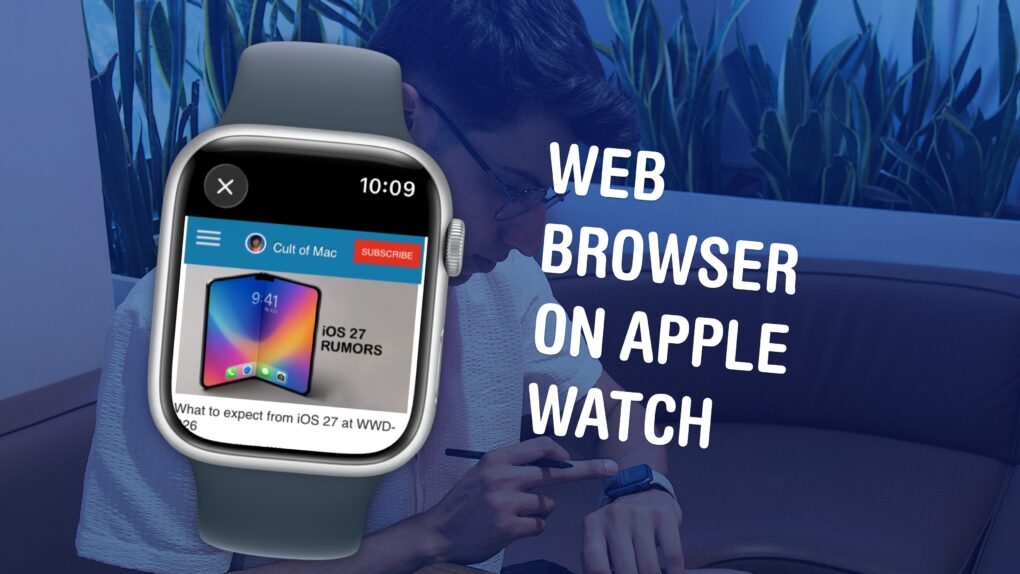
Believe it or not, there’s a mini Safari hiding in your Apple Watch. Image: D. Griffin Jones/Cult of Mac
Your Apple Watch has a web browser built-in, although it’s somewhat hidden. While Apple doesn’t have a full Safari app for the watch, you can still open links from Messages — so you can text yourself as a hack to browse the web. Or, you can install the μBrowser app for a dedicated user experience with bookmarks and even complications.
Admittedly, it’s not a fantastic experience. The screen is less than two inches tall, so many pages don’t render properly. It’s not especially speedy, either. If your watch is within range of your iPhone, it’ll use the slow Bluetooth connection with your iPhone as a relay instead of connecting to the Wi-Fi network directly, in order to save power.
But having a web browser on your Apple Watch occasionally comes in handy, especially if you have a cellular model and left your phone at home.
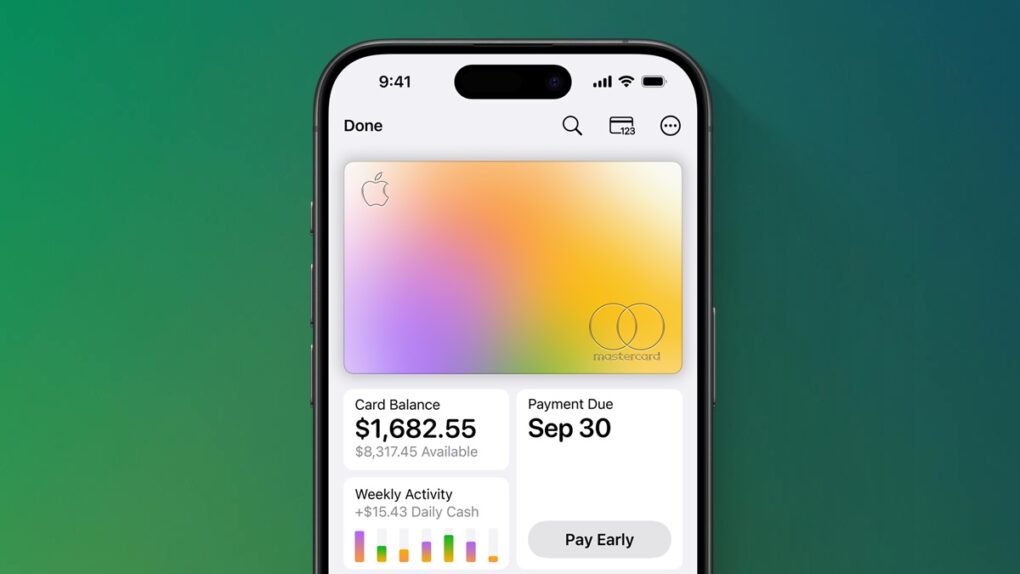
Get an Apple Card and earn free AirPods Pro 3! But here's what you need to know. Image: Apple/Cult of Mac
Apple kicked off a very generous signup incentive for new Apple Card customers, offering enough Bonus Daily Cash rewards to effectively cover the cost of a pair of AirPods Pro 3.
But it’s important to read the fine print. This promo isn’t a trick, but getting a free pair of earbuds takes a lot more effort than simply signing up for a credit card.
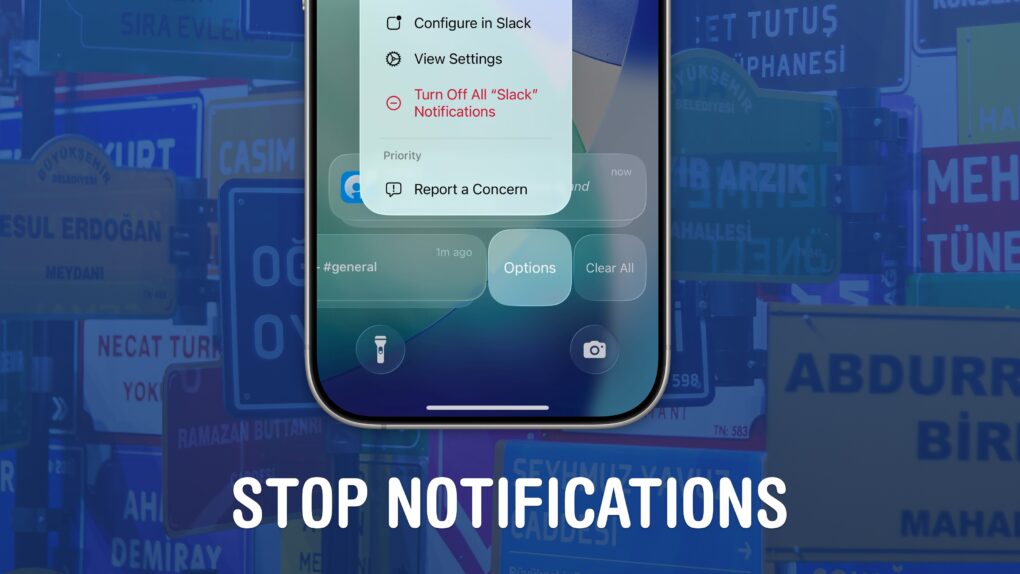
Quiet your phone down. Image: D. Griffin Jones/Cult of Mac
If your iPhone is always blowing up with junk and spam, you can stop notifications dead in their tracks. You may not know that you can entirely disable notifications per-app and turn off different types of notifications to keep them from cluttering your phone.
I’m not afraid to disable all notifications from an app if it crosses me one time too many. For others, I allow notifications on the Lock Screen, but disable them from Notification Center, so they’re more temporary.
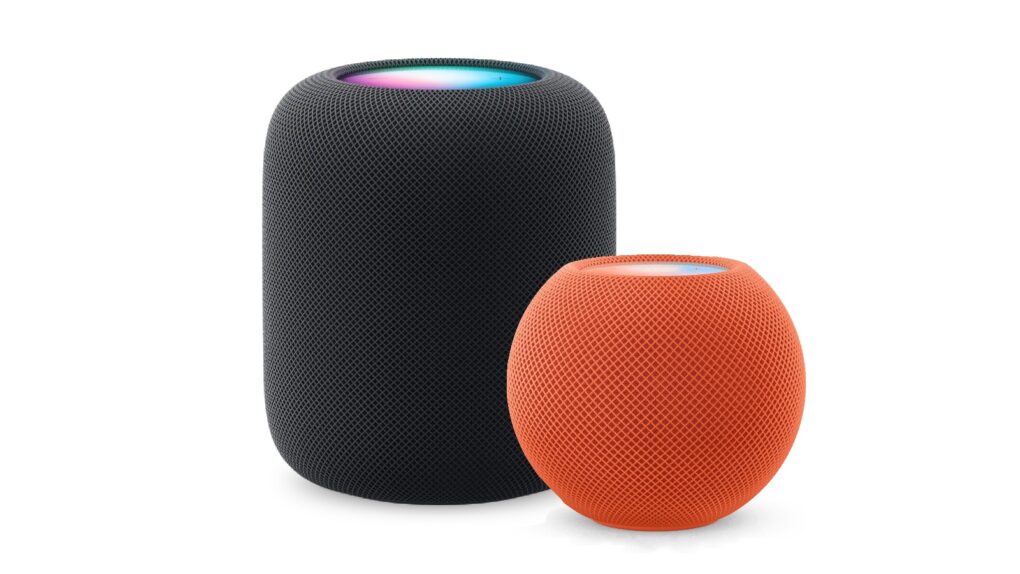
Here’s how to be sure you have the latest HomePod software update. Or stop your smart speaker from updating automatically. Photo: Apple
The HomePod operating system occasionally needs updating, because the device is a lot more than a simple speaker — it’s a computer. Here’s how to make sure your Apple smart speaker has the software version released this week. The new HomePod Software version 26.5 is a simple bug-fix update, but it’s still worth installing. Who wants bugs?
If you depend on automatic updates, it’s possible your smart speaker hasn’t yet installed the update. Here’s how to do so manually.
The dazzling new wallpaper for iPhone. Image: D. Griffin Jones/Cult of Mac
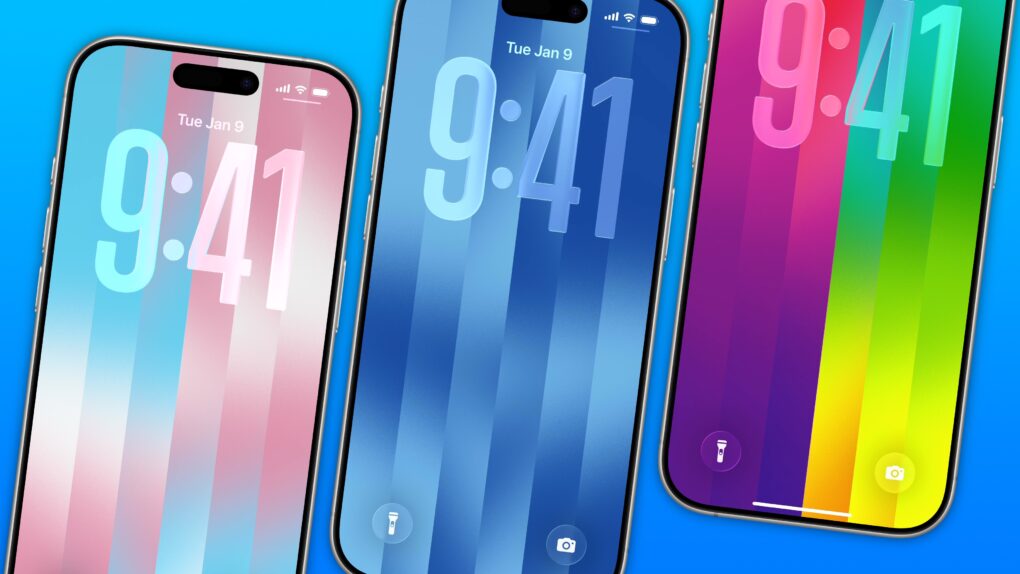
The colorful Pride Luminance wallpaper and watch face add beautiful color gradients to your iPhone and Apple Watch. You can download them both after updating to iOS 26.5 and watchOS 26.5.
Since they’re part of Apple’s annual Pride collection, they come with a bunch of preset styles for various pride flags. But you can customize the Lock Screen wallpaper and the Apple Watch face however you want. With a light and dark shade of the same color, the vertical stripes and gradients shimmer and animate when you swipe up to unlock your phone. Or you can go to the other extreme, picking up to 12 colors from the Luminance palette.
This is easily the best Pride wallpaper Apple has produced yet — in fact, it’s a great wallpaper, period. Check it out in our quick video or keep reading.
Get the most out of the browser in your pocket. Image: D. Griffin Jones/Cult of Mac
Since I spend a lot of time using Safari on my iPhone, any new tips and tricks I learn can feel life-changing. Apple’s mobile web browser proves absolutely instrumental to my iPhone usage (and odds are, it does for you, too).
Here are a few of my favorite hidden features. These Safari tips will help you browse the web faster, clean up your experience and restore tabs you accidentally close. I also have a handy shortcut you can download at the end.
Put a stop to the madness. Image: D. Griffin Jones/Cult of Mac
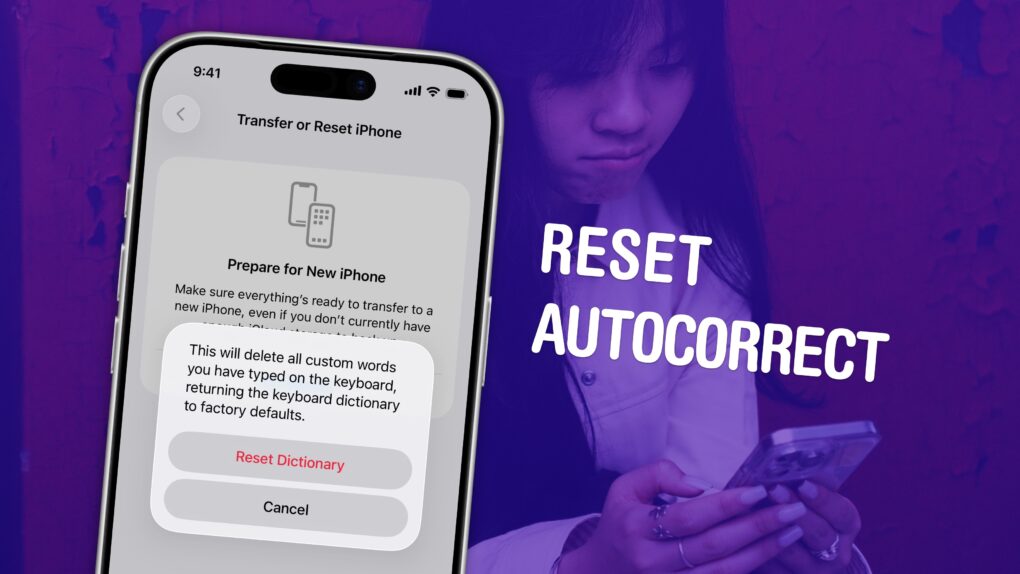
If you’ve noticed that the iPhone’s autocorrect has been especially bad over the last few months, you’re not alone. It appears that iOS 26.2 introduced a bug that made the keyboard much more frustrating to use. Luckily, the solution is simple. You can learn how to reset autocorrect on your iPhone really quickly.
First, you need to update to iOS 26.4, the release that fixed the iPhone’s autocorrect bug. Then, resetting your keyboard dictionary will get rid of any bad patterns it may have picked up since December.
Turn your scramble of icons into something that sparks joy. Image: D. Griffin Jones/Cult of Mac
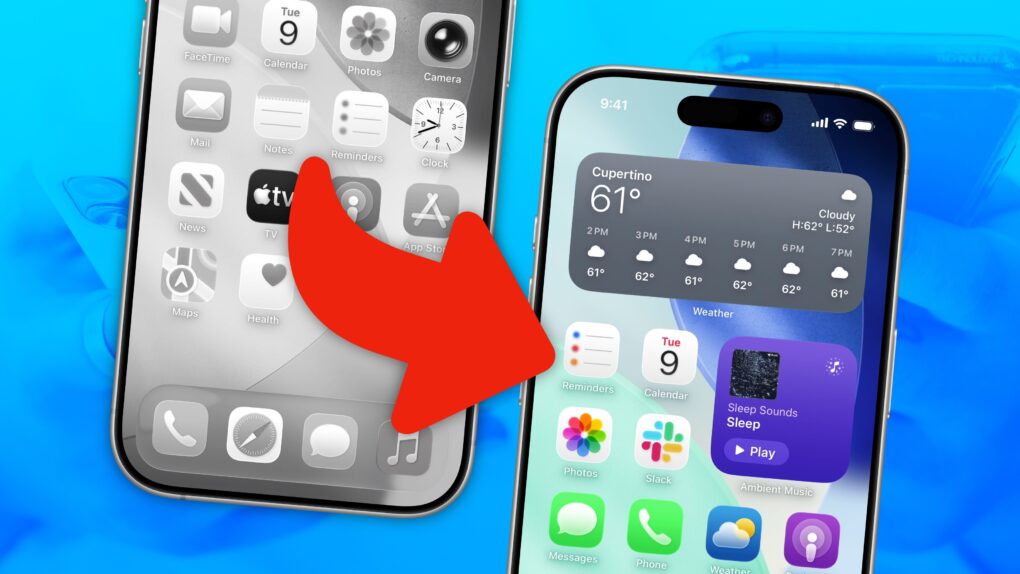
There are two types of iPhone owners in the world: Those with a carefully manicured, minimalist Home Screen of perfectly arranged icons, and those with random icons spilled haphazardly across the screen.
If you find yourself among the latter group, you might think that it’s too late for you — that making a beautiful, aesthetic Home Screen is beyond your creative ability.
Well, cleaning up your iPhone’s Home Screen is a lot easier than clearing out your basement or organizing your kitchen junk drawer. A Home Screen that works better and looks better comes down to just a few simple tips. You can set one up in just minutes.
Simplify the web, one annoyance at a time. Image: D. Griffin Jones/Cult of Mac
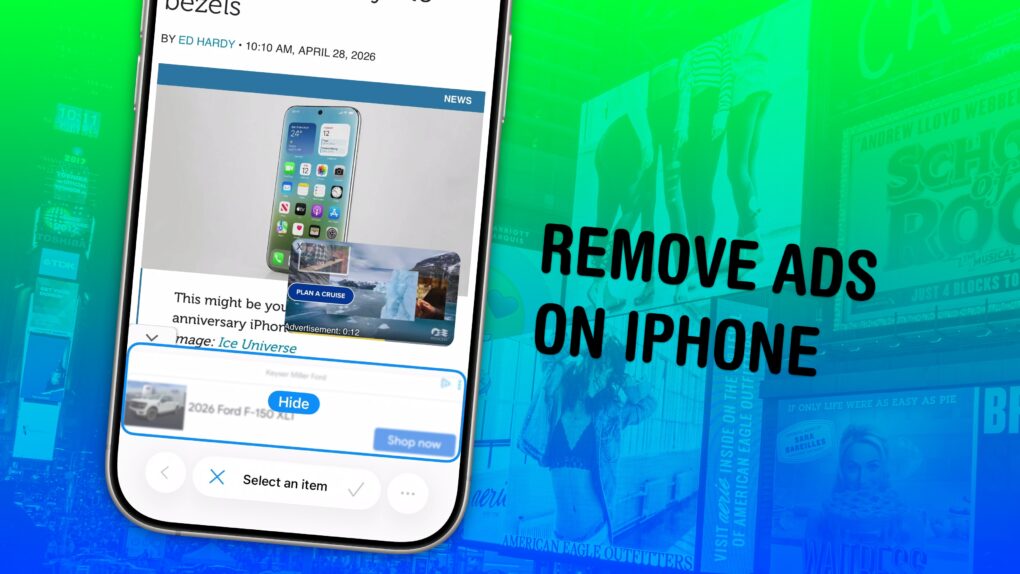
Safari’s Hide Distracting Items feature lets you remove ads from your iPhone, along with other elements on the page that irritate you. It doesn’t require an ad blocker or a paid extension — Apple built it right into the browser.
Hide Distracting Items is not an ad blocker per se. But if pop-ups and other items that cover the page with no obvious close button pester you (like a cookie banner) Hide Distracting Items can come to the rescue. Here’s how to use it — keep reading or watch our video.
Final Cut Pro is Apple’s flagship video editor for Mac and iPad. Image: Apple/D. Griffin Jones/Cult of Mac
If you use Final Cut Pro, you’re well aware of how much storage one of its libraries can eat up. Producing weekly videos and podcasts for Cult of Mac, disk space is a never-ending battle for me — and I even splurged on a 2TB hard drive!
The third time I ran into this problem, I tried digging deeper into Final Cut Pro settings to see if there was a better way. I found a bunch of settings that help stop the 800-pound, hard-drive-eating gorilla.
Then, I opened up the Final Cut Pro library bundle itself, and found even more folders, many gigabytes in size, that I could clear out.
Here’s how Final Cut Pro users can reclaim some storage from a runaway video library.
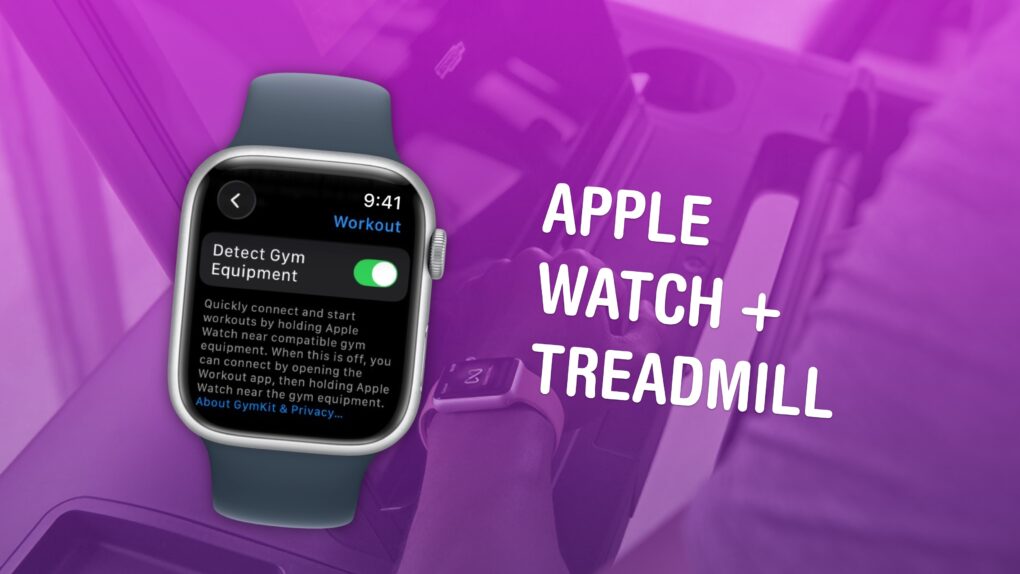
Available in certain gyms and equipment. Image: Apple/D. Griffin Jones/Cult of Mac
You can easily connect your Apple Watch to exercise equipment, like a treadmill at Planet Fitness, to record more accurate health data inside the Fitness and Health apps on your iPhone. After all, if you’re working out, you want to make sure your Apple Watch gives you credit for it.
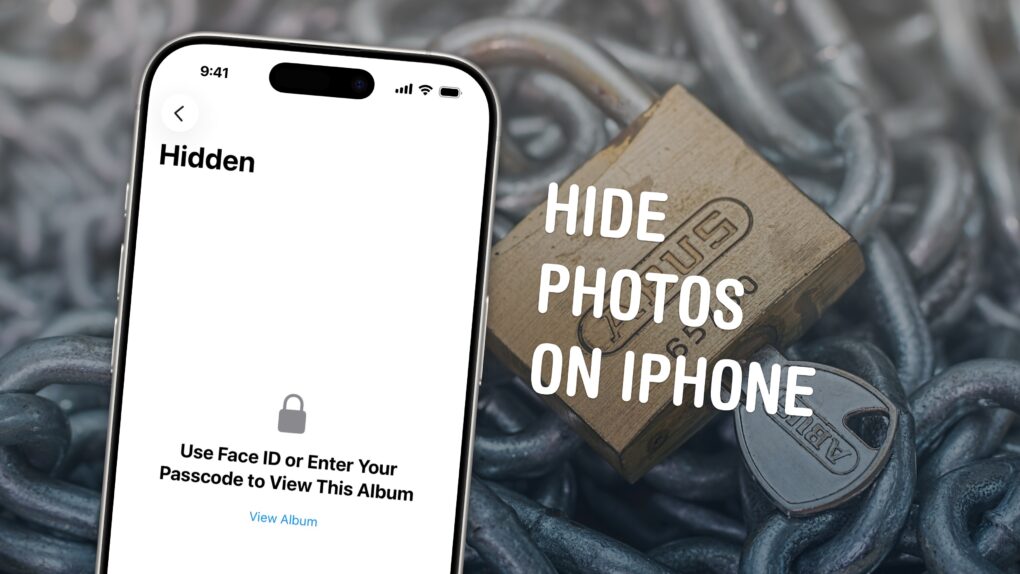
Keep your photos locked up like Fort Knox. Image: D. Griffin Jones/Cult of Mac
You can easily hide photos and videos on your iPhone to keep secret and/or illicit images out of your main Photos library. Hiding items from the camera roll makes sure nobody except you can see your embarrassing pictures, salacious nudes or old selfies with your ex.
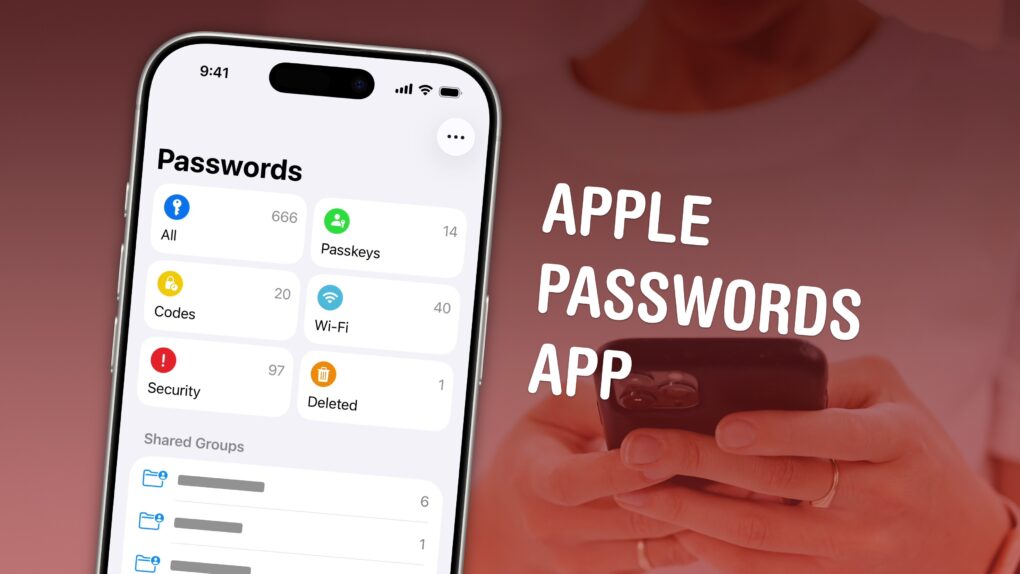
The time has come to stop using the same passwords and use a password manager. Image: D. Griffin Jones/Cult of Mac
The Apple Passwords app makes it easier than ever to save login details for your apps, start using passkeys and create shared groups.
The time of using the same password on all your internet accounts is over. Apple’s password manager is free, syncs everywhere (even with Windows PCs) and is incredibly easy to use. It creates strong passwords and automatically fills them in, so you never need to.
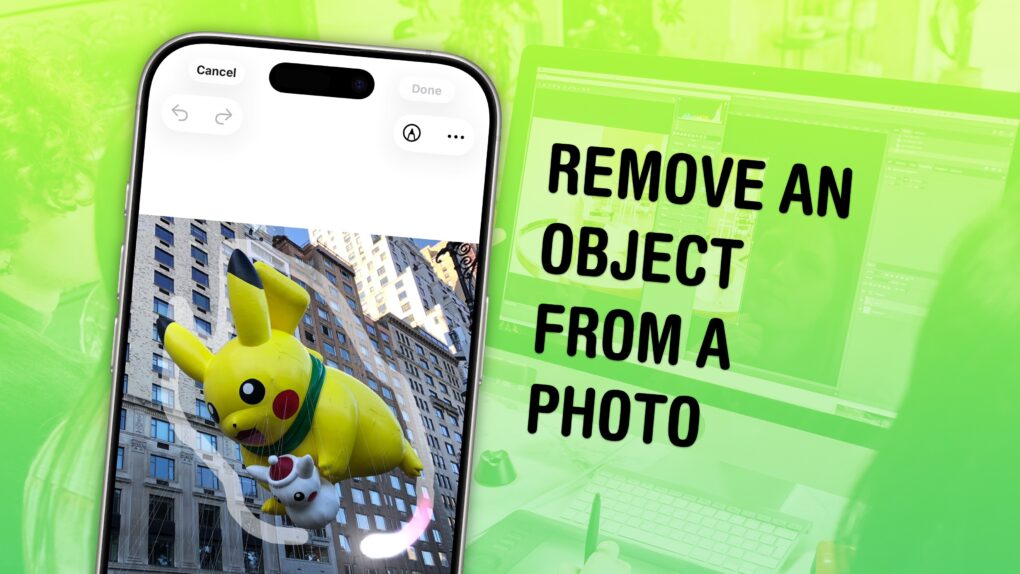
You don’t have to be a Photoshop master to edit things out of your photos. Image: D. Griffin Jones/Cult of Mac
You can easily remove any object from a photo using Apple Intelligence’s free Clean Up tool on your iPhone, Mac or iPad. It works fairly well — but it’s good to know its limitations.
As the only graphic designer among my friends, I’ve frequently been asked over the years to Photoshop unwanted elements out of pictures. Take, for example, a romantic shot of a couple in a gazebo, with a phone sitting on the handrail in an obvious spot. The image might look a lot better if you delete that stray device.
Or imagine a group photo from a fun night out, with someone’s dumpy tote bag sitting by their feet, or a picture from a big conference that shows an ugly lanyard around someone’s neck. With Apple Intelligence’s free Clean Up feature, anyone can make the tote bag and the lanyard disappear, right from their iPhone.
Now, you have the power to clean up your own photos — a chance to make your almost-perfect shots perfect in an instant.
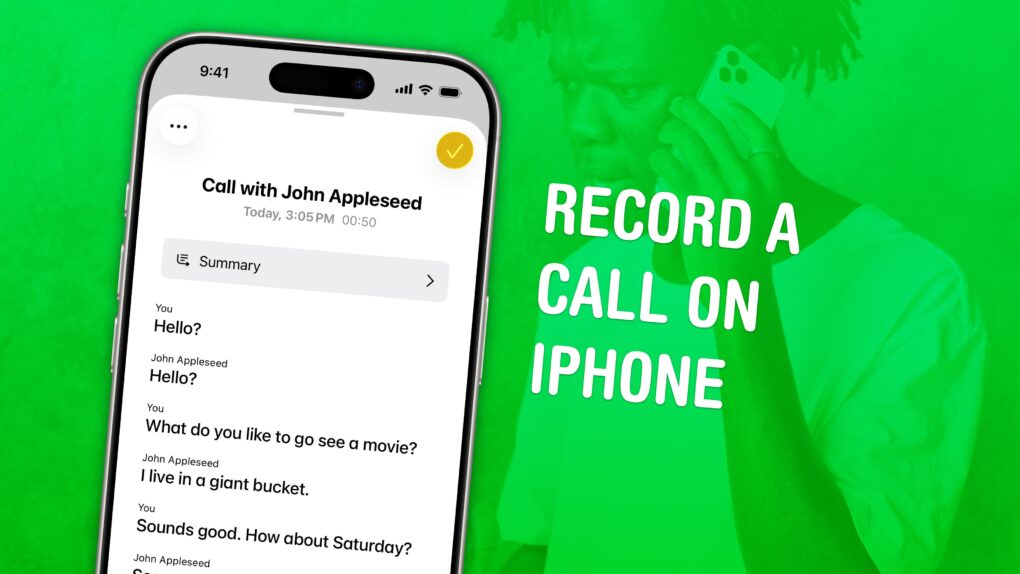
Check back what they really said. Image: D. Griffin Jones/Cult of Mac
You can record a phone call on your iPhone for future reference using a built-in tool. This feature is a great way to refer back to a previous conversation. Who said what? What date did they say? What exactly did you agree to?
If your device supports Apple Intelligence, you’ll get transcriptions of the phone calls, too. They’ll go in a Call Recordings folder in the Notes app.
If you used a shady call recording app before, you can bid it adieu. There’s a convenient button built right into the Phone app. Here’s how it all works.
Is sleep tracking with your Apple Watch actually making you more stressed? AI image: Gemini/Cult of Mac
Each morning I wake up and check my sleep score on my Apple Watch. And then I wonder if it’s doing me any good. It’s certainly adding stress and hassle to my day.
That’s why I’m thinking of turning it off. Maybe you should, too.
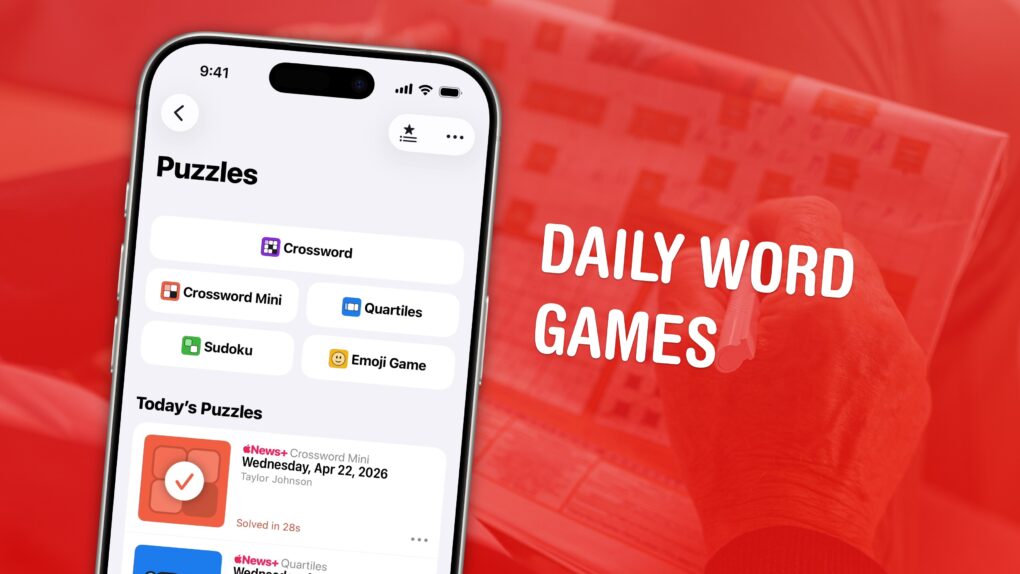
Get your puzzle fix right from the News app. Image: D. Griffin Jones/Cult of Mac
The daily games hiding inside the News app are my favorite puzzles to play. Some are digital versions of classic games like crossword puzzles and sudoku. Others are entirely new.
All five games are available to all Apple News+ and Apple One Premier subscribers. Here’s how to play each of the daily word games in Apple News+ on iPhone. Check them out in this quick video.