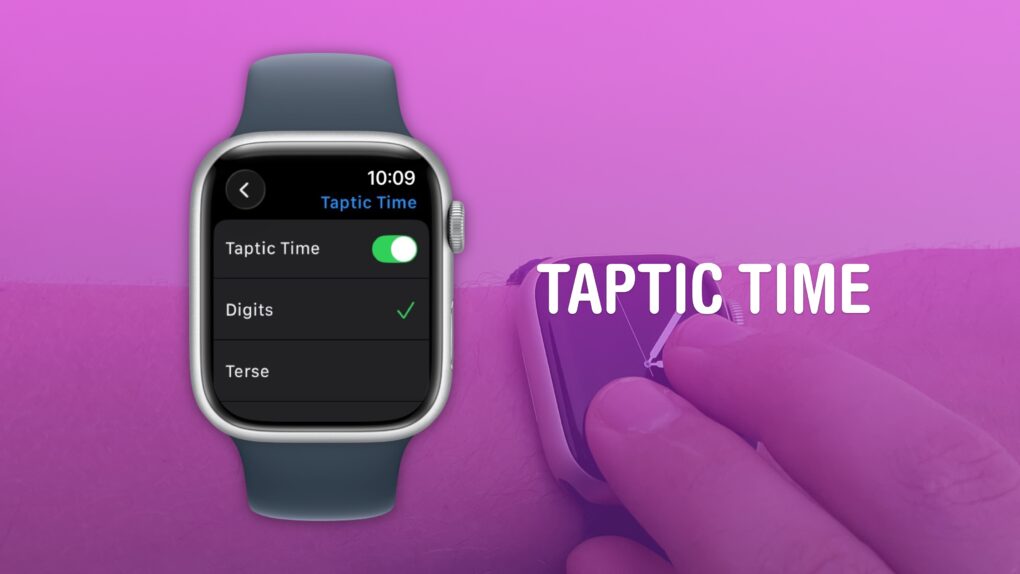
 You can get the time without even looking at your Apple Watch using a little-known feature called Taptic Time. Simply hold two fingers on the device’s screen, and the watch will tap out the time on your wrist.
This is handy if you’re in a meeting and need to know the time, but you don’t want to look rude checking your watch. Or maybe you’re in the middle of a presidential debate.
Whatever the situation, turning on this little-known Apple Watch feature — and familiarizing yourself with how it works –can come in handy.
Taptic Time: How to get the time without looking at your Apple Watch
The Apple Watch has always been about knowing the time at a glance. But what if you never had to look at your watch at all? Taptic Time turns the sleek smartwatch into a subtle, tactile timepiece. With a simple two-finger press, the watch’s Taptic Engine vibrates out the hour and minutes in a pattern you can feel on your skin.
It’s part accessibility tool, part discreet status update — and it’s perfect for meetings, movies or other moments when a glowing screen would seem gauche. Good luck getting your Casio or Rolex to do that for you.
Here’s how to turn on Taptic Time (and how to decode those taps on your wrist).
Enable Taptic Time
Screenshot: D. Griffin Jones/Cult of Mac
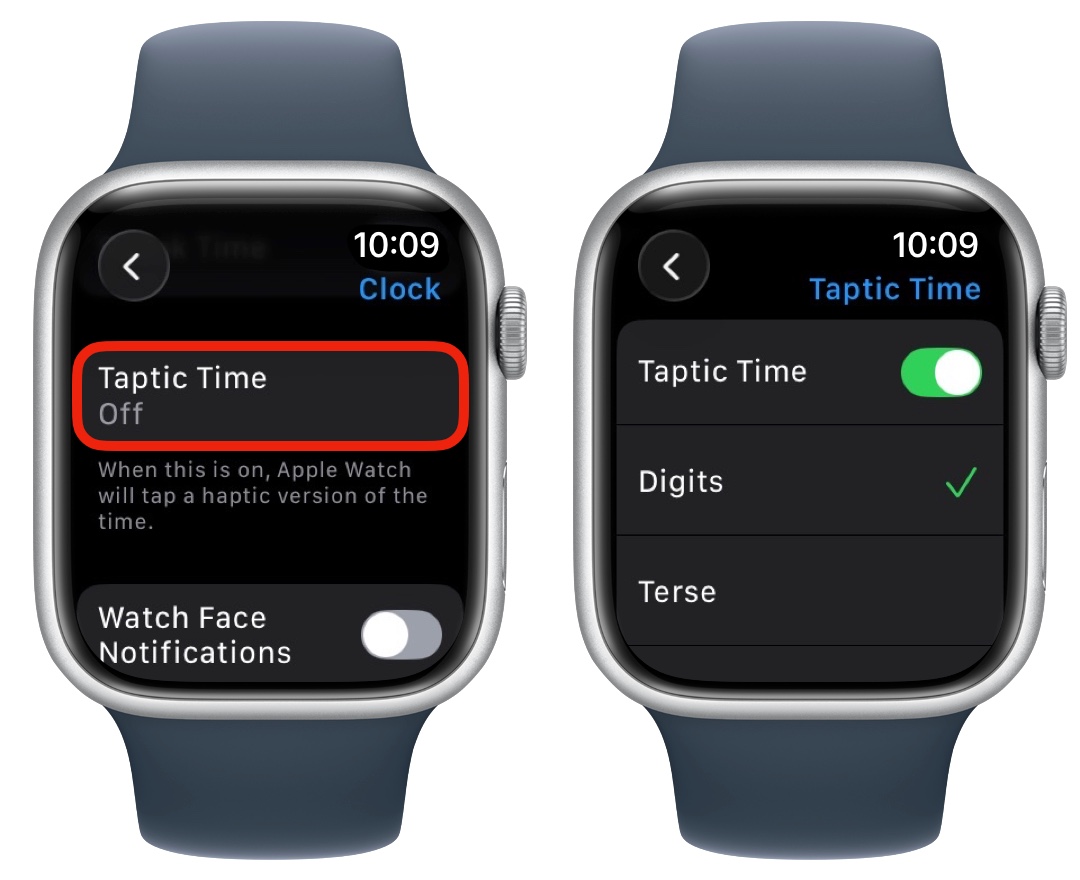
On your Apple Watch, go to Settings and scroll down to Clock. Scroll down past Chimes and Speak Time, and you’ll see another option for Taptic Time. Tap that and turn it on.
You can choose one of three haptic patterns:
- Digits will tap out the precise hours and minutes in long and short buzzes. Tens are represented by long buzzes, and ones by short taps. If it’s 12:35 p.m., for example, the taps will be — · · — — — · · · · ·.
- Terse will produce a long buzz for every five hours, a short buzz for every single hour, and a long buzz for the nearest 15 minutes. If it’s 6:47 a.m., for example, you will feel these taps: — · — — —.
- Morse code will tap out every number in the current time using Morse code. (If you don’t know Morse code, you can learn it here.)
Digits feels like the most intuitive option to me, so I stick with that. After you’ve enabled Taptic Time and picked your pattern, press the Digital Crown (the dial) to go back to your Apple Watch’s face.
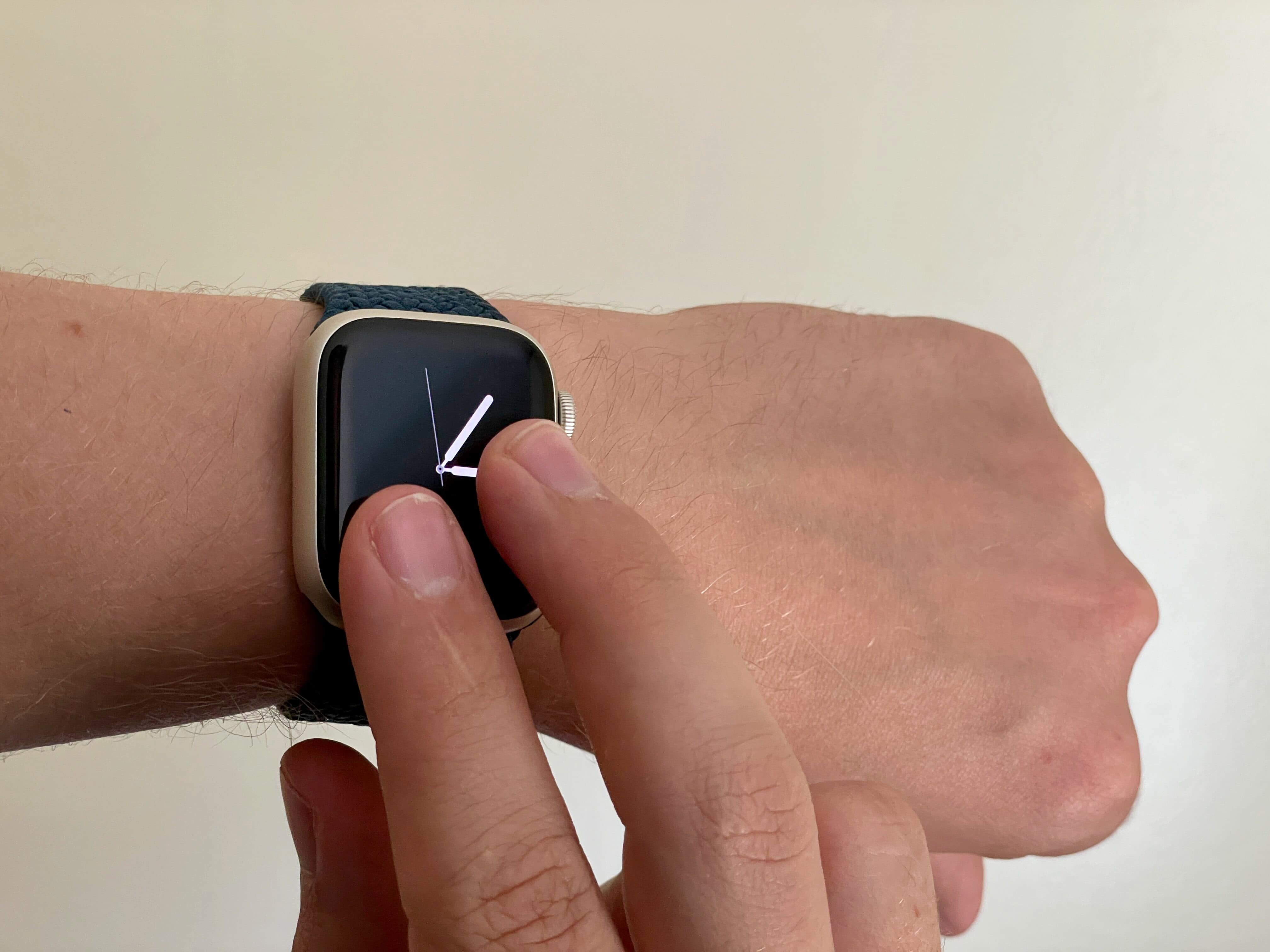
Photo: D. Griffin Jones/Cult of Mac
Now that you’ve got Taptic Time running, you can activate it by holding two fingers on your Apple Watch screen anytime it’s on.
I actually wish this feature worked while the watch face was off, too. That would make using Taptic Time even more discreet. And that would enable it for a bunch of other useful situations: watching a movie in a theater or riding an airplane on an overnight flight, where the bright screen might bother people next to me.
I don’t think it would take any extra battery life to enable it. And I can’t imagine there would be many false positives for such a weird gesture that requires you to hold your fingers on the screen.
More Apple Watch how-tos
- How to use Water Lock on Apple Watch
- How to silence your Apple Watch, use Do Not Disturb and theater mode
- Easy Apple Watch hack will keep you on time, even if you’re always late
- How to track your Apple Watch activity rings and pause your streak
- How to connect Apple Watch to a Planet Fitness treadmill
- How to find your lost iPhone with Apple Watch
We originally published this article on Taptic Time on July 19, 2023. We updated it with the latest information on September 25, 2024, and August 14, 2026.

D. Griffin Jones was a writer, podcaster and video producer for Cult of Mac. Griffin has been a passionate computer enthusiast since 2002, when he got his first PC — but since getting a Mac in 2008, he hasn’t turned back. His skills in graphic and web design, along with video and podcast editing, are self-taught over 20+ years. Griffin has a bachelor’s degree in computer science and has written several (unpublished) apps for Mac and iOS. His collection of old computers is made up of 40+ desktops, laptops, PDAs and devices, dating back to the early ’80s.
Griffin writes for his personal blog, Extra Ordinary, and is currently looking for work.

