The iPhone is the world’s most popular smartphone.
The iPhone is Apple’s smartphone. Launched in 2007, it is Apple’s best-selling product, representing around half of the company’s revenue for more than a decade.
The slim device’s innovative touchscreen interface revolutionized the way users interact with smartphones. Apple continually updates the iPhone, releasing new models with new features every year.
The iPhone runs on a proprietary operating system known as iOS, which shares many features with iPadOS, macOS, watchOS and visionOS. iOS 26 is the current version.
In 2025, the iPhone lineup currently includes five models — the budget iPhone 16e, the regular iPhone 17, the iPhone Air, the iPhone 17 Pro and Pro Max. Apple announces most models every year in early September, while replacements for the 16e are expected around February. Apple also continues to offer older models for sale at a reduced price after they’ve been replaced.
Table of contents: Everything you need to know about the iPhone
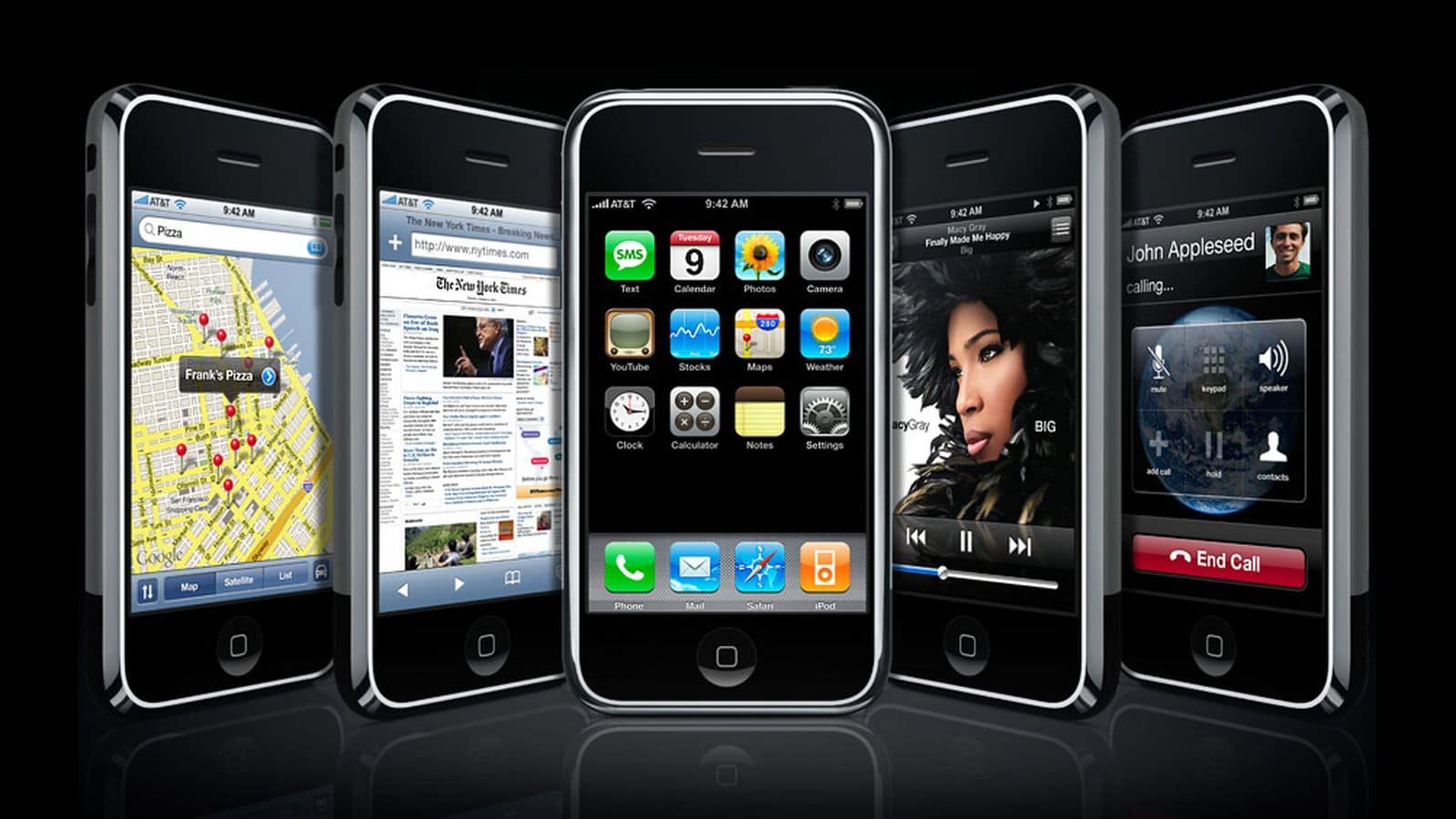
It was the first smartphone with an all-screen design, capacitive touchscreen and advanced modern software with full web browsing capabilities. Phones before the iPhone came with physical keyboards, required you to click around with arrow keys for navigation instead of tapping the screen, and ran limited proprietary software.
The iPhone’s 3.5-inch touchscreen display and powerful software (based on Mac OS X) set it apart from the competition. These two technologies enabled all kinds of innovation in the interface that we still use today: the Home screen of apps, inertial scrolling, slide to unlock, pinch to zoom and a software keyboard.
The original iPhone lacked many major features, though. There were no third-party apps or App Store, because the software was still being developed. That would not arrive until the following year. The camera didn’t take video, only very low-resolution pictures. Cellphone cameras in 2007 were not expected to be good. There was no copy and paste feature — the design team hadn’t figured out a good interface for it yet. iMessage wouldn’t launch for another few years — the iPhone only supported SMS/MMS texting.
iPhone 3G and iPhone 3GS
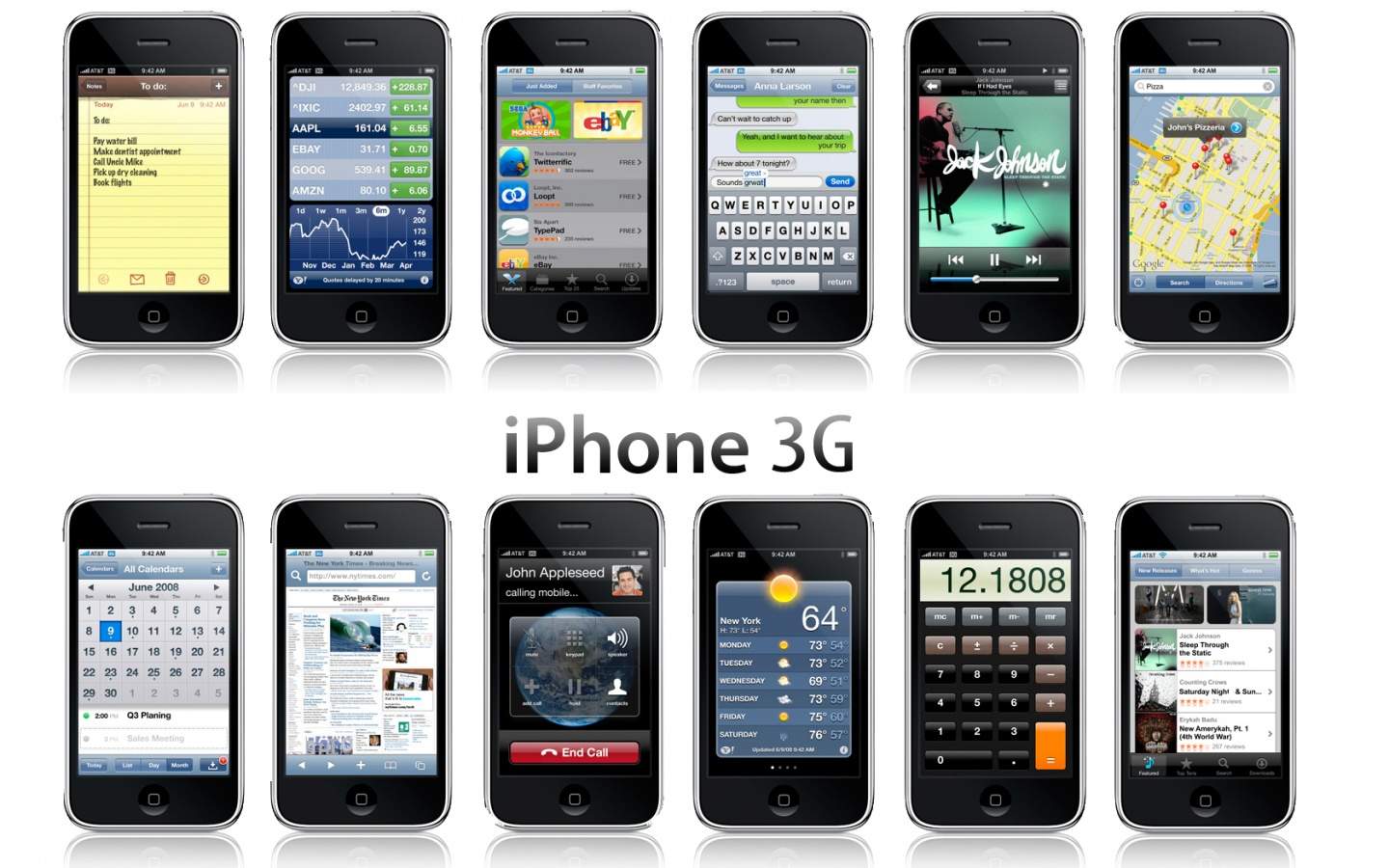
The iPhone 3G was a big step forward.
The iPhone 3G in 2008 brought a much improved wireless connection. The original was limited to the 2G Edge network, with typical download speeds a measly 0.1 Mb/s. Without Wi-Fi, downloading emails or browsing the web was nigh unusably slow. The 3G radio significantly helped.
It also added GPS, offering precise location tracking in Google Maps.
The iPhone 3G switched out the two-tone design for a plastic shell, in either black or white. The headphone jack was no longer recessed, allowing for more kinds of headphones to be plugged in.
The iPhone 3GS in 2009 was the first model to get a faster processor, making it twice as fast. It also had a higher resolution 3 MP camera capable of recording video.
iPhone 4
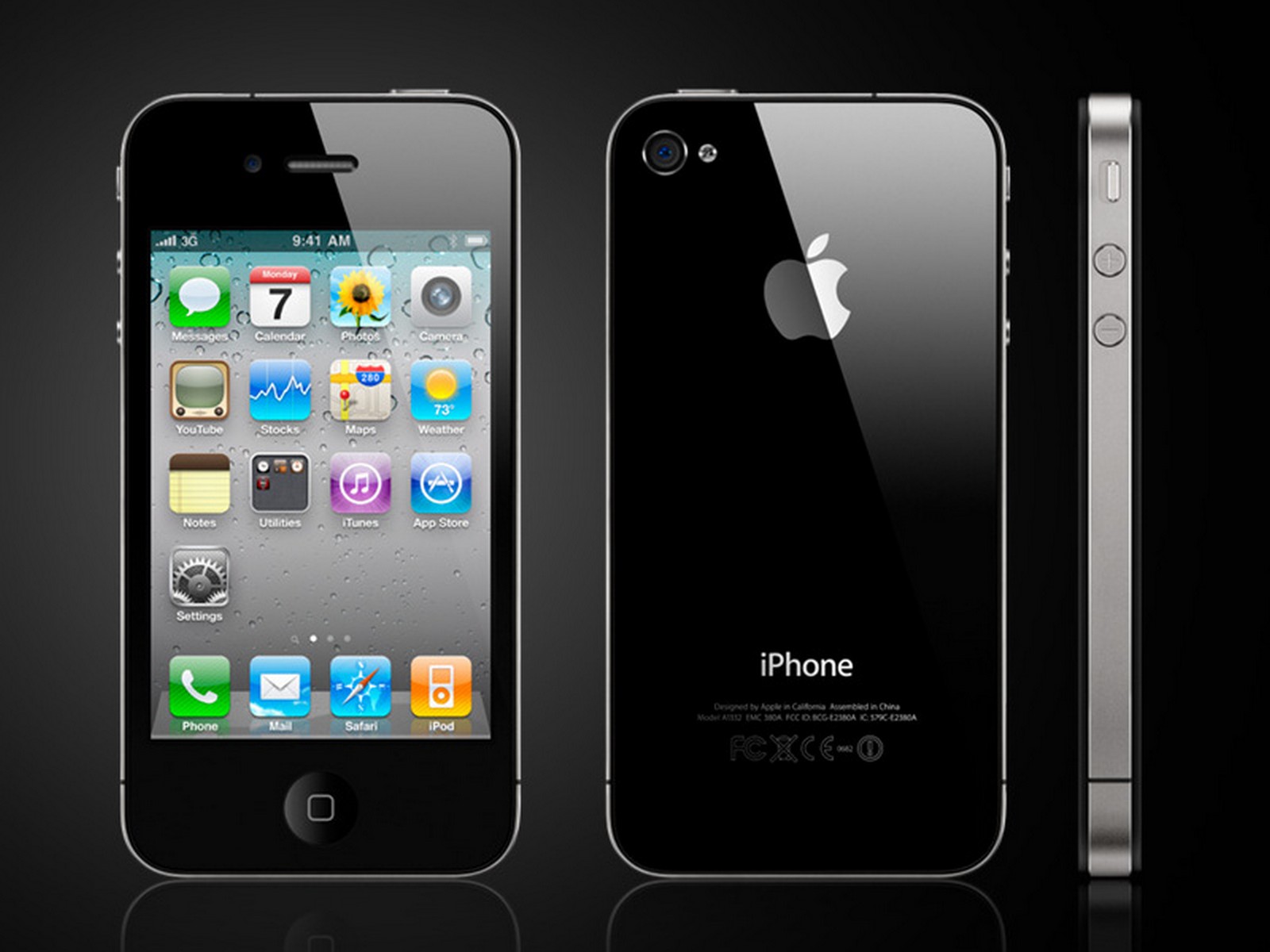
The iPhone 4 had a timeless and beautiful design.
The iPhone 4 in 2010 was a huge leap forward when it debuted in 2010. Its design, with glass on the front and back sandwiched around a silver stainless steel band, is one of the most iconic. It still feels very premium and nice in the hand to this day.
The Retina display doubled the resolution of the screen, so text is easier to read and images and video look crisper and higher-resolution. It maintained the same 3.5-inch size, but with pixels doubled from 480 × 320 to 960 × 640 resolution. Apple rolled out Retina displays across the rest of its product lineup, onto the iPad in 2011, the MacBook Pro in 2012 and the iMac in 2014.
It introduced the first front-facing “selfie” camera on an iPhone, and brought with it FaceTime video calling. (Although, at first, you could only FaceTime other people who had an iPhone 4.)
This iPhone is famous for leaking before its official introduction. A prototype iPhone 4 was accidentally left in a bar by an Apple engineer. It ended up in the hands of Gizmodo, which bought it for $5,000 and published all kinds of details about its design and features.
In the United States, the iPhone 4 was the first model to be offered on Verizon, ending its exclusivity with AT&T. Interestingly, the Verizon iPhone 4 had a different physical design, with antennas repositioned around the outside. This design would be used on the iPhone 4s.
Those antenna lines on the outside were famous for causing the iPhone to lose some of its signal strength if they were covered up by your hand. Steve Jobs was called back home from his Hawaii vacation in order to hold a press conference addressing the issue. In the end, Apple offered customers a free bumper case that would cover up the lines, and future models were designed with the antenna lines in different spots that are harder to cover up.
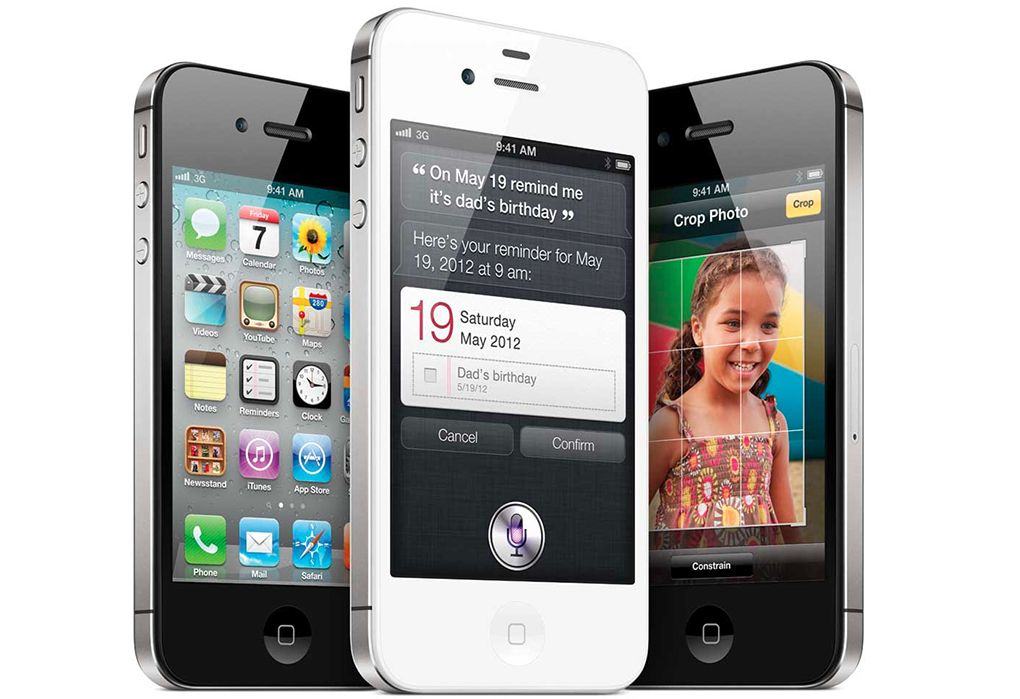
The iPhone 4s introduced us to Siri, clad in gray linen.
The iPhone 4s in 2011 was a significant internal upgrade. It again had a significantly faster chip inside, the A5. It was the first iPhone to get 4G LTE connectivity. The rear camera was also now capable of recording 1080p video, with some image stabilization.
The iPhone 4s was most famous for introducing Siri. The first generation voice assistant, then in beta, could set timers, read and send texts, play music from your library, perform math calculations via Wolfram Alpha, give information on movies and actors from Wikipedia, and more. (Not much has changed on that front.)
It was also the first iPhone not to be introduced by Steve Jobs. The keynote was hosted by CEO Tim Cook; the iPhone 4s was introduced by Phil Schiller and Scott Forstall. The iPhone 4s was announced on September 4, 2011; Jobs died the following day.
From this point onwards, new iPhones were introduced in September, with few exceptions.
iPhone 5
The iPhone 5 and 5s raised the size of the screen for the first time.
The iPhone 5 in 2012 was the first model to come with a bigger screen, raising it from 3.5 inches to 4. It increased the height of the display without changing the width, making it a standard 16:9 aspect ratio. Apple marketing claimed that the new display was still easy to use with one hand, as one thumb could easily reach over to the opposite edge or up to the very top. The taller screen allowed for an extra row of icons on the Home Screen, or an extra email to display in your inbox.
The iPhone 5 came in a very dark black finish, that had a tendency to chip away as it aged.
iPhone 5s and 5c
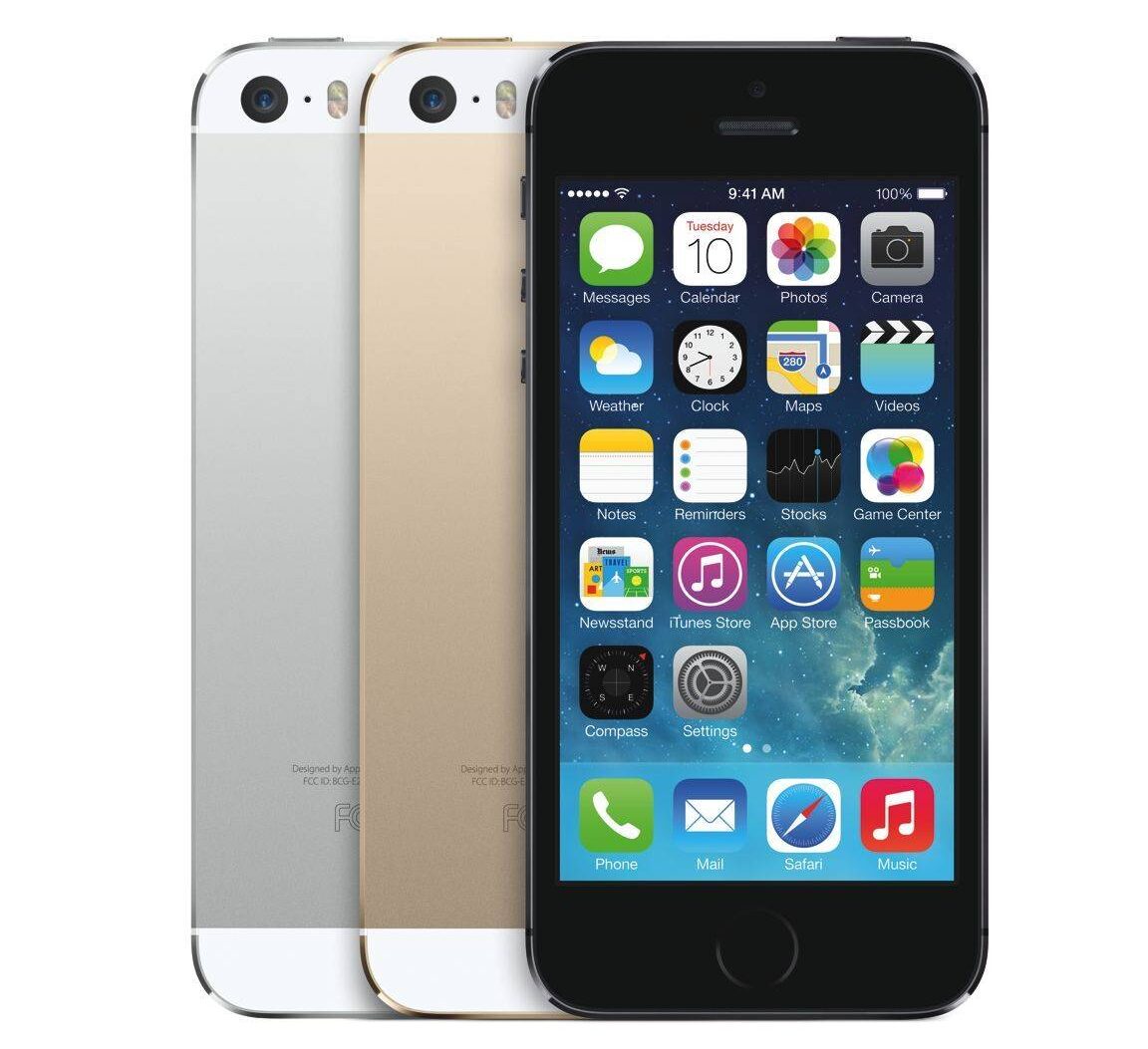
The iPhone 5s in 2013 brought two major innovations.
Touch ID let you authenticate your iPhone using a fingerprint sensor built into its Home Button. With one simple click of the button, you could wake up your iPhone and instantly unlock it. Prior to Touch ID, many people didn’t set up their phone with a passcode. This significantly increased the security of iPhone users everywhere.
The A7 chip inside the iPhone 5s was also the first 64-bit chip in a smartphone. This gave the iPhone 5s a much longer lease on life than previous models. The iPhone 5s launched with iOS 7, but can be updated to iOS 12.5.7 — that’s five major updates. Previous models had only received three or four.
It also came in three colors: Silver, Space Gray and a new Gold.
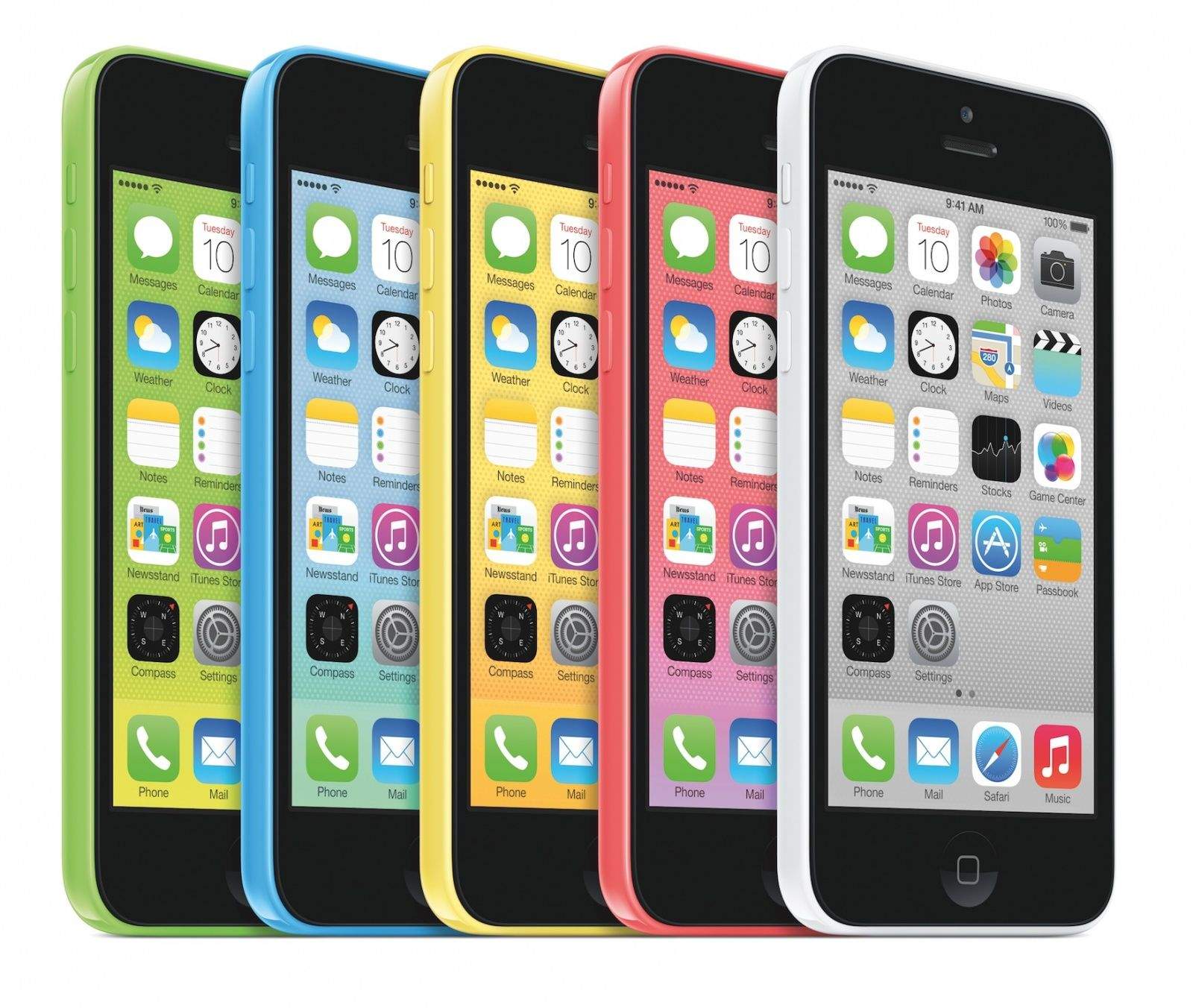
The iPhone 5c was Apple’s most colorful iPhone yet.
After the debut of the iPhone 5s, instead of continuing the sale of the iPhone 5 at a lower cost, Apple replaced it with the iPhone 5c. It was essentially an iPhone 5, but with a colorful plastic shell instead of the similar-looking metal body.
iPhone 6, 6 Plus and 6s
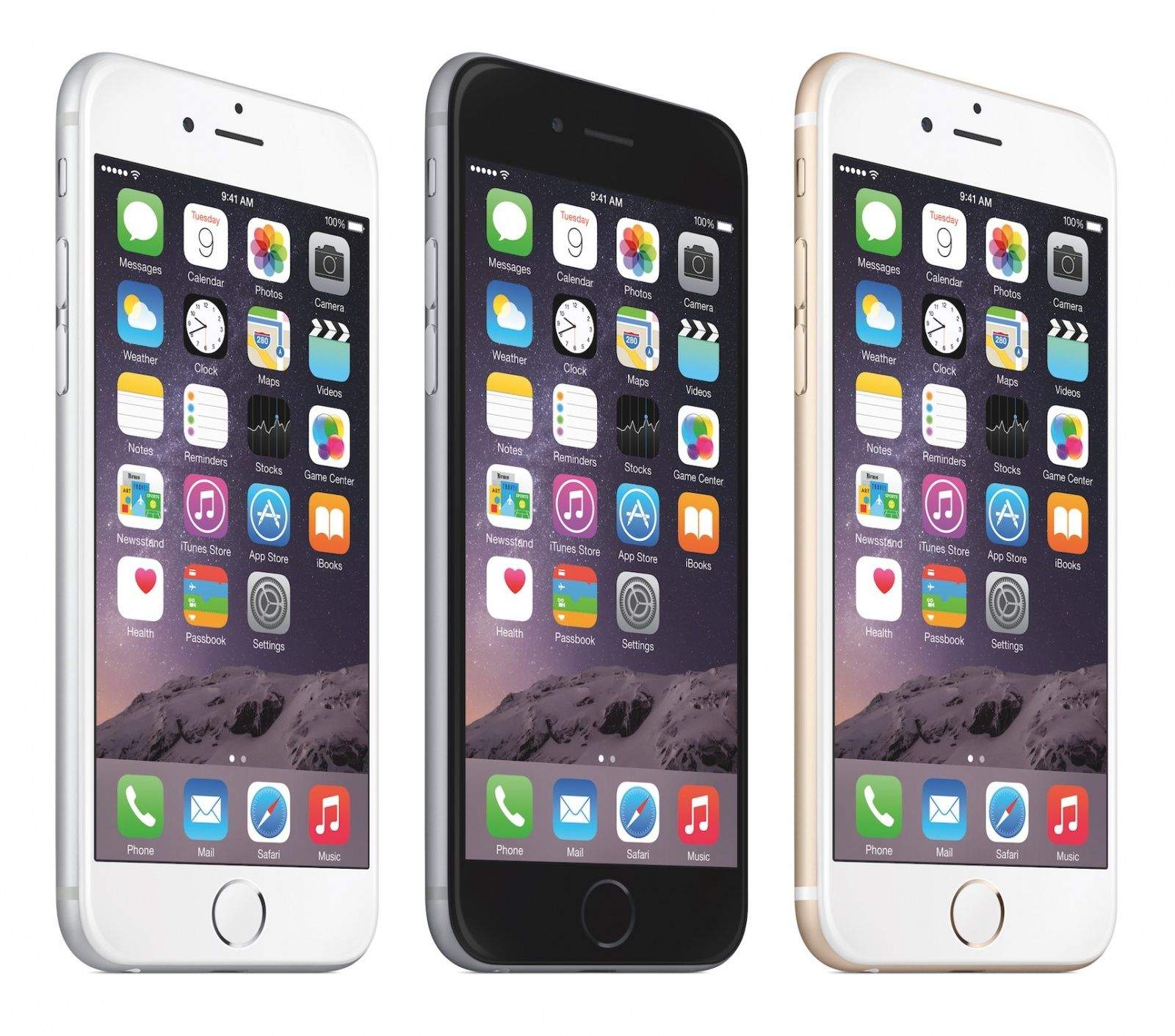
The iPhone 6 had a more simple design that stayed for many years.
The iPhone 6 was the first iPhone to have a protruding camera. While this change was wildly controversial at the time, it now seems quaint. Its single lens looks like a tiny blemish on the back compared to today’s iPhones, with gigantic multi-camera arrays.
It also adopted a more basic design, with a rounded aluminum body, that would stay for many years.
The iPhone 6s in 2015 was a large internal upgrade. The A9 chip significantly boosted performance by 70%. A second-generation Touch ID sensor was much faster. The display introduced 3D Touch — a pressure-sensitive layer that added an extra dimension to interaction. In addition to a tap, you could press. This would let you preview an email without opening it, or you could press the edge of the screen to quickly switch apps. The camera also introduced Live Photos for the first time.
iPhone 7 and 8
The iPhone 7 came in a brilliant Jet Black finish.
The iPhone 7 in 2016 brought with it a haptic Home Button. The button no longer physically clicked, but instead used a precisely controlled motor to simulate a button click. The iPhone 7 Plus was the first iPhone to introduce a dual-lens camera system, offering a telephoto optical 2× zoom. Portrait Mode combined the image from both lenses to simulate a shallow depth of field effect, also known as ‘bokeh.’
It also came in a special Jet Black color, with a highly polished black aluminum finish.
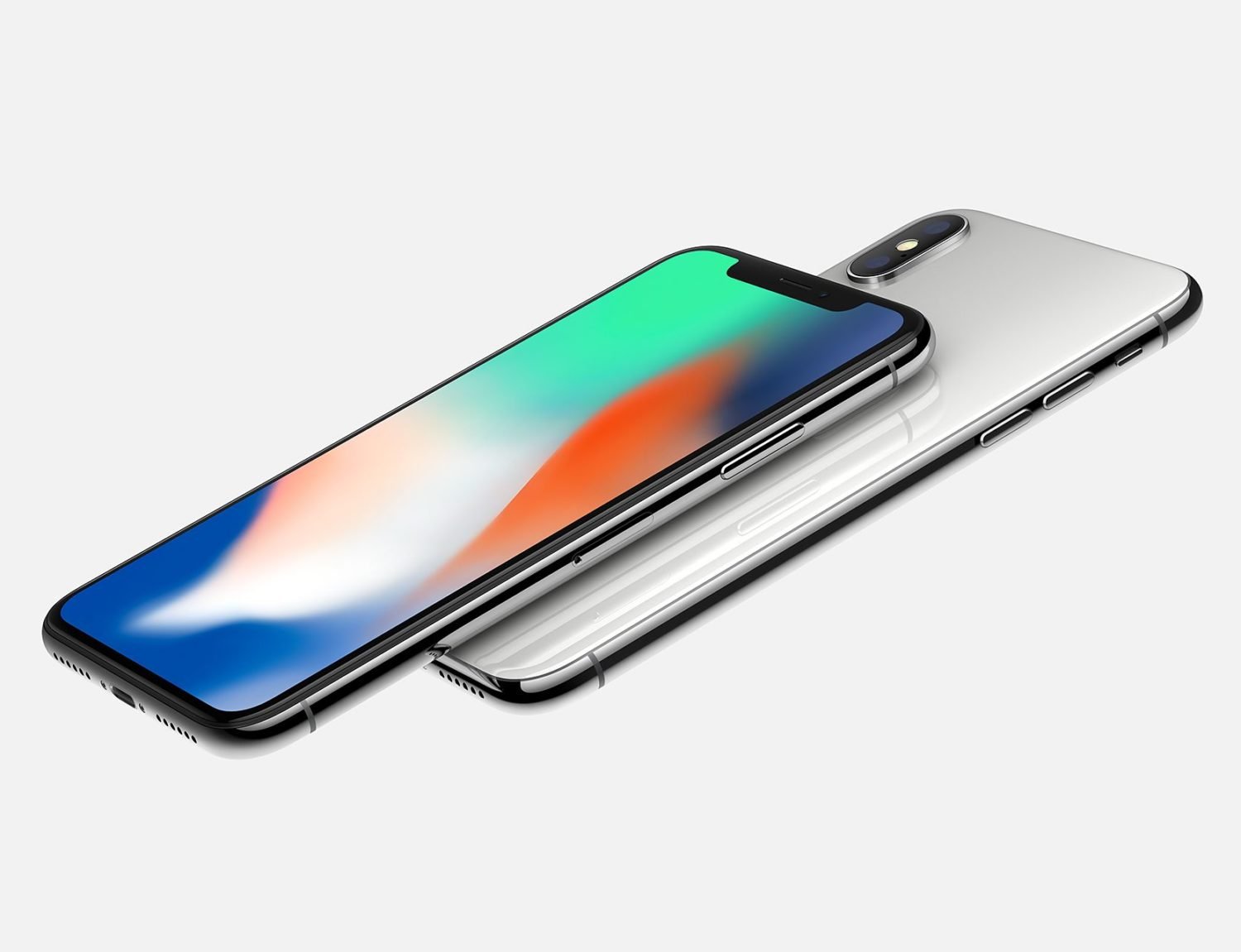
The all-screen design abandoned the Home Button that had been present since the very beginning, along with the chunky bezels on the top and bottom. The screen reached all the way to the edge, allowing for a significantly larger screen in a phone was largely the same physical size.
Shrinking the proximity sensor, ambient light sensor, speaker and camera — along with the new Face ID sensors — led to a large notch in the top of the screen. The iPhone 13 Pro would reposition the speaker even higher, allowing the notch to shrink; the iPhone 14 Pro would replace the notch with the Dynamic Island.
The A11 chip inside the iPhone X was the first to include a Neural Engine, for better performance with machine learning-based tasks and features. The Neural Engine would later become an integral part of Apple silicon, powering Apple Intelligence on the iPhone 15 Pro and later.
iPhone XS, XS Max, XR, 11 and 11 Pro
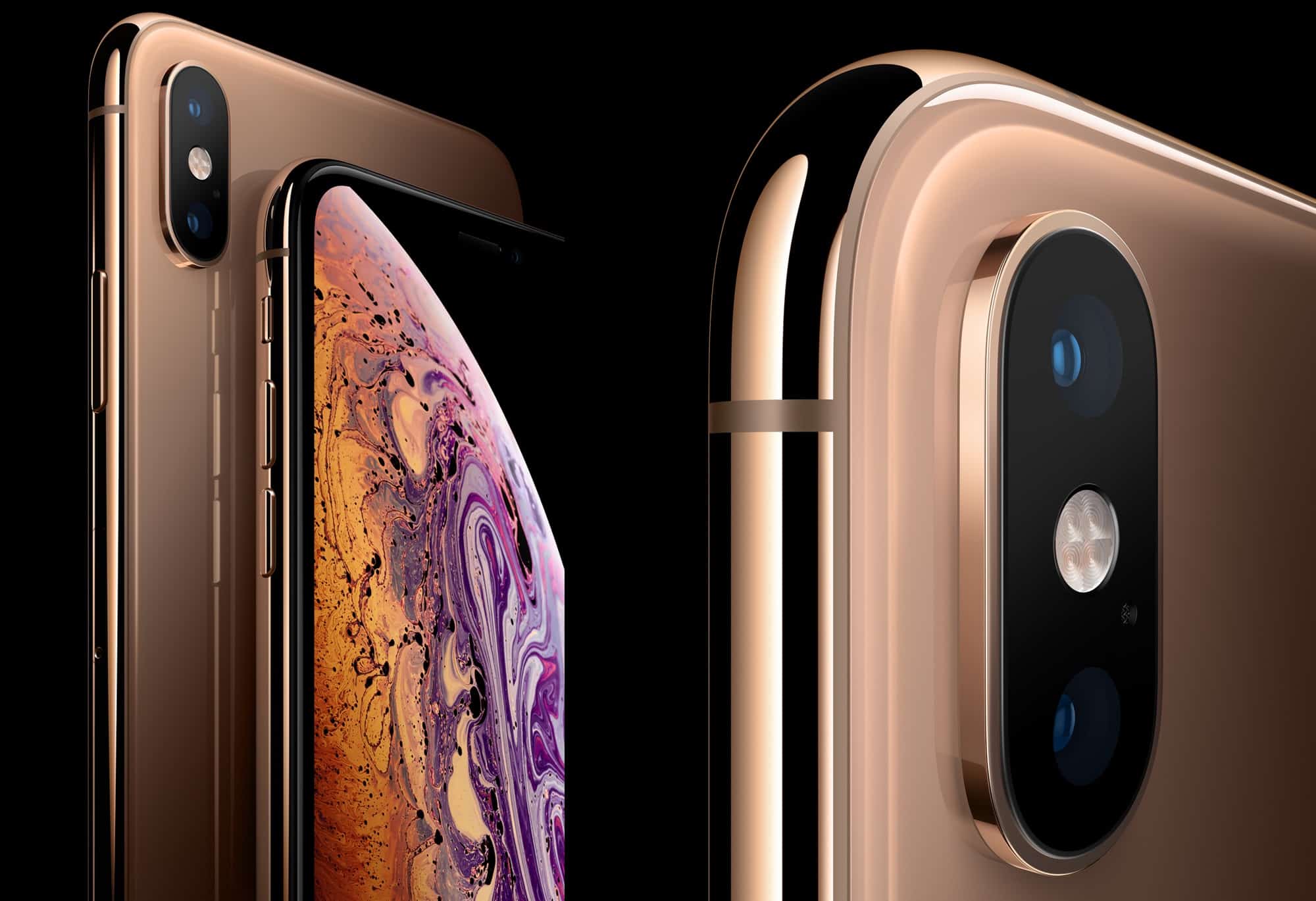
The iPhone XS marked the return of gold.
The iPhone XS debuted on September 12, 2018. The A12 chip inside was a monumental leap forward, with a 50% faster GPU and 8× faster Neural Engine. The modern all-screen design now came in two sizes — the iPhone XS Max was the same phone, in a much larger 6.5-inch size.
The iPhone XR debuted at the same event, as a lower-cost model with a similar design. It featured a lower-resolution LCD display rather than an OLED panel, with a screen size squarely in the middle at 6.1 inches.
The iPhone 11 lineup replaced all three models on September 10, 2019. Last year’s iPhone XR was revised to become the iPhone 11, with a much-upgraded camera. The iPhone XS and XS Max became the new iPhone 11 Pro and Pro Max, featuring much brighter displays, a new triple-camera layout and far greater battery life.
iPhone 12 and iPhone 13 lineup
The iPhone 12 was the first with 5G.
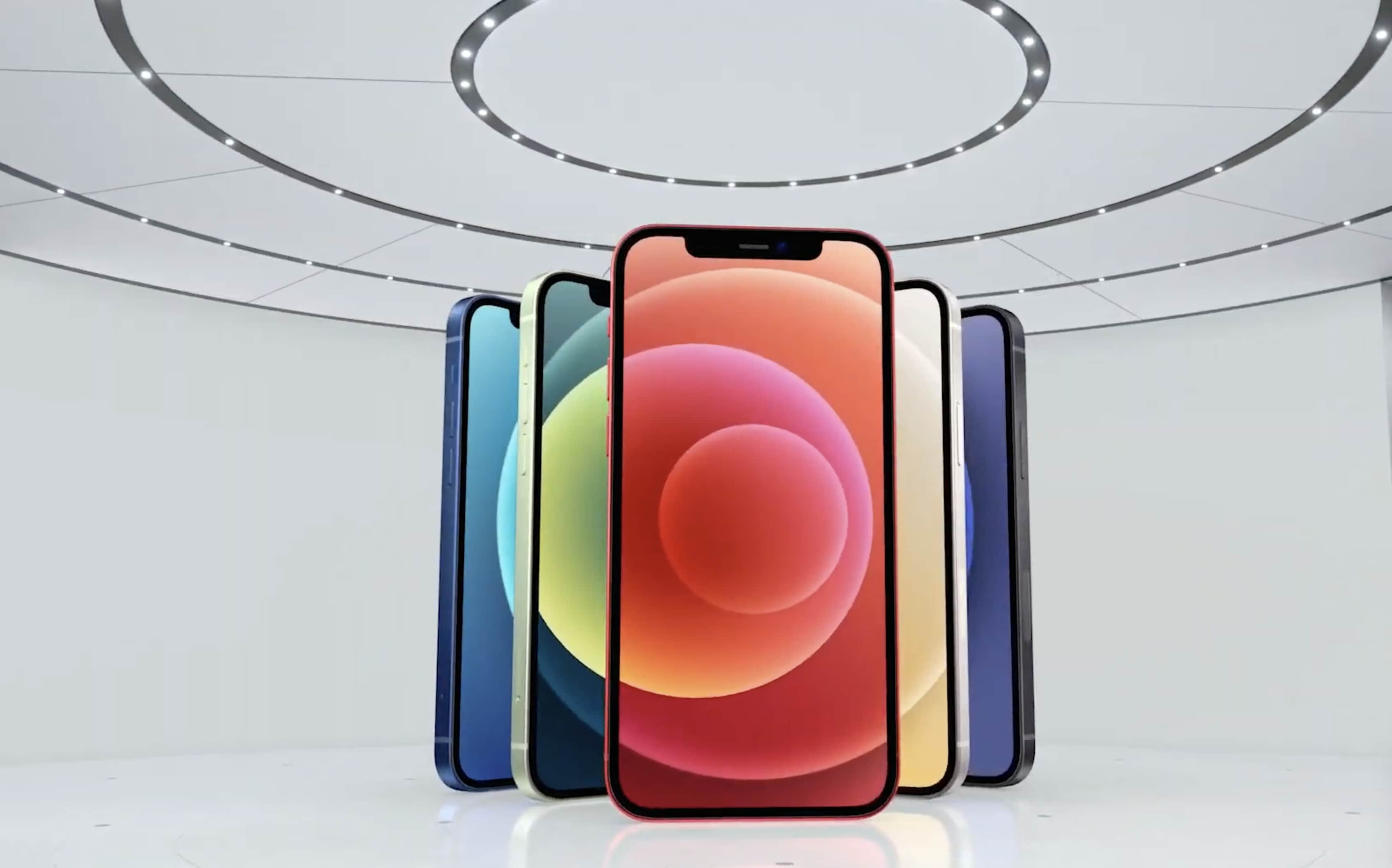
Three became four with the new iPhone 12, 12 mini, 12 Pro and 12 Pro Max, featuring a fresh redesign with flat edges all around. These models were the first iPhones with 5G connectivity, and introduced the MagSafe line of chargers and accessories. The entry-level models were finally bumped from an LCD display to OLED, like the Pro models.
The quadruplets carried over the following year as well, with the iPhone 13 lineup. The iPhone 13 Pro and Pro Max now featured always-on displays, letting you keep an eye on your notifications and the time while your phone is locked.
iPhone 14, iPhone 15 and iPhone 16 lineup
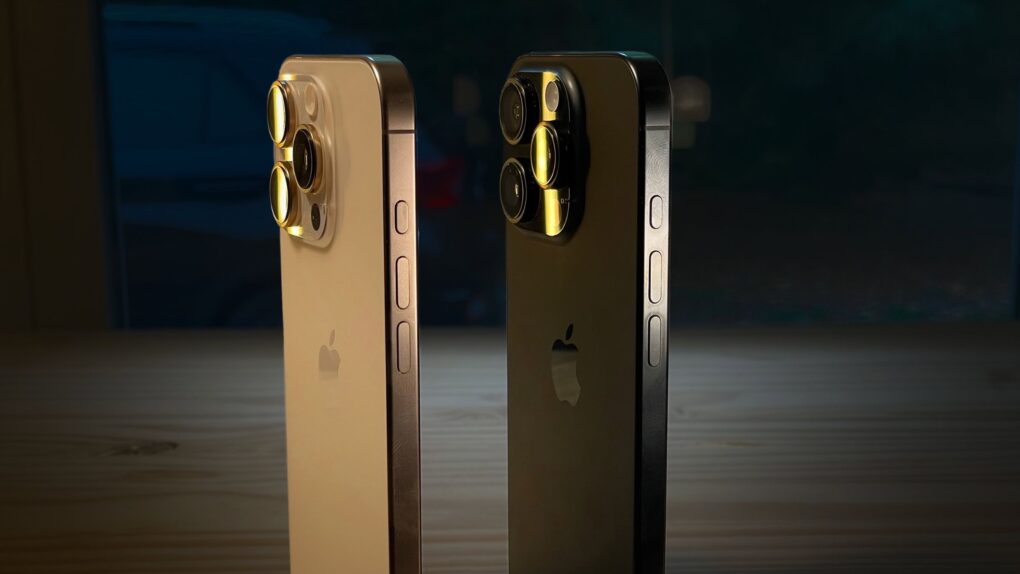
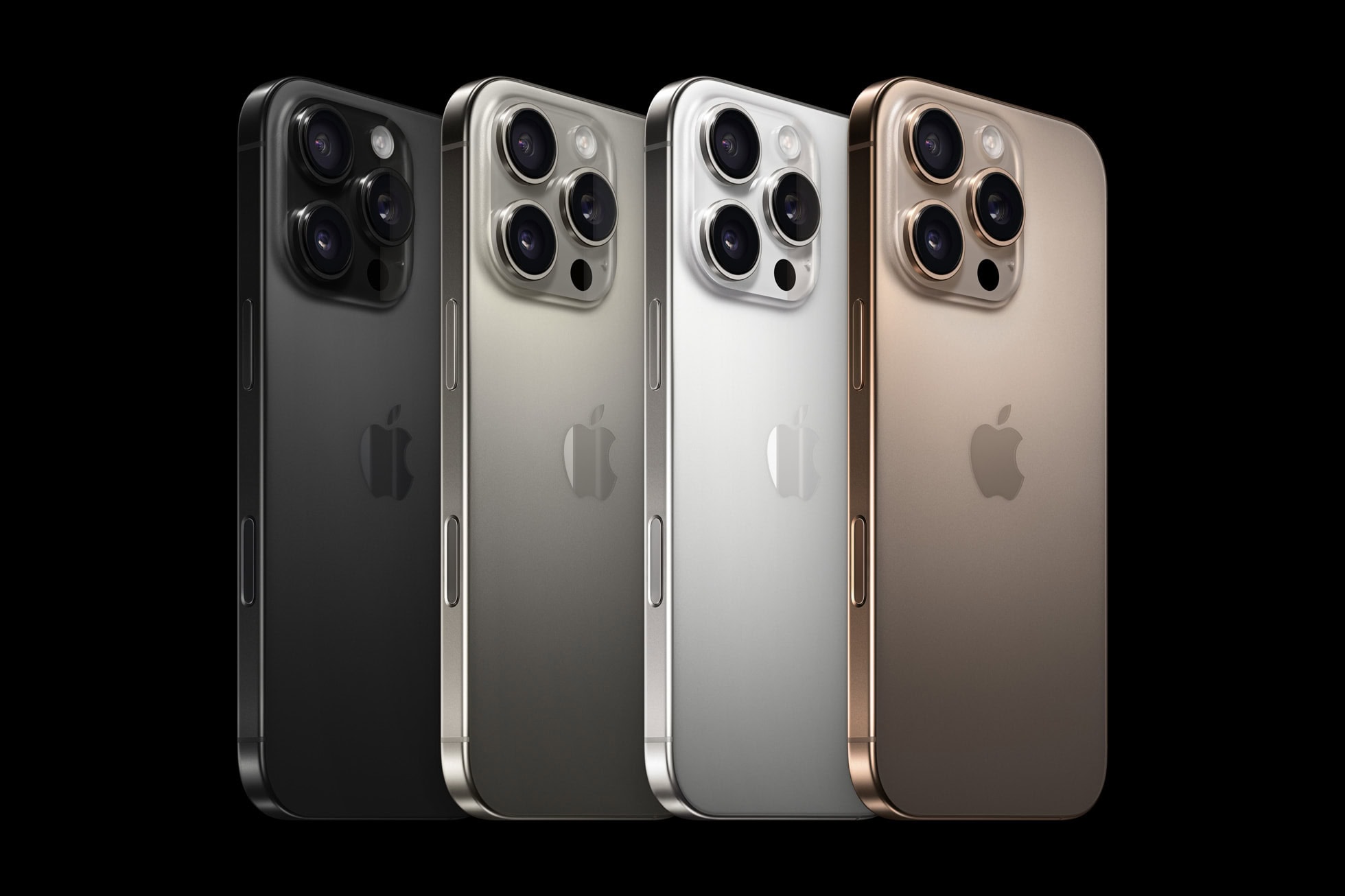
The iPhone 15 and 16 Pro (pictured) switched from polished stainless steel to a matte titanium frame.
The iPhone 14 lineup dropped the mini. It now consisted of the iPhone 14, iPhone 14 Pro, iPhone 14 Pro Max and an iPhone 14 Plus — a budget phone with the same screen size as the Pro Max. The iPhone 14 introduced Emergency SOS via Satellite, for contacting emergency services in remote locations. On the pro models, the notch was replaced by a new Dynamic Island — a floating black cutout in the display, that can show background tasks like timers and navigation up in the status area. The main rear camera could take 48 MP photos for the first time.
The iPhone 15 lineup switched all models away from Lightning to the industry-standard USB-C connector. The lower-end models now featured the Dynamic Island. On the iPhone 15 Pro, the traditional ring/mute switch was replaced by a customizable Action button. The pro models support Apple Intelligence.
The iPhone 16 lineup introduced a new Camera Control button for quickly opening and operating the camera. It is also pressure-sensitive for detecting half-presses and touch-sensitive for swiping along the surface. The lower-end models also received the Action button. All models support Apple Intelligence. The Pro models can now seamlessly shoot 4K 120 fps video.
An addition to the 16 lineup was released the following February, the iPhone 16e. This replaced the aging SE model. It modernizes the budget model with an edge-to-edge screen, Face ID and a single 48 MP rear camera. Reviews praised its lightweight and gorgeous design, though it was criticized for lacking MagSafe — a standard feature since 2020.
iPhone 17 lineup
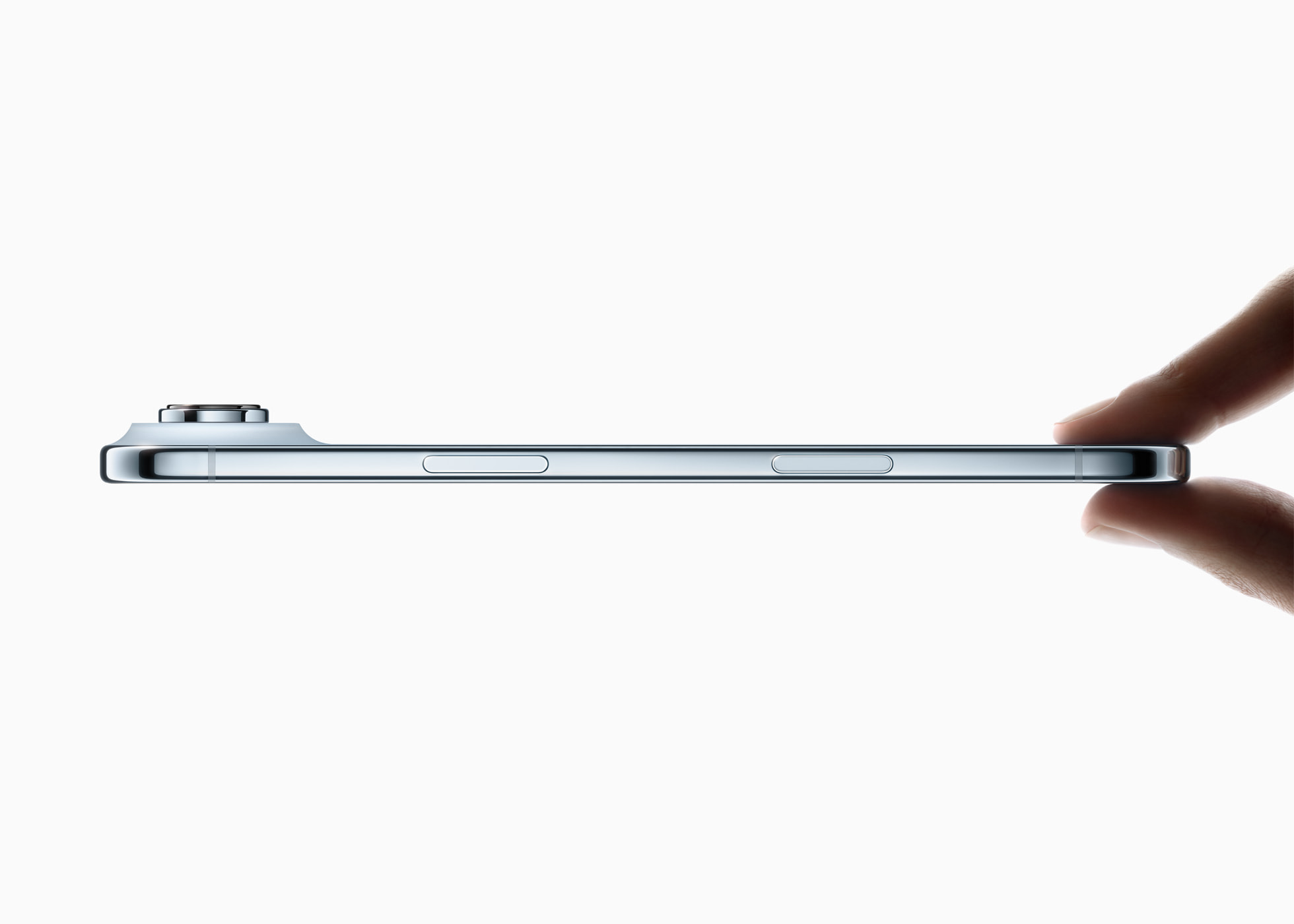
The iPhone Air is shakes up the lineup.
Apple changed things up in 2025 once again. The Plus model was discontinued in favor of an all-new model, the iPhone Air. Thin is in like it’s 2014 again. It made sacrifices on speakers, rear cameras and battery life for the sake of being just 5.6 mm thin through its body — although the camera and plateau protrude a little farther. Reviews were glowing about its stunning design.
All 17 models received a much-needed update to the selfie camera, with a square sensor that can take both vertical and horizontal selfies, no matter how you hold the phone. The Pro models were updated with a 48 MP sensor in the telephoto lens, allowing for smooth zooming between 4–8× levels at full quality. All models were also bumped up to 256 GB of storage.
iPhone Features
iPhone camera
The camera dominates the back of the iPhone.
The camera is one of the iPhone’s most prominent features, with a large multi-camera system dominating the back of the phone on the pro models. Here’s a quick guide to the features of the iPhone’s camera:
Portrait mode will artificially blur the background, like a DSLR camera. This works best if there’s a lot of clear separation between your subject and the background. I also recommend using this feature outside during the day, or indoors with a lot of even light, for the best results. You can also pick a few color effects; the zoom control is moved to the corner.
If your phone has multiple lenses, you can tap .5, 1, 2, 3, 4 or 5 to switch between them. You can also pinch to freely zoom in and out. Tap the Reverse button in the bottom right to switch to the front-facing camera.
Pano will take a panorama. Hold your phone steady (or put it on a tripod) and tap the button to start. Slowly and steadily spin your phone around in a circle to capture your surroundings.
Video modes
Swipe right or tap Video to record instead. In the upper right corner, you can tap to change the video resolution or frame rate. As you’re recording, hit the white button to take a picture.
Tap the icon of a person running to turn on Action mode. This will stabilize the video if you’re filming handheld with a lot of motion. This feature requires an iPhone 14 or newer.
Cinematic mode is like Portrait mode for video. It’ll intelligently determine the focus of the shot and blur the background. You can even adjust the focus after the video’s been taken. This is available on the iPhone 13 or newer.
Slo-Mo will record video at a much higher frame rate, played back in slow motion. In the upper right corner, you can set the speed. 120 is 4 times slower; 240 is eight times slower.
Time-Lapse is the opposite; it’ll speed up your video. Set your phone steady on a ledge, shelf or tripod and start recording. However long you record for, it’ll shorten the result to about twenty seconds or so.
Camera Control
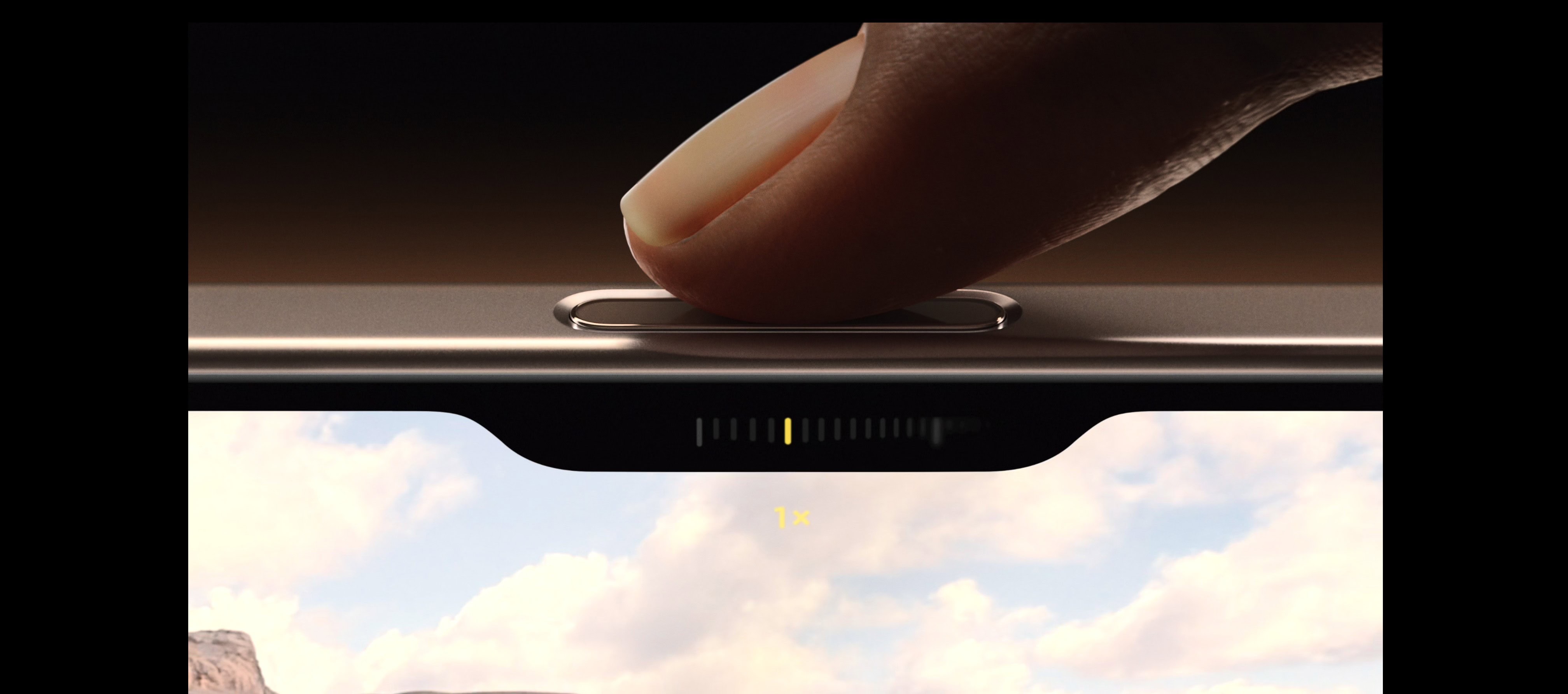
The Camera Control button on iPhone 16 and iPhone 16 Pro gives you instant access to your camera AND camera settings.
The Camera Control is a new button on the side of the iPhone 16 lineup. It makes opening the camera and taking a picture faster than ever before:
Click the button to open the Camera app.
Click the button again to take a picture.
Hold the button down to take a video.
It also has some advanced functionality, for operating the camera, that you can enable in Settings:
Half-click the button to bring up a control slider to zoom in and out. Swipe your finger along the button to control the zoom level.
Double-half-click the button to switch between other camera controls.
Half-click and hold the button down to lock the focus and exposure.
Dynamic Island
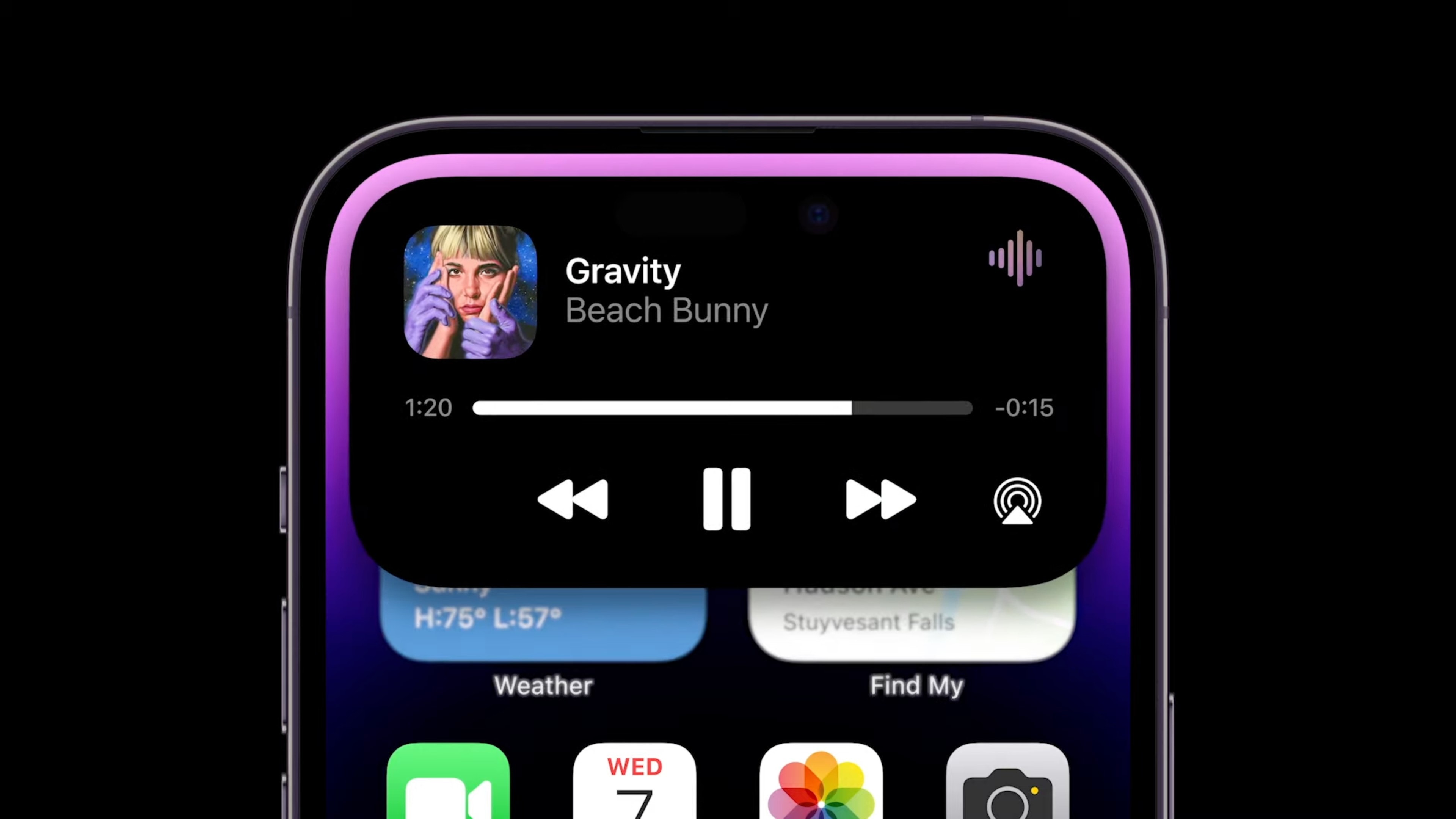
The Dynamic Island morphs into different sorts of interactive widgets at the top of the screen.
The Dynamic Island is a status area at the top of the screen on the iPhone 15, iPhone 14 Pro and later models. Music or podcasts playing in the background, active phone calls, running timers, Apple Maps navigation and more will add little widgets to the Dynamic Island so you can quickly switch back to them.
Tap on an item to switch to that app.
Tap and hold on it to bring up quick interactive controls.
iPhone screen
Modern iPhones have an OLED screen, where each pixel can be individually lit. That means you get true, deep blacks and higher contrast. iPhone screens can also show HDR (High Dynamic Range) content. This brightens parts of the image for more vibrant colors.
Newer iPhones can hit a maximum typical brightness of 1,000 nits, considered bright enough to be legible outdoors, with a higher peak brightness for HDR content. The iPhone 15 and newer models can reach up to 2,000 nits outdoors, making them ideal for those bright sunny days.
The iPhone 13 Pro, later pro models and the iPhone 17 have a ProMotion display. Whereas a typical display refreshes at 60 Hz, a ProMotion display can refresh up to 120 Hz for smoother animations. It can also match the refresh rate of the content onscreen, if you’re watching a 30 FPS video or a 24 FPS movie. When nothing is moving on the screen, it can drop down to 10 FPS for preserving battery life.
The iPhone 14 Pro, subsequent pro phones and the iPhone 17 come with an always-on screen. When the phone isn’t being used, it dims the brightness of your Lock Screen, while keeping your notifications and wallpaper visible. Apple says the always-on screen only takes approximately 1% of battery life per hour.
StandBy
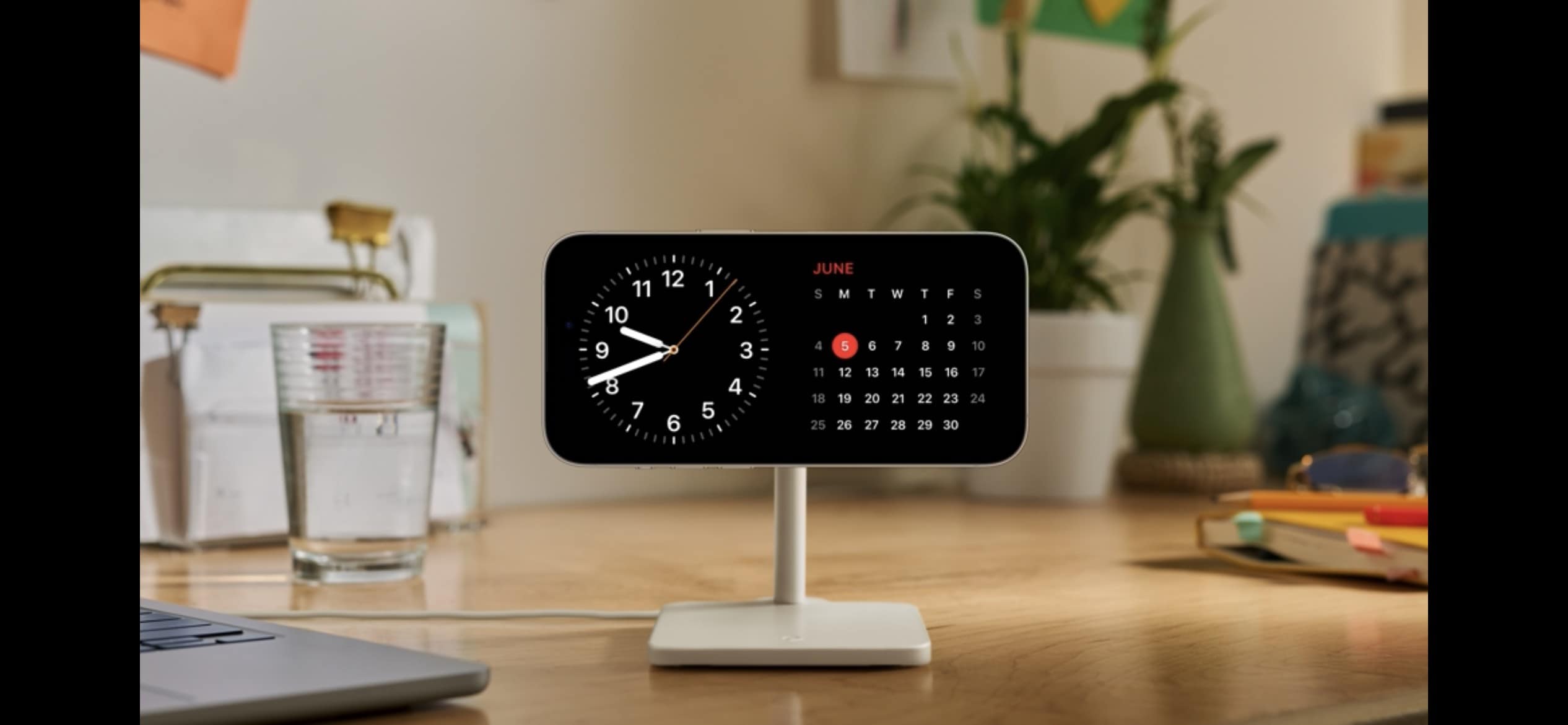
It turns your phone into a little smart display when you’re not using it.
StandBy is a special mode you can put your phone in while it’s sitting on your desk, nightstand or counter. To enter StandBy, your phone has to be charging and held horizontally. This works great if you have a MagSafe charging stand, but also works if your phone is plugged in and propped up.
In StandBy mode, your phone can show you the time, rotate through photos, or show a variety of widgets.
StandBy was introduced in iOS 17 on models with MagSafe.
iPhone storage
Every iPhone, just like a computer, has internal storage for saving photos, apps, messages and more. The latest iPhones come with 256 GB of storage on the base model, but can be ordered in higher capacities of 512 GB, 1 TB or 2 TB.
iPhone Photos
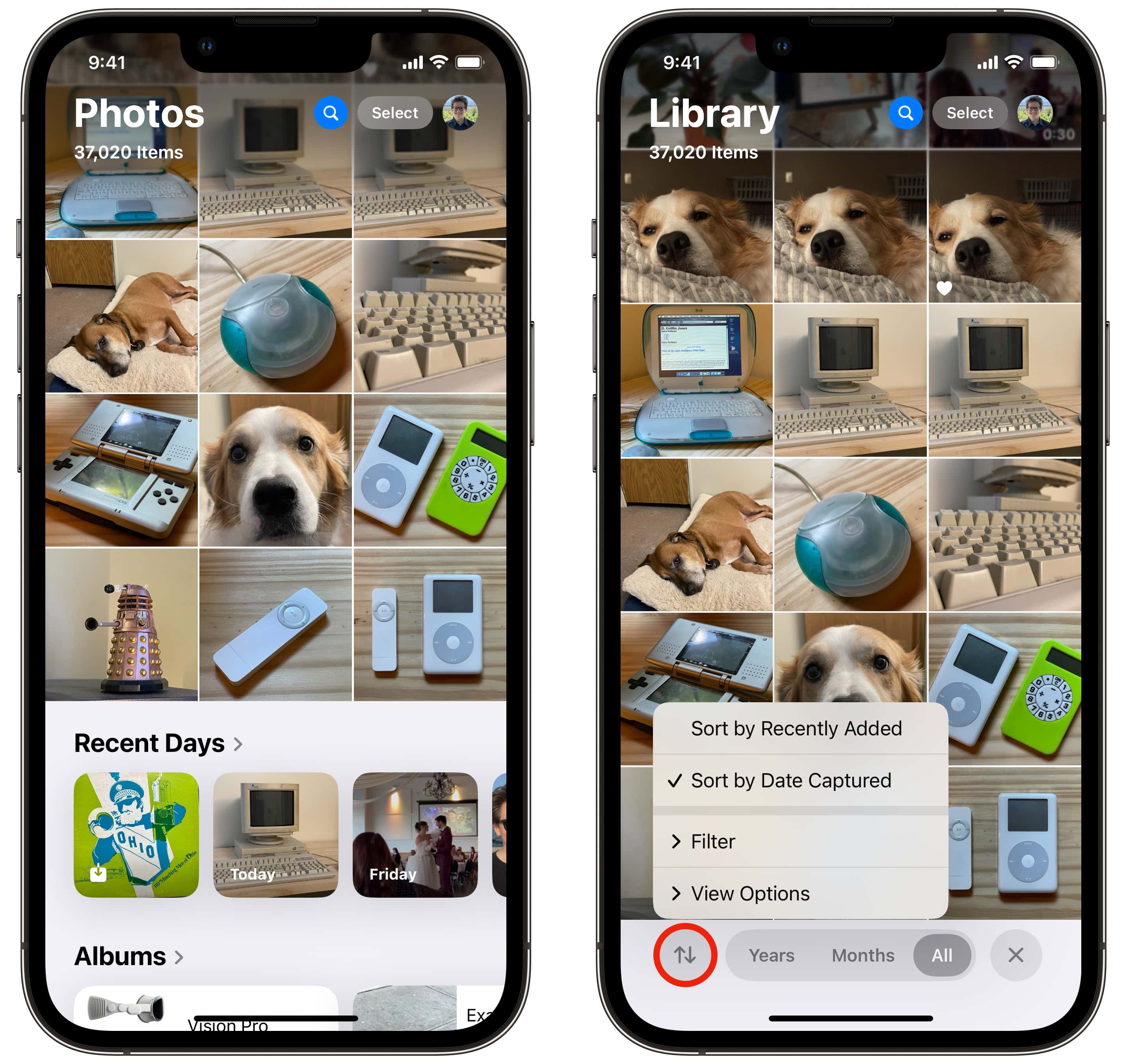
The new Photos library in iOS 18 has a floating toolbar at the bottom.
Apple Photos is the photo management app on your iPhone. Images you take on the camera, or save from the web, are added to your photo library here.
The Photos app is divided into two sections.
When you launch the app, you can scroll up to browse through your library. Tap the Sort & Filter button in the bottom left to view pictures sorted by date added instead of date taken, or to show screenshots in with the rest of your photos.
Scroll down to browse through collections and albums. You’ll see your albums, named people and pets, pinned collections, intelligently chosen collections of trips and memories and different media types and utilities. You can customize the order of these items by tapping Customize & Reorder at the bottom.
You can assign names to the people and pets in your photo library to make them easier to find. You can tap the Search button at the top to find images based on the name of the people, the location, the date and even objects inside the photo.
Photos automatically sync every night to iCloud when your iPhone is charging and connected to Wi-Fi. New photos and edits will sync across all your devices.
You can create a shared photo library with those close to you. You can each continue to have photos private to yourselves, but photos you take together can be added to the shared library automatically.
iMessage on iPhone
iMessage is a special feature that kicks in when you’re texting another person with an iPhone. Instead of texting by SMS (or RCS) using your cell carrier, it’ll send your text over iMessage.
iMessage allows for higher-quality photos and videos, text formatting, larger file attachments, stickers, SharePlay and built-in apps and games.
You can use iMessage from any iPhone, but also on a Mac, iPad, Apple Watch and Vision Pro.
iPhone Backup
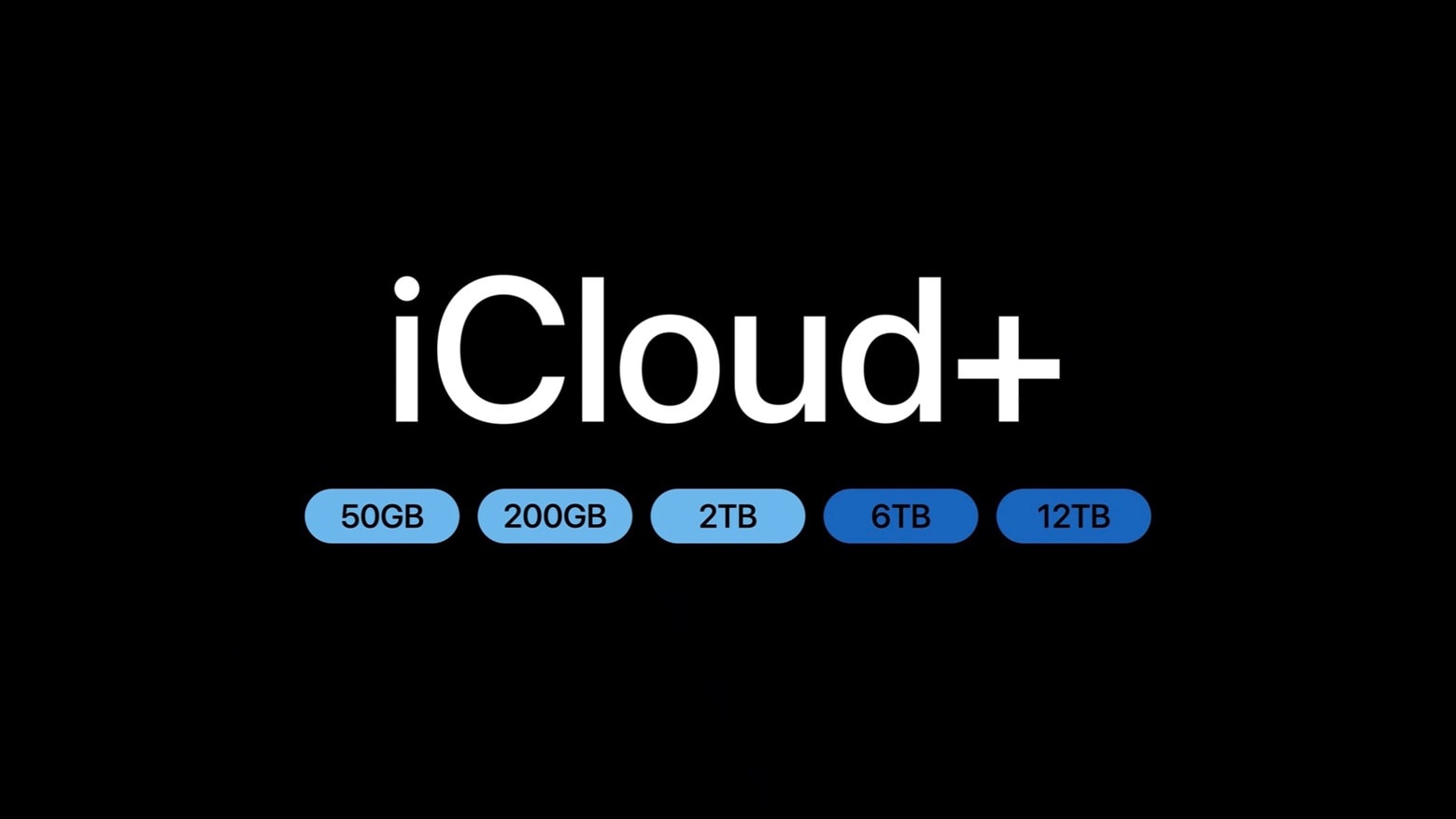
You can sync huge amounts of data to the web with iCloud.
iCloud can seamlessly back up your iPhone every night when it’s charging and connected to Wi-Fi. This means that if you ever lose or upgrade your device, you can pick up exactly where you left off.
Turn it on in Settings, tap on your name at the top, tap iCloud and tap iCloud Backup. Make sure you enable Back Up This iPhone.
Find My iPhone
Find My lets you find a lost device. Whether it was misplaced around the house, left at a friend’s place or stolen, Find My will help you get it back.
You can launch the Find My app from any of your other Apple devices, like an iPad, Mac or Apple Watch. You can also use Find My from a Windows PC or Android device via icloud.com.
iPhone Accessories
MagSafe
MagSafe is the name for accessories, cases, stands, chargers, wallets and more that attach to your iPhone magnetically. The feature was introduced on the iPhone 12 and is compatible with all subsequent models (except the iPhone 16e).
MagSafe chargers
A MagSafe charger can charge at speeds up to 25W on the iPhone 16 and later. Most officially certified MagSafe devices charge at 15W, while other third-party “MagSafe-compatible” devices only charge at 7.5W.
MagSafe chargers typically either snap onto the back of your phone with wired cables or attach your phone to solid charging stands. You can also find MagSafe battery packs, if you want to top up your battery without dealing with a messy cable in your pocket. MagSafe car chargers let you quickly prop up your phone with navigation, while charging it up as well.
A thicker case will prevent your iPhone from connecting to MagSafe, as the magnets will not be able to make a strong connection. But a MagSafe case will include the same pattern of magnets built in, so that you can keep using the same accessories.
MagSafe wallets
If you want to carry around a small handful of cards, you can carry them in a magnetically attaching MagSafe wallet.
We're not saying any of these tech executives would go to jail, but the UK may target anyone whose products let kids see nudity on their devices. AI image: ChatGPT/Cult of Mac
The UK government plans to compel Apple, Google and other technology companies to block children from encountering any nudity on their devices like iPhones and iPads — and to imprison executives who fail to act for up to 5 years, according to a new report Friday about policy changes in the works.
Seems like the sort of thing that could make incoming Apple CEO John Ternus a little nervous.
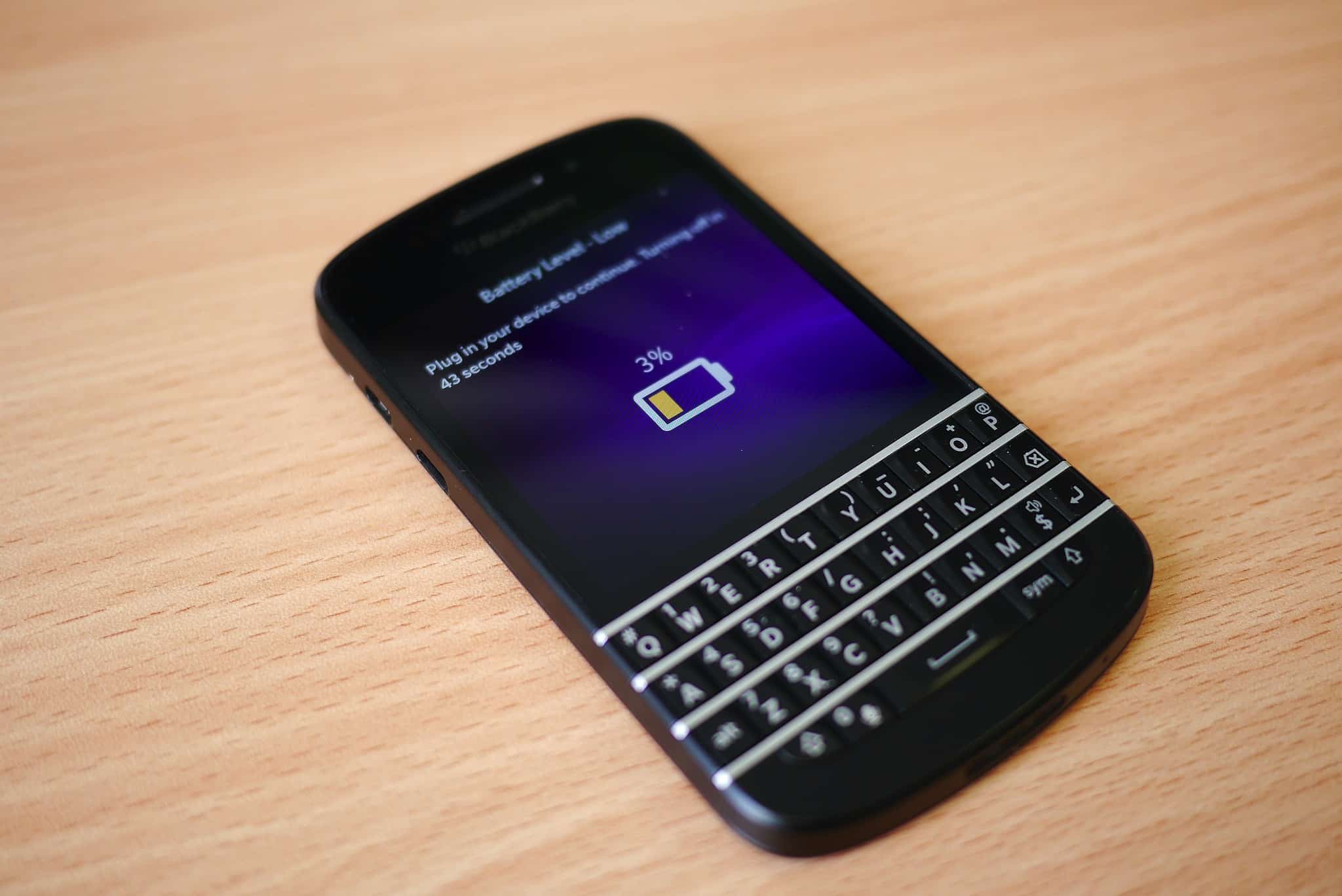
June 3, 2011: iOS overtakes Research in Motion’s BlackBerry operating system for the first time, with Apple’s mobile operating system inching past BlackBerry OS.
While Android remains comfortably in the lead in terms of market share, the news marks the beginning of the end for BlackBerry as a smartphone powerhouse.
With the iPhone Ultra, Apple might finally bring multitasking to the iPhone. Photo: Techblood.in
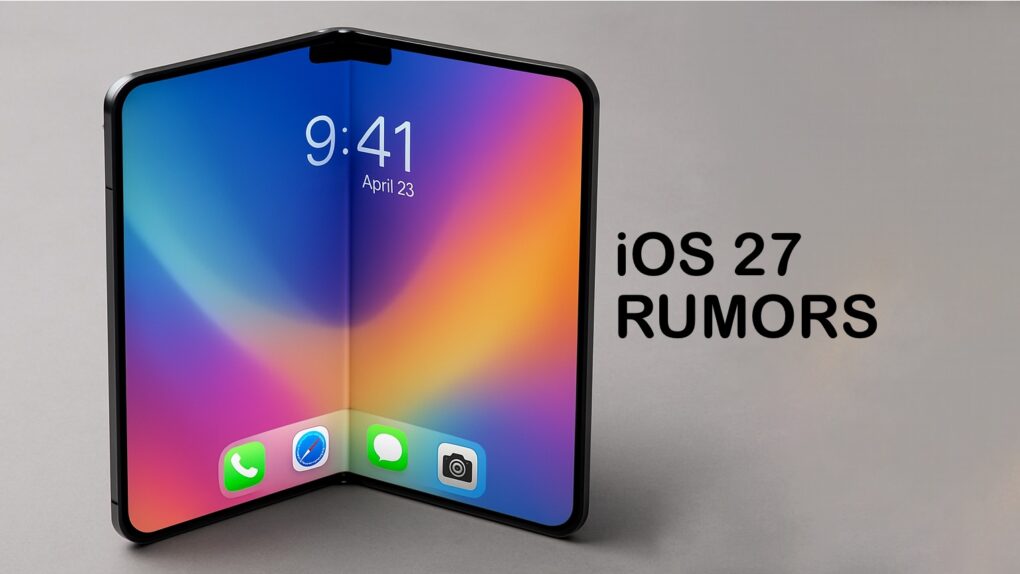
Apple is reportedly working on new multitasking features in iOS 27 that would automatically adapt any iPhone app for landscape and split-screen layouts.
With the rumored folding iPhone on the horizon, a lack of multitasking would translate to a waste of screen real estate. But this rumored capability could mean your entire app collection would work instantly, without Apple waiting for developers to redesign their apps.
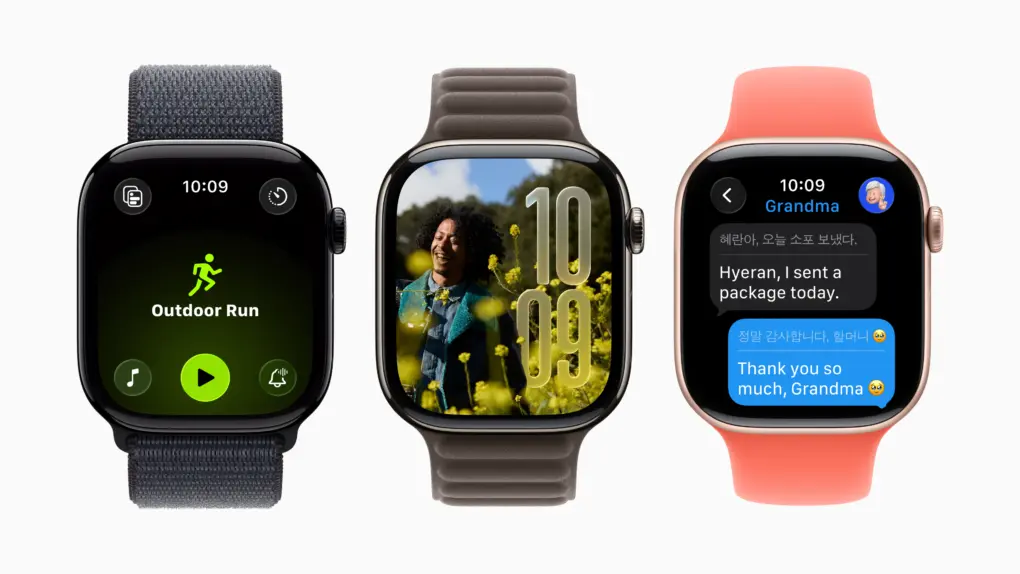
Apple Watch OLED displays are great now, but more advanced tech could boost power efficiency and, therefore, battery life. Photo: Apple
The display in your Apple Watch may already seem pretty great, but a new type of screen technology in development could make models in the next year or two even better by running for longer on a single charge, according to a new report.
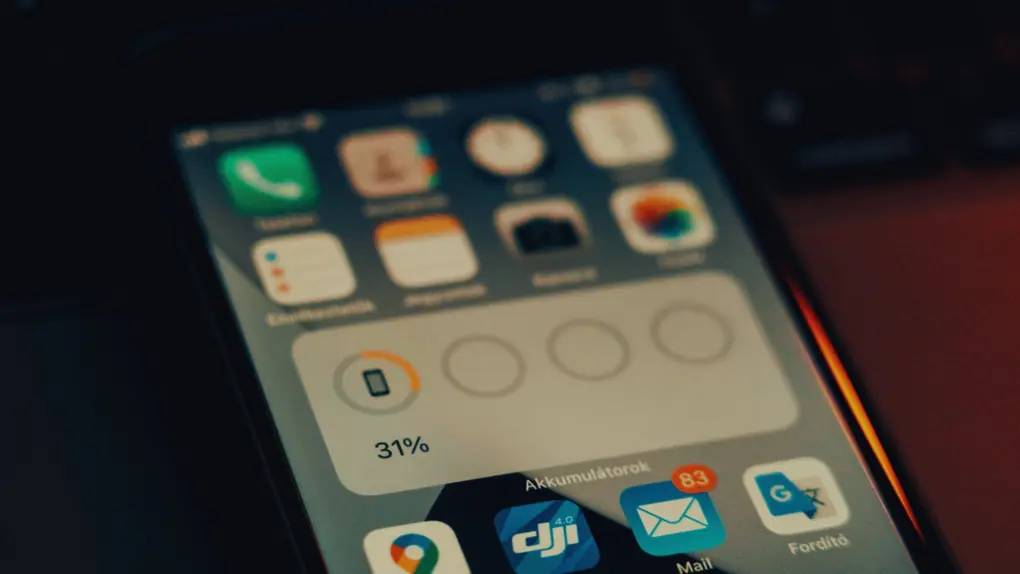
iPhone 18 Pro may not impress you with its battery capacity. Photo: Szabó Viktor/Pexels
iPhone 18 Pro’s alleged battery capacities just surfaced online. While the Chinese variant will reportedly pack a 4,056mAh battery, the US model could feature a larger 4,288mAh cell.
If accurate, these capacities are largely similar to the batteries used in the iPhone 17 Pro.
If you're one of the unlucky few the charging problem vexes, here's your solution. Image: Cult of Mac
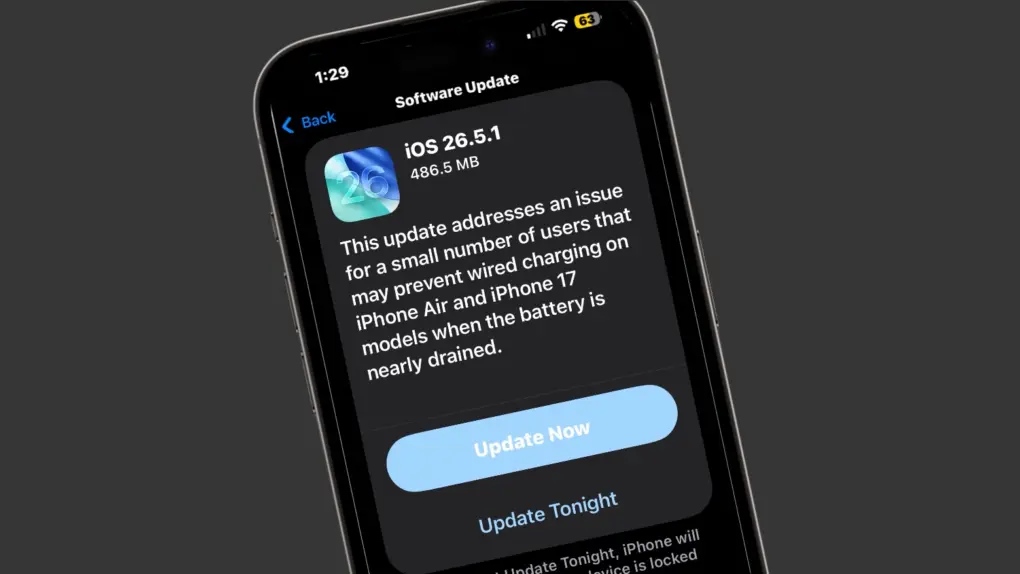
Apple made an update available for its iPhone operating system Monday with iOS 26.5.1. It addresses a wired charging problem some users with iPhone Series 17 or iPhone Air handsets face.
Apple said the problem affects a “small number of users.” But for the few users who face it, the problem probably feels pretty big. The same goes for a Mac glitch fixed by macOS 26.5.1, also released Monday.
A big Chicago daily pulls the plug on staff photographers. Photo: HypeBeast
May 31, 2013: The Chicago Sun-Times fires all 28 of its photographers, with the goal of training its staff to shoot photos using iPhones instead. Pulitzer Prize winner John H. White is among those who lose their jobs.
The move is significant not just because of what it says about the declining newspaper industry. It also spotlights the iPhone’s growing acceptance as a professional camera.
Master your photos. No computer nor equipment required. Image: D. Griffin Jones/Cult of Mac
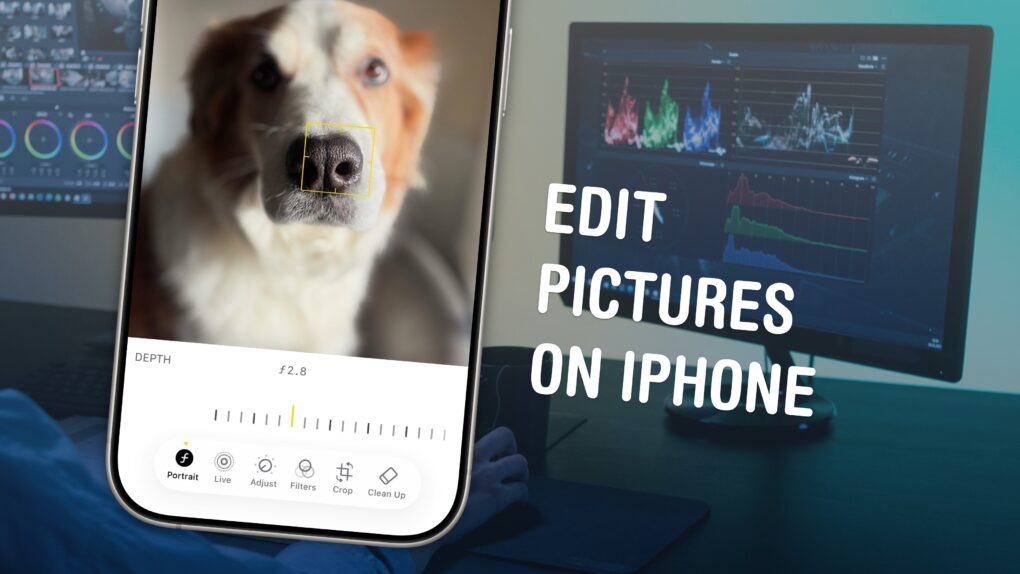
Who needs a computer or expensive photo editing software like Adobe Lightroom? You can edit pictures right on your iPhone with Apple’s free, built-in tools.
The Photos app comes with a ton of professional editing tools baked into it. If you didn’t line your shot up quite right, you can fix the crop and perspective. If you took it a split second too late, you can use Live Photo functionality to replace the shot. You can add a Portrait mode blur after the fact, and even change which part of the image is in focus.
Here are the eight great editing tools built right into your iPhone.
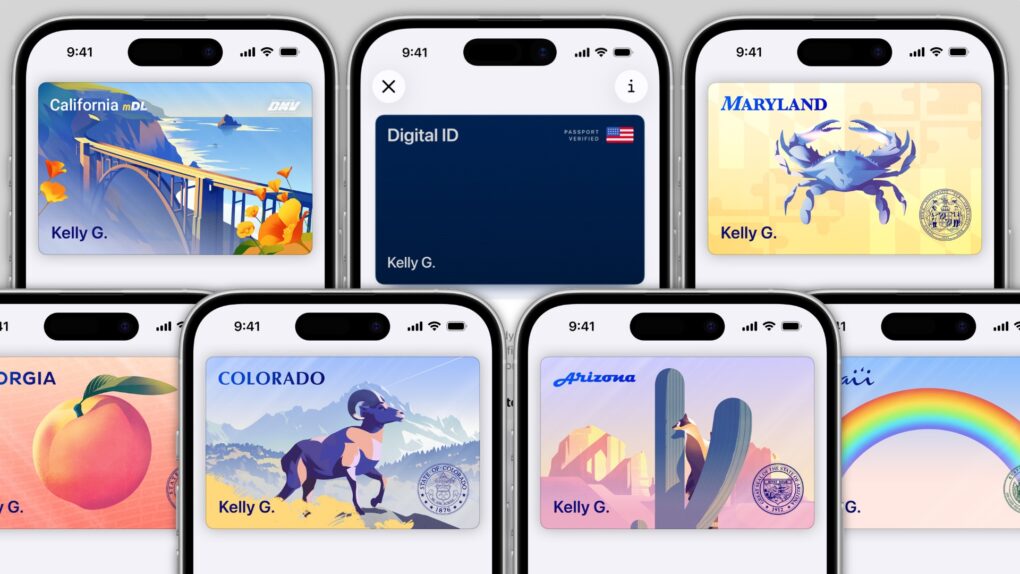
Does your state support digital IDs? Image: D. Griffin Jones/Cult of Mac
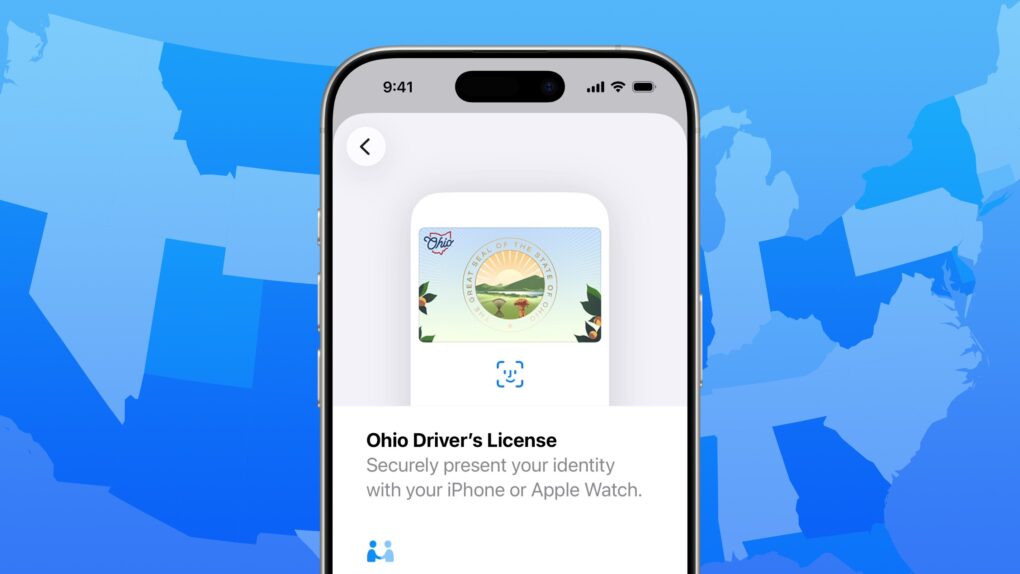
When will you be able to add your driver’s license or state ID to Apple Wallet on your iPhone? In the United States, it varies by where you live. It’s not up to Apple: Each state and territory maintains a completely independent registry of drivers and identification cards, so each one must independently pass legislation and implement digital IDs.
If you live in Arizona, Arkansas, California, Colorado, Georgia, Hawaii, Illinois, Iowa, Maryland, Montana, New Mexico, North Dakota, Ohio, Puerto Rico or West Virginia, you can do it today. (Our guide will show you how to add your driver’s license to Apple Wallet.) Otherwise, check our map and lists below to see how likely your state is to let you add your ID to Apple Wallet, and when it might happen.
In several states, Apple’s state ID initiative enables iPhones and Apple Watches to hold a digital copy of the user’s driver’s license, in the same way these devices store credit cards and airline tickets. And across the United States, you can create an Apple Digital ID based on your passport that can get you through some airport security checks.
The day when an iPhone can completely take the place of an old-fashioned wallet remains years away, but it’s a goal Apple is working toward. Apple Pay is making progress on replacing credit cards, you can put airline tickets in the Wallet app, and the same goes for loyalty cards.
But no wallet is complete unless it can hold an ID. And that’s where Apple’s digital ID initiative comes in. Here’s what you need to know to add your driver’s license, state ID or federal passport to your Apple Wallet.
iPhone users will soon be able to summarize documents using Meta AI in WhatsApp. Photo: WhatsApp/Cult Of Mac
WhatsApp wants to make Meta AI a lot more useful on the iPhone. To that end, Meta is working on a new feature that allows users to upload documents and get AI-powered summaries and answers right in WhatsApp.
For iPhone users, this sounds like a meaningful upgrade. Instead of switching between apps to analyze PDFs, notes, presentations or spreadsheets, users will be able to hand files directly to Meta AI without relying on another chatbot.
Most Apple devices saw increases in trade-in value. Photo: Pixabay CC
If you’ve been sitting on an older Apple device, now might be a good time to put it toward something new. The iPhone giant has quietly updated its U.S. trade-in estimates, boosting values across most of its current iPhone, iPad, Mac and Apple Watch lineup.
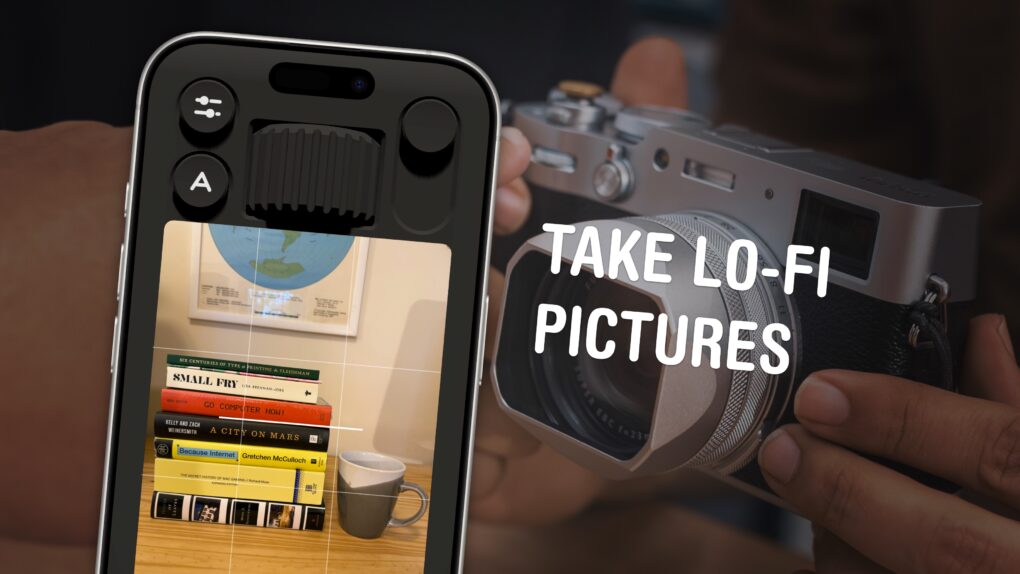
You can use your phone to take lo-fi pictures. You don’t need a separate point-and-shoot camera. Image: D. Griffin Jones/Cult of Mac
If you feel like every photo you take looks boring and overprocessed, you can change your iPhone camera settings to take natural, lo-fi pictures.
Turning down the exposure can prevent the photo from looking unnaturally bright (and more like something shot on an older digital camera). If you have a newer iPhone, you can even change its Photographic Style to “Natural,” for better-looking colors. A few quick trips into the Settings app can turn off the lens distortion on the Ultra Wide and selfie cameras, for that pure fisheye look.
You can even take things a step further and download a different camera app — one that captures totally unprocessed photos straight from your iPhone’s sensor.
Here are my top tips for taking lo-fi iPhone photos.
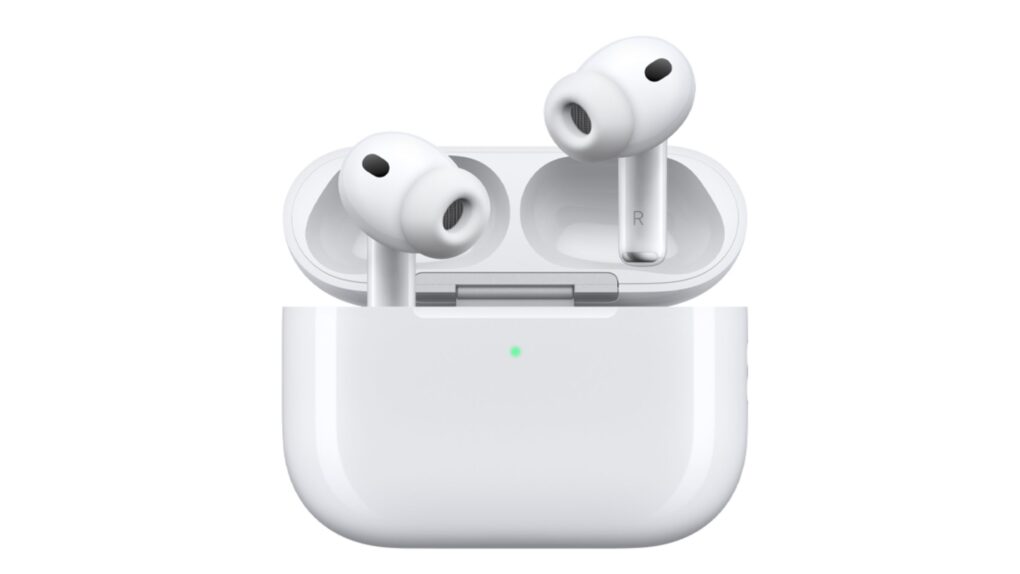
The AirPods' settings page just keeps getting more crowded as Apple adds new features. Photo: Apple
Apple is reportedly preparing to overhaul one of the iPhone’s most cluttered menus: the AirPods settings screen.
Over the years, the AirPods settings screen has grown more cluttered with every new feature Apple introduces to the popular earbuds. That could change with iOS 27, which could come with a completely revamped layout for the AirPods settings.
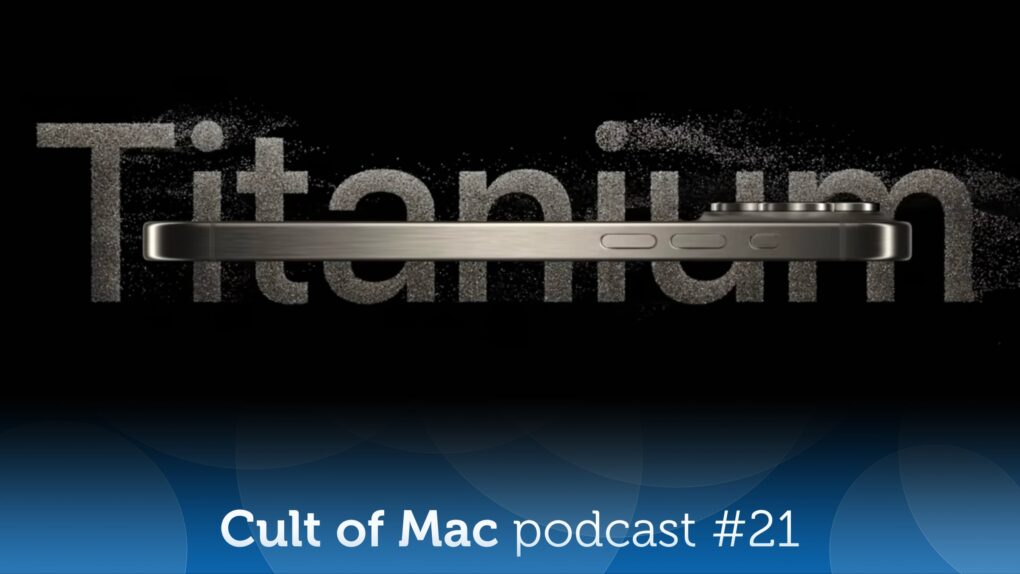
Will future iPhones come in titanium once again? Image: Apple/Cult of Mac
On the latest episode of the Cult of Mac podcast: Apple might go back to the iPhone future, thanks to some metallurgical magic that involves a special titanium alloy.
We discuss the pros, the cons and the possible timeline for such a retro upgrade.
Also on the Cult of Mac podcast:
Another recent Apple rumor also sounds like a bit of a flashback: The Apple Watch Ultra 4 might get high-blood-pressure alerts. Um, doesn’t it already do that? Yes, but …
As per tradition, Apple reveals new accessibility features coming in the next version of iOS. And, as always, they sound pretty incredible.
Special guest Niléane shows off TinyStart, a “tiny launcher for macOS, fast and focused on the essentials.”
Listen to this week’s episode of the Cult of Mac podcast in the Podcasts app or your favorite podcast app. (Be sure to subscribe and leave us a review if you like it!) Or watch the video version, embedded below.
Apple may finally be preparing to move beyond the Dynamic Island era. Photo: ChatGPT/Cult of Mac
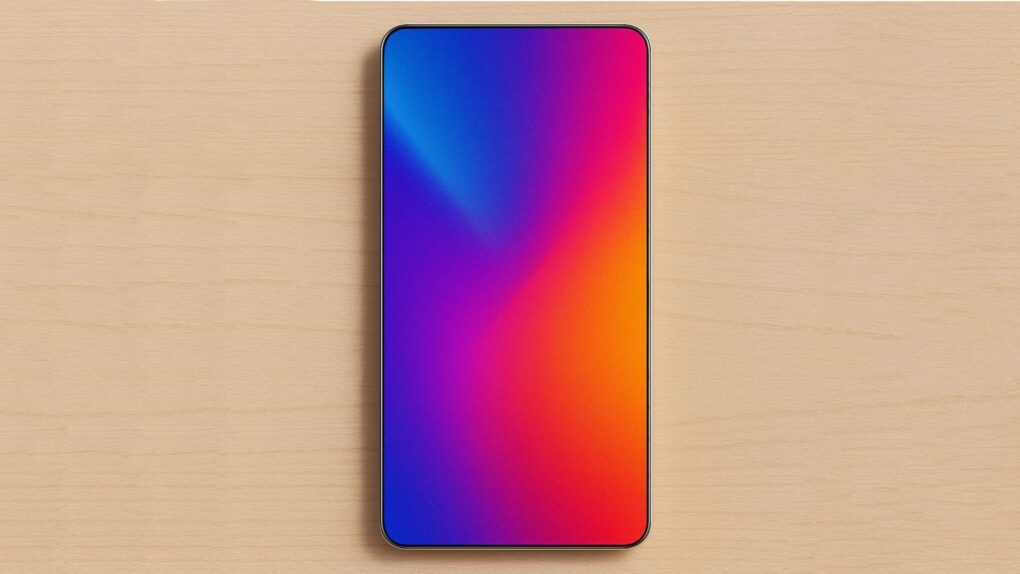
Apple is reportedly testing a prototype quad-curved OLED screen for the iPhone 19 Pro as part of its push toward an all-screen iPhone. If the leaks prove accurate, it could mark Apple’s biggest redesign since the iPhone X.
The rumored 2027 flagship phone is said to come with under-display Face ID and be curved on all four sides. It could give buyers a compelling reason to skip the iPhone 18 Pro.
Apple officially closed the downgrade window for iOS 26.4.2. Image: Cult of Mac
Apple stopped signing iOS 26.4.2, meaning iPhone users who updated to iOS 26.5 can no longer roll back to the previous version.
Whenever Apple rolls out an iOS update, it allows users to go back to the previous version if they run into bugs or other issues. But once the company considers the new release stable, it stops signing the older build.
Apple’s next-generation titanium alloy could improve both durability and cooling. Photo: D. Griffin Jones/Cult of Mac
Apple might be having second thoughts about aluminum on the iPhone. A few months after switching the iPhone 17 Pro away from titanium, the company is now reportedly experimenting with an improved titanium alloy that could fix a huge problem with the metal.
If Apple finds a way to make it practical, we could see titanium return to a future iPhone Pro. But the problem is that titanium isn’t as good as aluminum at transferring heat. Aluminum’s better thermal properties are likely why Apple moved away from titanium in the first place. Also, aluminum is cheaper and easier to recycle.
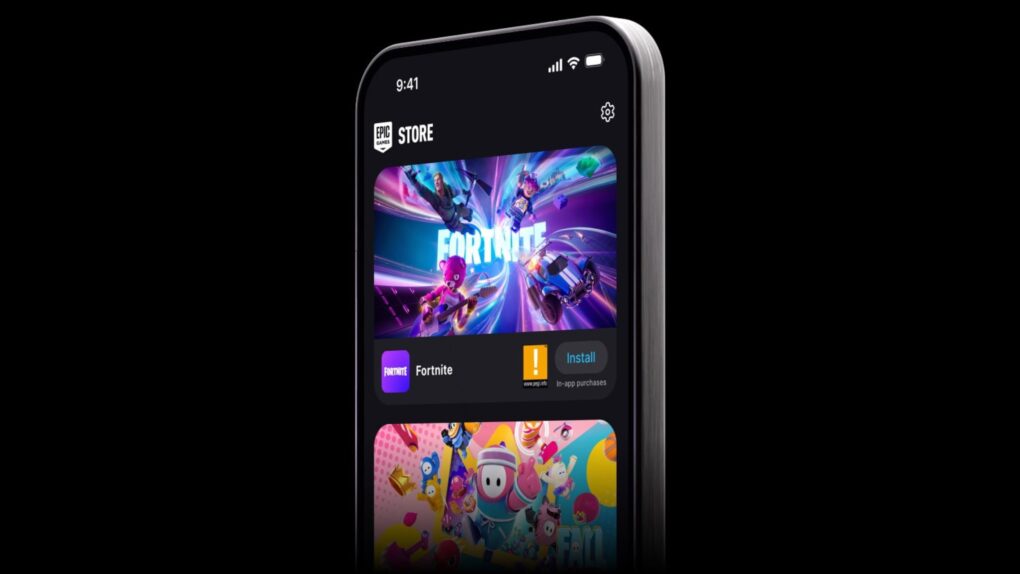
Fortnite is back on iPhone after years away following Epic Games’ legal clash with Apple. Photo: Epic Games
Fortnite returned to the App Store in almost all regions, ending its years-long absence that began when Epic Games sued Apple over in-app purchases.
The battle royale’s comeback is real, but Epic Games’ claim that it has already won isn’t completely true. Epic Games brought back Fortnite to the App Store on Tuesday, following the game’s U.S. return last year. But there’s an exception — Australia — and the legal fight that made this possible is nowhere near finished.
iOS 27 could support an upgraded Camera app with a Siri camera mode plus an overall overhaul of the voice assistant. Photo: Chat GPT/Cult of Mac
Apple’s Worldwide Developers Conference kicks off June 8, and all eyes are on iOS 27 — the software update that could define the iPhone experience for the next several years.
Given a steady drumbeat of reliable rumors, a surprisingly complete picture of the update has already emerged. Here’s what to expect in iOS 27 regarding the big Siri revamp and more. We’ll see if the keynote confirms it all.
The latest WhatsApp beta adds more control to disappearing messages on iPhone. Photo: antonbe/Pixabay
WhatsApp is testing a new feature on iPhone where messages automatically disappear once you read them. The privacy-focused feature, called “After reading,” also gives users fine-tuned control over how long their texts remain visible after someone opens them.
The new feature builds upon WhatsApp’s existing disappearing messages functionality. Currently, users can choose to automatically delete sent messages after one day, seven days or 90 days.
Stay focused! Big changes are reportedly coming to the Camera app in iOS 27. Image: Joey Huang/Unsplash License/Modified by Cult of Mac
This week on the Cult of Mac podcast: A fresh iOS 27 rumor says the iPhone’s Camera app will get a serious upgrade. And it sounds like the best of both worlds — heavy customization if you want it, status quo if you don’t.
Also on the Cult of Mac podcast:
We also discuss the big changes coming to Siri in the near future (and why it’s a make-or-break moment for Apple AI).
Griffin walks Leander through a radical makeover of his iPhone‘s Home Screen.
Apple Watch Series 12 might be the upgrade you’ve been waiting for. And the lack of a rumored feature might be a big positive
Finally, Griffin reviews a very peculiar piece of exercise equipment.
Listen to this week’s episode of the Cult of Mac podcast in the Podcasts app or your favorite podcast app. (Be sure to subscribe and leave us a review if you like it!) Or watch the video version embedded below.
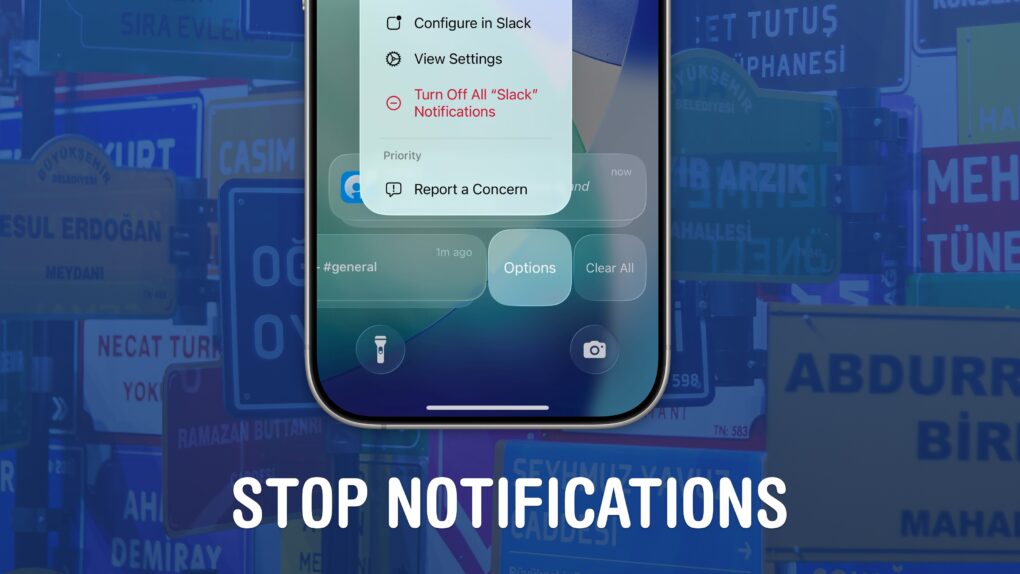
Quiet your phone down. Image: D. Griffin Jones/Cult of Mac
If your iPhone is always blowing up with junk and spam, you can stop notifications dead in their tracks. You may not know that you can entirely disable notifications per-app and turn off different types of notifications to keep them from cluttering your phone.
I’m not afraid to disable all notifications from an app if it crosses me one time too many. For others, I allow notifications on the Lock Screen, but disable them from Notification Center, so they’re more temporary.
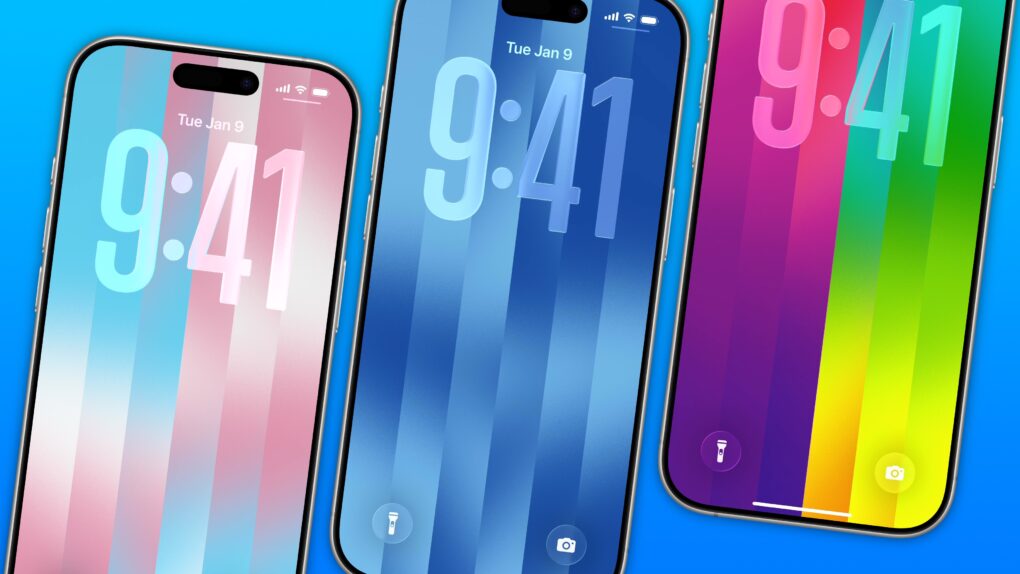
The dazzling new wallpaper for iPhone. Image: D. Griffin Jones/Cult of Mac
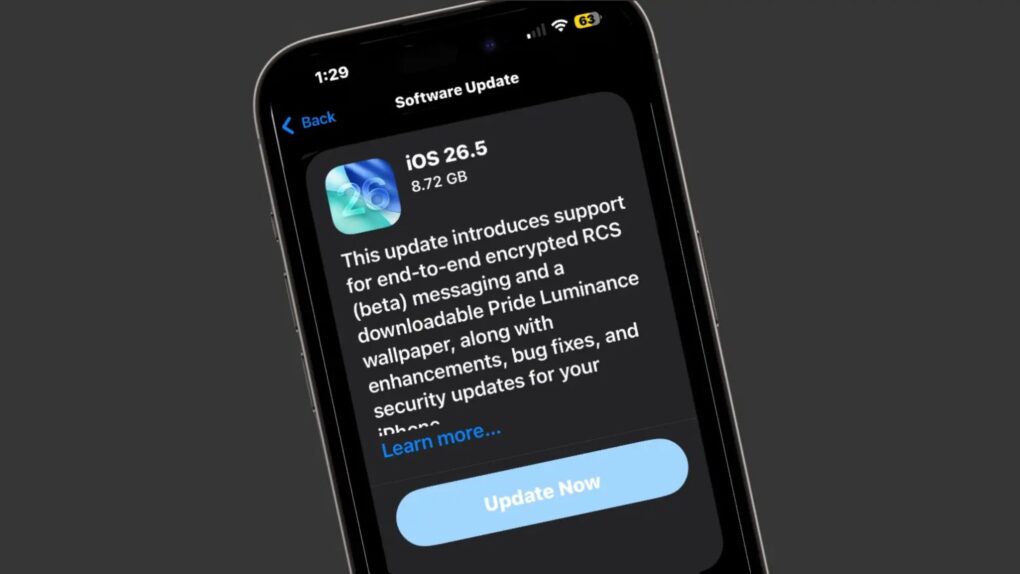
The colorful Pride Luminance wallpaper and watch face add beautiful color gradients to your iPhone and Apple Watch. You can download them both after updating to iOS 26.5 and watchOS 26.5.
Since they’re part of Apple’s annual Pride collection, they come with a bunch of preset styles for various pride flags. But you can customize the Lock Screen wallpaper and the Apple Watch face however you want. With a light and dark shade of the same color, the vertical stripes and gradients shimmer and animate when you swipe up to unlock your phone. Or you can go to the other extreme, picking up to 12 colors from the Luminance palette.
This is easily the best Pride wallpaper Apple has produced yet — in fact, it’s a great wallpaper, period. Check it out in our quick video or keep reading.
Get the most out of the browser in your pocket. Image: D. Griffin Jones/Cult of Mac
Since I spend a lot of time using Safari on my iPhone, any new tips and tricks I learn can feel life-changing. Apple’s mobile web browser proves absolutely instrumental to my iPhone usage (and odds are, it does for you, too).
Here are a few of my favorite hidden features. These Safari tips will help you browse the web faster, clean up your experience and restore tabs you accidentally close. I also have a handy shortcut you can download at the end.




 June 3, 2011: iOS overtakes Research in Motion’s BlackBerry operating system for the first time, with Apple’s mobile operating system inching past BlackBerry OS.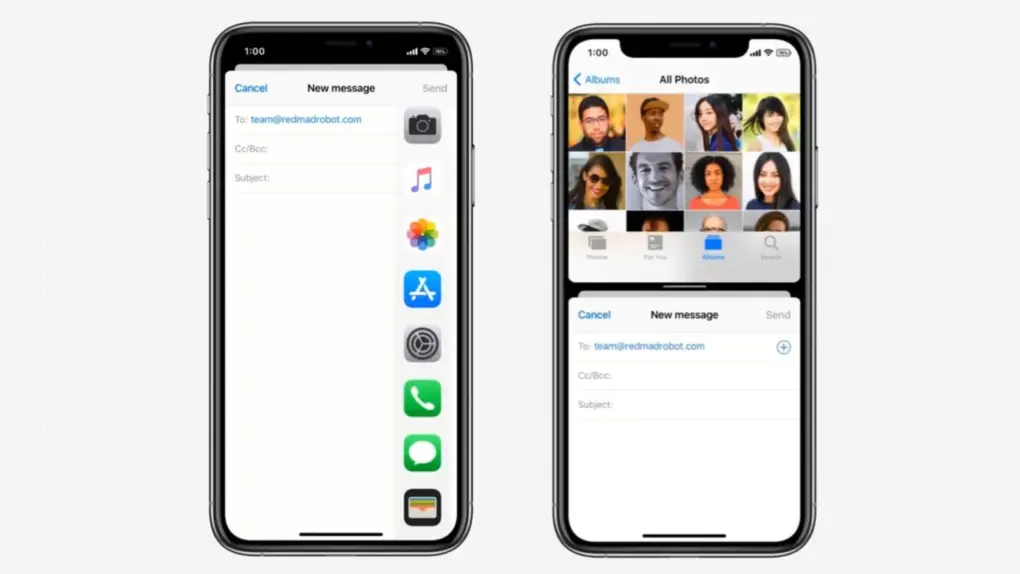
 May 31, 2013: The Chicago Sun-Times fires all 28 of its photographers, with the goal of training its staff to shoot photos using iPhones instead. Pulitzer Prize winner