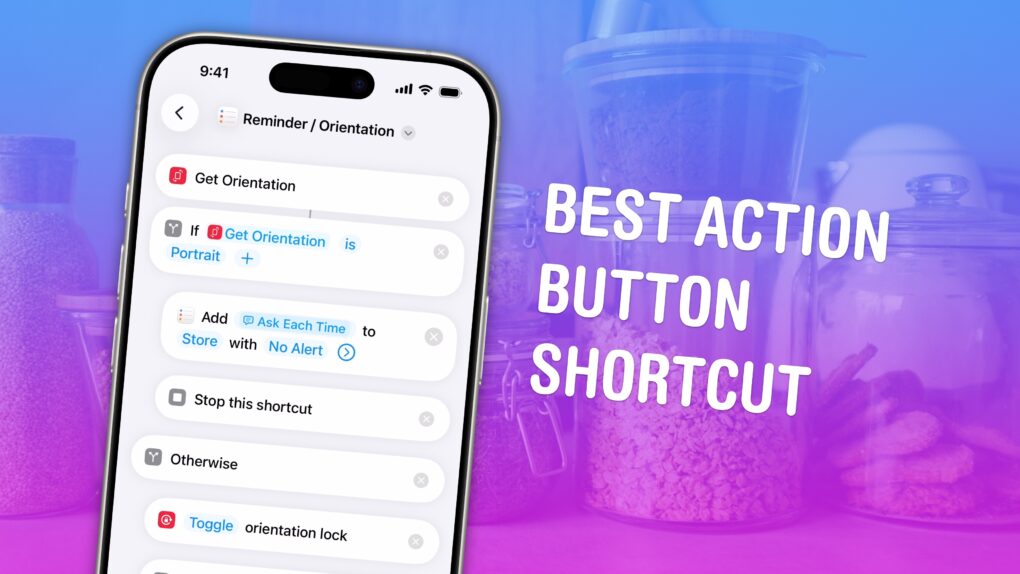
I finally figured out the perfect set of controls to assign to the iPhone’s Action button. I created a shortcut that cleverly combines the two controls I want to use it for.
The Action button can toggle the flashlight, mute audio, toggle an accessibility feature, open the camera, start translation, run any shortcut of your choosing and more. It’s so open-ended that figuring out what to use it for can trigger decision fatigue.
Don’t panic — I discovered what you should use the iPhone’s action button for. And I’m sharing the shortcut, which combines two actions into one elegant system, so you can use it, too.
What to do with the iPhone’s Action button
The iPhone’s Action button, which replaced the familiar Ring/Silent switch on the iPhone 15 Pro before spreading to the rest of the iPhone lineup, is remarkably powerful. It’s also most likely underutilized.
By default, you can press and hold the Action button to toggle Silent mode on and off. However, it can do much more. (And to be honest, the Ring/Silent switch made less sense over time — many iPhone users now wear an Apple Watch, which sends notifications to the wrist, meaning the iPhone is effectively always silent.)
If you own a recent iPhone and miss the Ring/Silent switch, the easy option is to simply keep using the Action button for that function. But if, like me, your phone is always on mute, that’s wasting a perfectly good button. I worked out a better option.
The two things I need to do all the time
Before I upgraded to an iPhone 16 Pro, I had a whole year to think about what I might use the Action button for. I had two ideas:
- Add an item to my shopping list. I often think to myself, “Oh, I’m running low on this item, I should add it to my shopping list.” Unfortunately, I literally never do. And then I get stuck making pasta sauce that doesn’t have any Italian seasoning or Parmesan cheese, and at that rate, what’s even the point? Pressing a single button to instantly add something to my list is a game-changer.
- Turn the rotation lock on and off. I hate going into my iPhone’s Control Center to toggle the rotation lock. Any time my phone changes orientation when I don’t want it to (or fails to do so when I want it to because I left rotation lock on), bringing up the Control Center blocks the thing I’m looking at. Sometimes it takes a second to find the right control, because Control Center in landscape looks totally different than in portrait. Clicking the Action button to turn the rotation lock on or off proves much faster.
The great idea I had to merge these two functions
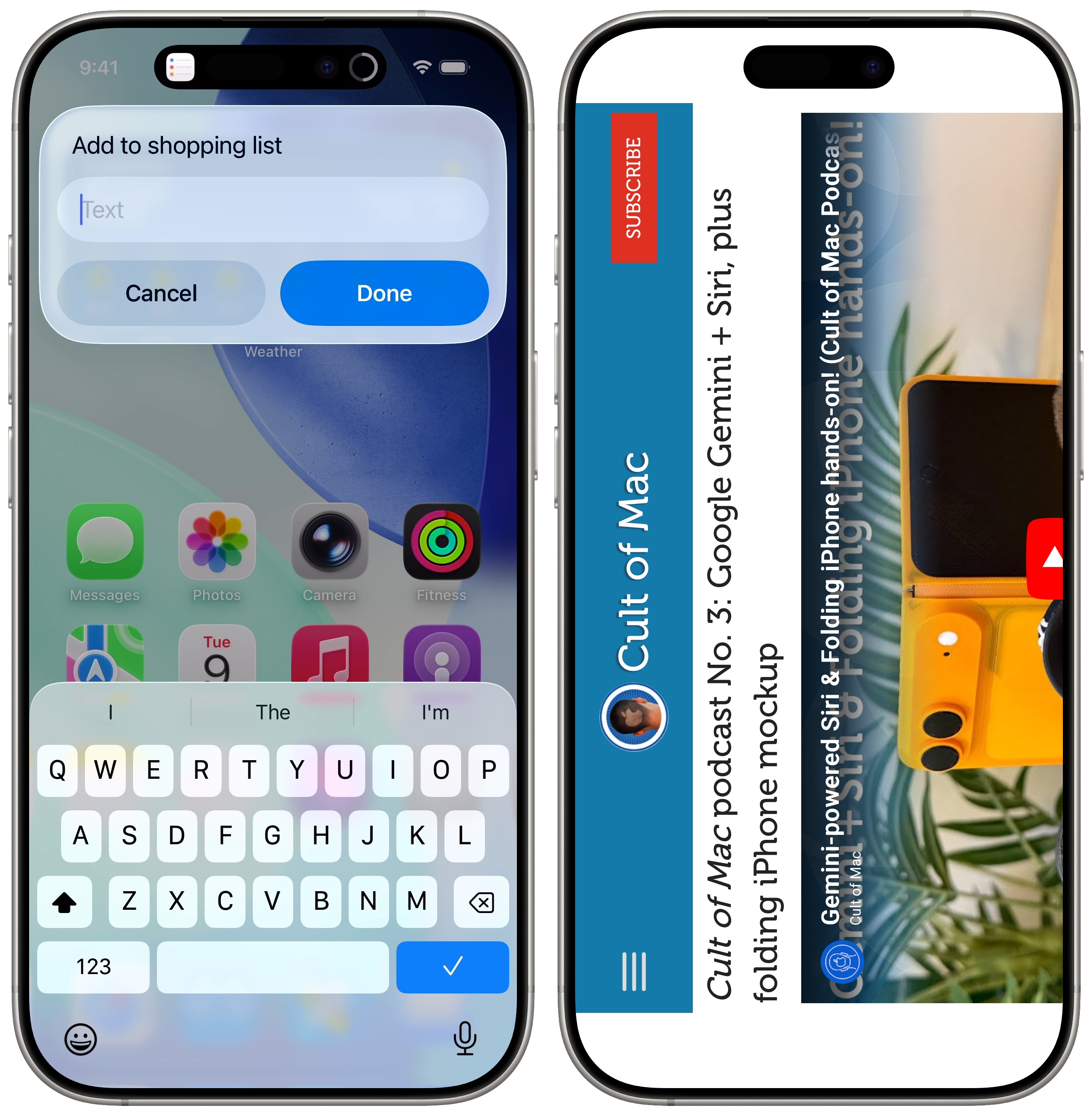
Screenshot: D. Griffin Jones/Cult of Mac
Apple added a Device Orientation shortcut action in iOS 17.4. This action lets the shortcut do different things, depending on whether you’re holding the iPhone in portrait or landscape. And that’s when I had the fantastic idea that my Action button can do both the things I want it to.
Obviously, I only ever need to enable rotation lock when my phone is sideways (in landscape). So, my Action button shortcut checks device orientation. If the phone is held in portrait, it asks me for something to add to my shopping list. Otherwise, it toggles the rotation lock. And it works beautifully.
With this shortcut assigned to my Action button, I enjoy the best of both worlds.
You can get the shortcut here. Download it, and make sure you customize it with the name of your shopping list. Then, go to Settings > Action Button, swipe over to Shortcut, and select it.
Obviously, if adding items to your shopping list isn’t high on your agenda, you can create a shortcut that does something else. The same goes for toggling the orientation lock.
But this shortcut, which combines two of my most frequently used functions, illustrates how you can concoct your own custom scenarios and, ultimately, squeeze maximum utility out of your iPhone’s Action button.
One more thing…
I actually added another level of logic to my shortcut. It’s not as useful for anyone else, but it illustrates just how complex you can make things if you have the need.
I keep my device in Dark mode most of the time, but I set it to Light mode for taking screenshots for how-to articles like this one. I often need to quickly enable/disable VoiceOver, an accessibility feature that reads out what on-screen controls are called. (Personally, I use VoiceOver to figure out the names of unlabeled buttons — an even bigger problem in iOS 26, since Apple replaced “Done,” “Save” and other useful confirmation buttons with a checkmark icon.)
So before my Action button shortcut checks device orientation, it actually checks whether my iPhone is in Light or Dark mode. If it’s in Light mode, it doesn’t add something to my shopping list or toggle rotation lock — it toggles VoiceOver. It’s incredibly convenient pressing a single button to turn this on and off. It’s far easier than digging into Settings — and faster than asking Siri to toggle it for me.
This use case is awfully niche, but it goes to show the flexibility and power of the Shortcuts app. If, for some reason, you’d like to use it, download it here.
More iPhone customization features
- You can fully customize your iPhone’s Home Screen. Place icons anywhere on the screen. Fans of dark mode can now enjoy alternate dark mode icons. If you have a color theme you want to match, you can tint icons to any hue you want.
- You can edit the buttons in Control Center. Add many more toggles and buttons, including those from third-party apps. You can resize some buttons to make them more prominent, and you can arrange your controls across multiple pages. In one fluid motion, you can swipe down to activate Control Center and continue swiping down to scroll through your pages.
- StandBy mode turns your phone into a smart display when it’s sitting on your desk, your nightstand or the kitchen counter.
- Customize your iPhone’s Lock Screen with a bunch of widgets, aesthetics and styles. You have loads of fonts, colors, styles and themes to choose from.
- Change out the iPhone’s Lock Screen buttons from the standard Flashlight and Camera to whatever you want. There’s a giant selection of buttons you can swap in their place.
- Create Focus modes to customize notification settings for different times of day, like work, vacation, driving and personal time.

D. Griffin Jones was a writer, podcaster and video producer for Cult of Mac. Griffin has been a passionate computer enthusiast since 2002, when he got his first PC — but since getting a Mac in 2008, he hasn’t turned back. His skills in graphic and web design, along with video and podcast editing, are self-taught over 20+ years. Griffin has a bachelor’s degree in computer science and has written several (unpublished) apps for Mac and iOS. His collection of old computers is made up of 40+ desktops, laptops, PDAs and devices, dating back to the early ’80s.
Griffin writes for his personal blog, Extra Ordinary, and is currently looking for work.

