It's the Great Pumpkin, Charlie Brown is always streaming on the Apple TV service. Photo: Apple
Families with a tradition of watching It’s the Great Pumpkin, Charlie Brown can enjoy the classic Peanuts Halloween special on Apple TV for free this weekend. And you can watch it online, not only with an Apple TV set-top box, Mac, iPad or iPhone.
Plus, Apple TV also announced when the Peanuts Thanksgiving and Christmas specials will stream for free in 2026.
Incogni's free exposure scanner can reveal what websites know about you — and the results can be shocking. Photo: Sora Shimazaki/Pexels CC
Your name, home address and phone number are likely sitting on websites you’ve never heard of. Behind those listings are data brokers that collect and sell your personal information — to marketers, scammers and anyone else willing to pay.
Incogni’s free exposure scanner searches hundreds of these sites and reveals what personal information they publicly list about you. And it does it in less than a minute, with no account or credit card required.
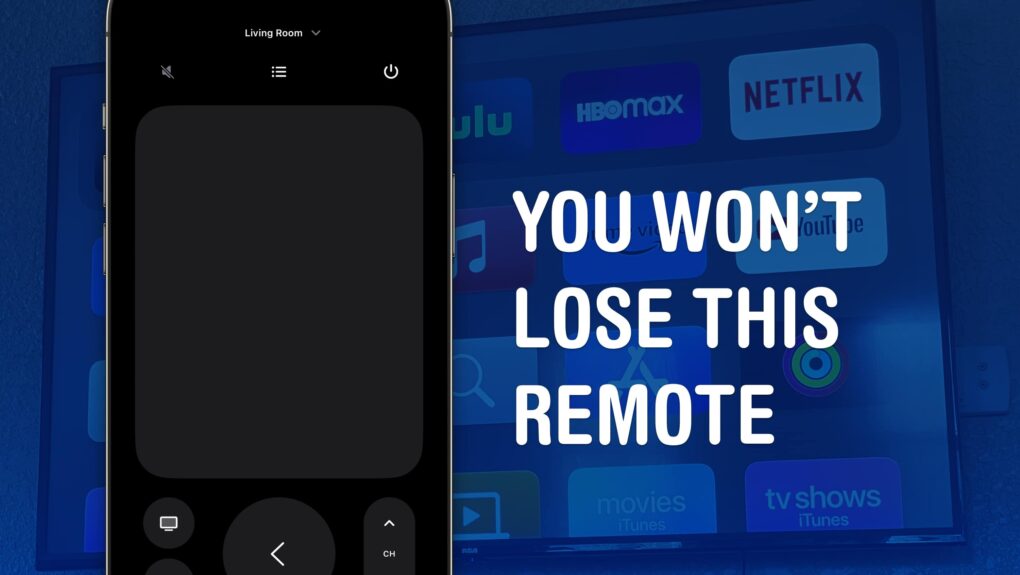
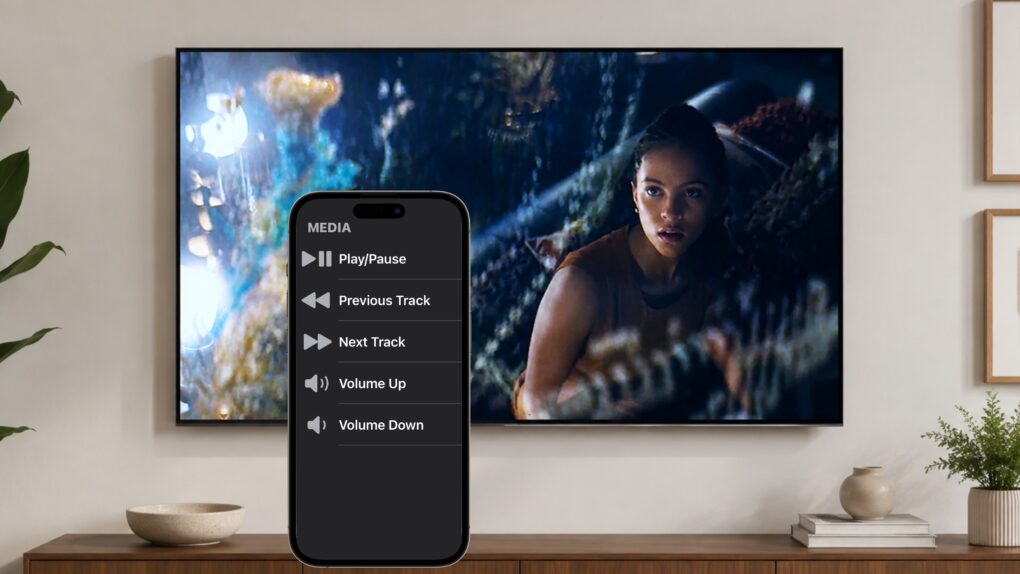
The Apple TV remote is easy to lose, but you have other options. Image: D. Griffin Jones/Cult of Mac
You can use your iPhone, iPad or even your Apple Watch as a remote for your Apple TV. It’s a convenient feature when you’ve lost the remote in the couch cushions.
And even if your remote hasn’t gone missing entirely, sometimes it’s sitting on the table way over there and you don’t want to interrupt a show by asking for someone to pass it to you. Or maybe someone is intentionally hogging the remote, and you want to pause the video on the Apple TV yourself. Either way, it’s really easy to do from an iPhone or an Apple Watch.
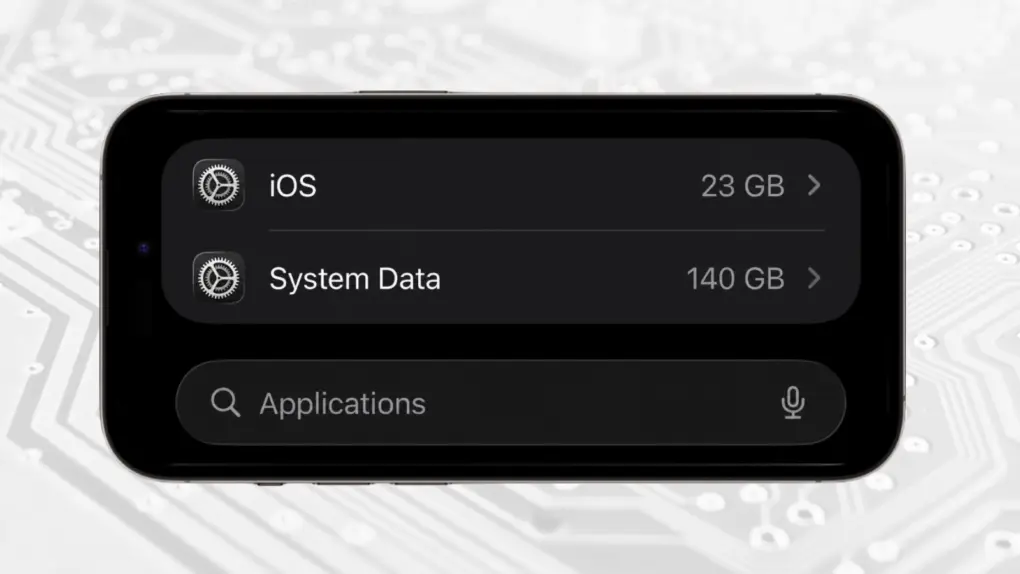
Your iPhone should not have 140GB of System Data. Here's the fix. Image: Ed Hardy/Cult of Mac
If your iPhone is running short of space, the culprit might be a bug in iOS that causes System Data to grow out of control.
It can be a serious problem. Gigabytes of storage can be choked with useless data, preventing you from using it.
Here’s what to do if your iPhone is running out of space because of an enormous iOS System Data collection. And it doesn’t require deleting your precious photos and apps.
Your Apple Watch is right there, ready to help you communicate in real time. Image: D. Griffin Jones/Cult of Mac
The Apple Watch Translate app can help you quickly speak in a different language while you’re abroad, right from your wrist. Translate between 20 different languages by speaking out loud, play translations out of your Apple Watch speaker and build a list of favorite phrases you can play instantly.
Reclaiming your online privacy is perfectly doable. Image: Apple/Cult of Mac
Somewhere out there, a data broker has your name, address and phone number for sale. If you want to remove your personal information from the internet, the process is easier than it sounds.
Data breaches hit a new high this year, and hundreds of broker sites now buy and sell your details without asking. The good news: Reclaiming your privacy doesn’t take a law degree, just a mix of manual steps and automated tools.
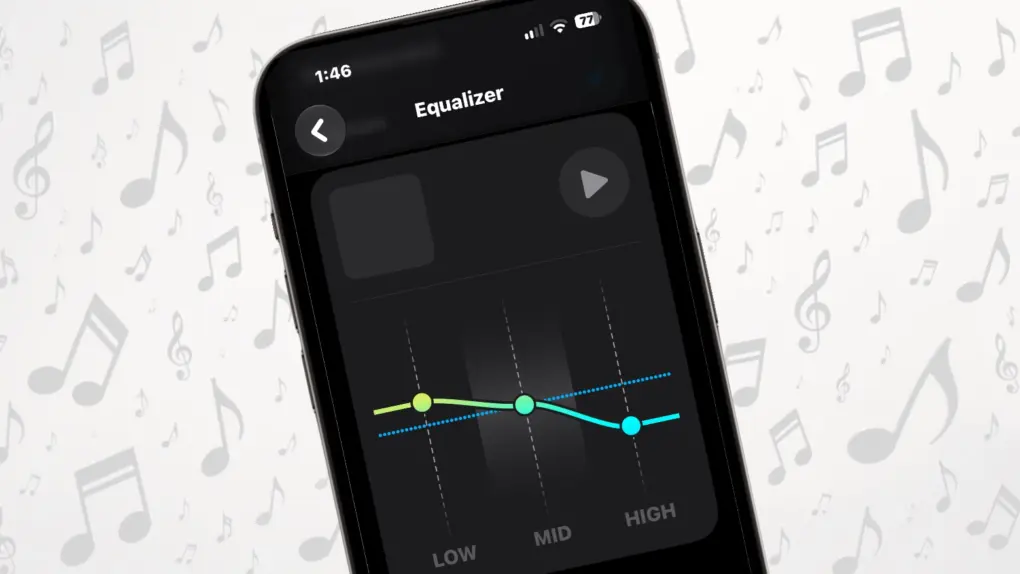
AirPods have an equalizer you can adjust! Finally! Image: Ed Hardy/Cult of Mac
Apple finally gave AirPods something we know you all wanted for years: a built-in equalizer that lets you change how your music sounds.
And unlike the EQ setting buried in Apple Music, this one is tied to your AirPods, not a specific application. That means your custom sound profile isn’t limited to music played through that singular app.
But to be clear: The new Custom EQ feature in iOS 27 isn’t the most sophisticated equalizer you’ll find for a set of headphones. It gives you just three controls — Low, Mid and High. But that’s enough to make a noticeable difference if you think your AirPods sound too bass-heavy, lack vocal clarity or need a little more treble.
Here’s how to set it up … and why you might want to.
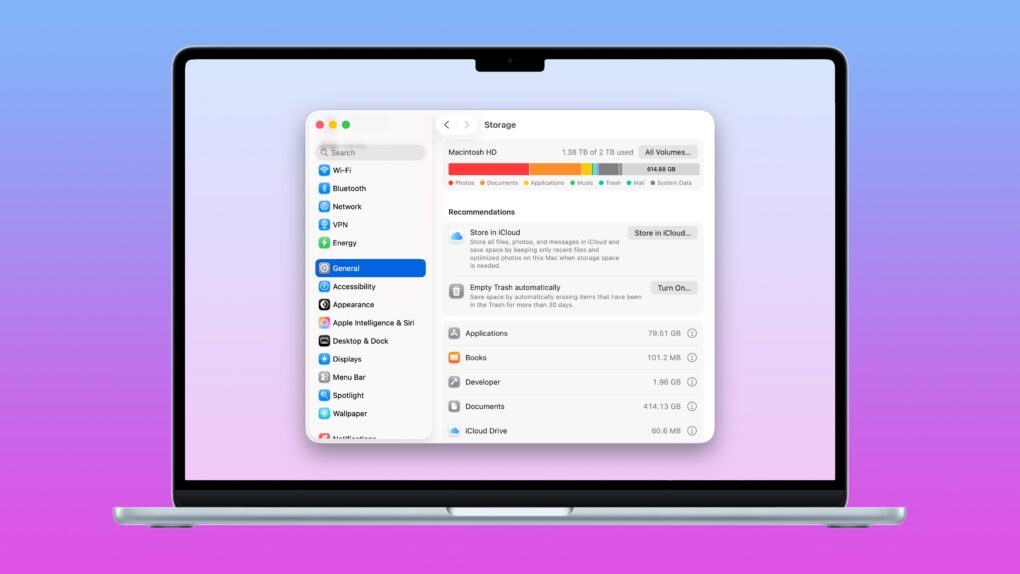
What to do when you run out of space on your Mac. Image: D. Griffin Jones/Cult of Mac
Death, taxes and running out of storage on your Mac — few things in life are as certain. If you’re experiencing the latter, before you go around deleting files, you should take stock of what’s filling up your computer. There are three easy ways to clear disk space on your Mac.
The Mac’s System Settings offers a built-in storage manager that lets you see which categories of files are filling up your drive. It makes clearing out useless junk fast and easy.
A pair of third-party apps can help out, too. Hyperspace removes duplicate data across your Mac’s hard drive, cleaning up your file system without deleting anything. And CleanMyMac can find the system files, junk and other cruft that can build up over time in places you don’t even think to check.
Whatever the reason you need more storage, read on to learn how to tidy up your Mac.
Try these new Mac features after you upgrade to Golden Gate. Photo: Apple/Rajesh Pandey/Cult of Mac
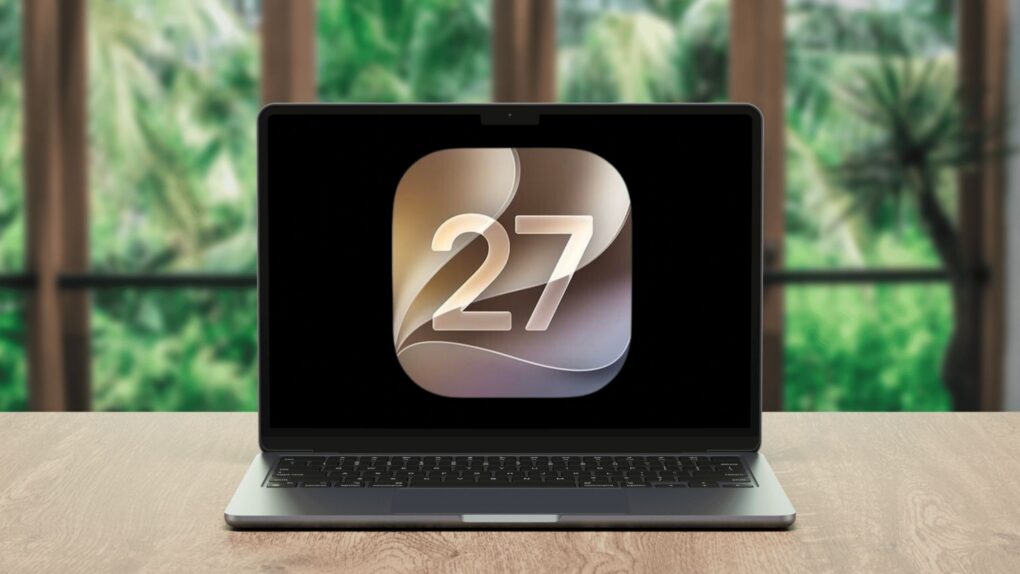
After upgrading your Mac to macOS 27 Golden Gate, you might easily overlook some of the new software’s useful additions, like recording your screen with audio, Liquid Glass customization and more.
While the new Mac software looks mostly the same as macOS 26 Tahoe, it adds plenty of new features and improvements that make it a worthy upgrade. Here are eight things you should do immediately after installing macOS Golden Gate.
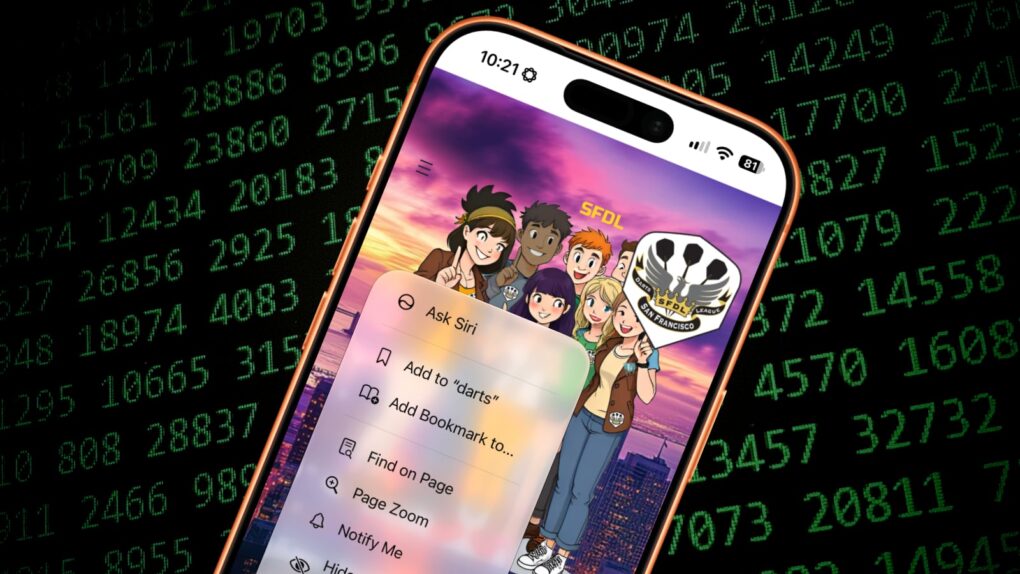
Keep on top of things with Safari's new Notify Me feature. Image: Cult of Mac
If you want to monitor a website for changes, you can do it for free with Apple’s Safari web browser. The new Notify Me feature in iOS 27 and macOS 27 makes it easy to watch a webpage for updates — and receive an alert if and when the content is altered.
Let’s say you want to make sure you never miss an update to your favorite band’s tour schedule. Safari’s new capability lets you watch the group’s website so you don’t need to check it yourself every day. Same goes for a city council website you’re monitoring, a local group you want to keep in touch with, etc. Or you could use it to track price drops on a product you want to buy.
Don’t rely on other people to send you an email update. Here’s how to use Safari’s Notify Me feature to monitor the websites that matter to you.
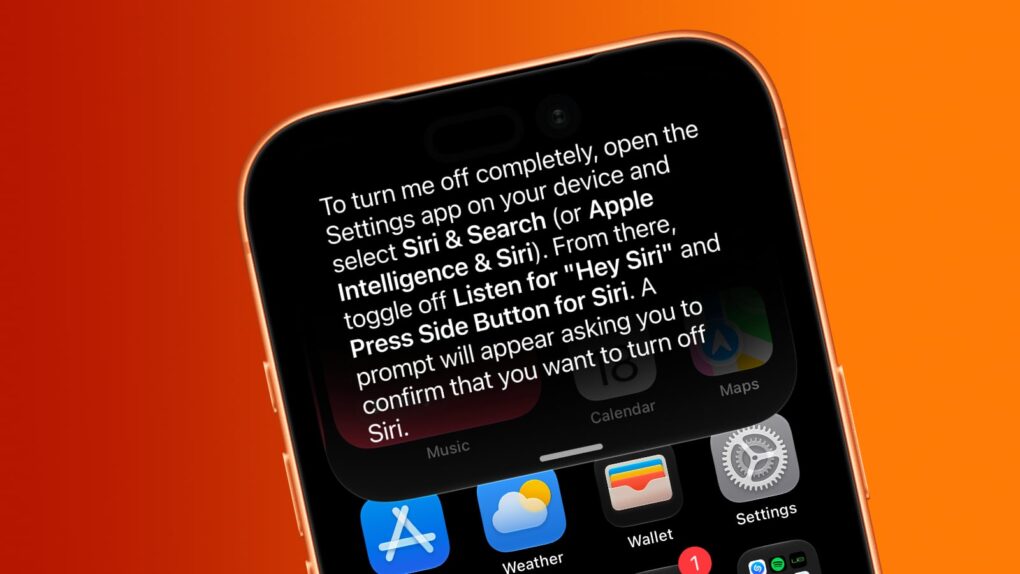
Want Siri AI gone from your iPhone? And other Apple Intelligence features, too? We can help. Image: Cult of Mac
Although Apple is thrilled about the new Siri AI integrated into iOS 27, maybe artificial intelligence isn’t your thing. Fortunately, you can opt out of Apple’s new voice assistant.
iOS 27 lets you turn Siri off completely. Alternatively, you can switch from the new AI-powered Siri back to Siri Classic.
And if you absolutely do not want artificial intelligence in your iPhone, you can disable it … though that process is far more complex than is ideal.
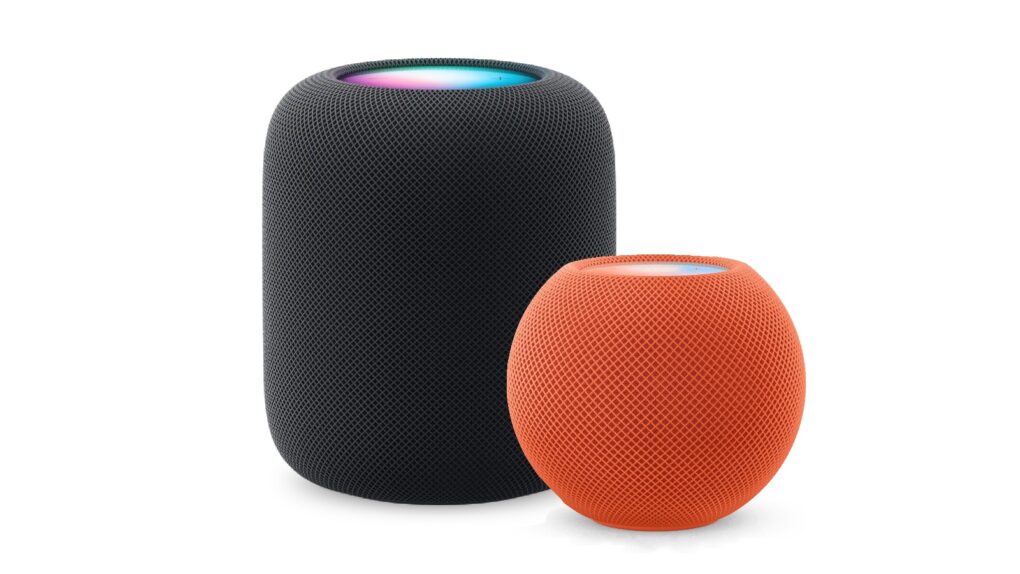
Here’s how to be sure you have the latest HomePod software update. Or stop your smart speaker from updating automatically. Photo: Apple
The HomePod operating system occasionally needs updating, because the device is a lot more than a simple speaker — it’s a computer. Here’s how to make sure your Apple smart speaker has the software version released this week. And you’ll definitely want the new HomePod Software version 27 — it adds AutoMix with Apple Music and improves AirPlay performance.
If you depend on automatic updates, it’s likely your smart speaker hasn’t yet installed the update. Here’s how to do so manually.
There’s new firmware for a range of recent AirPods models. Get it today. Photo: Apple/Cult of Mac
Apple just released new firmware for its latest AirPods models, bringing several new capabilities to the company’s wireless earbuds and headphones. Firmware version 9A348 is available for AirPods Pro 3, AirPods Pro 2, AirPods 4 and AirPods Max 2.
The update arrived Monday alongside iOS 27, enabling support for one of the most-requested AirPods features: a built-in equalizer that lets users customize the sound produced by their headphones.
Last year, Apple finally explained exactly how to update your AirPods firmware. The process can happen automatically, in the background, but there is a way to speed things up. It’s a good idea to manually check that you’re running the latest version, which brings bug fixes and sometimes great new features.
Read on for more details, and to find all current AirPods firmware versions along with instructions for getting the AirPods update as quickly as possible.
Learn how to get around your Mac's keyboard and edit text faster. Photo: fauxels/Pexels CC
You want to get faster at typing? Sure, you can hold down the Backspace key or mash it really fast. But there’s a better and more precise way to backspace and delete text on the Mac, using the Option (⌥) and Command (⌘) keys. These Mac typing shortcuts can make editing text lightning-fast and seamless.
Fix the remote, the Home Screen, and those pesky sports notifications. Image: Davidbspalding/Wikimedia Commons/D. Griffin Jones/Cult of Mac
There are three Apple TV settings I always tell people to change as soon as they set up their set-top box. While I heartily recommend the Apple TV over the clunky and ad-infested experience of Roku and other smart TVs, it’s not perfect. You’ll want to change a few things to make it right.
First of all, you can put one of the Siri Remote buttons to better use. The TV button, by default, opens the Apple TV app — but you can have it take you to the Home Screen instead. Also, you’ll want to change the Home Screen to show your Continue Watching list, not its recommendations. And finally, you can turn off those annoying Apple TV sports notifications to stop the interruptions while you’re watching your shows.
Change these three annoying default settings, and you’ll enjoy a far better viewing experience. Keep reading or watch our video to find out how.
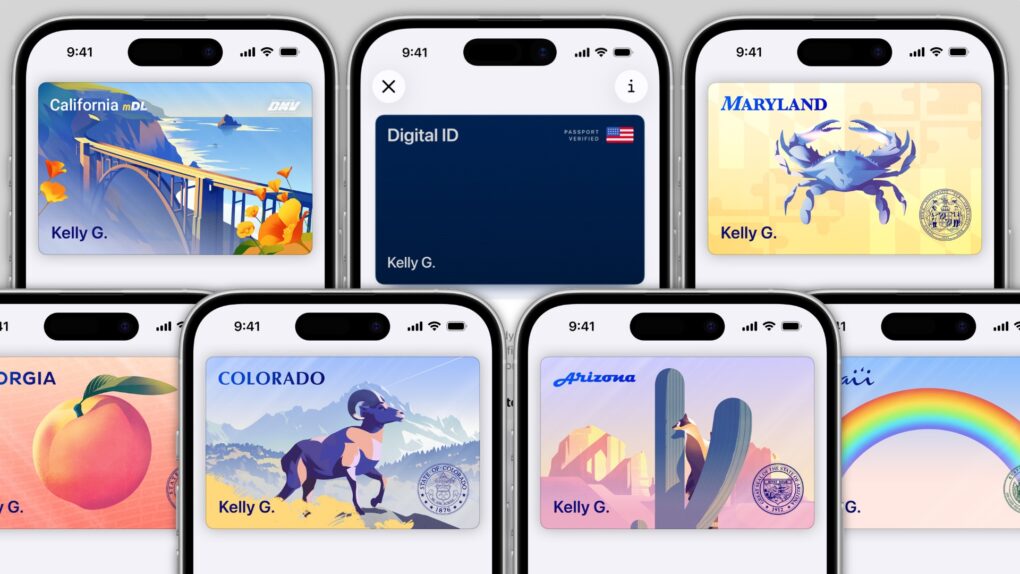
In several states, Apple’s state ID initiative enables iPhones and Apple Watches to hold a digital copy of the user’s driver’s license, in the same way these devices store credit cards and airline tickets. And across the United States, you can create an Apple Digital ID based on your passport that can get you through some airport security checks.
The day when an iPhone can completely take the place of an old-fashioned wallet remains years away, but it’s a goal Apple is working toward. Apple Pay is making progress on replacing credit cards, you can put airline tickets in the Wallet app, and the same goes for loyalty cards.
But no wallet is complete unless it can hold an ID. And that’s where Apple’s digital ID initiative comes in. Here’s what you need to know to add your driver’s license, state ID or federal passport to your Apple Wallet.
Cult of Mac is not legally responsible if you are still late after turning on this feature. Image: Crew/Wikimedia Commons/D. Griffin Jones/Cult of Mac
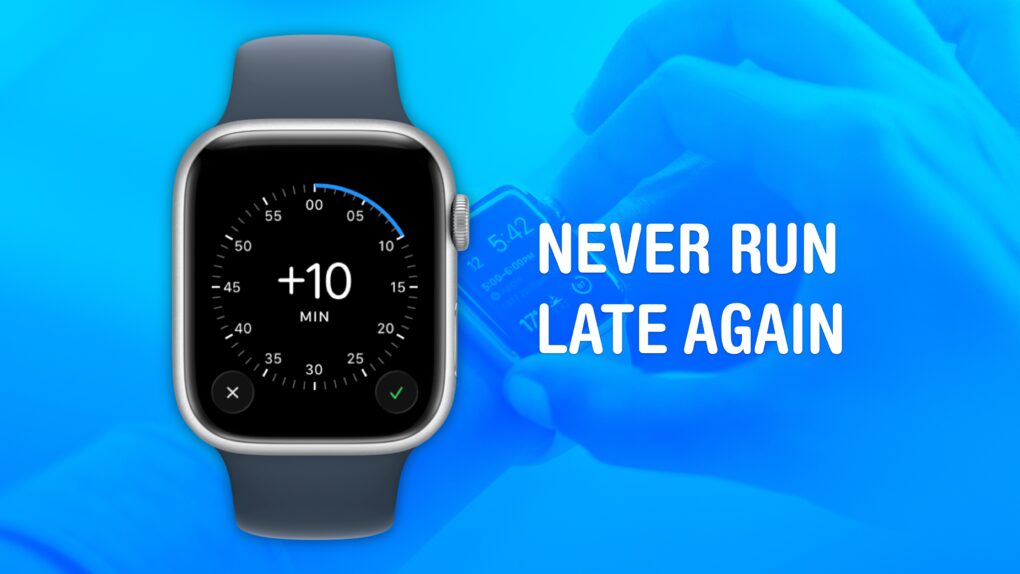
Set your Apple Watch time a few minutes ahead of the actual time and you might trick yourself out of running late every day. This is an officially supported feature, not a hack that will produce cascading, annoying side effects. And it doesn’t require you to set your smartwatch out of sync with internet time, which can also cause problems.
What will you gain? By running your Apple Watch a few minutes fast, you might nudge yourself to rush out the door a little earlier. And that might be enough to get you somewhere on time rather than late. If tardiness is a frequent problem for you, this little anti-procrastination tweak could save your skin.
You can protect yourself from identity theft by taking some simple precautions. Photo: Richard Patterson/Flickr CC
One data breach could be all it takes for someone to steal your identity. If you want to know how to protect yourself from identity theft, a handful of habits go a long way.
Identity theft strikes when someone steals your personal details to commit fraud in your name. Think Social Security numbers, credit card details, that kind of thing. The fallout can drain your bank accounts and wreck your credit. And you could spend months untangling the mess.
This guide breaks down the practical steps that actually reduce your risk of identity theft.
Google Translate can take on converting text into a language you can read. Photo: Cult of Mac
If Apple Translate doesn’t offer the languages you need, you can set Google Translate as your iPhone or iPad’s default translation app. Google’s translation app supports 249 languages, whereas Apple Translate currently can handle only 19.
Google’s broad scope comes in handy if you regularly read materials written in languages that Apple Translate doesn’t cover. And Google Translate is not the only alternative translation app for iPhone.
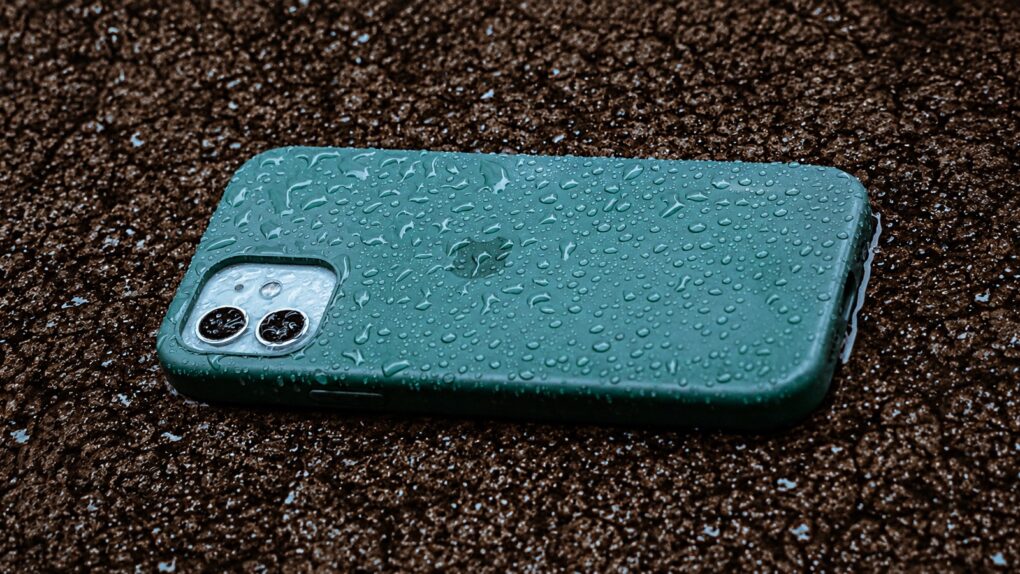
A wet iPhone isn't a crisis ... if you handle things right. Photo: Anderson Martins/Pexels/Cult of Mac
Conventional wisdom says that an iPhone that’s been dropped in water should immediately go into a bowl of dry rice to absorb the excess moisture. Turns out that’s rubbish advice for dealing with a wet iPhone.
Worse yet: It’s actively bad for your device. Here’s what to do instead.
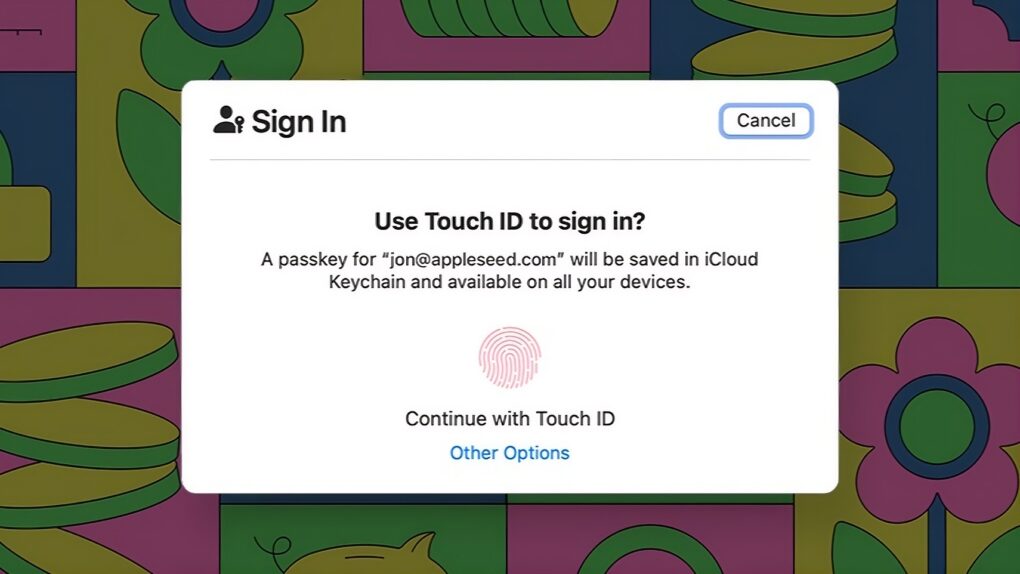
Passkeys are here, and they’re awesome. So much better than passwords. Image: Apple
Managing passwords is and always has been a giant pain, but passkeys offer a better way. They are an advanced system that automatically signs you in to online services using your phone’s Face ID (or Touch ID) or your computer’s password.
Switching to biometric authentication or your device’s password means one less thing to remember. Plus, passkeys work without fiddling around with a password manager.
The technology promises a simpler, more convenient and more phishing-resistant way to log in. However, getting started can still feel confusing. Here’s how passkeys work and how to use them across your iPhone, iPad and Mac.
Don't get off the couch! Your iPhone can be a TV remote for your iPad. Image: Ed Hardy/Cult of Mac
Your iPhone can become a remote control for your iPad. It’s a convenient way to control a film or TV show playing on the tablet without having to get up off the couch.
And this doesn’t require a third-party application. All you need is Control Nearby Devices, a feature built into iOS and iPadOS.
You can do a lot more with your MacBook's trackpad. Photo: Unsplash
The MacBook’s trackpad is one of the best you can get on any laptop, and Apple’s excellent gestures make it even better. You can swipe or tap with two or three fingers to nimbly jump around macOS, switching between Spaces, viewing all app windows and more.
But as a Mac power user, I wanted my trackpad to do even more. So I used BetterTouchTool to add custom gestures for managing tabs, arranging windows and speeding up other repetitive tasks.
I’ll show you what I did, and how you can use BetterTouchTool to turbocharge your productivity with custom Mac gestures.
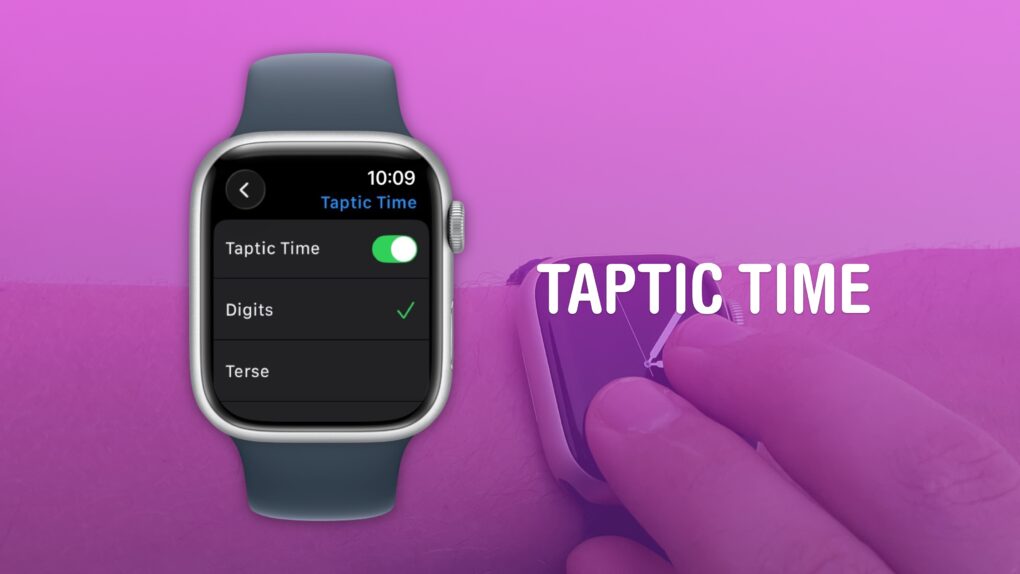
A clock you don’t even need to look at. What a time to be alive. Image: D. Griffin Jones/Cult of Mac
You can get the time without even looking at your Apple Watch using a little-known feature called Taptic Time. Simply hold two fingers on the device’s screen, and the watch will tap out the time on your wrist.
This is handy if you’re in a meeting and need to know the time, but you don’t want to look rude checking your watch. Or maybe you’re in the middle of a presidential debate.
Whatever the situation, turning on this little-known Apple Watch feature — and familiarizing yourself with how it works –can come in handy.
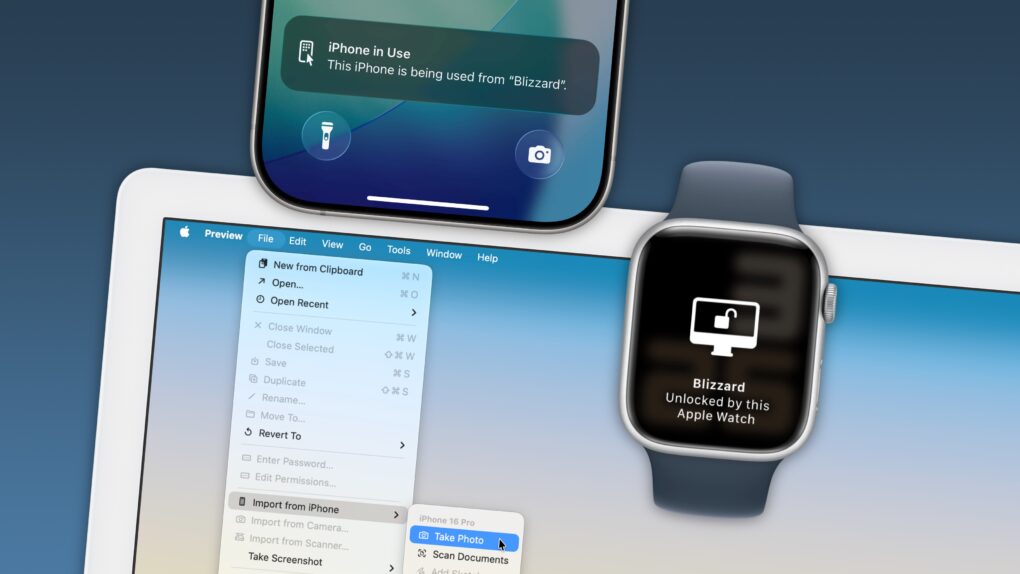
Your Apple devices can work together in more ways than you may expect. Image: D. Griffin Jones/Cult of Mac
Nothing illustrates the power of Apple’s ecosystem like the Continuity features that help your Mac, iPhone, iPad and Apple Watch work seamlessly together.
Thanks to Continuity, your iPhone can serve as your Mac’s webcam — and you can remotely control your iPhone from your Mac. You can start an email on one device and instantly pick it up on another. You can use the same keyboard and mouse with a Mac and iPad, copy and paste across devices and more.
These features flex the power of Apple’s hardware and software — and they would never be possible on a PC.
In this post (and the accompanying video), I will show you some of the time-saving, annoyance-busting Continuity features you can enjoy when you go all-in on the Apple ecosystem.