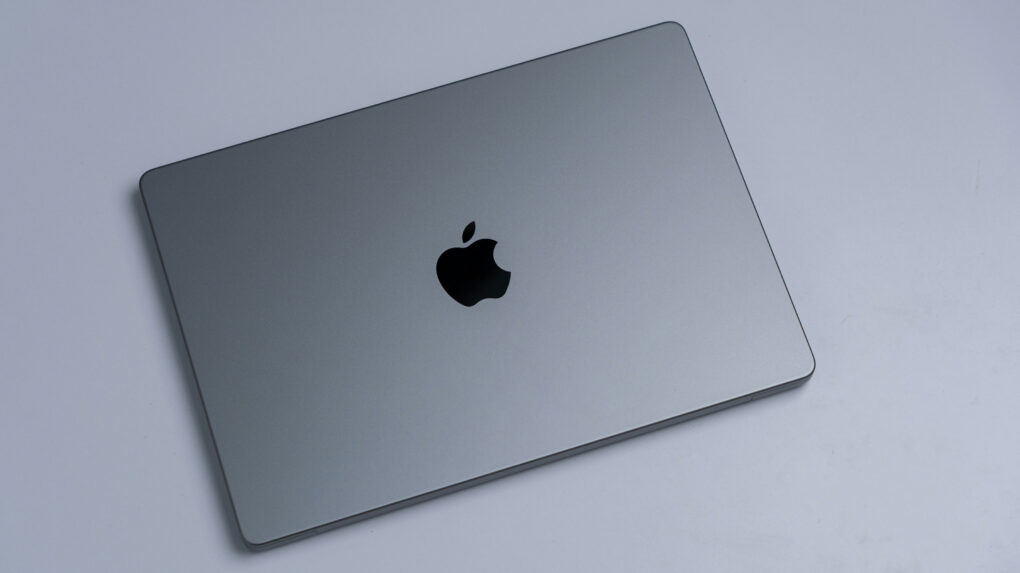
The MacBook’s trackpad is one of the best you can get on any laptop, and Apple’s excellent gestures make it even better. You can swipe or tap with two or three fingers to nimbly jump around macOS, switching between Spaces, viewing all app windows and more.
But as a Mac power user, I wanted my trackpad to do even more. So I used BetterTouchTool to add custom gestures for managing tabs, arranging windows and speeding up other repetitive tasks.
I’ll show you what I did, and how you can use BetterTouchTool to turbocharge your productivity with custom Mac gestures.
6 custom BetterTouchTool gestures that make my MacBook trackpad even better
Apple gives the MacBook’s trackpad an impressive vocabulary of taps, swipes and gestures, but it leaves plenty of useful actions trapped behind keyboard shortcuts and onscreen buttons. BetterTouchTool changes that by letting you teach your Mac entirely new tricks.
In fact, BetterTouchTool stands out as one of the most powerful and underrated Mac apps around. It can assign actions to specific shortcuts, create multistep automations, add custom gestures and more. It now even comes with a Spotlight-like launcher and deep AI integration.
With this wide array of options, BetterTouchTool can make a Mac feel faster, more intuitive and surprisingly more powerful. However, its ability to unlock new trackpad gestures is what I find most useful. It effectively turns the MacBook’s trackpad into a customizable control surface, letting me trigger everyday actions with a tap, swipe or pinch.
Instead of reaching for the keyboard, remembering another shortcut or hunting for an onscreen control, I can manage browser tabs, arrange windows and even mute my microphone directly from the trackpad.
Easy to set up and use
Setting up custom gestures in BetterTouchTool is fairly straightforward. I select Trackpad from the software’s sidebar, add a new gesture, choose the finger movement or tap I want to use, and then assign an action to it.
The real tweaking happens afterward. I usually test a gesture for a few days and adjust its sensitivity or activation settings if I trigger it accidentally or it doesn’t register consistently. BetterTouchTool gives you plenty of control over how a gesture behaves, so it usually takes only a little trial and error to get it feeling natural.
For its $25 lifetime price, BetterTouchTool is a no-brainer for Mac fans. I made extensive use of it to add custom gestures to my MacBook so I can get more done every day. Here’s how.
Table of contents: 6 custom BetterTouchTool gestures
- Switch browser tabs with a TipTap
- Open links in the background with a four-finger tap
- Contextual three-finger tap gesture to manage open windows
- Turn the trackpad’s edge into a control strip
- Quickly mute calls with a pinch
- Enter full-screen with a five-finger tap
- How to get the most out of BetterTouchTool
- More Mac power moves
1. Switch browser tabs with a TipTap
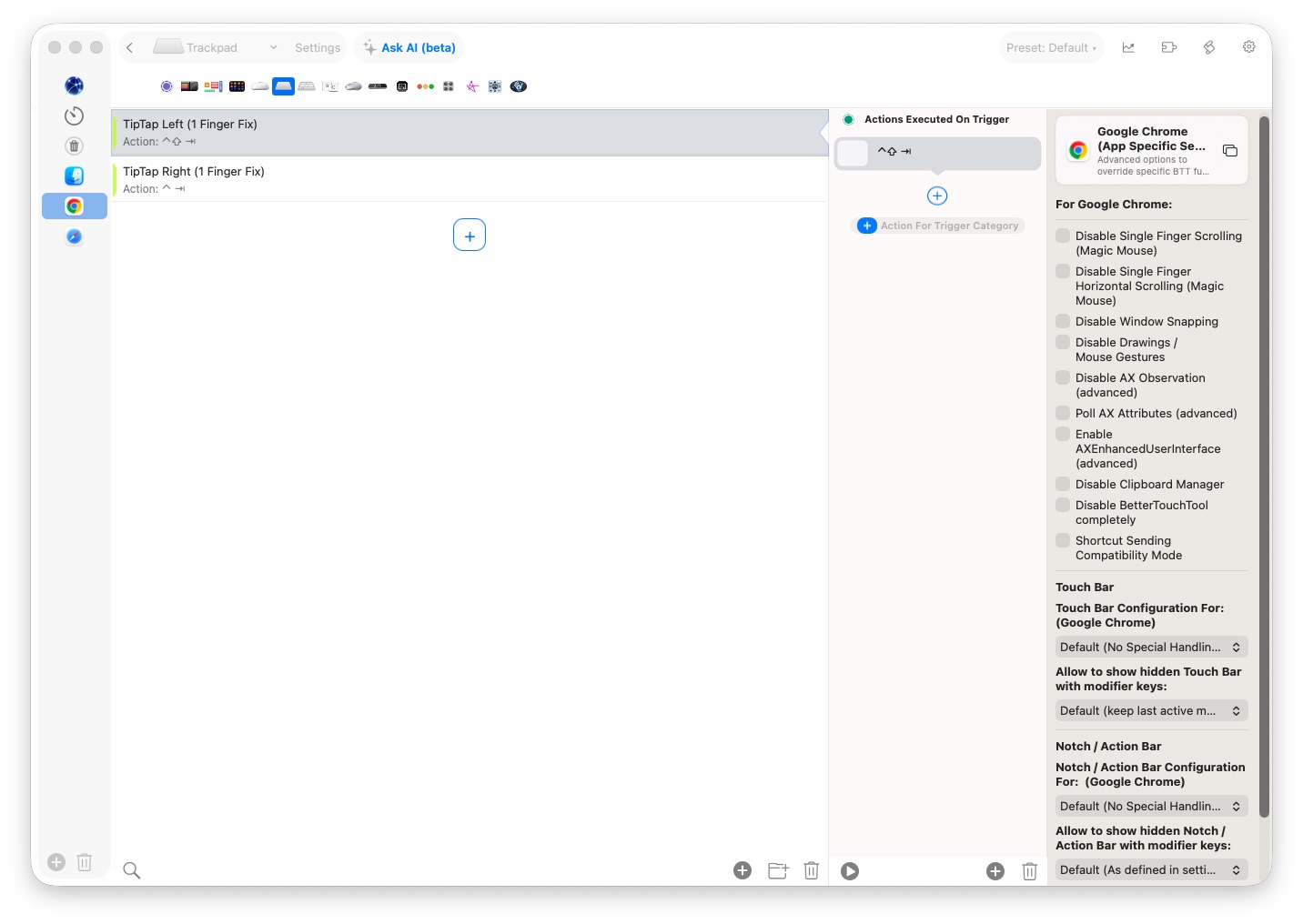
TipTap is one of the most-used BetterTouchTool-powered gestures on my MacBook. I frequently use it to switch between tabs in Chrome or Safari.
As someone with tens of browser tabs open at any given time, I need to constantly switch between them. I can use the Control-Tab and Control-Shift-Tab shortcuts, but that would mean moving my hand back to the keyboard every time.
Frustrated with the constant switching, I assigned BetterTouchTool’s two-finger TipTap gestures to the shortcuts. I keep my middle finger on the trackpad, then tap on its left side with my index finger to switch to tabs on the left. Tapping on the right with my ring finger switches to tabs on the right.
Since the TipTap gesture is assigned to Chrome and Safari, it doesn’t work in other apps, ensuring there are no unwanted conflicts.
If you are new to BetterTouchTool, this is one of the first custom gestures you should set up on your MacBook.
Screenshot: Rajesh Pandey/Cult of Mac
2. Open links in the background with a four-finger tap
I rely heavily on the middle button on my Logitech mouse when browsing to open links in the background and close unwanted tabs.
A MacBook’s trackpad does not offer similar functionality. So, I used BetterTouchTool to add a custom four-finger tap gesture to open links in the background. The same gesture also closes a browser tab when I perform it while the pointer is over the tab.
For power users and designers, BetterTouchTool developer folivora.ai provides a downloadable middle-click preset. It keeps the middle-click button pressed as long as you have at least one finger on the trackpad. This can help in panning and zooming in apps like CAD and Photoshop.
3. Contextual three-finger tap gesture to manage open windows
I extensively used a window manager app to easily tile open windows to the left, right, top or bottom of my Mac’s display when working. This works well when I am at my desk using two external monitors, where I have plenty of space to arrange multiple apps.
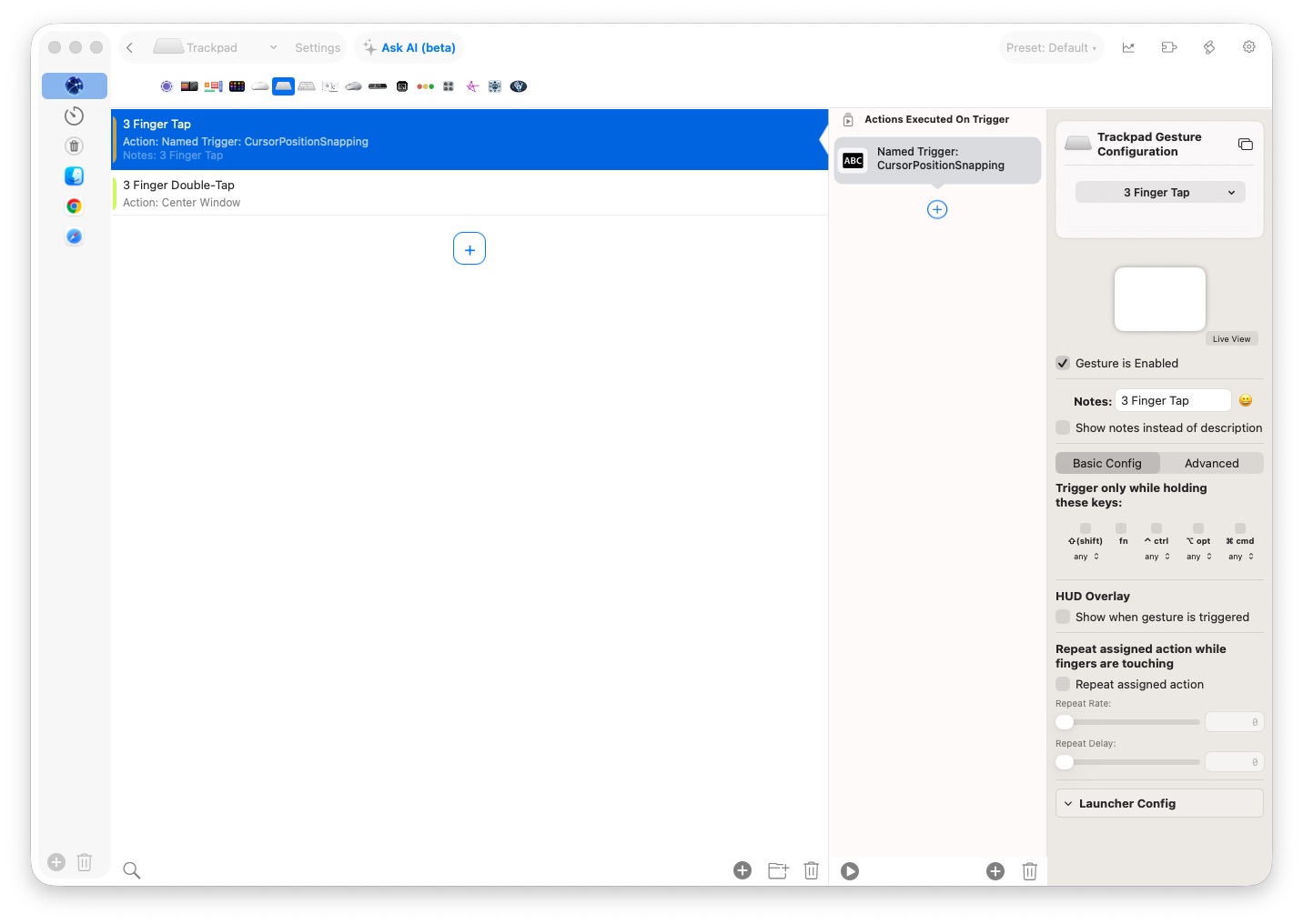
On the go, with only the MacBook’s trackpad and a 16-inch display, I find it difficult to manage open windows similarly. So, I turned to BetterTouchTool to set up a contextual three-finger triple-tap gesture.
Screenshot: Rajesh Pandey/Cult of Mac
Unlike a regular gesture that always performs the same action, the contextual triple-tap gesture works depending on the position of the mouse pointer within the active window. If I move the pointer near the left edge and then use a triple tap with three fingers, BetterTouchTool tiles the window to the left.
Likewise, if I move the pointer near the right edge and then triple-tap with three fingers, the window tiles to the right. The window moves to the top or bottom if the pointer is near the top or bottom edge of the app window.
I use the same triple-tap gesture to maximize a window when I perform it close to the center. So, with a single gesture, I can control a window’s position and size.
This gesture makes multitasking on my MacBook Pro with several open windows and apps much easier.
Keep in mind that this gesture might conflict with the Mac’s built-in three-finger drag gesture.
4. Turning the trackpad’s edge into a control strip
BetterTouchTool can recognize one- or two-finger swipes performed along any of the MacBook trackpad’s edges. I use it to turn the trackpad’s left and top edges into control strips for volume and brightness.
A two-finger swipe up from the left edge of the trackpad increases the volume. Performing the same two-finger swipe from right to left turns down the volume.
Similarly, a two-finger left-to-right swipe from the top-left edge of the trackpad increases the screen’s brightness. Doing that from right to left dims my Mac’s screen.
I find these gestures especially useful during Google Meet or Zoom meetings. I can subtly adjust the volume or brightness of my Mac’s display without taking my eyes off the screen or doing whatever I am doing.
5. Quickly mute calls with a pinch
Another BetterTouchTool gesture that has become indispensable in my daily workflow is a four-finger pinch. Google Meet, Zoom and Teams all use different controls and keyboard shortcuts for muting the microphone, and I can never remember which one to use. Finding the mute button also becomes annoying when the call is running behind another window.
So, I assigned a four-finger pinch in BetterTouchTool to toggle my Mac’s microphone on or off. Since this is a system-wide Mute/Unmute Microphone action, it works irrespective of whether I am in a Zoom meeting or in a Meet call in Chrome. The gesture mutes the Mac’s audio input, instead of using the mute/unmute button in the meeting app.
Meet and Zoom might not change the microphone icon when I use this custom gesture to mute or unmute the Mac’s microphone. So, I added visual feedback in BetterTouchTool whenever the gesture is triggered.
6. Enter full screen with a five-finger tap
Screenshot: Rajesh Pandey/Cult of Mac
When working on my MacBook’s 16-inch display, I frequently put certain apps like Chrome or Notion in full-screen mode. That helps remove distractions and keeps me focused on the task at hand.
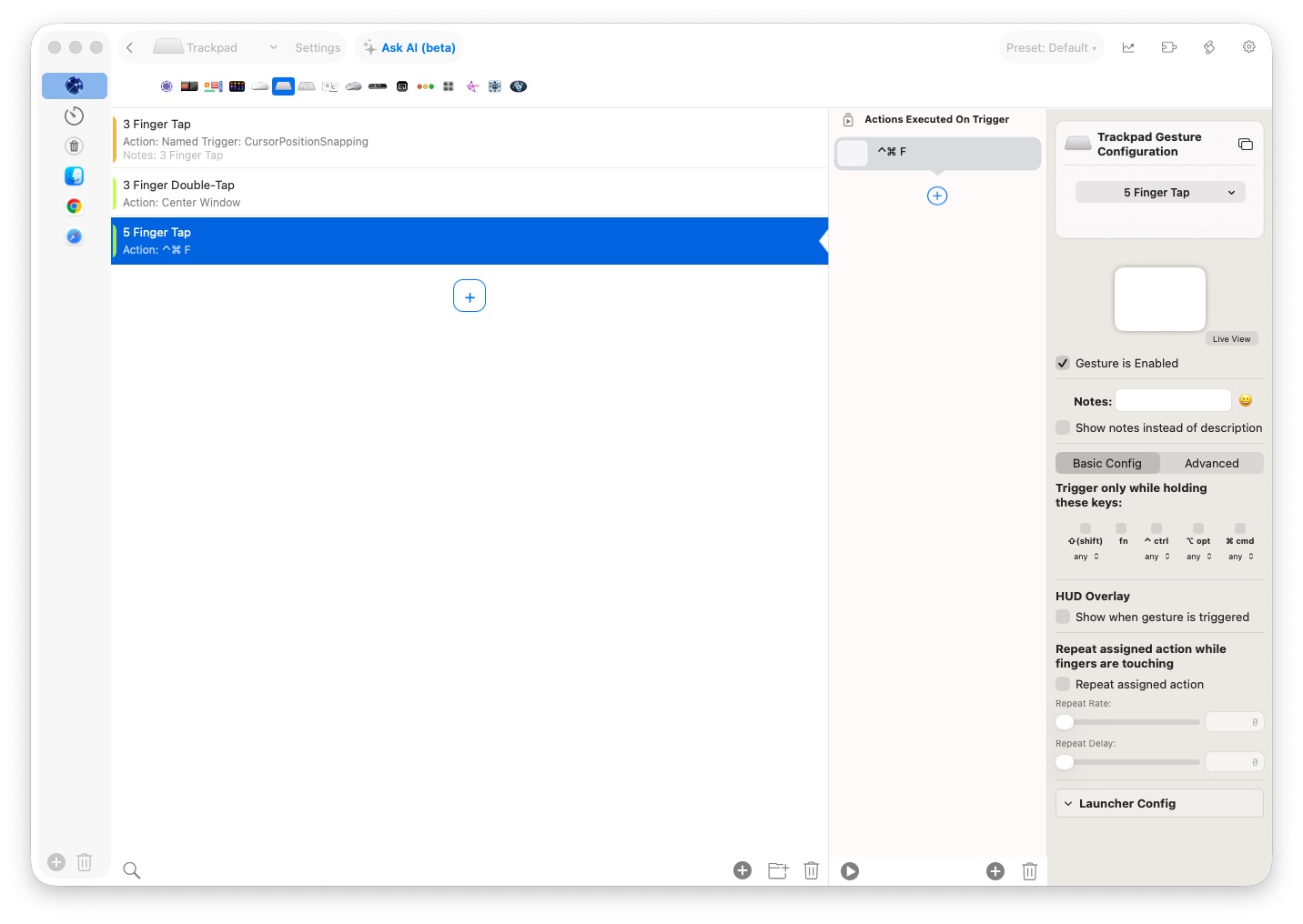
Instead of tapping the small green button in the app’s top-left corner, though, I set up a five-finger tap in BetterTouchTool for this action. Tapping the trackpad with five fingers makes the current app go into full-screen mode. Repeating the gesture exits full-screen mode.
I find using this trackpad gesture much more convenient than tapping the tiny green button or pressing (and remembering) the Ctrl – Cmd – F shortcut.
How to get the most out of BetterTouchTool
It’s easy to go overboard with custom trackpad gestures using BetterTouchTool. But I now realize that a smaller selection of useful gestures works best. The gestures I currently use solve major daily workflow problems and feel natural enough that I don’t need to think about them.
To get the most out of BetterTouchTool, think carefully about the tasks you perform regularly. Then create custom gestures for them, one at a time. Give yourself time to memorize the first one and adopt it into your workflow before adding a slew of new gestures.
Pricing
A standard, two-year license to BetterTouchTool costs $15. A lifetime license runs $25. Alternatively, you can get BetterTouchTool through Setapp, the highly recommended Mac app subscription service from MacPaw.
Download from: folivora.ai
More Mac power moves
Want even more ways to squeeze more productivity out of your Mac? Check out more how-tos for power users from Cult of Mac:
- I replaced 7 Apple apps on my Mac. Here’s what I use instead.
- 5 Mac apps that turbocharged my 2025 workflow (and why you need them)
- 12 must-have free Mac apps I always install first

Rajesh has been writing about consumer technology for over a decade, with a strong focus on iPhones, Macs and Apple’s ecosystem. He enjoys digging into Apple software updates, hardware changes, and discovering new Mac apps that make work faster and more enjoyable.
You can reach out to him at mail[at]rajeshpandey.me.


One response to “6 custom gestures that make my MacBook trackpad even better”
I made an app that turns your MacBook trackpad into a cat.
It purrs.
Not metaphorically.
PurrPad uses the MacBook’s haptic trackpad to create a physical purring sensation under your fingers, synchronized with sound.
https://PurrPad.app 🐾