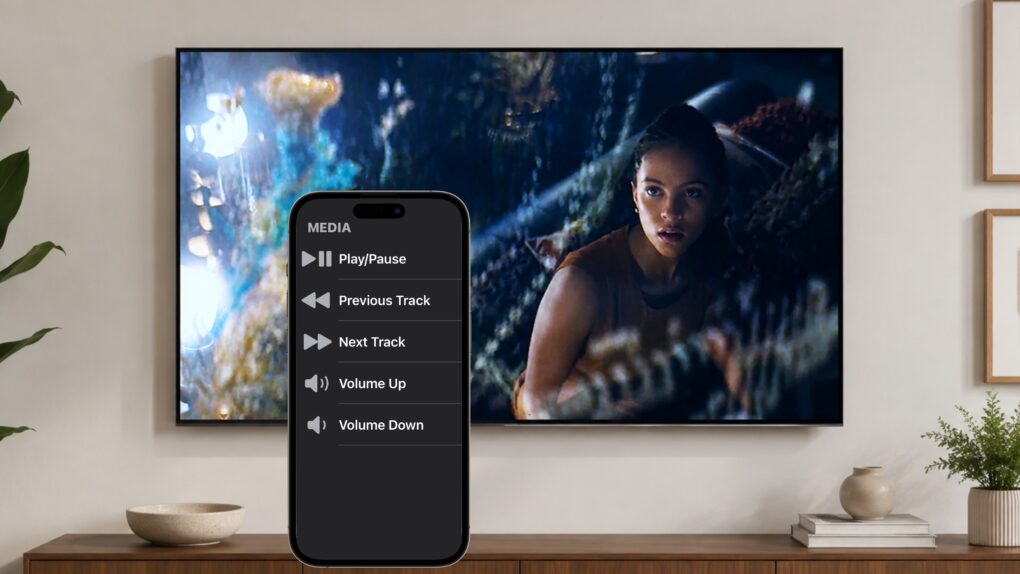
Your iPhone can become a remote control for your iPad. It’s a convenient way to control a film or TV show playing on the tablet without having to get up off the couch.
And this doesn’t require a third-party application. All you need is Control Nearby Devices, a feature built into iOS and iPadOS.
Here’s how to do it.
Make your iPhone into an iPad’s TV remote with Control Nearby Devices
I frequently attach my iPad to a large TV via HDMI so I can lean back and really enjoy streaming movies and TV shows. I do this a lot when I travel, because it saves me the hassle of tinkering with an unfamiliar smart TV. Instead, I use the streaming accounts already set up on my tablet.
The downside is I’m across the room from my iPad and I can’t use the TV’s remote control. That’s why I was thrilled to learn about Control Nearby Devices. It lets my iPhone act as a remote for the iPad.
Before you get too excited, there are significant limits. Most notably, the feature doesn’t include cursor control. That means I need to get up to change what I’m watching.
Still, with Control Nearby Devices, I can easily pause and resume playback, and adjust the volume. That’s certainly convenient.
How to use Control Nearby Devices on iPhone and iPad
Screenshot: Ed Hardy/Cult of Mac
Getting started is easy because this feature is built into iOS and iPadOS. There’s nothing to download or install. However, the two devices must be signed in to the same Apple Account and connected to the same Wi-Fi network.
Now, on your iPhone, open Settings and tap Accessibility.
Scroll down and select Control Nearby Devices, then tap Control Nearby Devices again.
Your iPhone will look for compatible, unlocked Apple devices nearby. When your iPad appears, tap its name.
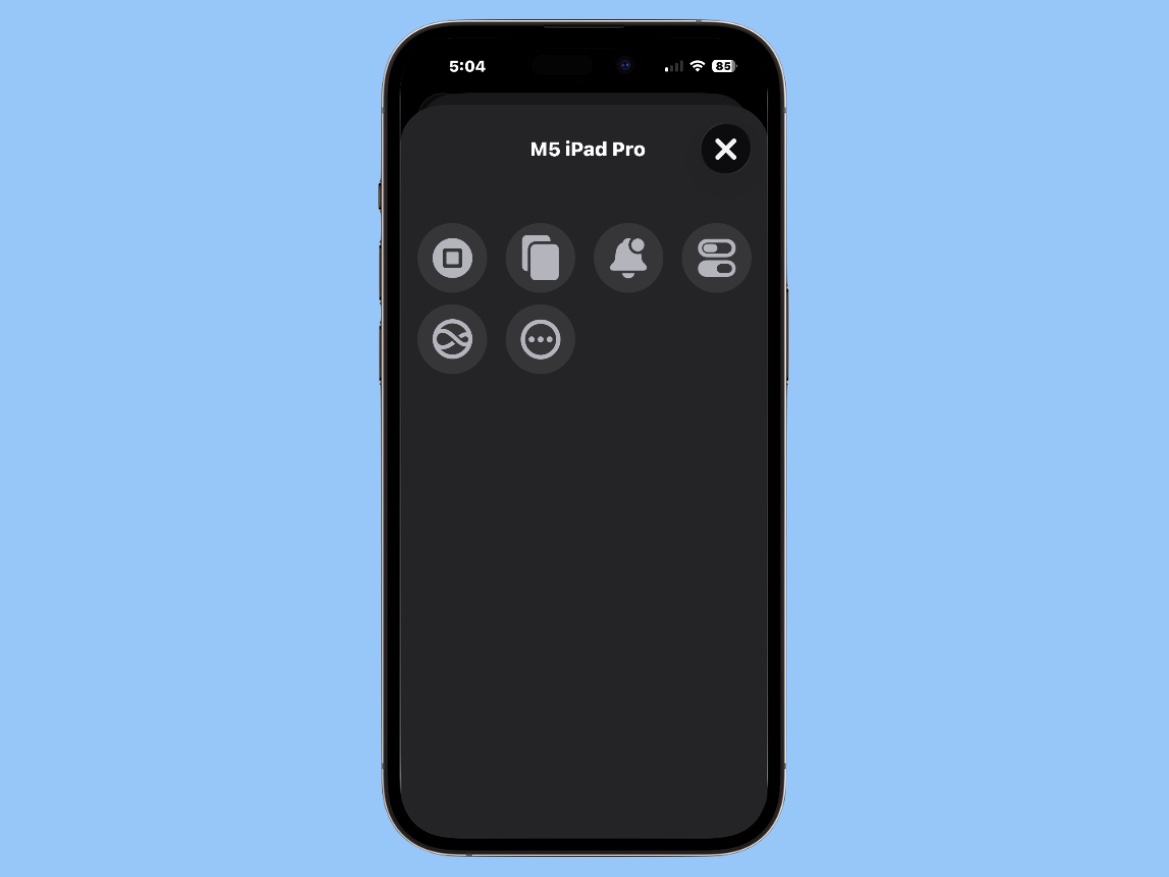
A set of controls will appear on the iPhone’s screen. The buttons correspond to controls on the iPad, allowing you to remotely interact with the tablet (see screenshot above).
There’s nothing you need to do on the iPad other than making sure it is unlocked. As soon as you have the buttons open on the iPhone, they can control the tablet.
Make your iPhone into an iPad TV remote
Screenshot: Ed Hardy/Cult of Mac
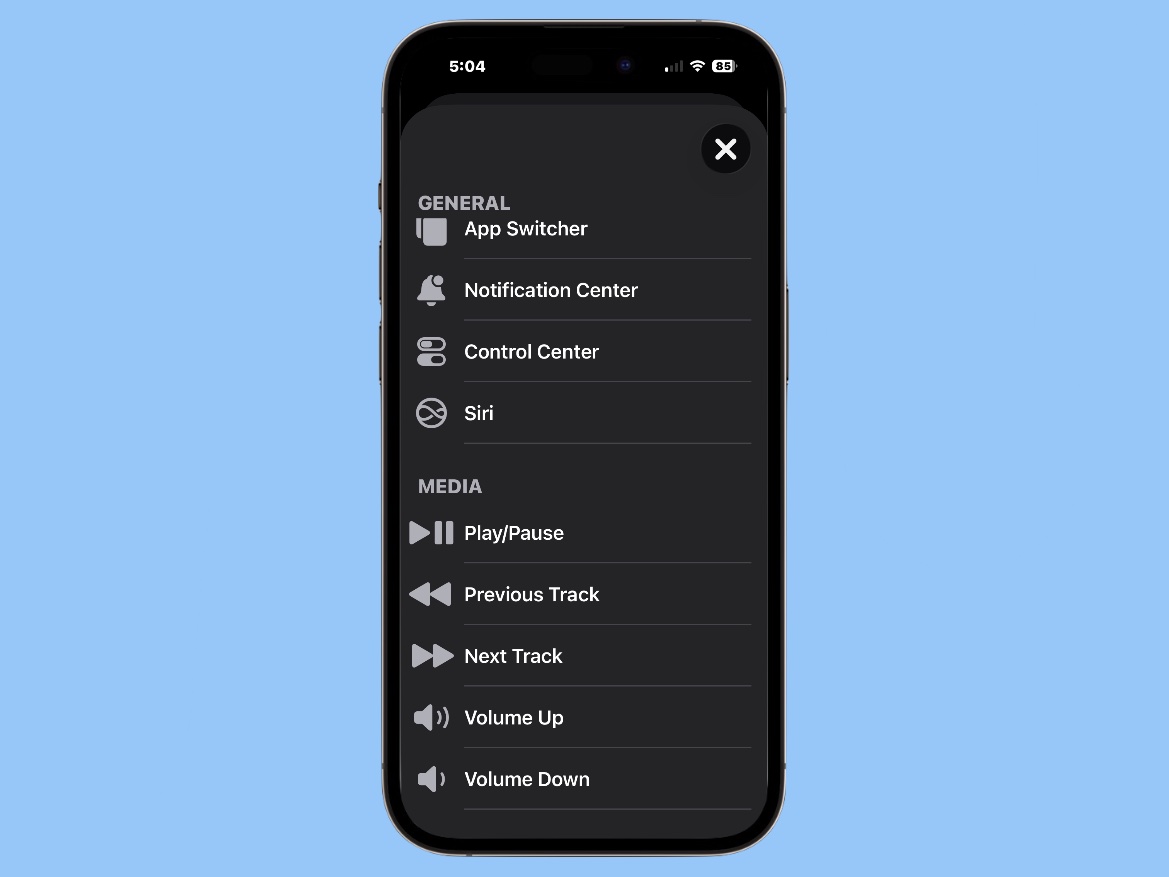
Once you have Control Nearby Devices set up with your iPhone accessing your iPad, tap on the More button (circle with three dots inside) on its home screen. That opens the media playback controls.
From here, you can easily press the Play/Pause button, as well as Volume Up and Volume Down.
If you’re using the feature to control music playback, there are also Previous Track and Next Track buttons.
I’ve used this feature plenty of times, and find it especially useful for adjusting the volume. When first starting a video, it’s difficult to judge how loud to make it. Getting up to make the movie/show louder or softer is just irritating.
Other features of Control Nearby Devices
Of course, Control Nearby Devices offers more than media controls. Just keep in mind that the feature is an accessibility option for people who have trouble pressing buttons on a large screen — if that’s not you, you’ll find it of limited use.
The main screen (as shown in this screenshot) includes six buttons for using an iPhone to control features on a remote device:
- Home takes you to the Home Screen
- App Switcher shows your recently used apps
- Notifications opens Notification Center
- Control Center open the iPad’s Control Center
- Siri activates the voice assistant
- More provides additional controls, including the media controls
There’s no trackpad-like feature. Nor can you make Control Nearby Devices open applications on the iPad. Which is why I primarily use it to make my iPhone into a TV remote.
How to stop iPhone from remote controlling the iPad
When you’re finished, tap the Close button (the X) in the upper-right-hand corner on the Control Nearby Devices screen to end the remote-control session. And that’s all there is to it.
There’s nothing at all to do on the iPad.
Make this feature easier to access
You may have noticed that Control Nearby Devices is somewhat buried in Settings. If you expect to frequently use it, there’s a shortcut that lets you start the feature by pressing the button on your iPhone’s right side three times.
Go to Settings > Accessibility > Accessibility Shortcut and add Control Nearby Devices to the list.
Once it’s configured, just triple-click the iPhone’s side button to activate the shortcut.
If you select more than one accessibility feature, triple-clicking the side button will bring up a menu where you can choose which feature to use.
Enjoy!
Now it’s up to you to remember this feature the next time you’re watching a movie or TV show on your iPhone.
Apple built Control Nearby Devices as an accessibility feature, but it can be useful for anyone. The feature is another example of how Apple’s accessibility tools can provide useful capabilities beyond their original purpose.
If you want an alternative solution, consider a wireless video adapter like this one. Then the iPad can sit right next to you.

Ed Hardy has been writing full-time about tech for 26 years, and using it for much longer than that. His intro to Apple was a Macintosh SE/30 (which he still has), but now he uses a 13-inch iPad Pro as his primary computer.
That’s because he’s a “tablet first” type of guy. Rather than use a Macbook, he connects a keyboard case to the iPad. And instead of a desktop Mac, he connects his tablet to a 27-inch display and full-size keyboard. (So don’t try to tell him that everyone has to use a Mac to be productive.)
Before coming to Cult of Mac, Ed wrote for NotebookReview, TabletPCReview and Brighthand, as well as other sites.

