
There are three Apple TV settings I always tell people to change as soon as they set up their set-top box. While I heartily recommend the Apple TV over the clunky and ad-infested experience of Roku and other smart TVs, it’s not perfect. You’ll want to change a few things to make it right.
First of all, you can put one of the Siri Remote buttons to better use. The TV button, by default, opens the Apple TV app — but you can have it take you to the Home Screen instead. Also, you’ll want to change the Home Screen to show your Continue Watching list, not its recommendations. And finally, you can turn off those annoying Apple TV sports notifications to stop the interruptions while you’re watching your shows.
Change these three annoying default settings, and you’ll enjoy a far better viewing experience. Keep reading or watch our video to find out how.
The Apple TV settings you want to change
The Apple TV is easily Apple’s most underappreciated device. If you own one, you probably use it to kick back with a show or movie just about every day. The Apple TV is practically the only smart TV interface that doesn’t include invasive data tracking or ugly advertising. That makes it the top pick for home theater and smart home aficionados.
And yet, the default tvOS setup doesn’t always deliver the intuitive experience you expect out of the box. From adjusting the Siri Remote so it actually takes you where you want to go, to cleaning up the Home Screen and silencing unnecessary sports alerts, a few smart tweaks in the Apple TV settings can dramatically improve how you navigate content and interact with your hardware.
Our guide walks you through three must-change options that will turn your Apple TV into a personalized, frustration-free media hub. You’ll spend less time wrestling with menus and more time enjoying your shows.
Table of contents: Change these three Apple TV settings for a better experience
- Change the TV button to go to the Home Screen
- Set the Top Shelf to Continue Watching
- Turn off Apple TV sports notifications
- More Apple TV how-tos
Change the TV button to go to the Home Screen
Screenshot: D. Griffin Jones/Cult of Mac
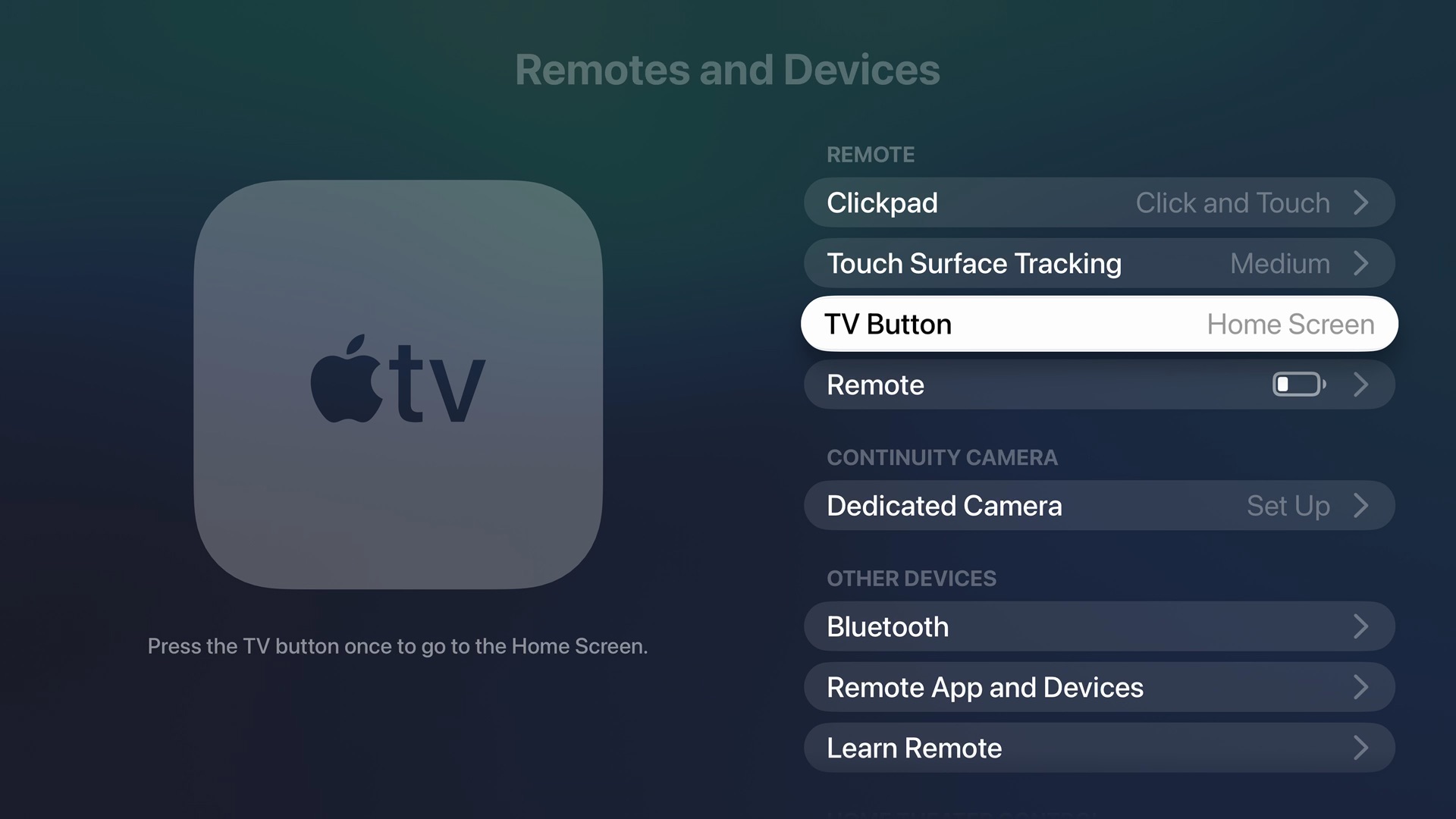
The first Apple TV setting I strongly recommend changing relates to the Siri Remote. Pressing the TV button on Apple’s remote, by default, opens the Apple TV app — which I usually don’t find very useful. Especially since Netflix shows don’t show up there.
Instead, go to Settings > Remotes and Devices and set TV Button to Home Screen. Then, when you press the TV button, you will return to the Home Screen, where all your apps live.
This is a huge boost to the Apple TV user interface. When you need to close an app, you want to be taken to your grid of other apps as quickly as possible.
Set the Top Shelf to Continue Watching
Screenshot: D. Griffin Jones/Cult of Mac
While you’re at it, there’s another setting related to the Apple TV’s Home Screen you might want to change. When you’re on the Home Screen, swiping through the apps on the Top Shelf, it’ll show full-screen previews of shows and movies you can watch from that app.
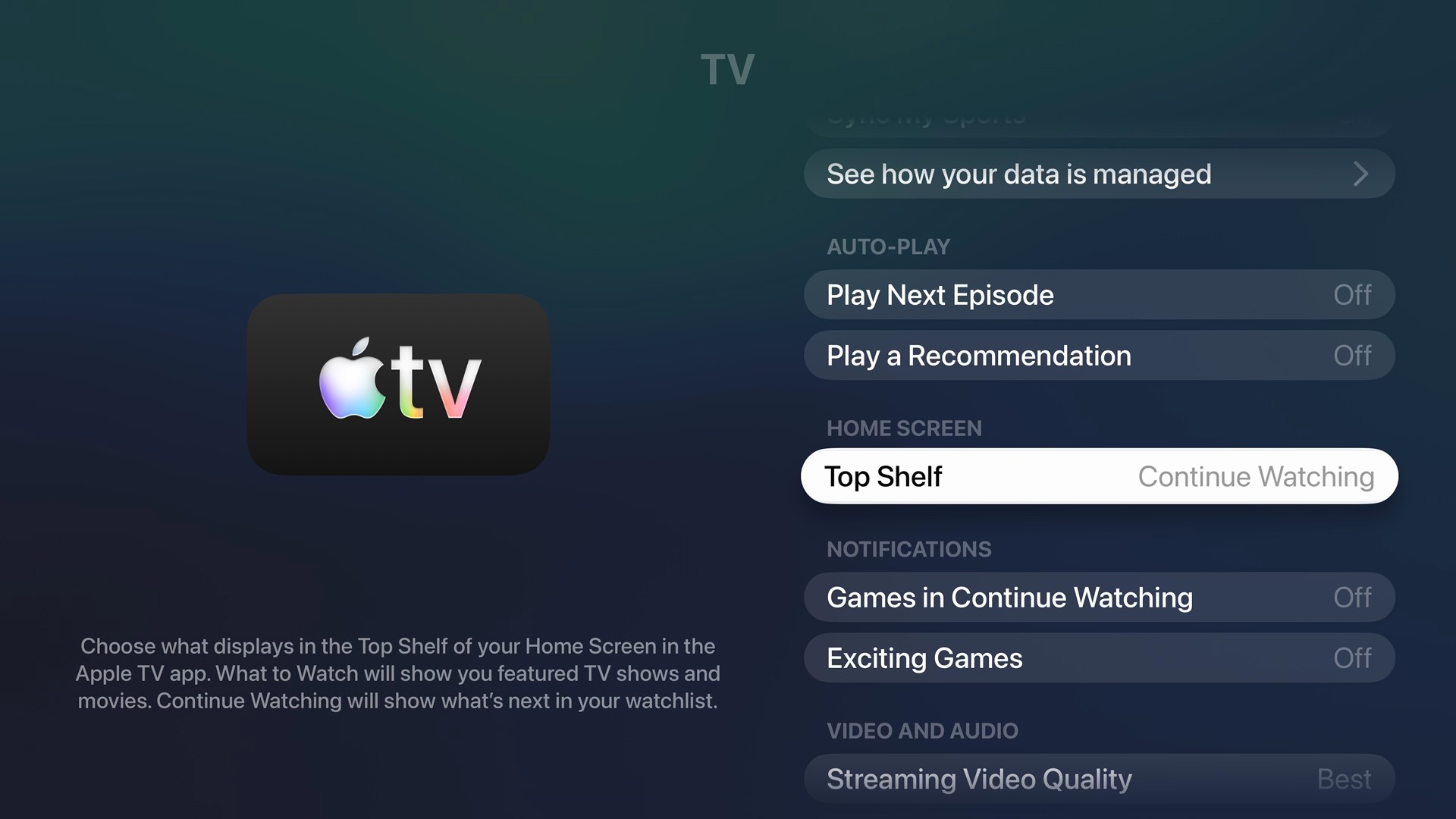
However, by default, the TV app shows you promoted content, not the shows you’re actually in the middle of watching. The good news is that you can change this.
Open the Settings app. Then, scroll down and select Apps. At the top of the App Settings section, select TV. Scroll down and set Top Shelf to Continue Watching. Now, you’ll have easier access to continue the shows you’ve already started in the TV app.
(I also turned off Auto-Play Next Episode, as a matter of personal preference.)
Turn off Apple TV sports notifications
Screenshot: D. Griffin Jones/Cult of Mac
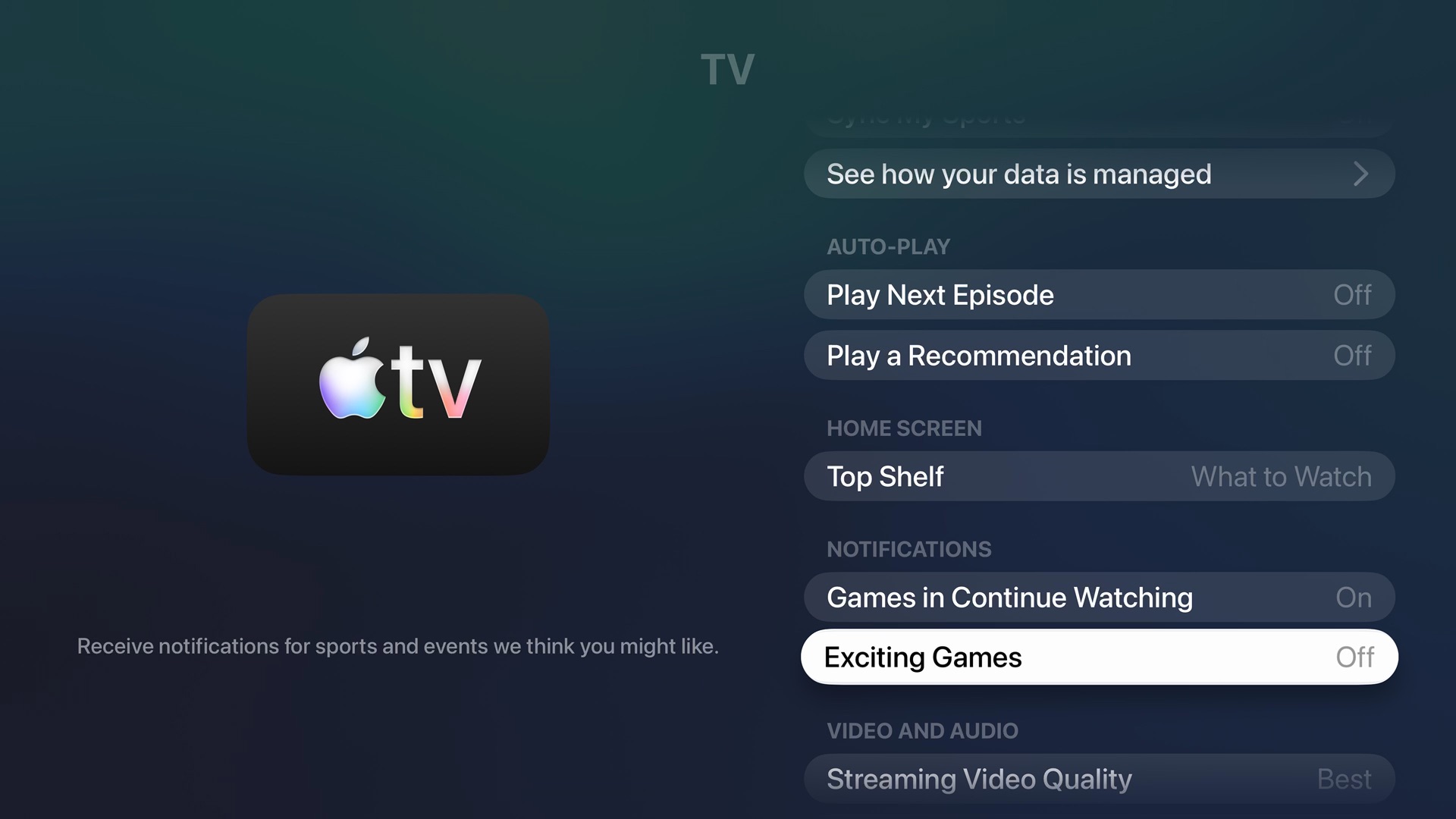
Apple continues to ink deals with big sports leagues like Major League Baseball, Major League Soccer and Formula One racing. So perhaps it’s no surprise that Apple turned on sports notifications by default on Apple TV (and buried the off switch). That means that, no matter what you’re watching in the evening, you’ll receive a random push notification in the upper right inviting you to tune into some game.
However, you don’t need to submit to Apple’s sports marketing push. To turn off Apple TV sports notifications, open the Settings app. Then, scroll down and select Apps. At the top of the App Settings section, select TV. Scroll down to the Notifications section, then select Exciting Games to turn off the notifications.
If you are interested in sports scores, you can follow your favorite teams in the Apple Sports app for iPhone or inside Apple News on other devices. That way, you can always see the latest scores and upcoming schedules. The teams you follow in the Sports app will sync across all your devices — including your Apple TV.
More Apple TV how-tos
If you use a sound bar with your Apple TV and hate juggling two remotes, you might want to set up your Apple TV remote to control your sound bar. You can set this up from Learn Remote, just a few items lower on the same Remotes and Devices screen. Click here for detailed instructions.
Or, if you prefer having zero remotes, you can use your iPhone or Apple Watch to control your Apple TV instead. Both devices come with a built-in Remote app that lets anyone control their TV from their phone or watch.
We originally published this article on Apple TV settings on June 26, 2024. We updated it with the latest information on September 11, 2026.

D. Griffin Jones was a writer, podcaster and video producer for Cult of Mac. Griffin has been a passionate computer enthusiast since 2002, when he got his first PC — but since getting a Mac in 2008, he hasn’t turned back. His skills in graphic and web design, along with video and podcast editing, are self-taught over 20+ years. Griffin has a bachelor’s degree in computer science and has written several (unpublished) apps for Mac and iOS. His collection of old computers is made up of 40+ desktops, laptops, PDAs and devices, dating back to the early ’80s.
Griffin writes for his personal blog, Extra Ordinary, and is currently looking for work.

