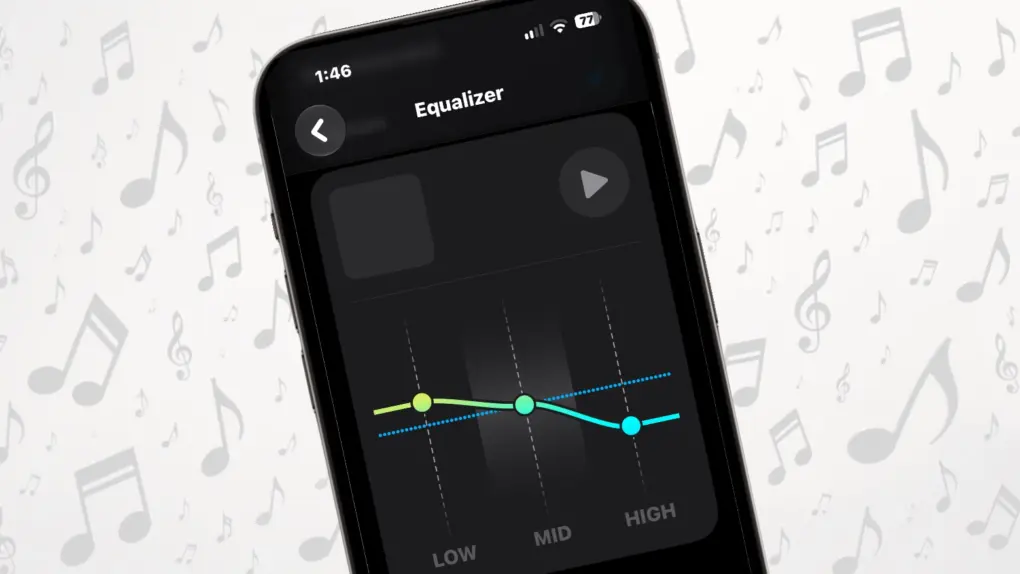
Apple finally gave AirPods something we know you all wanted for years: a built-in equalizer that lets you change how your music sounds.
And unlike the EQ setting buried in Apple Music, this one is tied to your AirPods, not a specific application. That means your custom sound profile isn’t limited to music played through that singular app.
But to be clear: the new Custom EQ feature in iOS 27 isn’t the most sophisticated equalizer you’ll find on a pair of headphones. It gives you just three controls — Low, Mid and High. But that’s enough to make a noticeable difference if you think your AirPods sound too bass-heavy, lack vocal clarity or need a little more treble.
Here’s how to set it up… and why.
Why use the AirPods equalizer?
Every listener has different preferences. Apple tunes AirPods to provide a sound that works well for a wide range of music, movies and other content. But you might prefer something different.
That’s where the Custom EQ comes in.
Want more bass for hip-hop, electronic music or action movies? Turn up the Low setting. Find that vocals aren’t prominent enough? Try increasing the Mid setting. If you want more sparkle from cymbals, guitars and other high-frequency sounds, raise High.
You can also use the EQ to compensate for recordings that simply don’t sound the way you like. And you don’t have to be an audiophile to benefit from it. Even small adjustments can change the character of your AirPods.
Which AirPods support Custom EQ?
There’s no point in getting excited about the AirPods equalizer if your earbuds don’t support it. The new feature requires Apple’s H2 chip, which is in all recent versions. That means the compatible models currently include:
- AirPods Pro 2
- AirPods Pro 3
- AirPods 4
- AirPods 5
- AirPods Max 2
Apple’s original AirPods Max and older AirPods models don’t support the feature.
You also need an iPhone or iPad running iOS 27 or iPadOS 27, or a Mac running macOS 27, along with current AirPods firmware. If you have a compatible pair but don’t see the Equalizer option, make sure your devices and AirPods are fully updated.
Equalizer 101
Before you get started tweaking the AirPods equalizer, it really helps to understand what it can and can’t do. Not everyone is a music expert who knows details like how to properly set up an equalizer, but anyone can learn the basics, and the EQ now in AirPods is a good place to start.
Especially as the three controls it offers are easy to understand:
Low: Controls bass and low-frequency sounds. Increasing it gives music more weight and punch.
Mid: Covers much of the range occupied by vocals and many instruments. Raising it can make singers sound more prominent.
High: Controls treble and high-frequency detail. Increasing it can make music sound brighter and more detailed.
If this is starting to seem complicated, don’t do it. Tinkering with the AirPods equalizer is completely optional. Apple built one in, and it’s generally quite good.
Also, it’s important to remember that there isn’t a universally “correct” setting. The best EQ profile is the one that sounds good to you.
How to use the AirPods equalizer
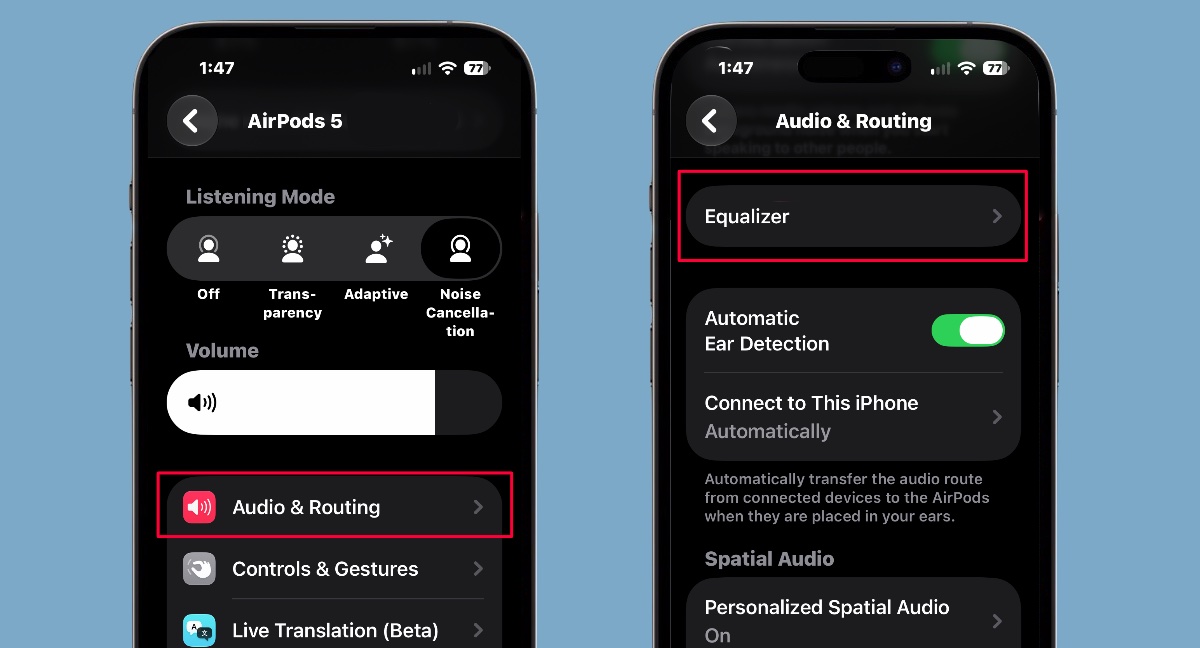
Screenshots: Ed Hardy/Cult of Mac
Apple made getting to the new EQ quite easy. First, connect your AirPods to your iPhone and put them in your ears. Then:
- Open Settings on your iPhone.
- Tap the name of your AirPods near the top of the screen.
- Tap Audio & Routing.
- Tap Equalizer.
That puts you on the page you need. Start by tapping on Custom, which turns off the default audio profile and gives you control.
Below that, you’ll see controls for Low, Mid and High. Drag each control up to increase that part of the audio spectrum or down to reduce it.
It’s highly recommended that you play music or a podcast you can listen to while making the adjustments so you can hear the difference immediately.
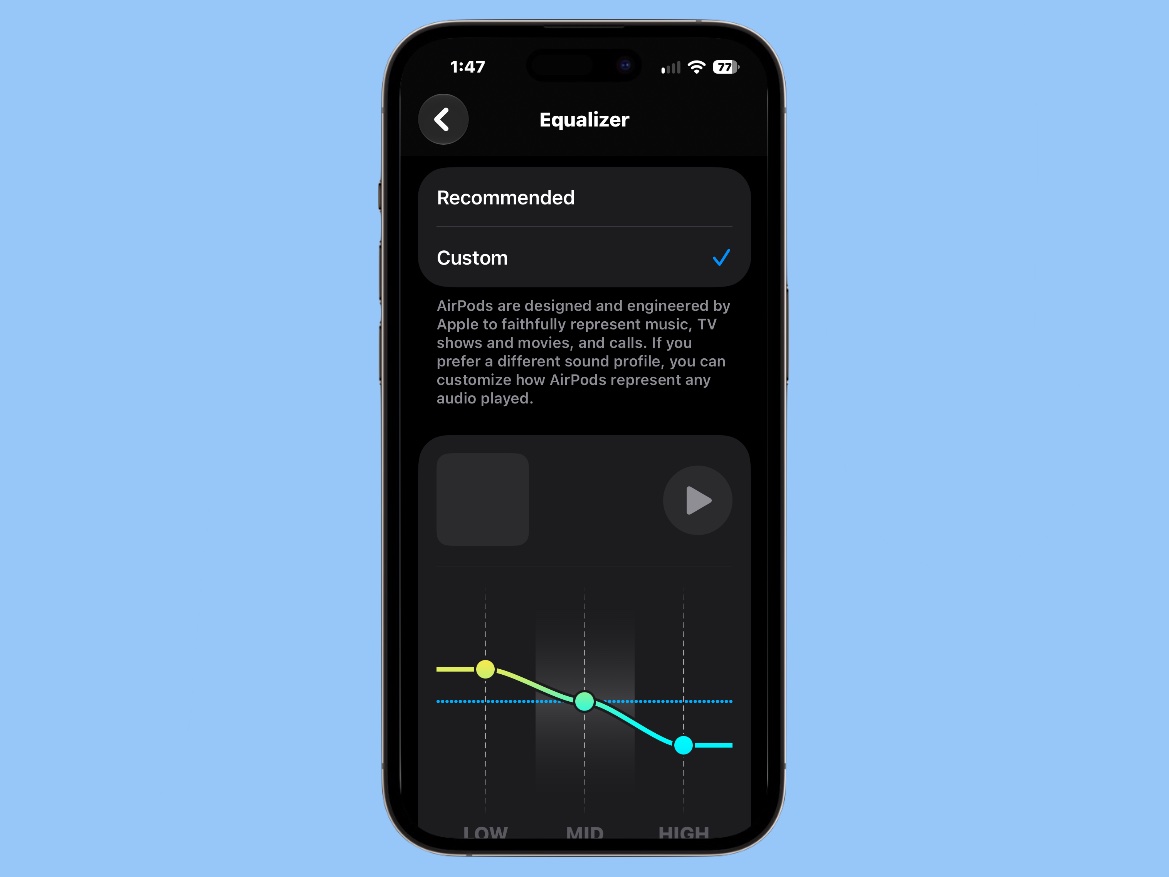
Screenshot: Ed Hardy/Cult of Mac
Start with small adjustments and listen for what changes. You may find that moving a slider just a little produces the effect you’re looking for.
If you decide your custom EQ sounds worse than Apple’s original tuning, it’s easy to go back. There’s a Reset button at the bottom of the screen.
EQ settings go beyond your iPhone
I mentioned it already, but it bears repeating: the custom EQ you set up goes with the AirPods, not a particular application.
It’s not even tied to your iPhone. Set up your preferred sound on your phone and continue using it when you switch to your iPad or Mac.
A good start
Adding the long-requested AirPods equalizer is sure to please some users but frustrate others. Hardcore audio enthusiasts will undoubtedly ask for a 10- or 20-band equalizer. And one that also offers separate profiles that users can switch between for different genres of music, movies, etc.
Just try to be happy that after years of AirPods owners stuck with Apple’s preferred sound profile, we finally got a little more control.

Ed Hardy has been writing full-time about tech for 26 years, and using it for much longer than that. His intro to Apple was a Macintosh SE/30 (which he still has), but now he uses a 13-inch iPad Pro as his primary computer.
That’s because he’s a “tablet first” type of guy. Rather than use a Macbook, he connects a keyboard case to the iPad. And instead of a desktop Mac, he connects his tablet to a 27-inch display and full-size keyboard. (So don’t try to tell him that everyone has to use a Mac to be productive.)
Before coming to Cult of Mac, Ed wrote for NotebookReview, TabletPCReview and Brighthand, as well as other sites.

