Steve Jobs' one and only trip to the Soviet Union yielded lots of intrigue. Image: Ste Smith/Cult of Mac
July 4, 1985: Apple co-founder Steve Jobs visits Moscow for the first time, with the aim of selling Macs to the Russians. During his two-day trip to the Soviet Union, Jobs lectures computer science students, attends a Fourth of July party at the American embassy and discusses opening a Mac factory in Russia.
He also reportedly almost runs afoul of the KGB by praising assassinated Marxist revolutionary Leon Trotsky.
With a little know-how, you can photograph fireworks with an iPhone and achieve great results. But just pointing and shooting with no prior planning can lead to blurry, unexciting fireworks photos.
For instance, does this sound familiar? Last year’s fireworks made you say ooh and ahh, but when you look at your iPhone photos from that night, the sound you make is more of an ugh. Don’t blame Siri or some engineer in Cupertino for previous photo fails. The iPhone camera, as mighty as it is, can’t do all the thinking for you — especially in challenging lighting conditions like a fireworks display.
But with a little thought and preparation, you can make this holiday worth reliving on your iPhone camera roll. Below are some simple tips to make your iPhone fireworks photos sizzle.
A 2019 Mac Pro is the core of this three-Pro Display XDR computer setup, along with a 16-inch M1 Pro MacBook (not pictured). Photo: Liam Hudson
The Apple Pro Display XDR is, by almost any measure, the most spectacular external monitor ever made for a Mac. Launched in 2019 at a price that shocked even committed Apple fans — $4,999 for the standard glass version, $5,999 for nano-texture, plus $999 for the Pro Stand — it takes your breath away for several reasons. A dozen great workstations below are the best Pro Display XDR setups in Cult of Mac‘s archive.
July 1, 2012: Apple shuts down MobileMe, its subscription-based suite of online services and software offering push email, chat, data storage, a photo gallery and other features.
After letting the service limp along for four years, Apple finally decides to pull the plug, pushing users to switch to iCloud. The company gives MobileMe users until the end of July to remove their data from the service.
The Notes app gets more powerful in Apple’s OS 27 updates. Image: Apple/D. Griffin Jones/Cult of Mac
iOS 27 and macOS Golden Gate add a handful of Notes features that will supercharge your note-taking. There are new options for formatting, working with Markdown and even drawing on a Mac for the first time.
It’s not a big year for the popular note-taking app, but the changes Apple added will please plenty of power users. Here’s what’s new.
★★★★☆
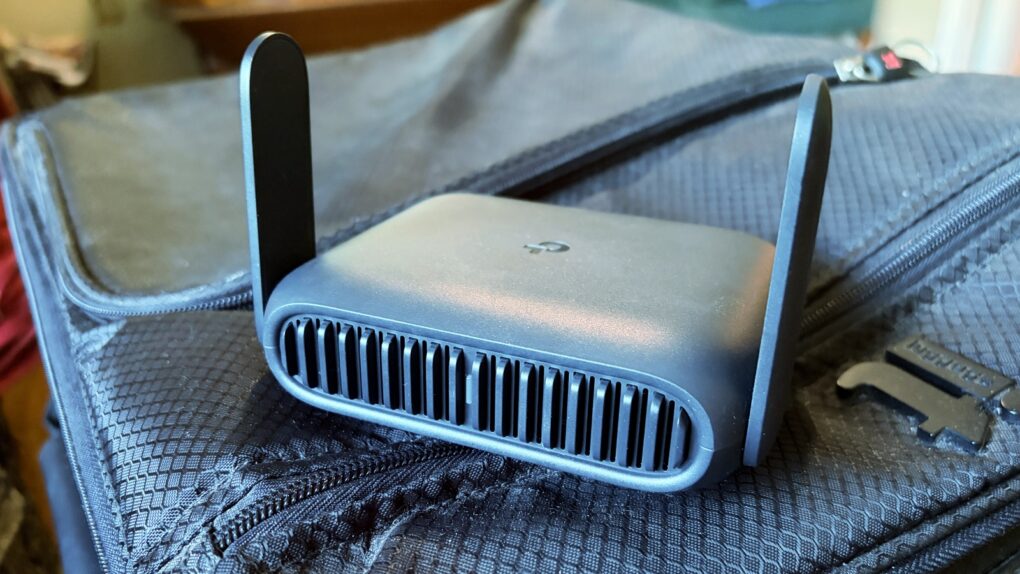
The TP-Link Roam 7 is ready to go on your next holiday, like it went to the beach with me. Photo: Ed Hardy/Cult of Mac
The TP-Link Roam 7 is small enough to be easily portable, but nevertheless provides speedy and reliable wireless connections to all your gear, no matter where you go.
I tested the travel router with Wi-Fi 7 on a recent beach trip. Here’s how it stands up to real-world use.
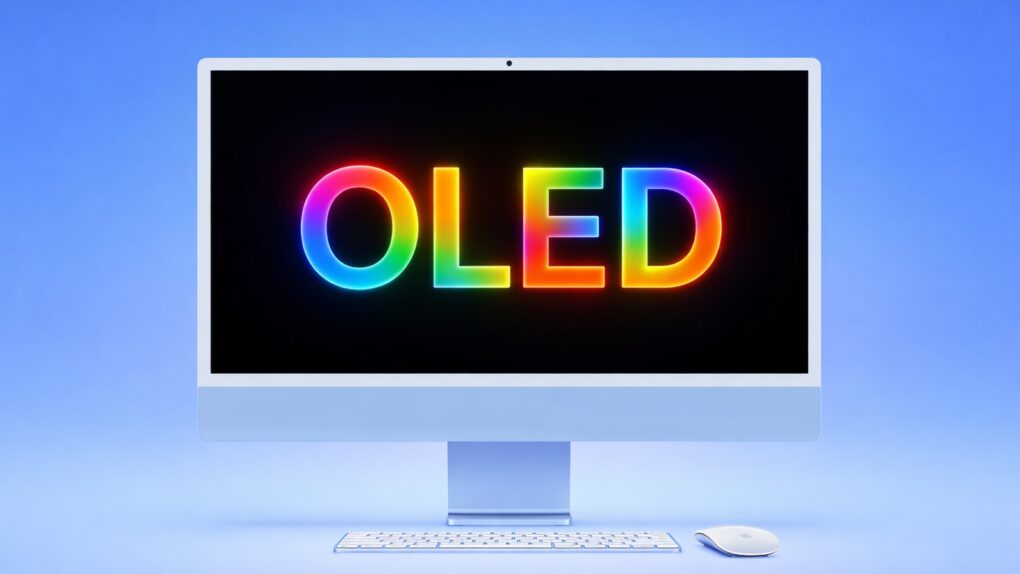
If you think Apple displays are amazing now, just wait a few years. Color will really pop. AI image: ChatGPT/Cult of Mac
Future MacBook Pro, iPad Pro and iMac models look set to gain OLED displays with dramatically richer color, according to a new report Monday. That’s because upcoming Apple OLED panels target a wider color gamut, a new industry standard that makes today’s screens look narrow by comparison.
Every Mac's Apple silicon processor includes RAM and storage outsourced from memory chipmakers. Photo: iFixit
Can’t understand why the rising cost of memory chips forces a hike in Mac prices? Apple silicon processors include Unified Memory, so Apple has no need to buy RAM chips, right?
No, that is not how it works. Mac processors include RAM that Apple must purchase from outside suppliers.
iPhone 18 will probably look a lot like this iPhone 17, but it will have a smaller RAM boost inside than previously expected. Photo: Apple
Upcoming iPhone 18 and iPhone 18e will ship in spring 2027 with 9GB of RAM rather than the 12GB earlier reports predicted, according to a social media post Friday by analyst Ming-Chi Kuo.
Apple will donate to disaster relief efforts in Venezuela, Apple CEO Tim Cook said Friday. Back-to-back earthquakes struck there Wednesday evening and left hundreds dead, thousands injured and entire neighborhoods in ruins.
Will the conversational Siri AI come to your current HomePod? Image: Apple/Cult of Mac
Siri AI, Apple’s next-generation version of its voice assistant, might push everyone’s HomePods toward obsolescence. Technology is moving on, apparently leaving these smart speakers behind.
Still, the devices aren’t about to become rubbish. They’ll just miss out on some of the new Apple Intelligence features. Here’s what’s going on.
A user joked that this setup is so clean it looks like artificial intelligence generated the image. Photo: [email protected]
Among the thousands of Mac setups posted to social media each year, a small subset earns a reaction that’s different from the usual approving nod or dismissive scowl. These are the ones that make commenters stop mid-scroll and type something. “Peak coziness.” “Oozes good taste.” “This looks AI-generated.” Cult of Mac has featured hundreds of genuinely attractive workstations over several years, but the ones below stand apart as the most beautiful Mac setups.
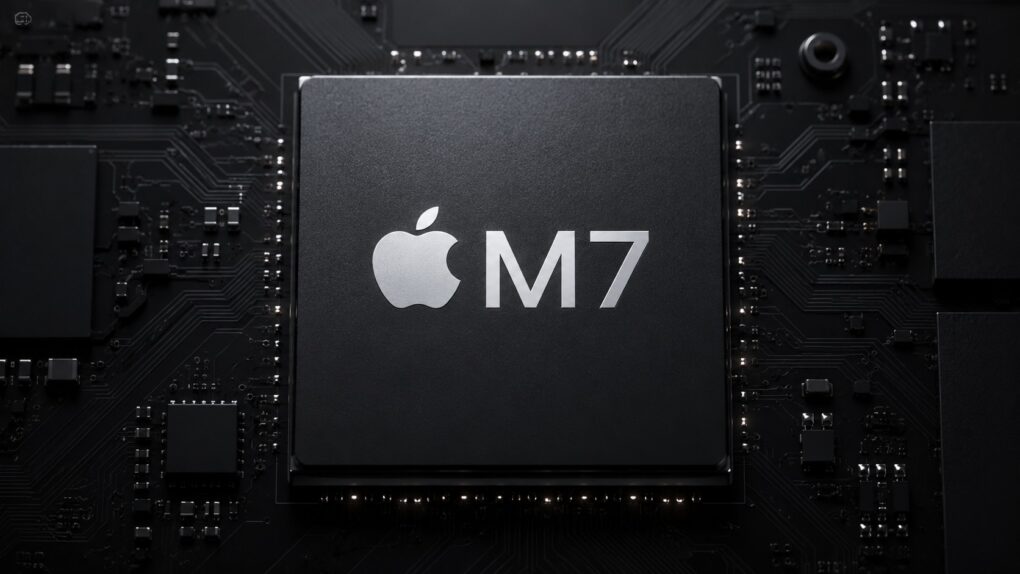
The M7 chip family will surely crush AI tasks. AI image: ChatGPT/Cult of Mac
Apple intends to make a significant departure from its established chip roadmap, bypassing high-end variants of its upcoming M6 processor in order to accelerate a next-generation AI-oriented chip family, according to a new report Thursday.
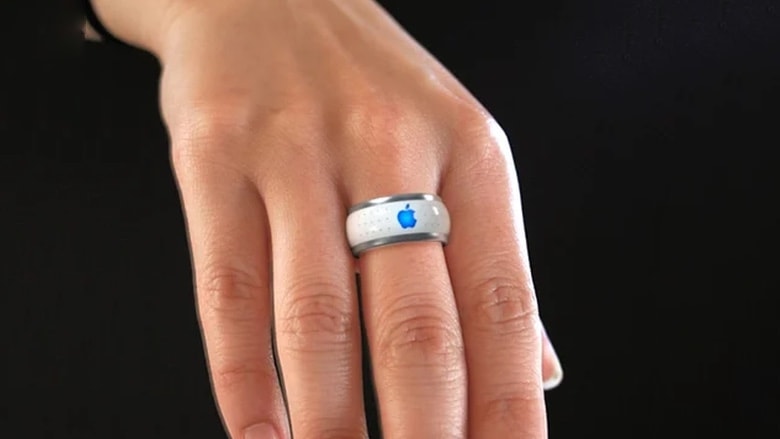
Apple may soon enter the smart ring market, if a new leak is to be believed. Prolific Apple leaker Kosutami dropped a brief but striking post to that effect Wednesday, saying a health-tracking Apple ‘iRing’ is in development.
The disclosure marks the first credible insider signal that Apple actively builds a smart ring — rather than merely exploring the idea on paper, as it started doing years ago.
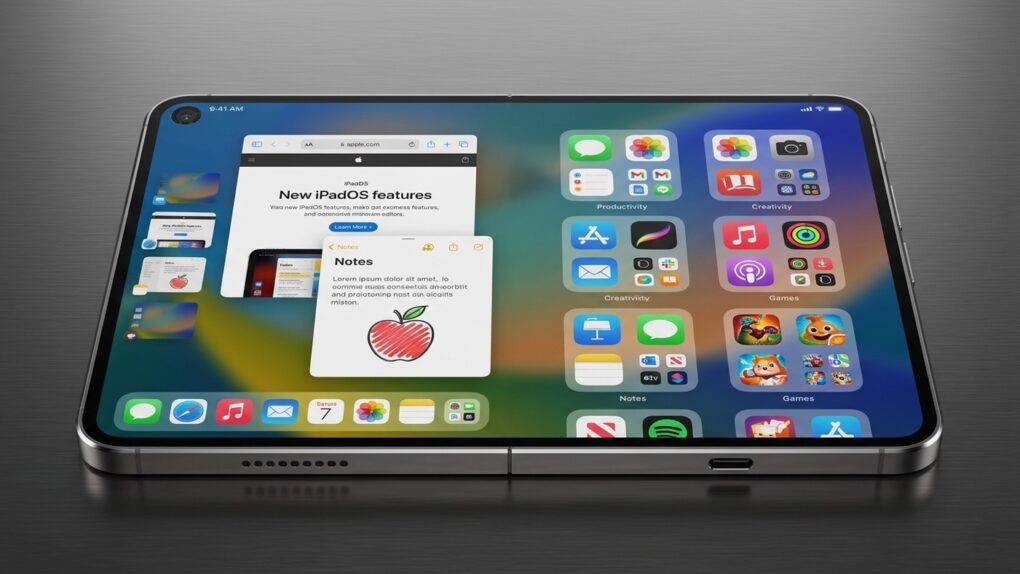
This foldable iPhone concept gives at least some idea about what subsequent generations could look like in fully open form. AI image: Gemini/Cult of Mac
Apple has already approved development of its second-generation foldable iPhone — before the first one even hits store shelves — while the future of the ultra-thin iPhone Air line stays up in the air, a prominent leaker said Thursday. So while Apple plans iPhone Ultra 2, sales worries may delay or even kill off iPhone Air 3.
The hinge is a critical component of any foldable, and Apple wants the best technology possible for its first folding iPhone. Photo: Amanz/Unsplash License
After months of swirling concern over hinge reliability, Apple’s long-anticipated foldable iPhone, aka iPhone Ultra or iPhone Fold, now looks to be on solid footing for a fall launch, according to a new supply chain report Wednesday.
★★★★★
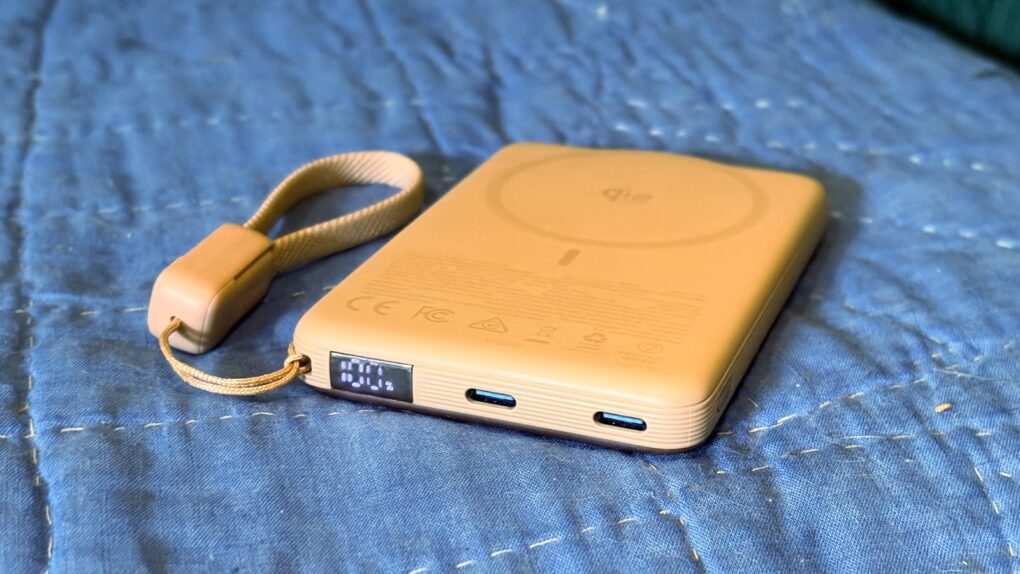
The Iniu SnapGo Air iPhone power bank includes some sweet bonus features, including a status screen. Photo: Ed Hardy/Cult of Mac
The Iniu SnapGo Air 10000mAh power bank stands out in an increasingly crowded market with an array of premium features. The MagSafe accessory sports a built-in status display, plus a clip-on USB-C cable that also acts as a strap. And it can transfer up to 25W of wireless power to an iPhone or up to 45W to other computers via a USB-C.
And it looks good while doing it.
I tested the SnapGo Air with my iPhone and iPad. Here’s what I learned.
If you don't know Tatiana Maslany yet, this show is some of her best work. Photo: Apple
Apple TV’s newest dark-comedy-thriller, Maximum Pleasure Guaranteed, may already stand as the platform’s most compelling series of 2026. If you haven’t started streaming the hard-to-classify series yet, here are three compelling reasons to try it tonight.
I mean, hey, none other than bestselling novelist Stephen King said to watch it, basically.
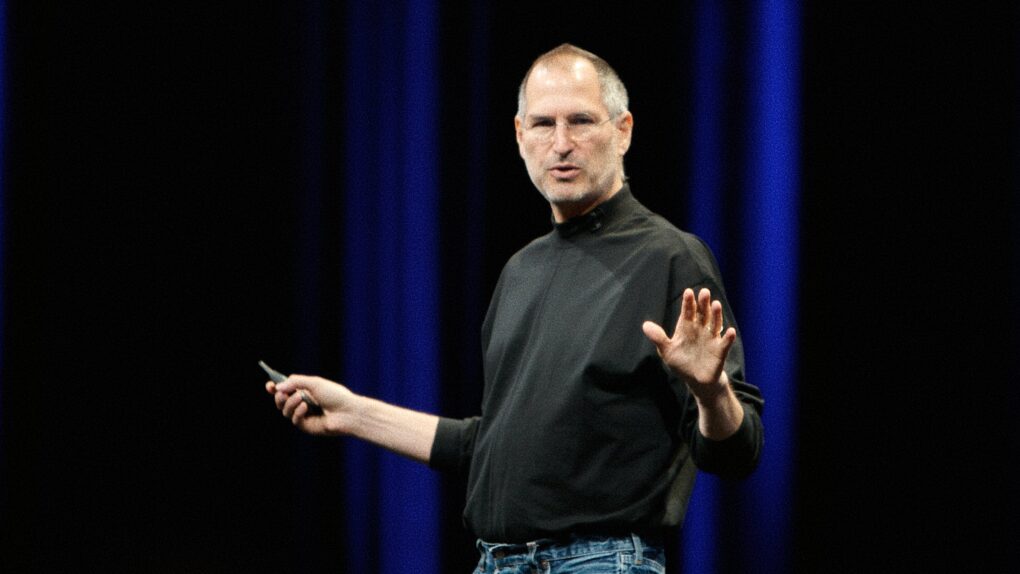
Steve Jobs battled cancer for years. Photo: Ben Stanfield/Flickr CC
June 22, 2009: Apple CEO Steve Jobs returns to work, a couple of months after undergoing a liver transplant as part of his treatment for pancreatic cancer.
Although Jobs has been steadily getting back into work for the past several weeks, the news is made official when a quote from him appears on a June 22 press release about iPhone 3GS sales. An Apple employee also alerts the media after spotting Jobs on campus.
With his return confirmed, everyone wants to know how long Jobs will continue to lead Apple.
The web browser that comes on your iPhone, iPad and Mac. Image: Apple/D. Griffin Jones/Cult of Mac
There are eight great new Safari features in iOS 27. The update fixes a lot of irritating design problems that have bothered me for years.
Plus, if your phone supports Apple Intelligence, you’ll enjoy some smart new features that make your browsing easier — I’ve already created a couple custom extensions. And everyone will appreciate the speed and performance gains when they update.
Check out what you can expect from Safari this fall when Apple releases iOS 27.
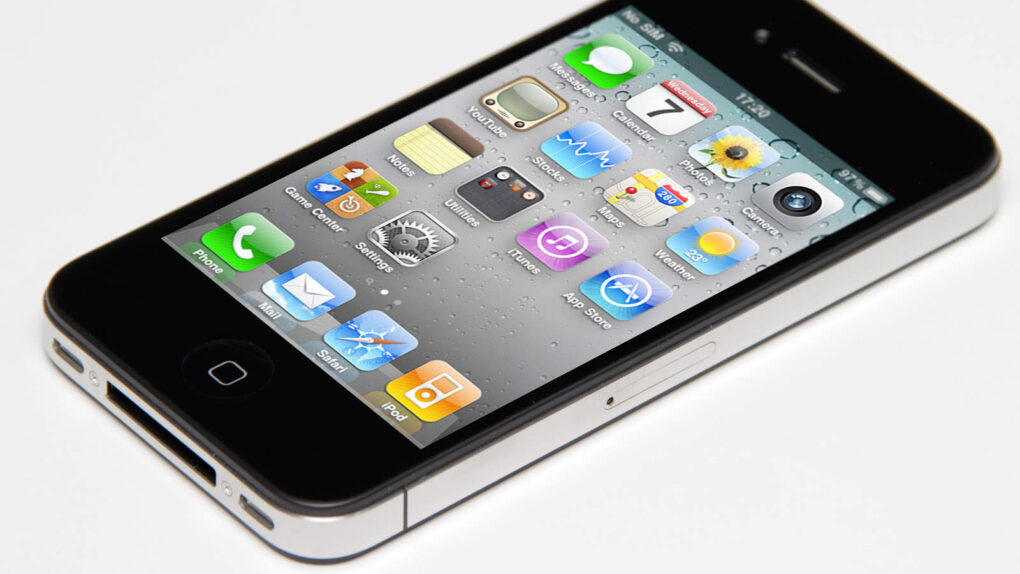
iOS 4 brought important new features to iPhones and the recently released iPad. Photo: Yutaka Tsutano/Wikimedia CC/Modified by Ste Smith/Cult of Mac
June 21, 2010: Apple releases iOS 4, which introduces a range of productivity features as well as the FaceTime videotelephony service. The iOS 4 launch represents a big step forward for Apple’s flourishing mobile devices.
Due to the arrival of the first-gen iPad earlier in the year, iOS 4 also brings a transition from the mobile operating system’s original name, “iPhone OS.”
Your iPhone and Apple Watch can help you track your meds. Image: MorgueFile/Wikimedia Commons/D. Griffin Jones/Cult of Mac
The Apple Health app on your iPhone makes it easy to track your medications — and help you remember to take them on time. It offers many advanced options and covers all kinds of medicines.
You can set up schedules, log your activity and even get advice on drug interactions. Let me show you how to get started.
It doesn't get more 1990s than this! Image: Ste Smith/Cult of Mac
June 20, 1994: Apple launches eWorld, a subscription service for Mac owners that’s designed to compete with America Online and other nascent online properties. Part messaging service and part news aggregator, the early internet service gives customers access to email, a bulletin board, and software downloads and support.
Apple envisions eWorld, which runs on Macs and Apple IIGS computers, competing with heavy hitters like AOL, Delphi, CompuServe and Prodigy. Unfortunately, Apple’s online service is doomed from the start.
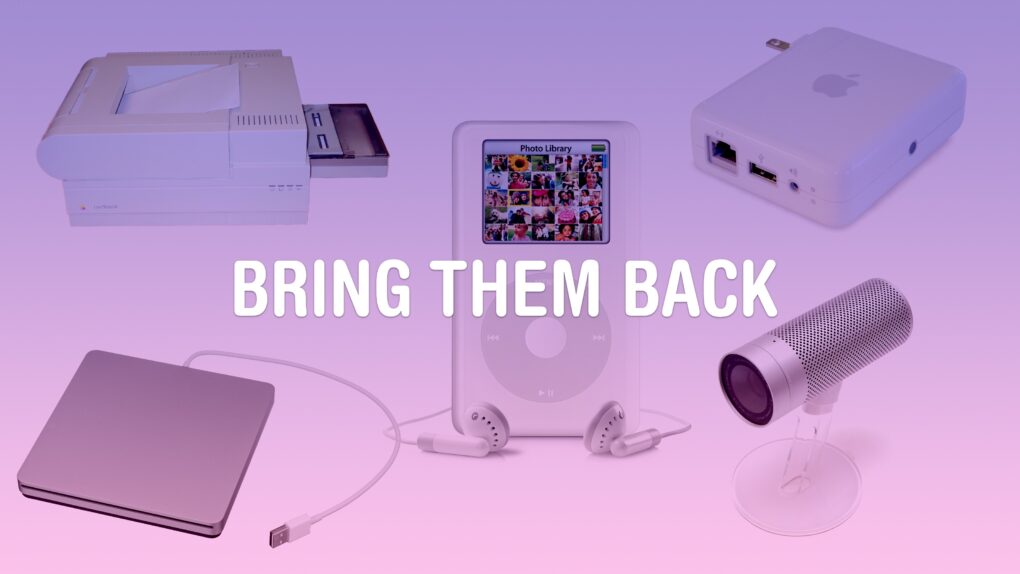
Some old products might be a hit again today. Image: D. Griffin Jones/Cult of Mac
Some Apple products are discontinued before the time is right. Maybe, if they were introduced today with modern technology, they could become a much bigger hit.
A lot of Apple’s lesser-known experimental products were killed in 1997. Steve Jobs had just returned, the company was near bankruptcy, and he needed all hands on deck to develop the iMac and Mac OS X.
But some real gems were lost along the way. These are the 10 products that Apple should bring back with modern technology.
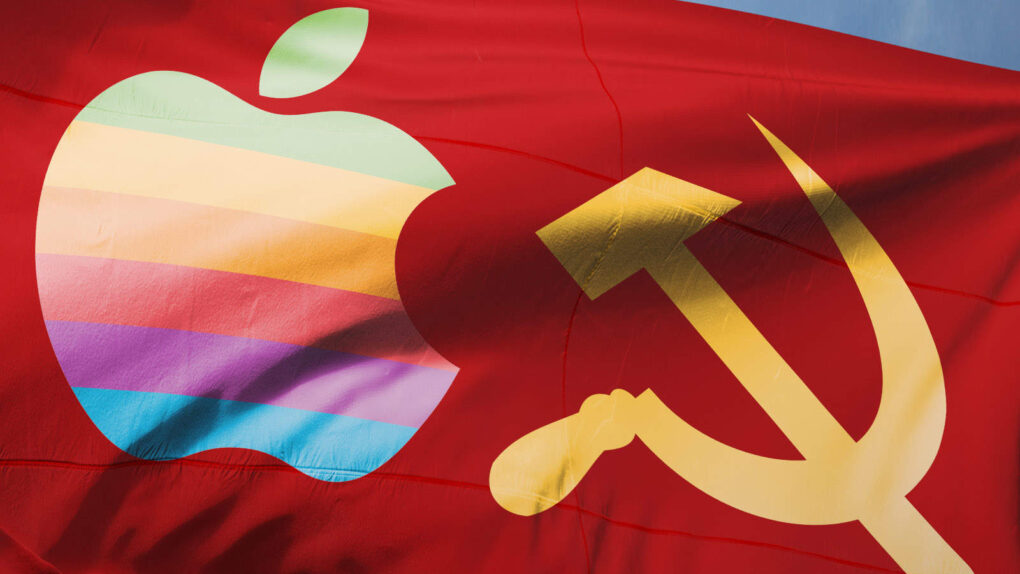
 July 4, 1985: Apple co-founder Steve Jobs visits Moscow for the first time, with the aim of selling Macs to the Russians. During his two-day trip to the Soviet Union, Jobs lectures computer science students, attends a Fourth of July party at the American embassy and discusses opening a Mac factory in Russia.



 July 1, 2012: Apple shuts down MobileMe, its subscription-based suite of online services and software offering push email, chat, data storage, a photo gallery and other features.
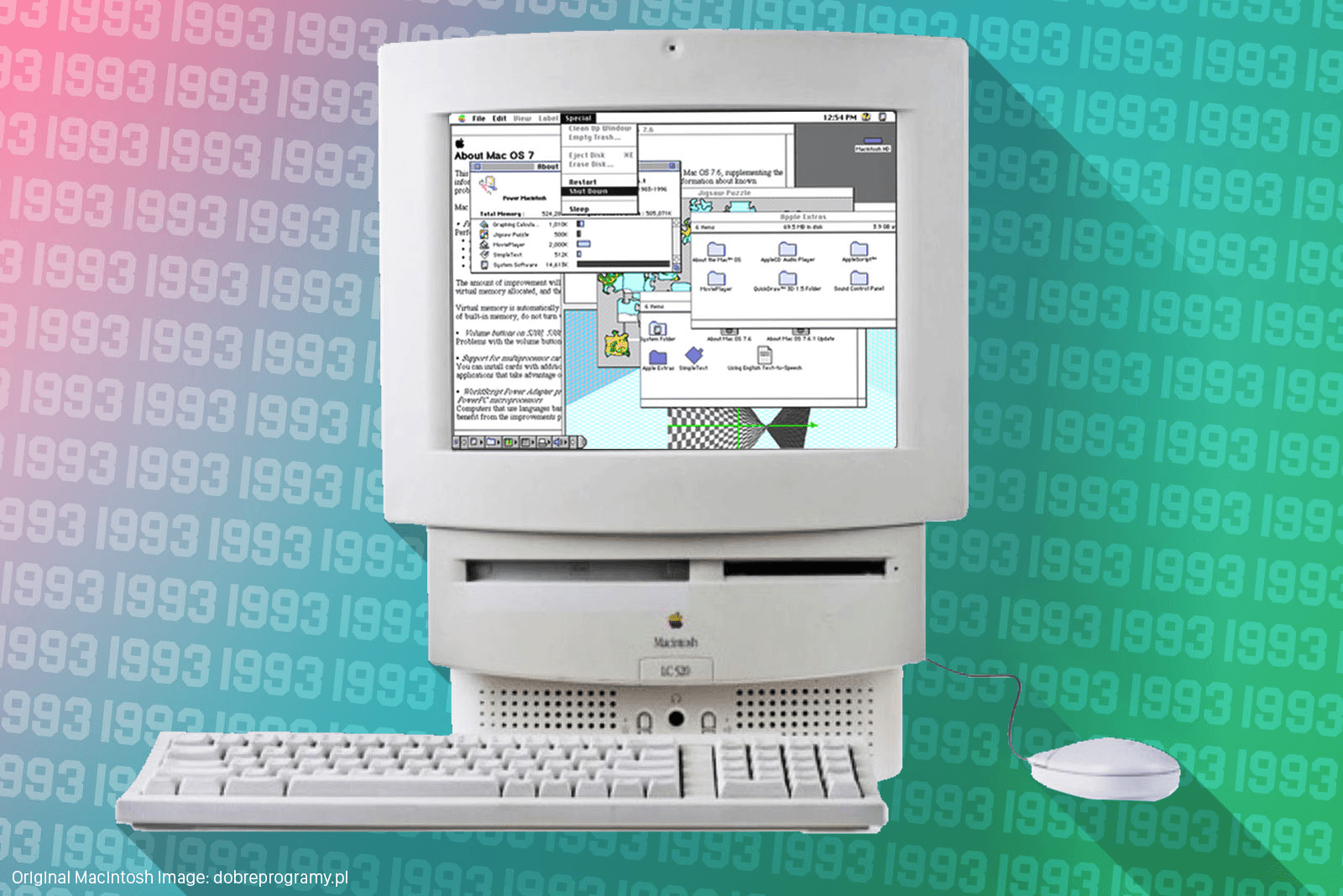
 June 28, 1993: Apple ships the Macintosh LC 520, an “all-in-one” Mac targeted primarily at the education market.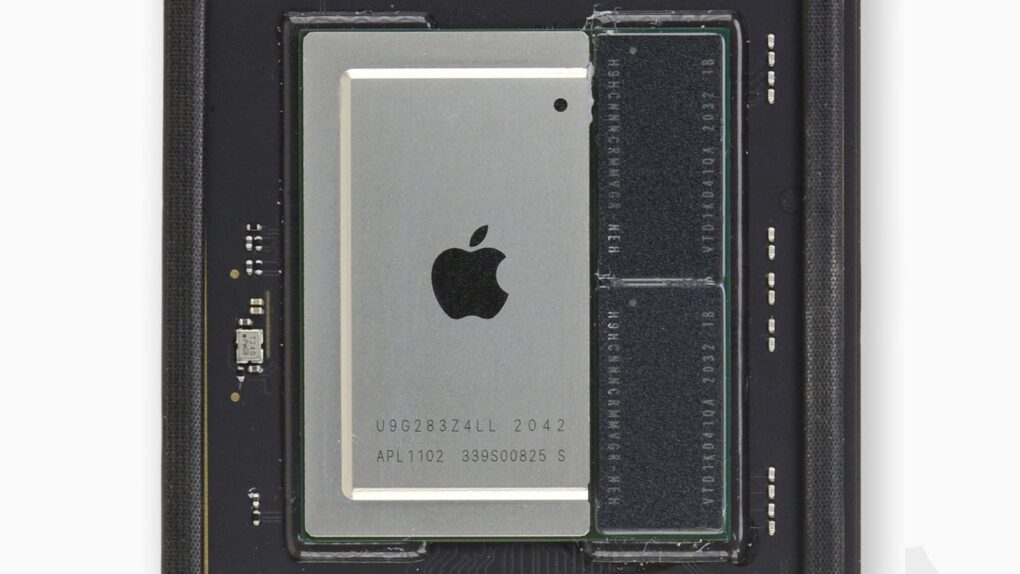



 June 22, 2009: Apple CEO Steve Jobs returns to work, a couple of months after undergoing a liver transplant as part of his treatment for pancreatic cancer.
 June 21, 2010: Apple releases iOS 4, which introduces a range of productivity features as well as the FaceTime videotelephony service. The iOS 4 launch represents a big step forward for Apple’s flourishing mobile devices.
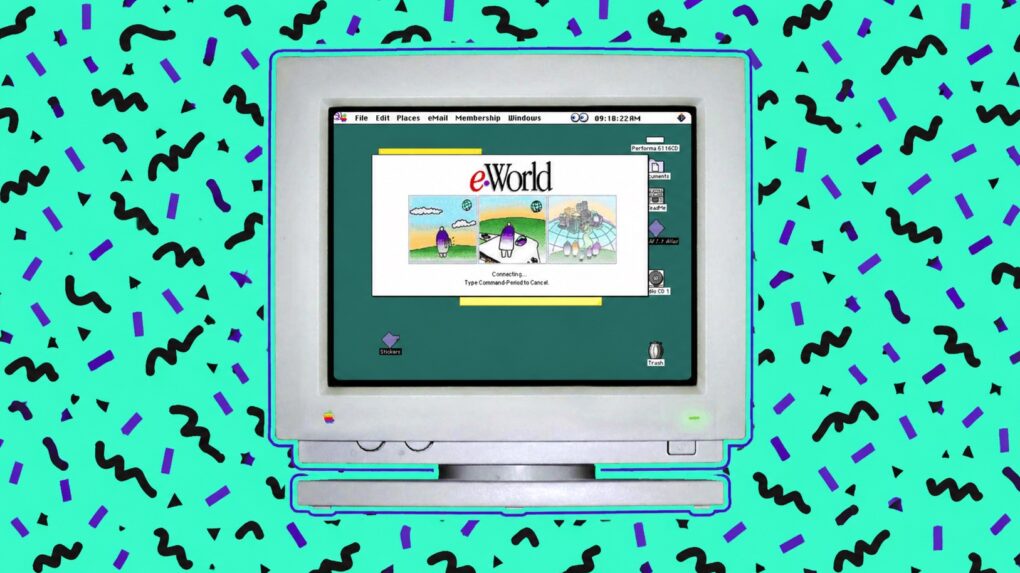
 June 20, 1994: Apple launches eWorld, a subscription service for Mac owners that’s designed to compete with America Online and other nascent online properties. Part messaging service and part news aggregator, the early internet service gives customers access to email, a bulletin board, and software downloads and support.