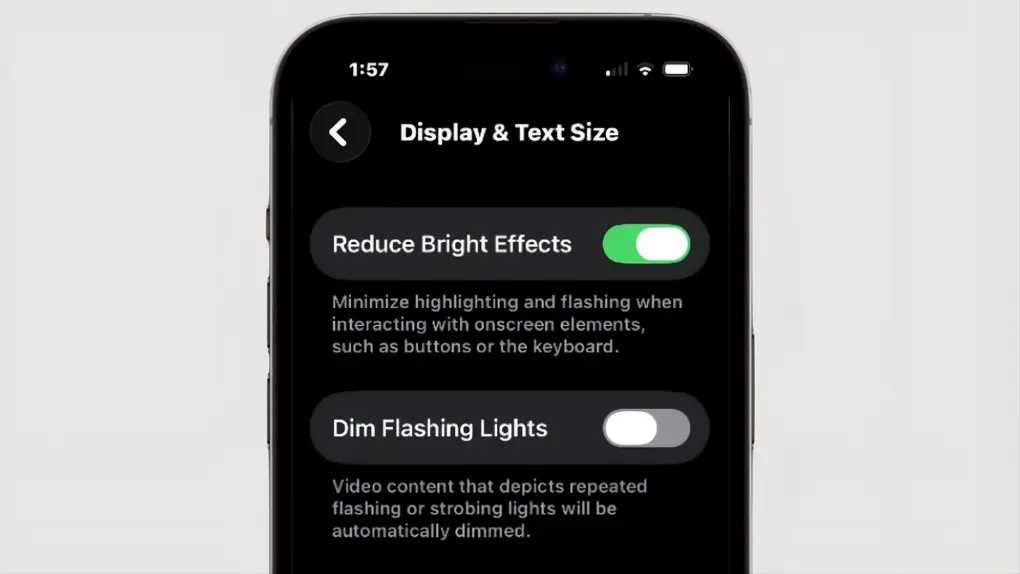
There's a new tool to amp down the look of Liquid Glass. Screenshot: Cult of Mac
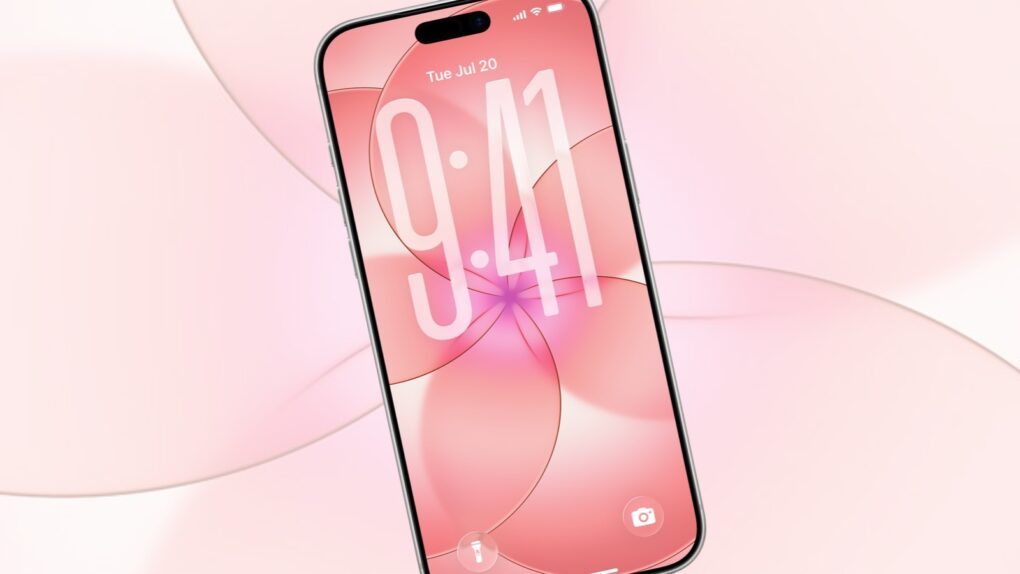
Those who aren’t fans of Apple’s Liquid Glass have a new way to disable some of its distracting features. “Reduce Bright Effects” appeared in iOS 26.4, as well as macOS and iPadOS. As the name suggests, it is intended to minimize highlighting and flashing when pushing on-screen buttons.
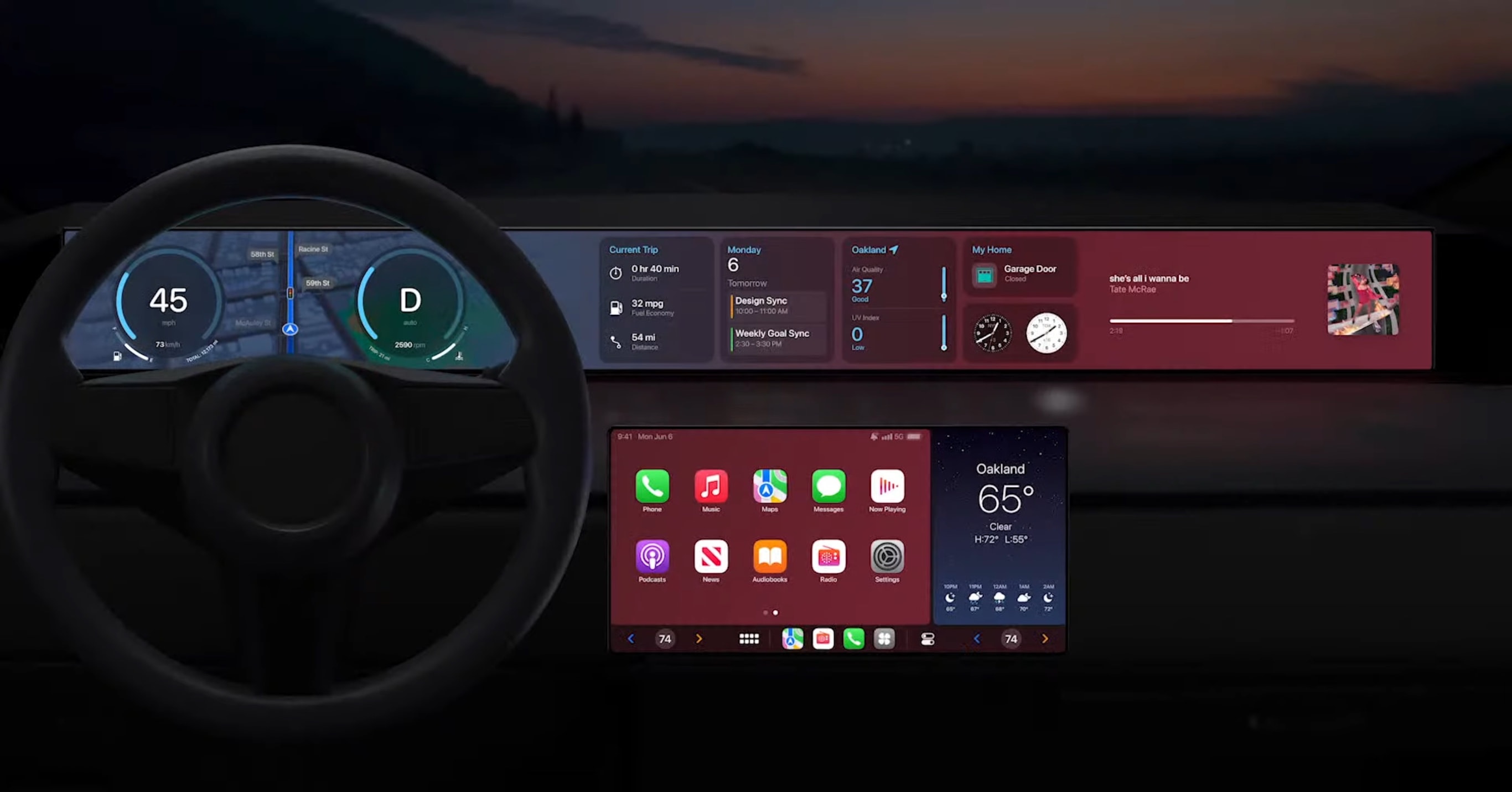
CarPlay keeps improving and further integrating with cars, via voice command or otherwise. Photo: Apple
Apple’s CarPlay voice commands offer a safe way to handle dozens of tasks without lifting a finger or shifting your gaze away from the road. CarPlay’s Siri integration is one of the most underused safety tools in modern cars. However, it only works if you know what to say.
Get to know the best CarPlay voice commands for every driver with Cult of Mac’s handy roundup. Commit them to memory now so you’ll know how to employ them once you hit the road.
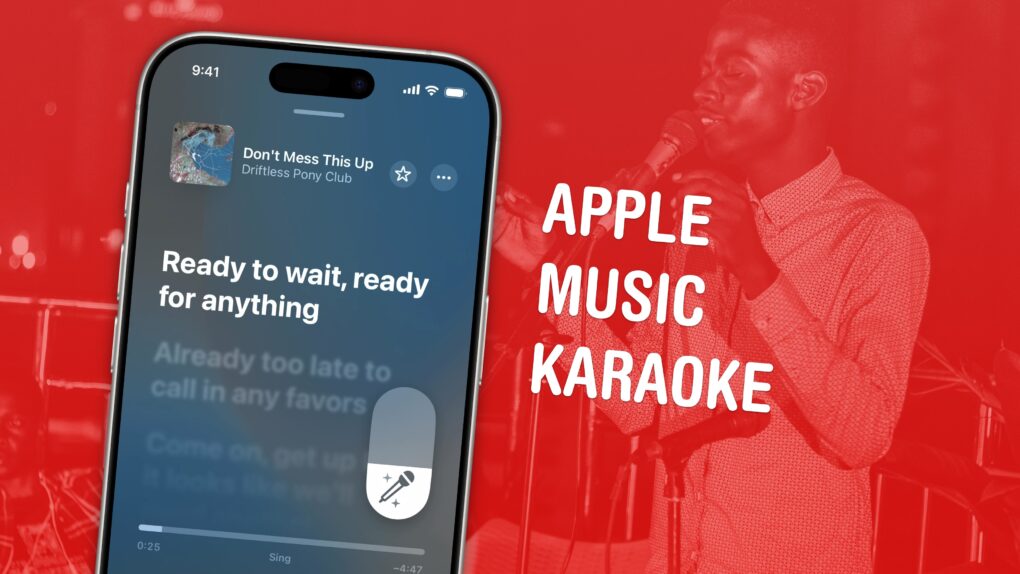
How to use this top party feature. Image: Ronyyz/Wikimedia Commons/D. Griffin Jones/Cult of Mac
Apple Music comes with a karaoke mode for people who love to sing along as they listen. It’s called Apple Music Sing, and it lets you turn down the lyrics in your favorite songs with just a tap.
It’s much nicer than searching out karaoke versions of songs on YouTube. Those often don’t use the original backing track, but re-create it (with varying levels of quality). Also, if you’re still learning a song, Apple Music Sing can keep some of the original vocals to guide your singing.
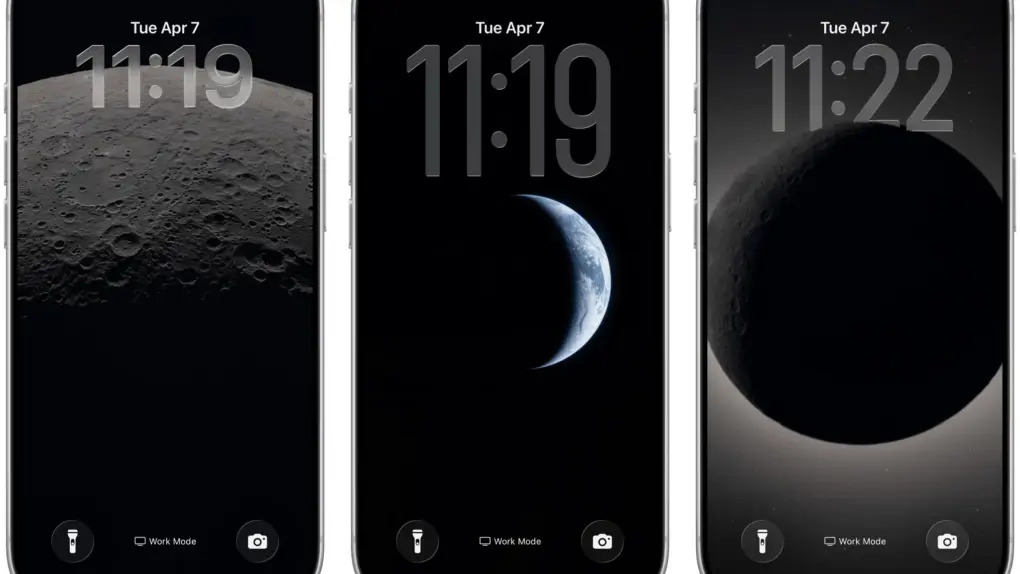
LunarWall is a shortcut that helps you add Artemis II moon wallpapers to iOS or macOS. Photo: LunarWall
The Artemis II mission has delivered some of the most breathtaking lunar and Earth imagery in decades. And there are two easy ways to get those photos from the Orion spacecraft onto your Apple devices right now — directly from NASA, or via clever free shortcuts that cut out some steps.
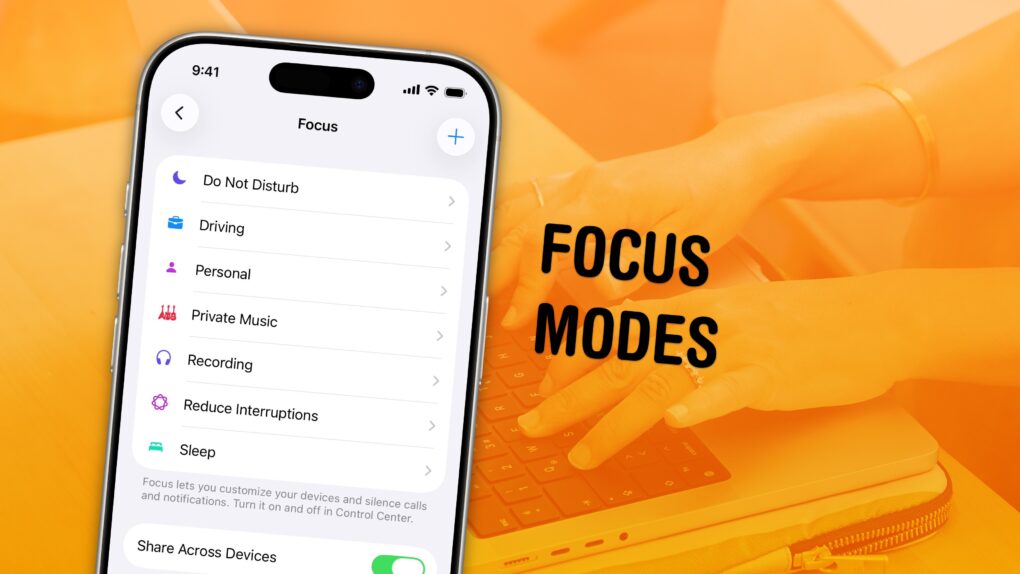
Keep your distractions at bay with Focus modes — easier to set up than ever now. Image: D. Griffin Jones/Cult of Mac
Apple’s Focus modes are a powerful way to change how your iPhone, iPad and Mac look and feel whether you’re driving, sleeping, relaxing or working. It’s all about fully immersing yourself in whatever you’re doing.
You can change all kinds of things: from who can reach you and which apps send notifications to custom Lock Screens, Home Screens and more. The tools can totally transform how your phone looks and works based on context. You don’t need all the same apps and widgets on your Home Screen while you’re at work or yoga as you do at home.
Setting up a Focus with rich customization makes your phone more personal. Keep reading to find out how.
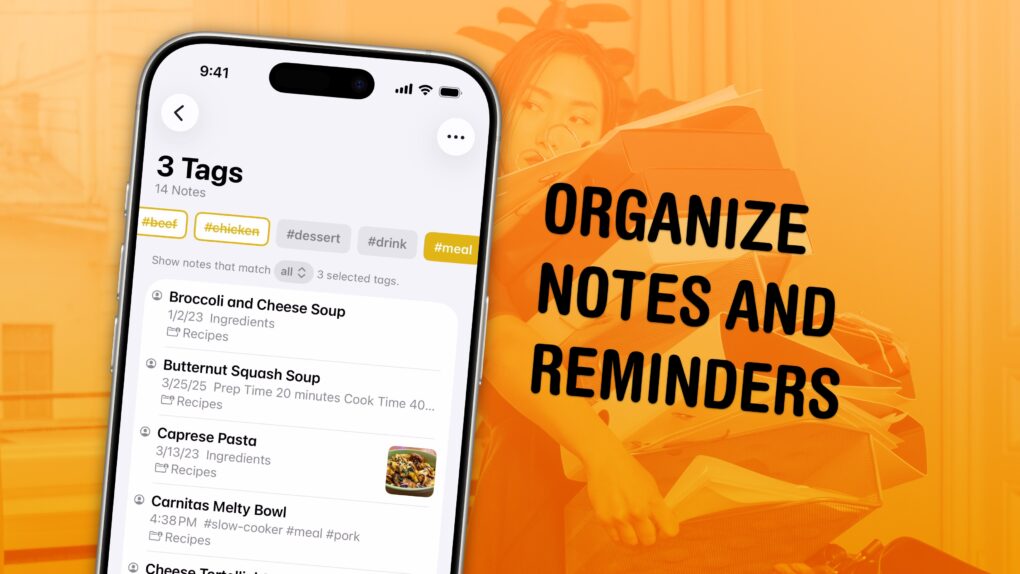
Sort out your digital library of tasks and notes. Image: D. Griffin Jones/Cult of Mac
I have a bunch of pro tips to help you organize the Notes and Reminders piling up in your iPhone. Apple has added tons of powerful new features over time, making them comprehensive tools for all the goings-on in your life.
With tagging, you can quickly filter and search through a big folder of notes or a long to-do list. You can easily put together a bunch of filters by date, location and tag to create a smart list of everything that needs your attention in Reminders. You can even set up template Reminders lists that you can copy at any time.
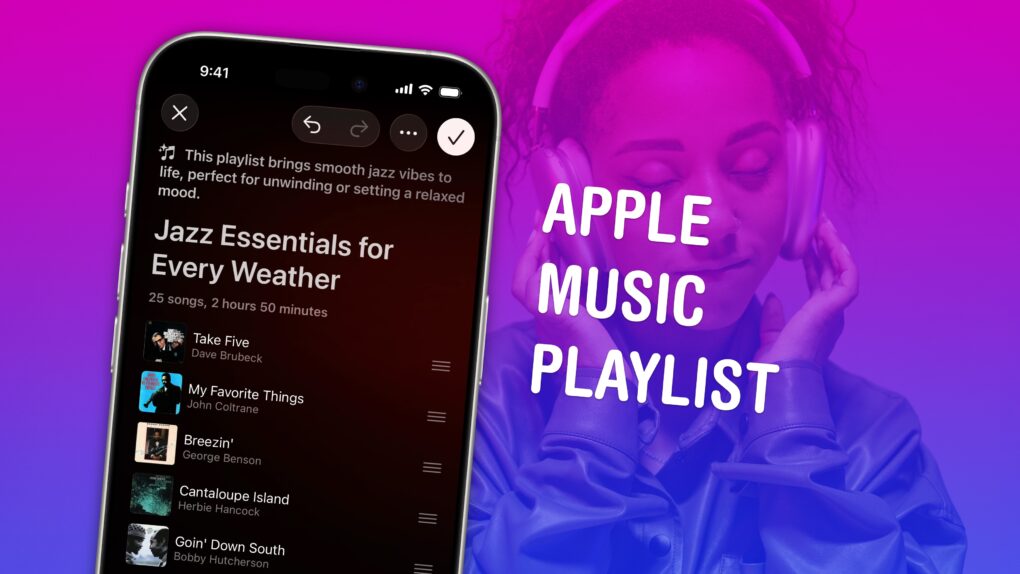
Build a soundtrack for specific moods. Image: D. Griffin Jones/Cult of Mac
Making a playlist in Apple Music is a great way to set the mood for a party, road trip or your own private time. You can create playlists for working, working out, studying, driving, doing dishes, etc. Your friends can contribute to your playlist, too. And you can share your masterpiece on your Apple Music profile.
In iOS 26.4, Apple added Playlist Playground, a new feature that lets you quickly create custom playlists via Apple Intelligence. On supported devices, you can type in any odd request — and your iPhone will do the rest. The results aren’t quite DJ quality, but they’re a good starting point if you want something specific or unique.
Here’s how to make a playlist by hand — and how to use the new Playlist Playground feature.
Updating AirTag firmware is easy. But it requires patience. Image: Apple/Cult of Mac
Apple is rolling out a firmware update for the AirTag 2 that makes it easier to locate one of the tracking tags if it’s being used to stalk someone.
You’ll probably want it, but it turns out that updating the AirTag’s software is both easy and hard. You don’t need to jump through hoops, but neither do you have much control.
There’s new firmware for AirPods Pro 3, AirPods Pro 2 and AirPods 4. Get it today. Image: Apple/Cult of Mac
Apple released new firmware for AirPods Pro 3, AirPods Pro 2 and AirPods 4 this week. The new version, 8B39, offers bug fixes for these in-ear headphones.
Last year, Apple finally explained exactly how to update your AirPods firmware. The process can happen automatically, in the background, but there is a way to speed things up. It’s a good idea to manually check that you’re running the latest version, which brings bug fixes and sometimes great new features.
Read on for more details, and find all current AirPods firmware versions, along with instructions for getting the AirPods update as quickly as possible.
Whether you have a MacBook Neo, Air or Pro, this tips will give you the best battery life. Photo: Apple
Every MacBook boasts industry-leading battery life. But everything comes to an end. It may take a full day or more, but MacBooks do eventually run out of charge.
If you want to take your M5 Max MacBook Pro to the coffee shop to get work done, and you leave your power cable at home — even if you’re editing 8K ProRes video streams in Final Cut Pro — you still might be ordering breakfast, lunch and staying for dinner.
Of course, that low battery warning always comes at the most inopportune time. With that in mind, there are a few tricks to get even more unplugged time with your MacBook. Keep reading or watch our quick video.
Simplify the web, one annoyance at a time. Image: D. Griffin Jones/Cult of Mac
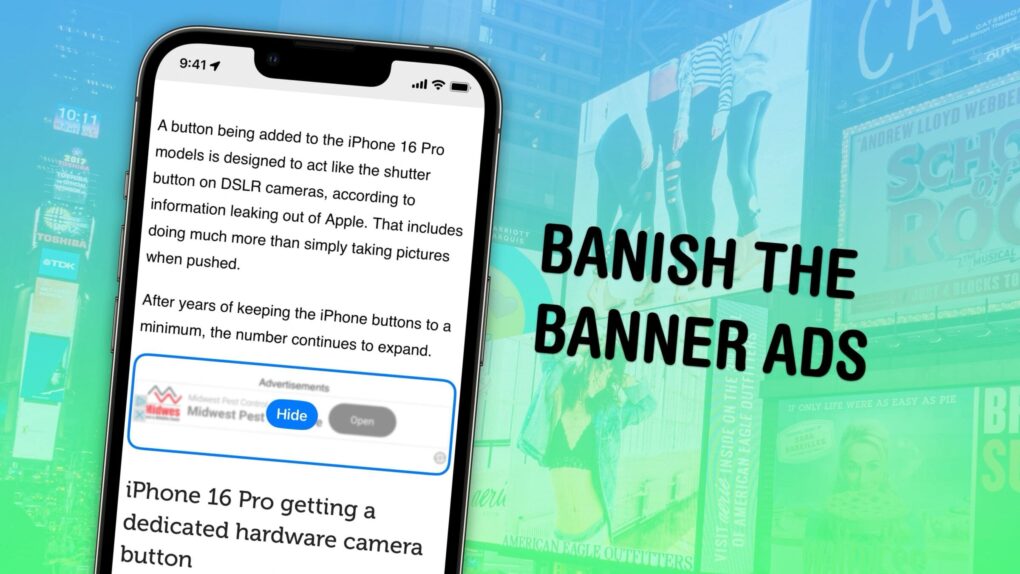
Safari’s Hide Distracting Items feature lets you remove ads from your iPhone, along with other elements on the page that irritate you. It doesn’t require an ad blocker or a paid extension — Apple built it right into the browser in iOS 18.
Hide Distracting Items is not an ad blocker per se. But if pop-ups and other items with no obvious close button pester you, Hide Distracting Items can come to the rescue. Here’s how to use it — keep reading or watch our video.
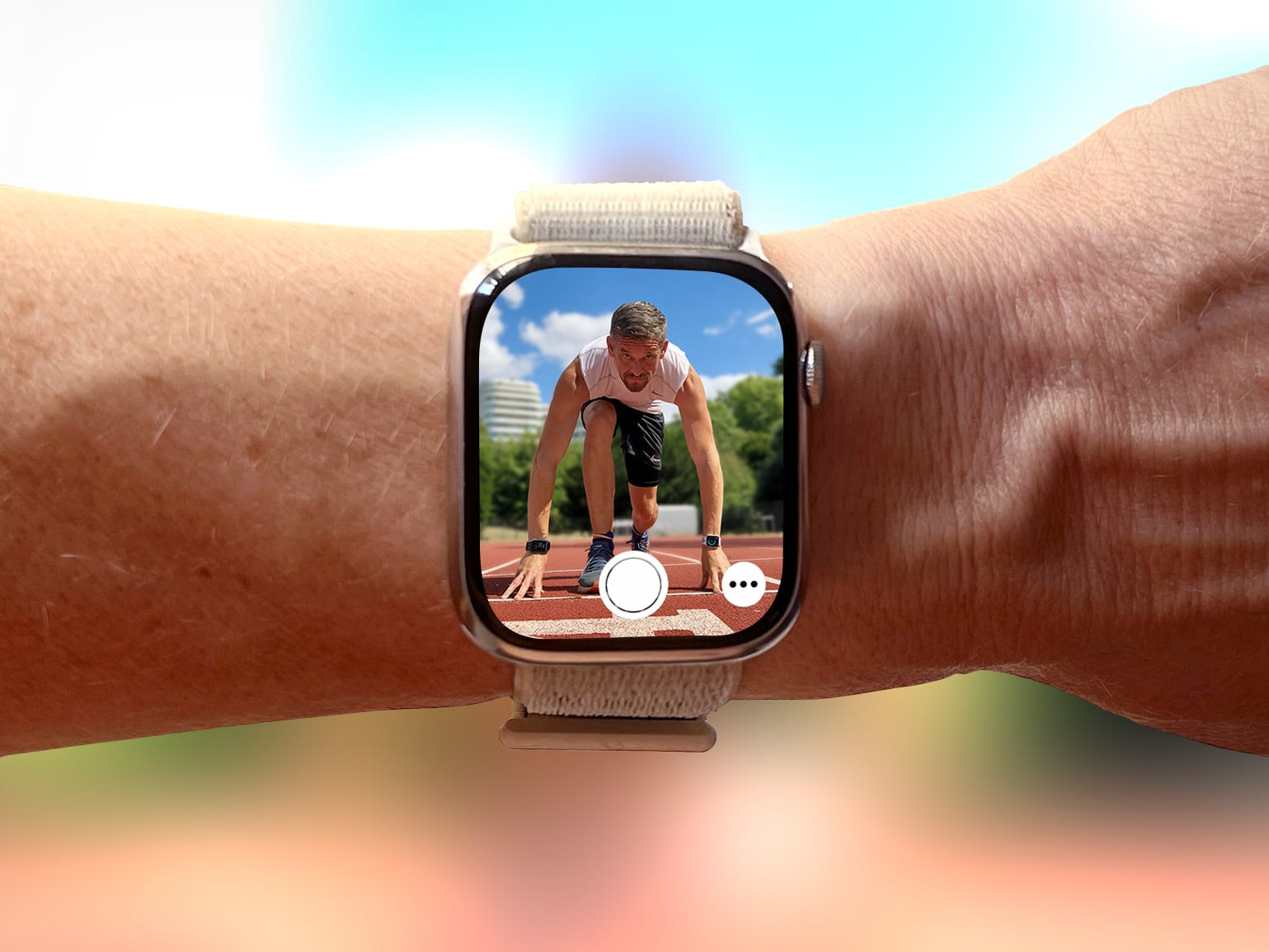
The Camera Remote app will take your selfies to a whole new level. Photo: Graham Bower/Cult of Mac
Everyone knows Apple Watch is an excellent health and fitness companion. But did you know it’s also handy for taking selfies? That’s thanks to Apple Watch’s best-kept secret: the Camera Remote app.
This indispensable Apple Watch app lets you use your iPhone’s best camera to take selfies. Using the app will elevate your selfie game, enabling you to take more flattering shots — with better compositions, more interesting poses and much, much more.
I use it all the time to take photos for Cult of Mac, and I’ve learned a few tricks along the way. So here’s my definitive guide to taking better selfies with Apple Watch.
Not just of an old dog — a 3D old dog! Image: D. Griffin Jones/Cult of Mac
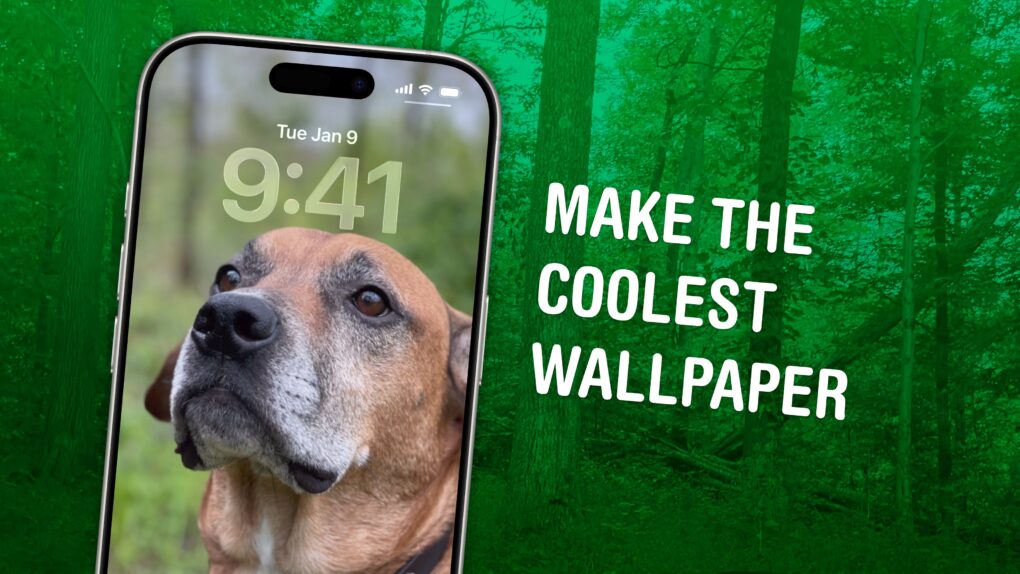
In iOS 26, the awesome new Spatial Scenes feature lets you convert an ordinary 2D photo to a 3D scene that moves in your hand. It doesn’t have to be a recent picture or one taken with a special camera, either. You can try out Apple’s new 3D effect on any decent photo, even if it’s from 20 years ago.
You can play with Spatial Scenes in the Photos app, converting images and seeing how the effect works. But the best part is that you can set one as your iPhone’s Lock Screen wallpaper, and see it every time you unlock your phone. It even works with the excellent Photo Shuffle feature, so you’ll keep getting new ones to gawk at.
Check out the GIFs below that show how Spatial Scenes work, or watch our hands-on demo video.
Get a clicky keyboard on your phone, too. Image: D. Griffin Jones/Cult of Mac
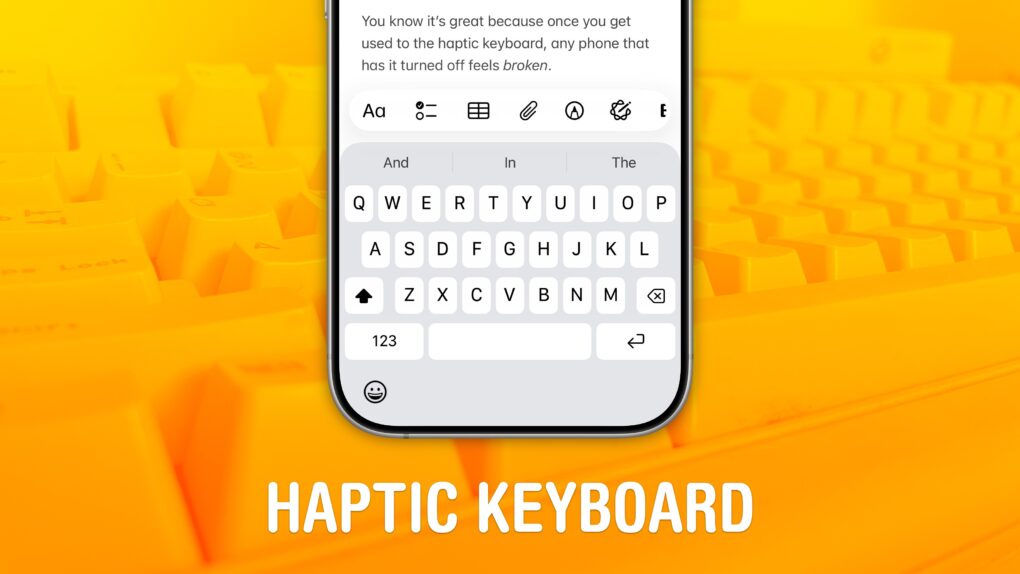
Studies show that a haptic keyboard improves touchscreen typing speed and input accuracy, but very few people know you can enable it on your iPhone.
Android phones years ago had haptic keyboards, but without a precision vibration motor, the feedback was too slow to make the illusion really work. With the Taptic Engine — hardware in every iPhone since the iPhone 6s that can simulate all kinds of vibrating textures — Apple created a perfectly convincing effect to enable the haptic keyboard.
An Apple Educational Discount can help you get started on the right path at university. AI image: ChatGPT/Cult of Mac
The new MacBook Neo costs only $499 with Apple’s education discount, which makes a lot of parents excited. They could get a MacBook for their child for under $500!
Problem is, Apple’s educational discount isn’t available for every student. Here’s who can save $100 on a new MacBook… and who can’t. And what you can do to qualify.
Here's the indigo MacBook Neo wallpaper for Mac or iPhone. Photo: Basic Apple Guy
Apple unveiled the affordable MacBook Neo Wednesday — and on the same day Basic Apple Guy made a nifty set of wallpapers available for download. So if you’re not ready to buy the laptop or even wait a week or so for the wallpapers, you can still enjoy the related wallpapers — colorful and highly attainable — on your Mac and iPhone.
This iPhone 17e wallpaper can be on your iPhone with only a few taps. Image: Apple/Cult of Mac
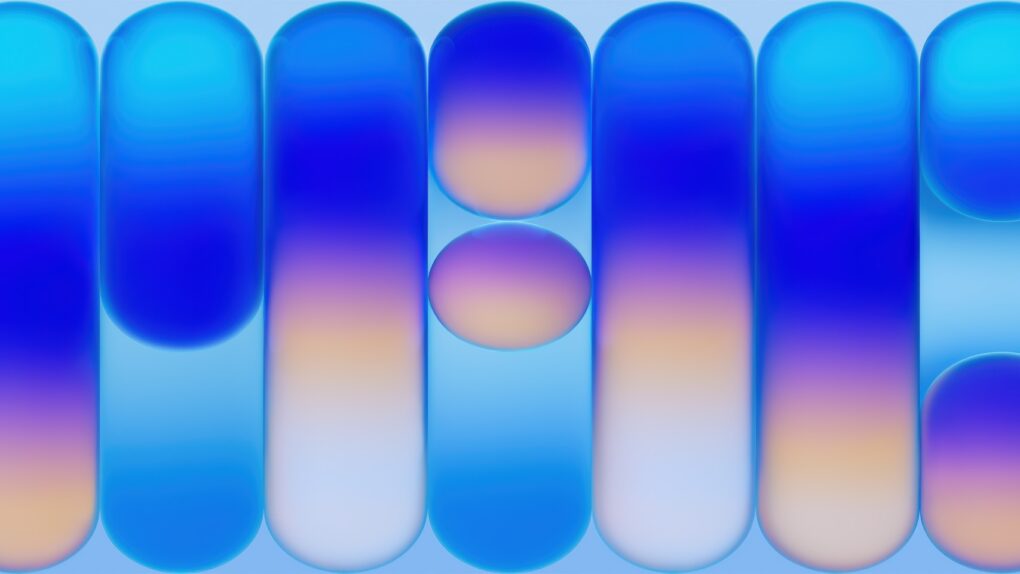
You don’t need to buy a new handset to bring a fresh look to your iPhone. Apple just unveiled the iPhone 17e, which comes with a beautiful wallpaper — and you can easily add it to your own device now.
It’s not a built-in feature, but you can make it yourself. Image: D. Griffin Jones/Cult of Mac
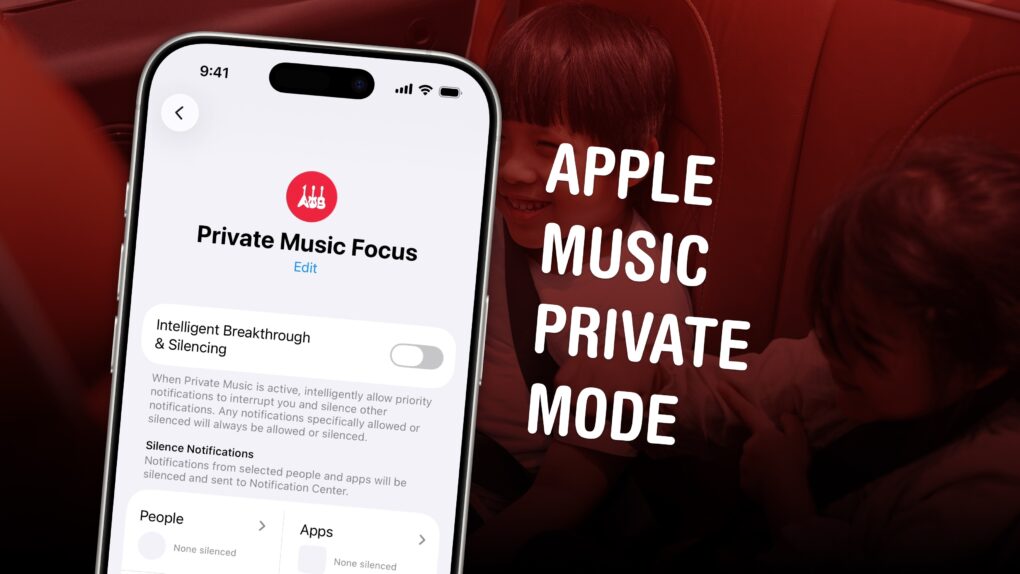
If you’re tired of your kids’ or partner’s music polluting your music recommendations and history, there’s a solution. While Apple Music does not offer a built-in private mode, you can make your own using a Focus mode.
Turn on a special Focus mode, and Apple Music will ignore all the songs, artists and albums that play next.
It’s even possible to enable your private mode when you connect to a specific Bluetooth speaker, like a living room sound system. Or when you enter a specific location, like work. Here’s how to set it up — keep reading or watch our quick video.
A great new feature comes to Apple Music. Image: D. Griffin Jones/Cult of Mac
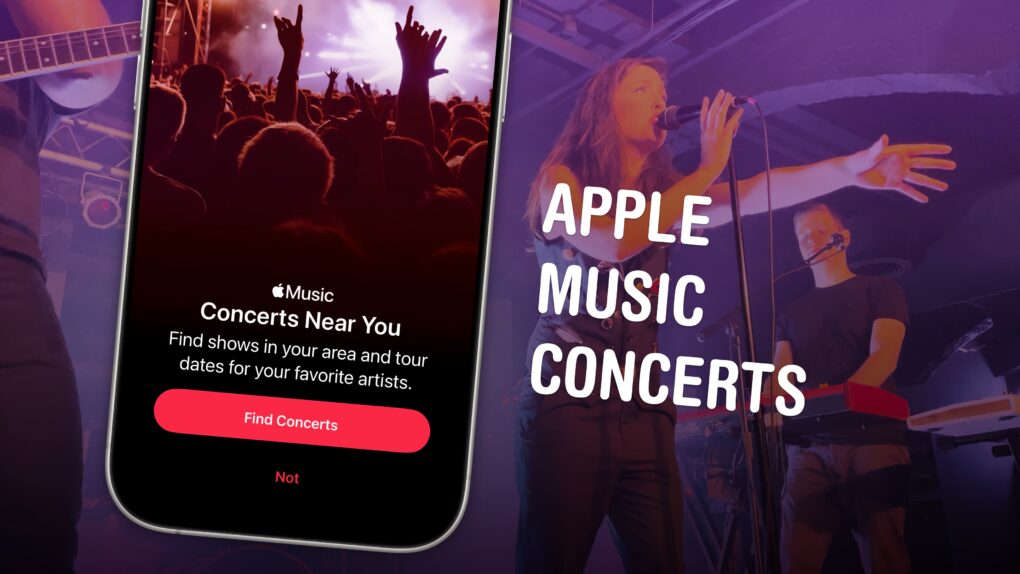
Upcoming iOS 26 feature Apple Music Concerts solves one of music lovers’ biggest heartbreaks — finding out too late that your favorite artist already passed through your neighborhood on tour, unbeknownst to you.
The feature lets you see shows coming soon to your city, with convenient details on venues, ticketing, set lists and more. You can also look up an artist’s tour and see all their upcoming shows.
Supposedly, Apple Music Concerts will even notify you when a tour is coming nearby. The feature, available now in iOS 26.4 beta 2, hasn’t been out long enough for me to test. But if it works like the Apple Music notifications that alert you about new tracks, it could be a lifesaver.
Unfortunately, though, there’s one serious drawback. Here’s an overview of Apple Music Concerts.
This gesture comes in handy all the time. Photo: D. Griffin Jones/Cult of Mac
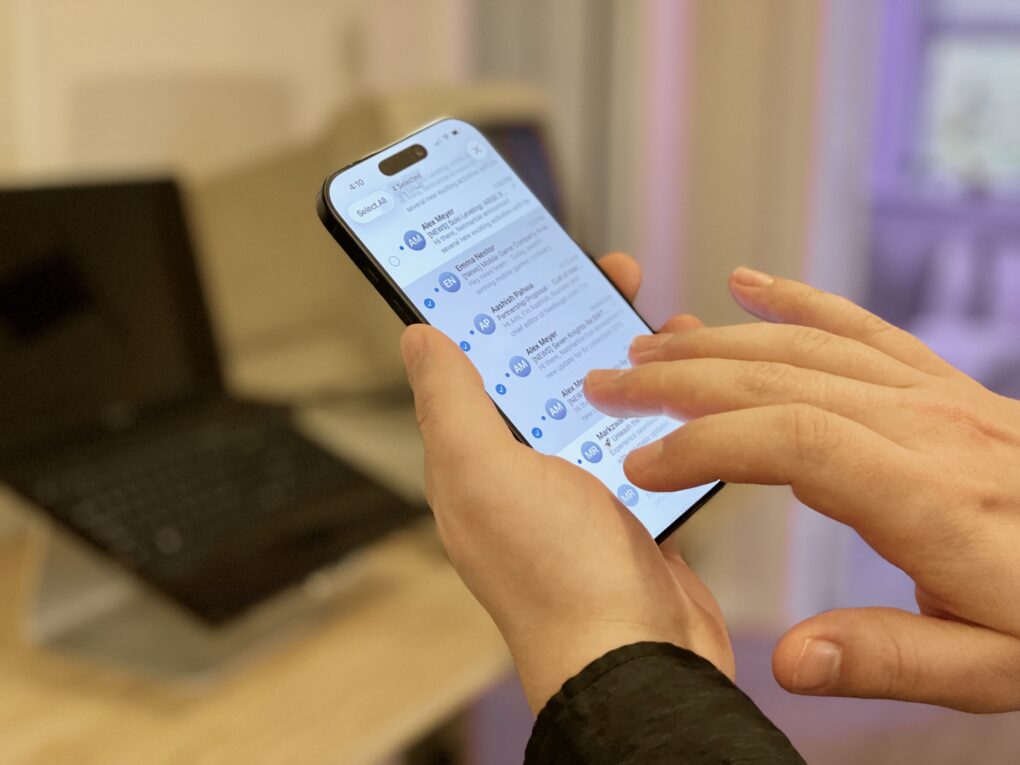
A hidden gesture on the iPhone and iPad lets you quickly select a bunch of items in a list — kind of like Command-A (⌘A) for Select All on a Mac. I use it all the time to select a bunch of emails to archive, a bunch of reminders to rearrange, a batch of files to sort, etc.
Once you learn this two-finger swipe gesture, you’ll use it everywhere. It’s great for getting work done on the go with your phone. Watch our quick video or keep reading.
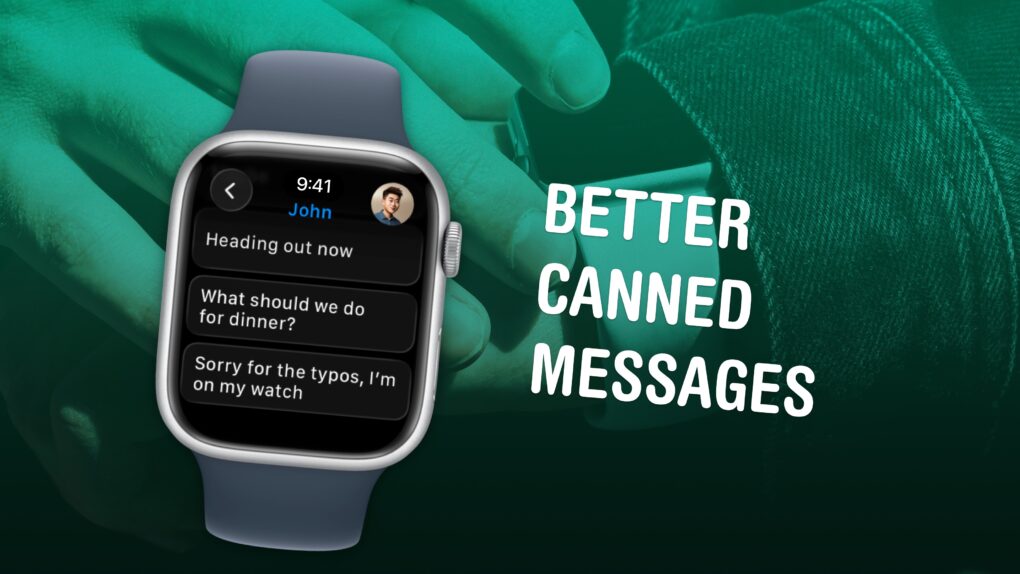
Texts you might actually send to someone. Image: D. Griffin Jones/Cult of Mac
Apple Watch texting is not fun, no matter which way you slice it. But it can be made a lot easier if you spend a few minutes setting up canned messages for you to instantly reply with later. It makes texting much easier. Here’s how to set it up.
Give it a go before you give it up. Image: D. Griffin Jones/Cult of Mac
For the first time in 18 years, Apple redesigned the oft-overlooked Phone app. The overhaul in iOS 26 simplifies the Phone app’s layout, putting your favorites, call history and voicemails in one tab, and providing easier access to search.
Its fancy Liquid Glass-inspired layout goes hand-in-hand with the Phone app’s excellent call filtering features.
Here’s how you can learn to love the new design — and how to nope out of it if you don’t like it.
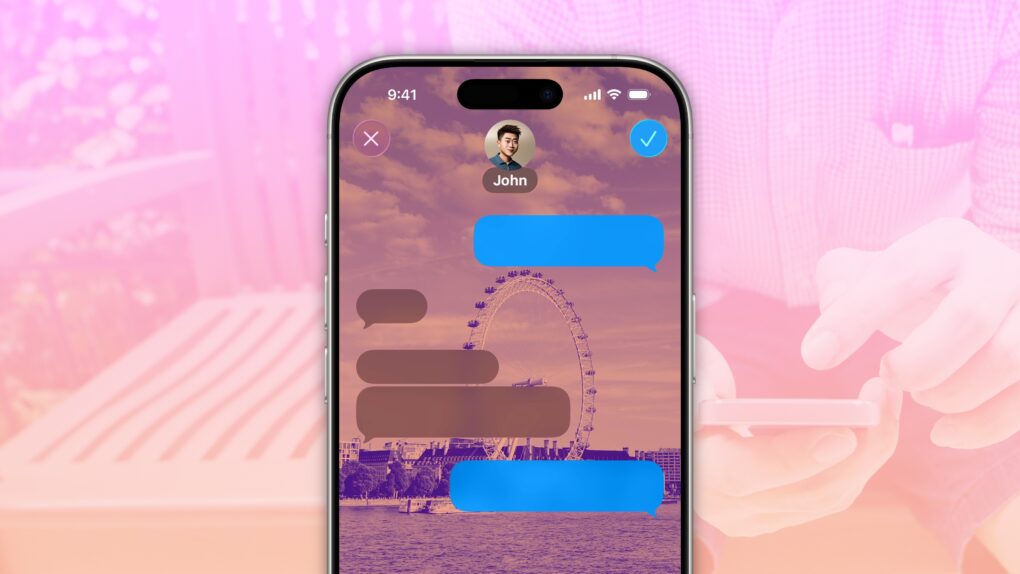
A background image can set a tone for the conversation. Image: D. Griffin Jones/Cult of Mac
Accidentally texting the wrong person can bring disastrous consequences, and yet it’s incredibly simple to mix up threads. Luckily, iOS 26 offers a great way to keep things straight: You can add specific backgrounds to various Messages conversations on your iPhone so you can easily tell them apart.
For instance, if you set a shimmery blue background for your group chat with co-workers, you’ll never confuse that conversation for a sensitive one-on-one text with your closest colleague. You’ll never accidentally send a message to your boss meant for your partner if the chats look obviously different.
Setting up an iPhone Messages background is super-easy — here’s how it works.
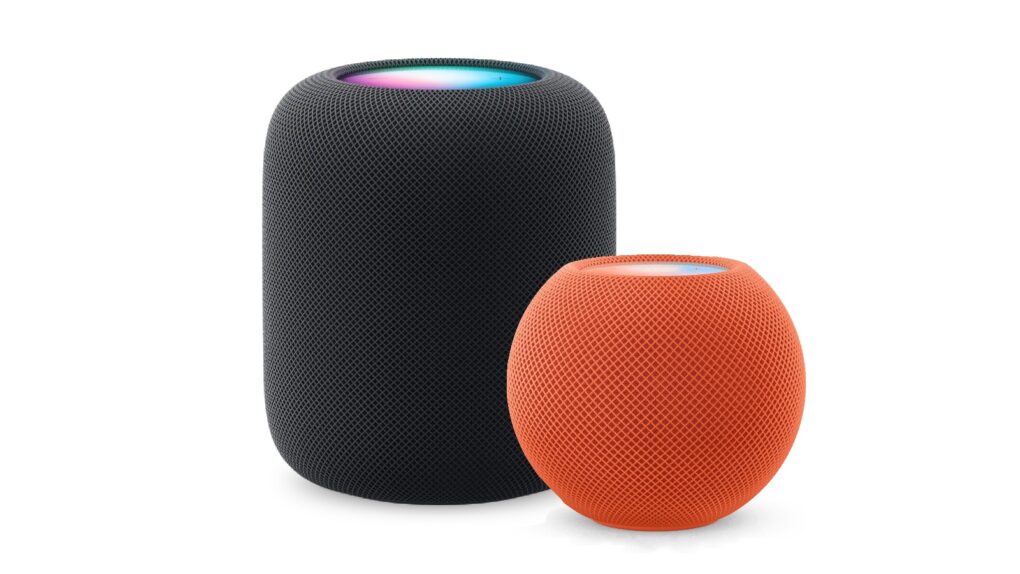
Here’s how to be sure you have the latest HomePod software update. Or stop your smart speaker from updating automatically. Photo: Apple
The HomePod operating system occasionally needs updating, because the device is a lot more than a simple speaker — it’s a computer. Here’s how to make sure your Apple smart speaker has the software version released last week. The new HomePod Software version 26.3 is a simple bug-fix update, but it’s still worth installing. Who wants bugs?
If you depend on automatic updates, it’s possible your smart speaker hasn’t yet installed the update. Here’s how to do so manually.
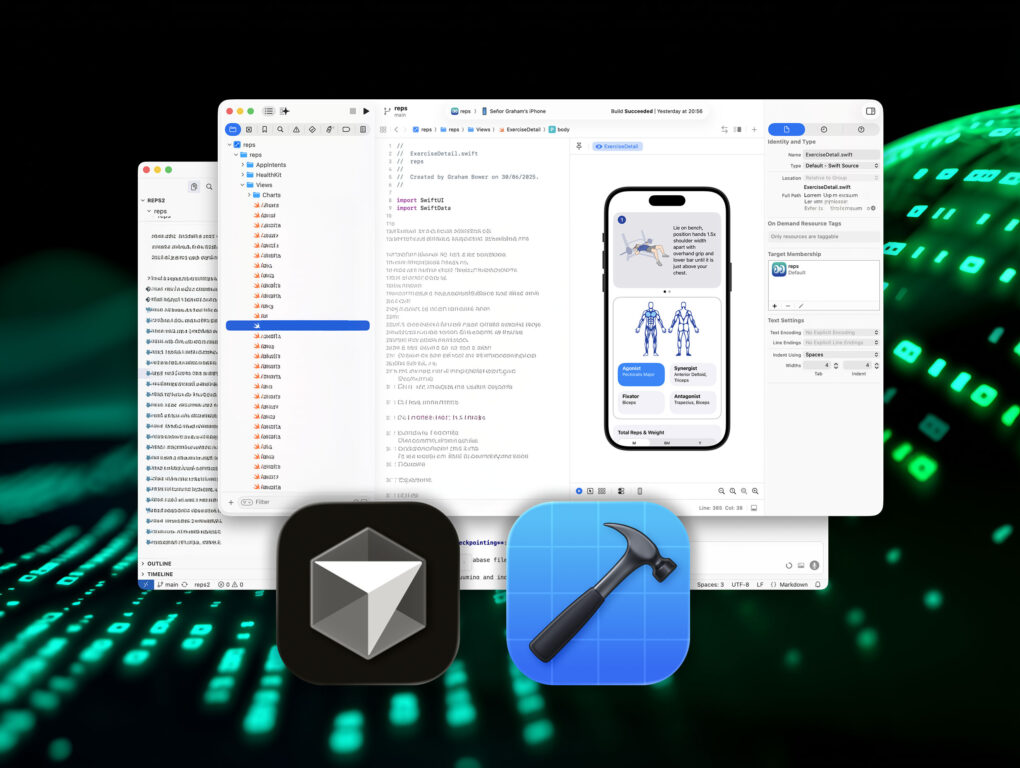
Reps & Sets was built with AI coding tools, but it took more than just a few prompts
A year ago, I had no clue how to write an iPhone app. Now I’ve shipped a fully-fledged strength training app, built with AI coding tools, or “vibe coding” as it’s become known.
A lot of people get vibe coding wrong. They think it’s just for prototypes and messing around. It’s not. Used properly, it’s a skill you can learn and master. And with modern AI tools like Cursor, and the new Coding Assistant in Xcode, it’s now more accessible than ever.
So, if you’re curious about vibe coding and keen to give it a go, here are ten lessons I learned the hard way.