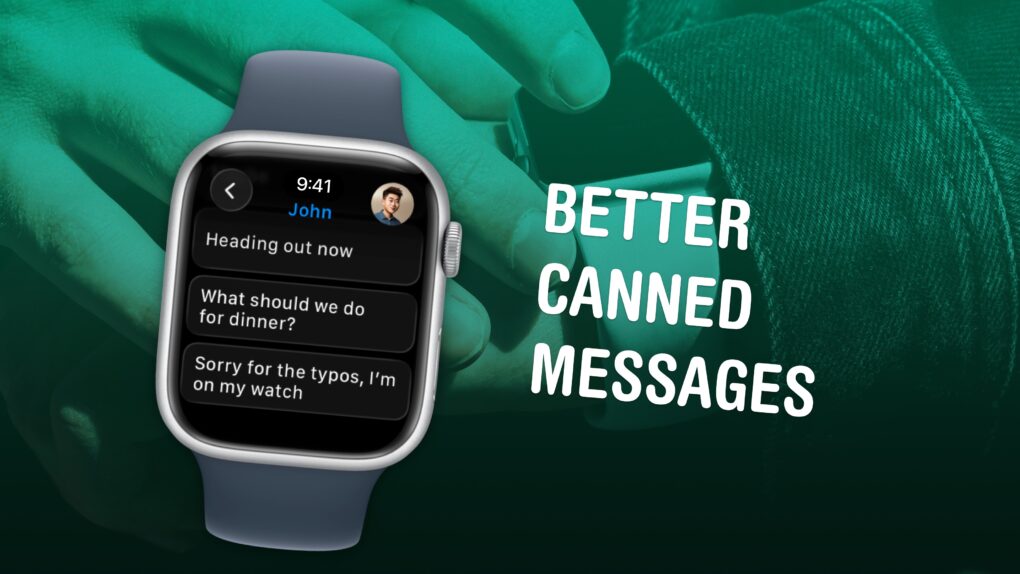
Apple Watch texting is not fun, no matter which way you slice it. But it can be made a lot easier if you spend a few minutes setting up canned messages for you to instantly reply with later. It makes texting much easier. Here’s how to set it up.
Apple Watch texting is a bit of a nightmare
Texting on the Apple Watch is a challenge, no matter which method you try. If you have a newer Series or Ultra watch, you can use the on-screen keyboard … to likely mixed results. It’s a tiny screen. You can try using dictation, but that often messes up proper nouns and homophones.
The Apple Watch is great at fielding notifications — it’s one of the device’s greatest strengths. You can glance at your wrist and see what’s happening, who’s calling, who’s texting. But it’s not so good at replying.
Apple does include a default list of messages you can send. Just scroll through the list and tap one. But I’m not terribly impressed by the options.
Luckily, it’s dead easy to set up a few of your own canned replies. It makes texting on Apple Watch much easier and more personal.
Add new text replies on Apple Watch
Screenshot: D. Griffin Jones/Cult of Mac
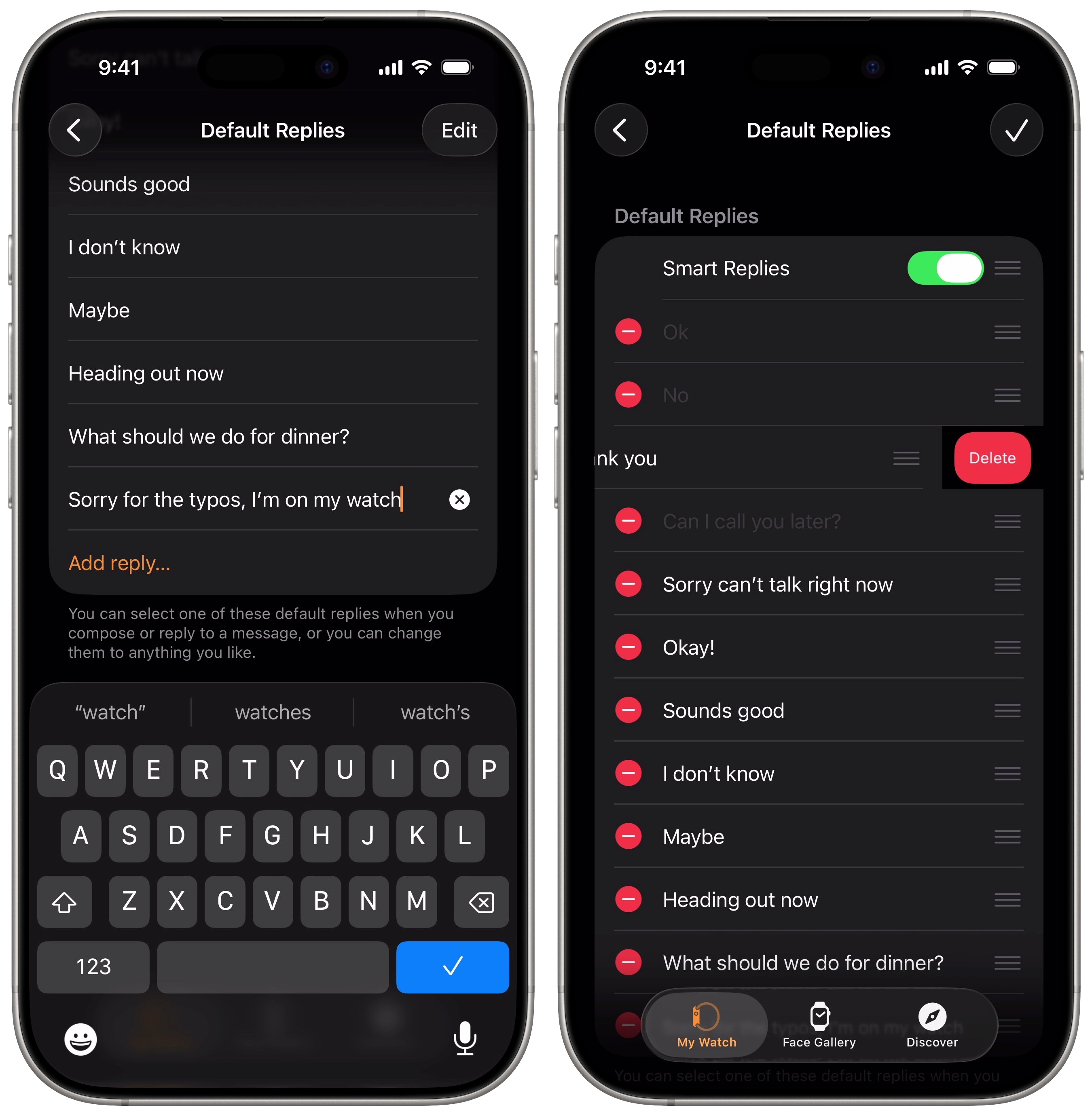
On your iPhone, open the Watch app. (It’s in the Utilities folder of the App Library.) Scroll down to Messages, then tap Default Replies. This is where you can change the options.
Tap Add reply… to add your own. Some of the ones I added are:
- “Sorry can’t talk right now,” a more natural and normal way to say you’re unavailable.
- “Okay!” a more emotive human way of typing it than “Ok” with no punctuation.
- “Sounds good,” another handy affirmative phrase I use often.
- “I don’t know,” a useful option missing from Apple’s default set of replies.
- “Maybe,” for when you want to say ‘No’ without being as blunt.
- “Heading out now,” a convenient message I can send as I walk to my car.
- “What should we do for dinner?” a question I often send far later in the day than I should.
- “Sorry for the typos, I’m on my watch,” a quick canned message I can send when dictation or the tiny keyboard have utterly failed me.
Remove and reorder the default Apple Watch replies
Tap Edit at the top of the screen, and you can delete some of the built-in ones, like “Ok” and “Can I call you later?” which I would never use. You can also drag the grabber on the right to rearrange the order. The ones at the top will be faster and easier to send, so put your most often used ones there.
Tap Done (the checkmark in the upper right) to save changes.
More Apple Watch tips
- How to use Water Lock on Apple Watch
- How to silence your Apple Watch, use Do Not Disturb and theater mode
- Easy Apple Watch hack will keep you on time, even if you’re always late
- How to track your Apple Watch activity rings and pause your streak
- How to connect Apple Watch to a Planet Fitness treadmill
- How to find your lost iPhone with Apple Watch

D. Griffin Jones was a writer, podcaster and video producer for Cult of Mac. Griffin has been a passionate computer enthusiast since 2002, when he got his first PC — but since getting a Mac in 2008, he hasn’t turned back. His skills in graphic and web design, along with video and podcast editing, are self-taught over 20+ years. Griffin has a bachelor’s degree in computer science and has written several (unpublished) apps for Mac and iOS. His collection of old computers is made up of 40+ desktops, laptops, PDAs and devices, dating back to the early ’80s.
Griffin writes for his personal blog, Extra Ordinary, and is currently looking for work.


One response to “Make texting more bearable with custom Apple Watch replies”
Become a zombie. Let Apple do your talking for you. The next step will be auto-reply so you don’y have to think either.