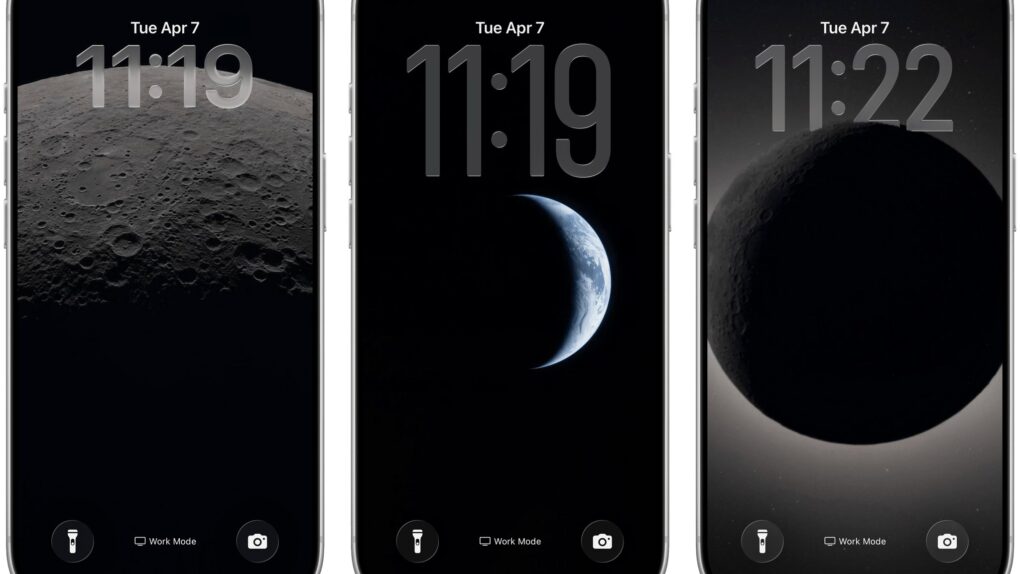
The Artemis II mission has delivered some of the most breathtaking lunar and Earth imagery in decades. And there are two easy ways to get those photos from the Orion spacecraft onto your Apple devices right now — directly from NASA, or via clever free shortcuts that cut out some steps.
How to get Artemis II moon wallpapers
Download straight from NASA
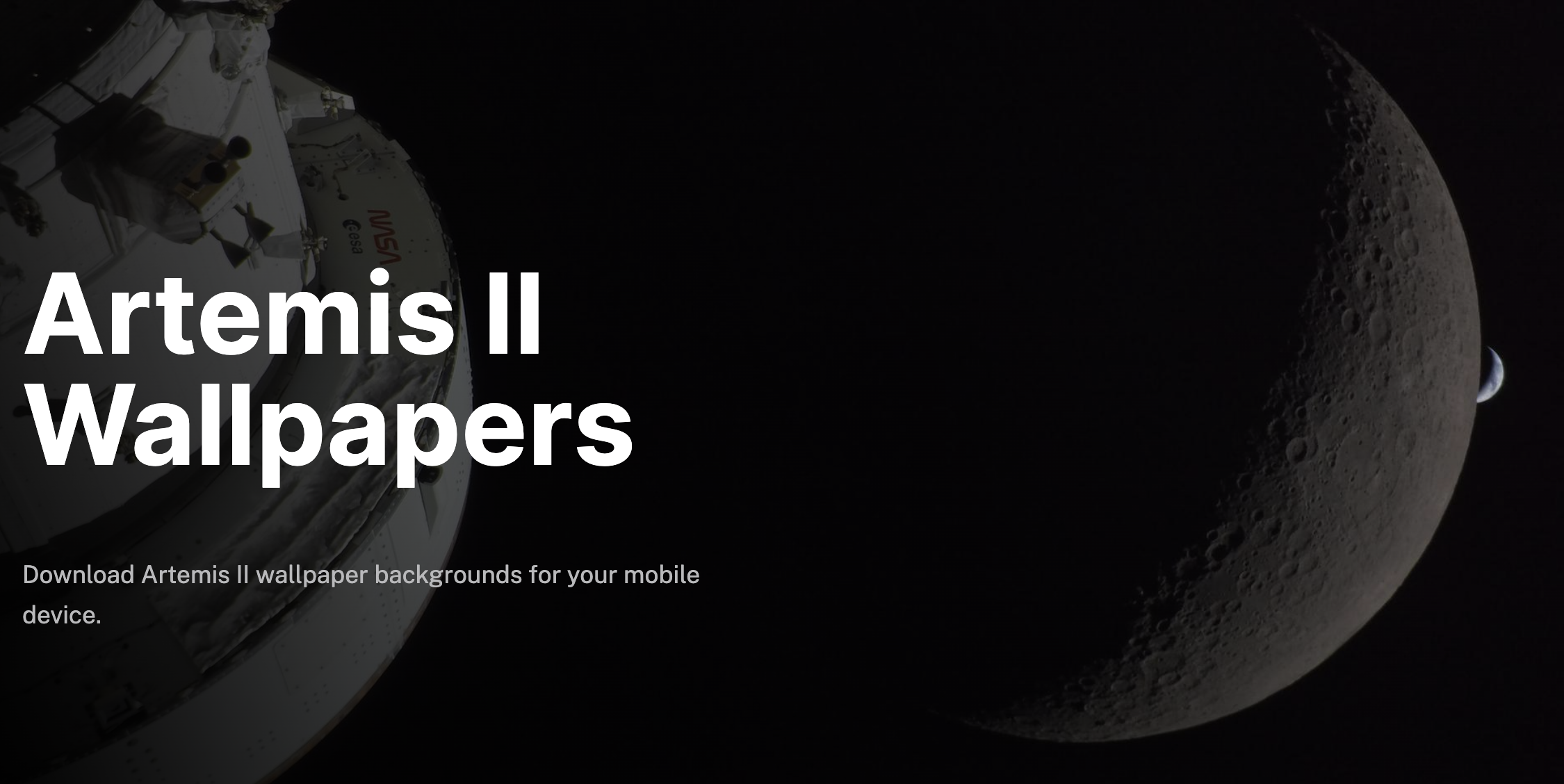
Photo: NASA
NASA published an official collection of Artemis II wallpaper backgrounds available for free download at nasa.gov/artemis-ii-mobile-wallpapers. It updated the gallery on Tuesday. It includes 14 images organized into three categories: lunar flyby shots, Earth views and eclipse photos.
Highlights include evocatively named images like Earthset, Peeking at Earth, Vavilov Crater, Orientale Basin and Eclipse View from Orion. Each is a high-resolution JPEG you can download and set manually as your wallpaper on iPhone, iPad or Mac.
To set an image on your iPhone or iPad:
- Save the image to your Photos library.
- Go to Settings > Wallpaper > Add New Wallpaper and select the photo.
- Position it to your liking.
On a Mac:
- Save the image.
- Go to System Settings > Wallpaper.
- Drag the file in, or right-click the image in Finder and choose Set Desktop Picture.
Shortcut: Let LunarWall shuffle them automatically
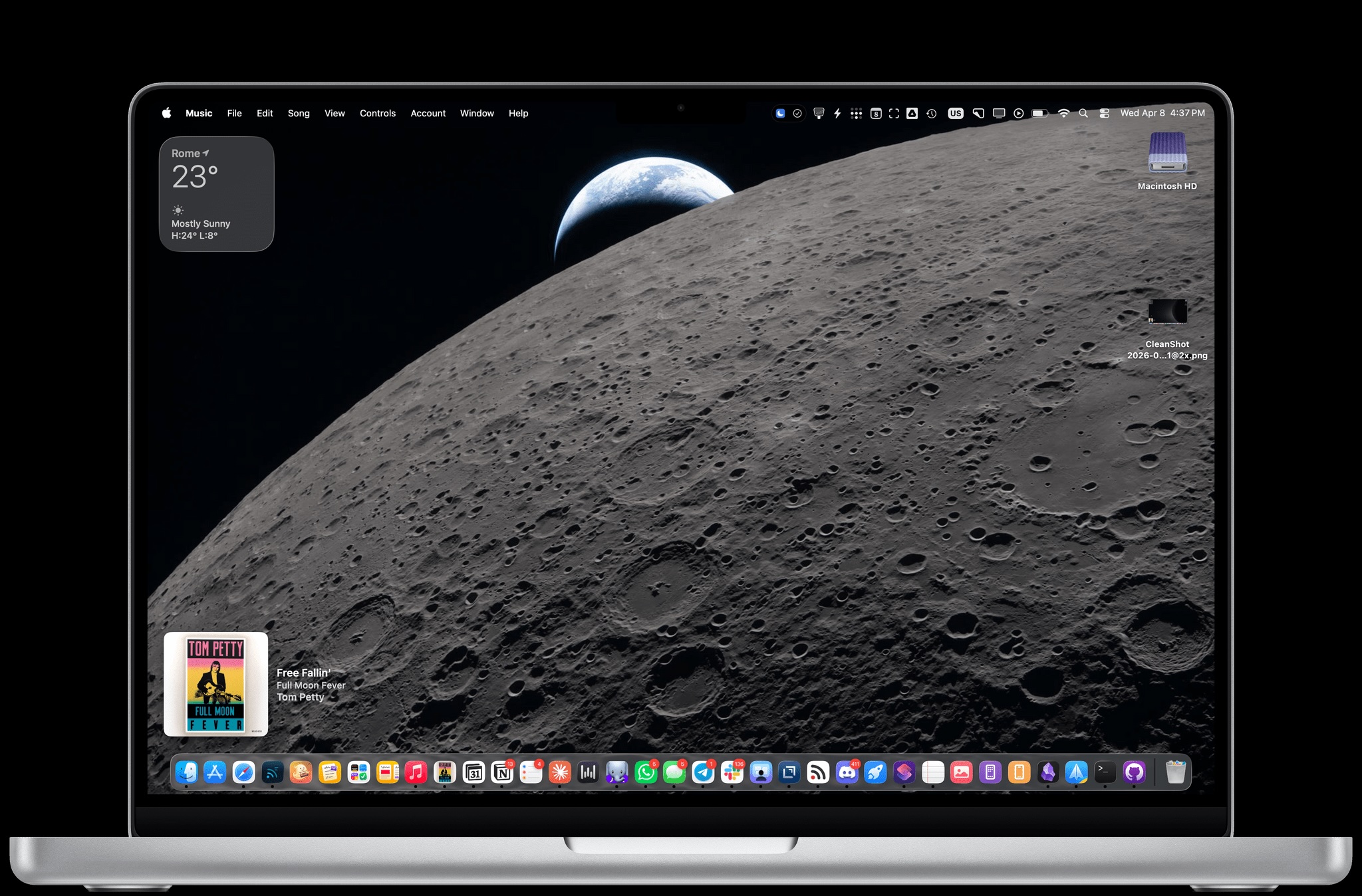
Photo: MacStories LunarWall
If you’d rather not pick just one, MacStories editor-in-chief Federico Viticci built a free Apple Shortcuts shortcut called LunarWall that does the choosing for you.
LunarWall picks a random image from a curated set of 23 photos pulled from NASA’s Artemis II Lunar Flyby gallery and sets it as your wallpaper.
NASA’s images aren’t re-hosted or saved anywhere. The shortcut fetches each image directly from NASA’s servers and passes it to the Set Wallpaper action, which automatically crops images to fit mobile devices, applies a blur for the iOS/iPadOS Home Screen, and uses the original widescreen images at high resolution on macOS.
Viticci curated the 23 images to include only pure space and lunar shots — surface close-ups, Earthrise and Earthset compositions, the solar eclipse as seen from the Orion spacecraft and exterior views of the spacecraft against the darkness of space. That leaves out crew selfies and interior cabin shots.
You can run the shortcut manually whenever you want a fresh wallpaper, or set it to run automatically. Viticci uses it as a Personal Automation in Shortcuts triggered at midnight and every time his phone is disconnected from a charger, giving him a daily rotation of Artemis II shots.
To get it:
- Download the shortcut from macstories.net and add it to your Shortcuts library.
- From there, run it once to set your first wallpaper.
- Then, if you want, configure a Personal Automation under Shortcuts > Automation > New Automation if you want it to run on a schedule.
Shortcut: Download Artemis II wallpaper on iOS
Artemis II images are incredible. Made this Shortcut that pulls all the full quality images from the NASA Flickr page. Choose the ones you want and saves to Photos
Takes forever to run, it's pulling huge files, but will work on making a lighter version: https://t.co/JQYje55WBB pic.twitter.com/GmM5W5iCcS
— Stephen Robles (@stephenrobles) April 7, 2026
You can also quickly get Artemis II wallpapers using a shortcut by Stephen Robles that pulls images directly from NASA’s Flickr uploads.
- Open the Artemis II related shortcut link.
- Open the Shortcuts app on your iPhone.
- Click on Get Shortcut to add it to the Shortcuts app.
- Tap on Artemis II Images.
- After the images fully load, select the photos you want.
- Tap Add to save them to your Photos.
Artemis II moon wallpapers: Which option is right for you?
NASA’s gallery is the best choice if you want to hand-pick a specific image — Setting Earth and In Eclipse are both spectacular — and don’t mind setting it once and leaving it. Either of the two shortcuts could be better pick if you want variety without effort.
Either way, your Lock Screen is about to look a lot more like space.

David Snow, an expert on Apple hardware and software, writes on a variety of technological and cultural topics for Cult of Mac. They include Apple news, technology buying guides, and features about computer setups and Apple TV shows and movies.
With 30 years of experience covering technology and other subjects, he has written and edited for numerous print and online publications, including CMP Media, TechTV.com, CNET, Wired News, Red Herring magazine, Law.com, The National Law Journal and Law Technology News magazine. Among other roles, he served as executive editor of the Law.com network of websites and editorial director, technology, for ALM Media.
Snow graduated with a B.A. from Syracuse University with majors in magazine journalism and psychology. While there, he worked as a reporter for The Daily Orange newspaper and associate editor of Equal Time magazine.
Founder of the blog At the Waterline, he can be reached on X (formerly Twitter) via @atthewaterline and on Mastodon via @dsnow.

