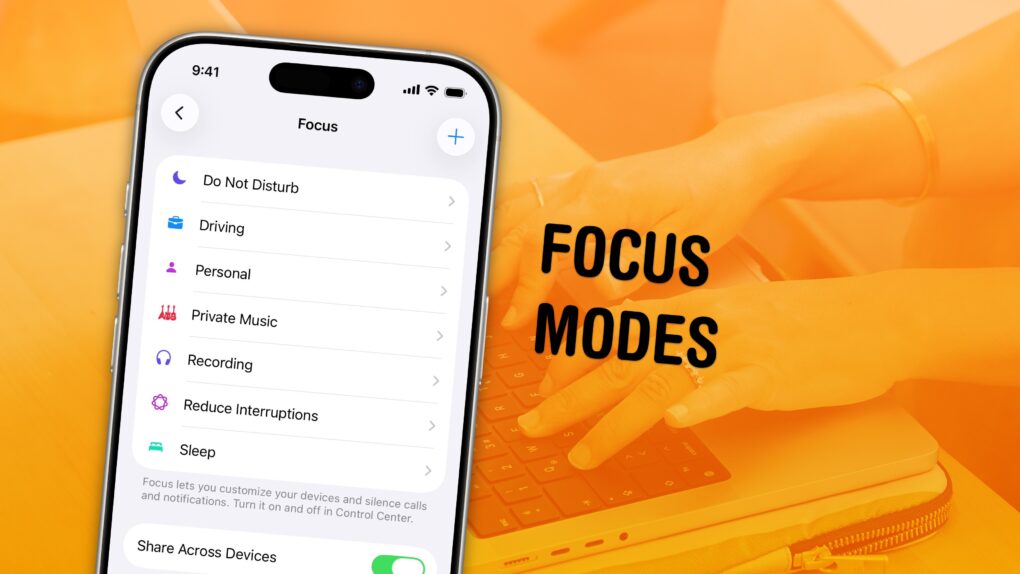
Apple’s Focus modes are a powerful way to change how your iPhone, iPad and Mac look and feel whether you’re driving, sleeping, relaxing or working. It’s all about fully immersing yourself in whatever you’re doing.
You can change all kinds of things: from who can reach you and which apps send notifications to custom Lock Screens, Home Screens and more. The tools can totally transform how your phone looks and works based on context. You don’t need all the same apps and widgets on your Home Screen while you’re at work or yoga as you do at home.
Setting up a Focus with rich customization makes your phone more personal. Keep reading to find out how.
How to set up and use Focus modes on iPhone, iPad and Mac
Sometimes, you need your iPhone and your Mac to be very different tools throughout the day — Focus modes are all about customizing them for everything you do. Focus mode settings are a single destination where you can change how your phone looks and works.
And now, if you have a phone that supports Apple Intelligence, you can skip over the two most tedious steps in setting it up. The intelligent breakthrough and silencing feature can pull a lot of the levers for you.
Table of contents: How to set up and use Focus modes on iPhone, iPad and Mac
- Create a new Focus
- Intelligent breakthrough and silencing
- Choose which contacts to allow
- Choose which apps to allow
- Choose a custom Lock Screen to match the mood
- Create a custom Home Screen optimized for the apps you use
- Set a custom Watch face
- Set (and automate) your Focus mode
- More iPhone customization features
Create a new Focus
Screenshot: D. Griffin Jones/Cult of Mac
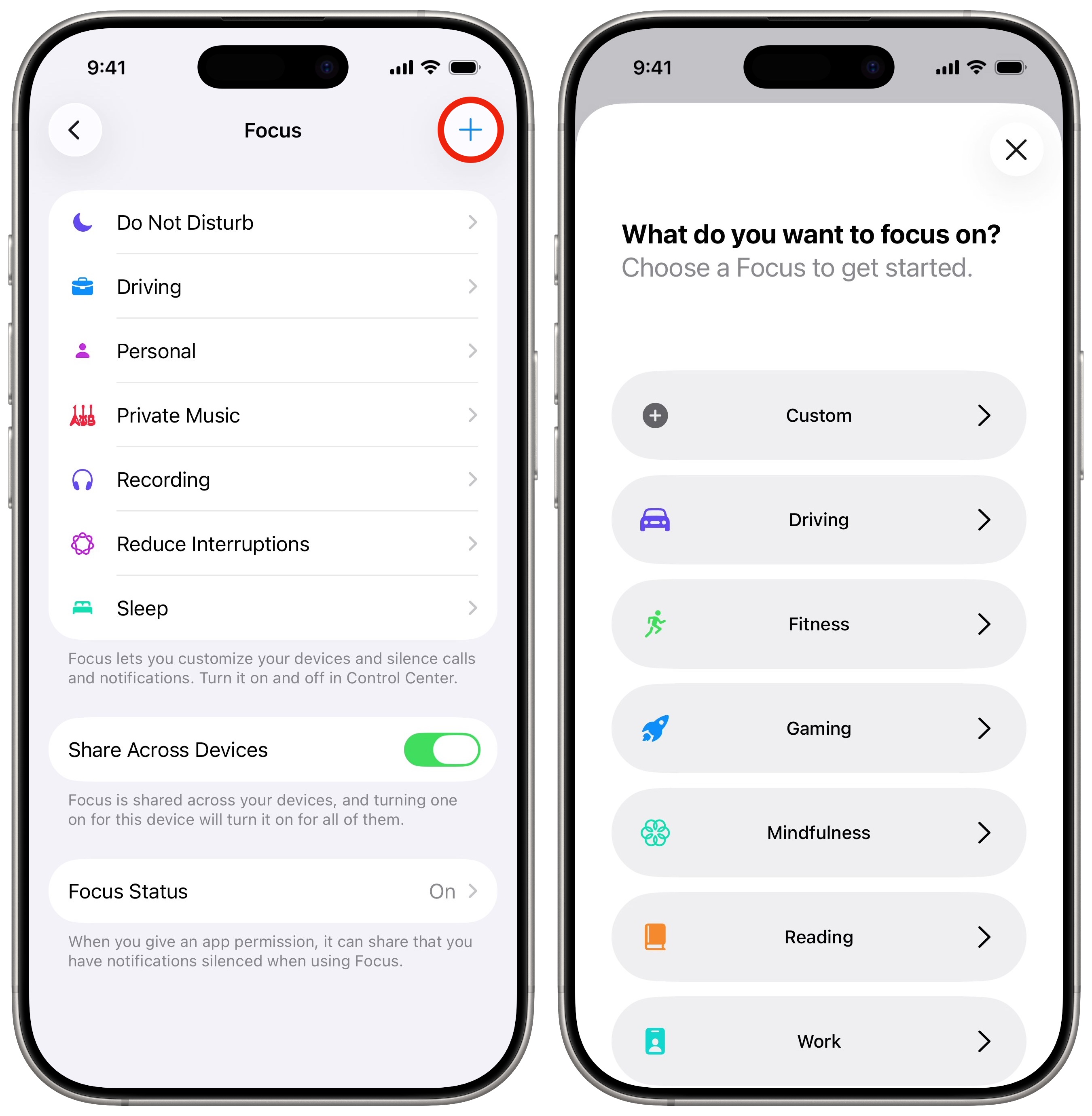
On iPhone and iPad, go to Settings > Focus. On the Mac, go to System Settings > Focus.
There are default ones for Driving, Sleep, Personal and Work. These are good starting points. Tap any one of these and you can start customizing.
Tap Add (+) in the upper right to create a new Focus mode. You have even more templates here, like Fitness, Gaming, Mindfulness and Reading. If you want something different, tap Custom. Give it a name, icon and color.
Intelligent breakthrough and silencing
If you want to save yourself the complex setup process, you can trust Apple Intelligence to hide all the unimportant notifications. On a supported device, enable Intelligent Breakthrough & Silencing right at the top.
The feature will “intelligently allow priority notifications to interrupt you and silence other notifications.” It uses machine learning to decide if the notification looks important or not. You can still add manual customizations on top of it, though; “any notifications specifically allowed or silenced will always be allowed or silenced.”
Personally, I really like the feature. It seems to be a good enough judge.
However, it’s very dependent on an app sending descriptive notifications. Snapchat only tells you who sent you a snap; your phone can’t judge how important it may be since it can’t see the contents.
If you’d like to set up your Focus by hand, the next two sections show how to filter out contacts and apps of your choosing.
Choose which contacts to allow in your Focus mode
Screenshot: D. Griffin Jones/Cult of Mac
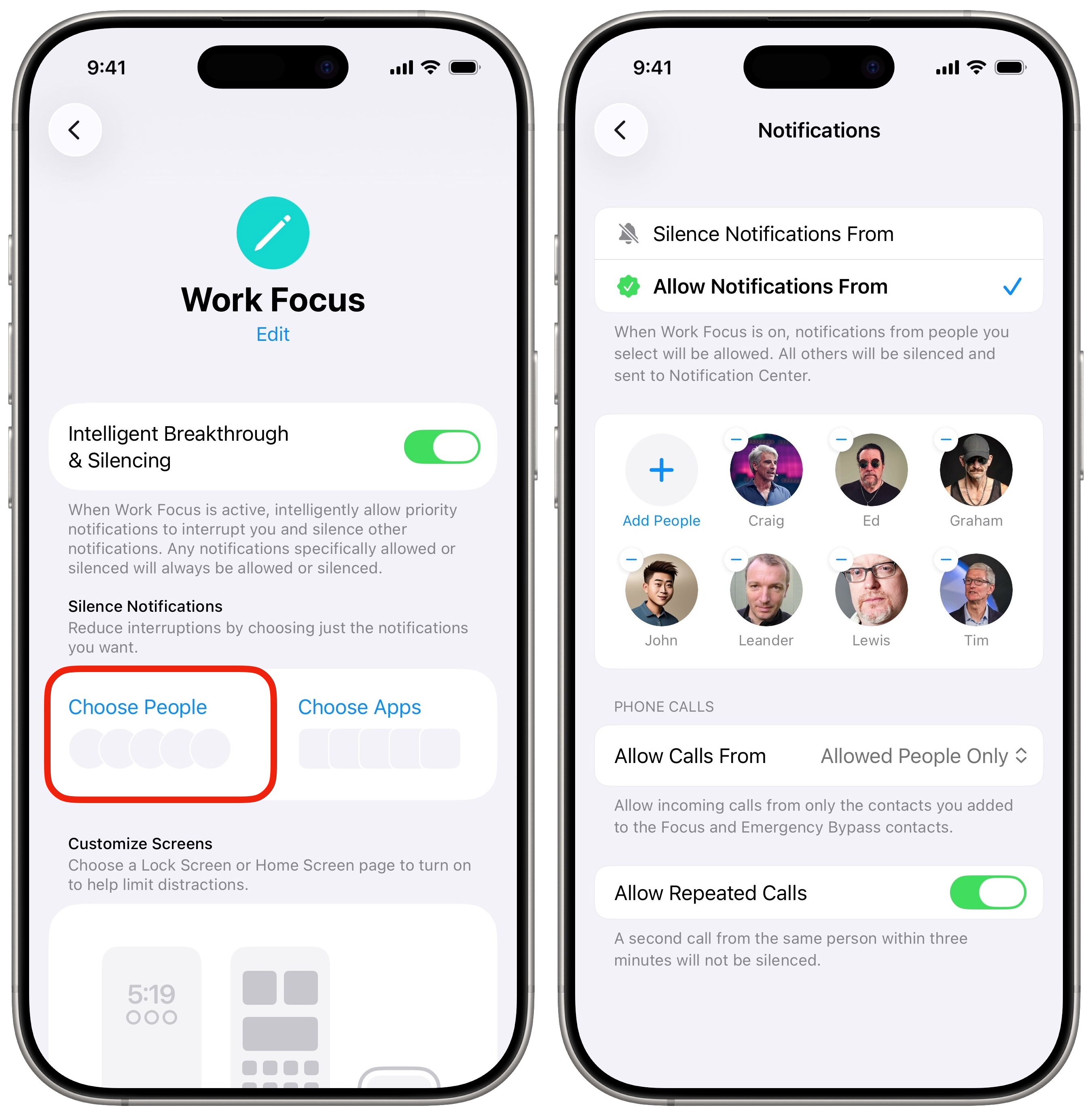
Next, you choose who’s allowed to send you notifications in your focus. Tap People to pick contacts.
Do you want to silence everyone except for a few people? Choose Allow Notifications From. Do you want to let everyone through, except the people you choose? Then tap Silence Notifications From.
For most of my Focuses, I choose to silence everyone except my favorites. In this example where I’m creating a writing focus, I silence everyone except my contacts at Cult of Mac.
Under Allow Calls From, you can set a different rule for filtering phone calls:
- Everybody, including people you don’t know. This is useful if you’re creating a Focus where you want to silence apps, but you’re okay with getting phone calls from everyone.
- Allowed People Only will let through the people you select.
- Favorites will let favorited contacts and the people you select.
- Contacts Only silences unknown calls but allows everyone in your contacts.
- Contact Group lets everyone in a contact group of your choosing get through. If you have all of your work contacts in a special group, this one could be useful.
Finally, Allow Repeated Calls lets someone break through the veil if they call twice in a row. This is a good one to enable for personal emergencies. Spammers usually aren’t that persistent.
Choose which apps to allow
Screenshot: D. Griffin Jones/Cult of Mac
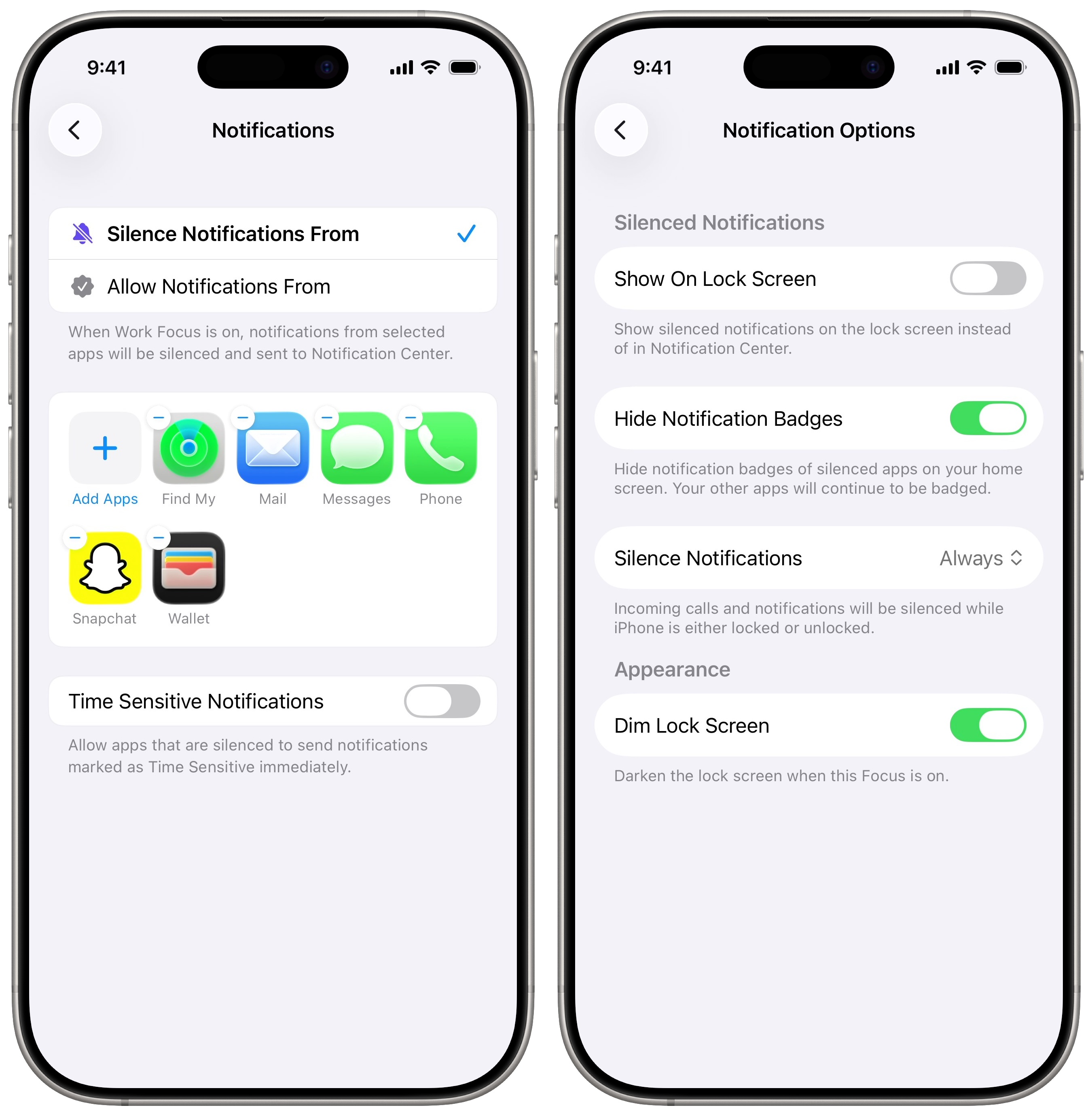
After that, pick which apps you want to let through. Tap Add Apps to add to the list or − to remove one. Just like with contacts, you can choose whether you want to silence by default and allow the apps of your choosing get through (Allow Notifications From) or allow everything else and silence the apps of your choice (Silence Notifications From).
Enable Time Sensitive Notifications to let through any app with an urgent notification. I find my phone is kind of generous with what it considers time sensitive, so I often leave that disabled.
For my Writing Focus and Driving Focus modes, I silenced all contacts and apps save for a few exceptions.
Go back and tap Options for a few nitpicky settings. You can choose whether silenced notifications appear on your lock screen — if you still want that, enable Show On Lock Screen. Checking Hide Notification Badges will prevent you from habitually opening all of your apps with red dots while you’re trying to stay in your groove. I always turn on Dim Lock Screen, as it makes the wallpaper less distracting.
Choose a custom Lock Screen to match the Focus mode
Screenshot: D. Griffin Jones/Cult of Mac
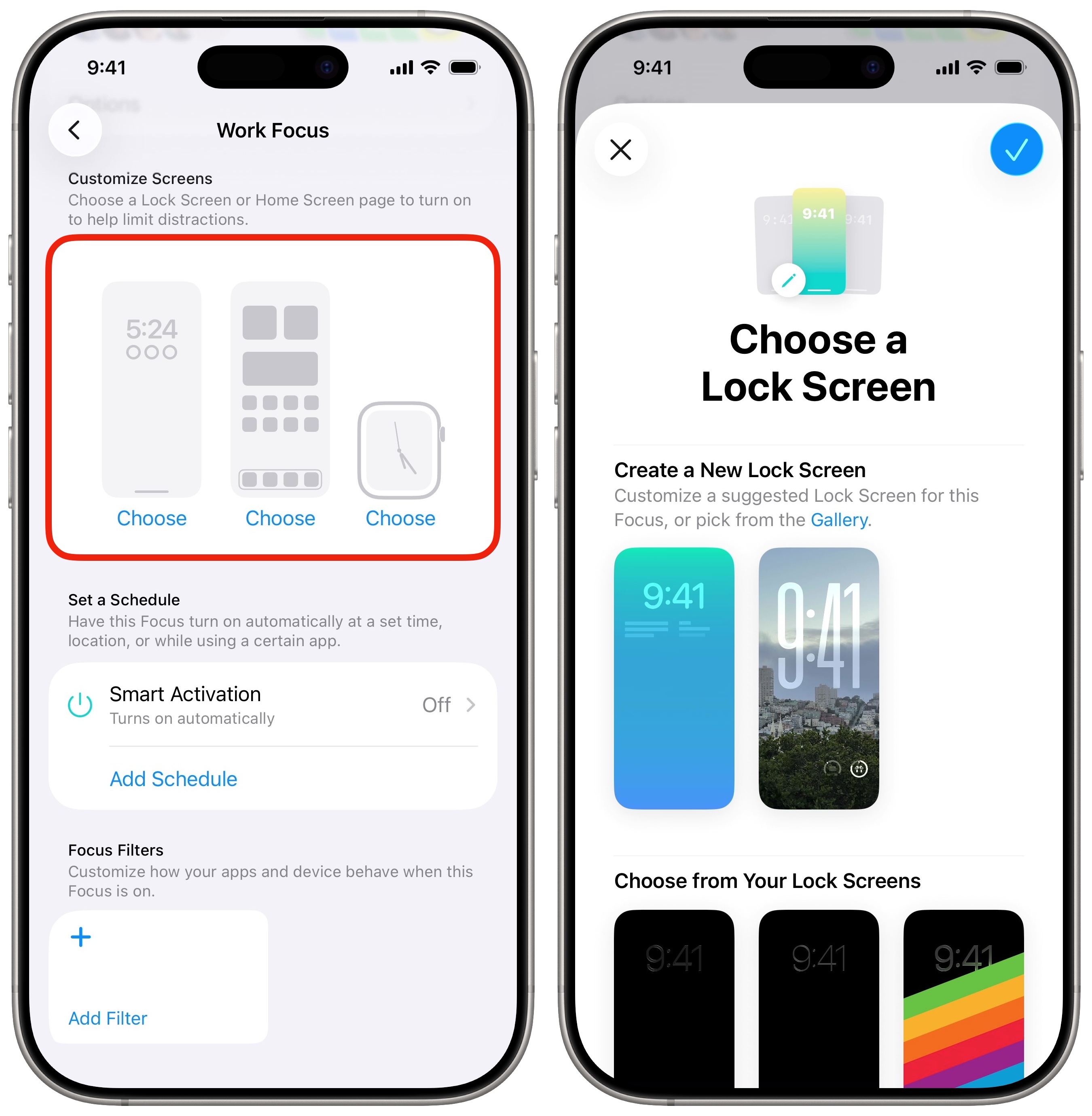
Each Focus can have a Lock Screen tied to it. You can read my deep dive on creating Lock Screens here.
Below People and Apps, you’ll see a spot where you can pick a Lock Screen, Home Screen and watch face. Tap the left icon to pick your Lock Screen. You can select one you’ve already made or create a new one from the Gallery.
To create a new one, tap Gallery. You’ll be presented with the full customization options before it’s added. If you pick a pre-existing one, you can make any edits later.
Associating a Lock Screen with a Focus means that every time you use that Lock Screen, it’ll automatically activate the Focus — and vice versa. Swipe down from the top to show your Lock Screen, tap and hold, and tap Focus to set which Focus mode the Lock Screen is for.
Create a custom Home Screen optimized for the apps you use
Screenshot: D. Griffin Jones/Cult of Mac
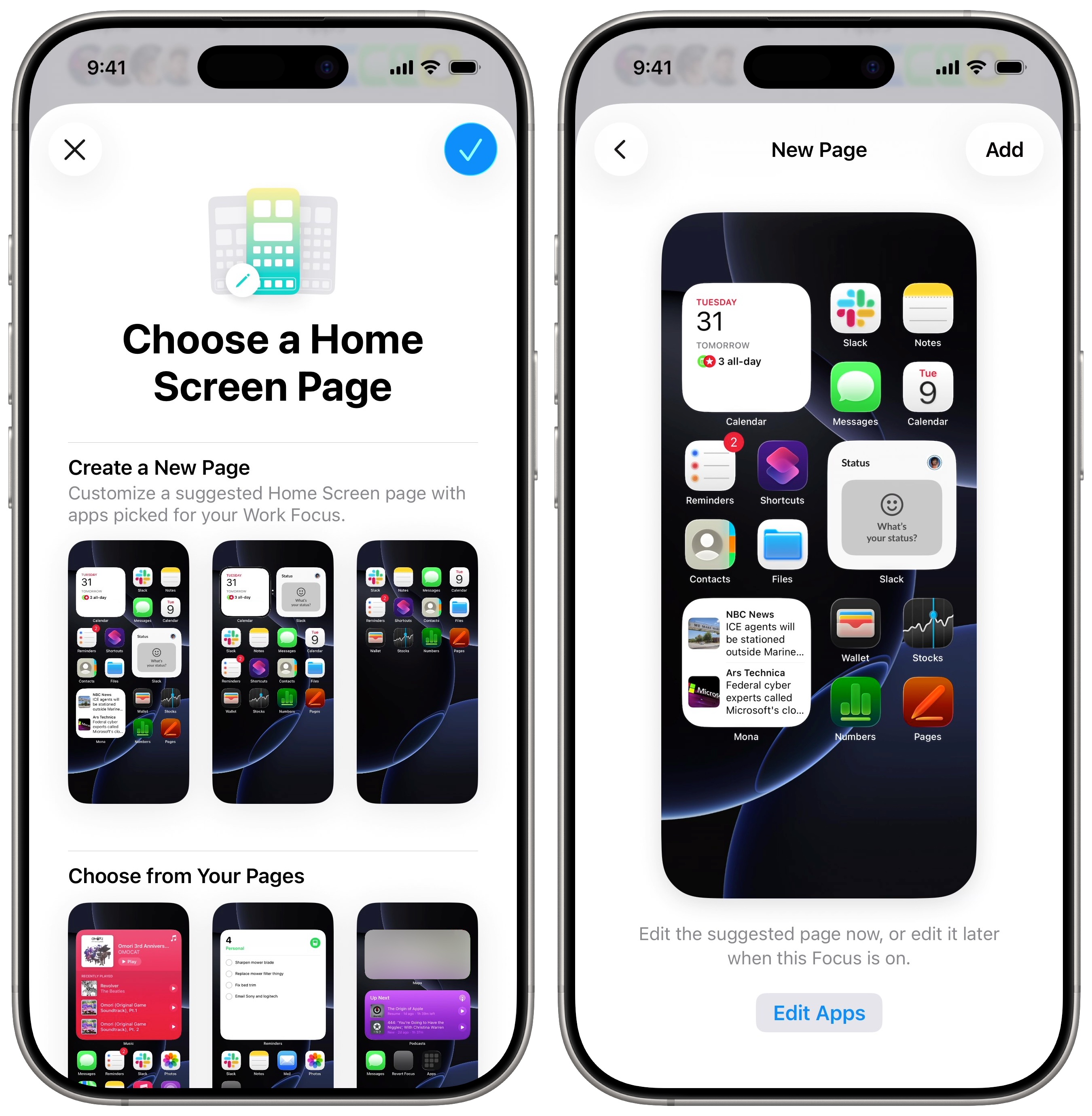
Every Focus mode can have a different Home Screen associated with it, too. You can tailor your Home Screen with specific apps and widgets. For example, you can fill your Work Home screen with apps like Slack, Google Drive, Dropbox, Notion and more. Your Travel focus can feature apps and widgets you use for shopping and travel. Your Personal focus can feature social media and entertainment apps you use at home (or your original home screen when no Focus is set).
Tap Choose on the Home Screen icon in the middle.
On the top, it’ll show a few suggestions. Tap on one and tap Edit Apps to change the selection.
On the bottom, it’ll show the pages you already have. You can check or uncheck which pages you want visible in this mode.
Screenshot: D. Griffin Jones/Cult of Mac
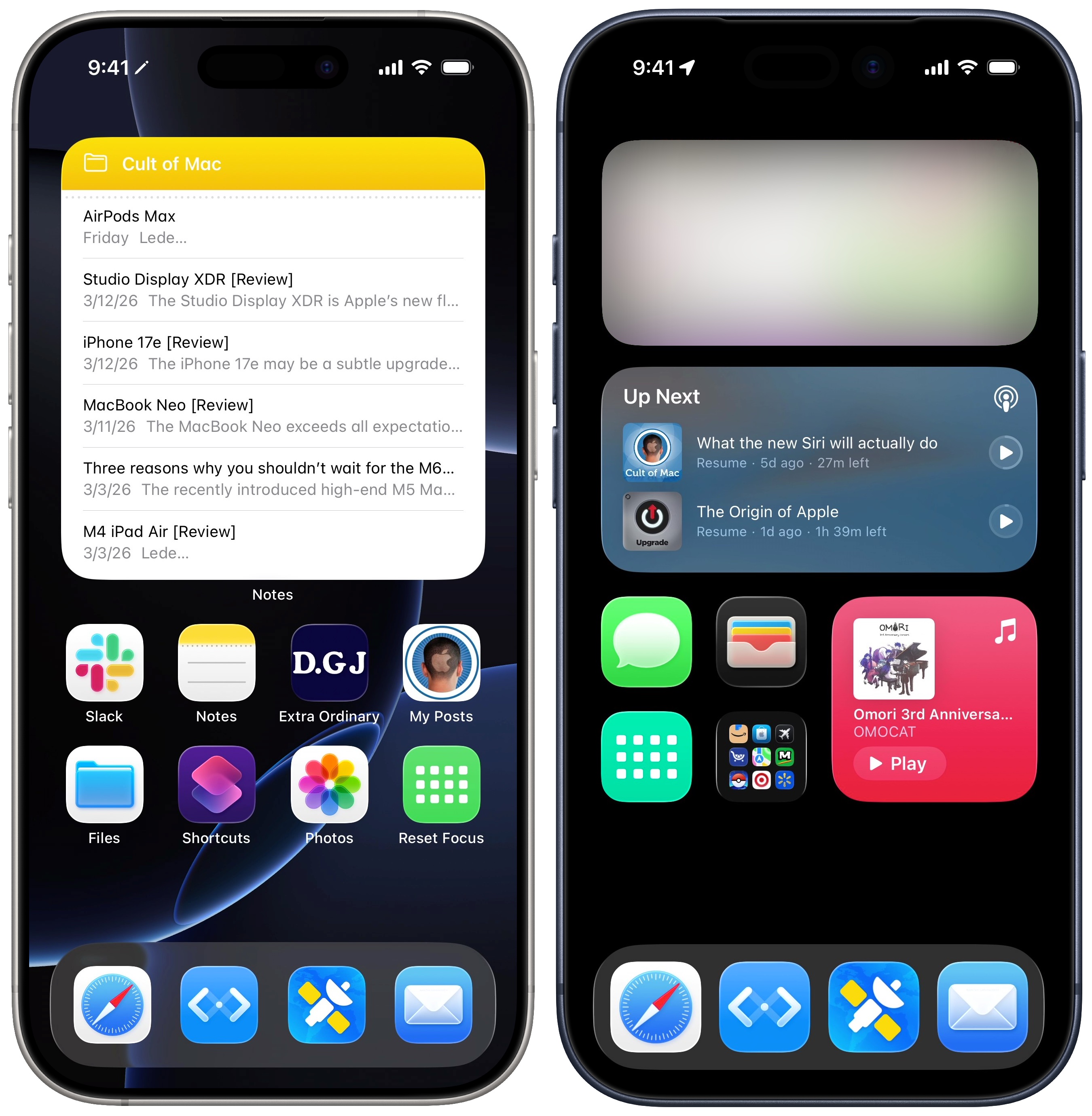
Whichever way you get started, you can always edit your Home Screen afterwards. I’m not impressed with Apple’s auto-generated Home Screens — I made my own from scratch.
For my Writing Focus mode, I started with a big widget with my writing to-do list. I added Slack and Notes, Safari shortcuts to my website and my Cult of Mac articles, Mail, Shortcuts and Photos. “Revert Focus” is a Shortcut that turns off the Writing Focus.
For my Driving Focus mode, I have a big Maps widget on top, a Podcasts widget and a Music widget. I make sure the Messages icon is in the same place as on my regular Home Screen. I added the Wallet for quick access. And I have a folder with shopping apps, a shortcut to my shopping list in Reminders and my bank app for easy access.
Set a custom Watch face
From the Focus settings, tap on the Watch icon to set a Watch face for this Focus mode. You can create watch faces using the Watch app on your phone or by tapping and holding on your watch face to start editing.
Set (and automate) your Focus mode
Screenshot: D. Griffin Jones/Cult of Mac
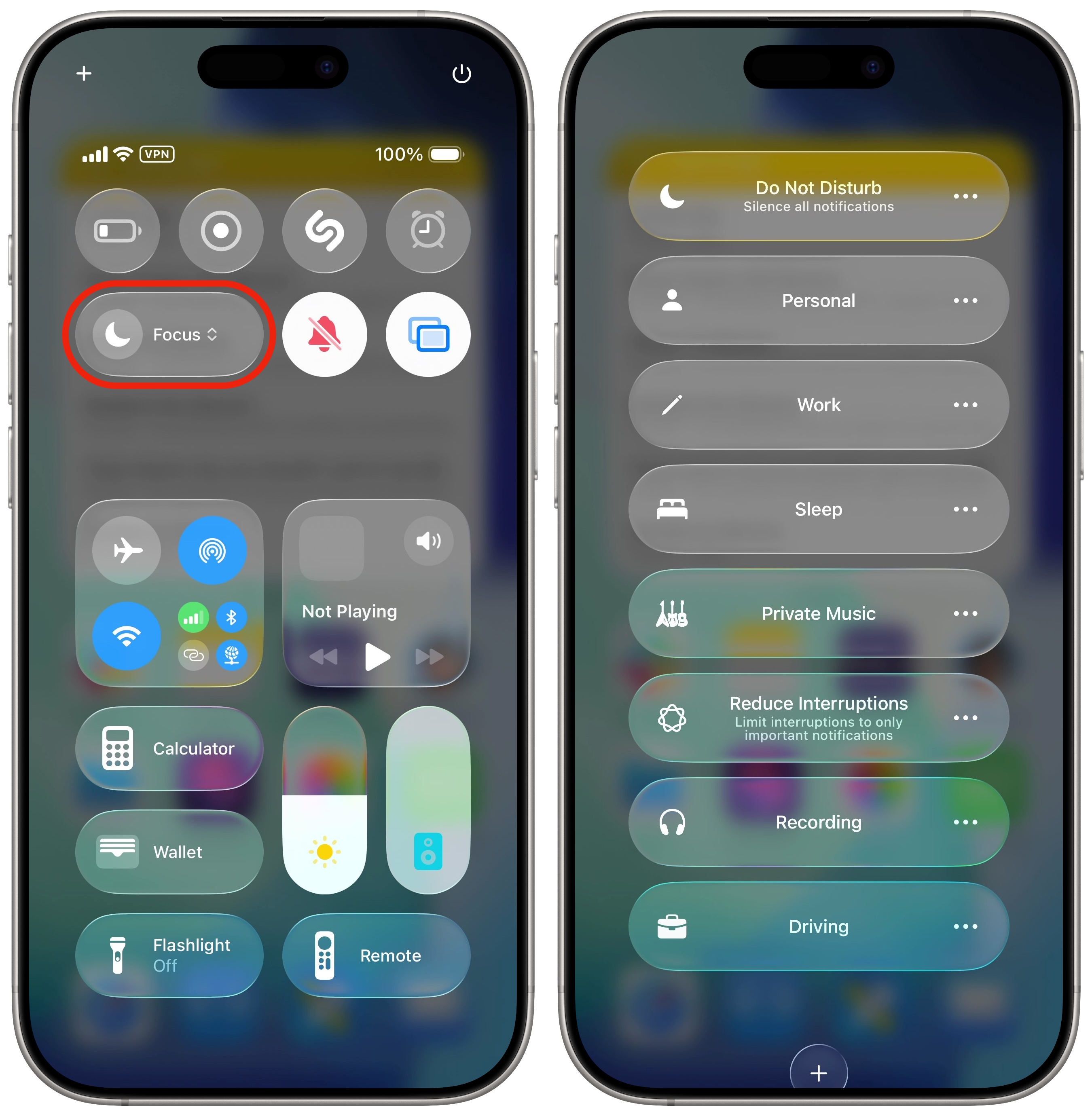
Bring up Control Center by dragging down from the top-right corner of the screen. Tap the Focus button and select a Focus mode. You can also ask Siri to set a Focus for you.
Automate setting your Focus mode
If you’re getting ready to work, you don’t want to take a lot of steps, you want to jump right in. Automations can do some of the work for you, removing friction and getting you focused faster.
Go back to your Focus mode settings and scroll down. Tap Add Schedule. Your Focus can activate on a time schedule (every weekday on time), by location (arriving or leaving a specific place) or by opening a specific app (the app you use to clock in). You can also tap Smart Activation and turn it on to allow your phone to intelligently set the Focus “based on signals like your location, app usage, and more.”
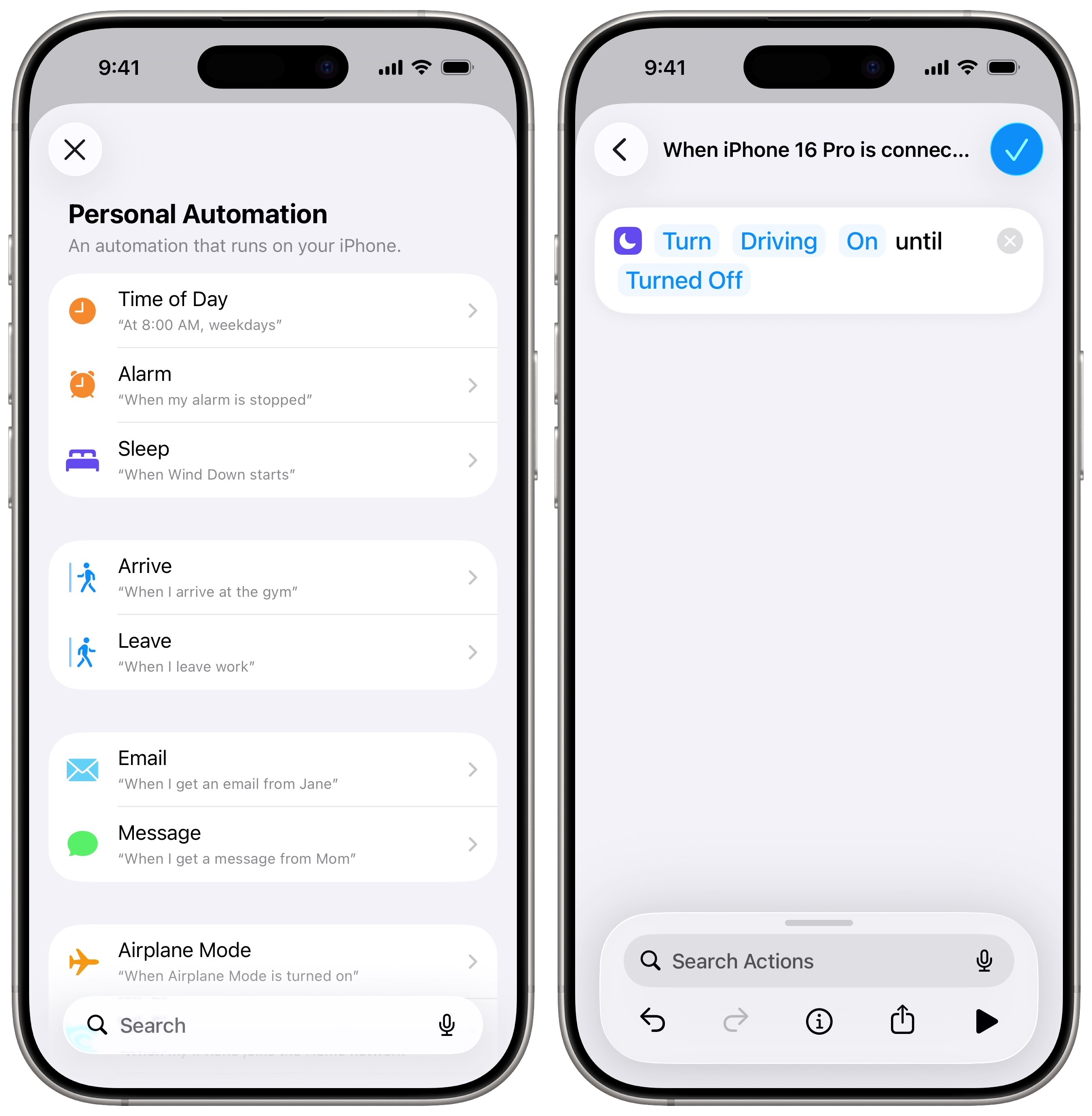
If none of those triggers are what you want, Shortcuts offers some advanced options. Open the Shortcuts app, tap Automation and tap Create Personal Automation if this is your first time. (Otherwise, tap +.) You have a lot of options for how and when you want to launch a Focus mode.
Screenshot: D. Griffin Jones/Cult of Mac
Let’s say I want to activate my Driving focus every time my phone connects to my car’s Bluetooth system. I’ll select Bluetooth from the list of automations, choose my car, tap Done and Next. Tap Add Action and search for the Set Focus action. The default action is “Turn Do Not Disturb Off,” so I’ll tap on the highlighted words to change it to “Turn Driving On.”
You can specify when the Focus mode should end. You can set the automation to end at a specific time, if you leave a location or if a calendar event ends.
Create a ‘Reset Focus’ icon
Screenshot: D. Griffin Jones/Cult of Mac
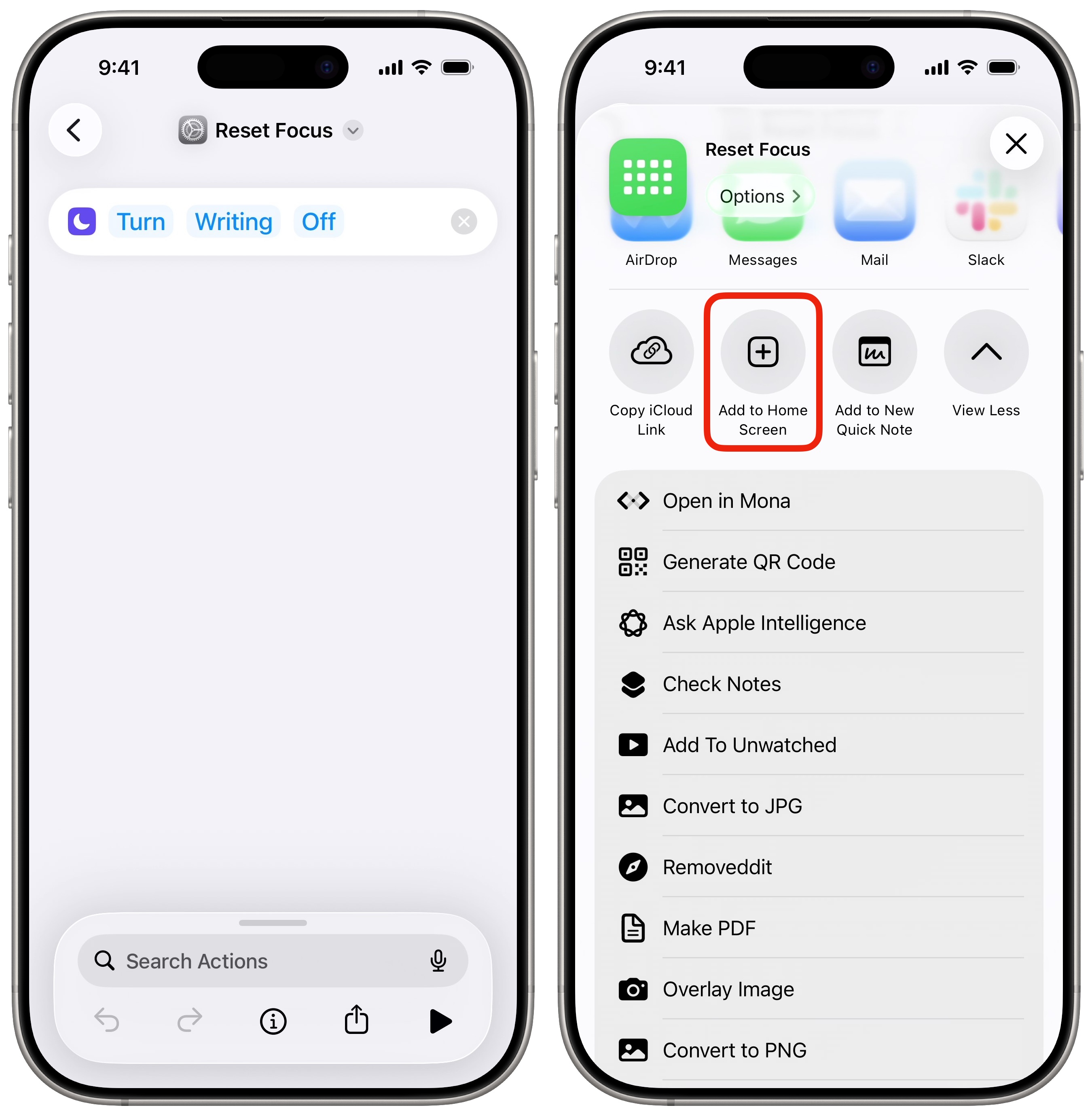
On all of my custom Home screens, I have an icon that instantly turns off the Focus mode. It’s much faster than opening Control Center and switching back. I also made this using Shortcuts.
To do so, open Shortcuts and tap +. Name the shortcut something like “Reset Focus.” Tap Add Action and search for Set Focus. Then, tap Do Not Disturb and replace it with the Focus mode you created earlier. Tap on the name at the top to set the name, pick a color and icon.
Tap the Share button at the bottom and tap Add to Home Screen.
More iPhone customization features
- You can fully customize the Home Screen. Place icons anywhere on the screen. Fans of dark mode can now enjoy alternate dark mode icons. If you have a color theme you want to match, you can tint icons to any hue you want.
- You can edit the buttons in Control Center. Add many more toggles and buttons, including those from third-party apps. You can resize some buttons to make them more prominent, and you can arrange your controls across multiple pages. In one fluid motion, you can swipe down to activate Control Center and continue swiping down to scroll through your pages.
- Standby turns your phone into a smart display when it’s sitting on your desk, your nightstand or the kitchen counter.
- Customize the Lock Screen with a bunch of widgets, aesthetics and styles. You have loads of fonts, colors, styles and themes available.
- Change out the Lock Screen buttons from the standard Flashlight and Camera to whatever you want. There’s a giant selection of buttons you can swap in their place.
We originally published this article on Focus modes on November 1, 2022. We updated it with the latest information on July 12, 2023; January 21, 2025 and March 31, 2026.

D. Griffin Jones was a writer, podcaster and video producer for Cult of Mac. Griffin has been a passionate computer enthusiast since 2002, when he got his first PC — but since getting a Mac in 2008, he hasn’t turned back. His skills in graphic and web design, along with video and podcast editing, are self-taught over 20+ years. Griffin has a bachelor’s degree in computer science and has written several (unpublished) apps for Mac and iOS. His collection of old computers is made up of 40+ desktops, laptops, PDAs and devices, dating back to the early ’80s.
Griffin writes for his personal blog, Extra Ordinary, and is currently looking for work.

