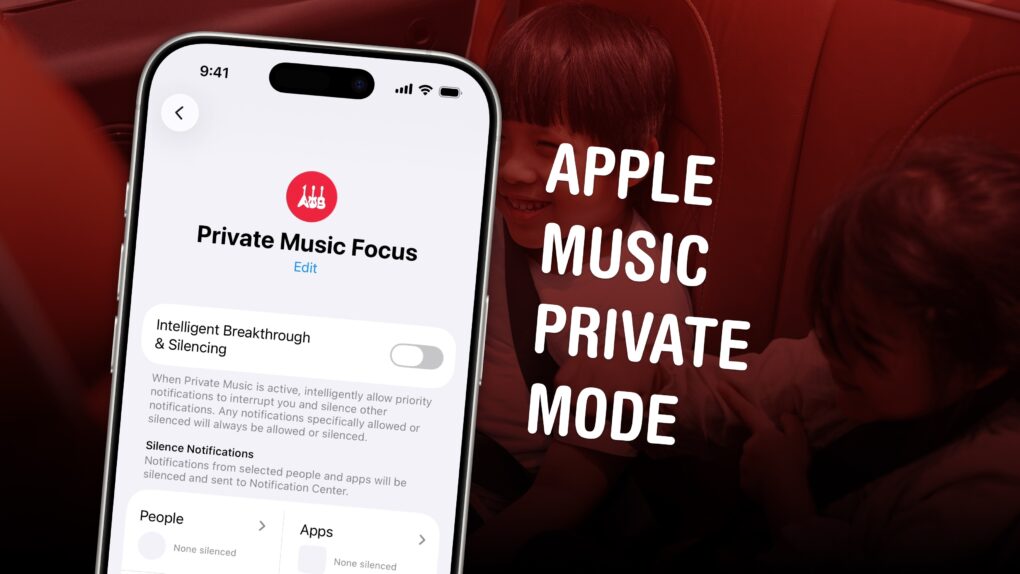
If you’re tired of your kids’ or partner’s music polluting your music recommendations and history, there’s a solution. While Apple Music does not offer a built-in private mode, you can make your own using a Focus mode.
Turn on a special Focus mode, and Apple Music will ignore all the songs, artists and albums that play next.
It’s even possible to enable your private mode when you connect to a specific Bluetooth speaker, like a living room sound system. Or when you enter a specific location, like work. Here’s how to set it up — keep reading or watch our quick video.
How to listen to Apple Music in private mode
If you have kids, your Apple Music Replay is probably all kinds of messed up. The feature is supposed to tell you who your favorite artists are, along with your top songs and albums of the year. But if you’re often playing music for your children, or when your partner is in the car, it won’t exactly reflect your tastes.
It’s not just Apple Music Replay — your listening history also informs what songs are recommended to you over time.
Just like private browsing mode in Safari, or incognito mode in Chrome, you can set up an Apple Music private listening mode. I’ll show you how.
Table of contents: Listen to Apple Music in private mode
- Create a “Private Music” Focus
- Under Focus Filters, turn off listening history
- Turn on your Private Music focus
- Set an automatic trigger by device
- Set an automatic trigger by location
- More Apple Music tips
Create a ‘Private Music’ Focus
Screenshot: D. Griffin Jones/Cult of Mac
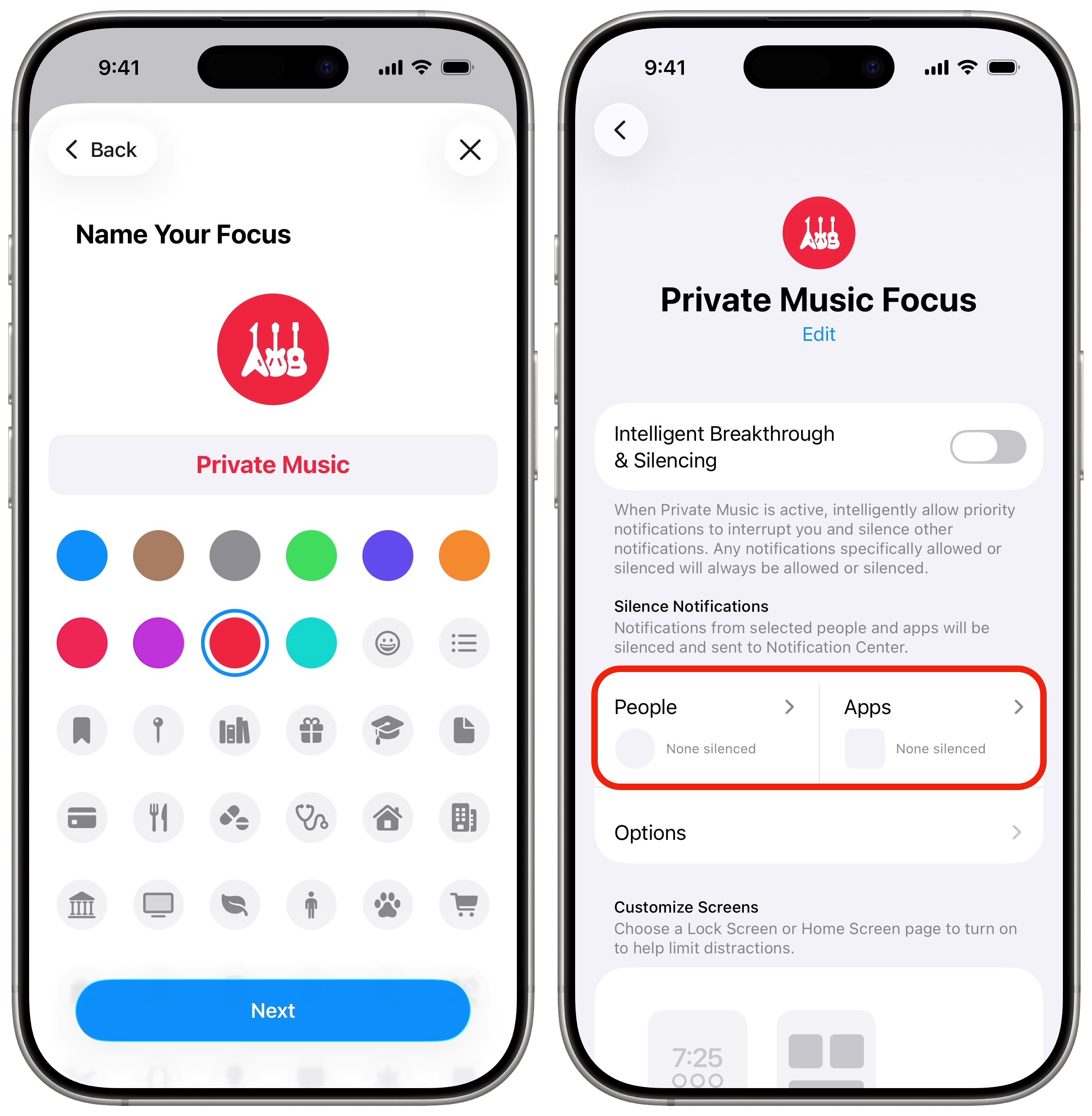
First, go to Settings > Focus and tap Add (+) in the upper right. Tap Custom. Give it a name, like “Private Music.” I give it a red color (like the Music app) and the icon of the guitar. Then, tap Customize Focus.
Tap Choose People, then set it to Silence Notifications From and remove everyone who shows up in the list. This is because you don’t actually want to silence any notifications; you just want to turn off your Apple Music listening history. After you tap Done (the blue checkmark) in the upper right, it should say “None Silenced.” Do the same thing for Choose Apps — remove all the apps from the list.
Finally, tap Options and disable Hide Notification Badges. You don’t want your badges to disappear when you’re listening to private music.
Under Focus Filters, turn off listening history

Screenshot: D. Griffin Jones/Cult of Mac
Now comes the setting that’ll pause your listening history. Scroll down to the Focus Filters section, tap Add Filter and choose Music from the list. Make sure “Use Listening History” is disabled, then tap Add.
It should say, “Use Listening History: Turn Off.”
Turn on your Apple Music private mode focus
To enable your private music mode, swipe down from the top-right to bring up Control Center. (On an older iPhone with a Home button, swipe up from the bottom.) Tap Focus, then choose your Private Music focus from the list.
In theory, you should be able to ask Siri to enable a Focus mode. Although, using Apple’s own example of how it should be phrased, “Turn on the Private Music Focus,” doesn’t work for me. Your mileage may vary.
Set an automatic trigger by device
Screenshot: D. Griffin Jones/Cult of Mac
You know what’s better than enabling a private music mode yourself? Having it turn on automatically when you connect to a specific Bluetooth device or CarPlay. This comes in handy if you play kids’ music over your living room speaker or if you listen to different music in your partner’s car.
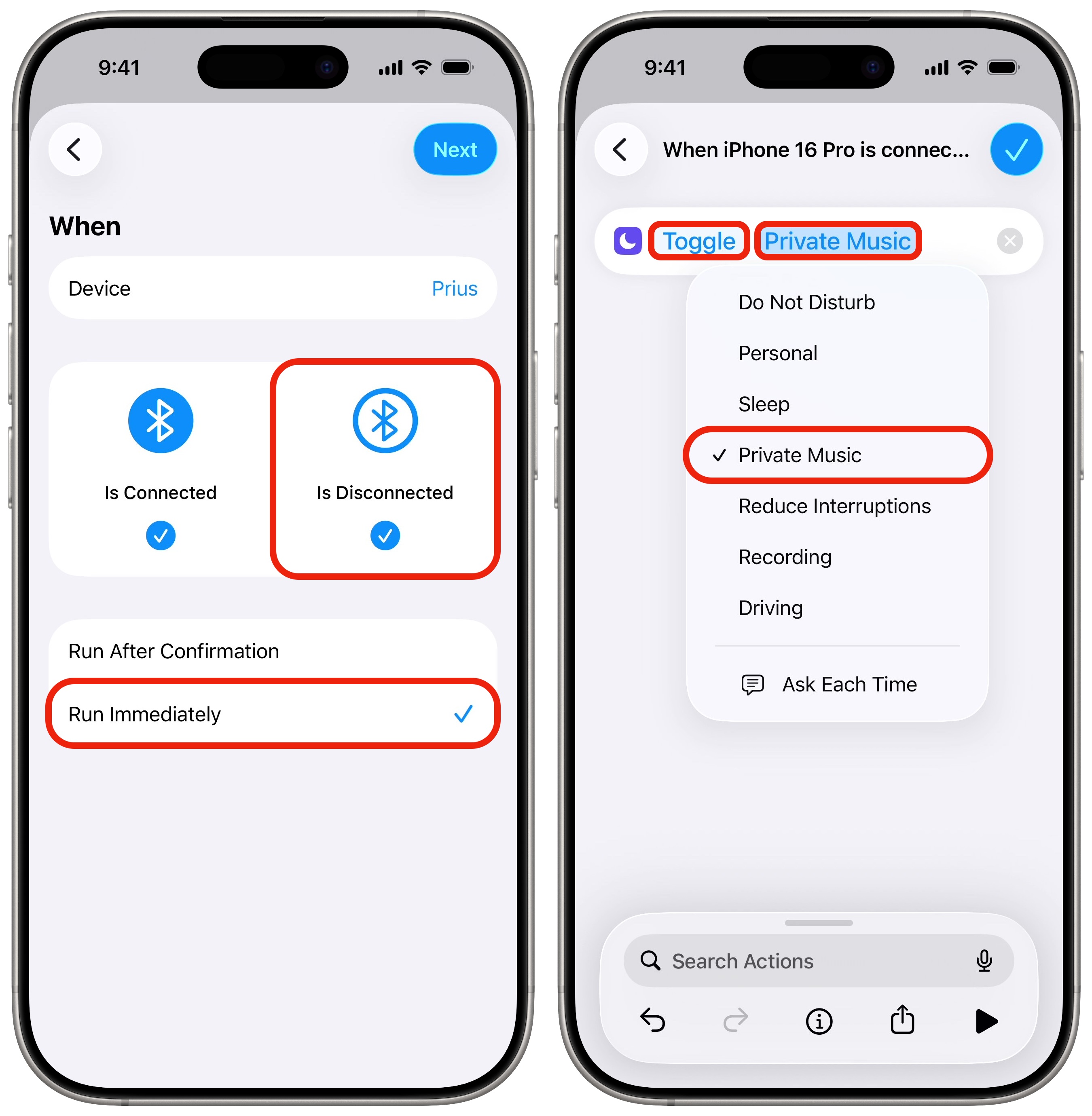
To set this up, open the Shortcuts app, tap the Automation tab and tap New Automation. Scroll down and tap either Bluetooth or CarPlay. Set it to run both when it Is Connected and Is Disconnected. Also set it to Run Immediately.
Then, tap Create New Shortcut. Tap the Controls filter, then tap Set Focus. Change the settings to Toggle your Private Music Focus, then tap Done (the blue checkmark in the upper right).
That way, your phone will automatically turn the Private Music Focus on when you connect to that device, and turn it off when you disconnect.
Set an automatic trigger by location
Screenshot: D. Griffin Jones/Cult of Mac
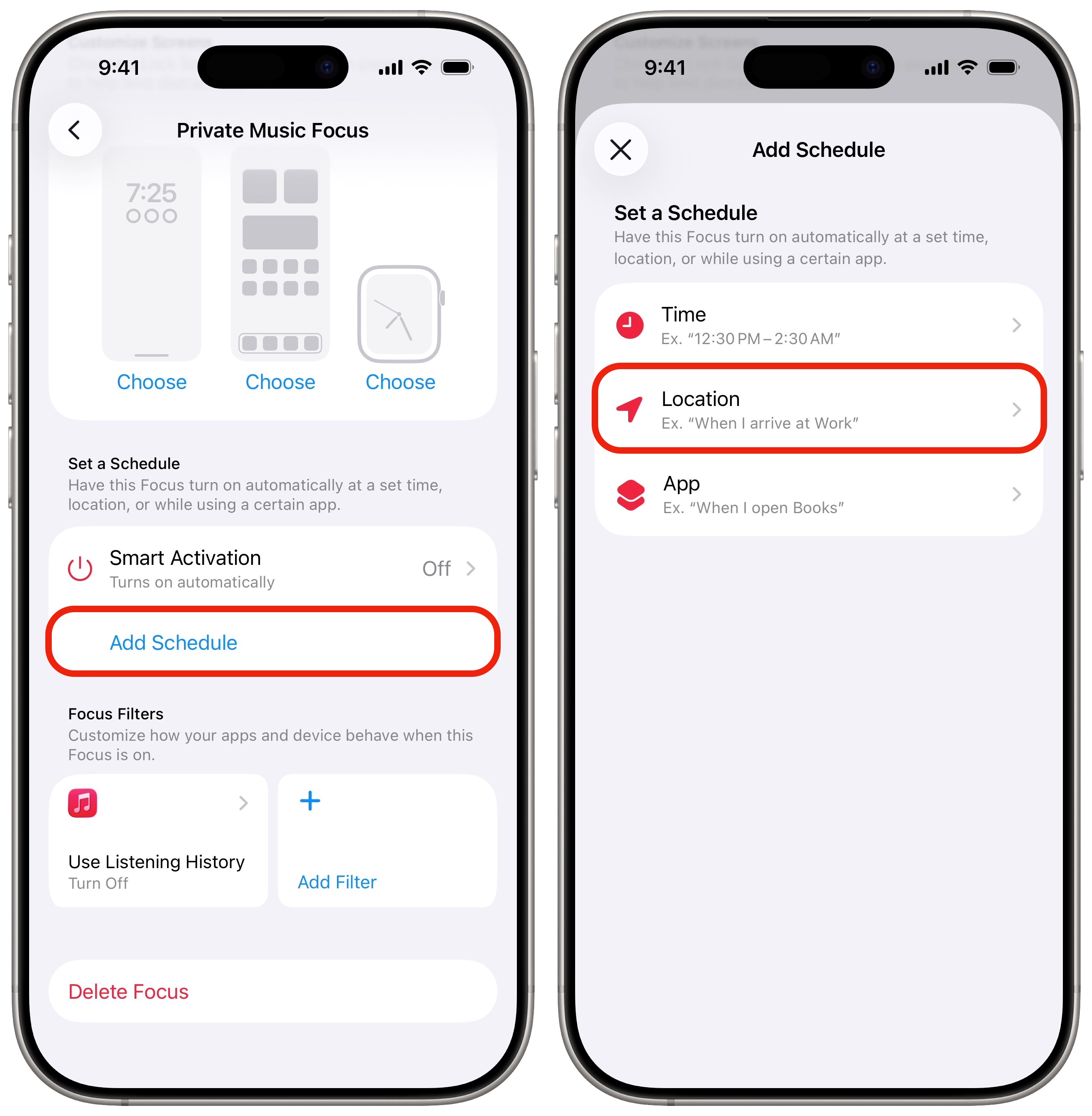
You can also set a trigger by location, like if you use your phone for music at work — and don’t want that on your listening history. Go back to Settings > Focus and select your Private Music Focus (or whatever you called it).
Tap Add Schedule toward the bottom, then tap Location. You can choose an existing address or enter one in manually. You can even choose how big of a range to make it on the map below.
More Apple Music tips
- Apple Music Replay shows you the top songs, artists, albums and more detailed stats for a whole year, and makes an annual playlist of your top tunes.
- Apple Music Classical is a bespoke app and interface (free with an Apple Music subscription) for playing classical music.
- Queue songs to automatically build a playlist. You can set a song, album or playlist to play next, or add it to the end of the queue, with simple gestures and controls.
- Karaoke Mode turns down the vocals so you can sing along at a party or in the car.
- Music Haptics let you feel the beat of the music right in your hand.

D. Griffin Jones was a writer, podcaster and video producer for Cult of Mac. Griffin has been a passionate computer enthusiast since 2002, when he got his first PC — but since getting a Mac in 2008, he hasn’t turned back. His skills in graphic and web design, along with video and podcast editing, are self-taught over 20+ years. Griffin has a bachelor’s degree in computer science and has written several (unpublished) apps for Mac and iOS. His collection of old computers is made up of 40+ desktops, laptops, PDAs and devices, dating back to the early ’80s.
Griffin writes for his personal blog, Extra Ordinary, and is currently looking for work.

