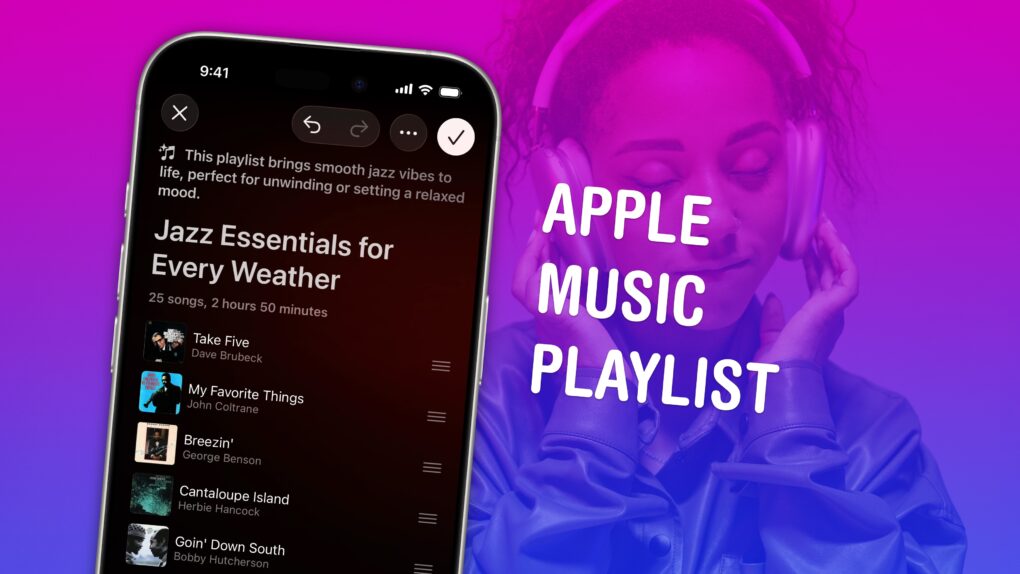
Making a playlist in Apple Music is a great way to set the mood for a party, road trip or your own private time. You can create playlists for working, working out, studying, driving, doing dishes, etc. Your friends can contribute to your playlist, too. And you can share your masterpiece on your Apple Music profile.
In iOS 26.4, Apple added Playlist Playground, a new feature that lets you quickly create custom playlists via Apple Intelligence. On supported devices, you can type in any odd request — and your iPhone will do the rest. The results aren’t quite DJ quality, but they’re a good starting point if you want something specific or unique.
Here’s how to make a playlist by hand — and how to use the new Playlist Playground feature.
Make an Apple Music playlist using Playlist Playground
A playlist is the modern version of a cassette mix tape. It’s a collection of songs spanning all kinds of artists, albums, even genres — in a specific order, for a particular theme. There’s no more mashing “record” in time with the radio to rip a song, like we did in the olden days, though. Now, you simply search for a bunch of items on Apple Music to build a playlist.
And now, you don’t even need to do that much. Type your big idea into Playlist Playground, and it’ll generate the track list for you.
Table of contents: Make an Apple Music playlist using Playlist Playground
- Open Apple Music and create a new playlist
- Add your own music by hand
- Use Playlist Playground to make a playlist for you
- Preview a track and edit the list
- Save the playlist, collaborate and publish to your profile
- More Apple Music features
Open Apple Music and create a new playlist
Screenshot: D. Griffin Jones/Cult of Mac
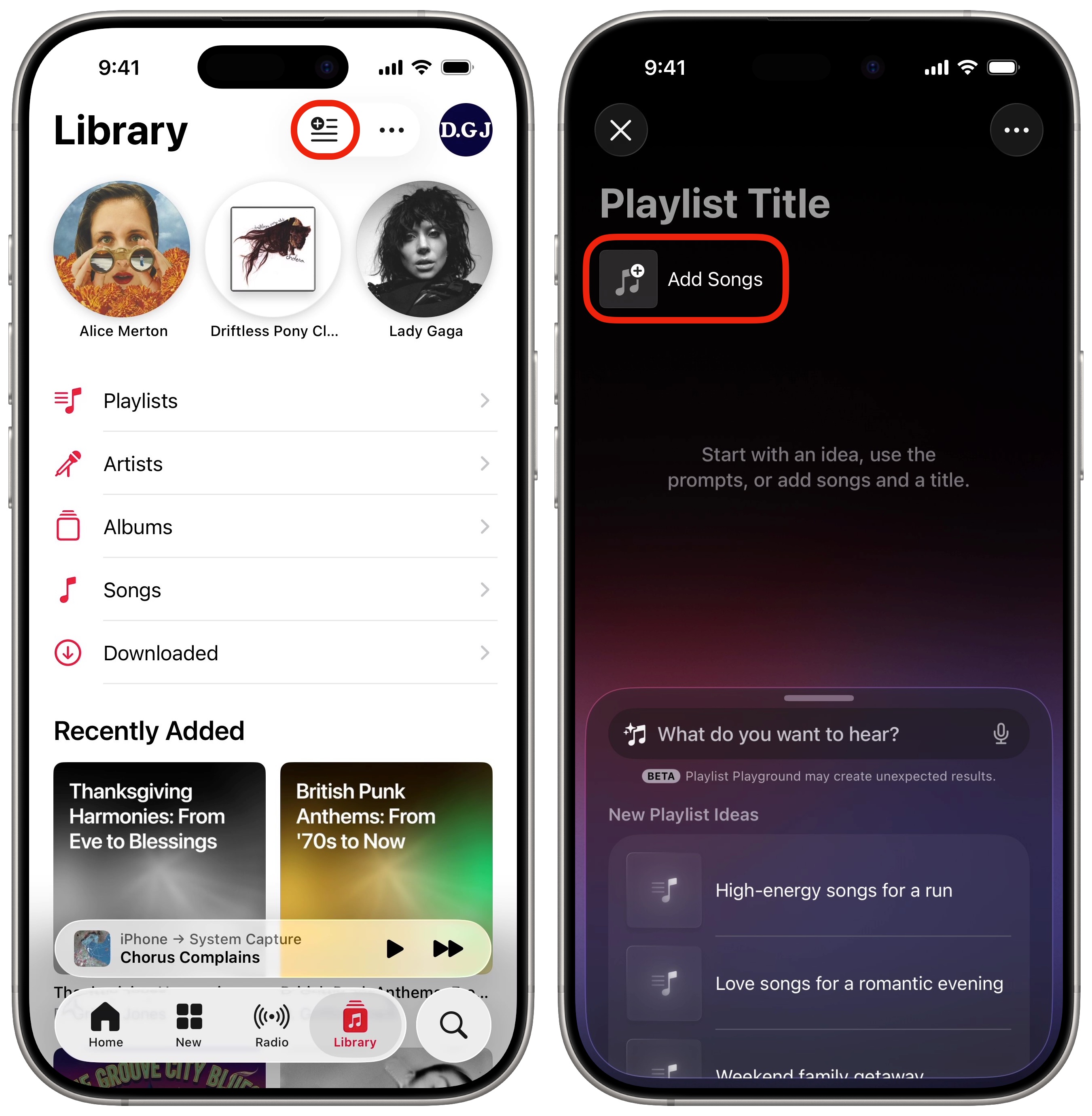
Ready to get started creating your playlist? Open the Music app and tap on the Library tab. Tap the New Playlist button at the top of the screen (the icon of a list with a plus sign on it).
Tap Playlist Title to give it a descriptive title.
Add your own music by hand
Tap Add Songs to add tracks to your Apple Music playlist. From the slide-up interface, you can browse through your library. You can add an individual song or an entire album at once. From the search field, you can search through the entire Apple Music catalog.
Use Playlist Playground to make a playlist for you
Screenshot: D. Griffin Jones/Cult of Mac
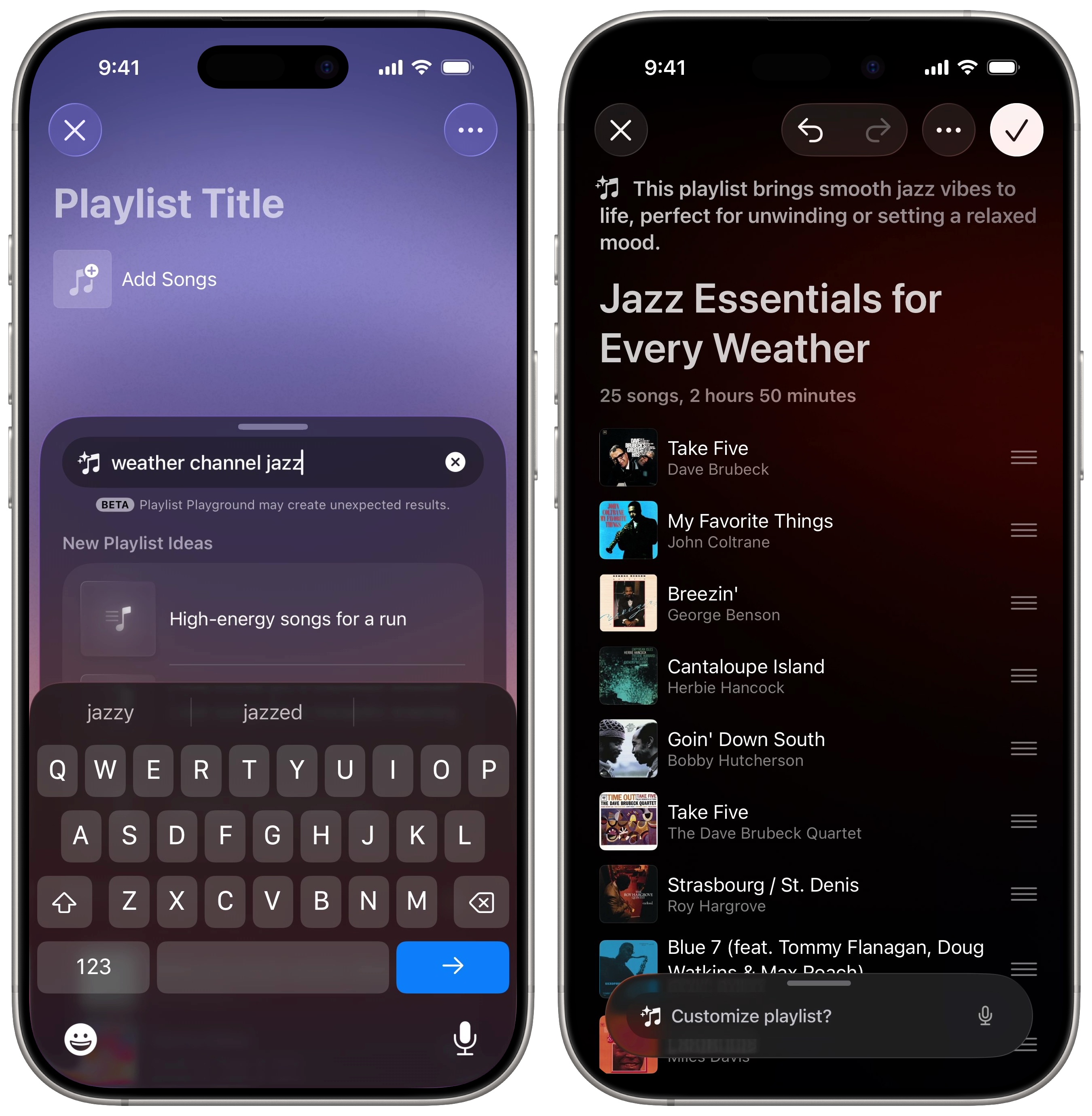
If you want to make quick work of creating a new playlist, try out Apple’s new Playlist Playground feature. In the music app, tap the What do you want to hear? field. Then you can type in any prompt and Apple Intelligence will generate a playlist for you. For example, “British punk rock hits,” “outlaw country drinking songs,” “weather channel jazz,” “studying music for a computer science midterm with my pet lizard” — whatever broad or highly specific musical itch needs to be scratched.
It might take a while for Playlist Playground to spit out its results, but it generally serves up a big variety of artists and albums based on what you asked for.
If you want something very specific for your Apple Music playlist, it helps to be equally specific in your prompt. For example, if you want a playlist of New Romantic music, you need to specify that you mean the British glam rock genre. Otherwise, Apple Intelligence might interpret “new romantic music” as recently recorded love songs.
It’s somewhat hit or miss, but it’s a good starting point if you want to quickly try something out.
As mentioned, this feature is available in iOS 26.4 and later on devices that support Apple Intelligence — the iPhone 15 Pro, iPhone 16 and later. (For more info, read our guide: Everything new in iOS 26.4: Emoji, Apple Music features and more.)
Preview a track and edit the playlist
If you don’t recognize a track on the playlist that Playlist Playground generates, you can tap the album artwork to hear a quick sample.
To reorder songs on the list, drag the grabber on the right up and down to rearrange them.
You can add more songs to your Apple Music playlist, too. Tap Add Songs at the bottom to add more from your library or Apple Music. Or, type in another prompt in the Customize playlist field to add in a suggestion: Try things like “add more sad songs,” “throw in some Lizzo” and “make it peppier.”
You can also swipe up on the panel at the bottom for more options. Tap Add more songs and it’ll add more; tap Refresh playlist if you want to start over with a different set of tunes. Or, browse the “Suggested Songs” section for a couple more ideas.
Save the playlist, collaborate and publish to your profile
Screenshot: D. Griffin Jones/Cult of Mac
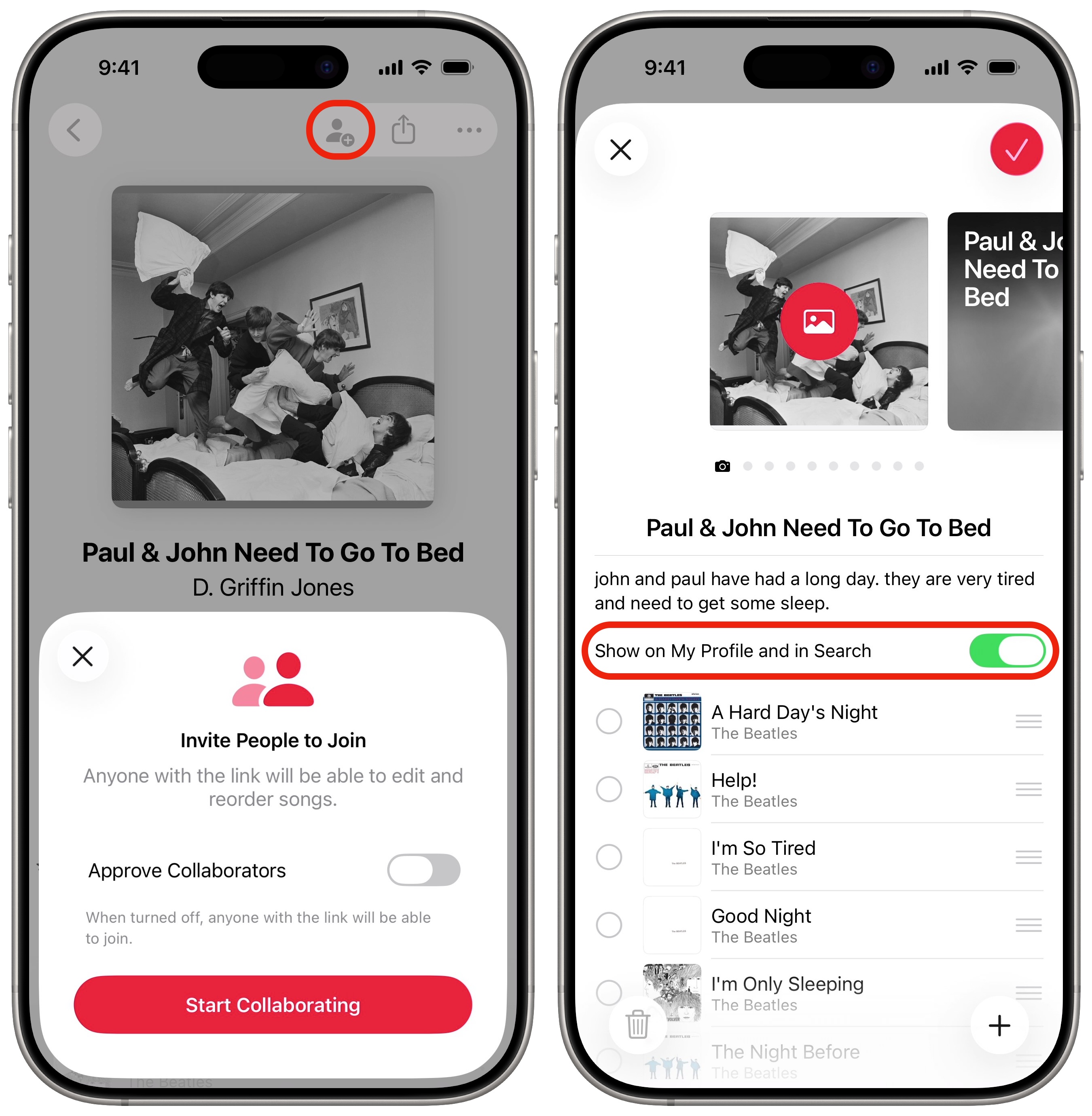
Once you’re happy with your freshly crafted playlist, tap the Save button (the white checkmark) in the upper right of the Apple Music app. If you’d like to invite someone to edit the playlist with you, tap the Collaboration button (the icon of a person with a plus sign) and tap Start Collaborating to send an invitation.
To publish your playlist to your profile, tap More (⋯), tap Edit, then enable Show on My Profile and in Search.
More Apple Music features
- Apple Music Replay shows your most-played songs, artists and albums, along with other detailed stats from a whole year of listening. It also makes an annual playlist of your top tunes.
- Apple Music Classical is a bespoke app and interface (free with an Apple Music subscription) for playing classical music.
- Queue songs to automatically build a playlist. You can set a song, album or playlist to play next, or add it to the end of the queue, with simple gestures and controls.
- Collaborate on an Apple Music playlist with your friends for a road trip or party.
- Karaoke mode turns down the vocals so you can sing along at a party or in the car.
- Listen in private mode using a custom Focus. This prevents your listening from affecting your recommendations and Replay stats — if you have some guilty pleasures or kids’ music.
- Music Haptics lets you feel the beat of the music right in your hand.

D. Griffin Jones was a writer, podcaster and video producer for Cult of Mac. Griffin has been a passionate computer enthusiast since 2002, when he got his first PC — but since getting a Mac in 2008, he hasn’t turned back. His skills in graphic and web design, along with video and podcast editing, are self-taught over 20+ years. Griffin has a bachelor’s degree in computer science and has written several (unpublished) apps for Mac and iOS. His collection of old computers is made up of 40+ desktops, laptops, PDAs and devices, dating back to the early ’80s.
Griffin writes for his personal blog, Extra Ordinary, and is currently looking for work.

