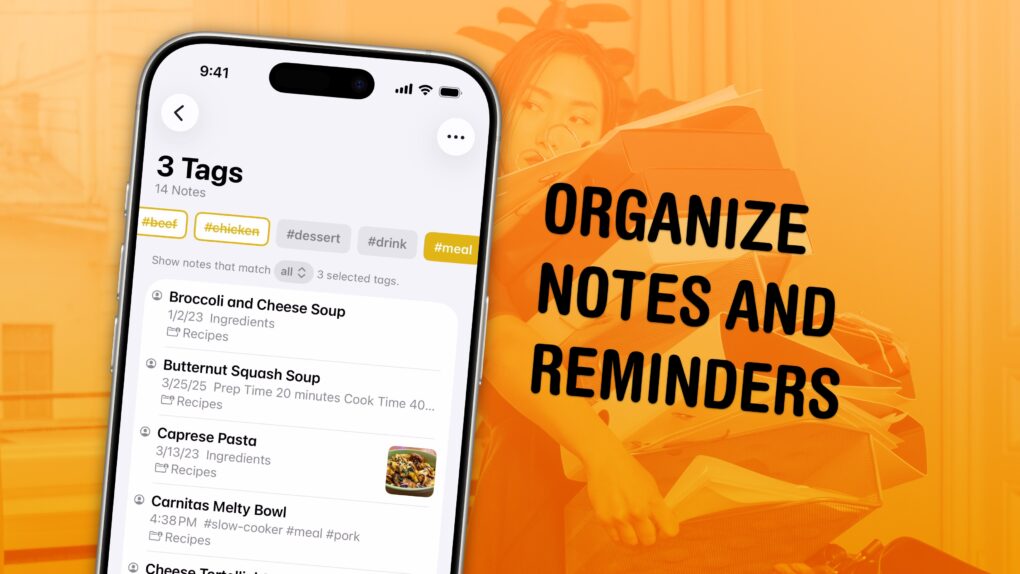
I have a bunch of pro tips to help you organize the Notes and Reminders piling up in your iPhone. Apple has added tons of powerful new features over time, making them comprehensive tools for all the goings-on in your life.
With tagging, you can quickly filter and search through a big folder of notes or a long to-do list. You can easily put together a bunch of filters by date, location and tag to create a smart list of everything that needs your attention in Reminders. You can even set up template Reminders lists that you can copy at any time.
Let me show you how to set it all up.
Tips to organize your Notes and Reminders on iPhone
Notes and Reminders, two stock apps that come with every iPhone, iPad and Mac, can do so much more than write your to-dos and apologies on Twitter. These two apps are now a personal library of information and a comprehensive task manager, with tagging, linking, smart lists, templates, kanban boards and more.
Of course, lots of this functionality is hidden and buried. But there’s a lot of genuine utility to get out of them. Here are five features you should be using in Notes and Reminders.
Table of contents: How to organize your Notes and Reminders on iPhone
- Tag your notes and reminders
- Link notes together
- Make smart lists
- Make templates for repeating task lists
- More power user features to stay organized
Tag your notes and reminders
Screenshot: D. Griffin Jones/Cult of Mac
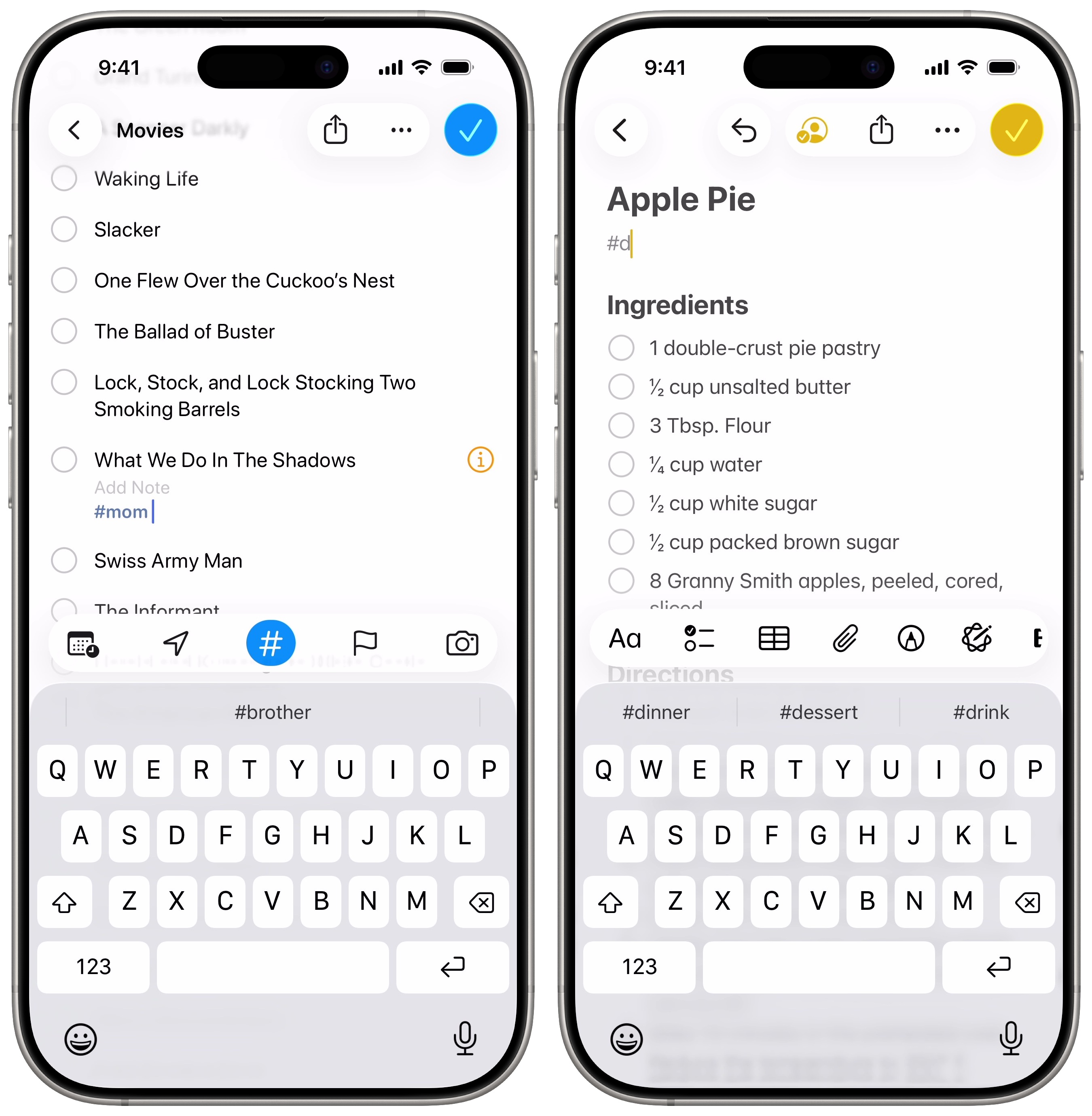
Tags can help you pull together your own categories of notes and tasks — no matter which folder or list they’re in. Tags are a quick way to find and filter through your stuff.
Tagging an item in Reminders is simple. Tap the Tag (#) button to add tags. Try to keep them to one word. It’ll autocomplete tags you’ve entered before to make it easy.
You can put a tag anywhere in a Notes page — at the very bottom to keep it out of the way, or right under the title, so it’s visible from the list of notes.
Screenshot: D. Griffin Jones/Cult of Mac
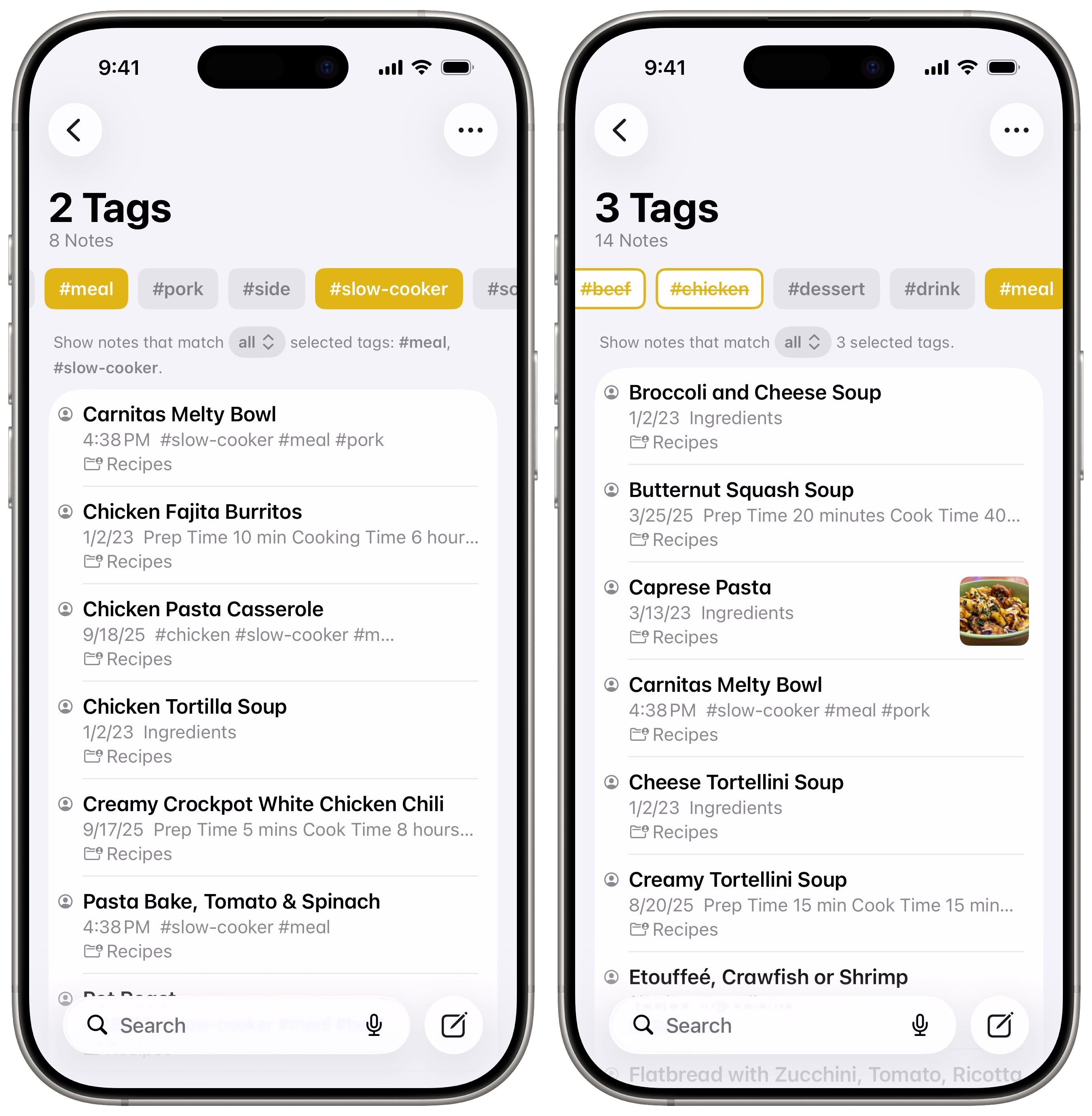
After you make a few tags, you’ll see a new collection with all of them on the bottom of your lists.
Tap on any tag to filter notes by tag. You can select two or more tags to narrow down your search. Tap on a tag twice to search for notes without that tag, or a third time to clear it.
Link notes together
Screenshot: D. Griffin Jones/Cult of Mac
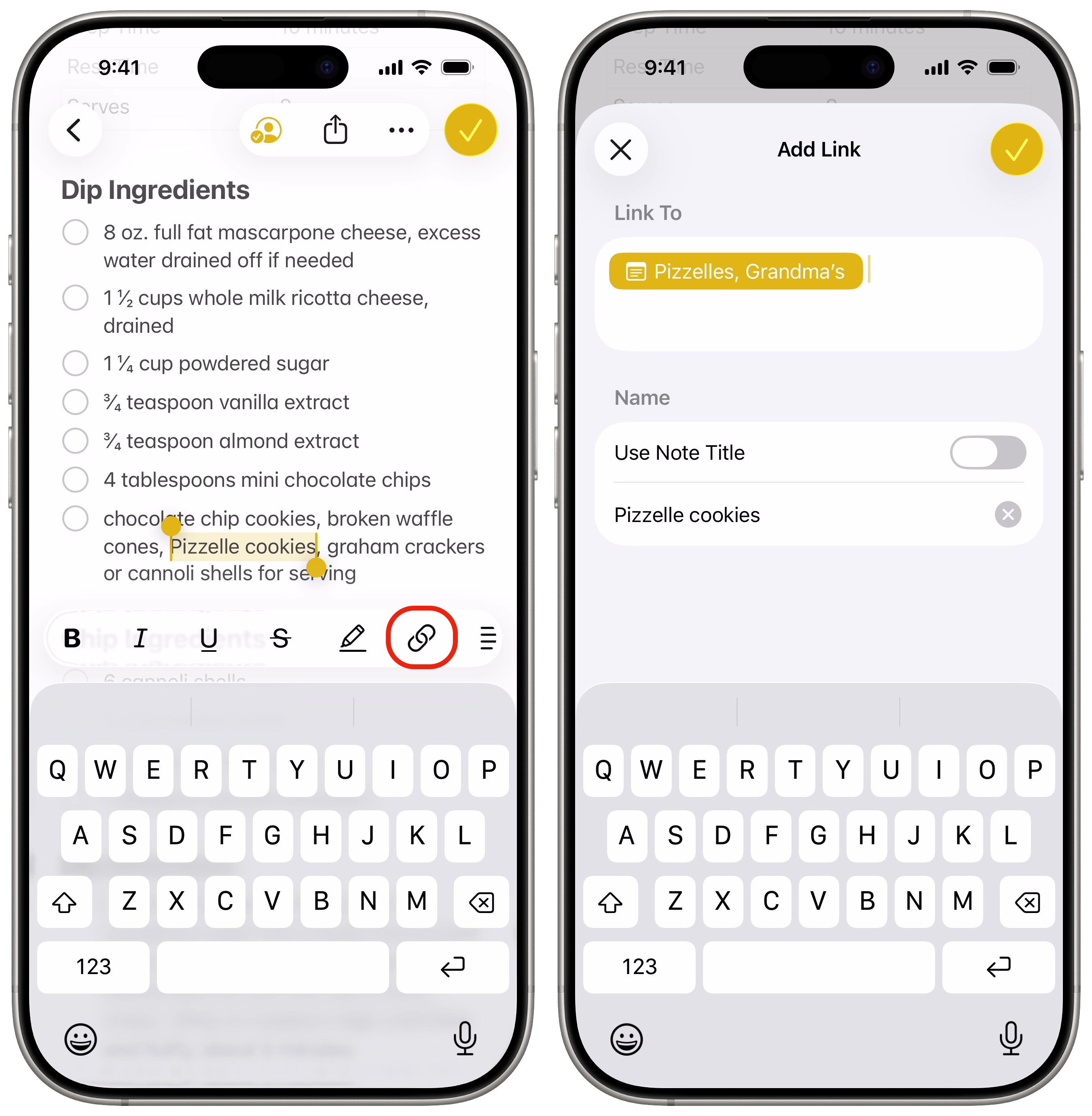
You can link to a note from within another note to tie some related topics together. For example, if you have a recipe that includes food made from a different recipe, you can add a link for convenience. Or, if you’re taking notes in school, you can link to a concept or topic covered previously, for context.
Select any text, then tap the Link button in the toolbar. Or, from the pop-up context menu, tap Add Link. In the “Link To…” field, type in the name of a previous note. You can enable Use Note Title to have the link copy the title of the note, or you can uncheck it to write something else. Tap Done in the upper right corner to add the link.
Auto-categorize a list into sections
Screenshot: D. Griffin Jones/Cult of Mac
Reminders lets you add categories within a list, a huge boost to keeping long lists of tasks organized. It has built-in support for grocery lists, sorting your items into different sections of a typical store to make your shopping easy. From a list, tap More (⋯) in the upper right, Show List Info, then set “List Type” to Groceries. Read more about this feature here: How to use grocery lists in Reminders on iPhone.
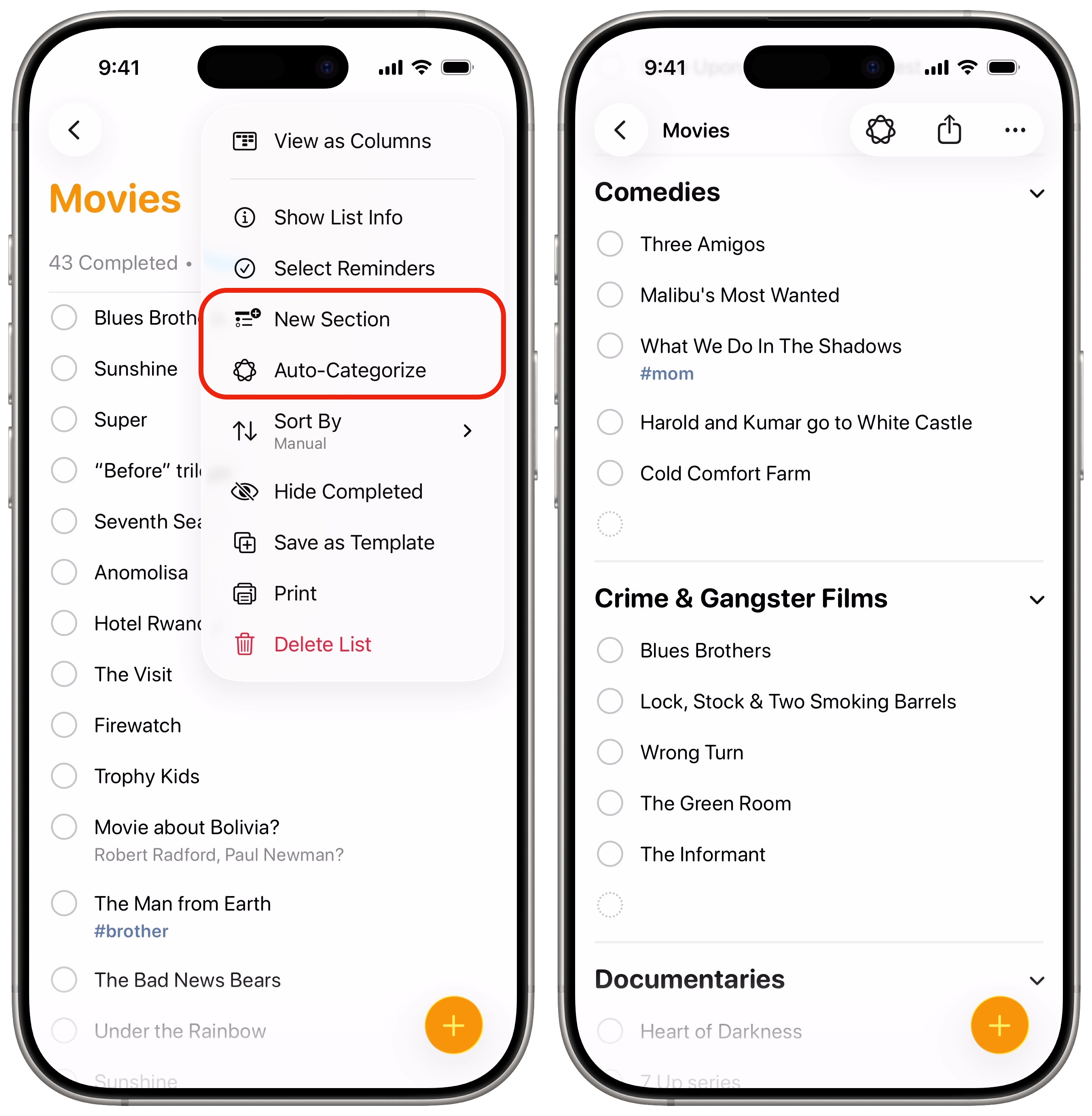
Of course, this feature isn’t just for groceries. You can tap More (⋯) in the upper right, then New Section to add a subcategory. Give it a title, then you can drag existing tasks into the section.
If your device supports Apple Intelligence, you can have it sort a big list into categories automatically. From the More menu, tap Auto-Categorize. I was really impressed by this — it filtered my long list of books I’d like to read into categories like Art & Design, Memoirs & Biographies, Science Fiction & Fantasy, Non-Fiction & Essays. It did a semi-competent job on my Movies list, too — it had a pretty good rate of working out the genre of each movie based on the title alone.
You can use categories like a kanban board, too — from the More menu, tap View as Columns. It’s a horizontally scrolling list you can freely move reminders through. This style of list is ideal for sorting different tasks into steps, like “Waiting,” “In Progress,” “Under Review” and “Done.”
Make smart lists
Screenshot: D. Griffin Jones/Cult of Mac
A smart list is a folder made up filters: all items that have a certain tag, date, priority, location and more. A smart list can be a different way to organize notes and tasks in a convenient way.
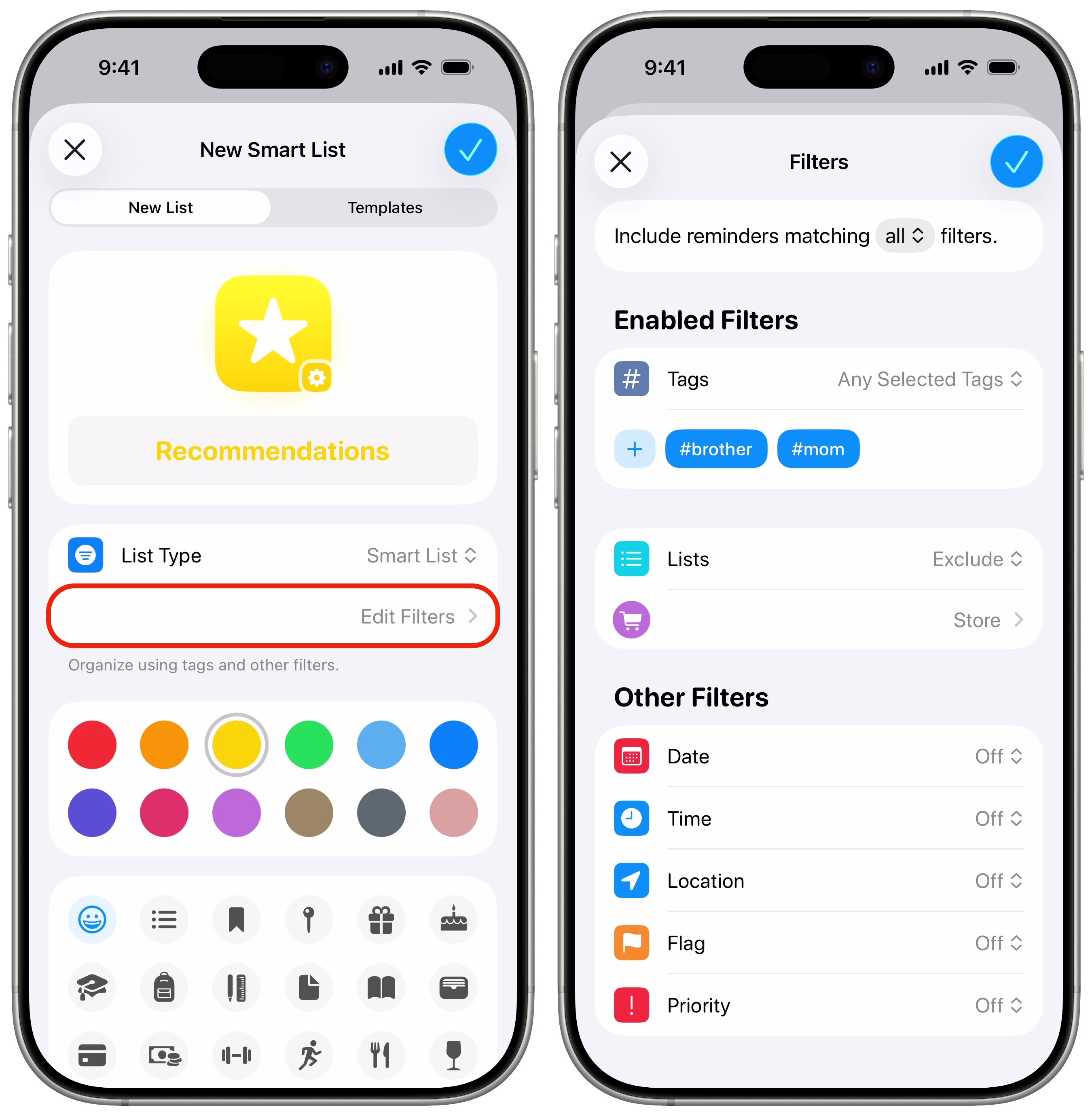
In Reminders, tap Add List at the top of the screen. Under “List Type,” pick Smart List.
Then, you tap Edit Filters to set it up. Here, I’m making a smart list for recommendations: I want to see everything in my Books, Movies and Games lists that my friends recommended to me, but I don’t want anything from my shopping list to show up here. So I have Tags set to Any Selected Tags, and I set “Lists” to Exclude Store. Tap Done when you’ve picked your filters — and don’t forget to give the list a name, color and icon!
You can do this in Notes as well. I have a Recently Edited smart list that’s really simple — it just filters notes edited within the last 30 days. If you deal with a lot of notes spread across multiple folders, this smart list is essential, because it puts everything you’ve worked on recently in one place.
Make templates for repeating task lists
Screenshot: D. Griffin Jones/Cult of Mac
If you have a task you need to repeat every once in a while, you can set it up as a template to recreate the same to-do list every day, every week or whenever you need.
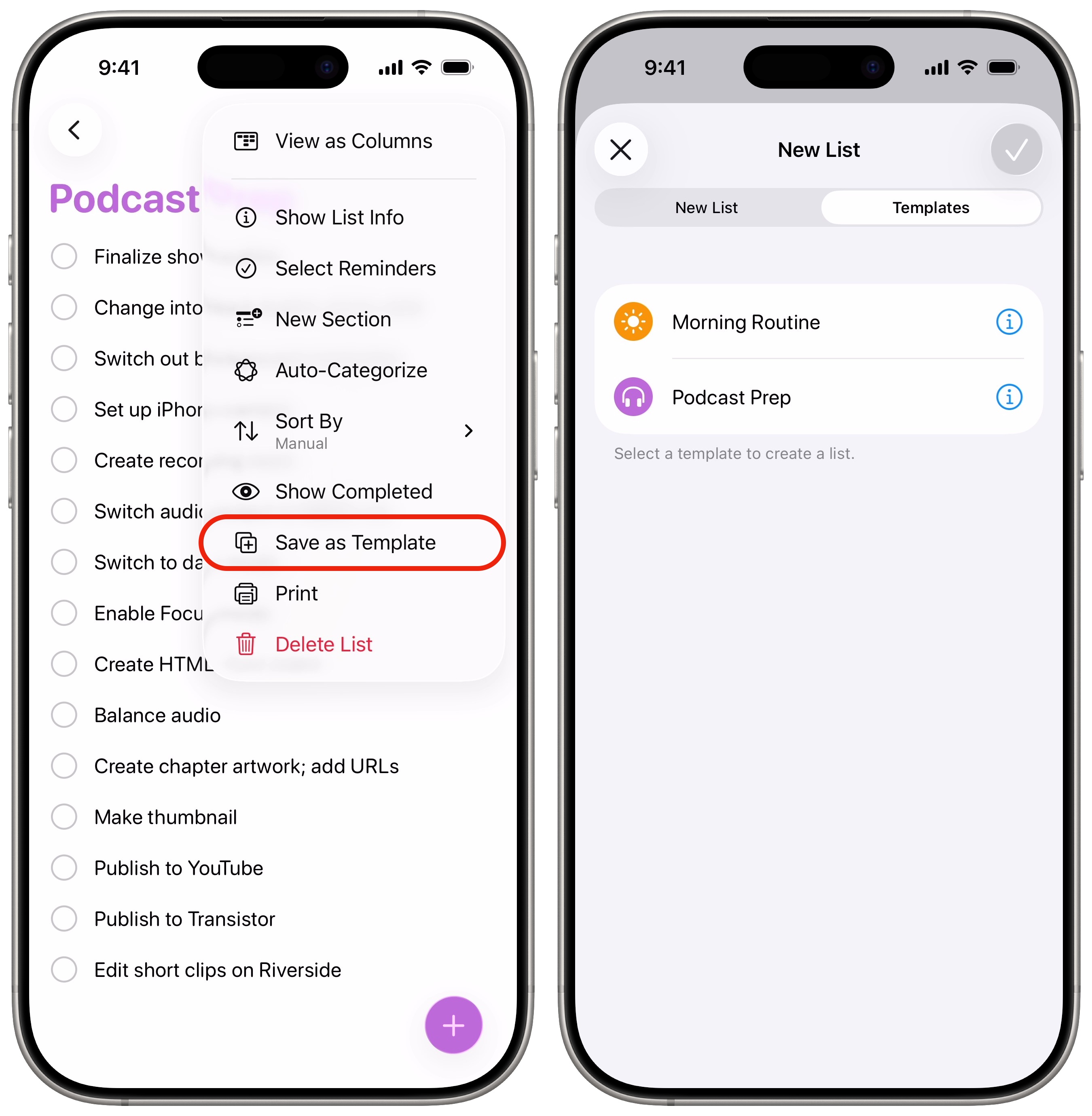
Start by creating a Reminders list. Add List, customize the name, color and icon, tap Done. Fill it in with your to-do list. Finally, tap the ⋯ button, tap Save as Template and tap Save.
Copying from the template is simple. The next time you tap Add List, go to the Templates tab and tap on the template you want. You have a chance to give each copy a different name for clarity.
More power user features to stay organized
- Make a grocery list to automatically sort the items into their common store categories, like produce, meat, bakery, frozen foods, household items, pet care, etc.
- 8 advanced features in the Notes app arrived in iOS 18, like audio transcripts, Math Notes, different highlight colors, call recordings and more.
- Transcribe a recorded phone call or voice memo in a note.
- Tag photos with the names of your friends, family members and pets so you can easily find pictures of them later on. The Photos app will detect pictures of people automatically — you just need to give them a name.
- Apple’s Passwords app offers a convenient way to save, autofill, look up and share passwords — and they’re synced across all your devices.
This article on how to organize Notes and Reminders on iPhone was originally published on January 3, 2023. We updated it with the latest information on April 3 13, 2026.

D. Griffin Jones was a writer, podcaster and video producer for Cult of Mac. Griffin has been a passionate computer enthusiast since 2002, when he got his first PC — but since getting a Mac in 2008, he hasn’t turned back. His skills in graphic and web design, along with video and podcast editing, are self-taught over 20+ years. Griffin has a bachelor’s degree in computer science and has written several (unpublished) apps for Mac and iOS. His collection of old computers is made up of 40+ desktops, laptops, PDAs and devices, dating back to the early ’80s.
Griffin writes for his personal blog, Extra Ordinary, and is currently looking for work.


One response to “Get organized with advanced features in Notes and Reminders”
My wife and I use a Shared Reminders list (“Groceries”) very similar to what’s listed above. The beauty of it is that she can add an item with Siri – “Add eggs to there Groceries list” and Siri actually works very well for this. As a somewhat amusing ‘aside’, while I’m getting the ideas and marking them off the list, she can see see what I’m getting, literally in real-time when I check off an item.