
Finishing a book takes time, patience and a whole lot of follow-through — but AI-powered book writing software BookBud.ai can help.
Many would-be authors start drafting something, but never actually get it ready for readers. BookBud.ai gives you a way to move past that wall by smoothing out the hardest parts of the writing and publishing process. And for a limited time, you can get a lifetime subscription to BookBud.ai for just $99 (regularly $1,200).

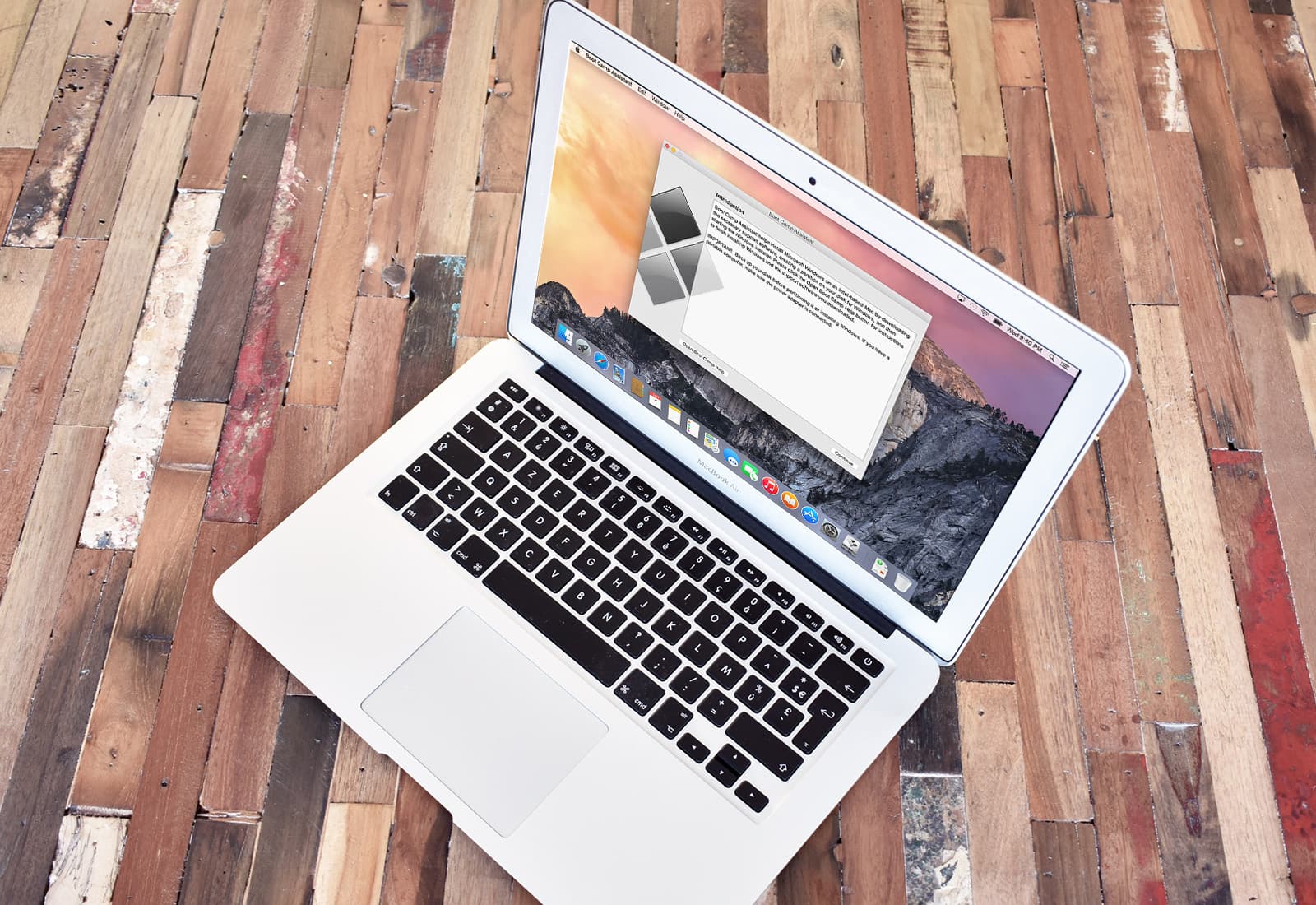
 April 5, 2006: Apple introduces the public beta of Boot Camp, software that allows users with an Intel-based Mac to run Windows XP on their machines.


 April 4, 1975: Microsoft is founded by childhood friends Bill Gates and Paul Allen. The software company destined to become a tech behemoth — and a major Apple frenemy.


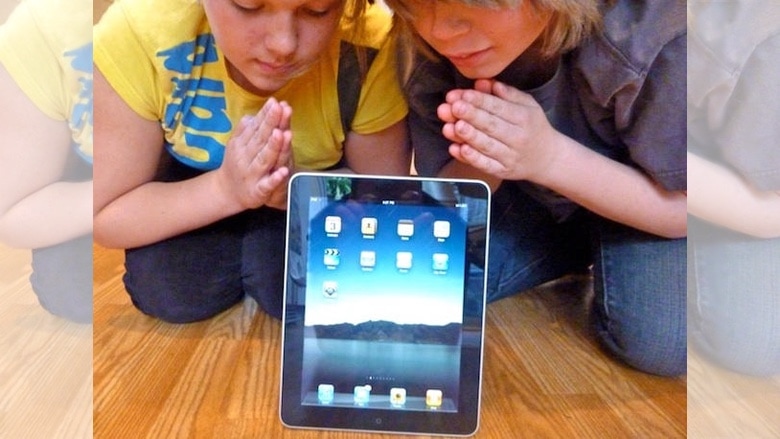
 April 3, 2010: The first iPad hits store shelves after months of anticipation. The tablet Apple CEO Steve Jobs called “magical and revolutionary” at its unveiling earlier in the year quickly becomes a major success.
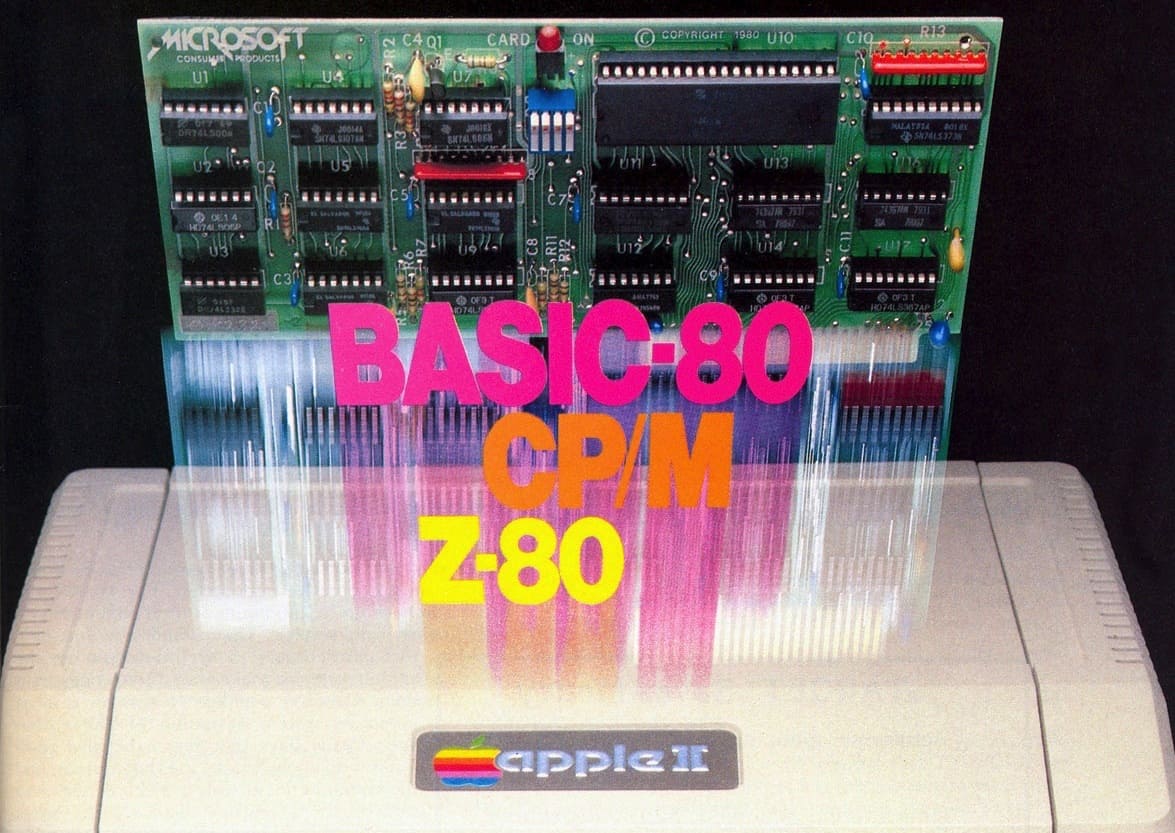
 April 2, 1980: Microsoft releases its first hardware product, the Z-80 SoftCard. A microprocessor card that plugs into the






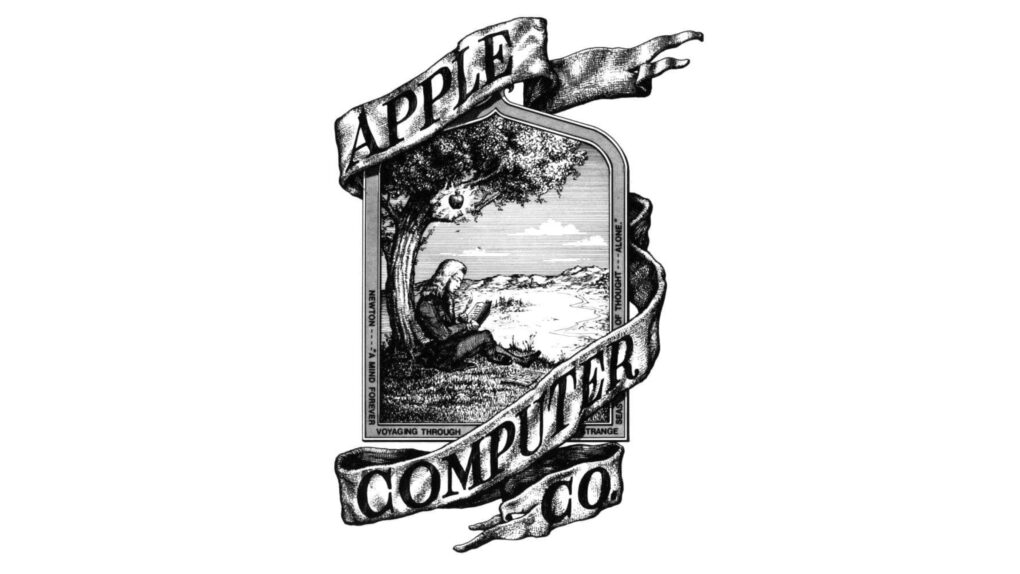
 April 1, 1976: The Apple Computer Company is founded by