If you work on a Mac, these six useful apps can help you get that work done faster. And you don’t need to take time to download them or figure out if they’re worth the price — you already have these apps on your computer.
Stickies can help you stay organized with digital Post-It notes. Digital Color Meter is an essential tool for graphic design. Dictionary is the fastest way to look up words and synonyms. Screen Sharing can remotely control other computers on your network. Grapher is a highly advanced plotting tool. And finally, Screenshot is an easy-to-use interface for taking screenshots and screen recordings.
I’ll walk you through how to use these useful Mac apps that you probably haven’t heard of.
6 useful apps for Mac you already have
People always say the Mac is a more powerful, versatile tool than the iPhone or iPad. A lot of that comes down to the broad range of Mac apps available.
There are tons of tools out there to boost productivity, aid in app development and more. (There are loads of free Mac utilities, too.) But you don’t need to go searching for these hidden gems. Your Mac comes with these six awesome utility apps preinstalled.
They sit inside every Mac, and you can find them in the Applications and Utilities folders. If you’re in the Finder, just hit Shift-Command-A (⇧⌘A) or Shift-Command-U (⇧⌘U) to locate them, or search for them in Spotlight.
You can watch me walk through all these apps in this video:
Table of contents: 6 useful apps for Mac you already have
No. 1: Stickies
Screenshot: D. Griffin Jones/Cult of Mac
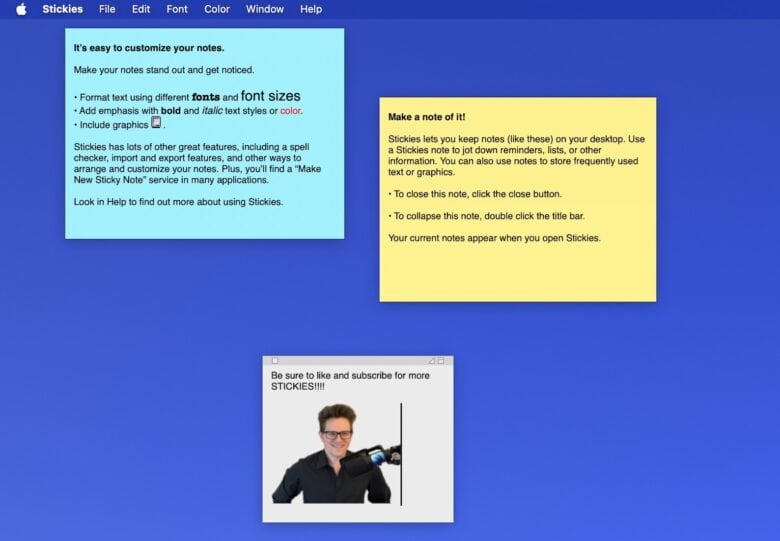
There’s a distressing number of people that I know and love, despite seeing their habit of covering their computer monitor with sticky notes. Why limit yourself to your monitor’s outer bounds? You can cover your digital desktop with Post-its, too, using the Mac’s Stickies app.
Once you’re running Stickies, just hit Command-N (⌘N) to make a new note. You can quickly jot down some thoughts, drag the Stickies note around and resize it. You can change the color using Command-1 through Command-6 for a full rainbow array.
If you write down something more permanent that you want to keep for later on all your devices, you can. Just hit File > Export All to Notes to move your Stickies into your Mac’s built-in Notes app. Or, you can export a single note to a .txt file.
Screenshot: D. Griffin Jones/Cult of Mac
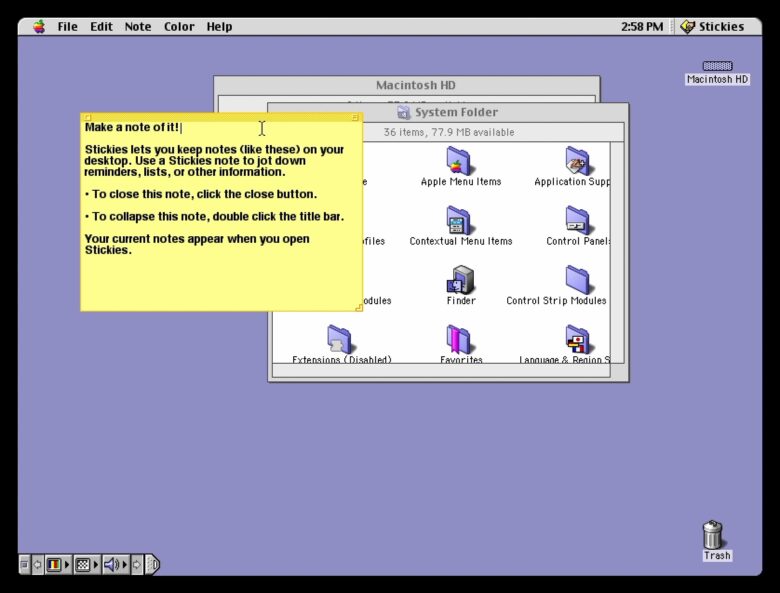
As a brief aside, why doesn’t Stickies use the standard three-stoplight controls that every Mac app has? Stickies is actually one of the oldest unchanged apps on the Mac. It has virtually the same set of features and user interface since its debut in Macintosh System 7.5.
The square button on the left is the close button. On the right side, there’s a triangular (?) maximize button and a WindowShade button. WindowShade is sort of like minimize — the window collapses into its title bar. The Mac hasn’t had WindowShade since Classic Mac OS, but for some reason, Apple’s designers let it slide here.
No. 2: Digital Color Meter
Screenshot: D. Griffin Jones/Cult of Mac
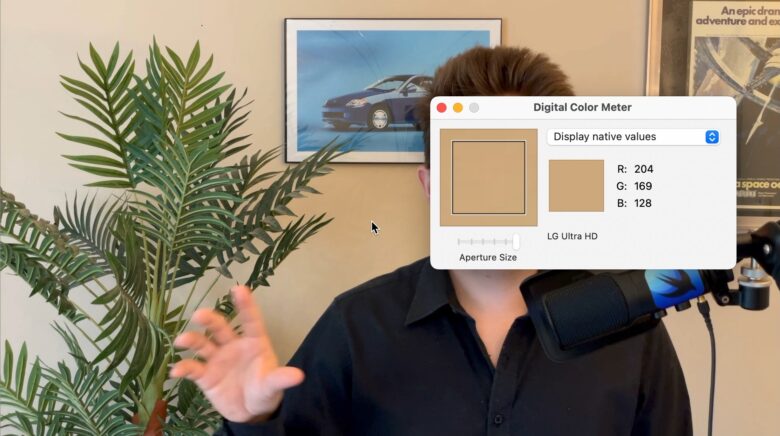
If you’re making a presentation or whipping up some graphics, you might want a quick way to get the exact color of something on the screen. You could take a screenshot, import it into a photo editor, get the color from the eyedropper tool … or you could just use your Mac’s built-in Digital Color Meter.
It’s a small app that does one thing very well: It tells you the exact color value on the screen at any point. Handy keyboard shortcuts let you lock the position (⌘L) and copy the color as text values (⇧⌘C) or as an image (⌥⌘C).
You can switch between decimal or hexadecimal colors, and you can change the aperture size to get the average color over a larger range. You can even switch between color profiles like P3 and sRGB.
No. 3: Dictionary
Screenshot: D. Griffin Jones/Cult of Mac
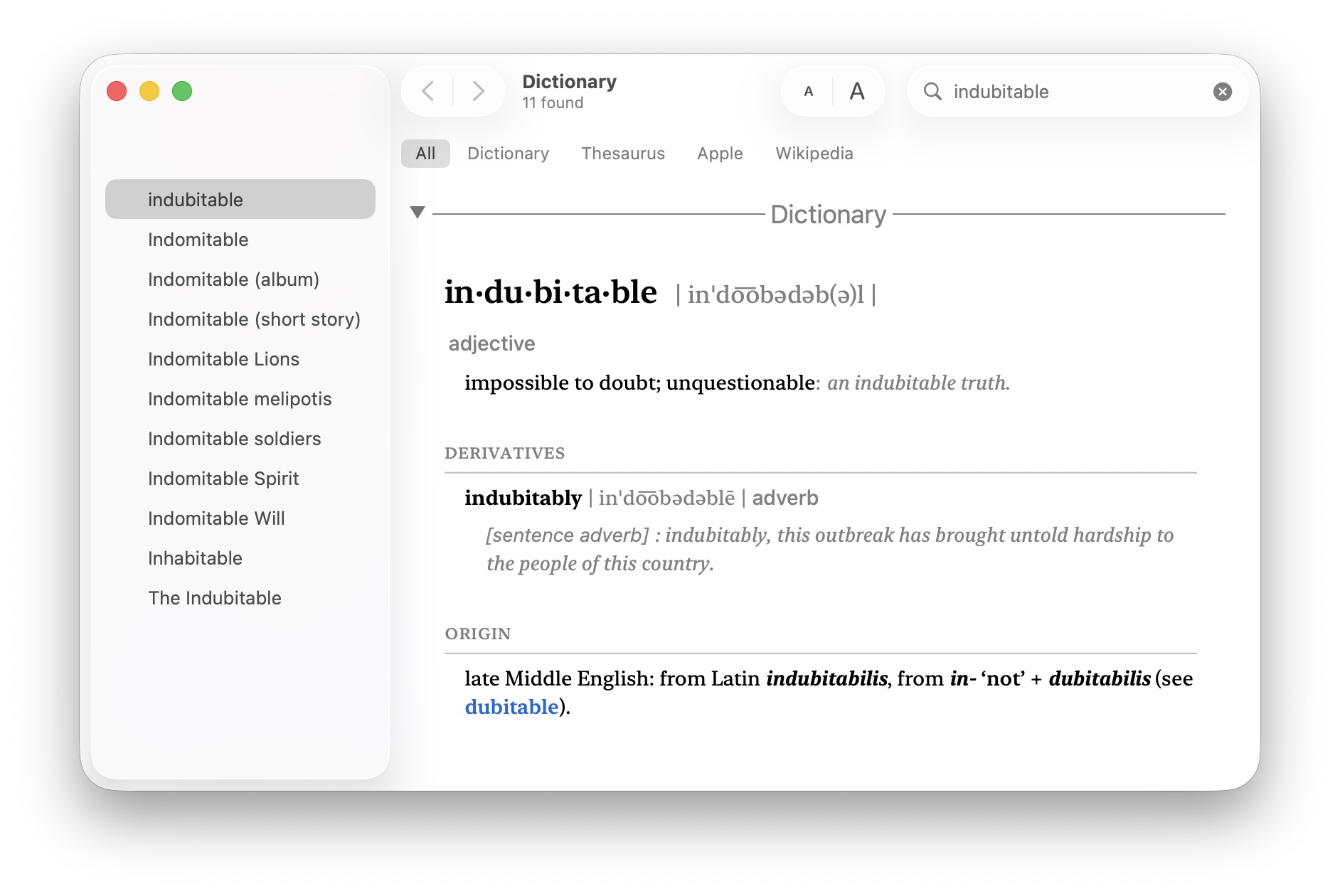
The Dictionary app is a combo dictionary, thesaurus and Wikipedia reader built into every Mac. It’s lightning-fast when you want to look up a word for definitions and synonyms.
To find it, hit Command-Space for Spotlight, type in dict (which probably autocompletes to Dictionary.app) and then hit enter. Then you can type in anything to get a definition and a detailed article with more information.
In the time it took you to read that, you could have done it, like, three times.
It’s an excellent way to read Wikipedia, too. You will find all the inline links, images, tables and related pages at the bottom. Because it’s inside the Dictionary app, you can click on every word in the article to get a definition.
No. 4: Screen Sharing
Screenshot: D. Griffin Jones/Cult of Mac
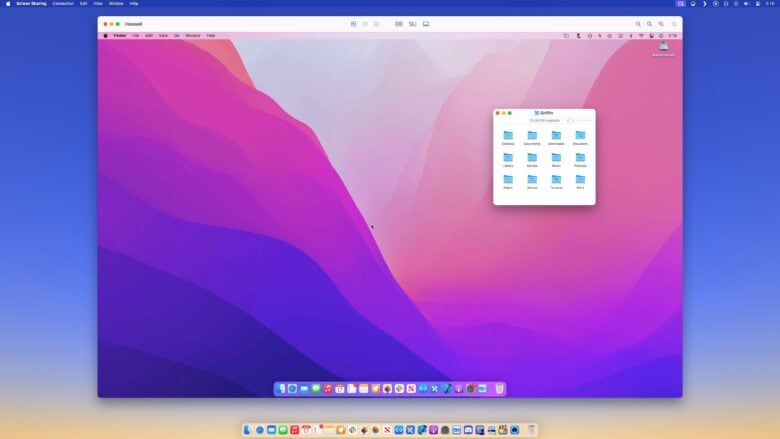
If you have multiple Macs in your office, Screen Sharing will be your new best friend. From your Mac, you can remotely control another Mac nearby. You don’t even need to have your MacBook open or your Mac mini connected to a display.
However, you do need to make sure screen sharing is enabled on your other Mac. If it’s a newer Mac, go to System Settings > General > Sharing and turn on Screen Sharing. On an older system, that’s in System Preferences > Sharing.
If both Macs are on the same network, just click Network in the sidebar and pick one. You’ll need to authenticate with a user name and password on the other Mac.
To connect to a truly remote Mac far across the internet, click the + in the toolbar. You can enter your Apple Account name (or a hostname if you know that). It’ll send an invitation to the other computer that you can accept. You can choose to give full control or only allow the other computer to observe.
Once accepted, you can see the other screen from your own. This can save the hassle of wrangling monitors or fiddling with keyboards and mice if you regularly deal with a slew of Macs at once.
(You can also initiate this directly from iMessage. For more info, read: Share your screen to (and from) any Mac, right from the Messages app.)
No. 5: Grapher
Screenshot: D. Griffin Jones/Cult of Mac
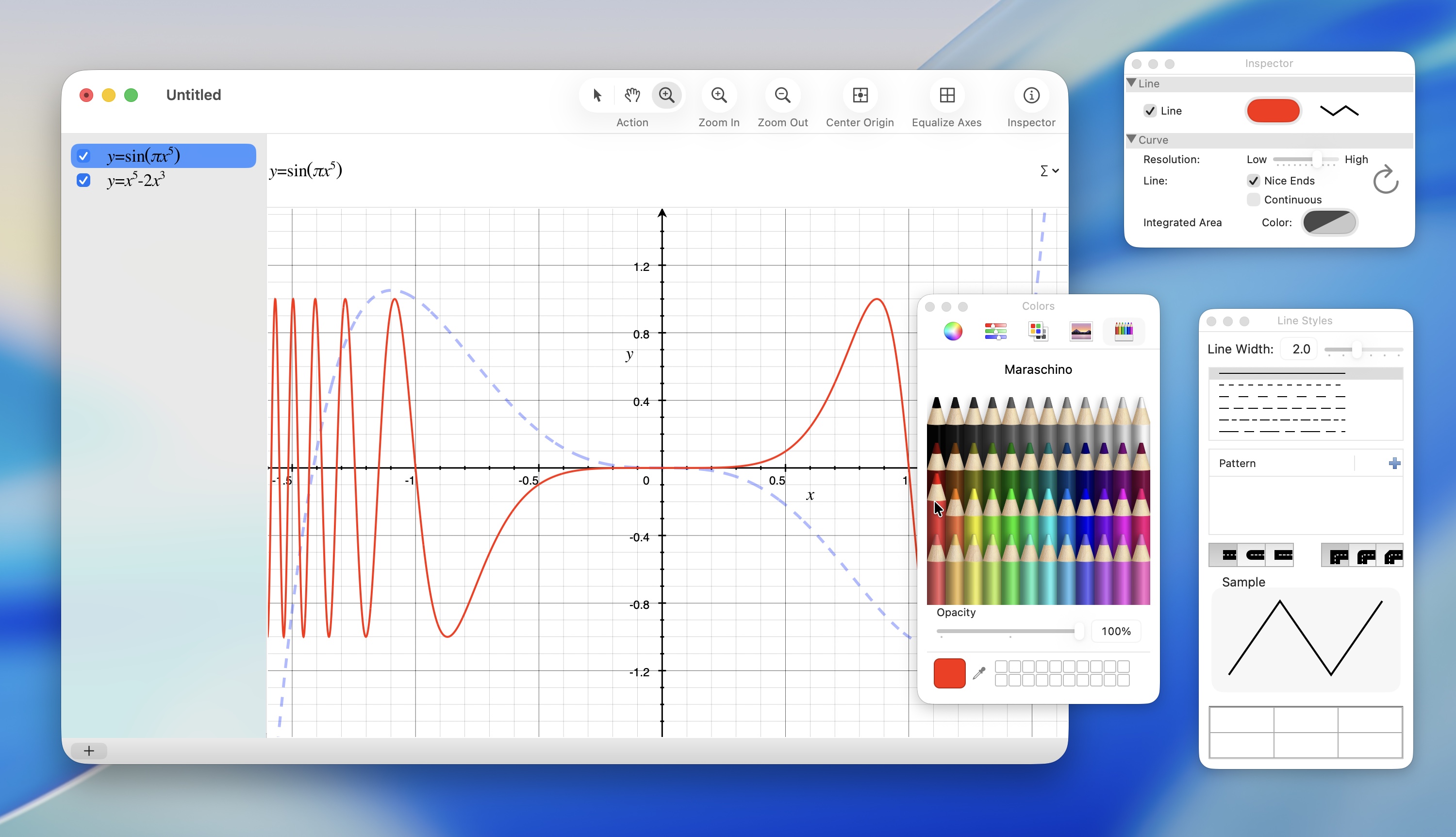
If you need help on your math homework, be it algebra, calculus or whatever fresh hell requires a polar logarithmic graph, you can always open the useful Grapher app on your Mac. It lets you quickly generate 2D and 3D graphs with a variety of different units and templates.
To use it, just type in an equation in the top; click the ∑ symbol to the right for various features like roots, summations and integrals. You can stack several equations on the same graph by clicking the + at the bottom of the sidebar. Click on a plot and click the Inspector to edit the line color and thickness.
If you want to see the extreme of what’s possible, peruse the Examples in the menu bar. You will see some wildly impressive graphs in there.
Why does Apple build a graphing calculator into the Mac in the first place? The app’s origins are weird and wild, its predecessor having been developed by an ex-contractor who continued working secretly inside Apple’s headquarters for six months after having his project canceled.
No. 6: Screenshot
Screenshot: D. Griffin Jones/Cult of Mac
You may remember the Shift-Command-3 (⇧⌘3) keyboard shortcut to take a screenshot on the Mac. (Or more likely, you Google it every time.) Pro users know you can do Shift-Command-4 and hit Space to capture a window and even hold down Option while you’re doing it to exclude the window’s drop shadow.
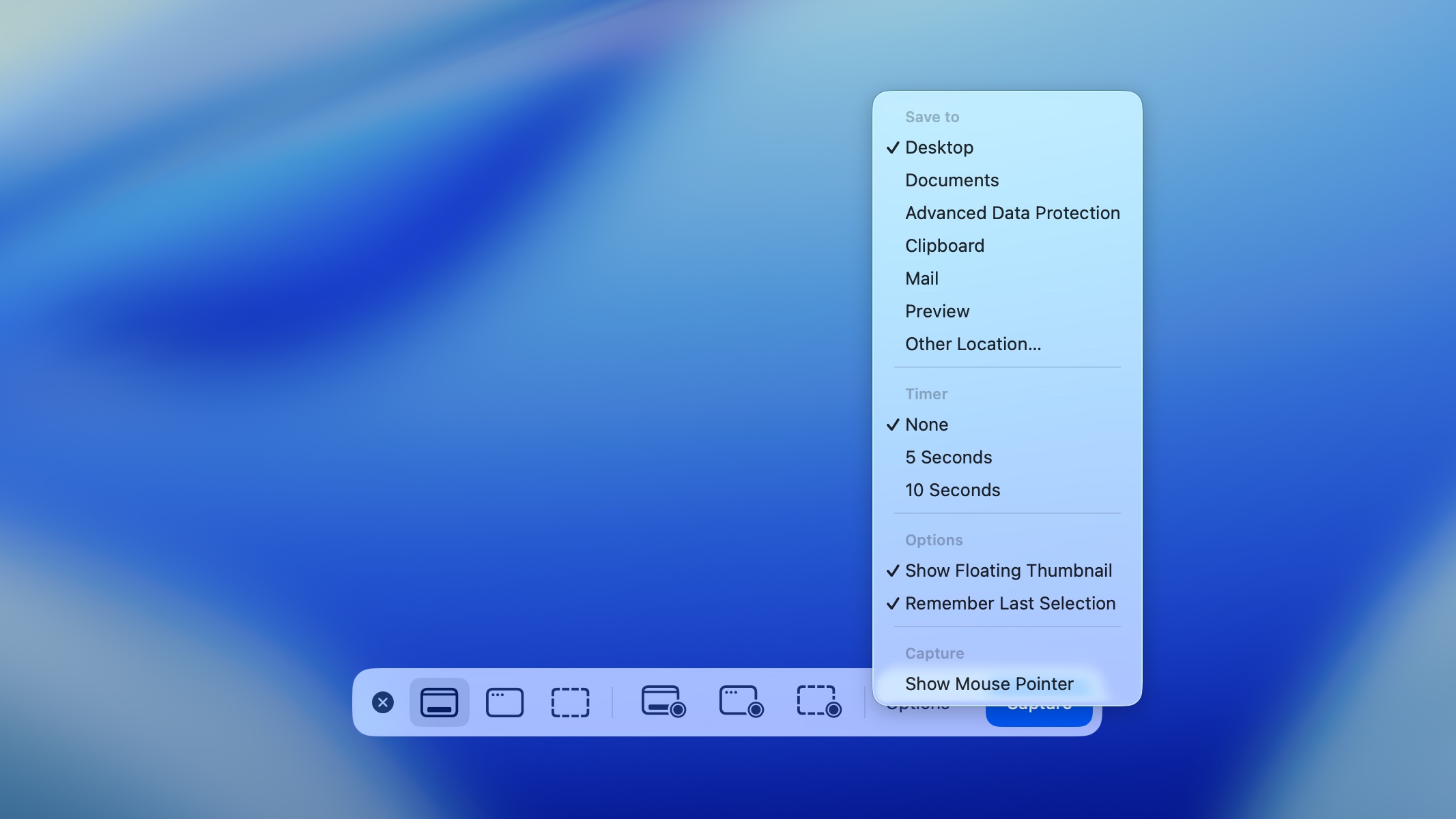
Or, if you aren’t an encyclopedia, you can just launch the Mac’s Screenshot app. It offers a friendly user interface for all the types of screen captures the Mac can do.
Did you know you can take screen recordings with live voiceovers from your Mac’s microphone? Of a specific spot on the screen of your choosing? It’s remarkably simple. Just click the Record Entire Screen or Record Selected Portion button, click Options to select a mic, then click Record. Click the Stop button in the menu bar when you’re done, then save your recording.
If you have space in your brain for only one esoteric keyboard shortcut, remember Shift-Command-5 (⇧⌘5), the shortcut to bring up the Screenshot app. (For more info, read: Master Mac screenshots: Every shortcut and trick you need to know.)
Even more apps come with your Mac
There are even more useful Mac apps hiding in your Applications and Utilities folders. I use Activity Monitor to see which apps are eating up performance and memory. Disk Utility is where you go to manage hard drives and storage. Font Book is a great way to browse, add and preview the fonts you have installed on your Mac.
We originally published this post on useful Mac apps on August 19, 2023. We updated it with the latest information on August 20, 2024, and January 8, 2026.

D. Griffin Jones was a writer, podcaster and video producer for Cult of Mac. Griffin has been a passionate computer enthusiast since 2002, when he got his first PC — but since getting a Mac in 2008, he hasn’t turned back. His skills in graphic and web design, along with video and podcast editing, are self-taught over 20+ years. Griffin has a bachelor’s degree in computer science and has written several (unpublished) apps for Mac and iOS. His collection of old computers is made up of 40+ desktops, laptops, PDAs and devices, dating back to the early ’80s.
Griffin writes for his personal blog, Extra Ordinary, and is currently looking for work.

