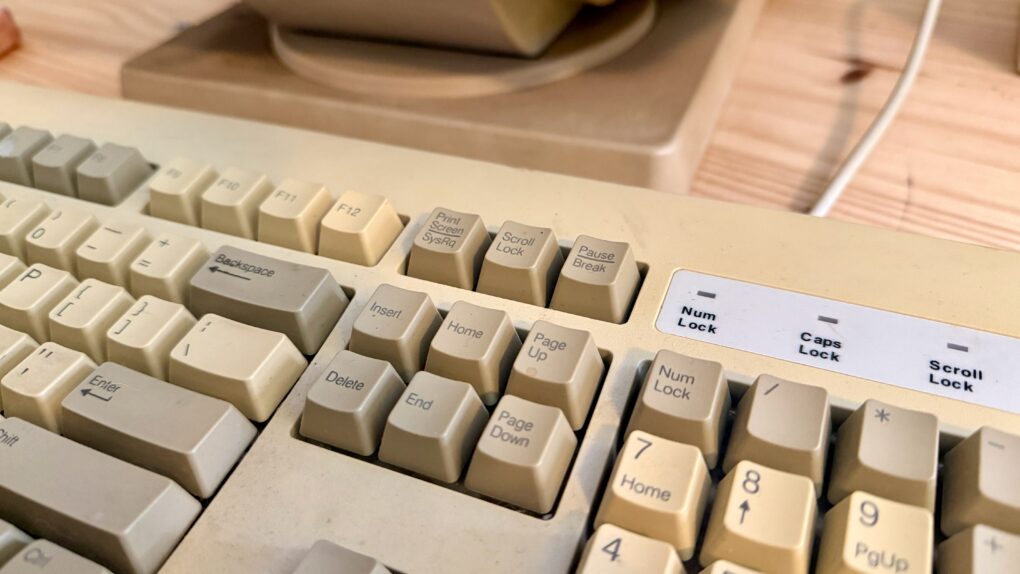
One of the most dramatic ways you can customize your computer is to remap your Mac keyboard keys. You can make it your own with custom functionality, powerful keyboard shortcuts and advanced features.
Using the free app Karabiner Elements, switching out one key for another is super-easy. It’s a must-have if you use a PC keyboard with your Mac. You can also go one step further, making custom keyboard shortcuts.
But if that sounds too fiddly to do yourself, you can simply install some customizations made by the Karabiner Elements community. Someone might have set up a rule for your specific keyboard!
Here’s how to get started.
How to remap Mac keyboard keys for free using Karabiner Elements
PC keyboards — and even many third-party keyboards that work with both platforms — come with a bunch of superfluous keys that Mac users don’t need. I mean, who the hell even knows what Scroll Lock does? Or Insert?
You can put those extra keys to good use. I heavily customized the layout of my keyboard, turning the whole number pad area into a selection of keys for controlling media, scrolling and adding the Globe key — a newer key that’s only found on official Apple keyboards.
Table of contents: How to remap Mac keyboard keys
- Download Karabiner Elements and Karabiner EventViewer for free
- Remap a Mac keyboard key for whatever you want
- Make a complex shortcut with multiple keys
- Download a premade rule from the community
- More ways to master your Mac
Download Karabiner Elements and Karabiner EventViewer for free
First, you need to download Karabiner Elements. This free, open source Mac app lets you heavily customize your keyboard. It also comes with a companion app, Karabiner EventViewer, that tells you the code for each key.
After downloading, follow the instructions on the installer package.
After launching the apps for the first time, you’ll have to go through and enable a bunch of system permissions. This will allow the app to monitor your keyboard input and change what happens under the hood.
I recommend going to the UI tab and turning off Karabiner Elements’ menu bar icon. I don’t like a lot of apps cluttering up my Mac’s menu bar. You can always open Karabiner Elements to make any changes.
Remap a Mac keyboard key for whatever you want
Screenshot: D. Griffin Jones/Cult of Mac
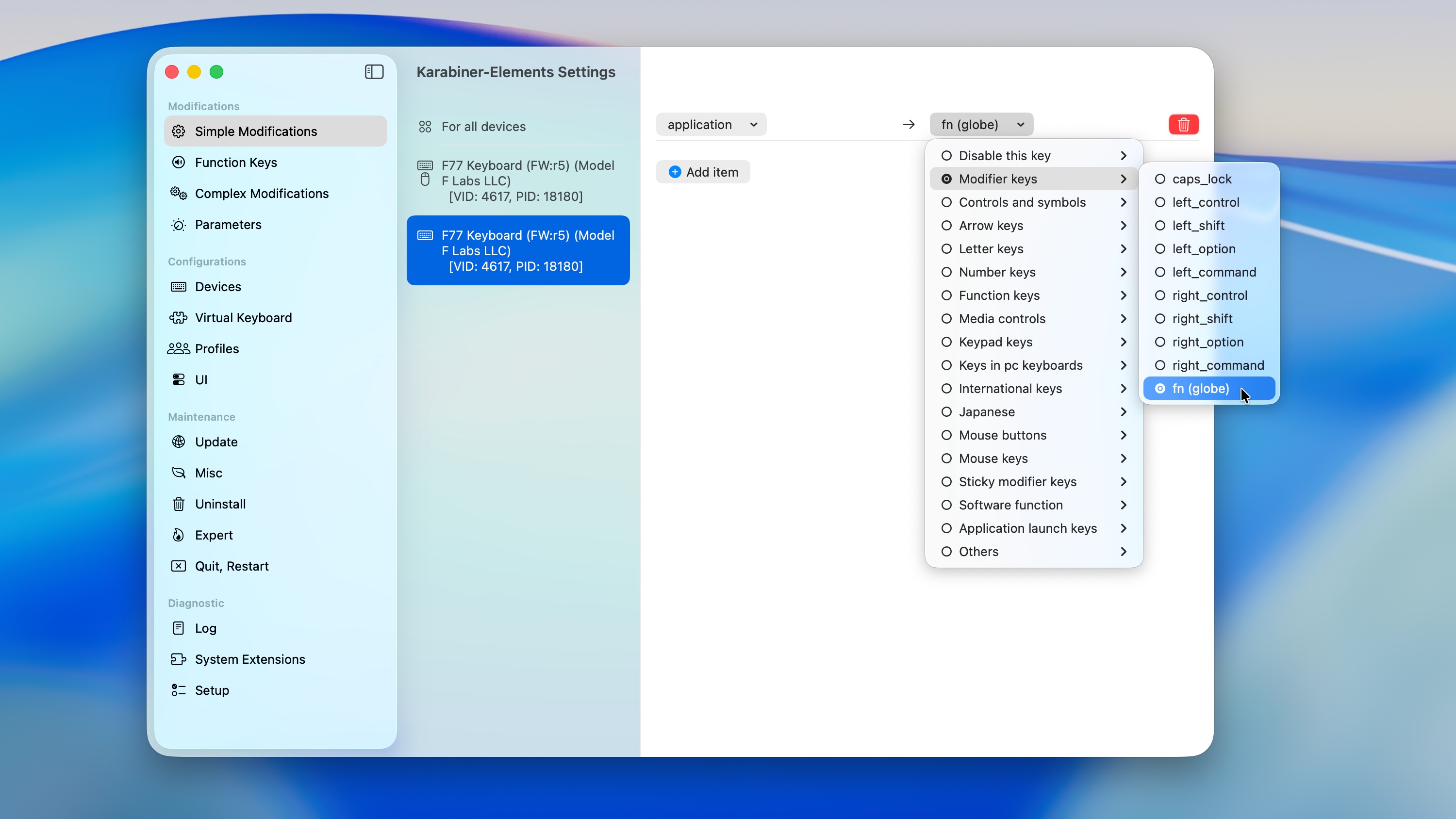
Open Karabiner Elements to remap your Mac keyboard keys. In the Simple Modifications tab, you can swap out one key for another. Pick For all devices if you want it to change across all keyboards, or pick one from the list below to make a change specific to that device.
In the first dropdown menu, pick the key you want to change. If you need help figuring out how it’s identified, open the Karabiner EventViewer app and press it; it’ll show the code for that key.
In the second dropdown menu, pick the key you want it to be instead.
If you have a third-party keyboard, I highly recommend mapping the Function key to the Globe key. The Globe key largely works the same way, but with extra functionality for window tiling keyboard shortcuts. You can also tap the Globe key to bring up the emoji picker. But, for inexplicable reasons, third-party keyboards can’t use it out of the box.
To make this change on an older Apple keyboard, set the left dropdown menu to Others > key_code::fn. On a third-party keyboard, you might need to use Karabiner EventViewer to see what the key shows up as. In the right dropdown menu, select Modifier keys > fn (globe). Then, you should be able to use it like a Globe key.
Make a complex shortcut with multiple keys
Screenshot: D. Griffin Jones/Cult of Mac
Say you want to make a custom keyboard shortcut. Maybe your keyboard has a Fast Forward button, and you want to be able to hit Shift + Fast Forward to Rewind. Maybe you have a PC keyboard, and you want to remap one of the pointless keys, like Insert or Scroll Lock, to something useful, like a key that locks the screen or puts your Mac to sleep.
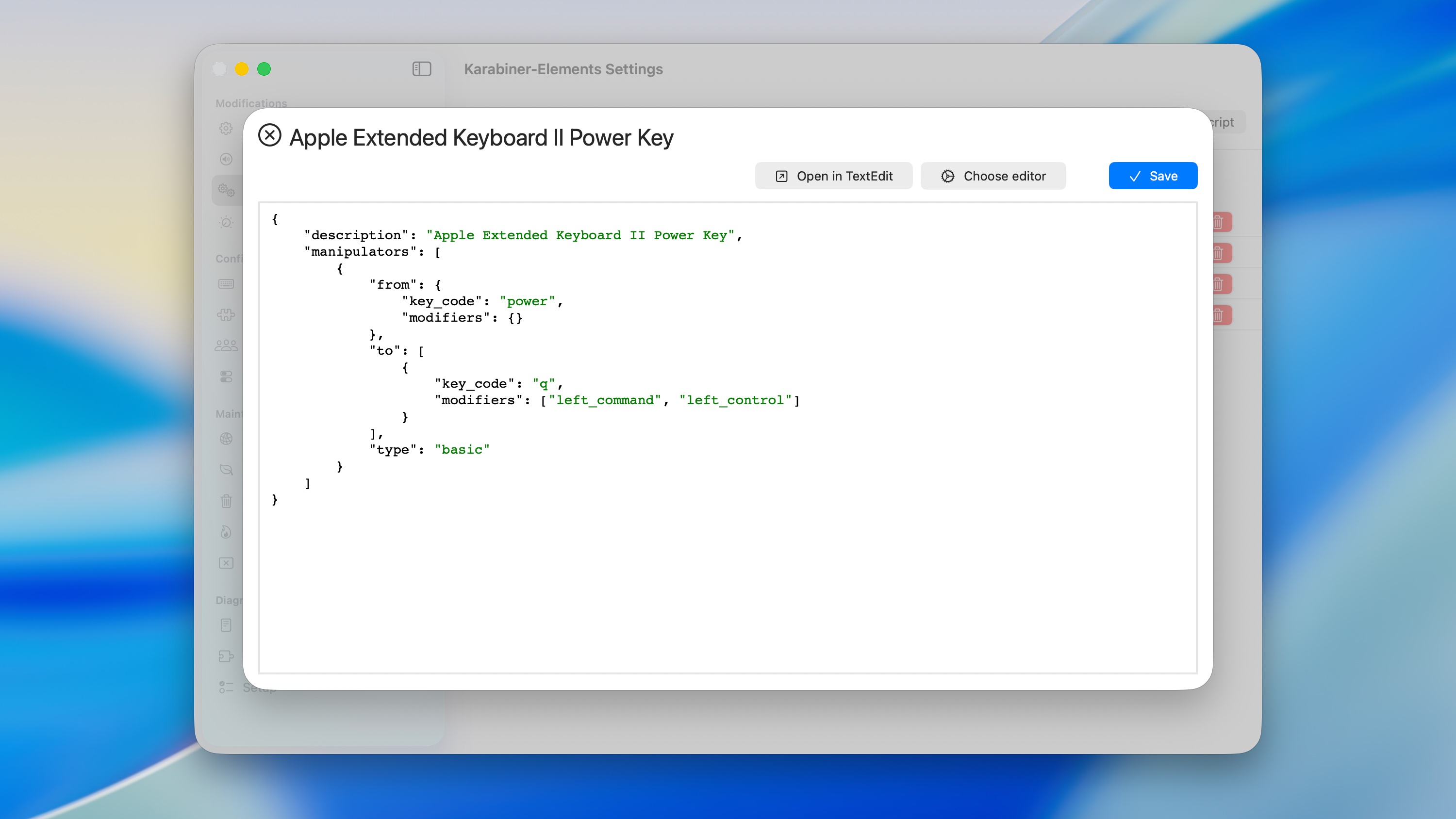
Go to the Complex Modifications tab in Karabiner Elements and click Add your own rule. It fills the text field with a premade example to help you with the syntax.
- Replace “description” with a descriptive title that summarizes the change.
- In “from” > “key_code,” replace “caps_lock” with the key you want to remap.
- In “from” > “modifiers” > “mandatory,” replace “left_shift” with a modifier key like “left_command,” “right_option,” or any other modifier key. You can put multiple keys inside the brackets if you want to require multiple modifier keys.
- Replace “to” > “key_code” with the key you want to remap it to. Add a key inside the “modifiers” section if you want to
For example, in order to remap the Power button on my Apple Extended Keyboard II, I remapped the “power” key to “q” with the “left_command” and “left_option” modifier keys, so that it simulates the ⌃⌘Q keyboard shortcut to lock the screen.
At first, I recommend making one change at a time, so you can figure out how the system works.
Download a premade rule from the community
There’s a whole community of people who’ve made complex rules that remap the Mac keyboard. You can supercharge navigation in Slack, using the Caps Lock key as a shortcut to jump around and navigate the app faster. There are also presets for popular keyboards, like the Keychron lineup.
In Karabiner Elements > Complex Modifications, click Add predefined rule > Import to open the online directory.
- In the Application Specific section, there are predefined rules for Google Chrome, Visual Studio Code, Slack, Spotify, Adobe Premiere Pro, Remote Desktop and tons of other productivity apps.
- The OS Functionality section has a bunch of advanced settings, like disabling Command-H to hide, adding Command-F1 and Command-F2 to control keyboard brightness and more.
- Check out the Device Specific section to see if there’s a special mapping for your own keyboard, or check the Keychron sections.
- Modifier Keys lets you turn a specific key into a hyper key, so you can hit Command-Option-Control all at once by using Caps Lock, Right Option or other keys.
Just click Import next to any rule you want to try out to add it to Karabiner Elements.
More ways to master your Mac
- Master Mac screenshots: Every shortcut and trick you need to know
- Everything you need to know about iPhone Mirroring on the Mac
- How to use the all-new Spotlight
- Rename multiple files on Mac the easy way
- 6 tricks to master Preview on the Mac
- How to use window snapping and tiling on the Mac
- Hidden Mac keyboard shortcuts you might not know
- How to set up the best Mac screensaver, Aerial

D. Griffin Jones was a writer, podcaster and video producer for Cult of Mac. Griffin has been a passionate computer enthusiast since 2002, when he got his first PC — but since getting a Mac in 2008, he hasn’t turned back. His skills in graphic and web design, along with video and podcast editing, are self-taught over 20+ years. Griffin has a bachelor’s degree in computer science and has written several (unpublished) apps for Mac and iOS. His collection of old computers is made up of 40+ desktops, laptops, PDAs and devices, dating back to the early ’80s.
Griffin writes for his personal blog, Extra Ordinary, and is currently looking for work.

