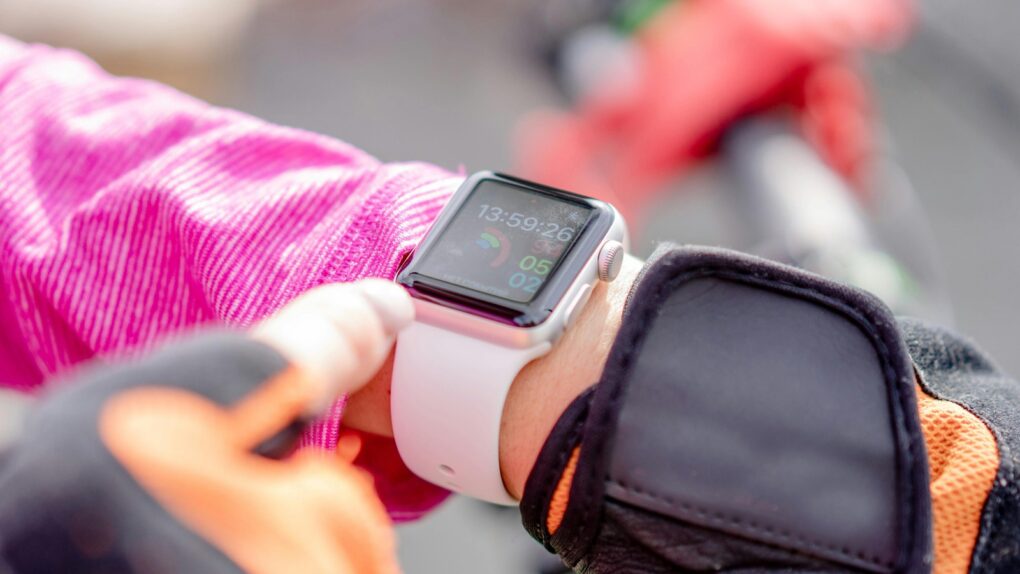
The Apple Watch helps people stay more active by encouraging wearers to stand, move around and exercise. But its workout tracking has a few quirks that users should understand.
Knowing about these Apple Watch exercise oddities — and how to work around them — can help you avoid frustration as you get fit.
Apple Watch exercise tips every wearer needs to be aware of
I’m genuinely healthier than I was before I got my first Apple Watch, despite being about 10 years older. The wearable constantly nudges me to move more and not sit at my desk all day like a lump. Because, as the saying goes, “Sitting is the new smoking.”
To be clear, I haven’t become a gym rat. My Apple Watch helped me set reasonable exercise goals, and now it challenges me to meet them with reminders plus gamified rewards like Activity rings, streaks and badges.
I’m proud of how often I meet or exceed the goals. And I get frustrated when I don’t because of something outside of my control. Sometimes that’s the fault of the Apple Watch, but not always.
The good news is that three particular Apple Watch tweaks let me overcome these problems. Maybe you know them already — but if you don’t, you definitely should.
1. Get your Stand hour by holding your arm differently
Photo: Ketut Subiyanto/Pexels
Raise your hand if this happens to you: You finish 20 minutes of cooking or washing dishes, sit down, then get a reminder from your Apple Watch that you still need to get your Stand minute in. So irritating.
Perhaps it will be less frustrating if you understand what’s going on behind the scenes. Turns out a watch is a poor tool to discover whether you’re standing or sitting. The workaround Apple uses is to detect whether you’re holding your arm horizontally or letting it hang down.
The wearable assumes you only let your arms hang vertically when you’re standing. But if you’re standing and, say, washing dishes, then your Apple Watch mistakenly thinks you are sitting down because your arms are horizontal.
So when you’re consciously trying to get your stand minute, let your arms hang. Your Apple Watch will properly register that you’re standing.
Anyone with a sneaky mindset should immediately realize that this means you can get your stand minute in by letting your arm hang down while sitting. This works — I tested it to be sure.
Don’t do this. Remember that the goal is to become healthier, not just close your rings. And tricking your Apple Watch into giving you credit for something you didn’t do isn’t helping you.
2. Use the ‘Other’ workout category

Photo: Greta Hoffman/Pexels
Does this sound familiar? It’s the end of the day and you’re worn out, with no energy left to exercise. Frustrating, right?
So ask yourself, what did you do that was so tiring? And was it something that could have counted as exercise? If it was, then the next time you do it, you should tell your Apple Watch to give you credit for it.
You can do this by utilizing the “Other” category for workouts. Almost any yardwork counts as exercise — but gardening is not an option in the Apple Watch’s Workout app. Luckily, there’s a workaround.
The next time you’re mowing the yard or raking leaves, start an “Other” workout session. Sames goes for changing the sheets on your bed or moving boxes at work. Start an “Other” workout session for anything that involves lots of movement.
Get in this habit, and you’ll find that you’re making real progress toward your daily exercise goal even on days when there’s no room in your crowded schedule for a “real” workout like running or swimming.
This isn’t cheating. It’s you claiming exercise that you (and your Apple Watch) previously ignored.
3. Manually add a workout
Screenshot: Ed Hardy/Cult of Mac
This has surely happened to everyone: It’s near the end of the day, you glance at your Apple Watch to be sure you’ve closed all your rings and — to your horror — see that the Exercise ring has scarcely moved. But you went to the gym! That’s when you realize you forgot to tell your Apple Watch about your workout.
Exercise tracking is great, but it requires remembering to tell the wearable when the workout starts and ends (although Apple Watch sometimes notices if you’ve started a workout and asks you if you want to record it). If you forget, that data is lost … but not really!
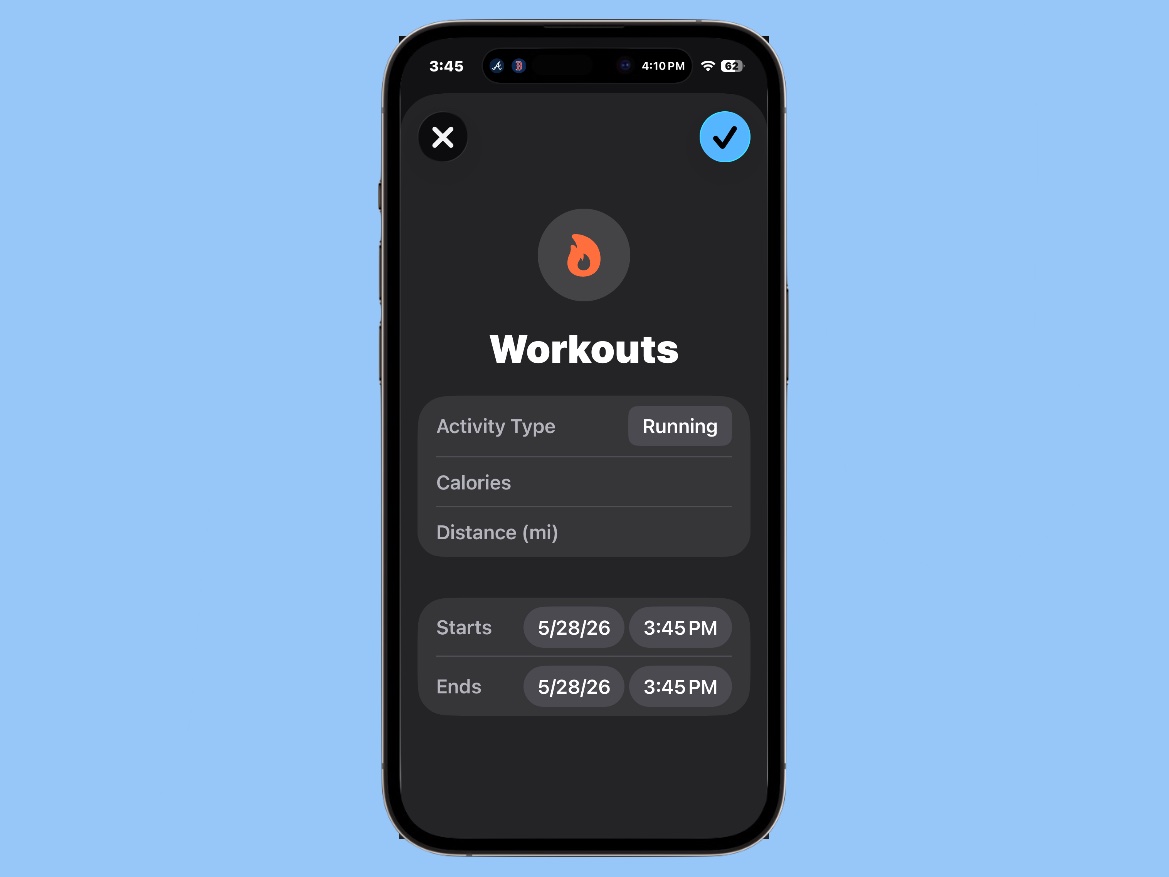
Fortunately, you can manually add a workout after the fact. It’s easy. Here’s how:
In the Health app on your iPhone, on the Summary page, find the Workout section and tap on it. That opens a screen with all your workouts for the last day, week, month, etc.
Locate the large plus sign in the upper right-hand corner of the app. Tap on it. That opens a screen where you can manually enter the details of the workout you forgot to ask the Apple Watch to record. You tell it you were, for example, doing Traditional Strength Training from 1 p.m. to 2 p.m. today. Or maybe it was yesterday, or over the weekend.
If you took a run instead, you could enter the distance you covered. For any type of exercise, you can estimate how many calories you burned.
And that’s it. The gym session you forgot to ask your Apple Watch to record now counts toward closing your Exercise ring.
This isn’t always necessary, of course. I regularly have my Apple Watch ask if I’m doing a workout when I forget. But happily, there’s a quick fix if you forget and the watch doesn’t notice.

Ed Hardy has been writing full-time about tech for 26 years, and using it for much longer than that. His intro to Apple was a Macintosh SE/30 (which he still has), but now he uses a 13-inch iPad Pro as his primary computer.
That’s because he’s a “tablet first” type of guy. Rather than use a Macbook, he connects a keyboard case to the iPad. And instead of a desktop Mac, he connects his tablet to a 27-inch display and full-size keyboard. (So don’t try to tell him that everyone has to use a Mac to be productive.)
Before coming to Cult of Mac, Ed wrote for NotebookReview, TabletPCReview and Brighthand, as well as other sites.

