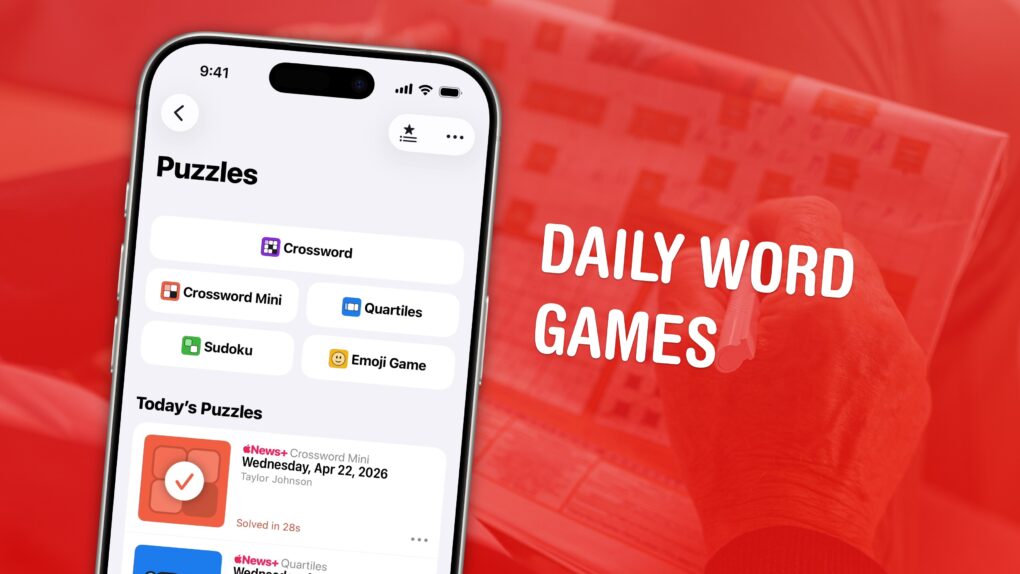
The daily games hiding inside the News app are my favorite puzzles to play. Some are digital versions of classic games like crossword puzzles and sudoku. Others are entirely new.
All five games are available to all Apple News+ and Apple One Premier subscribers. Here’s how to play each of the daily word games in Apple News+ on iPhone. Check them out in this quick video.
5 daily games and puzzles you can play in Apple News+ on iPhone, iPad and Mac
Daily puzzles became a staple of old-school newspapers, and Apple’s games are a nice modern equivalent. Plus, these digital versions offer great convenience features, like automatically advancing to the next clue in crossword puzzles and the ability to share results easily with family and friends.
Frankly, digital puzzles are way better than the old newspaper versions. Here’s why I love them.
Table of contents: Daily games in Apple News+
- Where to find them and who can play
- Crossword
- Mini Crossword
- Quartiles
- Sudoku
- Emoji Game
- More Apple One features
Where to find them and who can play
To play these puzzles, you need a paid subscription to Apple News+. (This upgrade over the regular Apple News app also unlocks access to many major news outlets and magazines, plus tons of recipes in Apple News Food as well as narrated news stories you can listen to like a podcast.)
To get all these features, you can subscribe to Apple News+ for $12.99 per month. Or, you can get News+ alongside all the other great services and 2TB of iCloud storage in the Apple One Premier bundle (which you can share with five other family members) for $37.95 per month.
To find the puzzles, launch the Apple News+ app. In the Search tab, you should see a purple tile for the Puzzles category — tap on it to find all five of the day’s new puzzles. Scroll down to see your stats and browse through the last three days’ puzzles. Tap on any of them to jump right in.
Crossword
Screenshot: D. Griffin Jones/Cult of Mac
Crossword puzzles are classic daily word games, and Apple News+ serves up its own version. I’ve tried a handful of different crossword apps, but I really love Apple’s interface. Plus, the puzzles are well-written.
Given a list of clues, you need to enter your answers on a big grid where letters will overlap and intersect with other words. The Apple News+ crossword puzzles start easy on Monday, then become progressively harder through the week. The Sunday puzzle takes me a bit of time, but that’s when I have the time to waste.
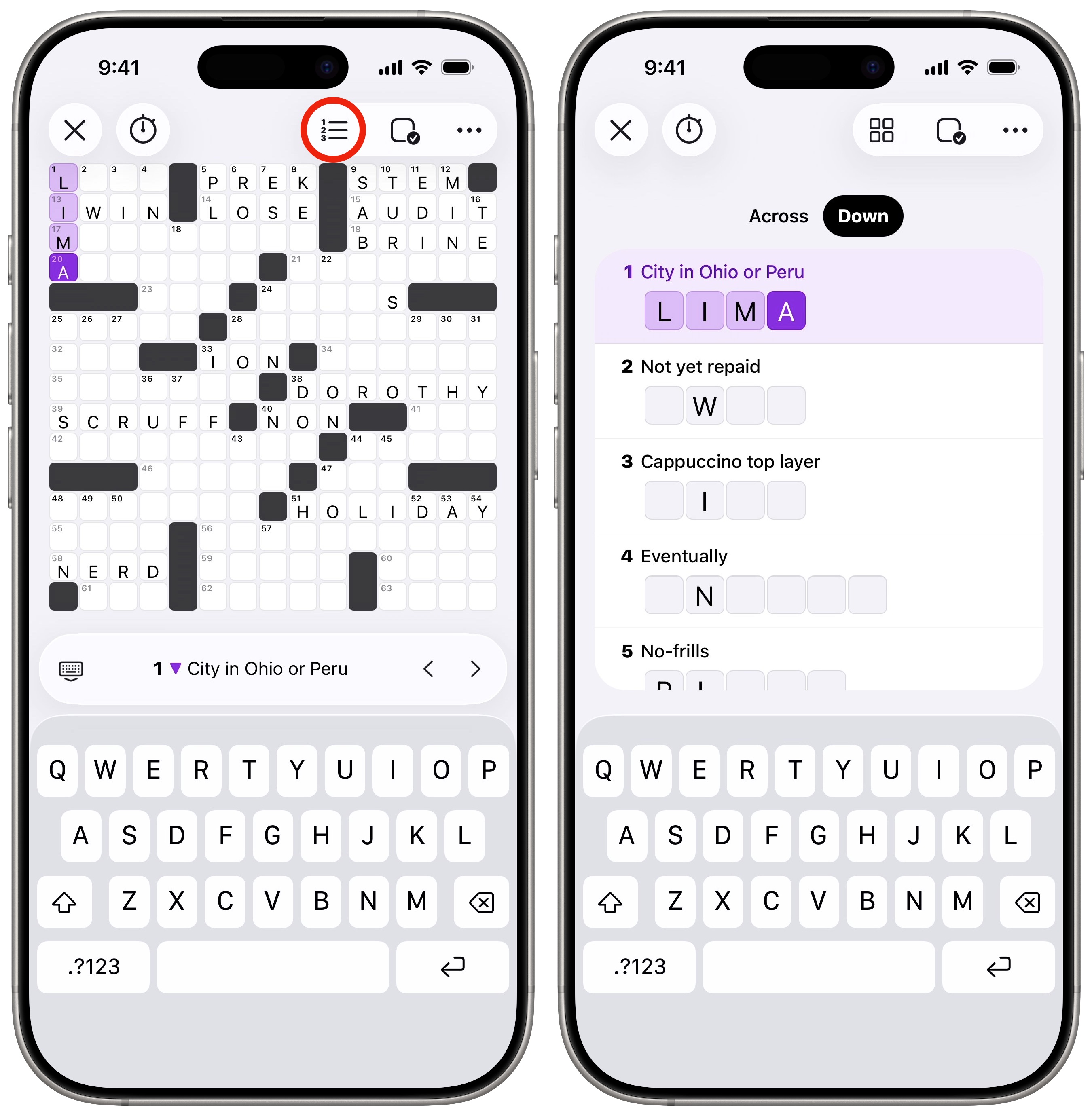
- The clue for a tile you select will appear above the keyboard. Type in your answer and it’ll automatically advance to the next clue.
- Tap on a clue or a tile on the board to switch between vertical and horizontal answers.
- Tap the List View button at the top to hide the board, showing it in a question-and-answer layout instead.
- The Gameplay Options menu lets you Check if you have the right answer. You can also Reveal an answer (or the whole puzzle) if you’re stuck, or Clear if you want to start from scratch.
- To further customize your crossword puzzle gameplay, go to the More menu and tap Settings. I recommend hiding the game timer if it stresses you out. If you want to make things a little easier, you can enable Always Autocheck.
For more on Apple News crosswords, read our guide: How to play Apple’s daily crosswords on iPad and iPhone.
Mini Crossword
For a shorter, easier game, you can play the Apple News+ Mini Crossword. You can play one of these in just a few minutes — my average time hovers in the 40-second range. It’s maybe my favorite puzzle of them all.
It works just like the regular crossword, except on a 5 × 5 grid. There are no more than 10 clues per game, down from the typical 70-plus.
Quartiles, a unique daily word game in Apple News+
Screenshot: D. Griffin Jones/Cult of Mac
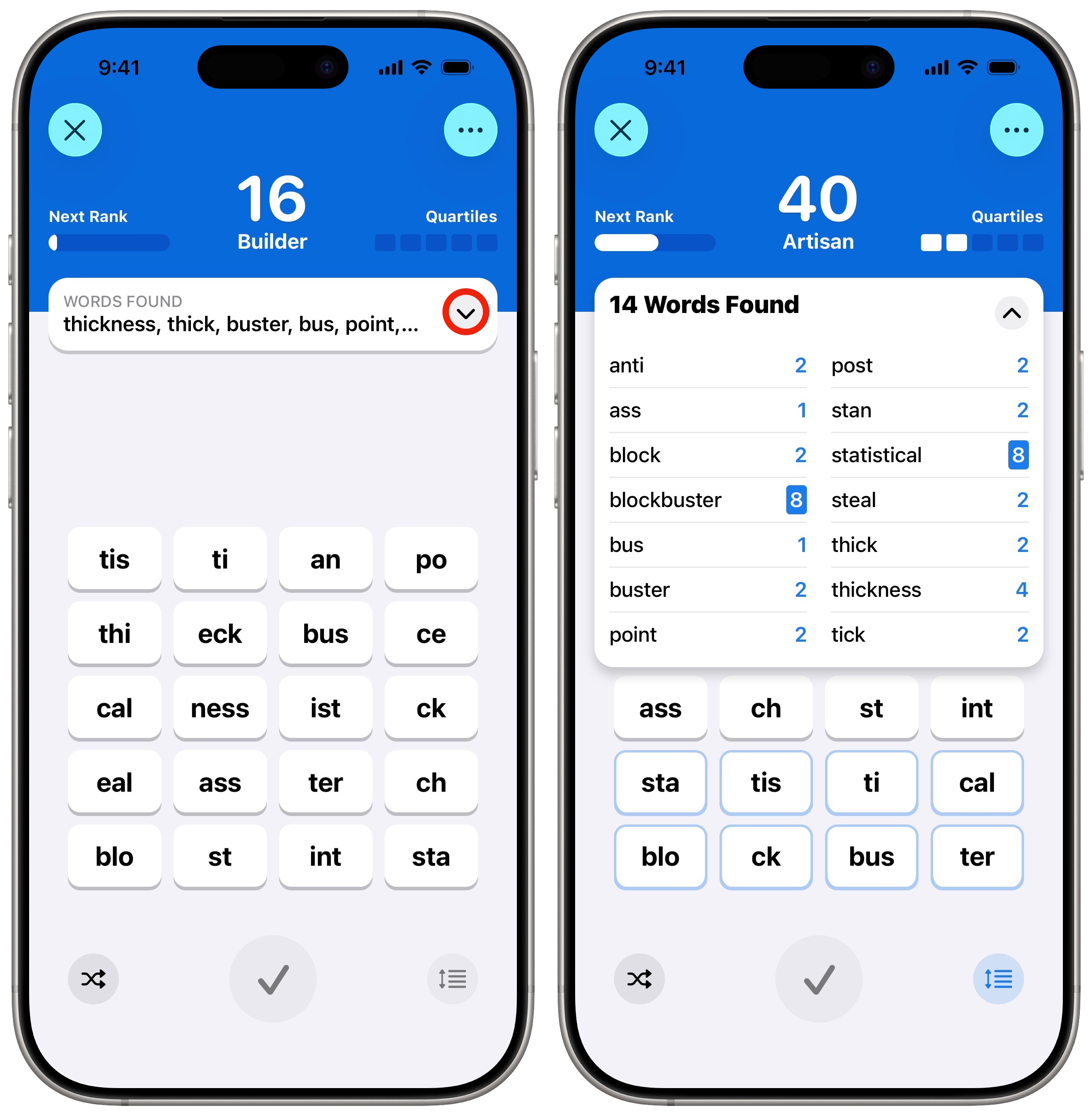
Of all the daily games in Apple News+, Quartiles is by far the most original concept. You see a grid of word segments that you need to piece together to form as many different words as you can.
Tap on one, two, three or four tiles to make a word, then tap the ✓ button to submit it. Tap the × to clear a segment. In every puzzle, five words can be made with four tiles each — quartiles.
You earn a few points for each word you form, depending on how many tiles it uses; finding all five quartiles gets you a bonus 40 points. Rack up 100 points to solve the day’s puzzle (and you can keep going as long as you like).
While it’s a little hard to learn — and sometimes incredibly frustrating — Quartiles is another one I rarely miss. I’m still striving for the day when I find every possible word.
For more on Quartiles, read our guide: How to play Quartiles, the daily word-building game in Apple News+.
Sudoku
Screenshot: D. Griffin Jones/Cult of Mac
The logic-based number game known as sudoku became popular in Japan before blowing up in the mid-2000s after appearing in British newspapers. In the game, you fill in a board with the numbers 1 through 9. Every row, column and 3 × 3 section of the board must contain all nine numbers.
The Apple News+ version of Sudoku consists of three daily puzzles with varying degrees of difficulty — easy, moderate and challenging. Choose whichever matches your skill level. Easy puzzles are good for learning the game. Moderate puzzles are for those who understand the rules well; this is usually what I play. Challenging puzzles require you to look at the board really carefully, and maybe make an educated guess or two using the notes.
Just as with crossword puzzles, playing in the Apple News+ app offers advantages over scribbling your numbers into a grid on a printed page.
Here’s how you play Suduko in the Apple News+ app:
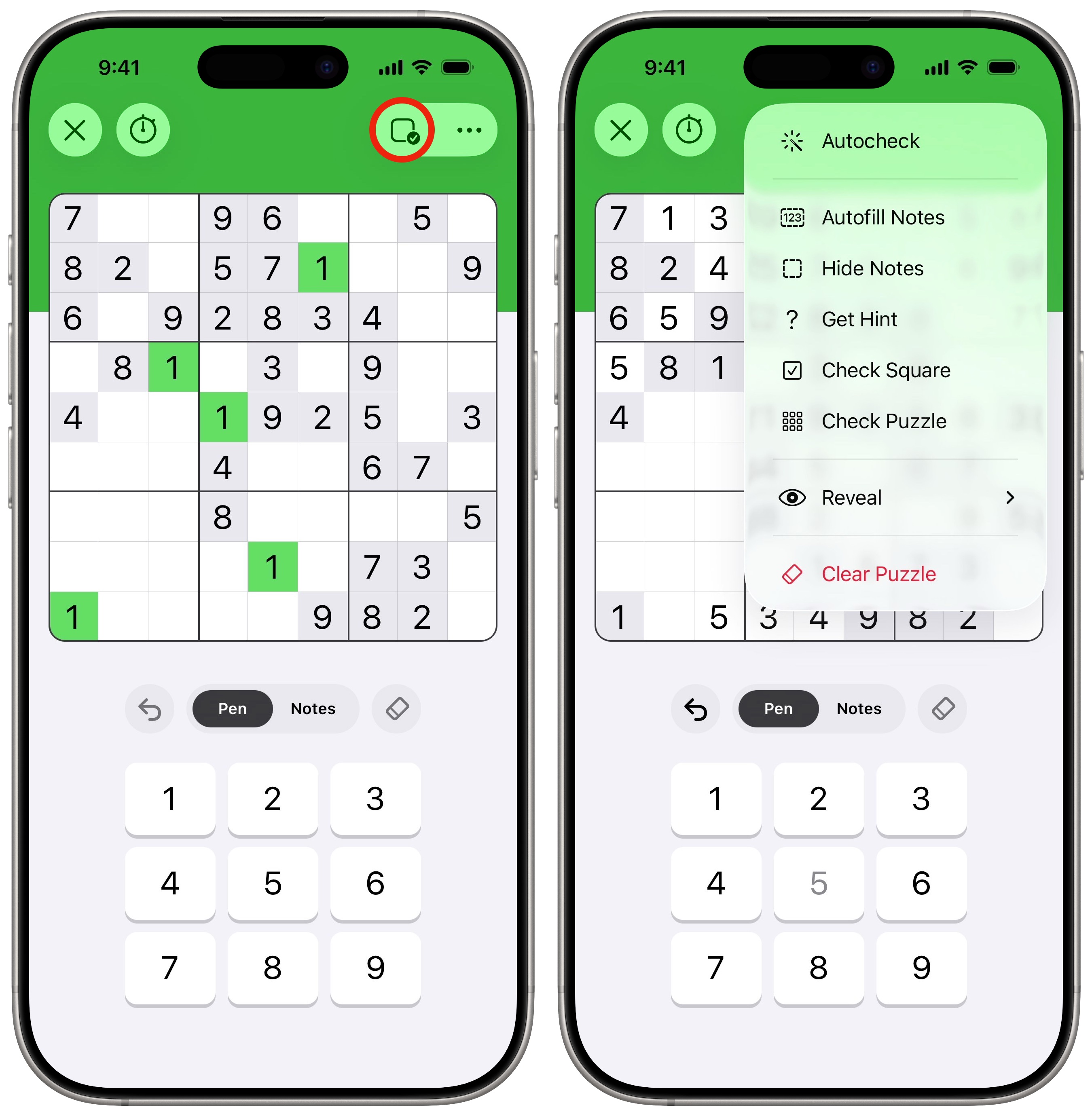
- Tap on a square in the board to select it. You can use either Pen mode or Notes mode to enter numbers in the squares. Pen will mark whatever number you type in; switch to Notes to write down possible numbers without committing.
- Use the Eraser to clear a tile you have selected.
- For a quick overview of your game, tap on a number on the keyboard (without the board selected) to highlight everywhere that particular number appears on the board. This gives you a fast way to hunt for potential placements on the board.
- From the Gameplay Options menu, you can check for conflicts, see if your answers are correct, or reveal part of the answer.
I like Sudoku, but I only typically reach for it as a time-killer after finishing the other word games.
Emoji Game
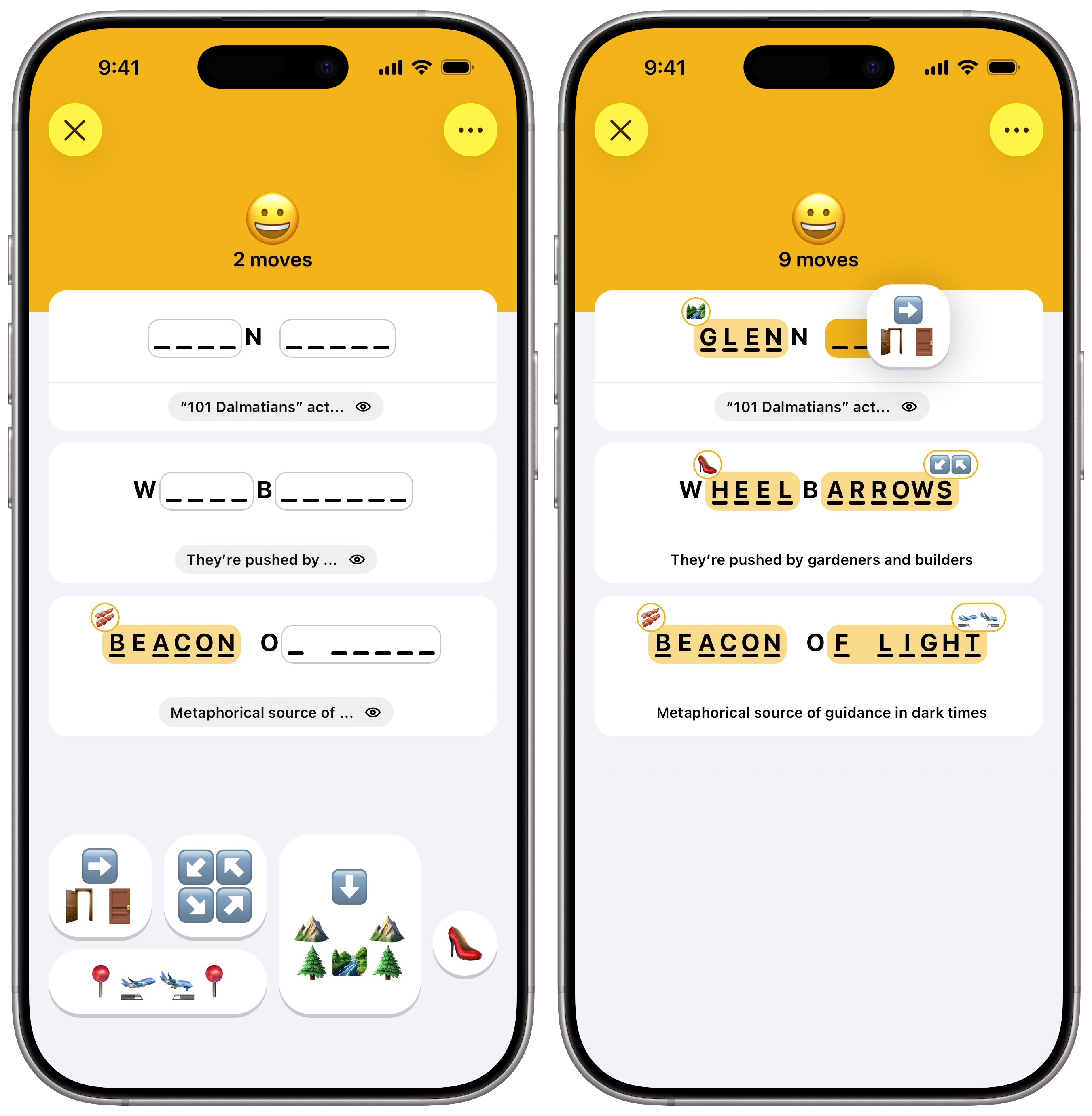
Screenshot: D. Griffin Jones/Cult of Mac
The Emoji Game is by far the most infuriating of all the daily word games in Apple News+. It’s kind of like playing hangman or Wheel of Fortune, in that you need to fill in the blanks to guess a few phrases. However, instead of just guessing letters, you use sequences of emoji. You must interpret what the emoji represent — there’s often a double meaning or pun involved — and then figure out how they fit into the clues. If you’re stumped, you can reveal a clue about each phrase. It might help.
On top of all those layers of abstraction, you might encounter a few emoji that you don’t recognize. Some puzzles use Genmoji, the Apple Intelligence feature that lets you create custom emoji from a prompt.
The more mistakes you make, and the more clues you use, the lower your score.
I find the Emoji Game extremely annoying. I played it when it debuted and hadn’t really touched it since. Trying it again for this article, it pissed me off exactly as much as I remembered. So I will carry on ignoring it until I update this article again in another year or two.
More Apple One features
- 5 under-the-radar features that make Apple News+ even better
- Find great new recipes with Apple News+ Food
- 6 hidden Apple One perks you might not know about but should
- These are the best games on Apple Arcade

D. Griffin Jones was a writer, podcaster and video producer for Cult of Mac. Griffin has been a passionate computer enthusiast since 2002, when he got his first PC — but since getting a Mac in 2008, he hasn’t turned back. His skills in graphic and web design, along with video and podcast editing, are self-taught over 20+ years. Griffin has a bachelor’s degree in computer science and has written several (unpublished) apps for Mac and iOS. His collection of old computers is made up of 40+ desktops, laptops, PDAs and devices, dating back to the early ’80s.
Griffin writes for his personal blog, Extra Ordinary, and is currently looking for work.


One response to “4 daily games I love to play in Apple News+ (and one I despise)”
These puzzles are most definitely not available to all Apple news plus subscribers they certainly aren’t available here in Australia.