
Your Apple Watch has a web browser built-in, although it’s somewhat hidden. While Apple doesn’t have a full Safari app for the watch, you can still open links from Messages — so you can text yourself as a hack to browse the web. Or, you can install the μBrowser app for a dedicated user experience with bookmarks and even complications.
Admittedly, it’s not a fantastic experience. The screen is less than two inches tall, so many pages don’t render properly. It’s not especially speedy, either. If your watch is within range of your iPhone, it’ll use the slow Bluetooth connection with your iPhone as a relay instead of connecting to the Wi-Fi network directly, in order to save power.
But having a web browser on your Apple Watch occasionally comes in handy, especially if you have a cellular model and left your phone at home.
How to use Apple Watch web browser μBrowser
The open web, as always, is a great escape hatch for a lack of good native apps. And the Apple Watch App Store didn’t exactly set the world on fire. There are a slew of apps that leverage its fitness capabilities, and a few Pong games, but not much else.
The watchOS News app doesn’t let you freely read and browse stories. So if you’d like to keep up with your favorite Apple tech blogs, your best bet is through a web browser.
Table of contents: How to use Apple Watch web browser μBrowser
- Open a link from Messages
- Get μBrowser from the App Store
- Type in a website or search
- Save bookmarks for your favorite websites
- Add a watch face complication for easy access
- More Apple Watch how-tos
Open a link from Messages
Screenshot: D. Griffin Jones/Cult of Mac
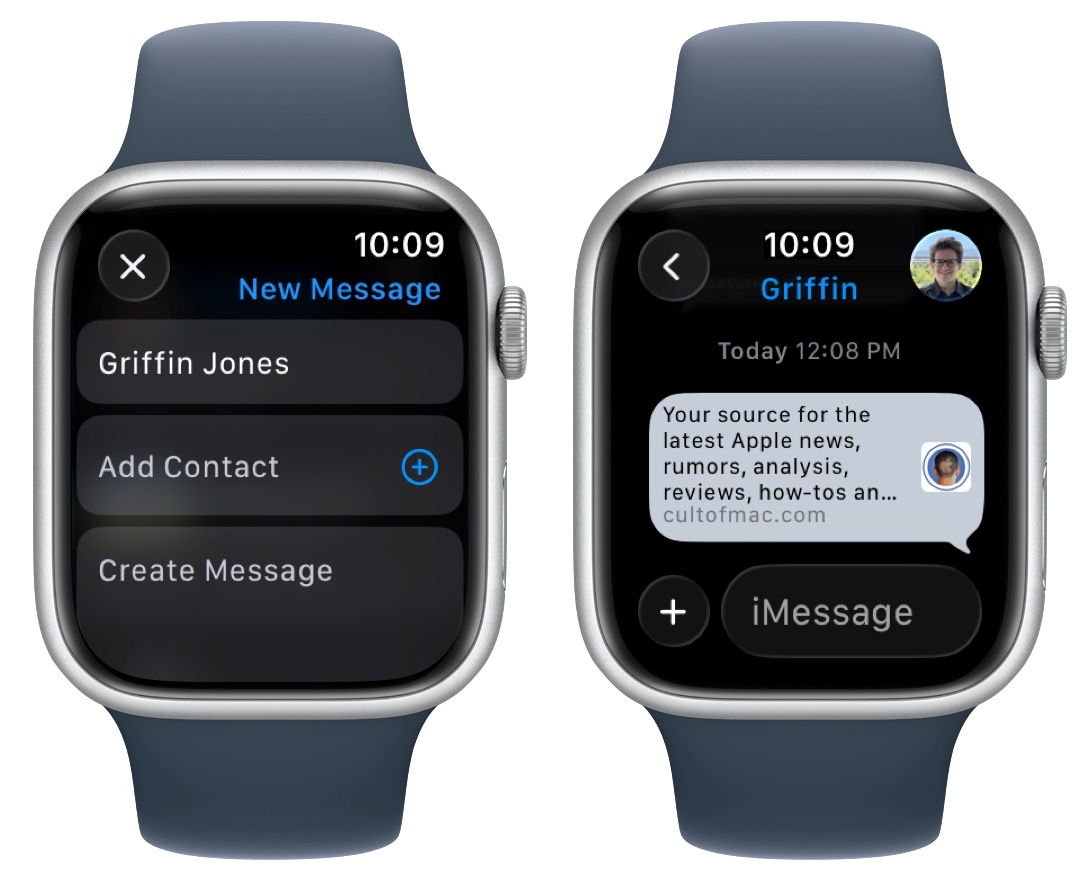
You can technically browse the web from your Apple Watch from the Messages app. If you tap the Compose button in the upper right, then tap Add Contact, pick your own name and phone number from the list. Then, tap Create Message, type in the URL you want to visit and tap Send.
You’ll see a link you can tap to open the page in a mini Safari window. The user interface is a little basic; you can scroll using the Digital Crown and double tap to zoom in. Tap the address bar to reload the page, switch between Reader and the full web page, or go back.
It’s a little clunky, but there’s a better way.
Get μBrowser, an Apple Watch web browser
Screenshot: D. Griffin Jones/Cult of Mac
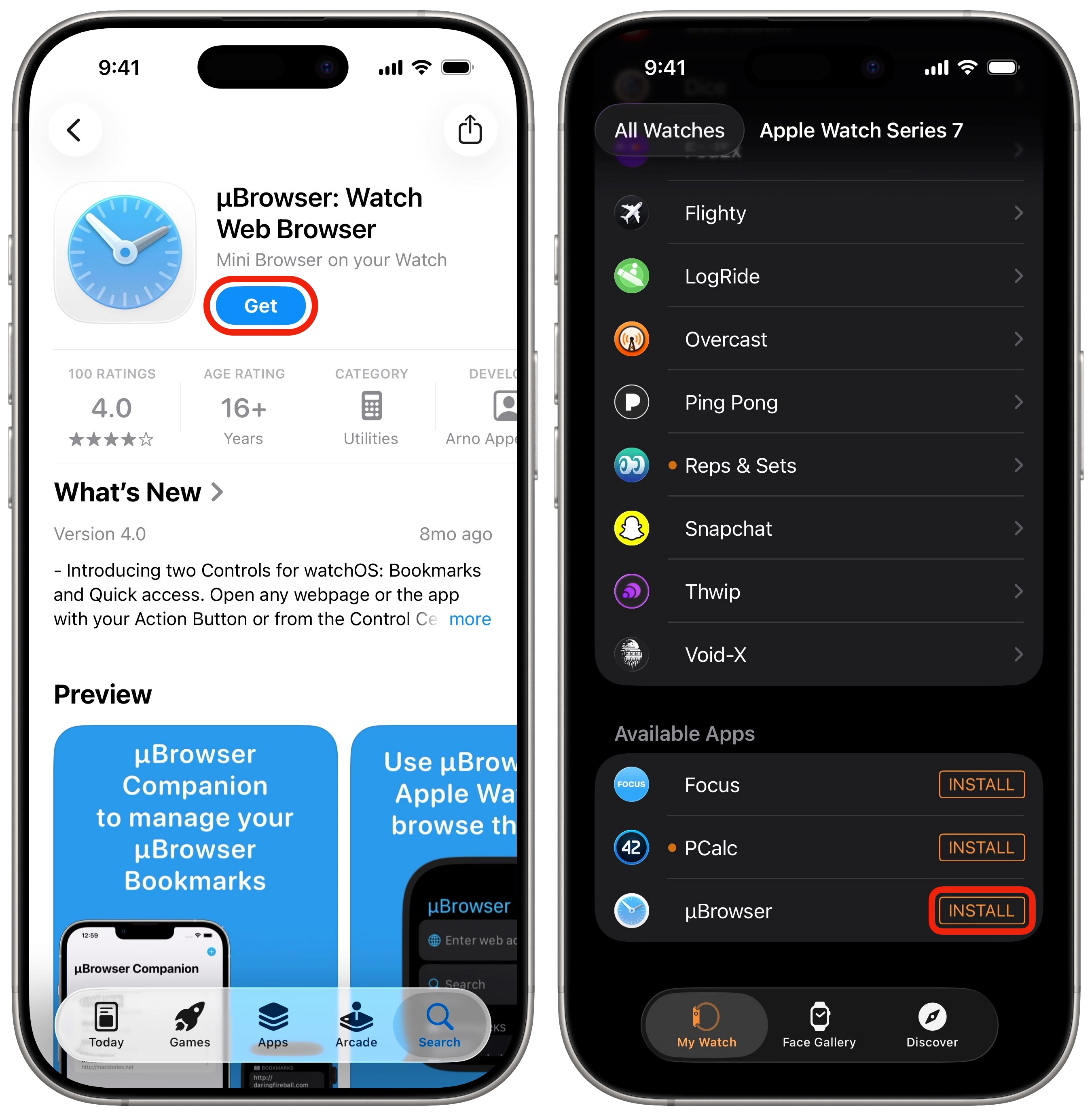
Download μBrowser on your Apple Watch from the App Store. It’s just $2.99 for a one-time purchase with no extra in-app purchases.
Get it from the App Store on your iPhone, then open the Watch app to make sure it installed there, too. If it’s not in the “Installed On Apple Watch” section, scroll down to “Available Apps” and tap Install.
Buy from: App Store
Price: $2.99 one-time
Type in a website or search
Screenshot: D. Griffin Jones/Cult of Mac
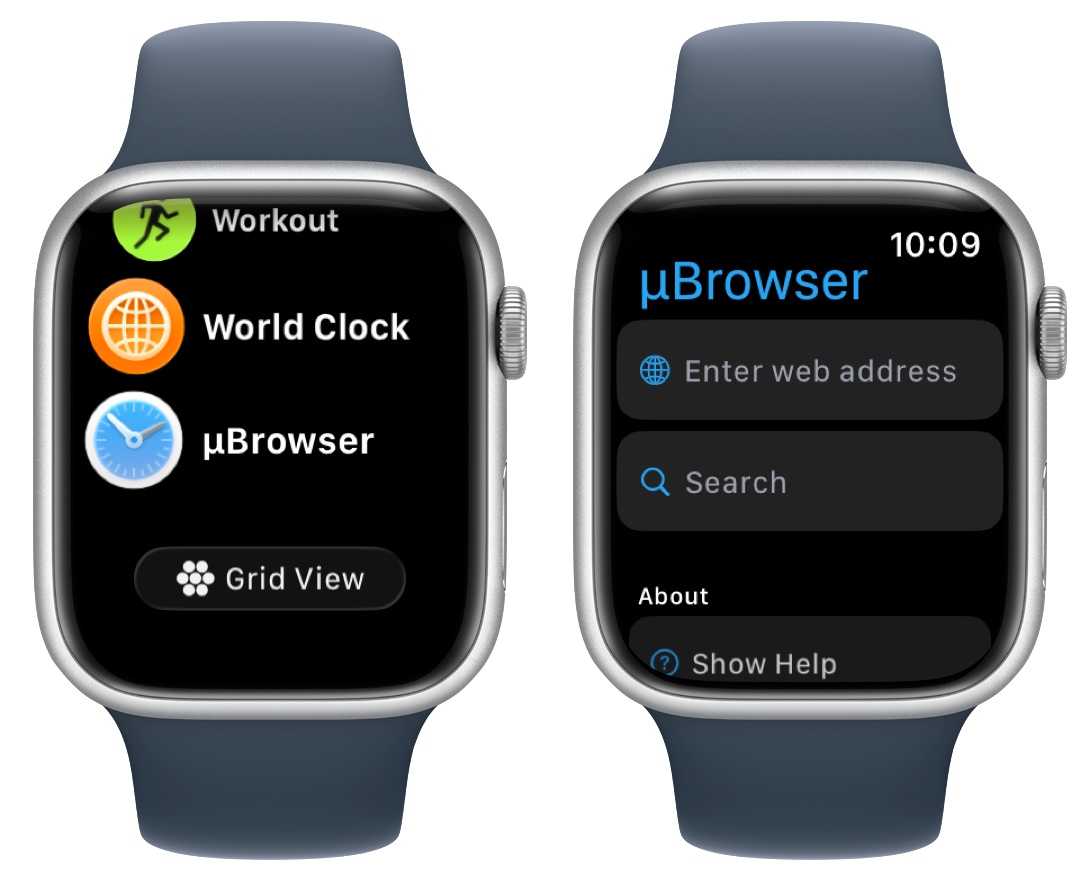
Scroll down to the bottom of the app list on your Apple Watch to find μBrowser. (If you don’t have it set to the List View already, I highly recommend it.)
Tap either Enter web address to enter a URL, or tap Search to use your default search engine. Tap the button in the bottom right to toggle between dictation, the QWERTY keyboard and the letter-by-letter scribble.
The browser itself is the same as the mini Safari browser above. You can tap the address bar to toggle Reader mode, reload or go back.
Save bookmarks for your favorite websites
Any website you enter in will show up in your history. To save it for later, swipe left on it, then tap the yellow star button. It’ll appear in a new “Bookmarks” section at the top.
Add a watch face complication for easy access
Screenshot: D. Griffin Jones/Cult of Mac
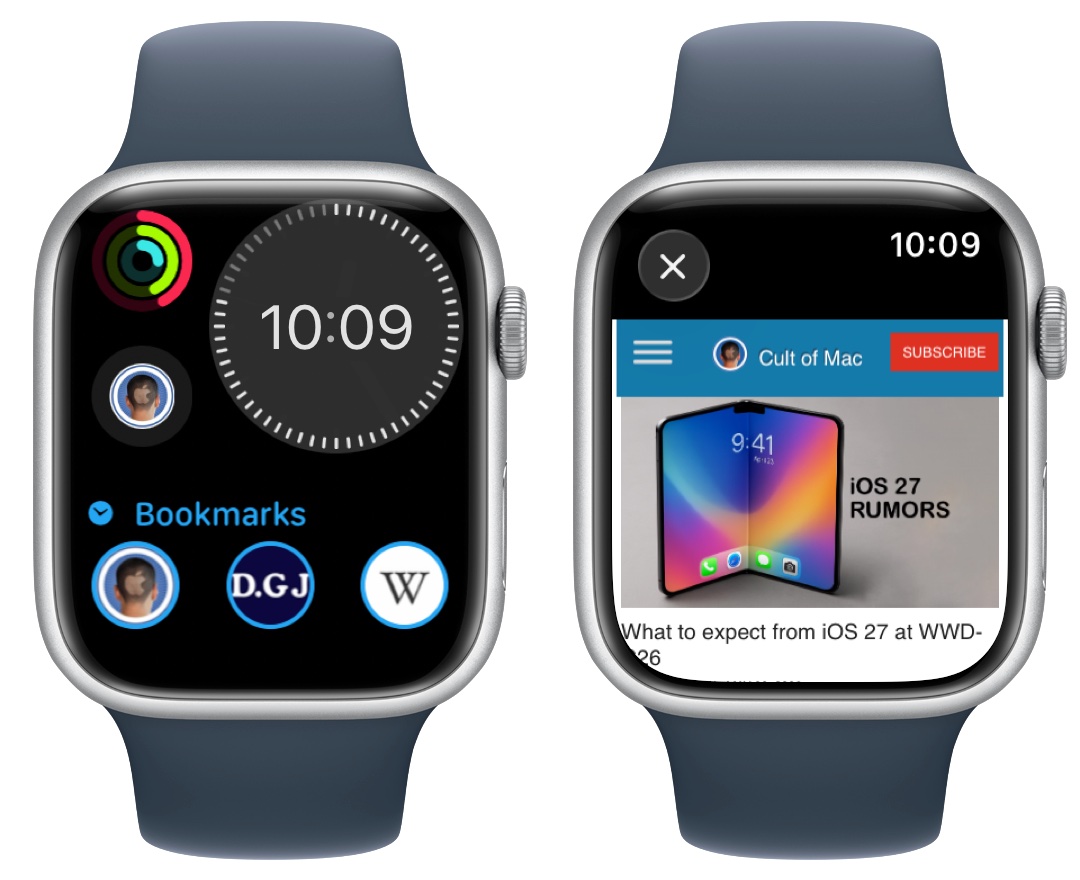
If you want instant access to a website from your wrist, you can add a complication. Tap and hold on your watch face, tap Edit, swipe over to the Complications tab, and tap on a good spot. Scroll down to the μBrowser section at the bottom, and choose μBrowser Bookmark.
- In a mini complication, you can type in a specific website. In the “Bookmark” field, type in a title; then type in the URL and tap the green Done button. You should see the website’s favicon on your watch face. Tap it to instantly open it up.
- In a large complication, you can add your top three bookmarks all at once.
If there’s a particular website you like to check in on every once in a while, this is a great way to quickly get up to date.
More Apple Watch how-tos
- How to connect Apple Watch to treadmills and other gym equipment
- Get the time without even looking at your Apple Watch
- What do the Apple Watch buttons do? Click, double-click and hold.
- Easy Apple Watch hack will keep you on time, even if you’re always late
- Translate from your Apple Watch
- Things you can do with an old Apple Watch
- Control your Apple TV from your iPhone or Apple Watch
- How to find your lost iPhone with Apple Watch

D. Griffin Jones was a writer, podcaster and video producer for Cult of Mac. Griffin has been a passionate computer enthusiast since 2002, when he got his first PC — but since getting a Mac in 2008, he hasn’t turned back. His skills in graphic and web design, along with video and podcast editing, are self-taught over 20+ years. Griffin has a bachelor’s degree in computer science and has written several (unpublished) apps for Mac and iOS. His collection of old computers is made up of 40+ desktops, laptops, PDAs and devices, dating back to the early ’80s.
Griffin writes for his personal blog, Extra Ordinary, and is currently looking for work.

