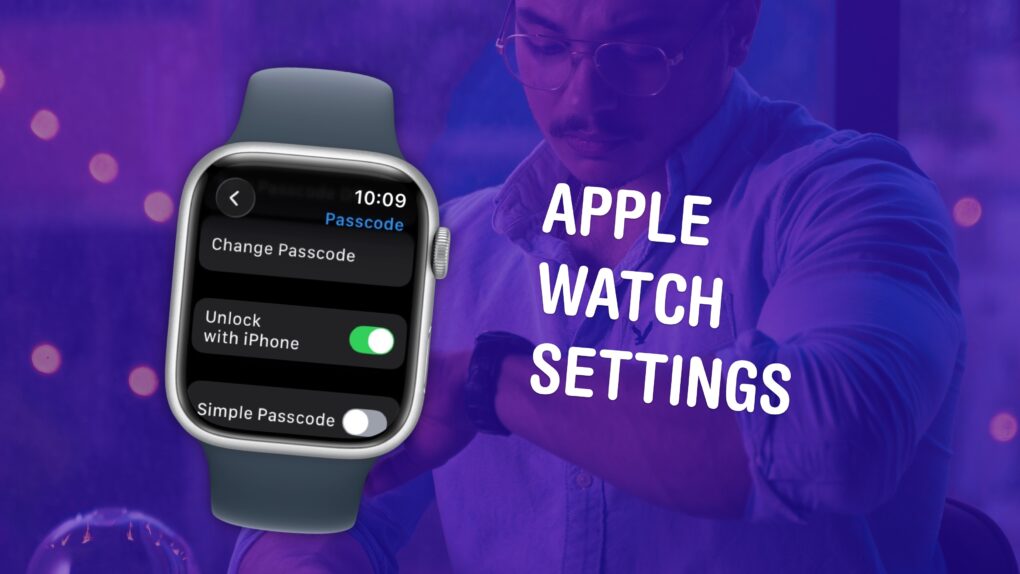
The small size and simplicity of the Apple Watch’s screen might fool you into thinking there aren’t a lot of settings you should tweak. But you would be sorely mistaken. It’s a powerful computer on your wrist, and thus, the Settings app is a deep rabbit hole.
You could lose hours going through every last setting, but I can save you the trouble. There are 10 Apple Watch settings I suggest everyone adjust. I’ll show you what they all do and how to change them.
10 settings everyone should change on their Apple Watch
The Apple Watch lives in an odd space between an iPhone accessory and an independent computer. The powerful S-series chip inside proves surprisingly powerful, though the screen makes it hard to perform much more than the most basic tasks.
Yet, the Apple Watch is a highly personal device. You can radically change its appearance with a new band or watch face. You can configure how you find your apps, what widgets you see, what notifications you receive, how it measures your activity and much more.
Even if you’ve had an Apple Watch for years, you should make sure you have your smartwatch set up the right way to take advantage of its many strengths.
Table of contents: Apple Watch settings you should change
- Make it easy to find your apps
- Change your activity ring goals
- Customize Apple Watch widgets
- Adjust Wake Duration for the screen
- Unlock your Apple Watch with your iPhone
- Unlock your iPhone with your Apple Watch
- Unlock your Mac with your Apple Watch
- Stop irritating reminders to breathe
- Enable Walkie-Talkie
- Set up Taptic Time
- More on Apple Watch
Make it easy to find your apps
Screenshot: D. Griffin Jones/Cult of Mac
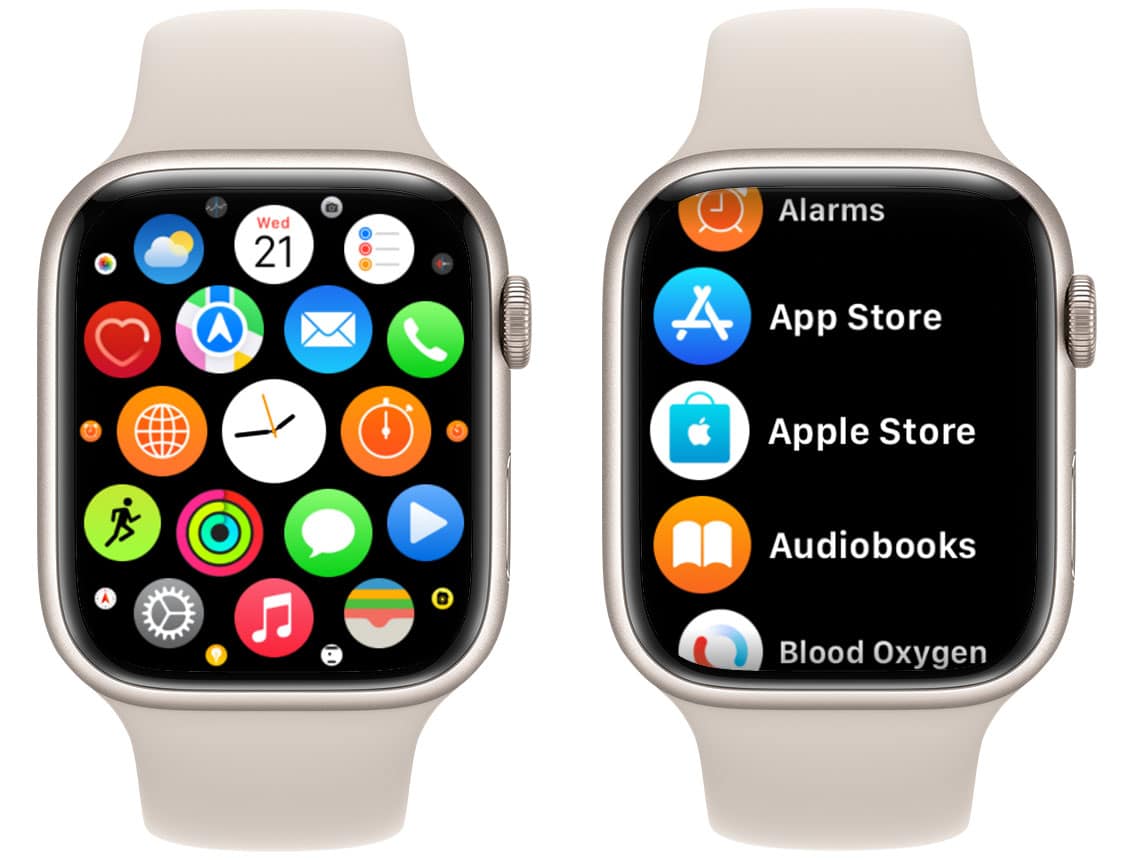
First and foremost, you should switch your Apple Watch to show apps in the list view. The default setting, which arranges apps in a honeycomb grid of icons, proves unnecessarily hard to navigate. While it lets you see more app icons on screen at once, they’re arranged with virtually no rhyme or reason. To make matters worse, many of the icons are hard to tell apart from one another.
To change things up for the better, click the Digital Crown to open the app view, then scroll to the bottom and tap List View.
Change your activity ring goals
Screenshot: D. Griffin Jones/Cult of Mac
Activity rings are a core part of the Apple Watch health tracking experience. They track how much you Move, how many minutes of Exercise you get, and how many hours out of the day you Stand.
But everybody’s different. And, if you’re a longtime Apple Watch owner, you might live a different lifestyle now than when you first bought the device. Luckily, you can easily change your daily activity goals.
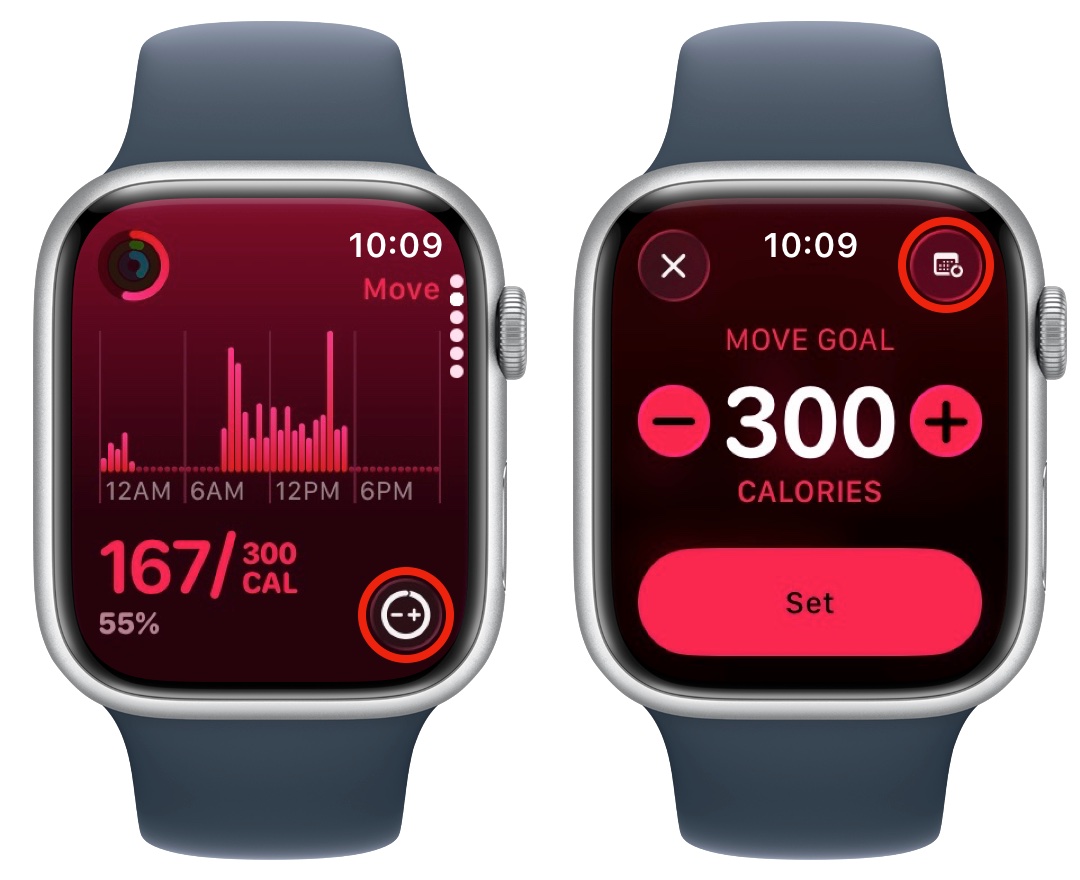
To do so, go to the Activity app and scroll down to the Move goal. Tap the Change Goals button at the bottom right, then tap Change Daily Goal. You can tap + or − to set your new daily goal. If you want a different goal for different days of the week, tap Goal Type in the upper right, then pick Schedule. Tap Set to save your goal, then tap Close in the upper left.
You will see all the same options for your Exercise and Stand goals.
Read more about this feature, including how to skip a day from your streak, in our in-depth how-to: “Apple Watch Activity rings: What they mean and how to tweak them.
Customize Apple Watch widgets
Screenshot: D. Griffin Jones/Cult of Mac
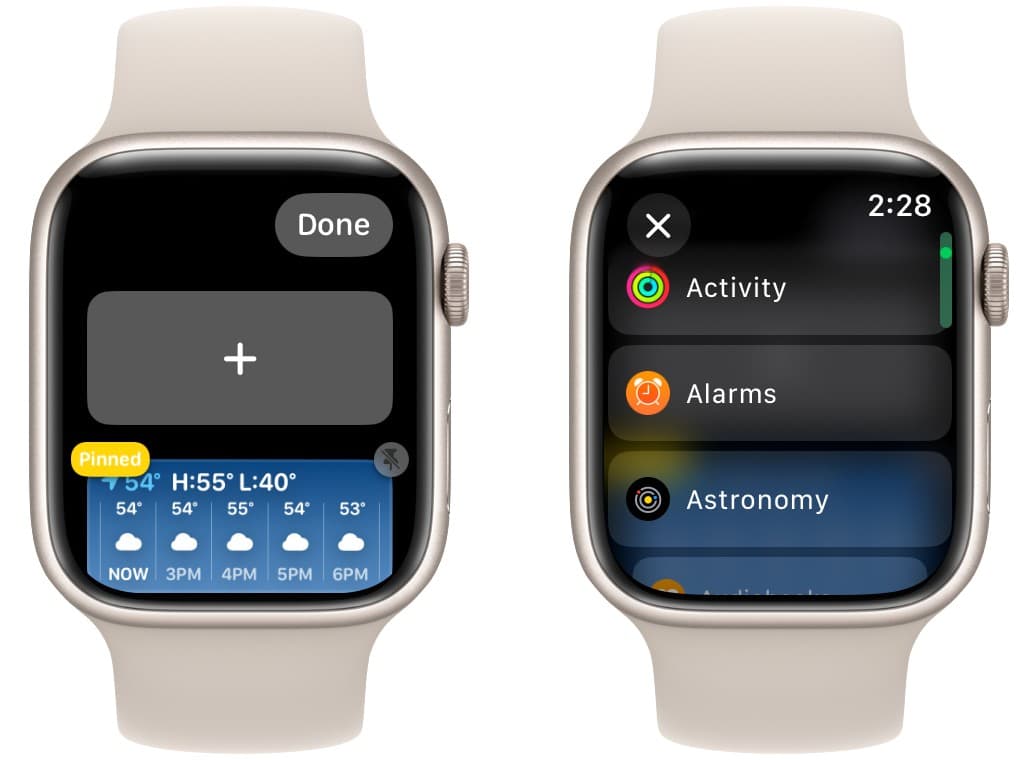
The Smart Stack is a scrollable list of widgets that live below the Apple Watch face. Swipe up or spin the Digital Crown to see them. You’ll see suggestions for workouts and apps you open often.
The order of the widgets changes intelligently, but you can choose which ones appear all the time. Just scroll down to the bottom of the widgets list and tap Edit. Take a look at the suggestions first — tap the green + button to pin a widget to the list. To add more, tap the big Add button at the top. That’ll show you a list of all your apps that offer widgets. Tap on one to add a widget.
I keep widgets pinned that show my local weather, upcoming calendar events, recent workouts, flashlight and favorite apps. If you set up a convenient group of widgets, it will free you up to use one of the more artsy Apple Watch faces without any complications.
Read more in our article: How to customize Apple Watch widgets for easy access to your favorite apps.
Change Apple Watch settings for screen wake duration
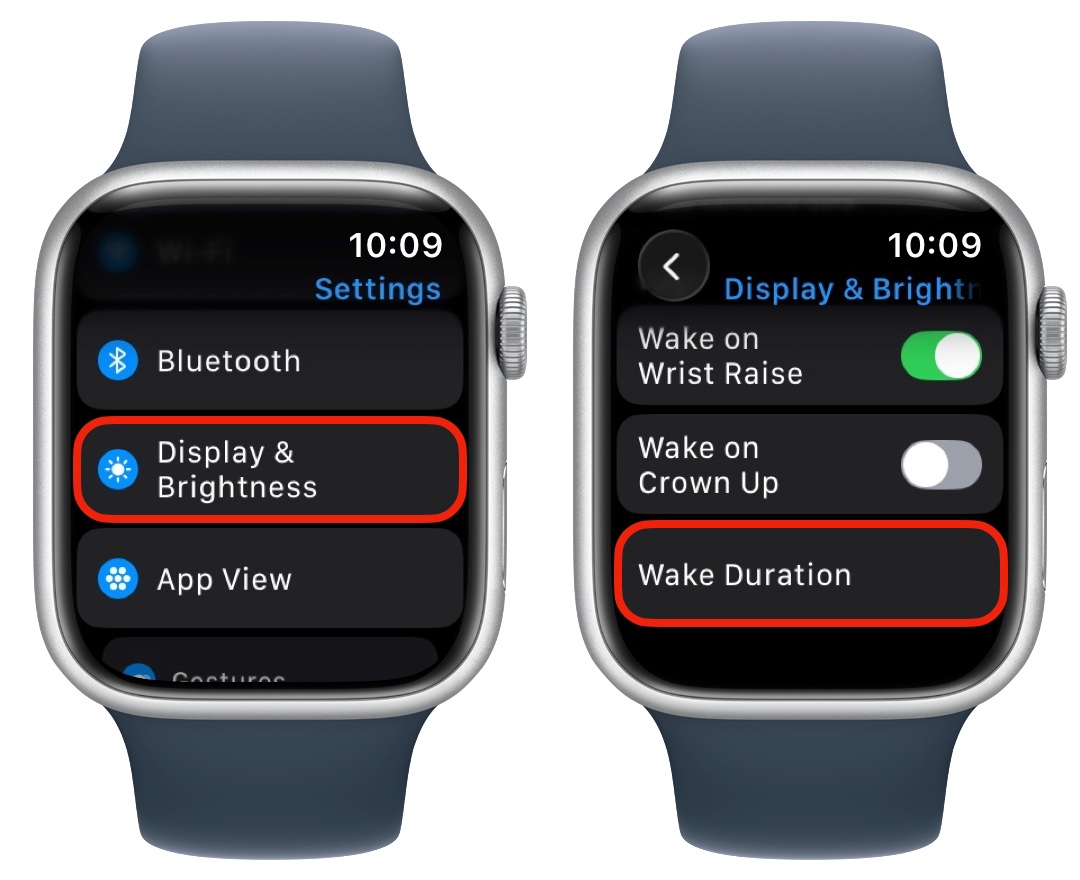
Screenshot: D. Griffin Jones/Cult of Mac
While all Apple Watches now come with always-on screens, there’s still a noticeable difference between the device’s active and resting states. The screen isn’t interactive when the watch isn’t awake, and some on-screen elements disappear.
To fix this, you can set your Apple Watch screen to stay awake longer. Go to Settings > Display & Brightness > Wake Duration (at the very bottom). While 15 seconds is the default, you can change it to Wake for 70 seconds.
This may slightly lessen battery life if you use your Apple Watch a lot, because it keeps the screen bright for much longer after every interaction. But it could get rid of that annoying speed bump where you must tap the screen an extra time. It’s a trade-off.
Unlock your Apple Watch with your iPhone
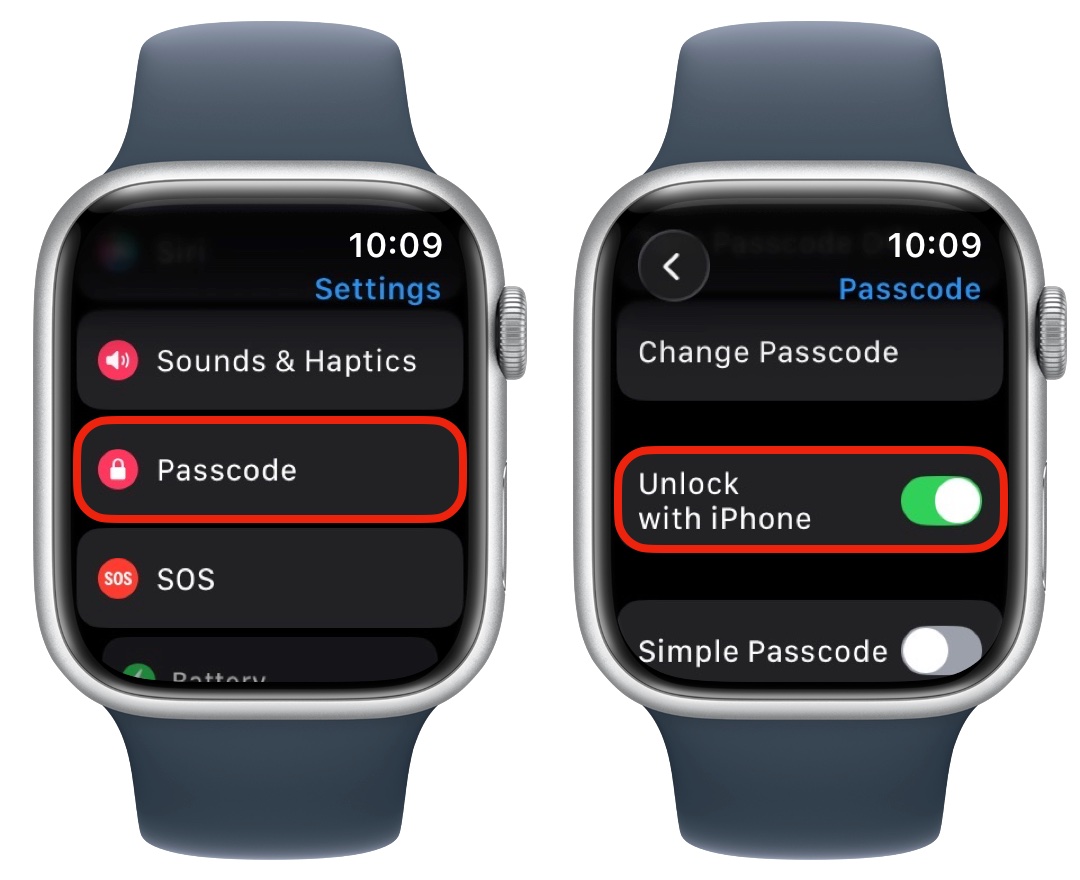
Screenshot: D. Griffin Jones/Cult of Mac
Your iPhone can automatically unlock your Apple Watch after you put it on. With this setting enabled, the next time you unlock your phone, it’ll unlock the watch, too. It saves you the annoyance of typing in your passcode on the tiny screen when you just want to read a text.
On your Apple Watch, go to Settings > Passcode and make sure Unlock with iPhone is enabled.
Unlock your iPhone with your Apple Watch
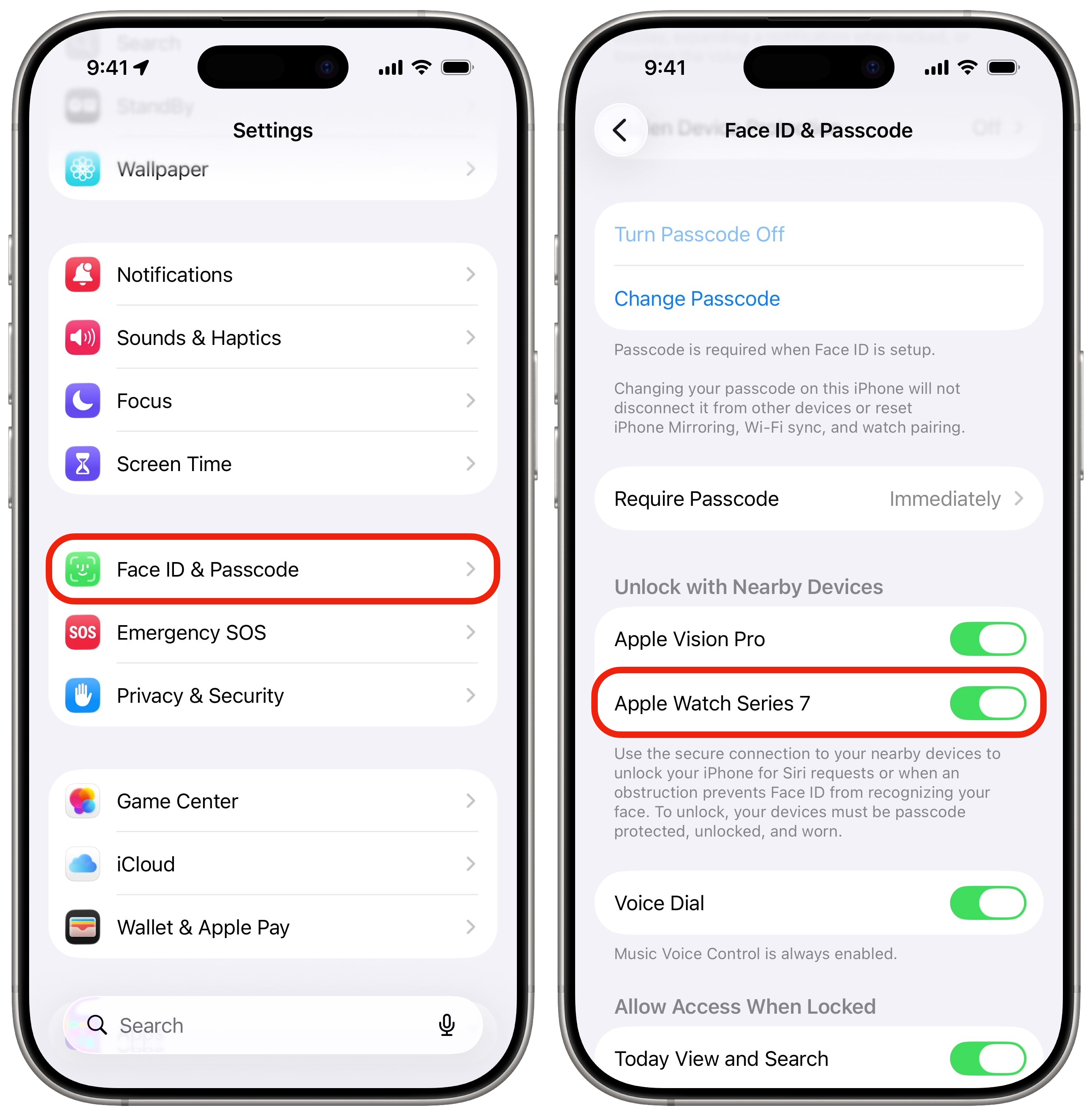
Screenshot: D. Griffin Jones/Cult of Mac
The reverse holds true, too. If your face is obscured and Face ID fails, an unlocked Apple Watch can unlock your iPhone. This proves really handy when wearing a face mask (or a particularly bushy scarf).
On your iPhone, go to Settings > Face ID & Passcode. First, enter your passcode, then scroll down to Unlock with Nearby Devices. Then enable the function for your Apple Watch to unlock your iPhone.
Whenever this happens, you’ll feel a buzz from your Apple Watch. You can tap the Lock iPhone button to remotely secure it — Face ID (or Touch ID) will be disabled until you enter the passcode. This prevents anyone from taking your phone maliciously.
Unlock your Mac with your Apple Watch
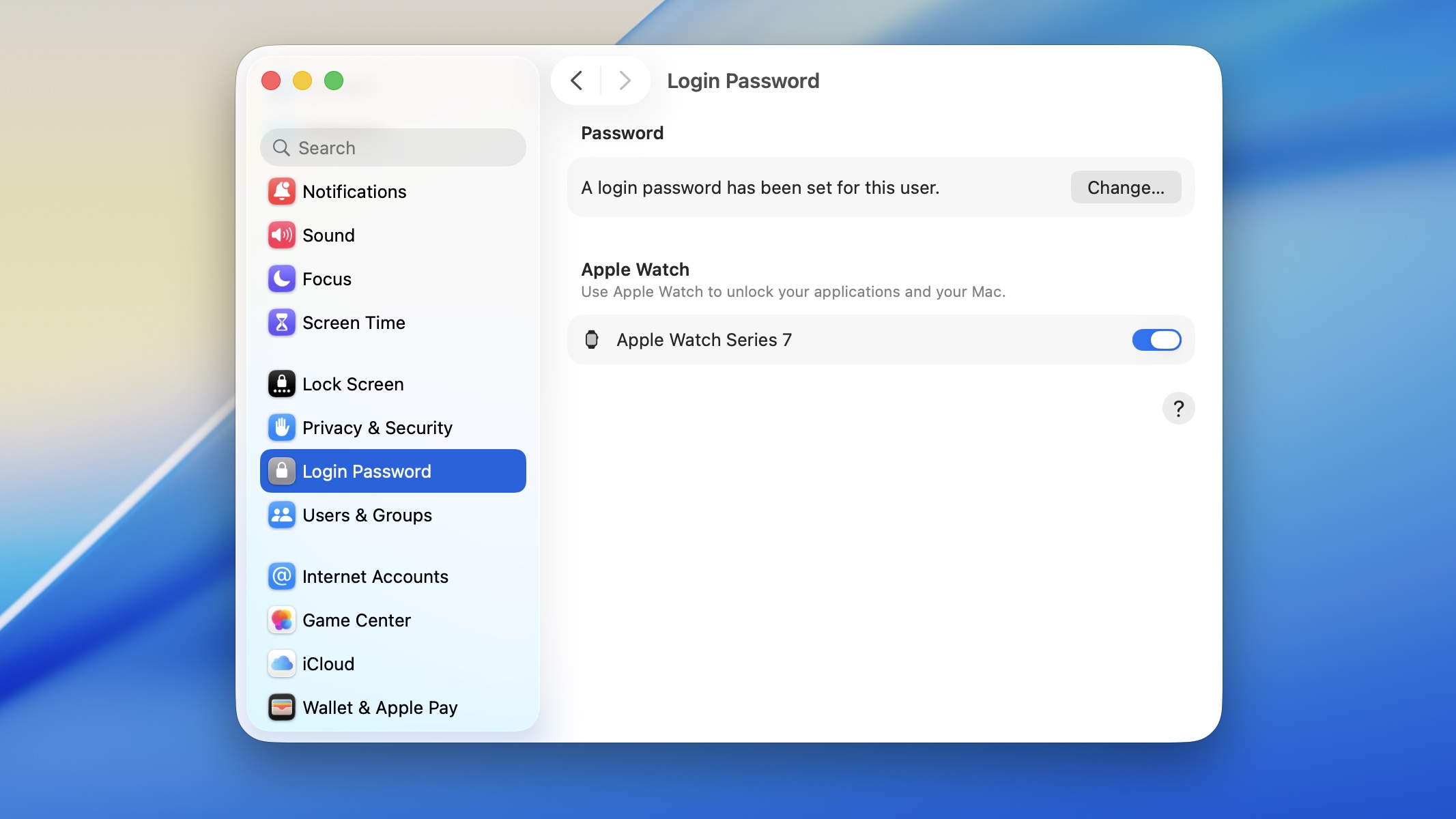
Screenshot: D. Griffin Jones/Cult of Mac
Your Apple Watch can unlock your Mac, too. You may not be able to hit the Touch ID key if you keep your MacBook closed at your desk or you use a third-party keyboard. But typing in a long, secure password every time can be annoying.
Instead, on your Mac, go to System Settings > Login Password and make sure your Apple Watch is enabled. It’ll work just like the iPhone.
Change Apple Watch settings to stop the irritating breathe reminders
Screenshot: D. Griffin Jones/Cult of Mac
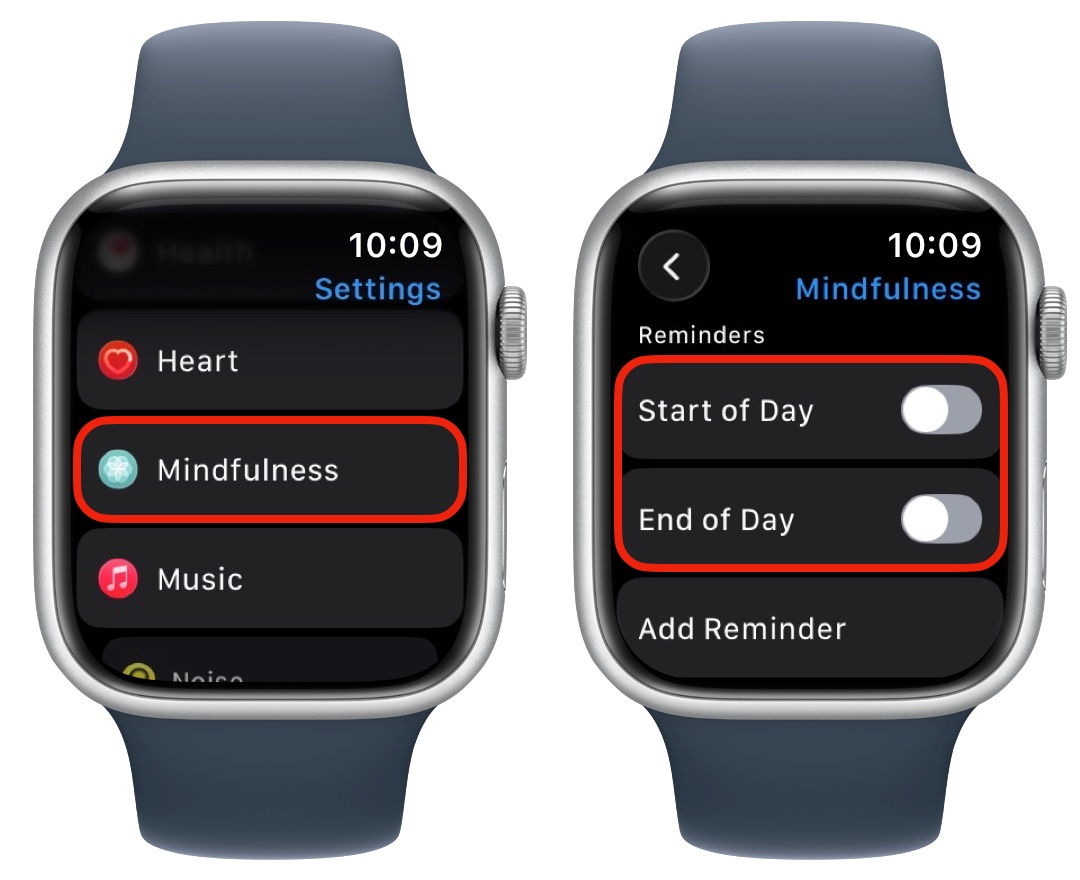
One of the Apple Watch’s many health features, the Mindfulness app prompts you to breathe and/or reflect on things for a minute every day. Personally, I find the interruptions more stressful than anything. It’s probably a sign that I should do the mindfulness exercise, but I know myself better than my Apple Watch does — I’ll just ignore it.
If you feel the same way, you can easily disable the Breath app’s reminders. On your Apple Watch, go to Settings > Mindfulness. Disable Start of Day and End of Day, as well as Weekly Summary.
Enable Walkie-Talkie
Screenshot: D. Griffin Jones/Cult of Mac
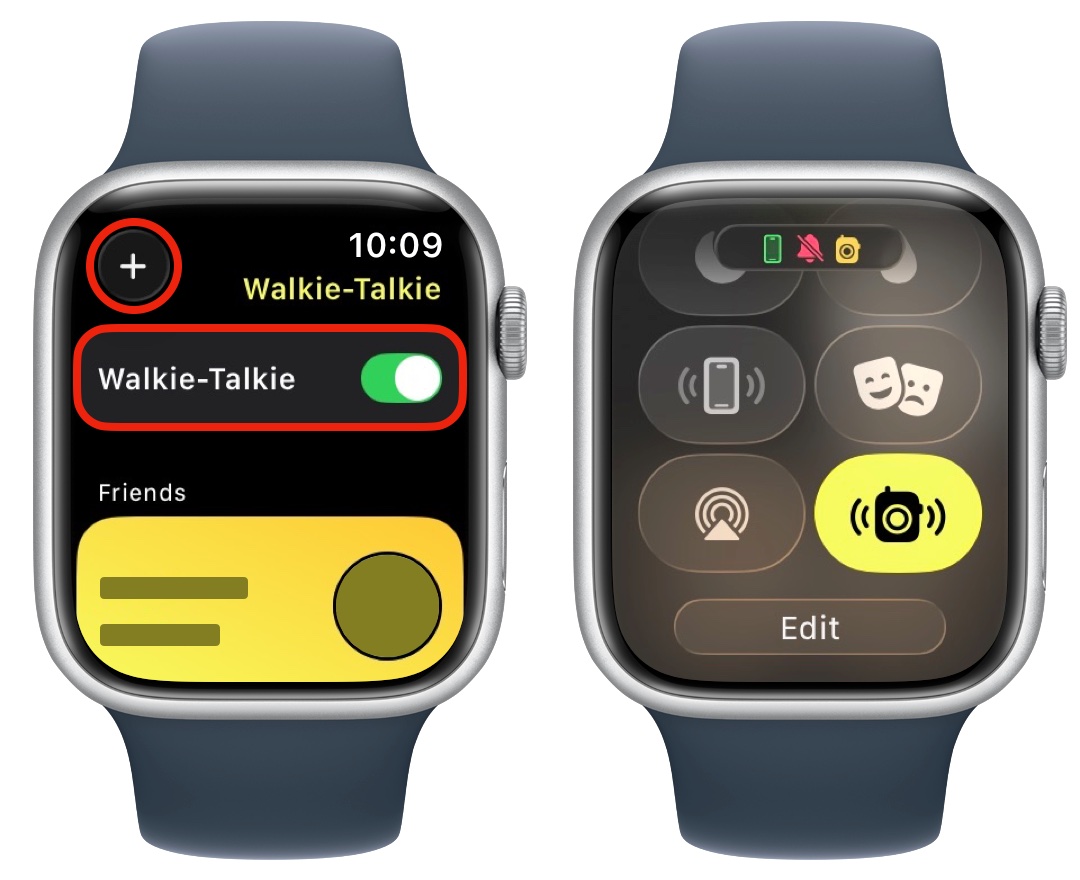
If another person in your household wears an Apple Watch — and you live in a decently sized house — you should check out Walkie-Talkie. It gives you a faster way to talk to them than texting or calling, and it’s less annoying than shouting in their general direction.
To set it up, open the Walkie-Talkie app and Allow notifications. Tap the Add button in the upper left corner to invite someone you know. Check to turn on Walkie-Talkie from the app or from Control Center.
To talk to someone, tap on their name, and your watch will ping the other person to pick up. If they’re available, you can tap and hold the yellow button to speak to them using Walkie-Talkie. It’s super-fast.
Set up Taptic Time
Screenshot: D. Griffin Jones/Cult of Mac
Looking at your wrist can send the wrong message in certain social situations. It can tell everyone around you that you’re bored and itching to get away. That may be true, but you might not want everyone else to notice.
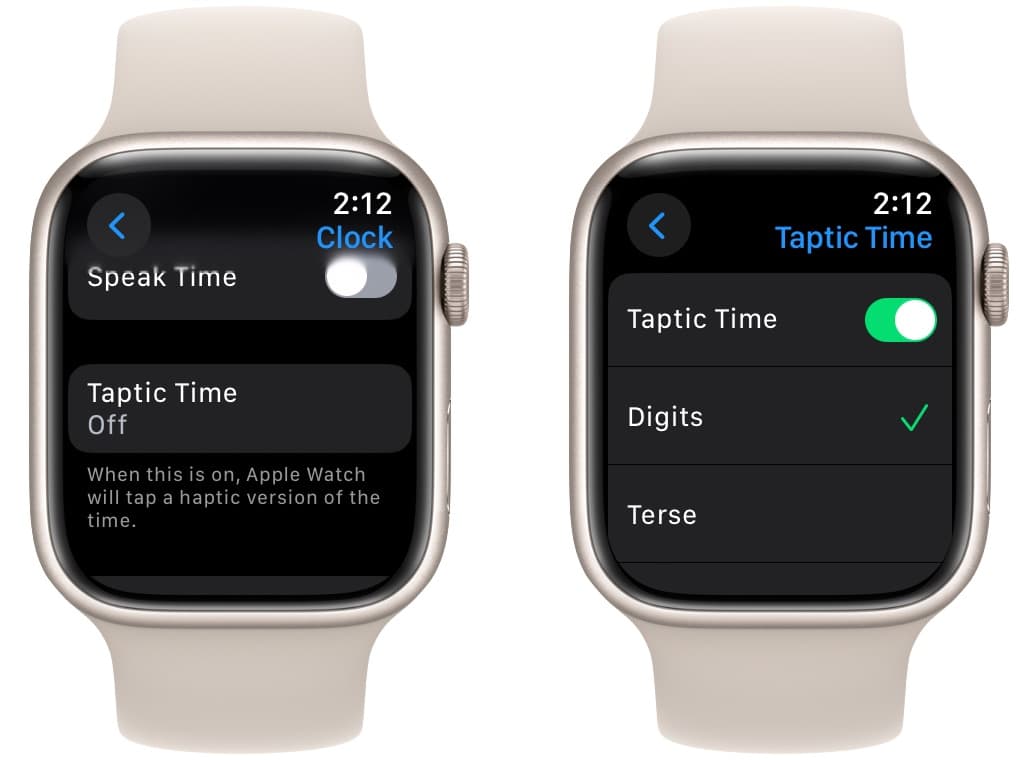
Taptic Time lets your Apple Watch tell you the time through vibrations on your wrist so you don’t need to look at it. Subtly, under a table, you can rest two fingers on the screen, and it’ll count the time out for you. It’ll do one long buzz for the tens, and a short buzz for the ones. So if it’s 12:35 p.m., for example, the taps will be — · · — — — · · · · ·.
To use it on your Apple Watch, go to Settings > Clock > Taptic Time and turn it on. I have it set to Digits. While it can be slow to read out higher numbers, it’s the easiest to learn.
Read more in our article: Get the time without even looking at your Apple Watch
More on Apple Watch
- What do the Apple Watch buttons do?
- How to start swimming with Apple Watch
- How to take stunning selfies with the Apple Watch Camera Remote
- How to use advanced Apple Watch sleep stage tracking

D. Griffin Jones was a writer, podcaster and video producer for Cult of Mac. Griffin has been a passionate computer enthusiast since 2002, when he got his first PC — but since getting a Mac in 2008, he hasn’t turned back. His skills in graphic and web design, along with video and podcast editing, are self-taught over 20+ years. Griffin has a bachelor’s degree in computer science and has written several (unpublished) apps for Mac and iOS. His collection of old computers is made up of 40+ desktops, laptops, PDAs and devices, dating back to the early ’80s.
Griffin writes for his personal blog, Extra Ordinary, and is currently looking for work.


One response to “10 Apple Watch settings everyone should change”
Walkie-Talkie used to be a great thing. I used to be able to talk to my mom on her Apple Watch and she lives 1000 miles away. Now I can’t get walkie-talkie to do anything. I cannot connect with her watch anymore. Sad…!