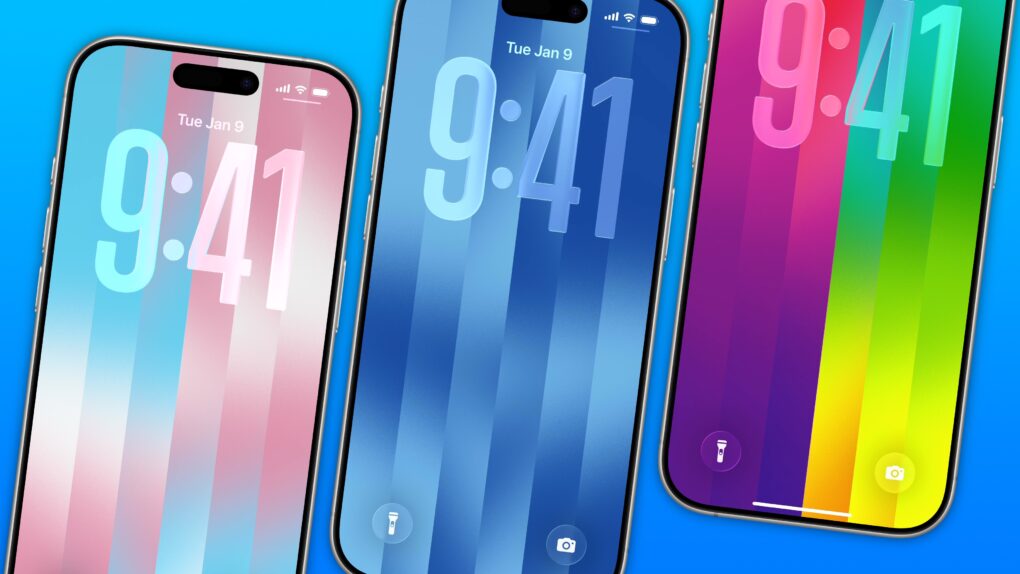
The colorful Pride Luminance wallpaper and watch face add beautiful color gradients to your iPhone and Apple Watch. You can download them both after updating to iOS 26.5 and watchOS 26.5.
Since they’re part of Apple’s annual Pride collection, they come with a bunch of preset styles for various pride flags. But you can customize the Lock Screen wallpaper and the Apple Watch face however you want. With a light and dark shade of the same color, the vertical stripes and gradients shimmer and animate when you swipe up to unlock your phone. Or you can go to the other extreme, picking up to 12 colors from the Luminance palette.
This is easily the best Pride wallpaper Apple has produced yet — in fact, it’s a great wallpaper, period. Check it out in our quick video or keep reading.
How to set up Pride Luminance wallpaper in iOS 26.5
Apple’s Pride collection is a coordinated set of iPhone Lock Screens, Apple Watch faces and bands. This exercise in rainbow capitalism is an annual spring tradition for Apple. While the celebration rings hollow in light of Apple CEO Tim Cook’s proximity to President Donald Trump, it does occasionally produce a great watch band or wallpaper.
Everyone can appreciate the new Luminance Lock Screen, regardless of whether you’re gay, queer, trans or boring.
Table of contents: How to set up Pride Luminance wallpaper
- Update to iOS, iPadOS and watchOS 26.5
- Add the Pride wallpaper set
- Browse the built-in styles
- Create your own palette
- Add the matching watch face
- More iPhone customization features
Update to iOS, iPadOS and watchOS 26.5
Apple released the Pride Luminance wallpaper in iOS 26.5 on Monday. Go to Settings > General > Software Update to install it. It runs on all the same devices that run iOS 26: the iPhone 11 or later and iPhone SE (2nd generation) or later.
To run iPadOS 26, you’ll need at least an iPad (8th generation), iPad Air (3rd generation), iPad mini (5th generation), 11-inch iPad Pro or 12.9-inch iPad Pro (3rd generation).
For the matching Pride Luminance watch face, you’ll need at least an Apple Watch Series 6, Apple Watch SE (2nd generation) or Apple Watch Ultra. And you need to update your corresponding iPhone before you can install watchOS 26.5.
Add the Pride wallpaper set
Screenshot: D. Griffin Jones/Cult of Mac
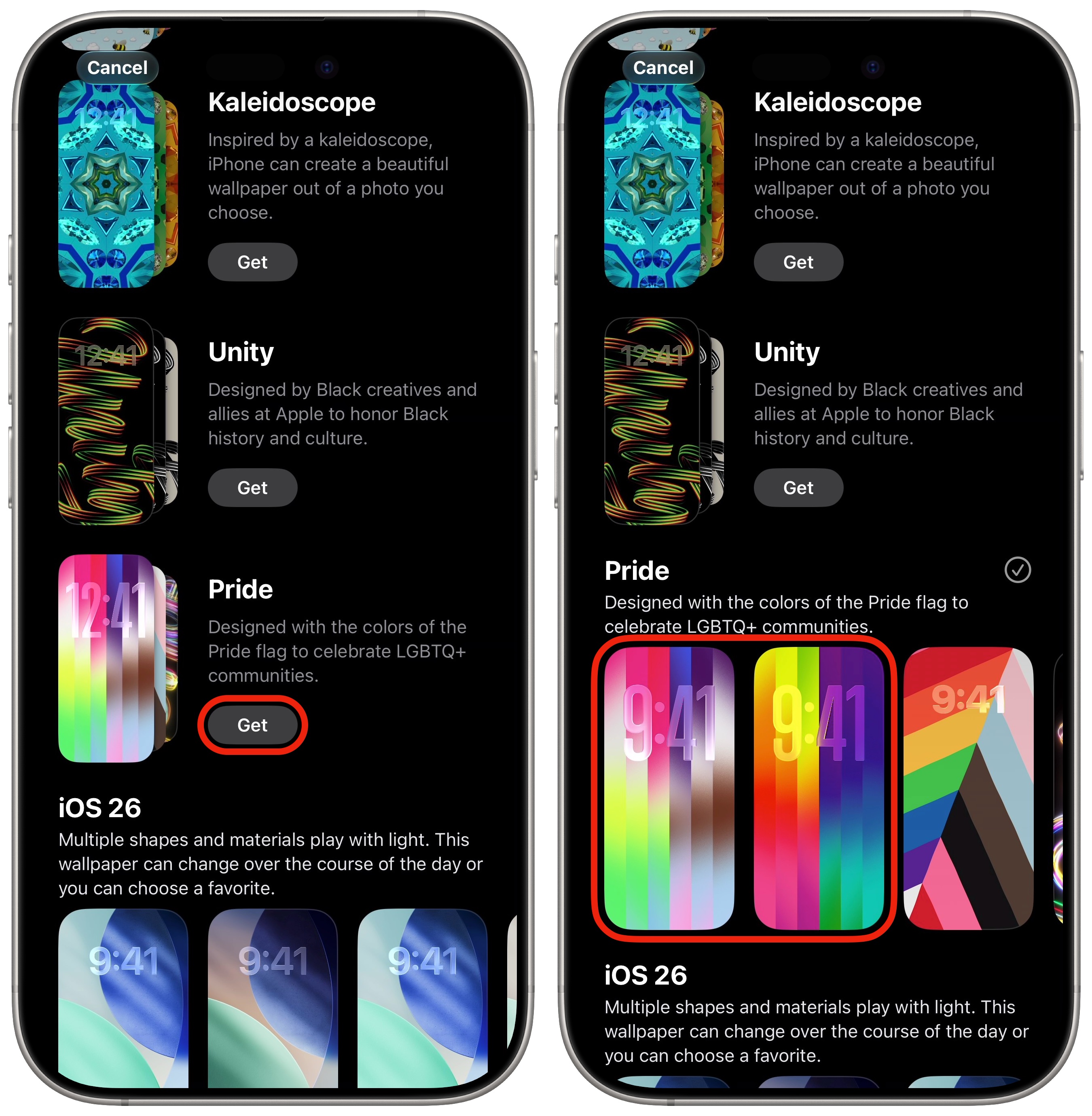
After updating, tap and hold on your iPhone’s Lock Screen to browse your collection. Swipe over to the right and tap Add New. Scroll down to the collections. If you don’t have any Pride wallpapers set up, find the Pride section and tap Get. It’ll just take a moment to download.
The Luminance wallpaper is the first two options. If you don’t like either of those styles, don’t worry — there are 11 presets to choose from, and you can even create your own. Tap on one to get started.
Browse the built-in styles
Screenshot: D. Griffin Jones/Cult of Mac
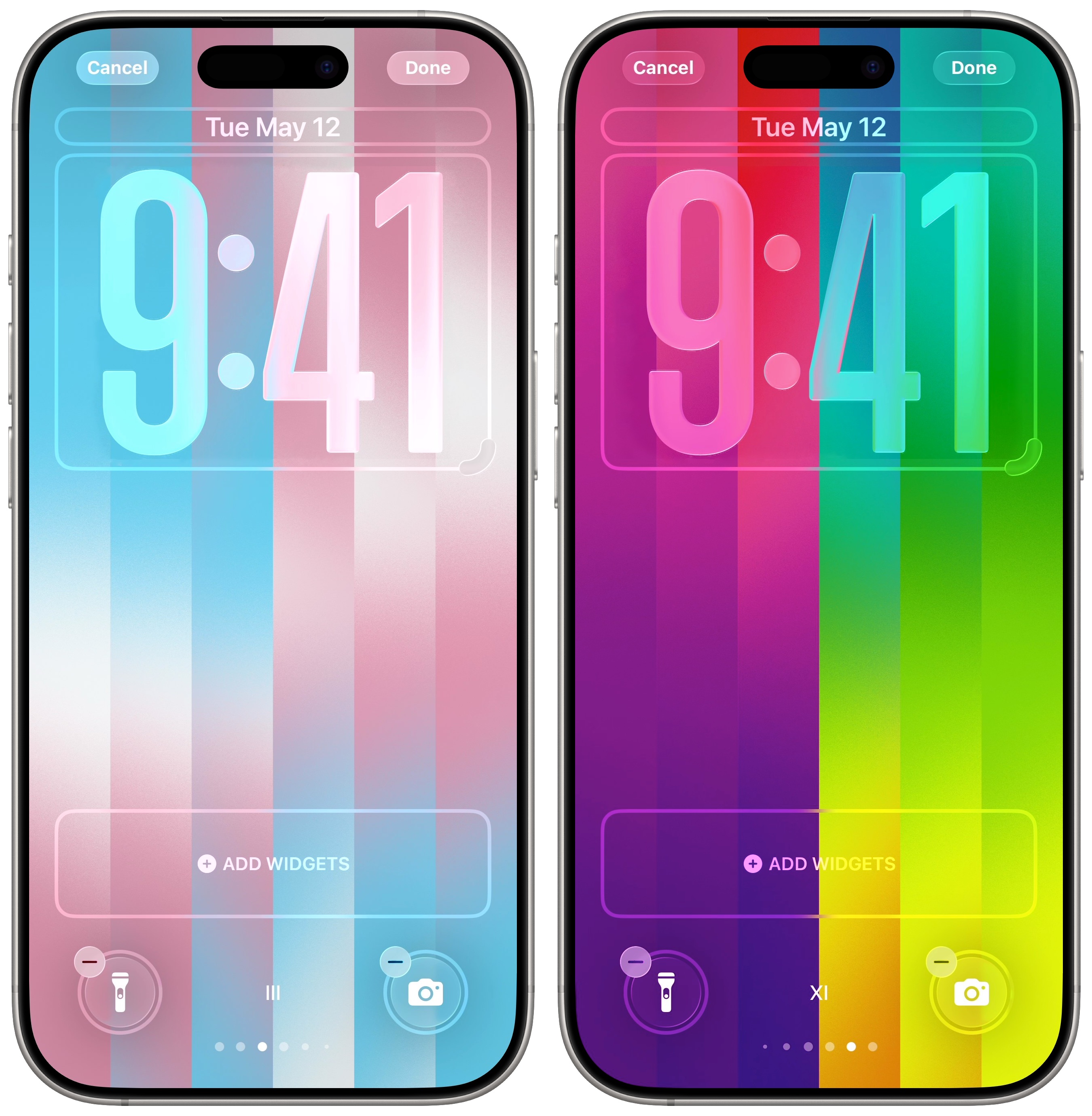
Swipe through the Pride Luminance wallpaper’s 12 presets for color schemes inspired by various pride flags. Here’s a cheat sheet for all the colors, and their meanings (Apple uses Roman numerals):
- I: Pride Progress flag colors in light, pastel hues
- II: Pride Progress flag colors in rich, vibrant hues
- III: Transgender flag colors: Light blue, pink, white
- IV: Lesbian flag colors: Red, orange, white, pink, purple
- V: Bisexual flag colors: Dark pink, purple, blue
- VI: Nonbinary flag colors: Yellow, white, purple, black
- VII: Gay mens’ flag colors: Green, white, blue, purple
- VIII: Asexual flag colors: Black, gray, white, purple
- IX: Aromantic flag colors: Green, white, gray, black
- X: Pansexual flag colors: Pink, yellow, blue
- XI: LGBTQ rainbow flag colors: Red, orange, yellow, green, blue, purple
- XII: Custom colors
Create your own palette
Screenshot: D. Griffin Jones/Cult of Mac
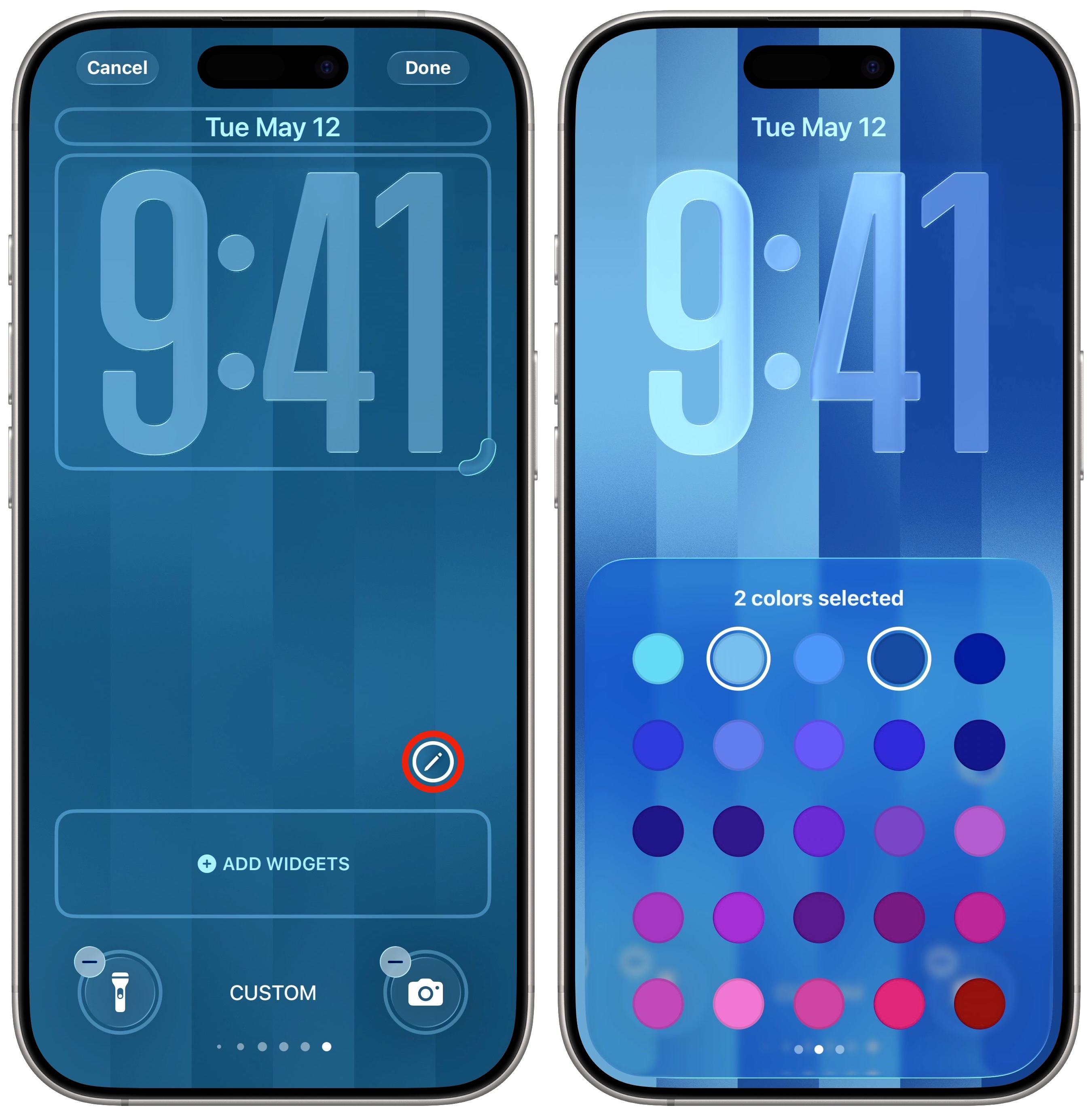
If you set the Luminance wallpaper to preset 12 (XII), you can choose your own colors. Tap the Customize Colors button to the right to bring up a palette. You can swipe through three pages of colors. The first has red, orange, yellow, green and blue; the second has more blue, purple and pink; the last page has some pink, brown, gray and black.
Tap on a color to add or remove it from the swatch. You can select anywhere from one to 12 colors. You could use the custom colors to make a Lock Screen with the colors of your national flag — though some of the gradients are a bit harsh.
Or you can simply pick some of your favorite colors. I think it looks really nice if you pick a dark and light shade of the same color, and let the fluted glass effect take it from there.
Add the matching Pride Luminance Apple Watch face
Screenshot: D. Griffin Jones/Cult of Mac
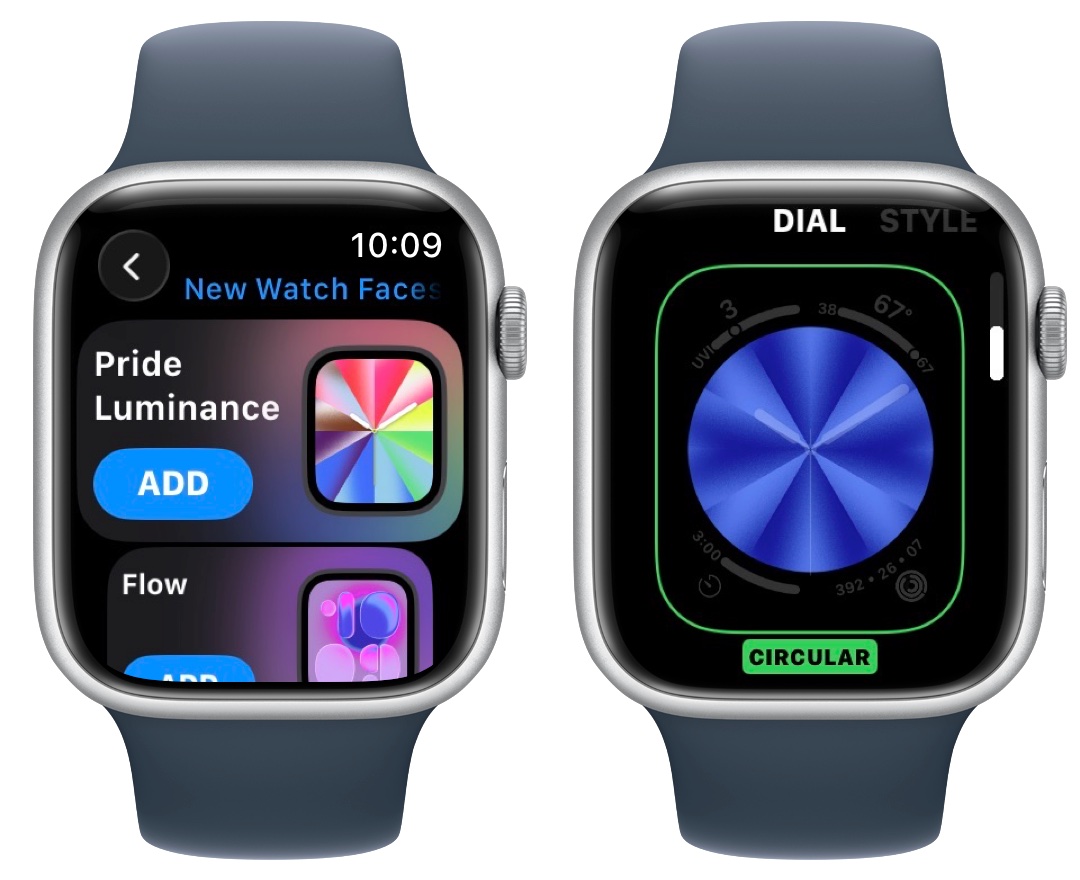
After updating your Apple Watch to watchOS 26.5, you can set up a Pride Luminance watch face in the same style. Tap and hold to select a watch face, scroll all the way to the right, and tap New. Scroll down to the Pride Collection, then tap Add under the Pride Luminance face.
You will see a bunch of customization options. You can choose whether the colors are full-screen or a circle in the center of the watch. If you choose the latter, you can add four corner complications around the clock. In the Style tab, you can choose to have a spiral effect (that hints at where the numbers are on the watch) or the same vertical stripe effect as the iPhone.
In the Color tab, you will see all 12 of the same options — including the custom colors. Pick whatever you want. It’s the same palette that you have on the iPhone, so you can match them perfectly.
Annoyingly, the Luminance watch face only comes with an analog face. There’s no digital option. I think that would look really cool with Liquid Glass numbers, just like on the iPhone. However, a neat trick with the analog face is that the colors rotate in time with the second hand.
More iPhone customization features
- You can fully customize the Home Screen. Place icons anywhere on the screen. Fans of dark mode can now enjoy alternate dark mode icons. If you have a color theme you want to match, you can tint icons to any hue you want.
- You can edit the buttons in Control Center. Add many more toggles and buttons, including those from third-party apps. You can resize some buttons to make them more prominent, and you can arrange your controls across multiple pages. In one fluid motion, you can swipe down to activate Control Center and continue swiping down to scroll through your pages.
- StandBy mode turns your phone into a smart display when it’s sitting on your desk, your nightstand or the kitchen counter.
- Customize your iPhone’s Lock Screen with a bunch of widgets, aesthetics and styles. Apple makes loads of fonts, colors, styles and themes available.
- Change out the iPhone Lock Screen buttons from the standard Flashlight and Camera to whatever you want. There’s a giant selection of buttons you can swap in their place.
- Create Focus modes to customize notification settings for different times of day, like work, vacation, driving, personal time and more.

D. Griffin Jones was a writer, podcaster and video producer for Cult of Mac. Griffin has been a passionate computer enthusiast since 2002, when he got his first PC — but since getting a Mac in 2008, he hasn’t turned back. His skills in graphic and web design, along with video and podcast editing, are self-taught over 20+ years. Griffin has a bachelor’s degree in computer science and has written several (unpublished) apps for Mac and iOS. His collection of old computers is made up of 40+ desktops, laptops, PDAs and devices, dating back to the early ’80s.
Griffin writes for his personal blog, Extra Ordinary, and is currently looking for work.

