If your iPhone is always blowing up with junk and spam, you can stop notifications dead in their tracks. You may not know that you can entirely disable notifications per-app and turn off different types of notifications to keep them from cluttering your phone.
I’m not afraid to disable all notifications from an app if it crosses me one time too many. For others, I allow notifications on the Lock Screen, but disable them from Notification Center, so they’re more temporary.
Here’s how you can do it, too. Check out our quick video.
How to stop notifications on your iPhone
Unfortunately, many apps abuse notifications. Most bug you to allow notifications when they first launch. At first, it’s handy to be notified when a friend sends you something. But if you don’t open an app after a while, it’ll likely keep bugging you over and over.
While Apple’s App Store Guidelines prohibit using notifications for marketing purposes, unless people specifically opt in, Apple doesn’t really enforce that rule at all. It’s really frustrating for those of us trying to achieve zen.
Here’s the next best thing you can do.
Table of contents: Stop notifications on iPhone
- Turn off notifications from the Lock Screen
- Make specific changes in Settings
- Don’t allow notifications after first launch
- Silence phone calls from unknown numbers
- More
Stop notifications from your iPhone’s Lock Screen
Screenshot: D. Griffin Jones/Cult of Mac
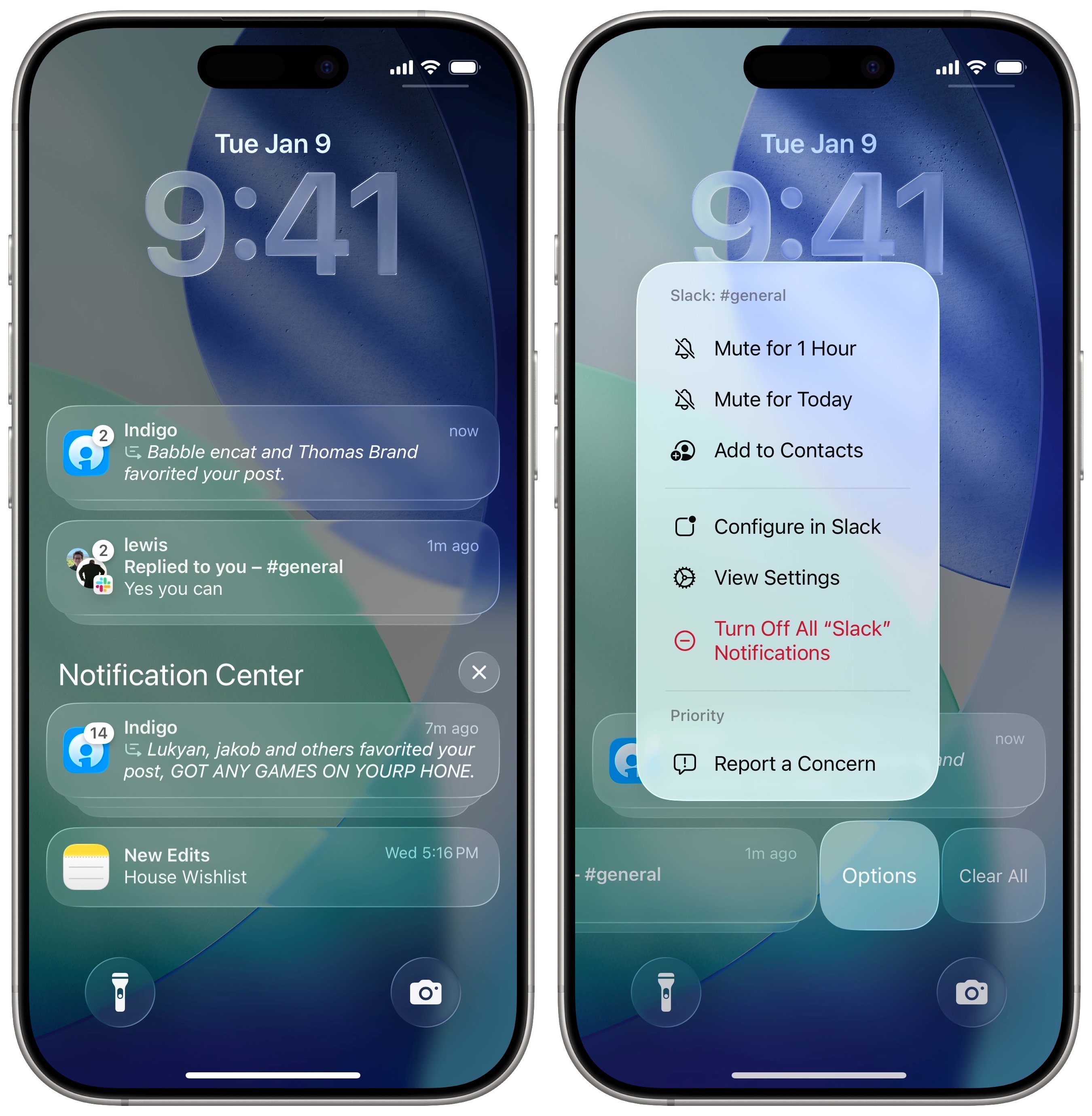
If you get a notification that’s absolutely pointless, there’s a quick solution. From your iPhone’s Lock Screen, swipe left on the notification and tap Options.
Right there, you can tap Turn Off to disable notifications for that app. It’s a great way to punish an app for wasting your time. I do this for just about any and all games on my phone.
For certain apps, you can tap Configure… to change what kind of notifications you’re sent right then and there. It’ll take you inside the app, so you can turn off specific kinds of notifications: DMs, replies, metrics, promotions, digests, etc. This will obviously vary based on the app.
Make specific changes in Settings
Screenshot: D. Griffin Jones/Cult of Mac
If you don’t want to entirely turn off notifications, there’s another middle ground option I recommend.
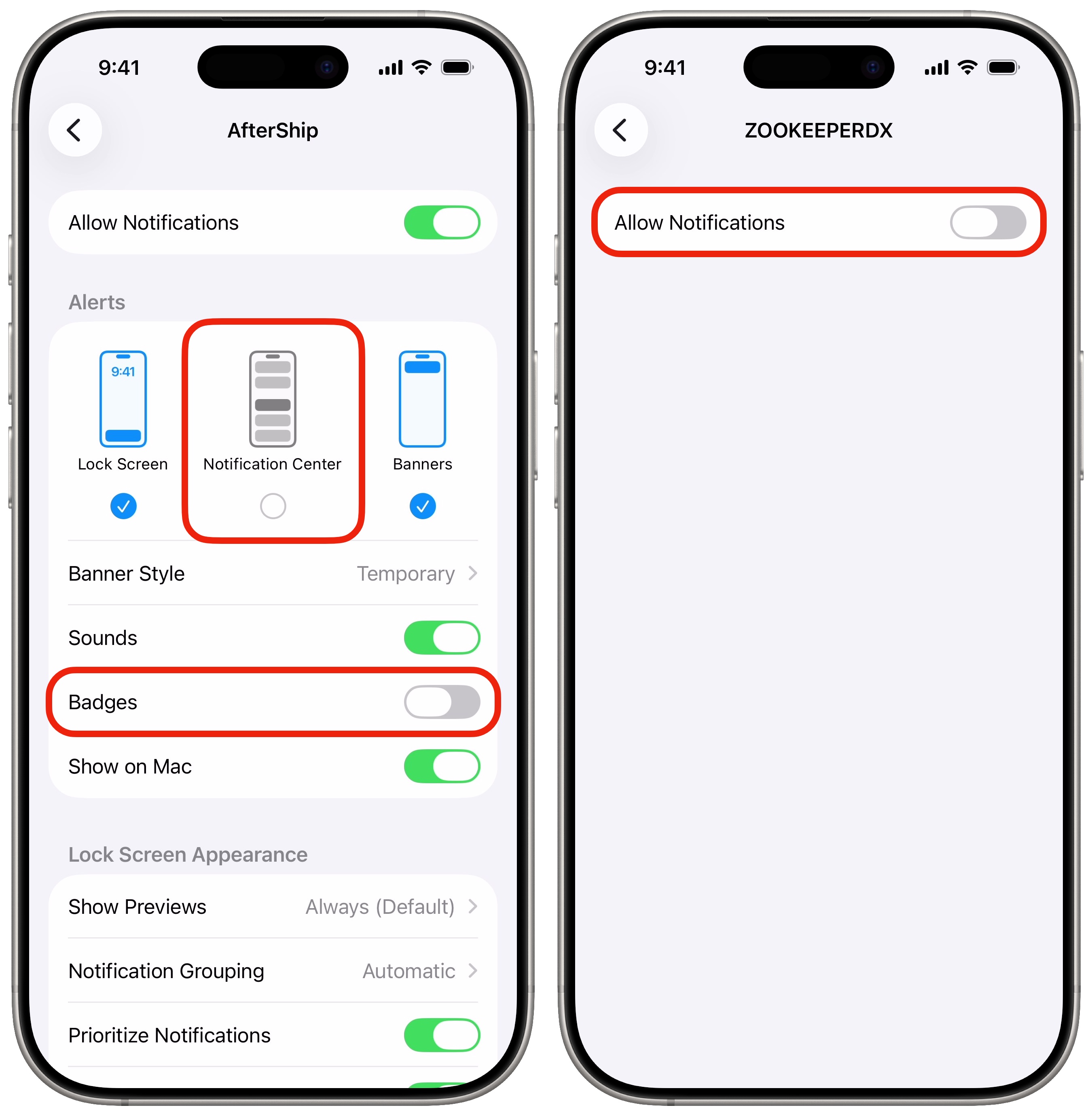
Go to Settings > Notifications and tap on an offending app that you see in the list. Then you can take some or all of the following steps to stop your iPhone from being inundated with less than useful notifications.
- Right off the bat, I usually disable the Notification Center option. That way, a notification shows up as a banner on my iPhone’s Lock Screen, but it doesn’t stick around and clutter up the Notification Center.
- Turn off Badges to keep those irritating red numbers from popping up on your iPhone’s Home Screen. If it’s something important, you’ll see the notification the app sent you. Usually, the red badges are just a trick to get you to open the app again.
- Turn off Announce Notifications to prevent them from interrupting your music or podcasts on your AirPods.
- Turn off Show on Mac if you have iPhone Mirroring set up to stop interrupting work while you’re at your computer.
Don’t allow notifications after first launch
My final piece of advice is to stop the problem going forward. When you first install an app, and it floods you with alerts asking for permission for your camera, microphone, location, everything — stop and take it slow.
It’ll probably beg you to enable notifications, but you don’t have to. Keep the notifications turned off. That should keep you at peace.
Silence phone calls from unknown numbers
Phone calls are a very special kind of annoying. They take over your whole screen, vibrate like a jackhammer, and play music to get your attention. And most of them are complete spam.
In Settings > Apps > Phone, scroll down to the Screen Unknown Callers section and set it to Silence. Anyone who isn’t in your contacts (and you haven’t called before) will be silenced when they try to call you.
You will quickly realize after setting this up how many calls are totally unimportant. Will you miss something? Maybe, but will you ever be bothered again? No. And you can’t put a price on that kind of lifestyle improvement.
More iPhone customization tips
- You can fully customize your iPhone’s Home Screen and place icons anywhere on the screen. Fans of Dark Mode can now enjoy alternate Dark Mode icons. If you have a color theme you want to match, you can tint icons to any hue you want.
- You can edit the buttons in Control Center. Add many more toggles and buttons, including those from third-party apps. You can resize some buttons to make them more prominent, and you can arrange your controls across multiple pages. In one fluid motion, you can swipe down to activate Control Center and continue swiping down to scroll through your pages.
- StandBy mode turns your phone into a smart display when it’s sitting on your desk, your nightstand or the kitchen counter.
- Customize your iPhone’s Lock Screen with a bunch of widgets, aesthetics and styles. Apple makes loads of fonts, colors, styles and themes available.
- Change out the Lock Screen buttons from the standard Flashlight and Camera to whatever you want. There’s a giant selection of buttons you can swap in their place.

D. Griffin Jones was a writer, podcaster and video producer for Cult of Mac. Griffin has been a passionate computer enthusiast since 2002, when he got his first PC — but since getting a Mac in 2008, he hasn’t turned back. His skills in graphic and web design, along with video and podcast editing, are self-taught over 20+ years. Griffin has a bachelor’s degree in computer science and has written several (unpublished) apps for Mac and iOS. His collection of old computers is made up of 40+ desktops, laptops, PDAs and devices, dating back to the early ’80s.
Griffin writes for his personal blog, Extra Ordinary, and is currently looking for work.

