Mobile menu toggle

How-To - page 26

Which MacBook Air To Buy? Get The 128GB 11-Inch Model With 4GB of RAM. Here’s Why

By

Screen Shot 2011-07-20 at 8.51.38 AM

Today, Apple released new Sandy Bridge MacBook Airs with Thunderbolt ports, backlit keyboards and all-around upped specs. Any MacBook Air you get will, in all likelihood, be the best laptop you’ve ever owned, but how do you know which MacBook Air is right for you?

After nine months of using and loving our last-gen MacBook Airs, we know which one we’d recommend to most people: the 128GB 11-inch MacBook Air with 4GB of RAM. Here’s why.

How To Prepare Your Mac For Lion — The Right Way

By

Screen Shot 2011-07-01 at 2.39.56 PM

Apple has released the Gold Master build of the next version of of its Mac OS X operating system to developers, meaning that 10.7 Lion could see release to the public as early as next week, exclusively through the Mac App Store.

For users looking to upgrade, this is uncharted territory: the first OS X upgrade to be delivered digitally. To help you prepare for Lion and guarantee your machine is one hundred percent ready to upgrade the second Lion drops, we’ve put together this handy guide.

Here’s how to prepare your Mac for Lion, and do it right.

Turn Your Dock Stacks Into Organized Bins [Video How-To]

By

Stacks

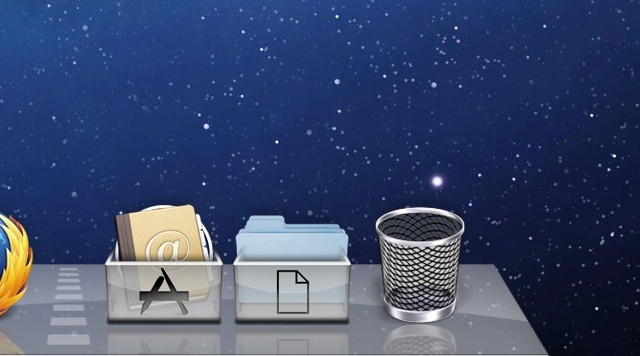
Recently, I was asked about the custom “bin” overlays that I have on the Applications and Documents stacks in my dock. These bins are cool tweaks that you can apply to any Dock stack to not only customize the look of them, but to also keep things organized and identifiable at a glance. In this video, I’ll show you how you can set up your own Stack bins.

Use Your Old Mac As A Secondary Display [Video How-To]

By

Untitled

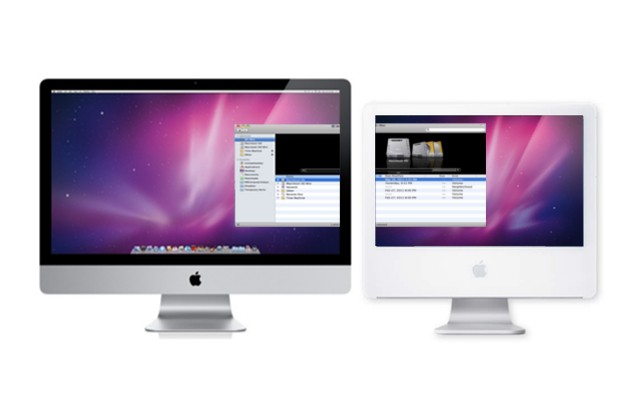
If you’re like me, chances are that you have at least one older computer lying around the house. Maybe you just bought a shiny new Mac and your old, not so shiny one is now sitting unused in the corner. Before you throw it away, you may want to take a look at ScreenRecycler, an application designed to help you use your old computer as a secondary monitor. In this video, I’ll show you how to set it up on both computers and get everything up and running.

Monitor Your Mac’s Status From The Dock [Video How-To]

By

ActivityMonitor

When it comes to monitoring your Mac’s status,such as the CPU or RAM usage, you have a couple different options. You can use menu bar applications which are often costly, or Dashboard widgets that are inconvenient to access. If neither of these sound like good options to you, monitoring your system with Activity Monitor might be a good option. It’s free, (after all, it’s built into Mac OS X), and it lets you display handy information right from the dock icon. In this video, I’ll show you how to set it up.

Use Spotlight To Its Full Potential [Video How-To]

By

Spotlight

Spotlight, the search tool built into Mac OS X is extremely powerful if you know how to use it. Unfortunately, many people don’t realize the true power of it, and therefore lose out on a lot of functionality. In this video I’ll show you how to use Spotlight to its full potential.

Use FaceTime To Monitor Your Home [Video How-To]

By

If you're an AT&T customer, you'll need a certain plan to enjoy this with a data connection.

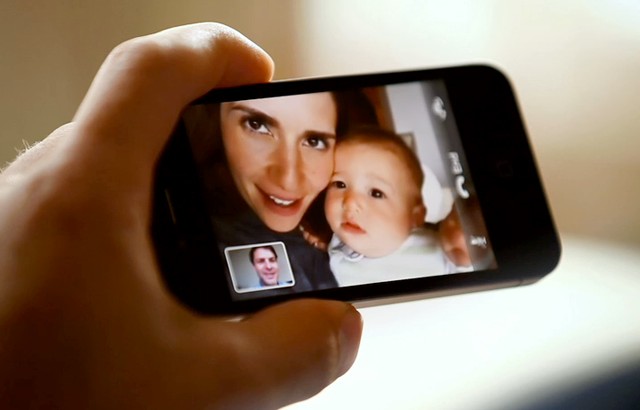
As neat as Apple’s FaceTime service is, for many people, it tends to be just a novelty. With two FaceTime capable devices though, it can become a lot more useful. In this video, you’ll see how you can expand the possibilities of FaceTime beyond video conferencing.

Get iOS 5 Features Today Without The Developer Beta [Video How-To]

By

iOS5

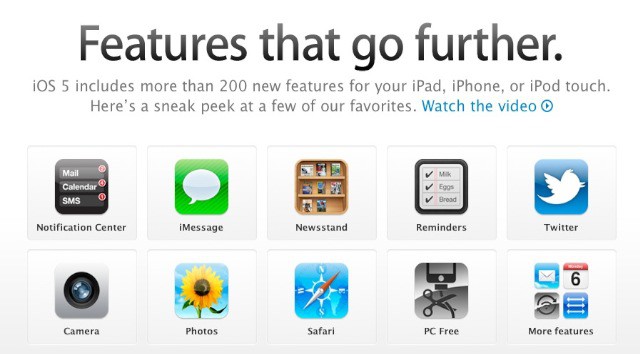
Are you eager to jump into iOS 5, but not willing to risk your device with the sometimes unstable, developer-only beta? Well, as you may know, many of the new iOS features already exist in some form or another between the App Store and the Cydia Store, which is the jailbroken alternative to the Apple’s App Store. In this video, you’ll see how you can get most of the new iOS 5 features with your jailbroken device.

Transform Mac OS X Snow Leopard Into Lion [Video How-To]

By

Lion

As the impending launch of Mac OS X Lion creeps closer and closer, it’s getting harder and harder to wait for all of the new features Apple has promised, like Launchpad and AirDrop, just to name a couple. Well, if you want to get a taste of Mac OS X Lion before it’s here, there are a few quick things you can do to transform your aging install of Snow Leopard into a Lion like experience. In this video, I’ll show you what to do.

Get More Out Of QuickTime X [Video How-To]

By

qtime

When Apple released QuickTime X with Mac OS X Snow Leopard, it seemed like little more than another version of QuickTime with a new User Interface. In reality though, there are quite a few features either new to QuickTime X, or previously only available in the Professional version, that make it much more than just a media player. In this video, you’ll see how you can get more use out of QuickTime X.

How To Remove MACDefender Malware Software [Video How-To]

By

m

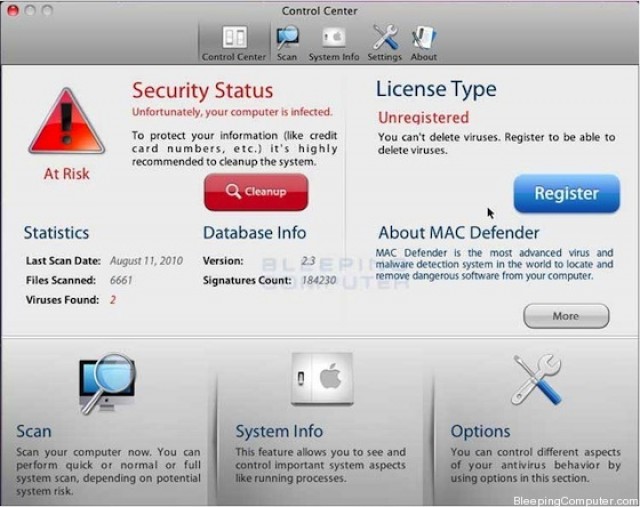
The newest Mac OS X Malware, MACDefender,  has taken the Apple community by storm. Some are claiming that Mac Malware is getting worse, and even Apple won’t help you with this one. Fortunately, if you’ve been infected with this pesky new malware, the solution to uninstalling it is quite simple. It only takes a minute or two, and if you follow the steps outline in this video, your Mac should be back to normal in no time. Alternatively, here’s a text guide if you’d prefer that.

How To Spot Malware (And Remove It) If You’re Infected With MacDefender [How-To]

By

macdefenderremoval-1

At this point, you probably know all about the Mac Defender thats doing the rounds. According to AppleCare Support reps, it’s exploding on Macs all across the country… but if you call Apple, they won’t lift a finger to help you remove it.

So how can you tell if you’re infected by MacDefender? Luckily, it’s pretty easy to spot it on your system… and even easier to remove it, if you know how.

Changing Application Icons In Mac OS X [Video How-To]

By

iOSDock

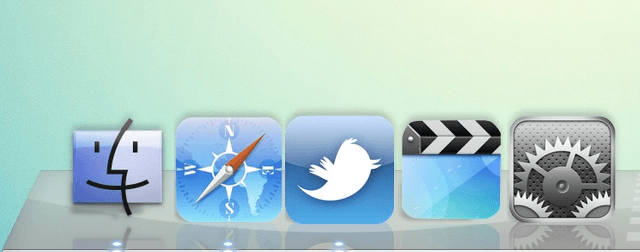
Have you ever had the desire to change how your applications look your Mac? Perhaps you want them to look like the icons found in iOS, as seen in the picture above? Although fairly unknown, it is possible in Mac OS X. All you’ll need to get started is img2icns. While there is no plain and obvious way to go about it, it’s actually fairly simple once you know what to do, as demonstrated in this video.

How To Greatly Increase Your Mac’s Speed [Video How-To]

By

spinningbeachball

Sometimes, even Macs get laggy. Logging in can be sluggish, and even just routine tasks can start to crawl. Whether you know it or not, resource hogs can be lurking in your system and slowing down your work. After following these five simple steps though, your Mac can be almost as good as new.

Turn Your iPad Into An External Monitor [Video How-To]

By

idisplay

While the iPad has seemingly countless uses, one fairly uncommon one is the ability to use it as an external display for your Mac. iDisplay, a simple little app from the App Store, lets you achieve this. After all, if you already have the iPad, why not use it to your advantage? This video will show you how to set up iDisplay and tweak it to your liking.

Maximize Your Desktop With GeekTool [Video How-To]

By

geek

GeekTool is a neat little System Preferences add-on that  lets you expand the usability of your desktop. Whether it be adding the time, date, weather, or even your Twitter feed, GeekTool can change your desktop from a boring backdrop to a useful information center. This video will show you how to setup GeekTool to fit your needs, as well as where to find many useful add-ons for it.

Create An iTunes Account Without A Credit Card [Video How-To]

By

itunes

Don’t trust your kids with open access to your credit card? I can’t blame you. In order to let your kids have an iTunes account though, you need to enter your credit card information, giving them free reign over your purchases, right? Wrong. While it may appear this way, there is a way to set up an iTunes account that involves absolutely no credit cards at all. This video will show you what to do.

Formatting External Hard Drives In OS X [Video How-To]

By

diskutility

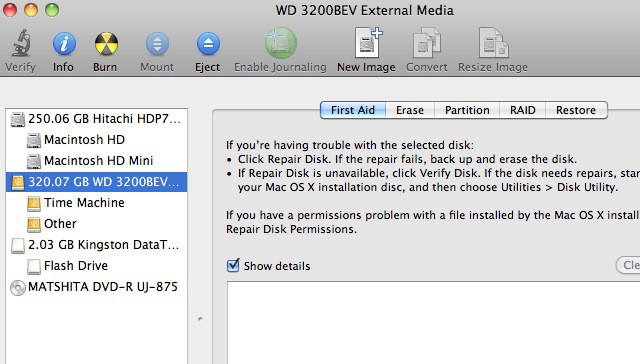
When you buy an external Hard Drive for use with Time Machine, Apple’s backup software, you will most likely need to format it before you can use it, since chances are that it is formatted for a Windows based computer. You could always spend the extra money to get a Mac formatted Hard Drive, but what’s the sense in that? You can format your own external Hard Drive right from Mac OS X. This video will show you how.