It’s happened to us all: You delete a file, folder or entire disk, then realize you’ve made a mistake. You reach for your backup – and you don’t have a backup. What now?
There are several utilities available to help recover deleted files under Mac OS X. Your chances of success depend on how the file was deleted and what you’ve done since then. Unfortunately you will also lose your original filenames, though some reconstruction is possible.
Apple’s App Store has a lot of great software — the problem is finding it. With more than 250,000 apps to choose from, it’s hard to find the genuinely good software among thousands of substandard and me-too efforts. The star-rating system doesn’t work, and it’s easy to miss recommendations on sites like this one.
We’re pleased to announce a major new feature of the site: an app discovery and recommendation service powered by Mplayit’s App Tapp platform.
CultofMac’s App Finder helps you to find, share and discuss great apps. But the real power comes from signing in with your Facebook account. This allows you to get app recommendations from friends and colleagues. You can get also follow app experts, get personalized app recommendations, and share the apps you like with friends.
Using our App Finder is pretty self-explanatory, but here’s a brief tutorial showing how it works:
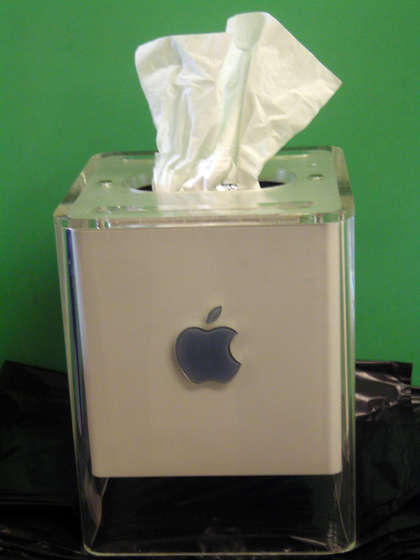
The hardware inside the old Apple PowerMac G4 Cube might not be good for much anymore, but the gorgeous plastic case is still one of the most notable triumphs of Apple’s well-honed sense of design. Why not humiliate it, then, by shaking out all the electronic guts, cutting a hole in the top and turning it into a tissue dispenser? Instructables has the instructions.
I can think of more ignominious ends for a G4 Cube… toilet brush holder comes immediately to mind.
Macs are solid machines, but (like many of us) they have a tendency to slow down and get more lethargic over time. Launching and switching programs takes longer, the dreaded Spinning Beach Ball appears more often, and soon even simple tasks become arduous. What’s going on?
Many things can decrease performance, but several culprits are common: not enough disk space, not enough RAM, and running too many apps at once. I see these in my consulting business regularly.
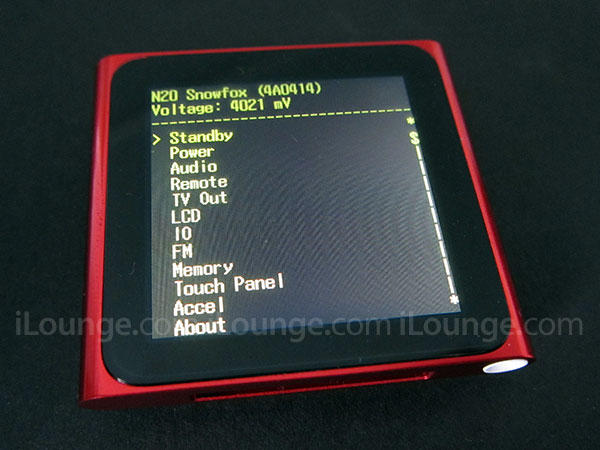
Like all iPods before it, the new sixth-generation iPod nano comes with a handy diagnostic mode to allow Apple’s constabulary of technicians to dig into the underlying wetware of the device before the flouncy frills of the operating system have been slathered on top.
Unlike past iPods nanos, though, the new nano doesn’t have a clickwheel, which makes accessing its hidden iTerm Diagnostic Mode slightly different than before.
If you want to access the nano 6G’s diagnostic mode, here’s how you do it:
1. Reset your nano by holding down the sleep and volume down buttons until the Apple logo appears.
2. When you see the Apple logo, hold down all three buttons until “iTerm: iPod Display Console” flashes on screen.
3. (Other) You can reset your nano into Disk Mode by simply holding down the volume buttons when you see the Apple logo.
My favorite takeaway from the new nano’s diagnostic mode? The fact that the sixth-generation iPod nano is apparently codenamed “Snowfox” internally. That’s just adorable.
All Mac applications and system functions have preferences, but there are often more options available than are accessible via the User Interface. Using the Terminal in Mac OS X in conjunction with the defaults write command, you can control behavior of the Finder, iTunes, etc. in ways that you otherwise can’t.
We noted the use of this command with the iTunes 10 button fix last week: defaults write com.apple.iTunes full-window 1
Following is a list of some other useful commands I’ve compiled which will work in Snow Leopard.
As it turns out, the problem is caused because Automator detects iTunes 10 as being a lower version number than iTunes 9, because Automator apparently sorts version numbers alphabetically instead of numerically.
As it turns out, the fix isn’t entirely onerous: simply open up the info.plist inside the packages of your non-functioning workflows and manually change the version number. If you absolutely can’t live without your iTunes Automator workflows until Apple managed to issue a Software Update, here’s your stop gap solution.
On Windows, you might have got used to right-clicking on a file and clicking “Properties” to see the meta information about the file itself – such as its size, and so on.
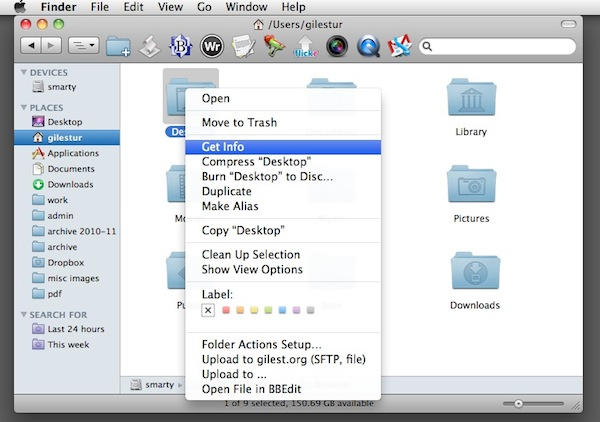
On Mac OS X, you can do the same thing by choosing the “Get Info” command.
You can get to it in a variety of ways:
Select the file in a Finder window, and hit Command+I
Select it, and click on the File menu, then Get Info
Select it, then click the Action button in the Finder toolbar, and choose Get Info
Control-click or right-click on it, and click Get Info from the popup list
No, you don’t have to use an Apple mouse on your Mac. Any standard USB will be fine. Just plug it in and go.
And that includes standard USB mice with two buttons. Yes, the right button will work. You will be able to right-click on things just as you used to do while using Windows.
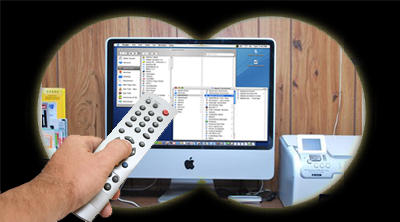
Remote control of your Macintosh allows you to access a distant computer across a network or the Internet. The screen of the remote Mac appears locally, and you use your mouse and keyboard to control the distant system. This capability can be helpful for tech support, system administration, finding missing information or more informed parenting (to the chagrin of many offspring).
With the Mac’s increasing popularity there are now an increasing number of options available for Mac Remote Control, many of which are free. Choices include Apple’s built in Screen Sharing and Remote Desktop software, web based services like LogMeIn and GoToMyPC, and old standards like VNC.
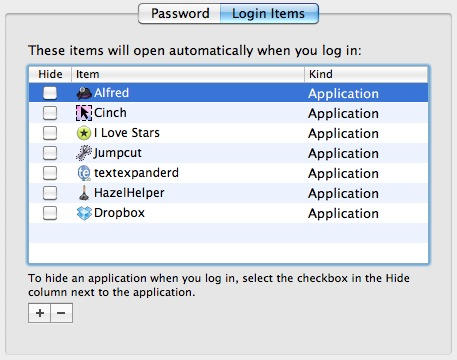
Every time you log in to your user account, you’ll have to wait while a handful of applications and background processes get themselves started.
Finder, for example, has to start running – otherwise you won’t get very far. On a brand new Mac you won’t find a lot of things running as well, but as time goes on and you add more software to the basic system, you might want to make some changes and decide exactly which apps run at log in.
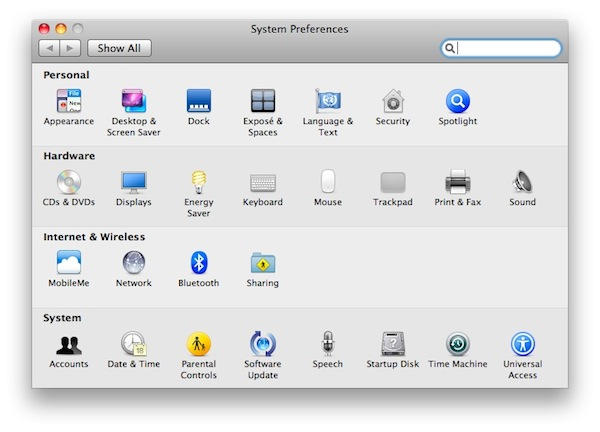
There’s a place to do that in System Preferences, but it’s not immediately obvious exactly where.
This is the Option symbol, which you’ll see quite a lot of as you use Mac OS X.
Depending on the age of your Mac or your keyboard, the key itself might have all sorts of different things on it. It might just have the option symbol. It might have the word “Alt” on it, or the word “Option”; or both; or some combination of one of those words and the symbol.
This can make things confusing for newcomers. To make it easier, remember that Option = Alt = ⌥, and that the key you need is adjacent to the Command key.
Just as the Mac Command key is similar to the Windows Control key, so the Mac Option key is similar to the Windows Alt key, or the AltGr key. Hold it down while pressing other keys, to make them do different things. It’s a modifier.
Not knowing your Mac’s password is like locking yourself out of the house; it’s inconvenient (at best) and always happens at the worst possible time. In our efforts to shield information from others we often wind up just blocking access for ourselves. Fortunately there are several ways to reset your Mac password when amnesia strikes or relevant information isn’t available.
Some methods of resetting your password can affect access to the keychain, however, where many of your other passwords are stored. Nothing in life is free…
(Yes, this is tip #18 and it’s appearing out of order – that’s my fault, because I wrote it then forgot to post it. Apologies to all. Now without further ado…)
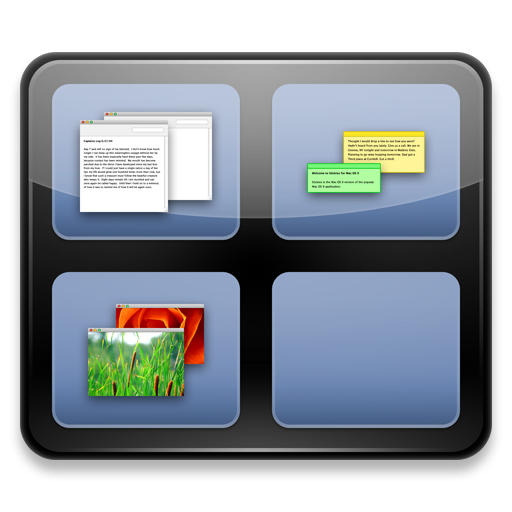
Spaces is Apple’s implementation of an old idea known as virtual desktops. You might have used virtual desktop software on your PC.
It’s pretty self-explanatory. With Spaces active, your computer suddenly has a bunch of virtual screens hovering in mid-air around your monitor. You can switch between them with a keyboard shortcut or a mouse command, and make it seem like you have much more screen space available than you actually do.
If Apple were interested in marketing their computers to people who live just to print, they’d probably use a slogan like: “Macs: PDF everywhere.” Or something.
Because it’s true. The ability to turn anything that’s printable into a PDF file is built right in to the OS X operating system. And it’s easy to get to from anywhere.
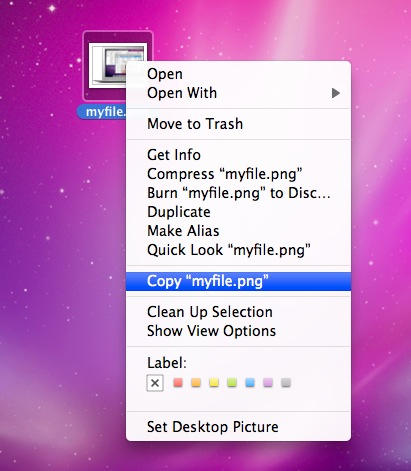
On Windows, it’s easy to cut and paste files and folders between locations; but that’s one of the first things people notice missing from Mac OS X.
The Windows system works just like cutting and pasting text or pictures inside a document, which is why it’s so popular. People understand what’s happening when hit the “cut” command and the file disappears – they know it hasn’t been deleted, but that it’s gone to the clipboard, ready to be pasted elsewhere.
On OS X, things work differently. In short, there is no built-in way of “cutting” a file to the clipboard. But you can copy stuff.
A normal folder is simple; it’s a thing you store files in. You choose which files are there, you have complete manual control over what’s inside that folder.
A smart folder is one whose contents are partly or completely determined by a set of rules that you’ve created.
To set up a Smart Folder, make sure you’re in Finder and then select File -> New Smart Folder. You’ll see a Finder window appear, but it’s slightly different to normal ones.
One thing a lot of Windows users miss is the Start Menu. How do you find your way around a Mac without a Start Menu to help?
If you stop to think about it, the Start button is a visual aide-memoire; you click on it to start the process of figuring out where to go next. If you’re looking for a particular file, you can navigate to it using the default locations listed in it. And if you want to open a particular piece of software, the likelihood is that you’ll find it there too. The Start button is there for you to click on when you don’t know where else to begin. No matter what you want, you can find it (eventually) from the Start button.
Unfortunately for switchers, Mac OS X doesn’t really have a single button that completely replaces Start. But I can suggest a couple of alternatives.
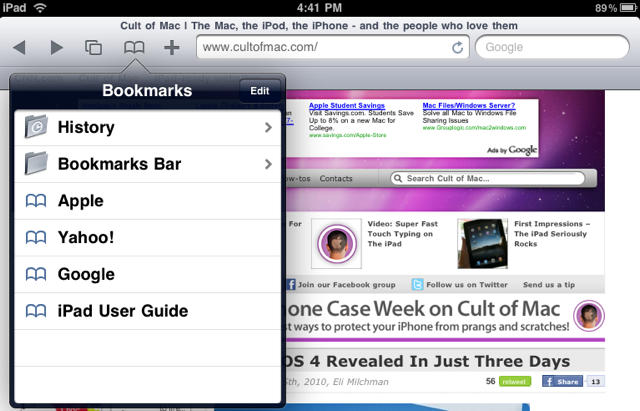
By having an iPad, you now have the internet in your hands (and probably on your couch), at least according to Steve Jobs. But are you wishing you had a bookmarks bar like in regular Safari? After reading this quick guide you soon will.
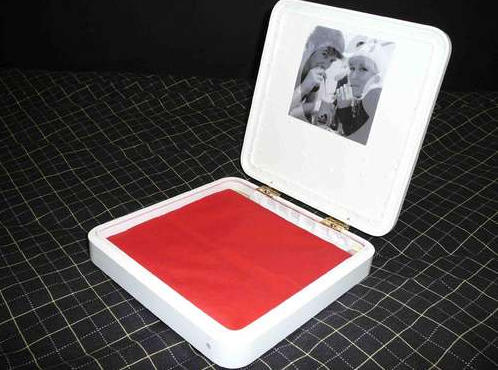
With Time Capsules epidemically failing after an average of 18 months and 22 days, it might be time to start thinking about an alternative use for your pristinely albino, Apple-branded router once its body squirts out its last breath of 802.11-n ectoplasm.
Why not turn it into a lovely gift box? Over at Instructables, there’s a handy little tutorial on how to convert a Time Capsule into an ornamental box worthy of display, simply by prying it open, gutting it, then adding hinges and a silk cushion.
Not the most revolutionary use for an old Time Capsule’s casing, certainly, but this would be great presentation for, say, an iPod Touch gifted to a loved one later this month, and it can even be reused as a jewelry box or even a humidor (for cigars or the disembodied fingers of people who owed you money, you decide).