Do you use OmniFocus on your iPhone? Do you use Launch Center Pro? Then you need to watch the above screencast, put together by Michael Schechter of A Better Mess. It uses the latter to create shortcuts and snippets of text to enter into the former, and makes the whole thing way, way faster.
I love having my photos on my iPad, but I hate using iPhoto to get them there. To be honest, I just hate iPhoto, along with its more complicated and even more sluggish cousin, Aperture. I use Lightroom, and up until last week I was exporting photos from there into iPhoto just to sync them. Not only was this a headache, but it was a waste of space.
Now, you can tell iTunes to sync any folder of photos to the iPad, but with a little bit of effort things can be made much more elegant. By setting up Lightroom correctly, we can have any changes to our photos mirrored to the iPad at the touch of a button, and the whole process is near-automatic.
I love e-books. I love them so much that I’m considering buying a double-sided, sheet-feed scanner, chopping the spines of all my dead-treeware books and having an OCR frenzy on their asses.
What I don’t like is DRM. Not for any idealistic reasons (well, maybe a few) but for practical ones. My bookseller of choice is Amazon, as it has the best range and Kindle books work on any device. But the Kindle app for the iPad sucks, and with an update this week it is almost unusable. If only I could read my Kindle books in the beautiful iBooks app. Well, it turns out that I can. And what’s more, I can keep all of my books in a DRM-free format in the cloud, ready to be downloaded to any device, whenever I like. Here’s how.
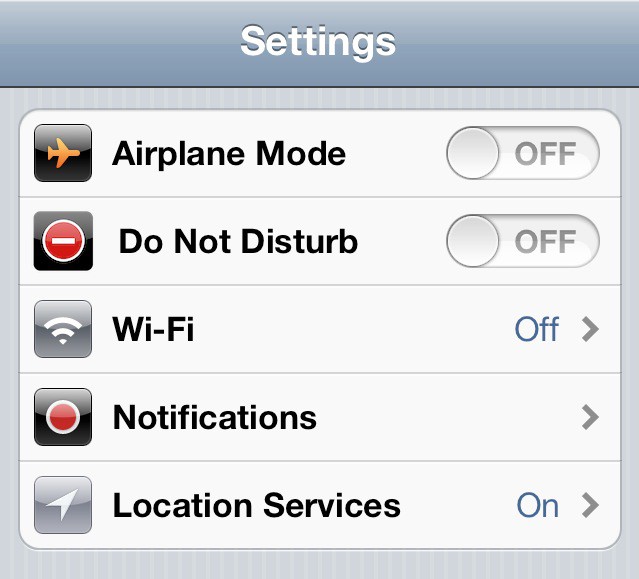
Have you ever been making a phone call and had an email notification chime in your ear? Or how bout a banner notification pop up during a game or video? Sometimes you may just want to get away from alerts and incoming messages. Instead of notification after notification endlessly causing vibrations in your pocket, why not tell your iPhone that you’re out for lunch?
It would be nice for Apple to implement a “Do Not Disturb” feature into the iOS Notification Center, but until that day comes, jailbreakers can tell Notification Center to shut up with a couple of handy Cydia tweaks.
It happens to all of us. You’re at your computer, ready to work, and you’ve forgotten your password. What should you do? Don’t worry, all hope isn’t lost. In this video, I’ll show you how you can reset your account password in OS X Lion, in just a few easy steps.
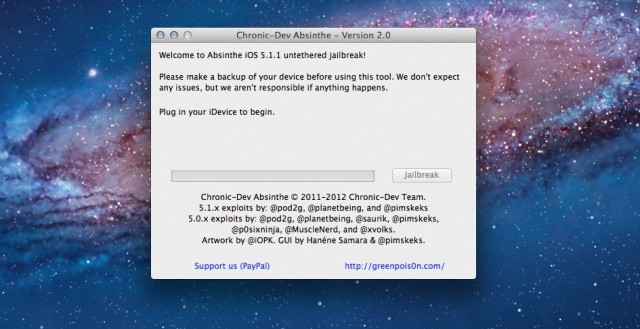
Today the Chronic Dev Team released a new version of Absinthe, the popular tool used to jailbreak iPhones, iPads, and iPods. In this video, I’ll show how to jailbreak your device running iOS 5.1.1 with Absinthe.
The latest Absinthe untethered jailbreak for iOS has finally been released. After months of waiting, you can download the Chronic Dev Team’s free Absinthe tool to jailbreak your iOS device in a matter of minutes.
We’ll show you how to jailbreak iOS 5.1.1 the right way in this guide.
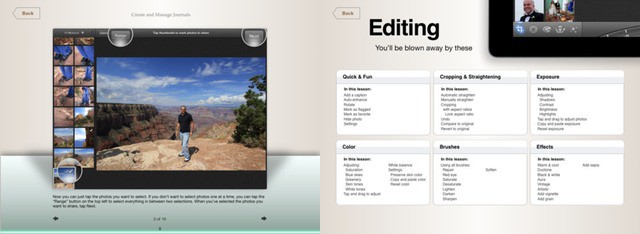
'Hello iPhoto' is a supposedly interactive guide to iOS and OS X versions of there app
If you’re confused by iPhoto for iOS, then you’re not alone. It’s easy to get overwhelmed by the cluttered and complex interface. There is light at the end of this long and painful tunnel, though, in the form of a very powerful photo cataloging and editing app. And a new book, called Hello iPhoto for iPad & iPhone, will help you get there.
Many people I’ve talked to are anxious to try out the new features Apple has brought to OS X Mountain Lion. Unfortunately, Apple has only made the beta of Mountain Lion available to registered developers. In this video, I’ll show you how you can get the biggest features of Mountain Lion today, using only existing apps.
One of my biggest gripes when dealing with files in OS X is working with zipped directories. OS X’s built in Archive Utility does a poor job of managing compressed files. With some tweaks though, you can make dealing with zipped files less of a pain. In this video, I’ll show you how to do it.
Today we have the perfect video to satisfy a very particular demographic. If you love the whole 8-Bit aesthetic, and yet remain confused by the interactions of the three basics of photographic exposure — aperture, shutter speed and ISO — then sit back, relax and hit the play button on the Vimeo video above.
OS X has a nice default array of keyboard shortcuts, but as more advanced users know, it can be nice to be able to customize these shortcuts to fit your needs. In this video I’ll show you how you can customize and create keyboard shortcuts for any application.
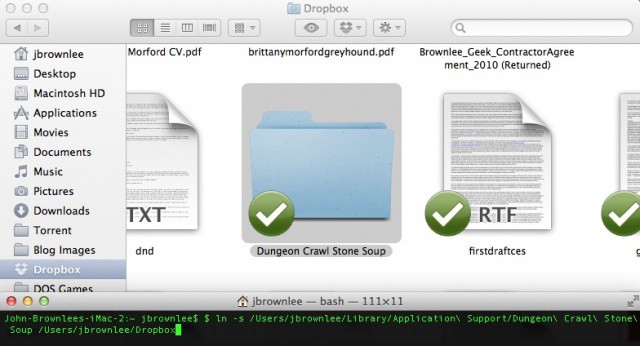
Syncing any file or directory to Dropbox is easy using Terminal.
One of the greatest things about a service like Dropbox is that as long as you are either using apps with support baked in or can save your files to a Dropbox folder, you can keep all your data synced between multiple Macs.
What if you want to keep app data synced between Macs that don’t lend themselves to being saved to a Dropbox folder or don’t come with Dropbox support, though?
For example, most Mac games don’t allow you to specify where you keep your saves, but what if you want to be able to save your game on your iMac and then load it up again on the road on your MacBook Pro? Or what if you want to keep your app settings synced between your iMac and MacBook Air? Settings files are usually stored in a hidden system folder on your Mac, so how do you keep things synced then?
It’s actually way easier than you might think. Here’s how to keep any file or folder synced between Macs using the cloud, no matter where it’s stored.
From nearly the day I began making videos here at Cult Of Mac, I’ve been receiving questions from readers and viewers about how I make my videos. From what I use to edit, to how I create certain effects within videos, I’ve heard it all, which is why I thought I’d put together a video to show those who may also be interested in video editing how easy it can be to get started making videos of your own using only the software that came with your Mac.
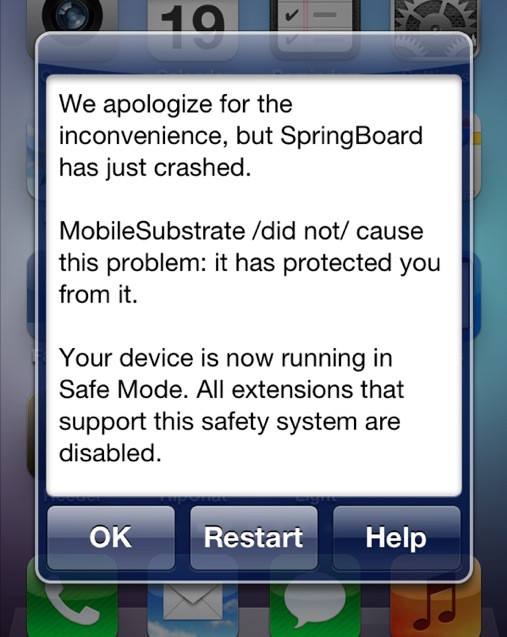
Seeing this message a lot on your jailbroken iOS device?
Jailbreaking has its many benefits, but there’s always a risk that installing a certain tweak or app from Cydia will cause something in iOS to go haywire. It doesn’t happen often, but when it does, you want to be able to fix the problem without having to restore and lose your jailbreak.
Luckily, there’s a relatively easy way to troubleshoot your jailbroken iOS device and find out the exact tweak that’s causing the problem.
With more and more security threats to OS X like the recent “Flashback” trojan, now’s a better time than ever to protect you Mac from any and all possible security threats. In this video, I’ll show you the best ways to keep your Mac safe from viruses and malware.
Using just a red bike light, many layers, a Google search and a picture of Kermit the Frog, you too can make a fake Instagram picture
With all the retro photo-filtering apps in the App Store, it might seem redundant to take the time and effort to actually fire up Photoshop Touch and do the dirty work ourselves. But as it is a rainy April afternoon here at Cult of Mac’s Spanish HQ, I figured why not? After all, the whole point of this stuff is to have some fun, right?
So here we have it: How to make Instagrams the hard way.
Apple has said that its working on a tool to end the notorious Flashback botnet once and for all, but there’s still the remotest chance you could get infected. Keep in mind that only around 600,000 Macs have fallen prey to Flashback, and that number is a tiny fraction of the millions of Mac users around the world. Most of the machines that have been infected already are centralized in North America.
Your Mac is completely up to date and you’ve already checked to see if you’re infected by the Flashback trojan. If everything is squared away and you’re not infected already, here’s how to ensure there is zero chance you’ll get infected while you wait for Apple to save the day.
You can save your Instagrams to your own website, or stop using Instagram altogether
For users, Facebook’s takeover of Instagram just plain sucks. No longer will we be able to share photos of our dog or our breakfast (or our dog’s breakfast) without wondering whether Uncle Zuck is looking over our shoulders. But it will keep happening for as long as great businesses fail to charge money for their services.
In the meantime, we can future-proof our social interaction so that when the underlying services disappear, or get too evil for our tastes, we can raze our accounts to the ground and still keep everything we did there.
To do this, we’re going to use a combination of Tumblr and the amazing IFTTT (If This Then That). And while this example shows how to archive and display your Instagrams, you could ditch Instagram altogether and post photos from your favorite grunge-photo app.
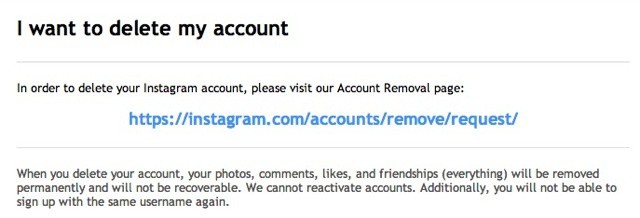
If you really, really want to delete your Instagram account, it's pretty easy
So you decided to quit Instagram. You already exported your photos with Instaport, but is that enough to stop the Evil Empire from mining your account for yet more information to sell to advertisers?*
What you need to do, my friend, is delete your Instagram account entirely. Luckily, it’s pretty easy, an almost one-click process — unlike quitting Facebook itself, which is all but impossible.
iCloud is a great addition to the Apple ecosystem, but at times, it’s a little too limited in functionality for some. Many users wanted to be able to use their free iCloud storage as they would Dropbox, but iCloud restricts access and is only useful for storing app data or iOS backups. For those who are looking to get a little more out of iCloud, here’s a handy workaround I discovered today that allows you to upload any file to iCloud, much like you would with Dropbox. It’s not perfect, but it works, and for many it’ll be a helpful addition to iCloud.
Ever wonder why ƒ-stops have the numbers they do, or what those numbers mean? Watch this great video to find out
Ever wonder how those funky aperture numbers ended up on your lens barrel? Or who chose those odd f-numbers that run in the seemingly arbitrary 1, 1.4, 2, 2.8, 4, 5.6, 8, 11, 16, 22, 32 sequence? And why does the biggest number refer to the smallest lens-hole?
Now, video sketching supremo Dylan Bennett is back to explain f-stops to you. Grab a beverage, sit back and enjoy 15 minutes of easy-to-follow explanation. With drawings!
Creepy stalking apps aren't going anywhere, but you can cut off their sources
Thanks to a great article by our own John Brownlee, we now know how easy it is for apps and people to stalk you using location-sharing services like FourSquare and Facebook. And now the more paranoid among you might be wondering, just how do I turn these things off?
Theoretically, you would have already checked the privacy settings when you signed up. But that’s like reading the manual before you switch on a new gadget: Almost nobody ever does it. So here’s a quick guide to locking down FourSquare, and a rather more involved guide to shutting down Facebook.
The help labels in iPhoto will help you learn your way around
IPhoto for iPad is pretty amazing and, like most of Apple’s iApps, much of the functionality is hidden away like the sweet, sweet meat of a walnut hidden inside its shell. Much of the app is gesture based and, while many actions have menu-driven alternatives, some tricks are gesture-only. Here’s a long list of ways that you can navigate and control iPhoto, using just swipes, taps, twists and pinches.