Mobile menu toggle

How-To - page 27

Use Dashboard Widgets On Your Desktop [Video How-To]

By

Dashboard

Sometimes Dashboard can seem like a hassle. While it can be very handy for quick tasks, having to open a specific application to access these widgets can become cumbersome. It is also impossible to perform other tasks while using these widgets. Well, a simple command can fix all of that, and let you enjoy widgets alongside Mac OS X applications. Find out what to do in this video.

Figuring Out What Keys Generate What Symbols In OS X [Video How-To]

By

newkeycaps

Have you ever needed to insert a special character while typing a document in Mac OS X, but didn’t know how? Apple doesn’t provide an easily accessible way to view which keys generate which characters. Buried in System Preferences though, is a keyboard viewer which will let you figure out which keys give which symbols. This video will show you how to enable this function and use it to discover helpful key combinations.

Finding And Deleting The Big Files On Your Hard Drive [Video How-To]

By

Omni

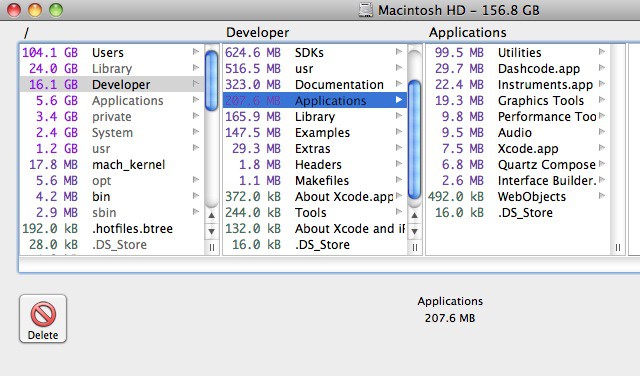
It happens to everyone. Over time, large files will build up on your hard drive and take up space needed for important files, such as photos, music, and the like. It can be frustrating trying to find these files to see if they are of any importance. Enter OmniDiskSweeper, a free utility that solves all those problems. As you’ll see in this video, it’s a handy tool that can help you free up a lot of space.

Keep Your Mac Mac Running Like A Mean Machine [Video How-To]

By

onyx

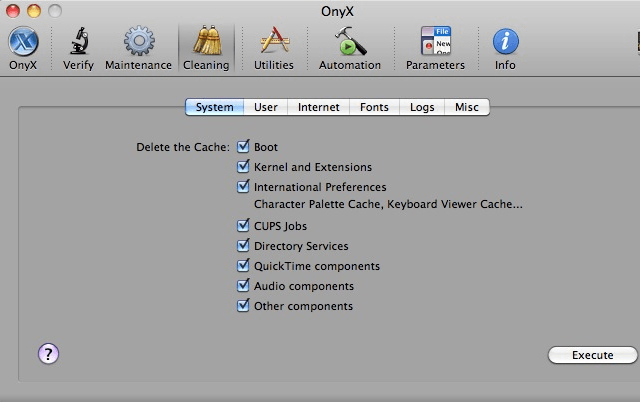
It happens to everyone. After time, your Mac will start to slow down. This can get awfully frustrating, but it’s not the end of the world. The free application OnyX can help your Mac run just like it did the day you bought. With some simple maintenance, your Mac will be just like new! In this video, you can find out how to get Onyx and use it to tune up your system.

Keeping An Eye On Your Kids’ Online Activities With Parental Controls [Video How-To]

By

parental


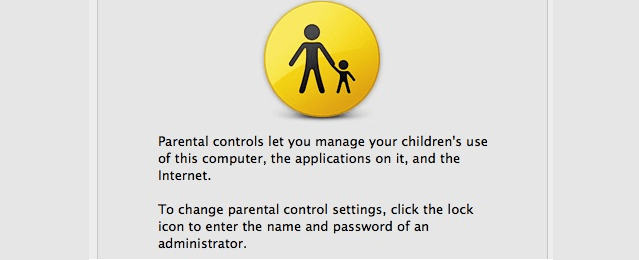
As a parent, it is always important to keep tabs on what your children are doing on the computer. Whether it’s the sites they are visiting, the amount of time they spend online, or even what applications they are using, Mac OS X can cover it. OS X includes a set of parental controls that can be tweaked to anyone’s liking. In this video, you will see how to set up parental controls and use the features that work best for you.

Saving Energy With Your Mac [Video How-To]

By

Energy

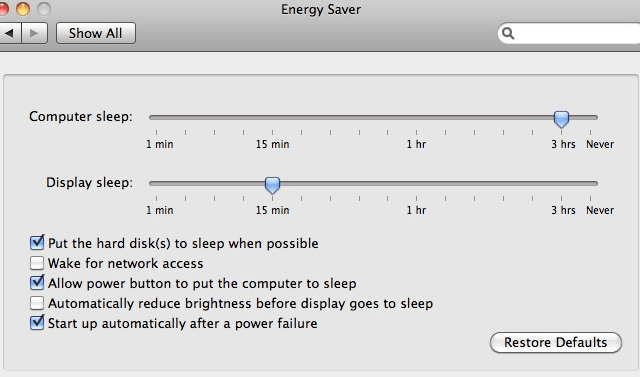
Have you ever found yourself thinking that your Mac takes too much power or that your MacBook battery is draining too quickly? If you have, you’ll want to check out this video. In it, I’ll show you some of the best, yet most overlooked options for saving energy on your Mac.

How To Organize Your iPad The Right Way [Video How-To]

By

iPad

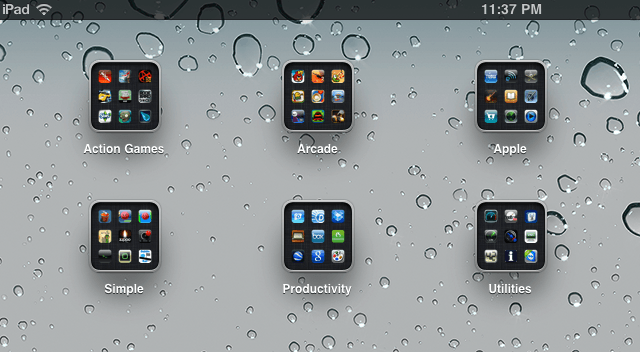
So you just got your iPad, and have loaded it up apps. Now what? It may seem like a hassle to hunt around for the apps you want and to page through all of those home screens. Well, there is an easier way. In this video, you’ll find out the best way to arrange your apps on your iPad.

How To Deal With Crashed Apps [100 Tips #51]

By

20110329-forcequit.jpg

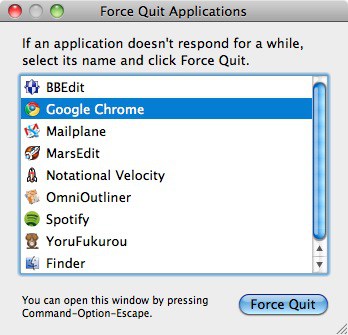
It’s true: sometimes Macs do crash. More often than not, though, crashes will be limited to a single application, rather than the entire system.

You’ll know an app has crashed because it simply stops doing anything. Clicking on controls has no effect, scrolling gets you nowhere; the app simply doesn’t respond to your usual commands. So what do you do next?

First, don’t panic. OS X is designed to keep crashes under control. Even if an application has crashed, in most cases you’ll still be able to carry on just fine with work you’re doing in other applications. All you have to worry about is the one that’s crashed, and any unsaved work you had inside it.

Eject Stuck CDs Or DVDs From Your Mac [Video How-To]

By

eject

Every once and awhile, your Mac will decide not to eject a CD or DVD, for various reasons. It could be that it can’t detect the disk, it’s in an incompatible format, or that the disk itself is locking up the computer. But, no matter the reason, here are some quick fixes for ejecting stuck CDs and DVDs.

Switching From Aero Peek To Exposé [Video How-To]

By

expose

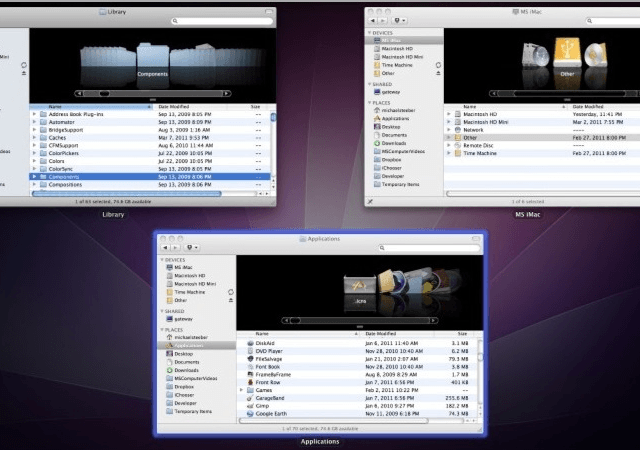
If you are a recent Mac switcher and were a fan of Aero Peek on Windows 7, you way be concerned that you are going to be missing out on some handy features in OS X. Well, fear not. Mac OS X has a easy to use feature as well, called Exposé. Exposé brings many of the features you may know from Aero Peek, and integrates them with Mac OS X. In this video, I’ll show you how to use Exposé.

Top Keyboard Shortcuts In Mac OS X [Video How-To]

By

keyboard


Keyboard shortcuts are a handy thing to know when working on your Mac. They can save a ton of time and make your workflow much smoother. If you are used to using a PC and have recently switched to a Mac, you will have probably noticed that none of the keyboard shortcuts are the same. If you are confused, look no further. In this video, I show you the top Mac OS X keyboard shortcuts.

How To Fix Self-Assigned IP Addresses In Mac OS X [Video How-To]

By

DHCP

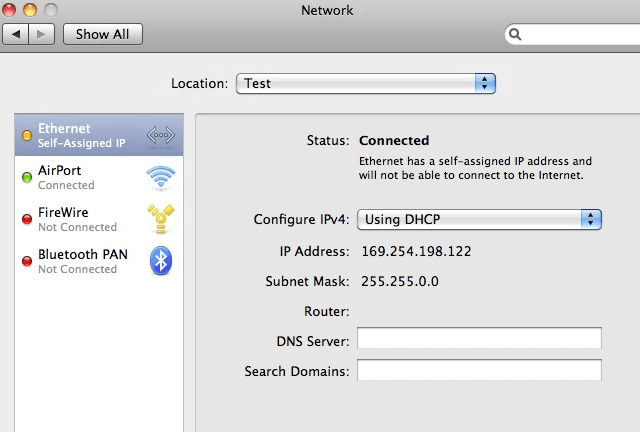
Not being able to get online can be a frustrating problem. It can cost hours of time and test your patience. See, Mac OS X doesn’t always work properly all of the time, and will occasionally assign itself an IP address, which will result in you being unable to connect to the internet. Luckily, there is an easy solution. You can use System Preferences to set a new Network Location, as well as renew your DHCP lease to fix the problem. This video will show you how to quickly fix the problem of self assigned IP addresses through System Preferences.

How To Create A Website In iWeb [Video How-To]

By

iWeb

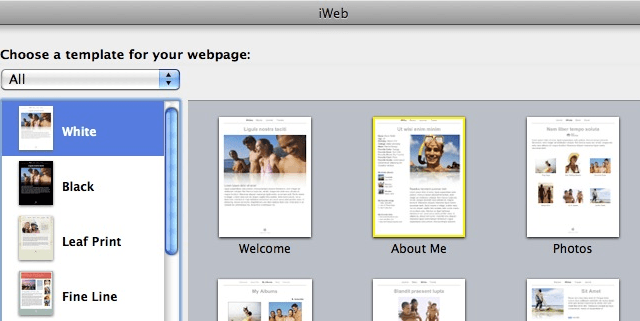
Creating your own personal website can be a fun way to share pictures, videos, and more with friends, family, and the world. Apple includes an Application on every Mac for this very purpose called iWeb. In this video you will learn how to create a basic website in iWeb.

How To Download Any YouTube Video [Video How-To]

By

FastestTube

Have you ever seen a great YouTube video that you wanted to download but didn’t know how?

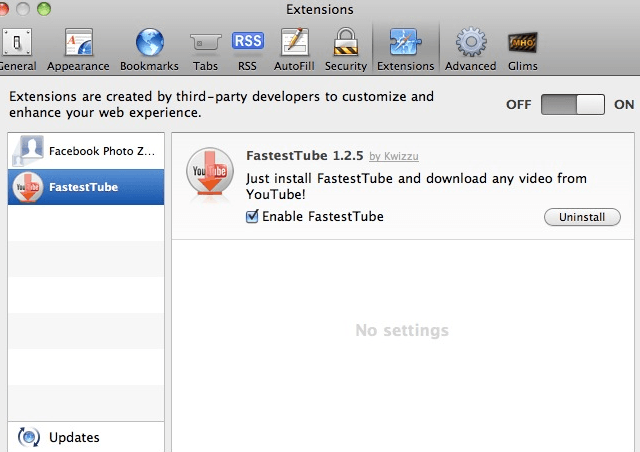
The browser extension FastestTube solves that. The free extension works with Safari, Firefox, Chrome, Opera and even Interent Explorer!

This video will show you where and how to get FastestTube, as well as download a video and save it to your hard drive.

https://www.youtube.com/watch?v=Ph97RbPIh_U

How To Easily Back Up Your Mac With Time Machine [Video How-To]

By

TimeMachine

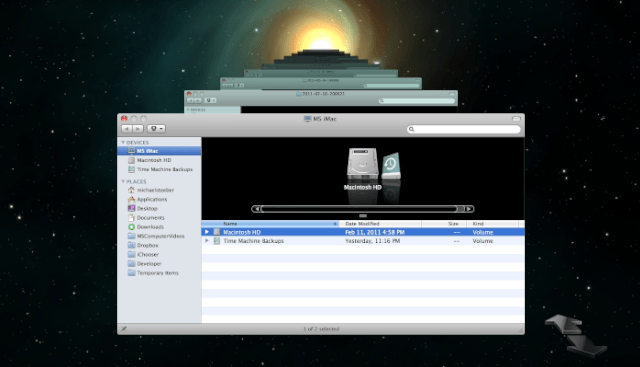
Imagine this scenario: your Mac crashes and all of your files are gone forever. Do you want this to happen to you? If not, Time Machine is the perfect solution. It automatically backs up your Mac every hour, so you can always have the peace of mind that your files are safe. The video below describes how you can set up Time Machine quickly and easily.

100 Tips #46: Invert Your Mac’s Display Colors

By

20110114-invertcolors.jpg

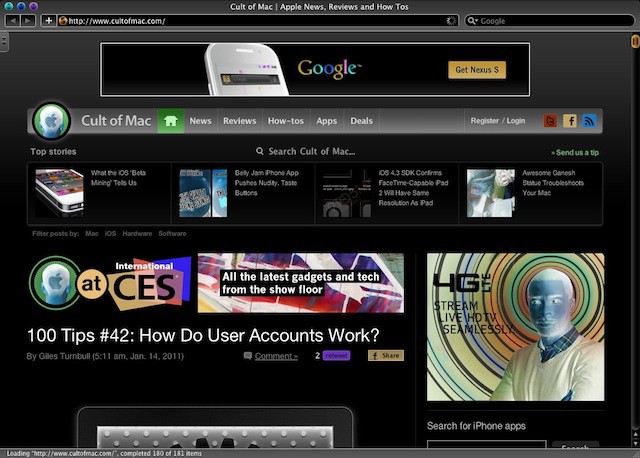
Here’s a fun one. Whatever you’re doing on your Mac, from any application or any document, try hitting all these buttons together: Control+Option+Command+8.

Bam! Your screen colors are inverted. Don’t worry, you haven’t broken anything, and this isn’t a bug. It’s a feature.

Take Your MacBook Completely Off-Grid, Says Voltaic

By

voltaic mat

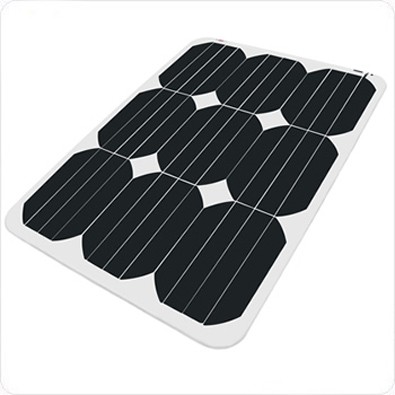
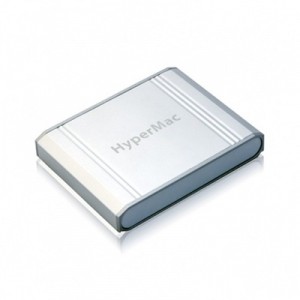
Another sign I should move to San Diego: After playing around with their 15-watt solar panel and a 6oWh HyperMac battery, the folks at Voltaic have found the two perfectly compatible — meaning a MacBook can be taken completely off the grid, and theoretically used without ever needing to be plugged in. Voltaic says you should get about 45 minutes of runtime for every hour in the sun for a 13″ MB/P (much less for more power-hungry units). You can even use the HyperMac to power your MB while it’s charging.

The 60Wh HyperMac battery is $170, and Voltaic’s 15-watt solar charger is $200; that’s just under $400 to create a MacBook that’s perfectly happy out in the boonies (as long as the boonies are bathed in lots of sun).

Cure What Ails Your Mac – Best of MacRx [Year in Review]

By

Best of MacRx 2010

After all the eggnog is consumed and the gifts unwrapped, your new and old Macs may need a bit of holiday cheer themselves. Whether you’re trying to setup a new system or infuse energy into an old favorite, a few MacRx columns on such matters resonated with our readers this year.

Read on for refreshers about Fixing Startup Problems, Speeding up Slow Macs, Troubleshooting WiFi Issues, Making Hard Drive Clones, and Managing Your Safari Bookmarks. Some things to do over the holiday break!

How To Consolidate Your iPhoto Library and Remove Duplicates [MacRx]

By

iPhoto Ad Infinitum

iPhoto is one of Apple’s most popular applications. Bundled with every new Mac since 2002, millions of people have imported and manipulated billions of photos with this useful software. Every time you plug your iPhone or another camera into your Mac, iPhoto leaps to the assistance (whether you want it to or not).

With success come challenges. One common thing I’m asked about as an Mac consultant is how to manage iPhoto libraries that have gotten out of hand – thousands of photos, lots of duplicate items, and sometimes multiple copies of libraries. How do you get all this under control?

Bring AirPrint Back To OS X 10.6.5 With Files From Prerelease Builds

By

cult_logo_featured_image_missing_default1920x1080

Right now, if you have Mac OS X 10.6.5 and an iPad running iOS 4.2 GM, AirPrint’s a bit of a mess: some people are reporting that it is working, but many are not having any luck.

We suspected that it was just this sort of compatibility problems that caused Apple to scale AirPrint support back to AirPrint-compatible printers at the last minute, but developer Steven Troughton-Smith has some instructions on how to bring it to your Mac under OS X 10.6.5 and iOS 4.2 GM.

Uninstall Flash for Mac OS X in Seven Easy Steps [How To]

By

post-67699-image-c4fa0f653ed1f134b33ccf20a1f340e8-jpg

Here’s a simple how to that will lead you and your computer to an internet without Flash just like on your iPhone, iPad, or iPod touch. I think most of you won’t miss it, but if you do you can reinstall it.

I’ll have to say that when I went cold turkey and kicked the Flash habit, that I’ve had for years, I didn’t suffer from withdrawals.  In fact, I found my browsing experience with Safari to be a whole lot better and definitely more stable than before. I don’t have any regrets about it so far.

Some people might recommend, ClickToFlash, which is a Safari plug-in that blocks flash content and doesn’t allow it to run unless you allow it or you add specific sites to a “white list. ” It’s a great plug-in, but I prefer to use fewer plug-ins and no Flash. You on the other hand might think otherwise so ClickToFlash might worth a look for you.