Mobile menu toggle

How-To - page 10

The many faces of Steve Jobs, ending ‘wrist rage,’ and the weird world of iPod collectors

By

Art comes in many forms.
Photo: Stephen Smith/Cult of Mac

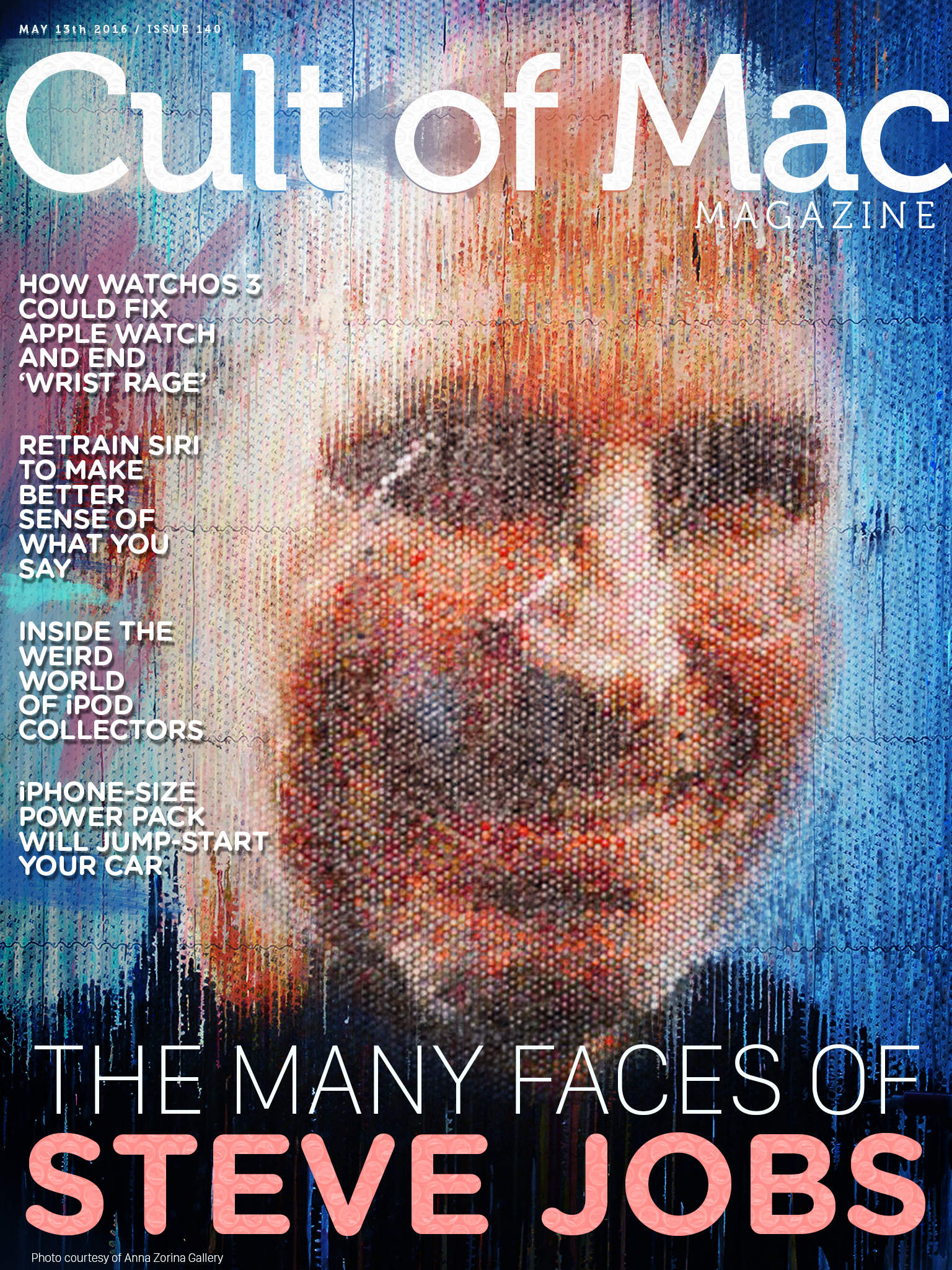
But is it art? There’s a whole new way of looking at these works, in the form Steve P Jobs himself–or at least his likeness.

Learn all about these odd yet interesting portraits of the late Apple co-founder, including tattoos, technology-art, and the bubble wrap portrait you see above, as you browse this week’s Cult of Mac Magazine.

Inside this deliciously digital magazine-style app, you’ll find out more about possibilities for the new Apple Watch OS, how to retrain Siri to make better sense of your verbalizations, inside the weird world of iPod collectors, and all the reviews and how-tos you need to stay up to date on tech through an Apple lens.

Here are this week’s top stories.

How to transfer your iPhone media to Mac (and back again)

By

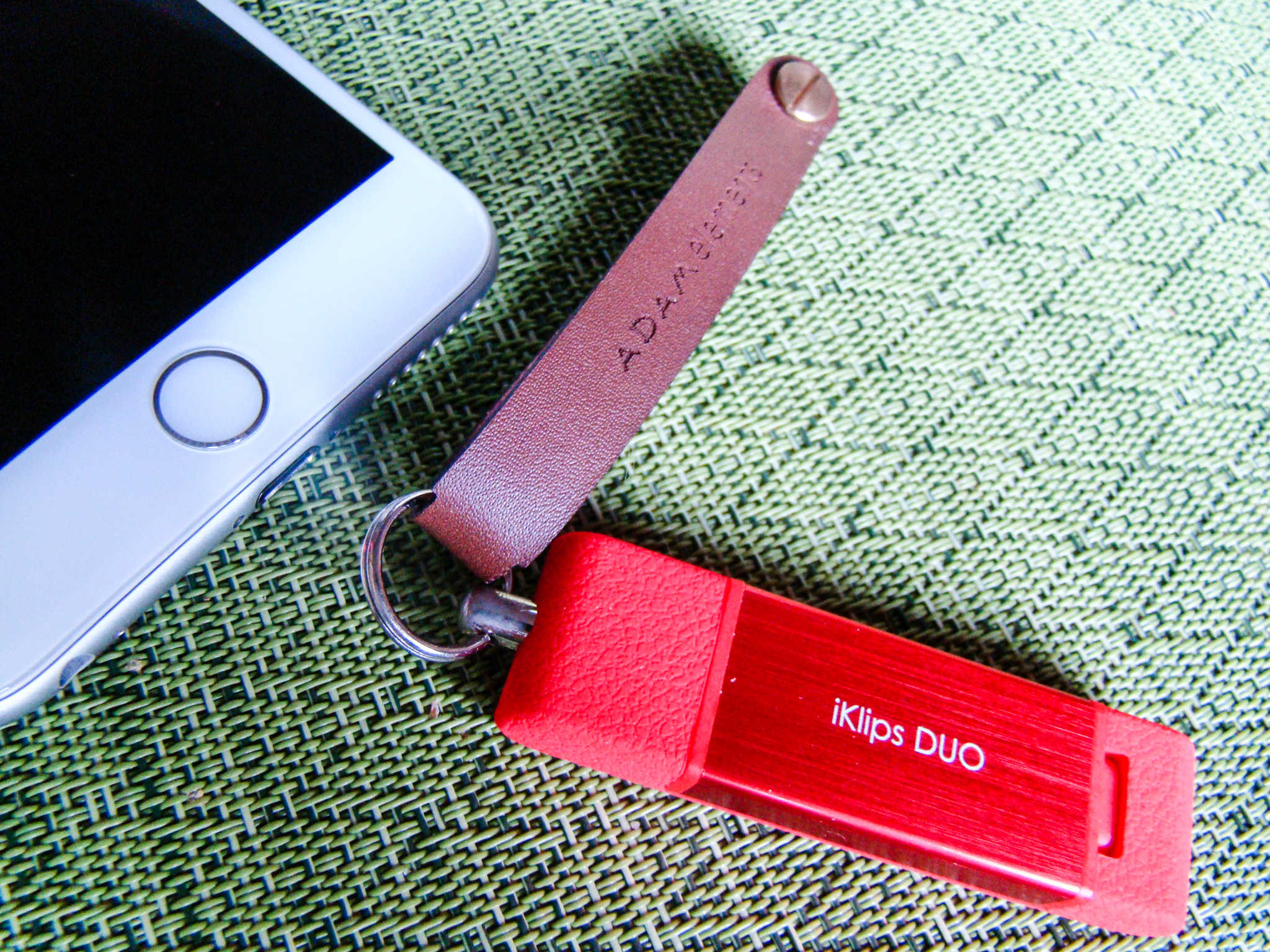
Back up your iPhone to your Mac on the go.
Photo: Rob LeFebvre/Cult of Mac

Want a quick way to move your photos, music and documents from your iPhone to your Mac? What about backing up your iPhone on the go?

iKlips Duo is an innovative little gadget that will do both. It’s a well-made, MFi-certified USB stick that lets you connect to your iPhone (or iPad) via its Lightning port and to your Mac via a USB 3 port. Toss it in your bag and rest assured that you’ve always got a way to get your data off your iOS device.

It’s simple, easy and doesn’t require iTunes or iCloud. Here’s how to transfer your iPhone media to your Mac or PC, and then put it back, if you like, using the iKlips Duo.

Retro Apple collections, iPhone features you’ve never dreamed of, and more

By

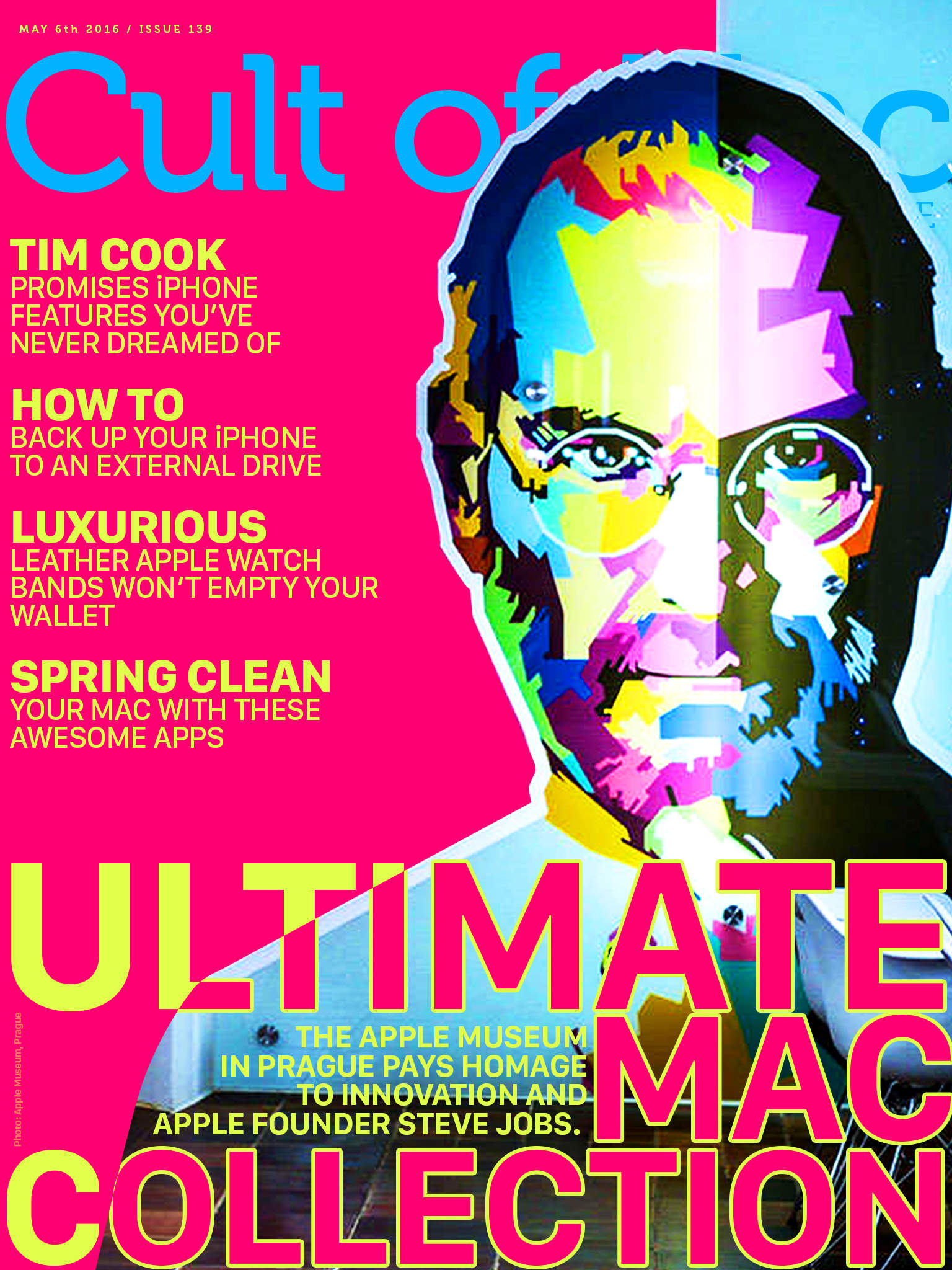
There are some amazing Apple collections out there.
Photo: Ste Smith/Cult of Mac

Take a trip down memory lane to see some amazing Apple memorabilia — if you’re in Prague, anyway. With a collection that spans the years 1976 to 2012, nearly every Apple computer, printer, mouse, joystick, and piece of software is represented.

Learn more about this fascinating museum and the story of its founders in this week’s jam-packed Cult of Mac Magazine. Plus, Tim Cook’s promises of undreamt-of future iPhone features, backing up an iPhone to an external drive, luxurious Apple Watch bands, and Mac spring cleaning.

All this, and much much more, in Cult of Mac Magazine, free for you right now.

Here are this week’s top stories.

Disable all those pretty (useless) animations to speed up your iPhone

By

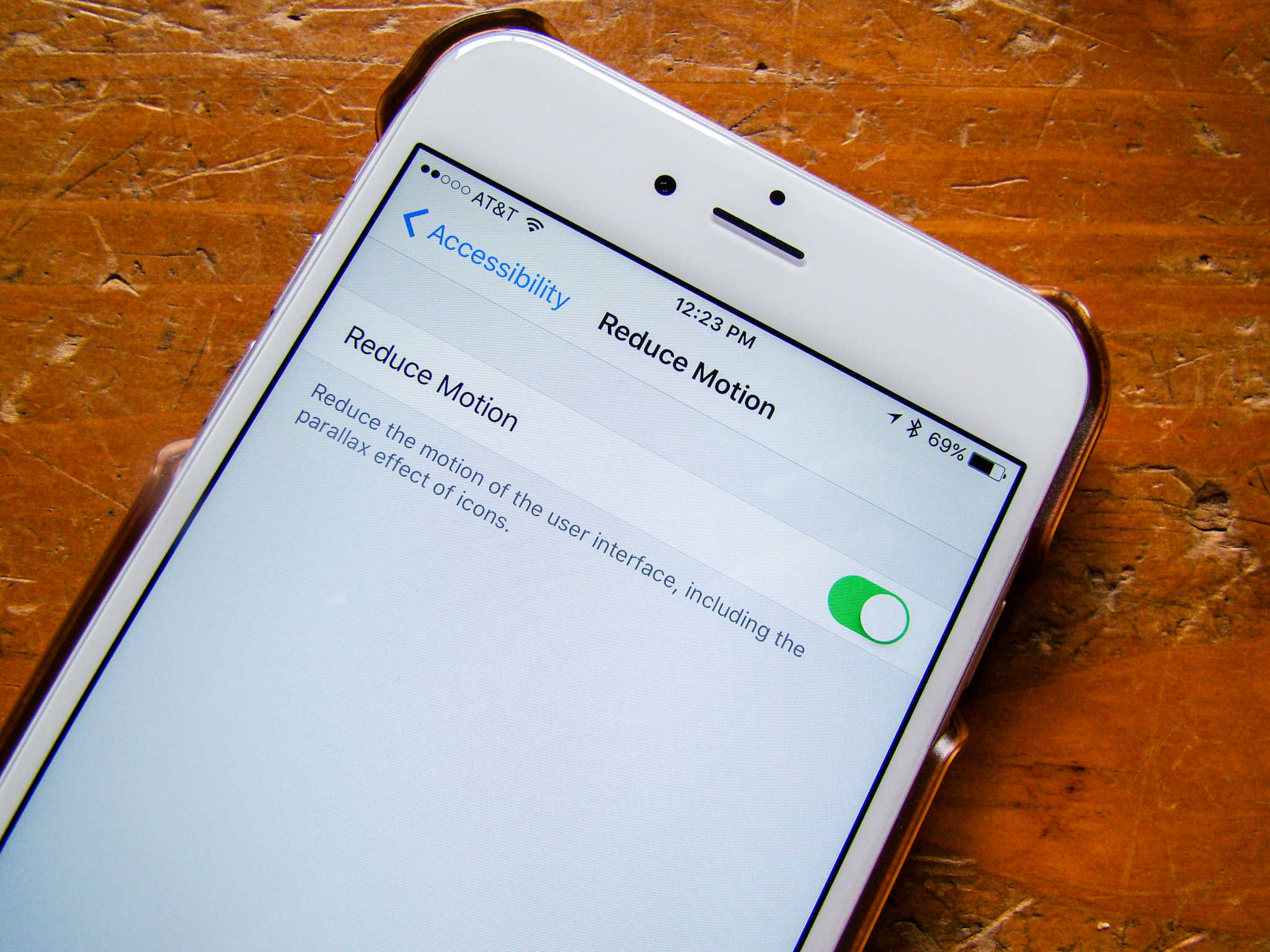
Your iPhone will feel a lot snappier with this little trick.
Photo: Rob LeFebvre/Cult of Mac

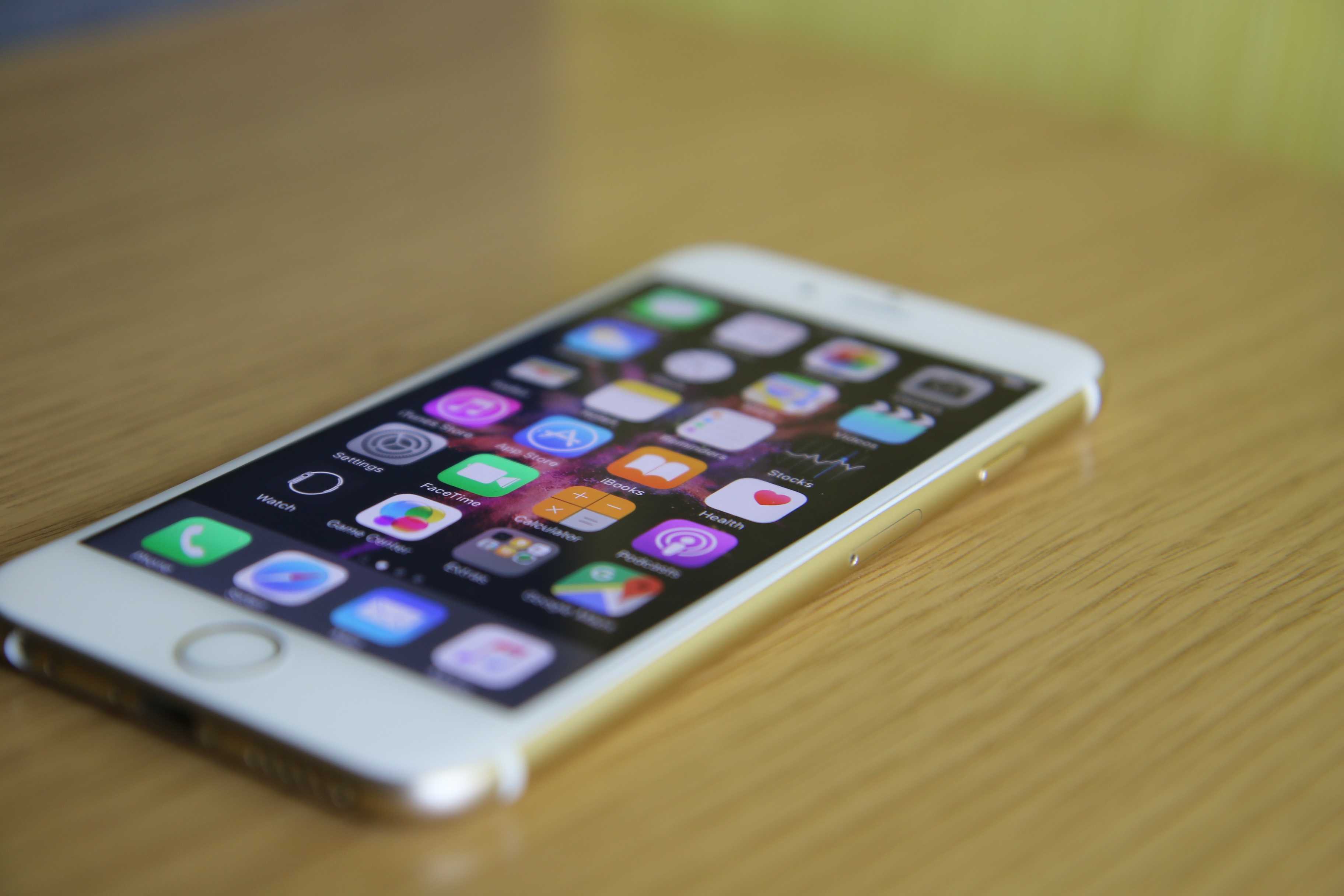
If you’re still rocking an older iPhone, you might notice that things are starting to feel sluggish when you run the latest iOS 9.3.

If so, there’s a quick trick to speed up your iPhone: simply disable those pretty animations in iOS 9. Your iPhone will feel quite a bit snappier as a result.

Here’s how.

No data, no problem: How to use Google Maps offline

By

Get your Google Maps to work everywhere.
Photo: Ste Smith/Cult of Mac (original image: Jordan McQueen/Unsplash CC)

When you’re out in the sticks somewhere, you might get to a place where there’s no signal. How will you ever find your way home (or to the next party) without your trusty Google Maps app?

Well, with a little foresight, you can make sure Google Maps continues to be useful, even when you’re not within range of cellular data. Here’s how to use Google Maps offline to make sure you never get lost again when your smartphone goes offline.

Note: This tip will work with Android and iOS versions of Google Maps.

How to use your Apple Watch to control your Apple TV

By

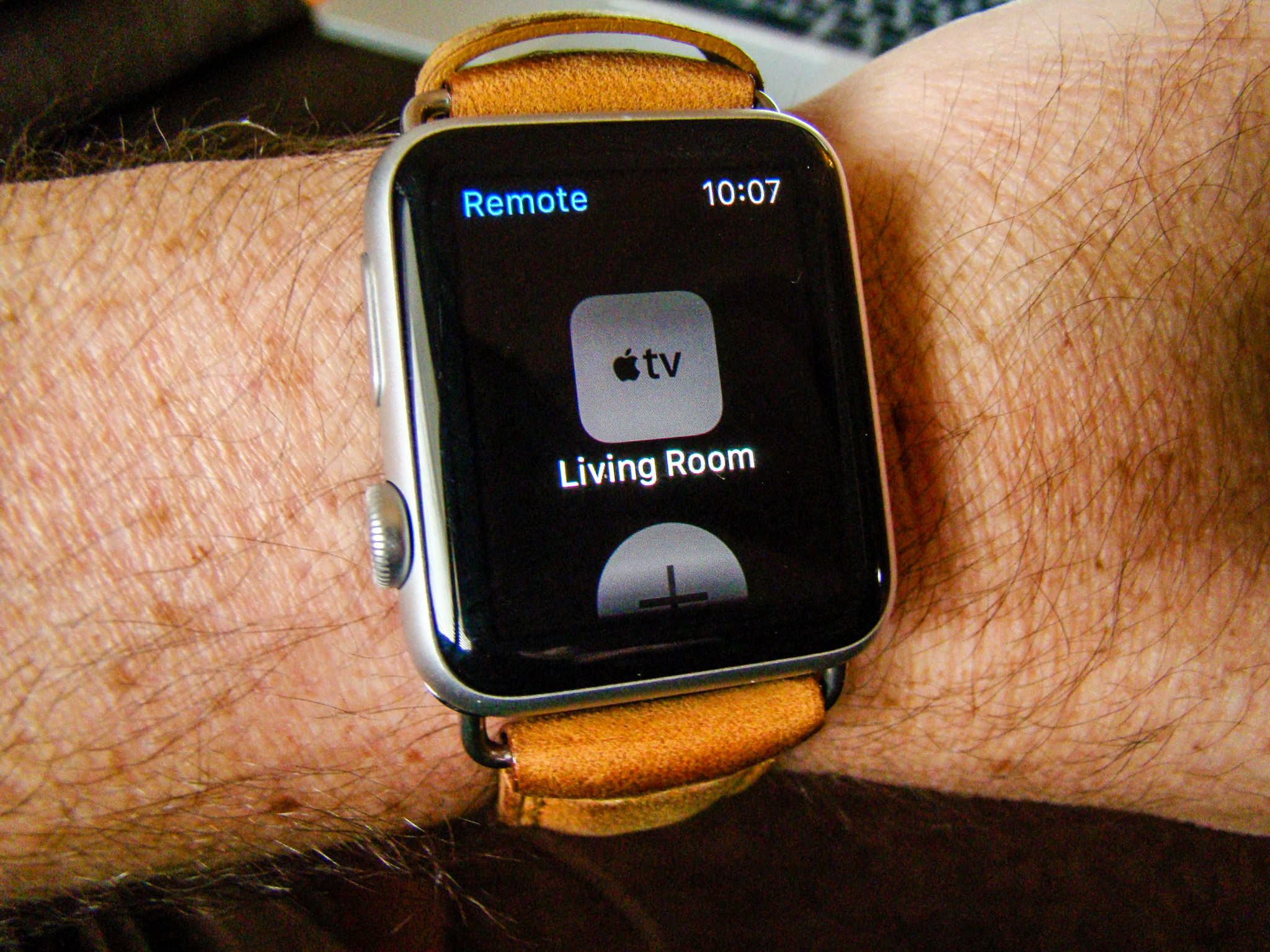
Control your Apple TV from your Apple Watch.
Photo: Rob LeFebvre/Cult of Mac

What a magical world we live in. We can lift our Apple Watch up to listen to music, talk to our friends, and (yes) even tell the time.

If you’re an Apple TV user, you can send your Apple Watch tunes to the big screen, and you can even control your Apple TV right from your wrist.

Simply magical. Here’s how to control your Apple TV with your Apple Watch.

How to use Night Shift while saving power

By

iPhone 6s Night Shift Low Power Mode
Oh, yeah. It's possible.
Photo: Evan Killham/Cult of Mac

We’ve been using Night Shift on our iPhones and iPads since it launched with iOS 9.3. We aren’t sure if it actually promotes good sleep, but we figure that lowering the amount of blue light that hits us after the sun goes down can’t be a bad idea. The only problem we’ve had with it is pretty simple, though: You can’t use it while Low Power Mode is on.

Low Power Mode is another cool feature; it turns off high-consumption stuff like Siri’s hands-free mode, mail fetch, and automatic downloads to stretch your battery life out until you can get your ailing iPhone to a charger. We assume that the reason you can’t run both simultaneously is that Night Shift is a juice-chugger, but we still miss it when our battery hits a critical low at night. But it is possible to have them both on at once. You just have to trick Siri a little.

Here’s how to do it.

8 killer Instagram tips and tricks

By

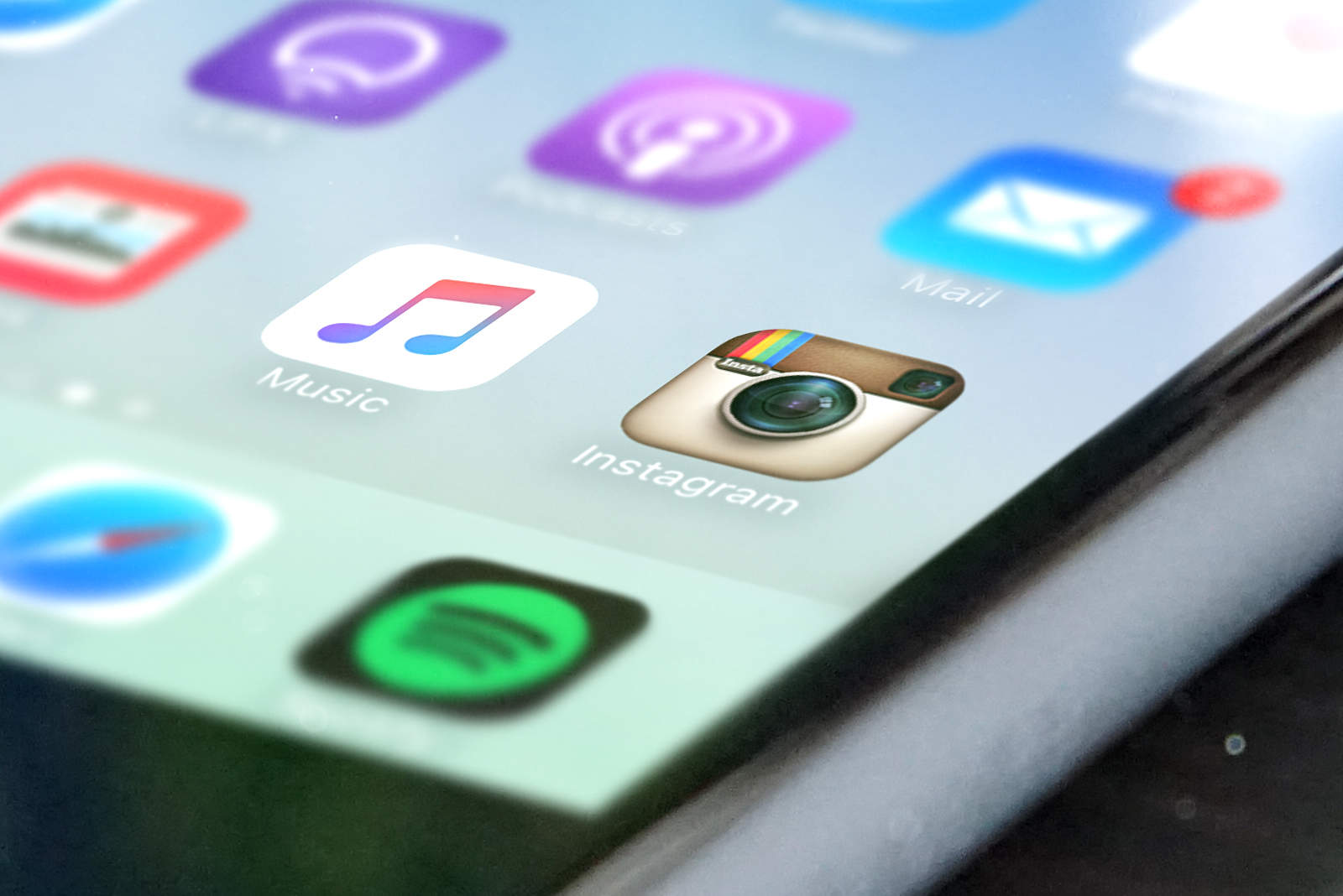
InstagramCloseiPhone
Become an Insta-master with these killer Instagram tips and tricks.
Photo: Stephen Smith/Cult of Mac

Make the most of your Instagram feed with these eight killer Instagram tips and tricks that will make you an Insta-master.

Learn how to put together video in the Instagram app itself, keep stalkers off your Instagram feed, find amazing photos near your current location, and much more.

13 awesome Apple Watch tricks that prove it doesn’t need a ‘killer app’

By

Apple Watch is a killer device, even without a
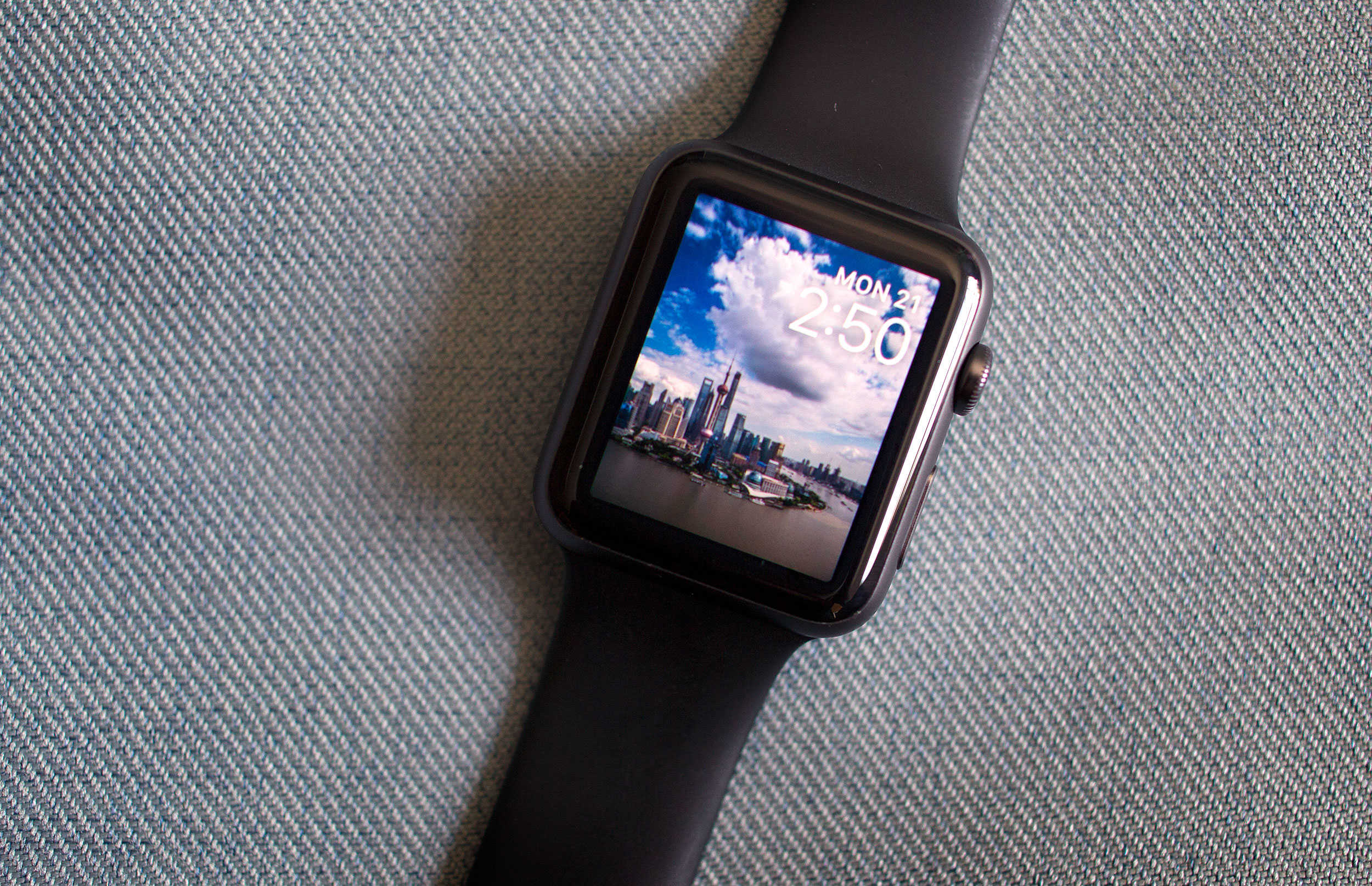
Apple Watch is a killer device, even without a "killer app."
Photo: Jim Merithew/Cult of Mac

The Apple Watch doesn’t need to prove itself to you. And contrary to popular belief, it doesn’t need a “killer app” to make it indispensable.

In fact, the Apple Watch is an awesome device all on its own, with a ton of tricks up its sleeve, like controlling your big screen TV and finding your iPhone, even in the dark.

Here are 13 killer things you can do with an Apple Watch that prove it’s worthy of a place on your wrist.

How to use Apple Watch to find your iPhone (even in the dark)

By

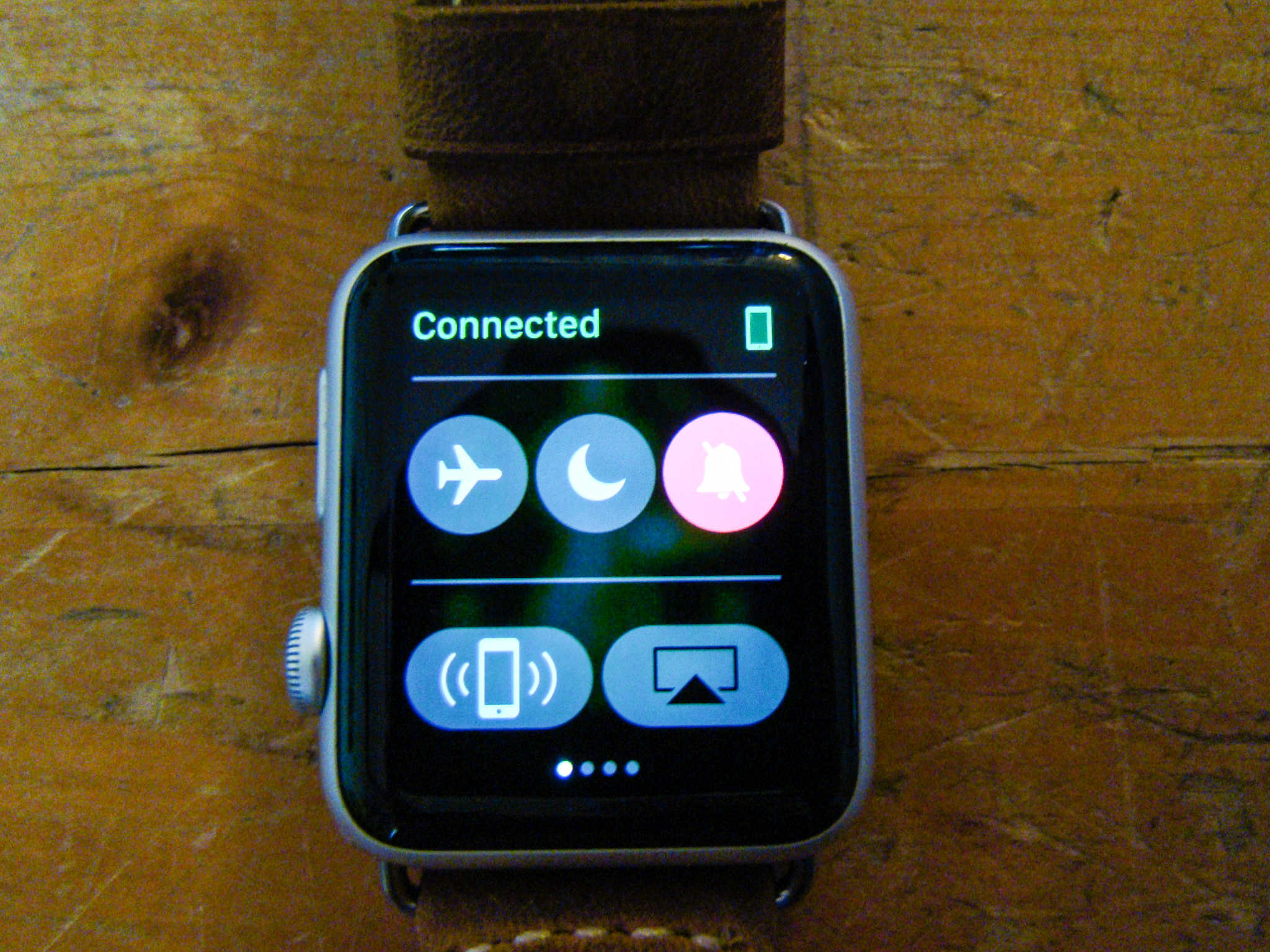
Use your Apple Watch to find your iPhone, regardless of ambient illumination.
Photo: Rob LeFebvre/Cult of Mac

I’m willing to bet that you’ve misplaced your iPhone around the house before. I know I have; almost once a week I’m wondering where I set down that magical device. Is it in the bedroom? The kitchen? The (gasp) bathroom?

If you’ve got an Apple Watch, though, you can use its ping feature to find your iPhone with an audible sound, and even a flashing LED if you need it.

Here’s how.

How to streamline your Touch ID setup

By

iPhone
The iPhone is Time's most influential gadget of all time.
Photo: andri333 / Pixabay CC

If you’re setting up your new iPhone for the first time, one of your must-do steps will be setting up Touch ID. Apple’s biometric security system lets you map your own fingerprint to the Home button so nobody can unlock your device but you (or the bad person who has gained control of your thumb somehow, but that’s a bit grim).

When I set up my Touch ID the first time, I mapped the thumbs of both hands separately, and that was a good idea because I frankly have no idea which side my phone is going to be on when I want to get into it. And that’s served me well, but we’ve found an even more efficient way to do that same thing thanks to some sharp internet investigators.

How to get Apple Maps on your Apple TV (sort of)

By

Plan your next trip from your couch.
Photo: Ste Smith/Cult of Mac

Have you ever tried to plan a trip with your posse while gathered around your iPhone? It’s kind of a mess. The tiny screen doesn’t really lend itself to larger viewings. Even an iPad is much smaller than one of those big-old paper maps we used to use to group plan.

If you want to use a big screen to find your way to a road trip this summer, perhaps TV Maps by Arno Appenzeller will do the trick, letting you plan a trip right on your giant screen TV.

This third-party Apple TV app will let you search a destination, get directions, and then send everything to the companion app on your iPhone, which will then launch Apple’s Map app to get you where you need to be.

Here’s how.

Change your Apple Watch language in a flash

By

Force touch Apple Watch
Here's a hint.
Photo: Apple

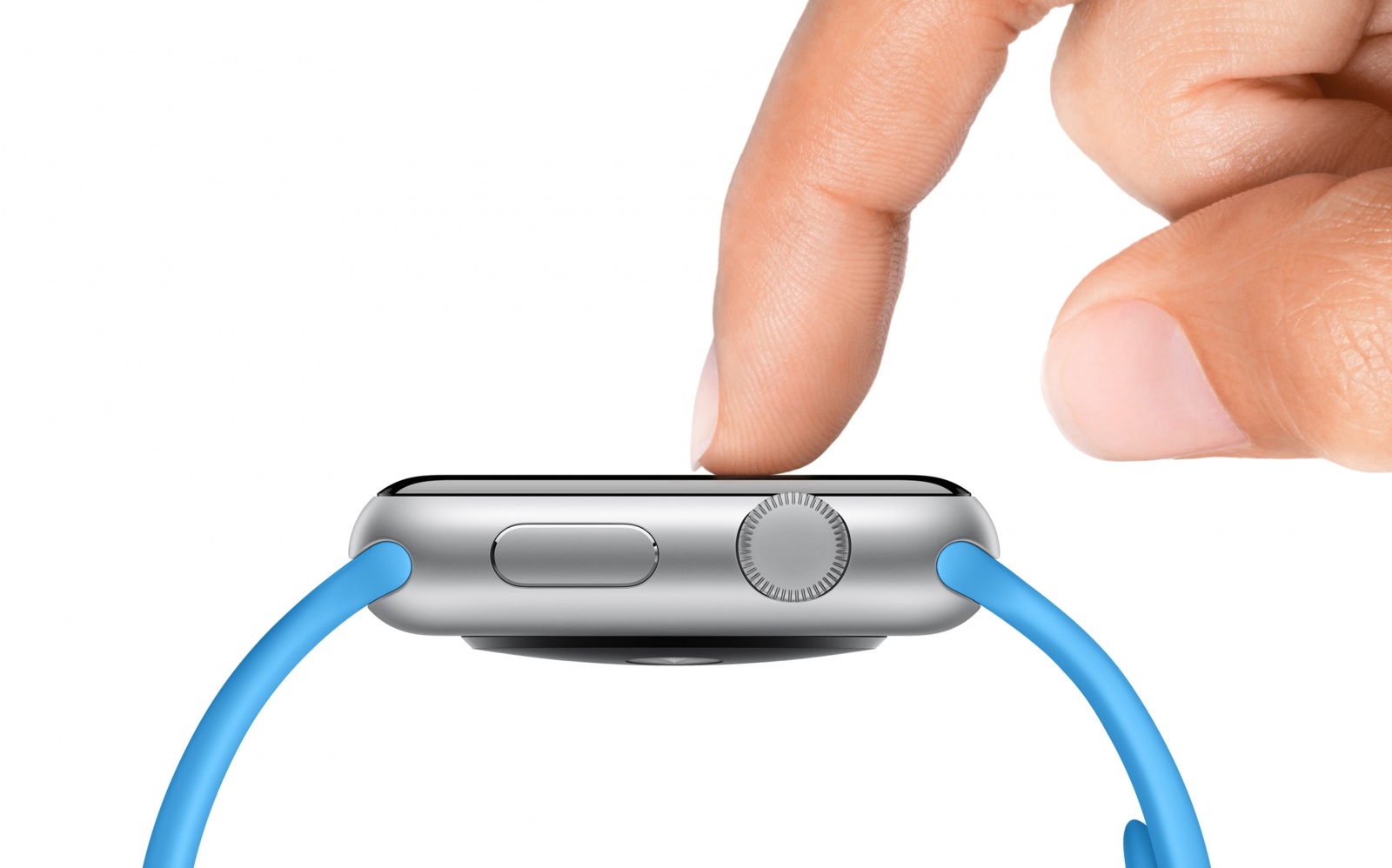
This tip won’t help everyone, but it should be a huge timesaver for multilingual users: You can change your Apple Watch language for Messages with just a couple quick taps. And you can do it directly on the device without having to go into the companion app on your phone.

Here’s how to make it happen.

Use free Snapseed on iPad to tune your photos to best effect

By

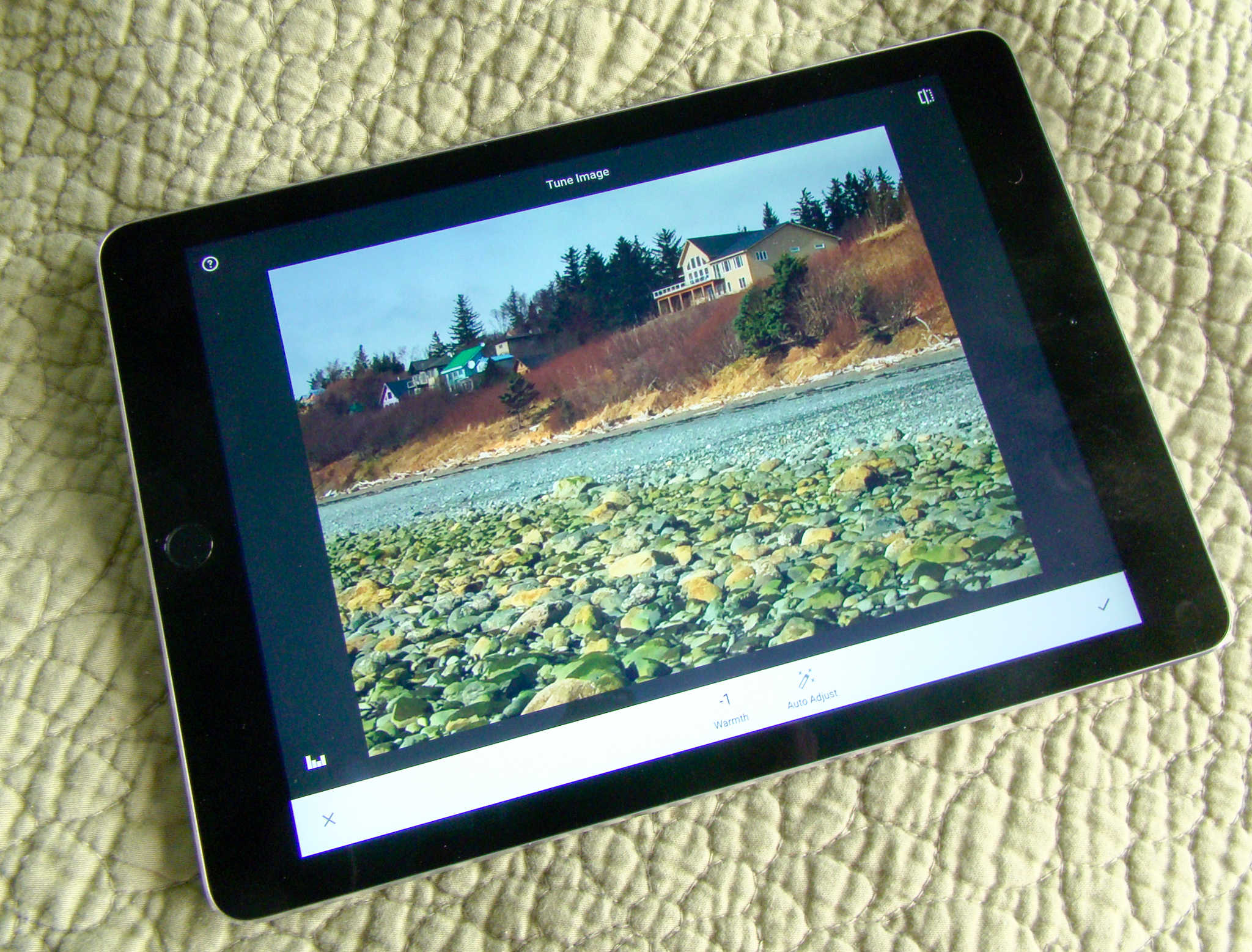
Snapseed lets you tune up your photos with ease.
Photo: Rob LeFebvre/Cult of Mac

Snapseed is a free image editing app from Google that has some fantastic editing tools to make any photo even better.

The killer feature here is the set of Tune Image tools that let you take a good photo and turn it into a great photo, right on your iPad, with very little effort.

Here’s a quick intro to these fantastic tools and how to make them tune your photos to best effect.

Use Pixelmator to add more of a good thing to your photos

By

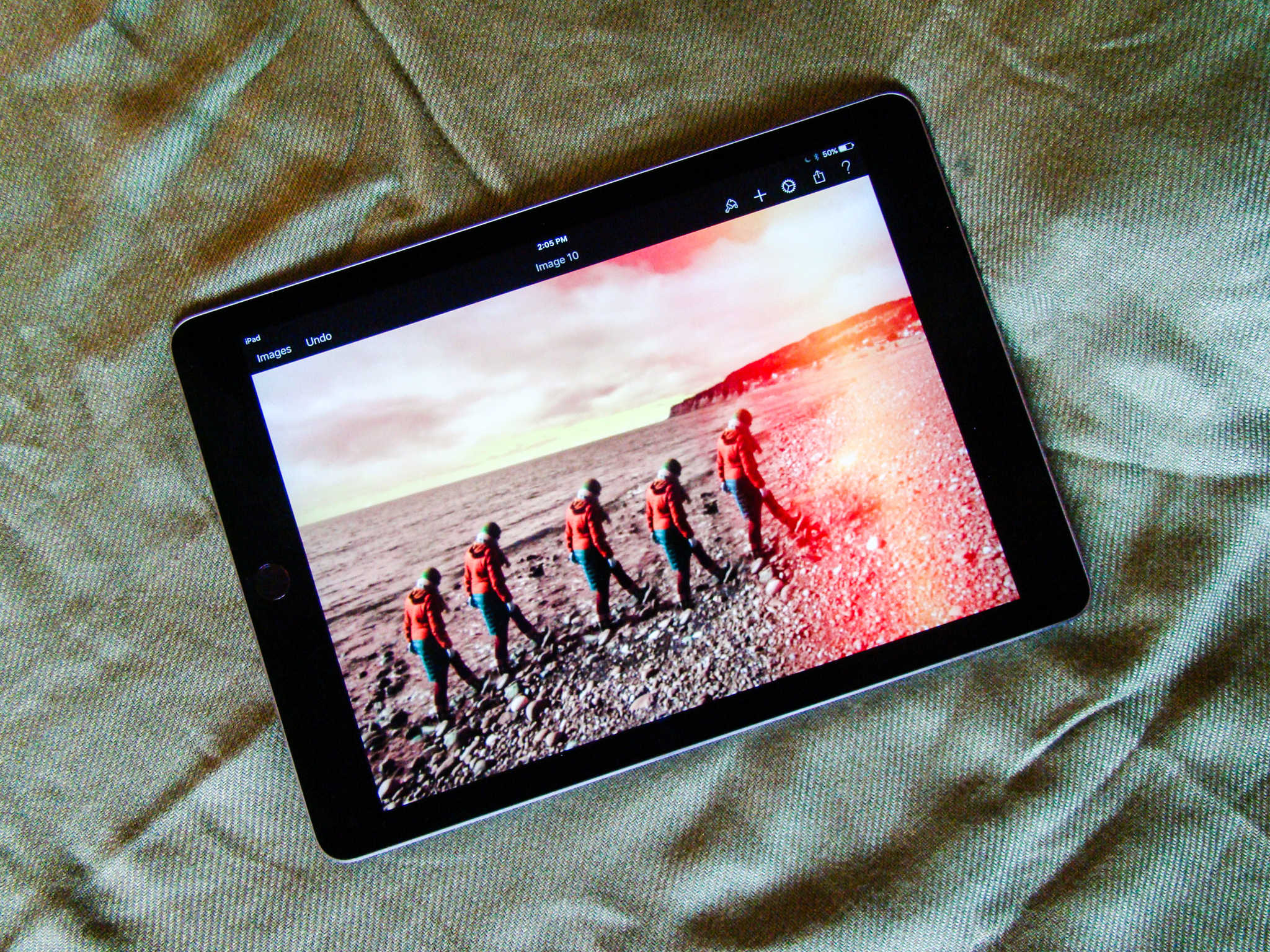
You can make a dreamy landscape like this in no time at all with Pixelmator.
Photo: Rob LeFebvre/Cult of Mac

Imagine a photo of a young child, blowing bubbles into a gentle breeze. Wouldn’t it be an even better photo if there were more than one bubble in it? Because man, that kid is cute, but she sure can’t blow bubbles very well.

With Pixelmator, a fantastic photo editor on iOS and Mac, you can do just that with the clone tool.

Using it, though, as in any complex photo editing program, can be a little unintuitive. Here’s how to add more of a good thing to your photos with Pixelmator on the iPad.

How to never lose your car again with Tile

By

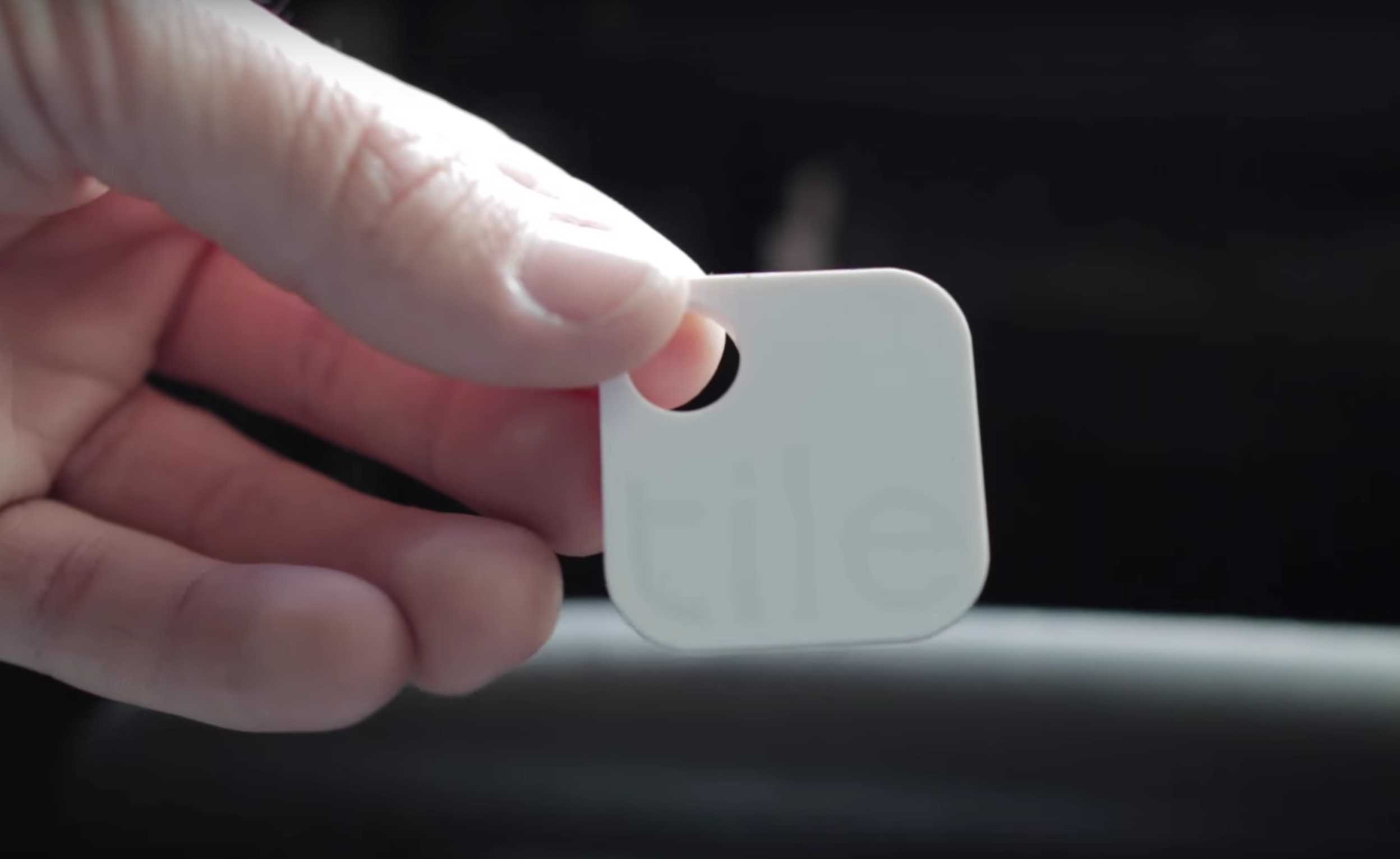
Tile in the car is all sorts of useful.
Photo: Tile

I lose my car fairly regularly. Whenever I park in a lot larger than my driveway, I never seem to quite remember where I parked. It’s especially true in bigger venues that I haven’t visited before.

The folks over at Tile think they have a solution to find my parked car, though.

Here’s how to make sure you or I never lose our car again.

How to make a jaw-dropping collage on your iPad with Pixlr

By

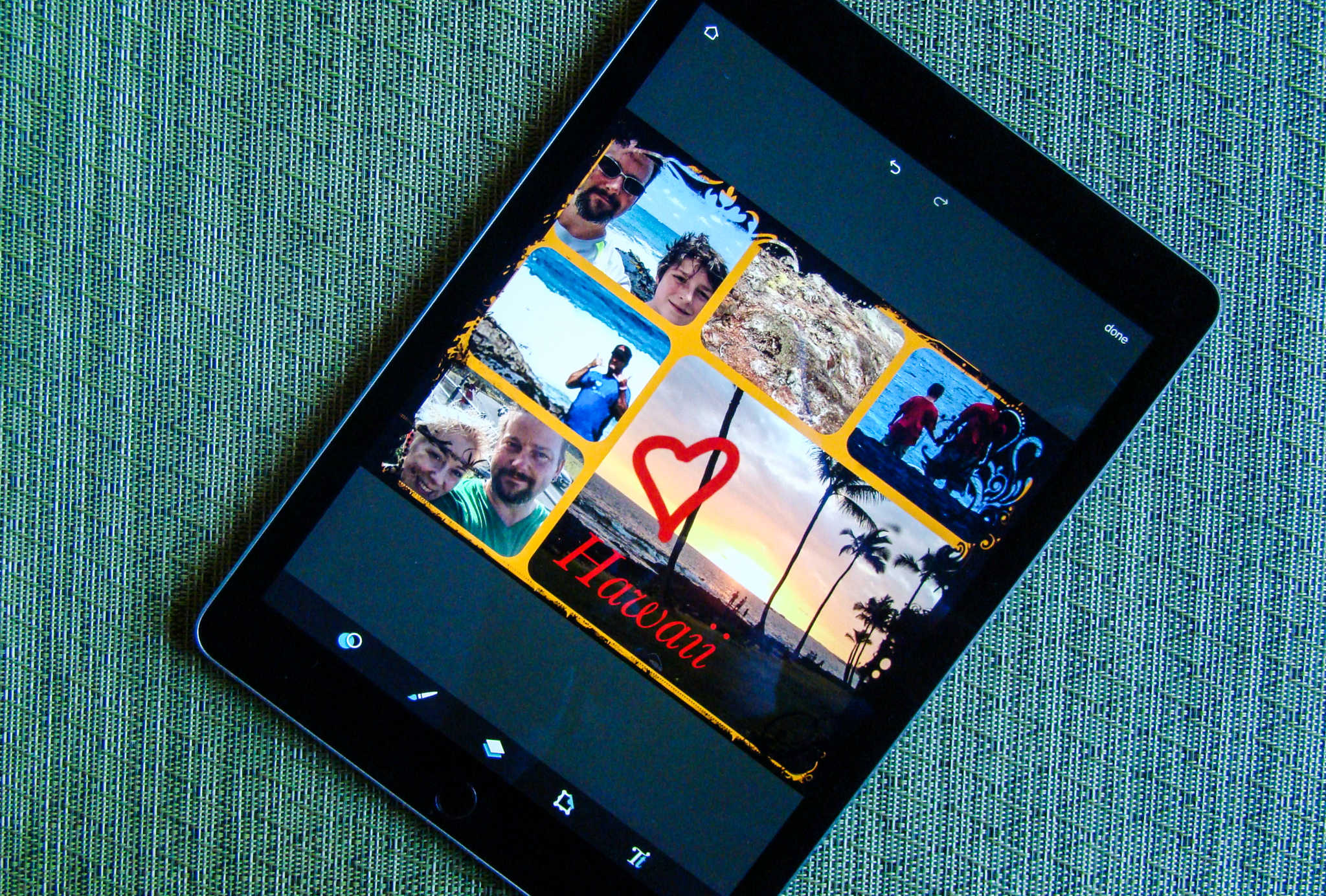
Make your own fun collage with Pixlr right on your iPad.
Photo: Rob LeFebvre/Cult of Mac

Don’t let the backlash against scrapbooking get you down — photo collages are fun. You can go to the store and buy a multi-framed monstrosity to put your hardcopy photos in and mount it on your wall, or you can use an app on your Mac or iPad to take some of the work out of it.

If you’re looking to make your own collage on your iPad, Pixlr is a fantastic choice, as it makes putting various photos together and adding fun effects incredibly simple and fun.

Here’s how.

Don’t wake the baby! Use Bluetooth headphones with Apple TV

By

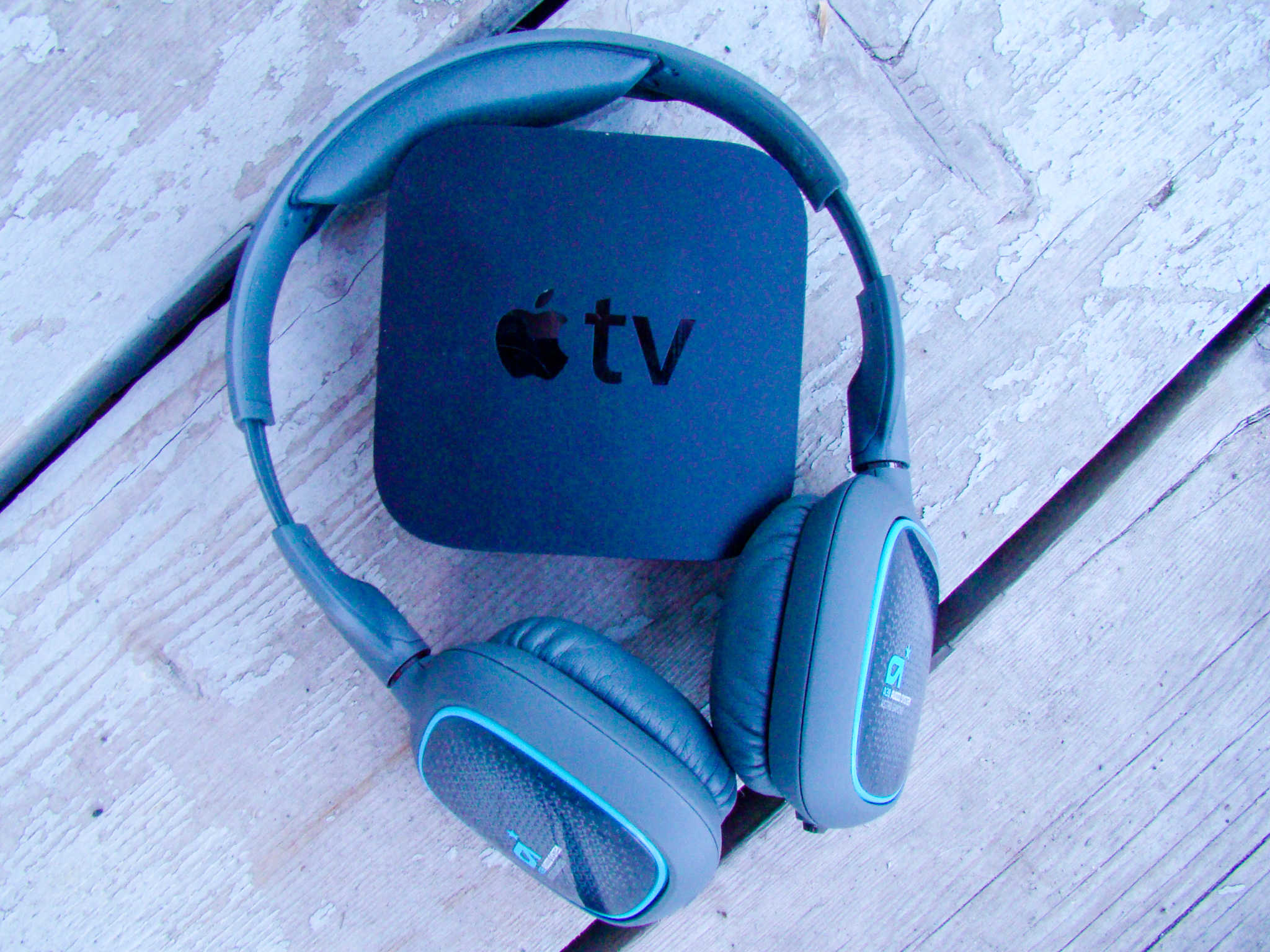
Use Bluetooth headphones to watch Apple TV quietly.
Photo: Rob LeFebvre/Cult of Mac

If you’re anything like me, you knew that the new 4th-generation Apple TV supported Bluetooth devices like the Siri Remote, game controllers, and even keyboards, but you didn’t twig to the fact that it might also let you use Bluetooth headphones, too.

In point of fact, though, it does support them, letting you watch Netflix or game on your Apple TV without the sound of your activities waking the baby or a sleeping partner. How great is that?

Here’s how to set it up.

iPhone SE and iPad Pro reviews, iPhone storage tips and more

By

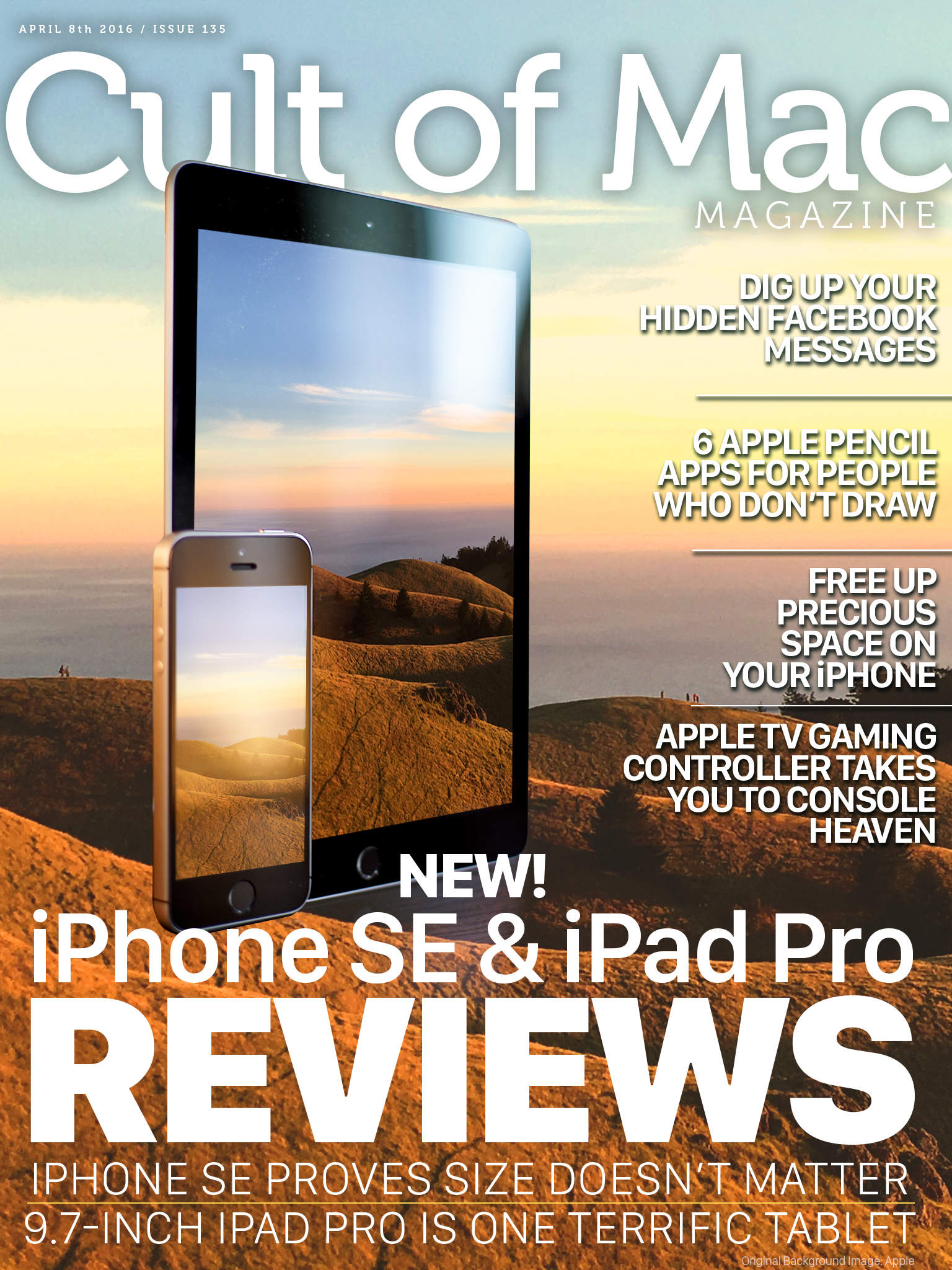
All the great new gear is here!
Cover Design: Ste Smith/Cult of Mac

The new iPhone SE is small but powerful and the new 9.7-inch iPad Pro is as satisfying a tablet as ever.

These two great new Apple products get their moment in the spotlight as we bring you iPhone SE and iPad Pro reviews in this week’s digital magazine.

Plus, we’ve got a ton of how-tos like finding hidden Facebook messages and freeing up precious iPhone space, more hardware reviews, and a bunch of news about our favorite company.

Head on down to see this week’s top stories, and be sure to check out your own copy of Cult of Mac Magazine this week.

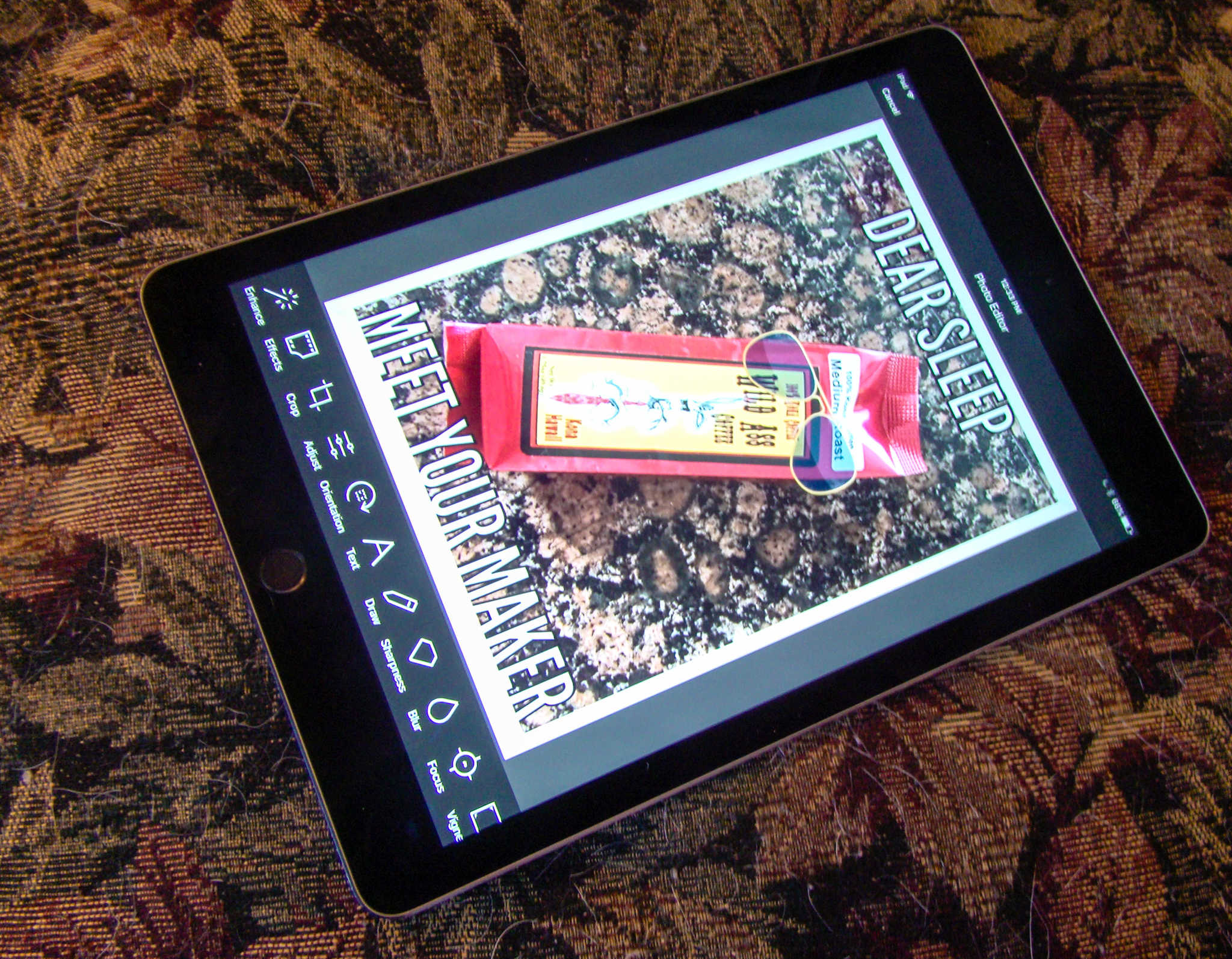
How to make your own hilarious memes with Aviary

By

We hope your memes are even funnier.
Photo-editing app Aviary is a meme-making machine.
Photo: Rob LeFebvre/Cult of Mac

Have you ever wanted to make your own memes? You know, the funny pictures with the bold text on the top and bottom that all the kids are going crazy for these days?

With Photo Editor by Aviary, you can do just that, plus add stickers, frames, and even do some pretty great photo editing right in the same app.

Here’s how to make your own hilarious memes with Aviary (though we don’t guarantee your memes will actually be funny — that’s up to you).

How to dig up all your hidden Facebook messages

By

Facebook

Photo: Rob LeFebvre/Cult of Mac

Facebook Messenger is more and more becoming my default chat tool as it’s the one app most of my buddies have, either on their laptop or mobile device, regardless of platform.

Thing is, Messenger filters a bunch of messages you’ve received, and I’m willing to bet you didn’t even know they were there.

If you want to find all those hidden Facebook messages, here’s how.

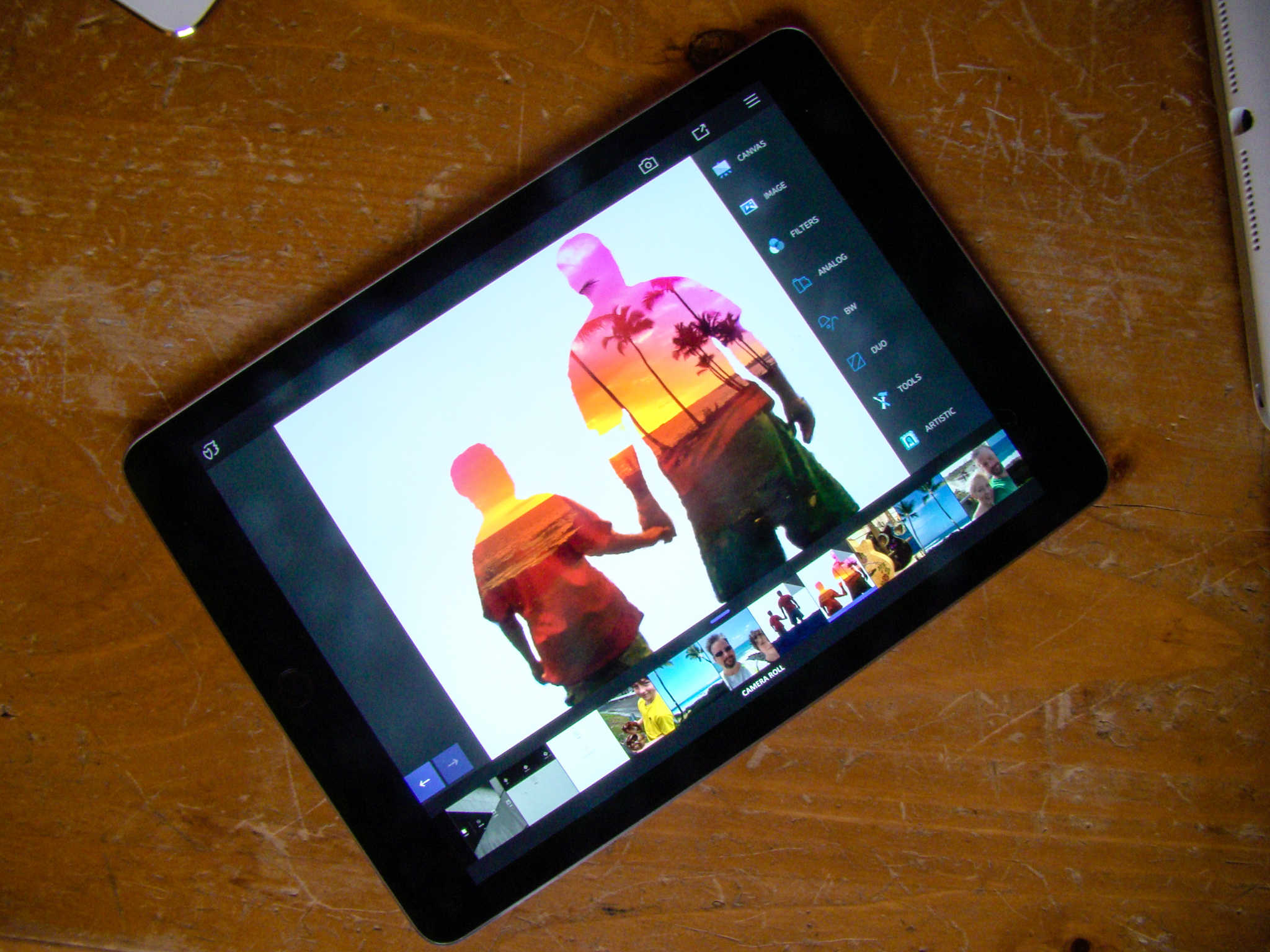
How to create stunning double exposures with Enlight

By

Make stunning images with Enlight right on your iPad.
Photo: Rob LeFebvre/Cult of Mac

If you want to create amazing images like the one above, Enlight is a fantastic way to do so on the iPad (or iPhone).

Most of us don’t want to take a huge amount of time, either, learning how to create these images in-camera or with a big application like Photoshop.

Enlight makes it so easy, even a photo newbie like myself can create amazing double exposures with Enlight in just a few minutes.


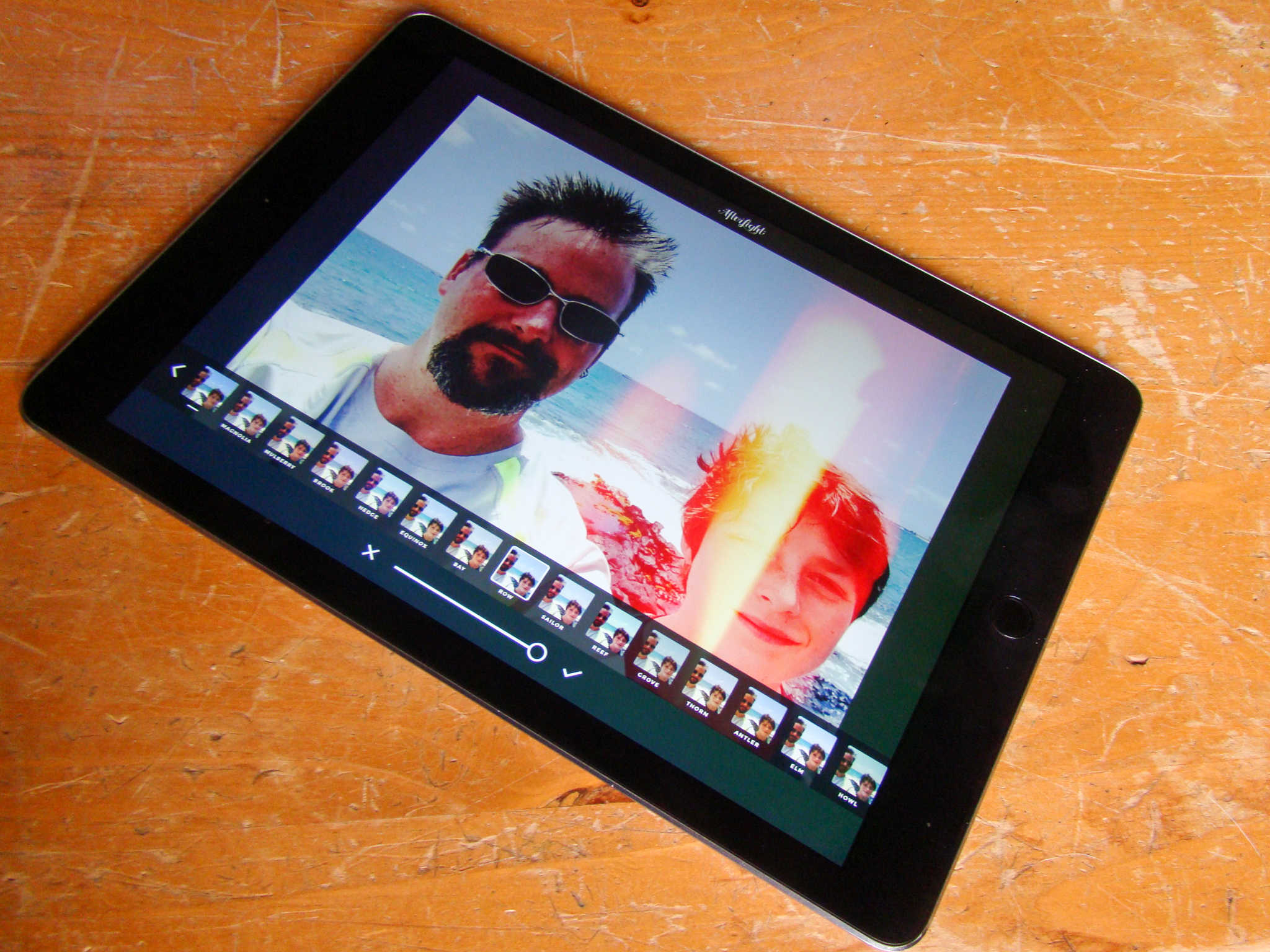
Leave Instagram behind with AfterLight’s massive toolset

By

You'll be the envy of all your Instagram buddies with AfterLight's amazing set of tools.
Photo: Rob LeFebvre/Cult of Mac

Instagram has a fair amount of filters, but boy everyone uses them all the time. You know a photo’s come from the photo-sharing social network when you can call out the filters on it: X-Pro, Hefe, Clarendon!

If you’re looking to stand out from the crowd, check out AfterLight, a sweetly-priced iOS app for iPad (and iPhone) with over 74 amazing filters and effects (and that’s just the free ones) to make your photos the envy of all the other basic Instagram users out there.

Here’s how to make best use of AfterLight’s massive toolset.

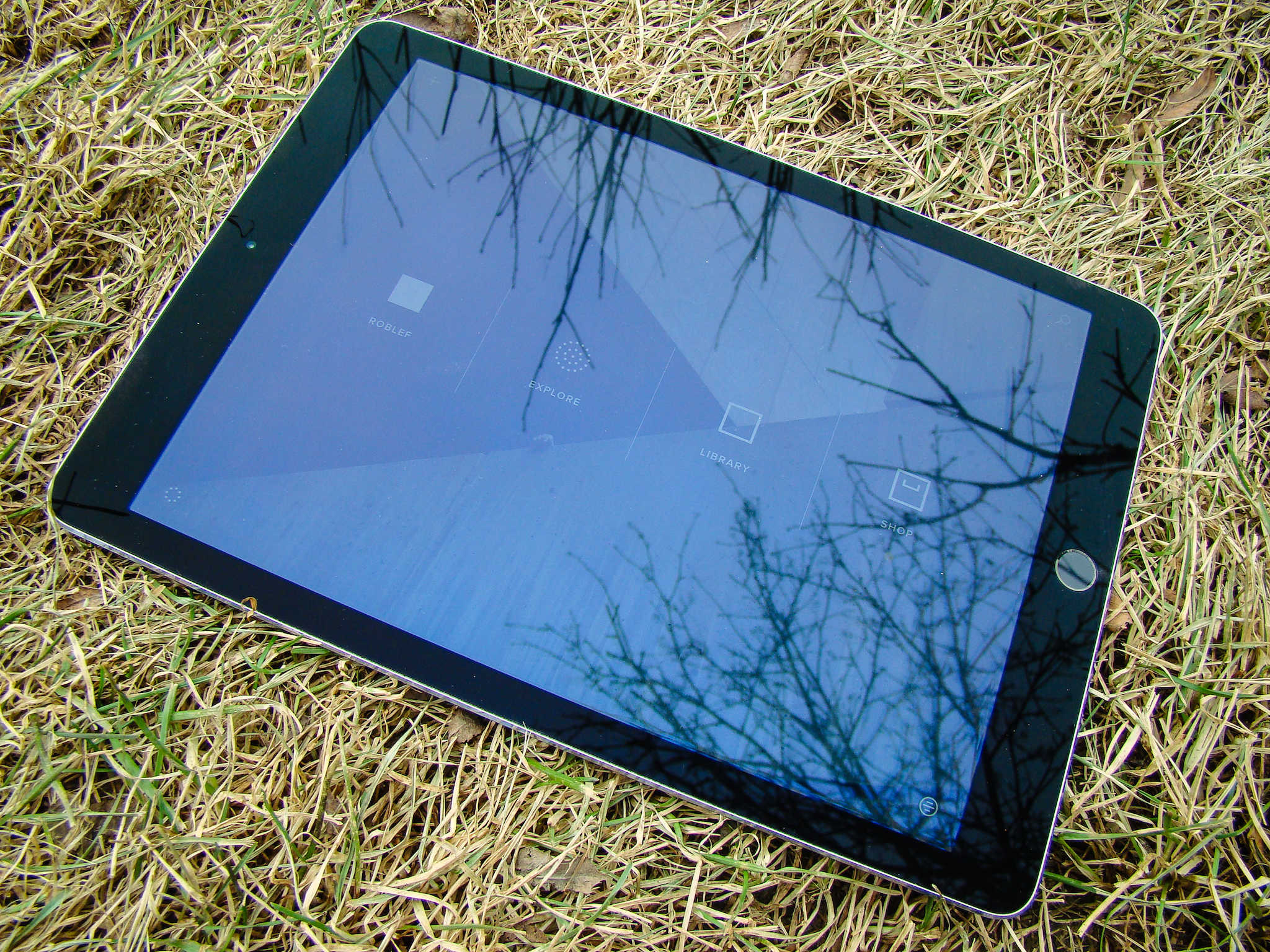
How to make your photos pop with VSCO on iPad

By

VSCO on iPad is a fantastic, free option for photo editing.
Photo: Rob LeFebvre/Cult of Mac

VSCO is a fantastic photo app for iPhone and iPad, and it lets you shoot some killer photos as well as edit them directly in the same app once you’ve taken your masterpiece.

The app is universal, which means it works well on iPhone and iPad, natively. The extra screen real estate, however, makes VCSO on iPad a fantastic choice just for editing any photos you like, whether you took them with your iPad, iPhone, or any other camera you might have.

Here’s how.

Simple iPhone trick frees up storage space you didn’t know you had

By

If you've got a smaller iPhone SE, this might really help.
Photo: Sam Mills/Cult of Mac

Quick — go check and see if you have enough free space on your iPhone.

I’m guessing you’re like the rest of us, and can use a little more — especially if you’ve got a smaller iPhone in the 16 GB range.

If you’re looking to free up some storage space on any size iPhone, here’s a bizarre little trick that just might astound you.