Mobile menu toggle

How-To - page 24

Save iCloud Storage By Managing Your Backups On Your iOS Device [iOS Tip]

By

photo 3-1

Yesterday we showed you how to conserve iCloud storage space by removing old backups from your iOS device. But what if you don’t have old backups eating up your storage, and you’re still going over your limit?

Today’s tip will show you how to manage your iCloud storage by disabling backups for selected iOS apps that you don’t necessarily need to backup with iCloud, quickly providing you with more storage for your important data.

How To Delete iCloud Backups On Your iOS Device [iOS Tip]

By

delete-iCloud-backup-iPhone

Thanks to iCloud and iOS 5, we no longer have to plug our iOS devices into our computers to back them up. With iCloud backups enabled, all of our precious data is sent to the cloud and is easily retrievable when we need it — providing we have a data connection.

But we only get so much cloud space, so we need to look after it. If you’ve got backups saved from old devices you’re not using anymore, it’s important to delete them so that your existing devices have plenty of storage for their own data. Here’s how to delete iCloud backups on your iOS device!

Reopen Recently Closed Tabs In Mobile Safari On Your iPad [iOS Tip]

By

recently-closed-tabs-ipad

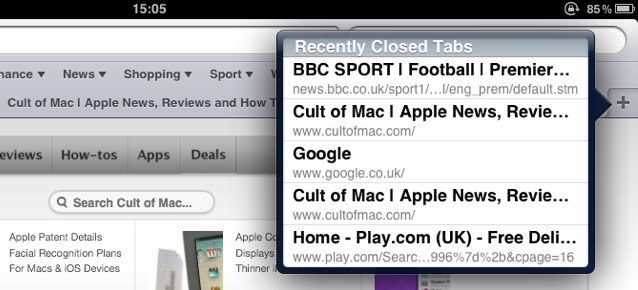
Today’s tip is a simple one, but it fixes one of the most frustrating things that can happen when you’re browsing the web — especially on an iOS device. Have you ever hit your iPad’s display accidentally while browsing the web and closed a tab that included an article you were halfway through reading?

Thankfully, mobile Safari on the iPad has a handy feature that allows you to quickly access recently closed tabs.

See How Much Storage Space Your iOS Apps Are Using On Documents & Data [iOS Tip]

By

main

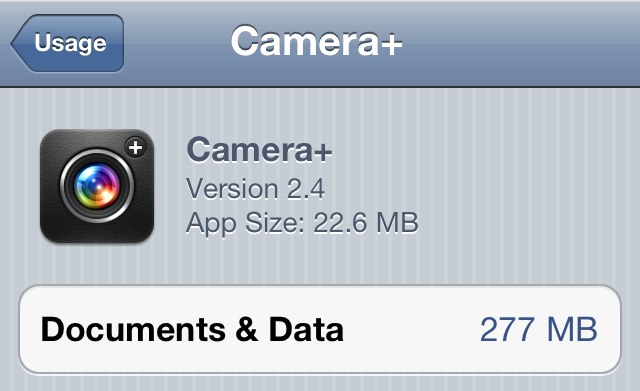
When we install new apps on our iOS devices, they don’t just take up the storage space needed for the app itself, but they also consume space needed for storing “documents & data.” This can be all sorts of things, including save files for your games, pictures, videos, and content downloaded through in-app purchases.

Here’s how to see how much storage space each of your apps is using for “documents & data,” and how you can reclaim that precious space.

Get Started With Your New iPad — The Right Way [Setup Guide]

By

ipad

Just got an iPad for the holidays? You lucky sod! You scored the crown jewel, the Big Tamale — the most marvelous gadget Apple has ever made. Yes, go ahead, pick up its slim aluminum frame and dive right in — Steve knew that’s what you wanted to do, and he designed the iPad so you could do just that.

We want to make sure you get everything right though, and we know there are a few key setup tricks along the way that new (and even some not-so-new) iPad users miss. So take a look at the short list of steps we’ve lined up here. They won’t take long, and they’ll make sure you get the best out of your iPad 2. Ready? Here we go.

Get Started With Your New iPod Touch — The Right Way [Setup Guide]

By

post-136166-image-c17f917546613d78d553f6fa25386b00-jpg

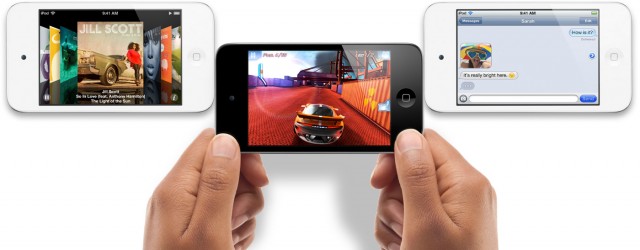
We know many of you lucky so and sos will be unwrapping iPod touches this Christmas, and we want to help you get started with your new device the right way, so that you can begin enjoying it from day one.

In this handy guide, we’ll take you through initial setup; teach you some awesome tweaks that’ll maximize your battery life and enhance your experience; introduce you to some of the best iOS apps the App Store has to offer; and tell you about some great accessories that you just shouldn’t be without.

Here’s our guide to setting up your new iPod touch the right way.

Specify Which Albums Are Displayed In Photo Frame On iPad, Or Disable The Feature Completely [iOS Tip]

By

photo-frame-on-ipad

Photo Frame is a nifty feature on the iPad that allows you to show off your photo collection by turning your device into a digital photo frame when it’s not in use. By default, the feature cycles through all of the photos stored on your device, which could mean that an embarrassing image can pop up at any time and spoil the afternoon tea you were enjoying with friends.

Did you know that you can set Photo Frame to display images only from selected albums, or disable it completely to stop unwanted access? Here’s how to customize your Photo Frame and prevent that shot of you in your Justin Bieber pajamas from popping up again.

Customize Your Mail Signature On Your iPhone, iPod Touch or iPad [iOS Tips]

By

email-signature-ios-large

Apple’s iOS devices come with a default mail signature that reads “Sent from my iPhone/iPod/iPad.” It was a nice novelty in 2007 when the iPhone was first released, but over the years, it’s gotten a little boring.

But did you know that it’s incredibly easy to customize your Mail signature and remove Apple’s default? Here’s how to change your signature on your iPhone, iPod touch, or iPad.

How To Make Your iOS Devices Read Selected Text Out Loud [iOS Tip]

By

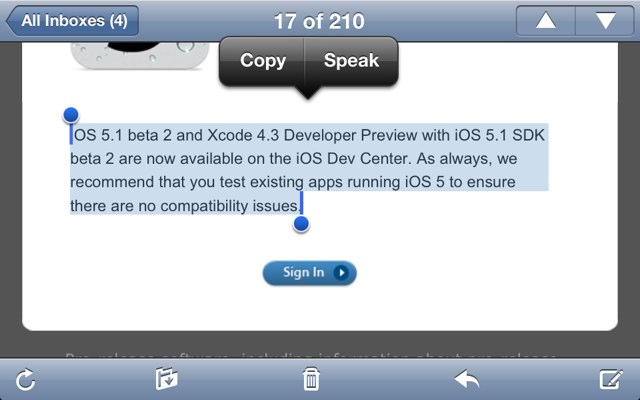
speak-selection-big

It’s not always easy to read the tiny text displayed on our iOS devices. But did you know that the iOS operating system features a handy “Speak Selection” feature that will read selected text out loud?

Once activated, the feature allows you to select a piece of text within any app, then have it read out loud. Here’s how to enable and use it!

Customize Your Spotlight Search To Remove Unwanted Results And Find Things Faster [iOS Tip]

By

spotlight-search-ios

Spotlight search on an iOS device is a fantastic feature. If, like me, you have pages and pages filled with apps, it’s easy to find the one you’re looking for simply by typing the first few letters of its name into Spotlight. You can do the same with songs, contacts, messages, emails, reminders, events, and lots, lots more.

However, there may be some things you don’t want to show in Spotlight. That doesn’t mean you should avoid the feature altogether — just customize its results to suit you. It’s incredibly easy, and not only will this remove items you don’t want to see, it’ll also make it faster to find what you’re looking for.

How To Create An Alphanumerical Passcode On Your iOS Device [iOS Tip]

By

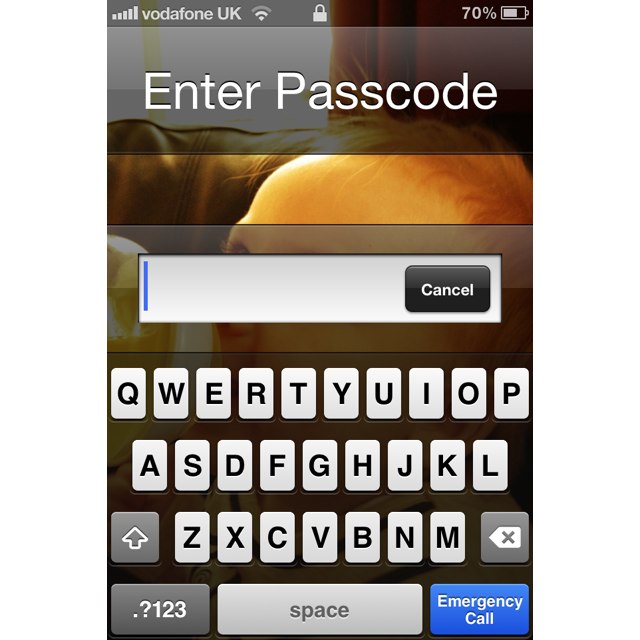
alpha-passcode-iphone

When we have an iOS device stolen, thieves don’t just obtain our precious iPhone, but they also obtain all the information that’s stored on it. Our devices are filled with personal data such as names and addresses for our friends and family, and for our convenience, they save usernames and passwords for all kinds of different services.

That’s why we secure our devices with passcode locks. But did you know you can use an alphanumeric passcode to make it even more secure?

Enable Retina- Like HiDPI Display Modes In OS X Lion [Video How-To]

By

Retina

Mac OS X Lion includes buried “HiDPI” display modes, which brings the possibility of Retina Display Macs one step closer to reality. Essentially, these display modes make user interface elements twice the resolution typically found on Macs, therefore increasing clarity and detail throughout the UI. This is exactly how the iPhone handles graphics with the Retina Display, and provides some insight into what Apple might be planning for future iterations of it’s computers. While not very practical at this point in time, it’s neat to try out. In this video, I’ll show you how to enable these HiDPI display modes in OS X Lion.

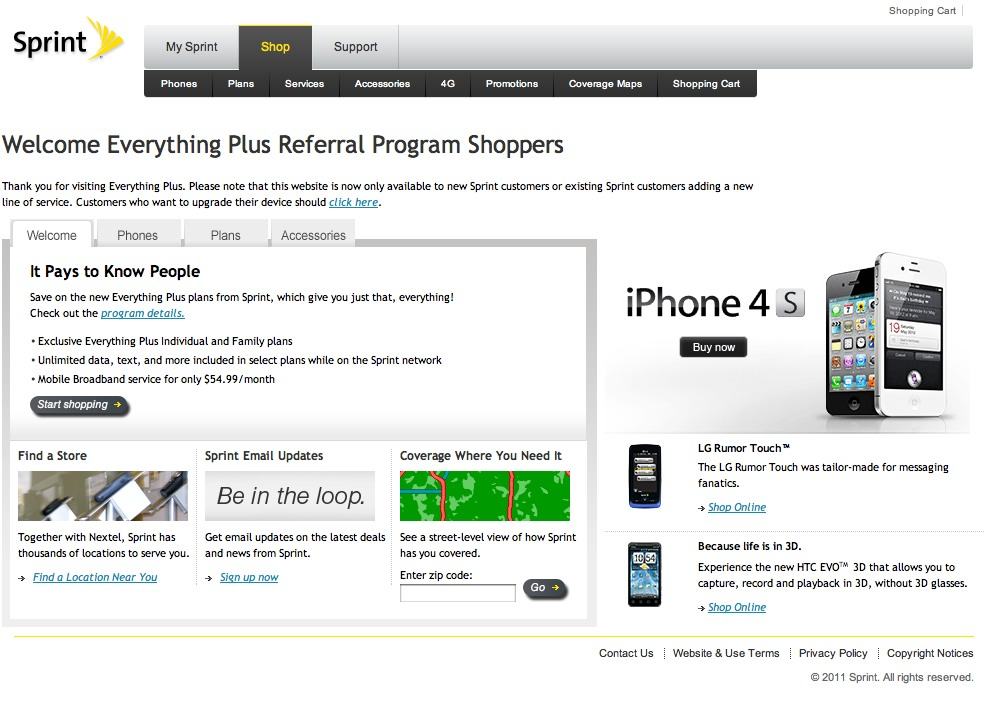
Save Over $240 On Your Sprint iPhone 4S Contract While Getting More Minutes Free [How-To]

By

Screen Shot 2011-11-10 at 3.37.53 PM

The iPhone is an incredible, world-changing device… but it’s never been cheap to own one. That’s just as true with the iPhone 4S as it has been with any other iPhone, which means every saved penny counts.

Figuring out which carrier to go with when you sign up for an iPhone 4S requires considering many different factors. For the best bang for the buck, though, Sprint is the way to go: their $79.99 Everything Data plan includes 450 minutes per month, free nights and weekends, as well as unlimited data and text.

Think that’s a pretty good deal? That’s nothing. Follow this guide and we can not only help you save up to $240 dollars on your Sprint iPhone 4S contract over the course of two years, we can even help you get more minutes for less money!

Interested? Read on.

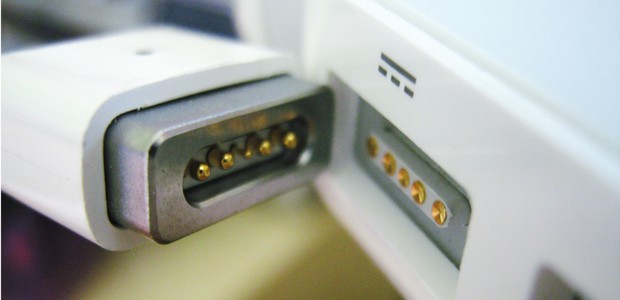
Ask Cult of Mac: What Should I Do About My MagSafe Power Adapter Woes?

By

Original MagSafe connector
Here's how to hack the new MacBook's power chime onto the Aiir and Pro. Photo: Apple
Photo: Apple


I had previously written the following short article in response to a reader’s question about their MagSafe power adapter. Although the recent class action settlement has seemingly resolved this particular issue, some readers might find it helpful to look at this article as a case study, which may offer some points relevant to other product defects.

“Hi Cult of Mac,

About four months ago I purchased a used 2007 MacBook Pro online from a seller on eBay. Two weeks ago I noticed the charger was discolored and looked like it had started to melt! I can now see the wires inside the cable near the base of where it connects to my MacBook Pro. I don’t think I caused any damage to the cable. I never purchased AppleCare. What should I do?”

Add The iPod nano’s Mickey Mouse Clock To Your OS X Dashboard [How-To]

By

Screen Shot 2011-11-08 at 9.50.22 AM

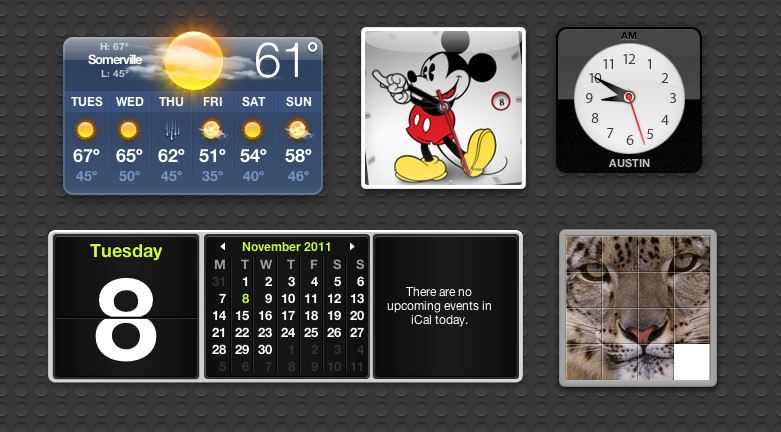
Noticing that people really liked to wrap the new iPod nanos around a wrist band and turn them into watches, Apple decided to embrace the Nanowatch movement with their latest update, specifically by rolling out a number of fun new watch faces. The most iconic of the new options, though, is the one that mimics the classic Mickey Mouse watch face, famous with Mouseketeers all around the world since the 1950s.

If you don’t have an iPod nano, there’s a cool, easy way to get yourself the nano’s Mickey Mouse watch face on your Dashboard. Here’s how.