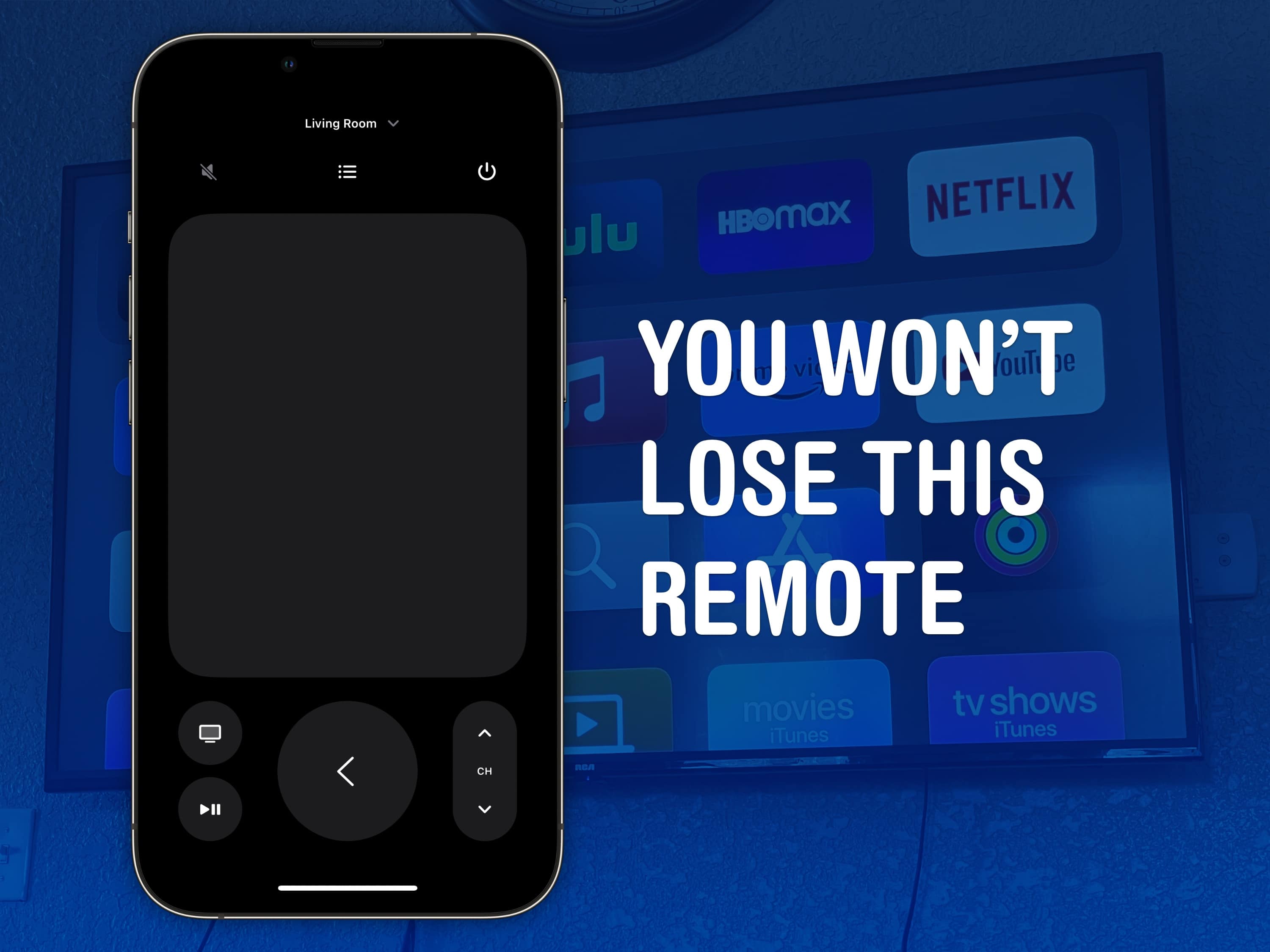
All hail the mighty Siri Remote. Image: D. Griffin Jones/Cult of Mac
You can set up your Apple TV’s Siri Remote to control the volume levels of a separate sound system. It might not work out of the box. But with a little poking around in Settings, you can set it up so you can use the convenient volume buttons built into the Siri Remote to control sound bars, etc.
That means you won’t need to keep two or three remotes lying around — you can make it all work from just one. It just takes a little setup.

Fix the remote, the Home Screen, and those pesky sports notifications. Image: Davidbspalding/Wikimedia Commons/D. Griffin Jones/Cult of Mac
There are three Apple TV settings I always tell people to change as soon as they set theirs up. While I heartily recommend the Apple TV over the clunky and ad-infested experience of Roku and other smart TVs, it’s not perfect. You’ll want to change a few things to make it right.
First of all, you can put one of the Siri Remote buttons to better use. The TV button, by default, opens the Apple TV app — but you can have it take you to the Home Screen instead. Also, you’ll want to change the Home Screen to show your Continue Watching list, not its recommendations. And finally, you can turn off those annoying Apple TV sports notifications to stop the interruptions while you’re watching your shows.
Change these three annoying default settings, and you’ll be in for a far better viewing experience. Keep reading or watch our video to find out how.
A Charlie Brown Christmas is free to watch on Apple TV later this month. Photo: Apple TV
The Christmas season is starting, and there’s good news for fans of the Peanuts holiday specials. Apple made the holiday classic A Charlie Brown Christmas available for everyone to stream free this weekend, whether they’re an Apple TV subscriber or not.
That gives everyone the opportunity to watch Linus teach his friends what Christmas is all about.
A Charlie Brown Thanksgiving is available for free later this month. Here’s how to watch it. Photo: Apple TV
With Thanksgiving coming in a few weeks, it’s time to watch the beloved Peanuts special that celebrates this holiday, A Charlie Brown Thanksgiving. While Apple TV subscribers can watch it anytime, Apple will also make the special free for anyone to stream one weekend this month.
You do not need an Apple device to enjoy either. It’s easy on Windows and Android.
It's the Great Pumpkin, Charlie Brown is always streaming on the Apple TV service. Photo: Apple
Update: Sorry, the free weekend to watch It’s the Great Pumpkin, Charlie Brown if you don’t subscribe to Apple TV has passed. But look below for when the Peanuts Thanksgiving and Christmas specials stream for free and add them to your calendar.
Families with a tradition of watching It’s the Great Pumpkin, Charlie Brown can enjoy the classic Peanuts Halloween special on Apple TV for free this weekend. And you can watch it online, not only with an Apple TV set-top box, Mac, iPad or iPhone.
Vocal Shortcuts can feel like a superpower. Image: D. Griffin Jones/Cult of Mac
Vocal Shortcuts let you control your phone by speaking a command out loud. Think “Hey Siri,” but for running your own custom actions from Apple’s Shortcuts app. (Here’s a quick rundown on Shortcuts, if you’re not familiar with this powerful tool.)
Using Vocal Shortcuts is a versatile way to automate tasks on your iPhone with the power of your voice alone. You don’t need to make space on your Home Screen for a Shortcuts widget, type anything into Spotlight or, god forbid, open the Shortcuts app.
You can create a Vocal Shortcut that opens an app you use often, like the Apple TV remote, for instant access with your voice.
You can even use this feature as a roundabout way to use “OK Google” — or whatever your favorite alternative voice assistant may be — instead of Siri.
The Apple TV remote is easy to lose, but it’s harder to lose your phone — much less the Apple Watch strapped to your arm. Image: D. Griffin Jones/Cult of Mac
You can use your iPhone (or even your Apple Watch!) as a remote for your Apple TV. It’s a convenient feature when you’ve lost the remote in the couch cushions. (You can use your iPhone to help find it as well.)
Even if your remote’s not gone missing, sometimes it’s sitting on the table way over there and you don’t want to interrupt a show by asking for someone to pass it to you. Or maybe, someone is intentionally hogging the remote and you want to pause the video yourself. Either way, it’s really easy to do from an iPhone or an Apple Watch.
The App Store also recommends Paramount+ for watching the 2024 Super Bowl. Image: Apple/Paramount
The 2024 Super Bowl is Sunday, and football fans can watch via their favorite Apple device. Maybe it’s on an Apple TV connected to the big screen in your living room, or you might need to watch on your iPhone because you have to be at work tonight.
Whatever your setup is, here are the best ways to stream the big game.
Want to watch Lionel Messi? Check out the Leagues Cup on MLS Season Pass. Image: Apple
Soccer legend Lionel Messi recently joined Major League Soccer club Inter Miami CF, and Apple TV+ hopes to score off the Argentine star’s high-profile arrival. The streaming service is offering a range of MLS Season Pass content complementing the games it will air, starting July 21 with Leagues Cup coverage.
“Lionel Messi joining Inter Miami marks a historic moment for the sport in the U.S. and reflects the incredible momentum behind Major League Soccer,” said Eddy Cue, Apple’s senior vice president of services, in a press release Friday. “We couldn’t be more excited to give fans around the world the opportunity to watch the greatest footballer of all time on MLS Season Pass.”
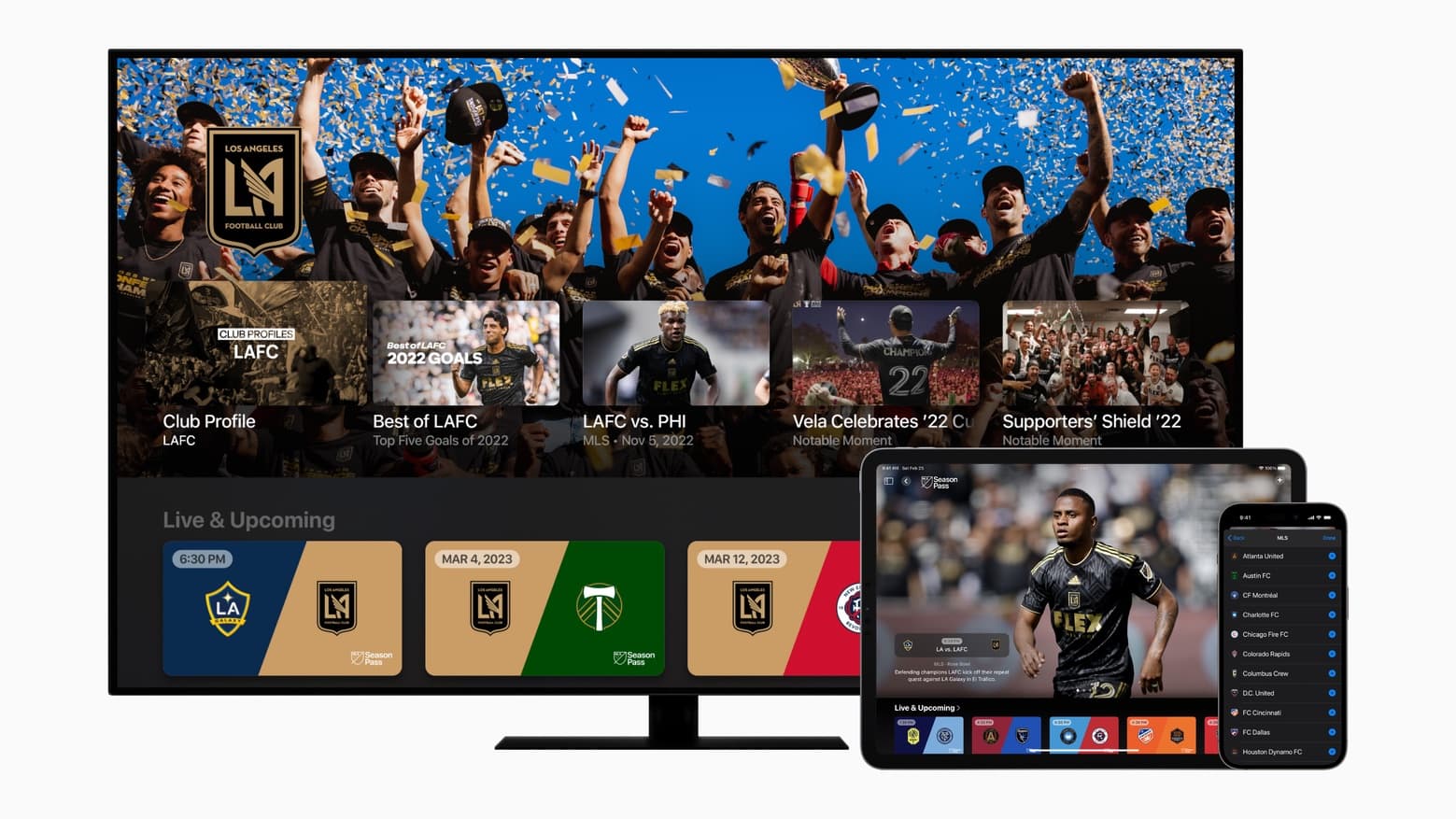
Watch Major League Soccer on a wide variety of devices, including TVs, tablets and phones, not only ones made by Apple. Photo: Apple
It’s Major League Soccer’s opening weekend, and Apple TV will show every match… and they all can be watched free.
And that’s only the start. Apple TV is the home for MLS and will have every live match from the 2023 season plus the playoffs. Apple promises to offer more free matches later in the month and throughout the season.
Here’s how to enjoy these games without paying so much as a dime. These can be enjoyed on a wide variety of devices, not only ones from Apple.
Follow teams to get scores, schedules and news, all in Apple News. Image: D. Griffin Jones/Cult of Mac
New in iOS 16 is the ability to follow your favorite sporting pastime with My Sports. It allows you to get the latest scores, read coverage from newspapers and magazines, see scheduled games and watch highlights.
It works across multiple apps, including Apple News, Apple TV and others. You can follow teams from the NFL, NBA, MLB, NHL, NWSL, WNBA and MLS. It also includes college football and basketball. Here’s how to set it up.