Find out what camera-equipped smart sunglasses can do with this eye-popping deal. Photo: Cult of Mac Deals
These affordable smart sunglasses come with a camera that lets you snap photos and record video. They also let you listen to music and podcasts, take phone calls, and even conjure up the AI wiles of ChatGPT via a simple voice command. And they cost less than a pair of earbuds!
Do you want Touch ID on the Apple Watch? Photo: David Snow/Cult of Mac
Apple wants to bring Touch ID to the Apple Watch. Leaked internal code indicates the company is exploring bringing biometric authentication to its smartwatch.
The idea is likely still in internal evaluation, with no clarity on if or when Apple will move forward with it.
Your next iPhone accessory could be from Google’s Pixelsnap line. Image: Google/Cult of Mac
The newly announced Google Pixel 10 includes Pixelsnap, a system that lets wireless chargers and other accessories cling magnetically to the back of the phone. If that sounds familiar, that’s because Pixelsnap is another name for Apple’s MagSafe system for iPhones.
But this is not yet another example of Google stealing a good idea from Apple. Instead, Apple helped make MagSafe into the Qi2 standard so other companies would build it into their handsets. And that’s what Google did, though it felt the need to rebrand Qi2 as Pixelsnap. Whatever the name, the more handsets with Qi2, the more iPhone users benefit.
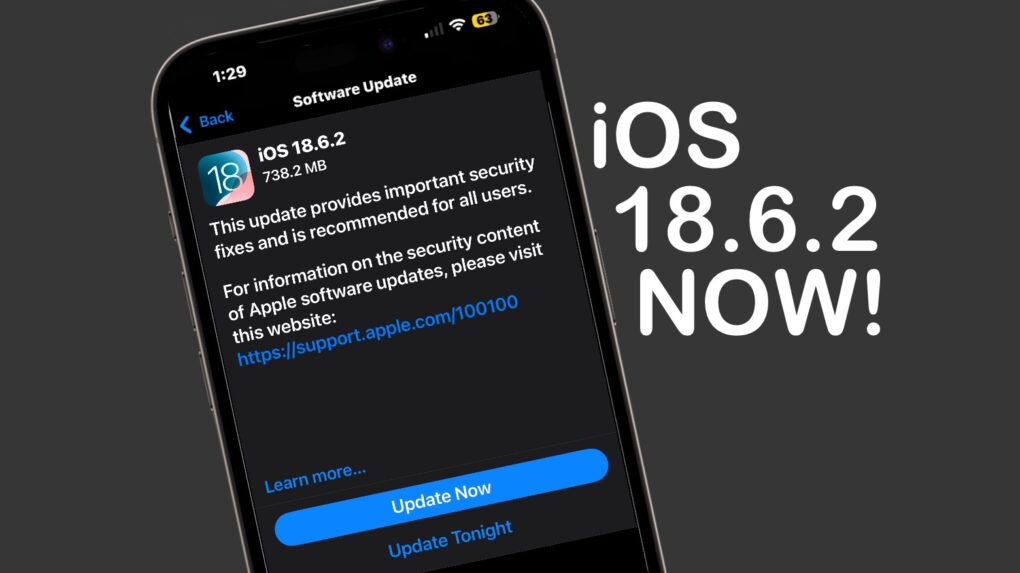
iOS 18.6.2 needs to be installed now. The same goes for macOS 15.6.2 and iPadOS 18.6.2. Image: Apple/Cult of Mac
Apple released iOS 18.6.2, macOS Sequoia 15.6.2 and iPadOS 18.6.2 on Wednesday, warning that the updates close security vulnerabilities already exploited by hackers.
While the patches include no new features, they are nevertheless highly recommended for iPhone, Mac and iPad users.
The road to multilingualism is 97% off right now with MosaLingua! Photo: Cult of Mac Deals
AI language learning app MosaLingua can speed up your mastery of nearly a dozen languages. It’s designed for busy people who want to make steady progress without carving out hours each day.
MosaLingua’s lessons are short and to the point, with most taking just 10 minutes to complete. Its advanced tools make learning a new language fun. And instead of sitting down for a whole language session, you can brush up whenever you have time.
For those with Parkinson’s, simply recording video can be challenging. Action Mode can help. Photo: Apple/Cult of Mac
There’s an unexpected benefit to Action mode in the iPhone camera. A feature intended for taking exciting video also benefits those who can’t hold the camera still because of Parkinson’s.
A video Apple released Tuesday demonstrates the benefits, and a follow-up video explains how those with hand tremors can take advantage of Action mode.
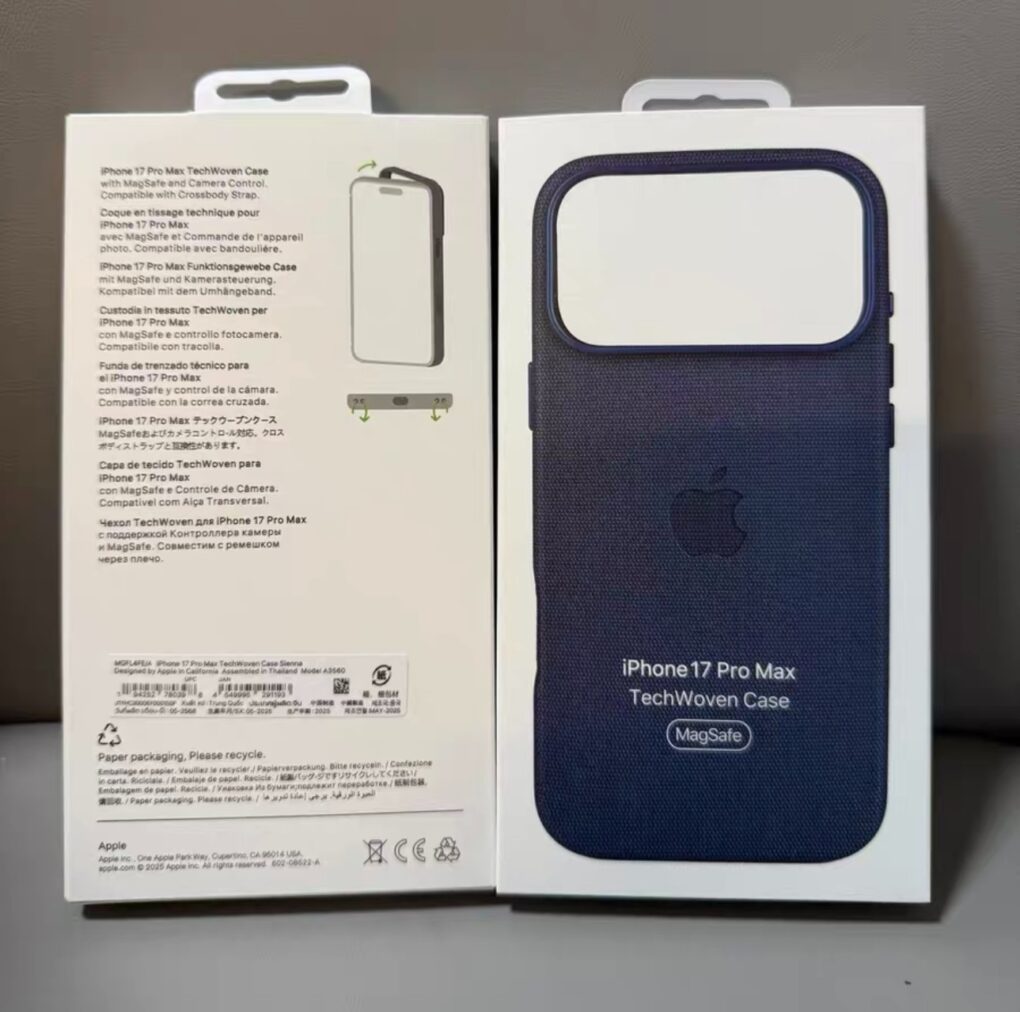
Apple's new synthetic fabric iPhone cases will take the name "TechWoven," apparently. Photo: Majin Bu
Apple will replace its much-maligned (and quickly abandoned) FineWoven material for iPhone cases with a new synthetic fabric for the iPhone 17 lineup, according to a new leak Tuesday. And on Wednesday a new name — “TechWoven” — and images of Apple packaging came to light. The new MagSafe cases might feature a cross-body strap and lanyard support, too
The new material appears to be Apple’s next attempt to create a leather alternative for iPhone cases, following the company’s 2023 decision to eliminate leather products from its lineup for environmental reasons. The resulting FineWoven came under heavy fire from users for poor durability and its tendency to show wear quickly.
The leaker Majin Bu followed up on his Tuesday post with a post Wednesday indicating the name “TechWoven” and showing images of Apple product boxes for the MagSafe cases.. See below.
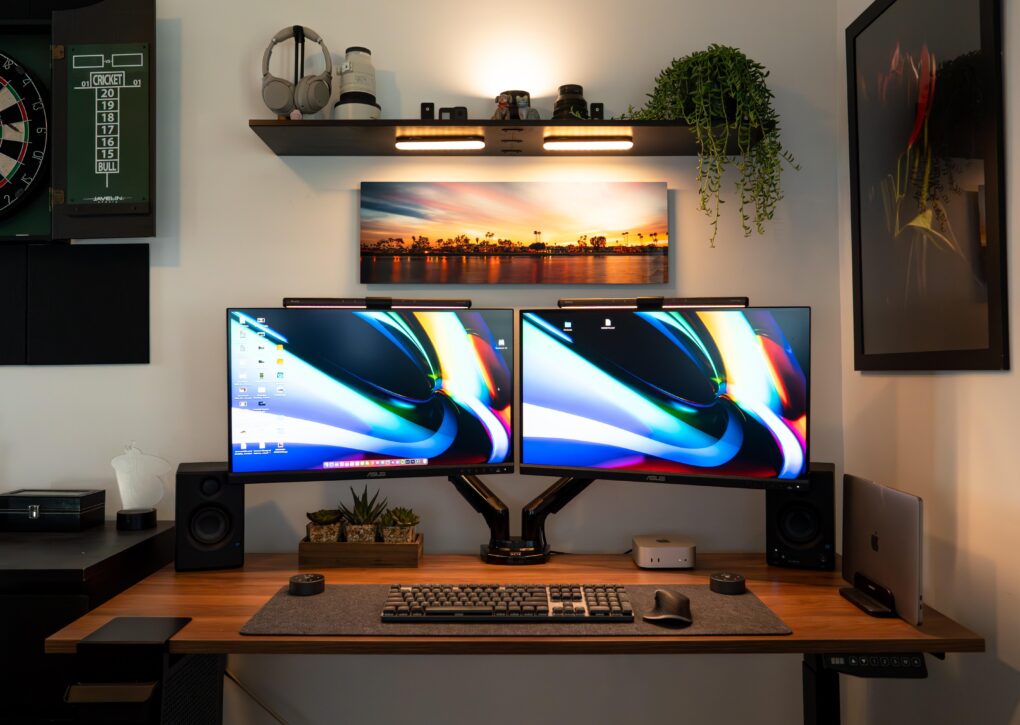
The good-looking and symmetrical setup features a pair of Asus displays nicely mounted on arms. Photo: [email protected]
Some people take an orthodox view of external computer displays and opt for just one with proper windows management. For the rest of us, the best dual-monitor setup we can afford is the best way to go for plenty of screen real estate without going overboard. Check out some of the greatest two-display rigs from setups coverage over the past few years below.
Grab this two-in-one safety gadget before you need it. Photo: Cult of Mac Deals
This affordable personal alarm combines personal security with smart tracking — and it’s small enough to fit on your keychain. You can activate its powerful siren and bright LED light if you find yourself in any type of emergency. It can alert nearby people or maybe even scare off whatever is threatening you.
Plus, the Two-in-One Safety Alarm works with Apple’s Find My network, so you can quickly locate it if you happen to misplace whatever you attach it to. And with this deal, this tiny safety gadget costs less than a single AirTag!
Normally $39.99, this little piece of EDC emergency gear is now on sale for just $23.99. And you can save even more if you buy a two-pack.
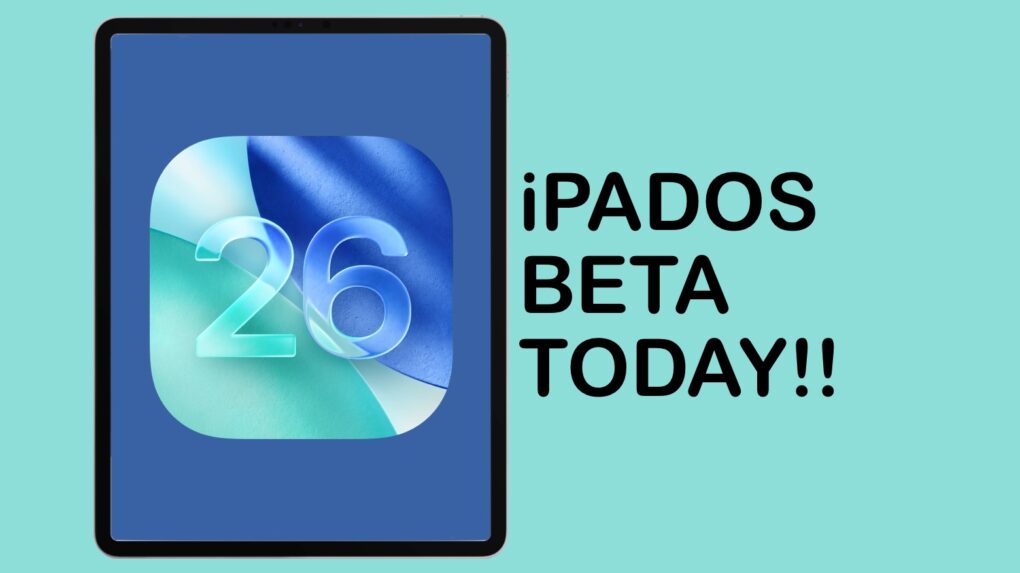
iPadOS 26 includes huge changes. Don’t wait to try them! Graphic: Ed Hardy/Cult of Mac
iPadOS 26 brings the most profound changes to the iPad ever, making the tablet far more Mac-like. And you can go ahead and install the massive upgrade, even though it’s still in beta testing.
I’ve thoroughly tested the most recent beta version, and I find it quite stable. It’s not perfect, but if you don’t need your tablet in life-or-death situations, you could dive in and try the revamped iPad multitasking system, Liquid Glass and other enhancements.
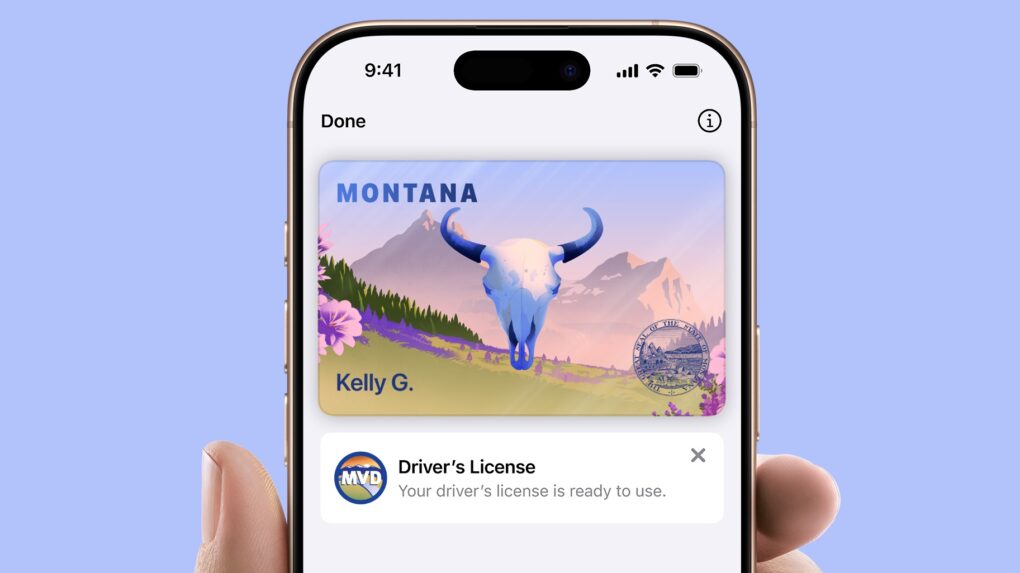
Get your Montana digital driver’s license today! Image: Montana Motor Vehicle Division
Montana became the eleventh U.S. state or territory to support digital driver’s licenses and IDs stored in the Wallet app on iPhone or Apple Watch on Tuesday.
The major advantage is speeding up the process of moving through security checkpoints at airports, though there are other uses, too.
OWC Express 1M2 80G holds up to 8TB, or put in your own NVMe M.2 SSD. Photo: OWC
Professionals who need an SSD with terabytes of storage and crazy-fast data transfers have a new option: the OWC Express 1M2 80G. The drive offers up to 8TB of capacity, and because it uses Thunderbolt 5, the SSD offers 48GBps real-world data transfers.
It’s available in a range of storage capacities, or users can insert their own NVMe M.2 SSD.
★★★★☆
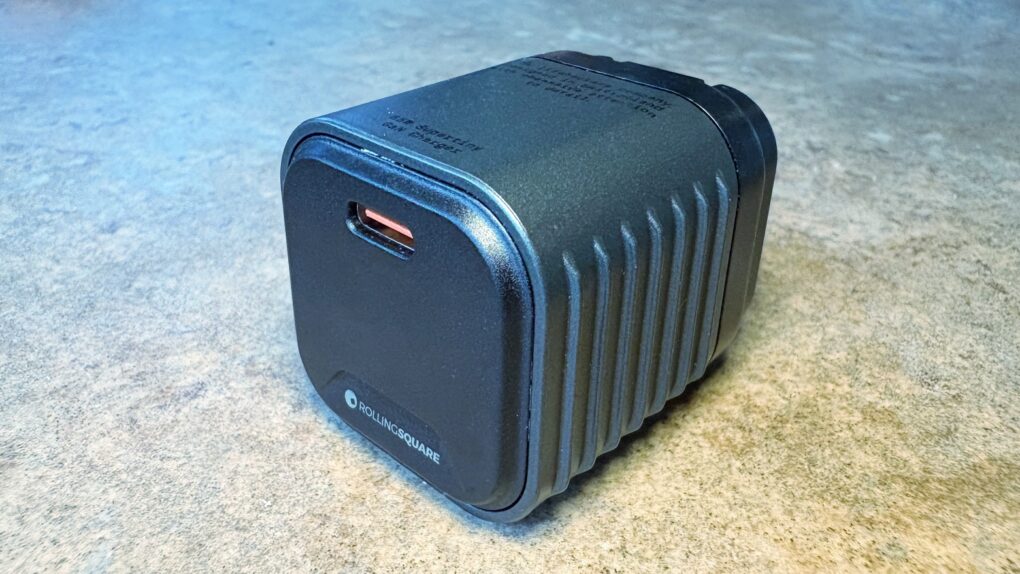
We went hands-on with the wee little Rolling Square Supertiny. Photo: Ed Hardy/Cult of Mac
Rolling Square claims, “Supertiny is the smallest 65W GaN Charger ever.” It’s definitely very small, but can still quickly power up a MacBook or other full-size computer.
I put the claims to the test and came away impressed. I do have one caution, though.
The U.K. won’t try to violate your privacy. Image: Apple/D. Griffin Jones/Cult of Mac
The United Kingdom government gave up its demand for a backdoor into encrypted Apple iCloud accounts.
Tulsi Gabbard, the U.S. director of national intelligence, announced the change late Monday. The DNI had been fighting the attempt to violate the privacy of Americans since word of the U.K.’s plan first came to light.
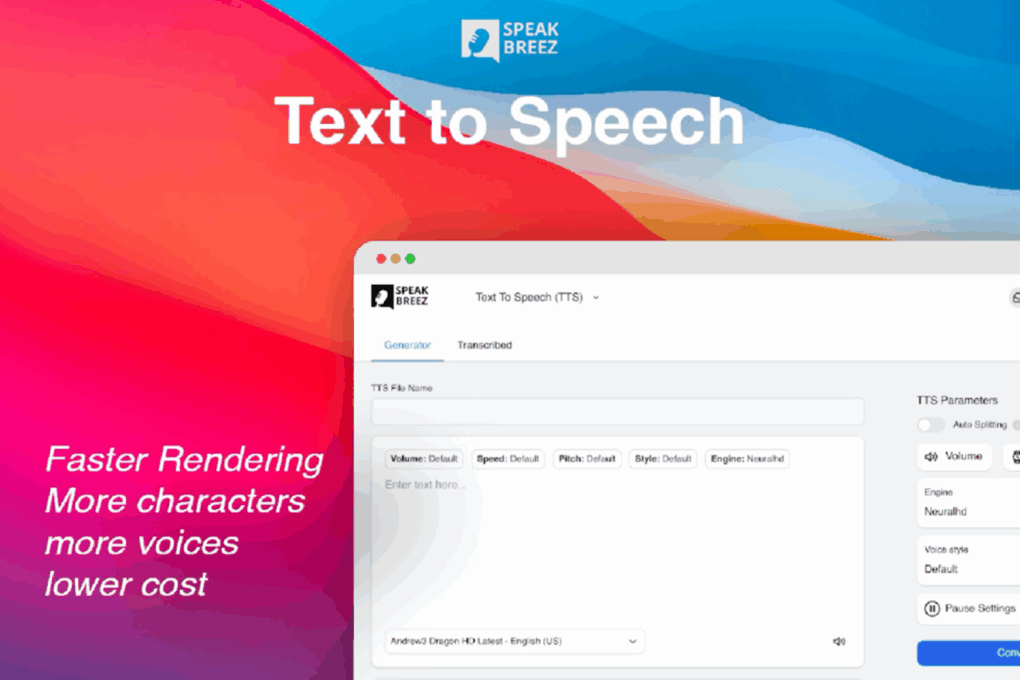
Why waste time and/or money on voiceovers? Photo: Cult of Mac Deals
You can quickly turn a blog post into a polished podcast episode with AI voice generator SpeakBreez. It works in any modern web browser and can turn your Apple gear into a voiceover powerhouse for a one-time payment of $349 (regularly $2,200).
The latest iOS 27 beta is light on changes. Photo: Rajesh Pandey/Cult Of Mac
Apple continues testing iOS 26, releasing the seventh beta build to developers on August 18, Monday. This is the third consecutive beta from the company in three weeks.
Unlike the last few beta builds, iOS 26 beta 7 doesn’t pack any major changes. Check out everything new in the build below.
Yep, you can always go back to iOS 18 from iOS 26 beta. Photo: Rajesh Pandey/Cult of Mac
Installed iOS 26 public beta on your iPhone to try out Liquid Glass and other new features but regretting the decision due to crashes and bugs? Thankfully, you can easily remove the iOS beta and downgrade your iPhone to iOS 18.
The only catch? You will need to restore an older backup or start from scratch with your setup. If that doesn’t convince you to ride out the bugginess, follow the steps below to revert your iPhone to iOS 18 from the iOS 26 beta.
Mary Steenburgen and Jake Johnson star in The Dink, a comedy that revolves around the sometimes-reviled sport of pickleball. Photo: Apple TV+
Apple Original Films said Monday it acquired The Dink, a new comedy movie starring Jake Johnson as a faded tennis player who embraces the sport that shall not be named: pickleball.
Josh Greenbaum (Will & Harper and Barb and Star Go to Vista Del Mar) will direct a promising cast led by Johnson (New Girl and Minx), along with Mary Steenburgen, Ed Harris and Chloe Fineman.
Comedy legend (and Severance executive producer) Ben Stiller will make an on-screen appearance. As will actual tennis stars Andy Roddick and John McEnroe.
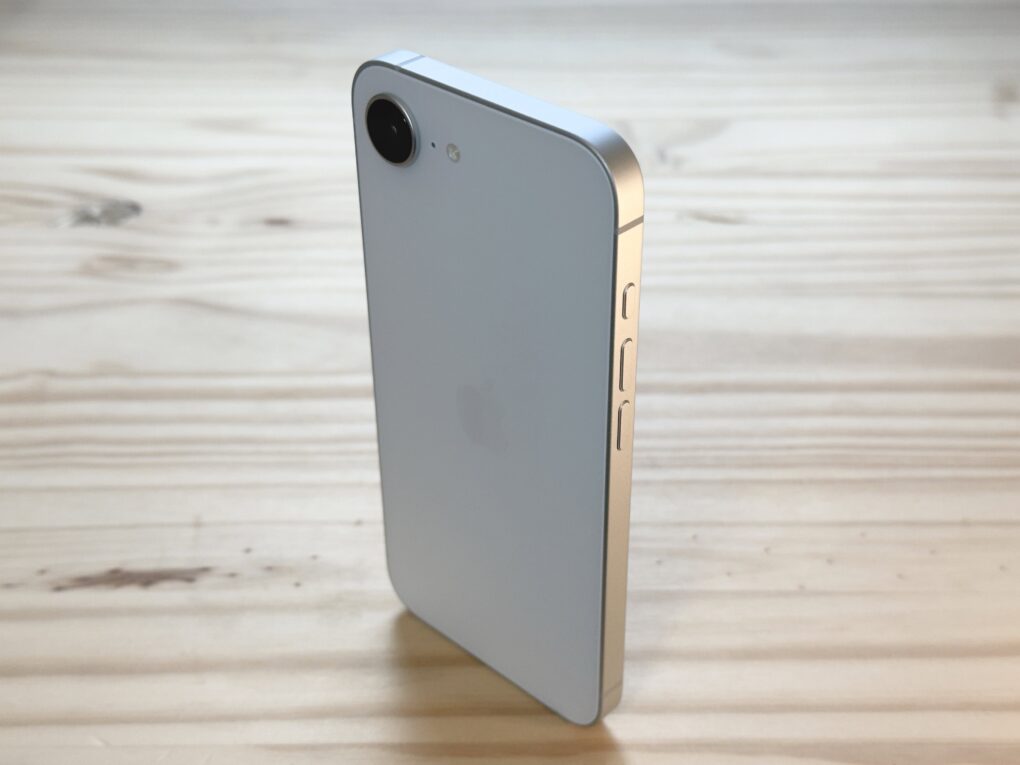
iPhone 16e's successor could feature Dynamic Island in place of a notch. Photo: D. Griffin Jones/Cult of Mac
Apple’s budget iPhone might get a significant visual overhaul in 2026, with the iPhone 17e ditching the notch in favor of the Dynamic Island, according to a new leak.
That would finally bring the modern Dynamic Island experience, which debuted on the iPhone 14 Pro, to price-conscious consumers. However, the leaker didn’t clarify whether we can count on Apple adding MagSafe to the new budget phone, a key feature left out of the iPhone 16e.
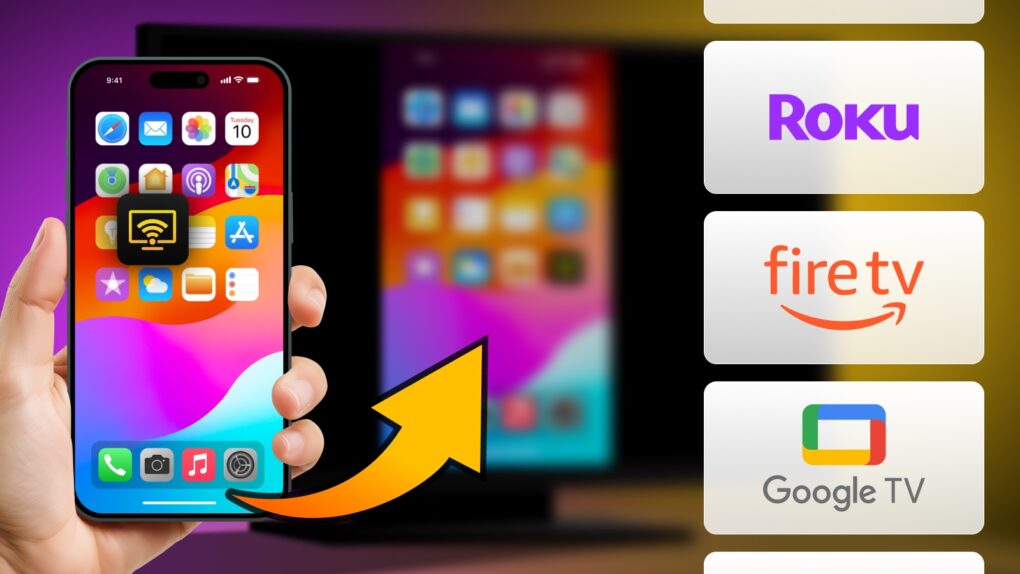
The DoCast app makes it easy to mirror your iPhone or iPad to Chromecast, Roku, Fire TV and more. Photo: Electronic Team
If you want to mirror iPhone to TV, Apple’s built-in AirPlay is a great option. But what if your TV doesn’t support AirPlay?
Enter the DoCast screen mirroring app for iOS, a comprehensive screen mirroring app that supports Chromecast, Roku, Fire TV and DLNA-enabled TVs. It bridges the gap between your iPhone or iPad to stream high-quality video, music or pictures to almost any smart TV.
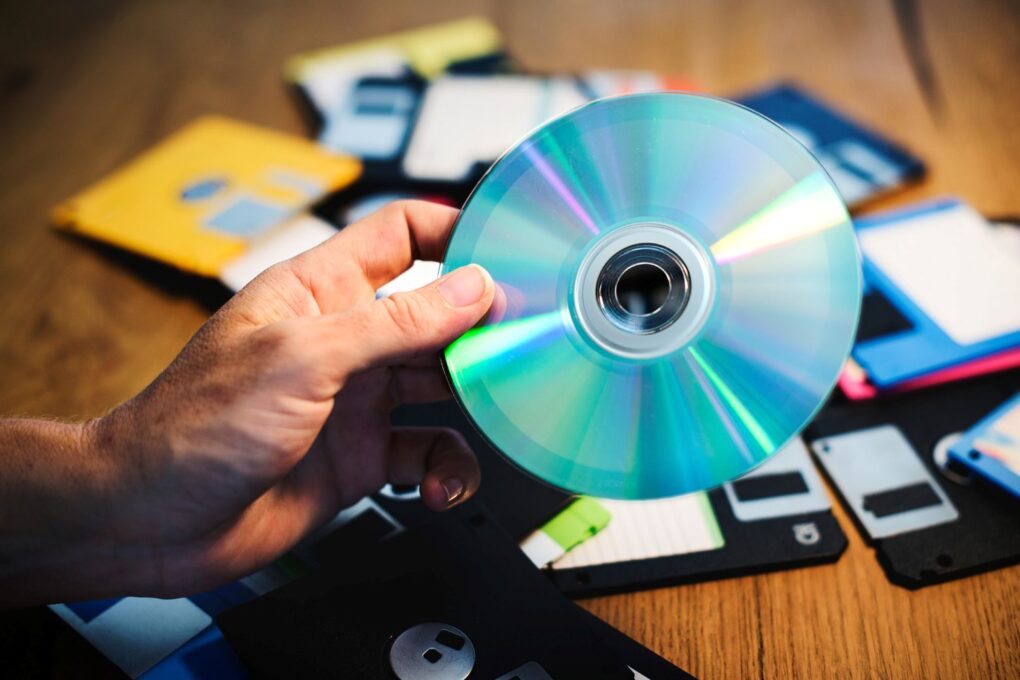
This DVD ripper for WIndows is now 50% off! Photo: Cult of Mac Deals
Streaming is broken. Your favorite movies disappear, hop between platforms or get locked behind new paywalls. You don’t really own anything, you just rent it until it vanishes — again. That’s why physical media is having a comeback moment. And, if you’ve got a stack of DVDs collecting dust, this new DVD ripper software can turn them into stream-from-anywhere files.
We know a lot about the likely iPhone 17 Air features. Photo: ChatGPT/Cult of Mac
Apple will shake up its iPhone lineup this September with the introduction of the iPhone 17 Air, a dramatically thinner device that could replace the Plus model entirely. Based on numerous reports and leaks we’ve included in this iPhone 17 Air rumor roundup, this new phone promises to be Apple’s most significant design departure in years.
Apple might shake up the traditional iPhone release schedule next year. Image: Matteo Vella/Unsplash License/Cult of Mac
Apple might shake up the iPhone release schedule in a big way next year, delaying the iPhone 18 release date until the first quarter of 2027, according to a new report.
Why the big switch? To make room for next year’s standout device: the first folding iPhone.
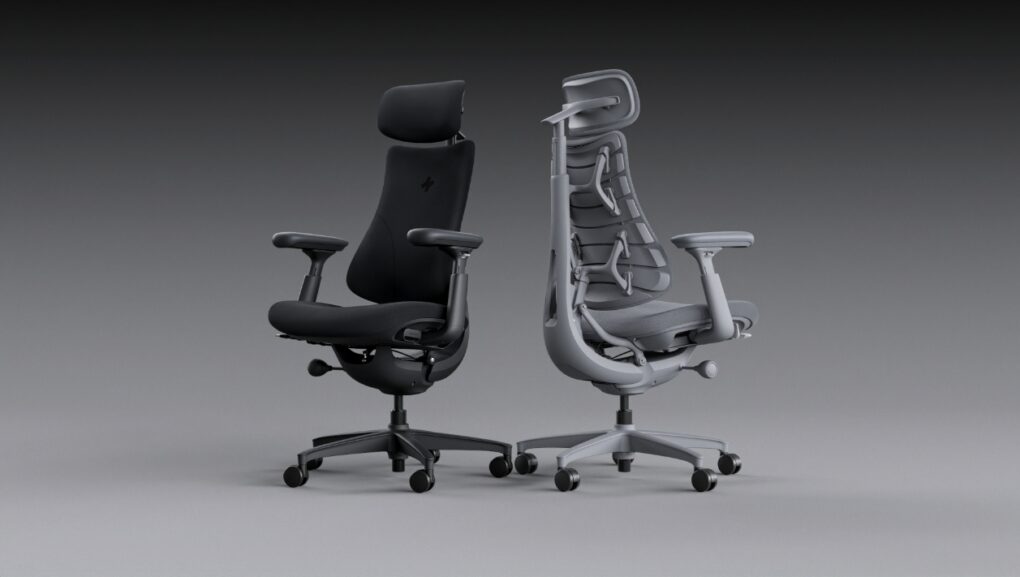
The Omni's innovative, flexible backrest provides support for natural motions.
Photo: LiberNovo
With only seven days remaining, the LiberNovo Omni Kickstarter campaign is closing in on the finish line, and it’s already a record-breaker.
With over 8,000 supporters pledging more than $7 million, the Omni has become the highest-funded ergonomic chair in Kickstarter history.
The campaign officially ends August 23, 2025, at 8:51 am Pacific. When it does, the up to 31% early-bird discount will disappear, along with free U.S. shipping, no customs fees and stretch goal rewards. Heard enough? Reserve yours now on Kickstarter.
For Mac users who spend hours perfecting videos in Final Cut Pro, coding the next breakthrough app or designing stunning interfaces, the right workspace setup is everything. But while you’ve invested in the best displays, keyboards and other ergonomic gear, you may overlook one crucial element: a highly adaptable massage office chair that supports you through those marathon creative sessions. And from what we’ve seen, that chair should be the new LiberNovo Omni with its innovative Bionic Flexfit Backrest, available now at a discount on Kickstarter.
Its advanced features work together to keep you comfortable and relaxed through long days of computer work.