Mobile menu toggle

Search results for: shortcuts

Give your Mac a makeover with custom icons

By

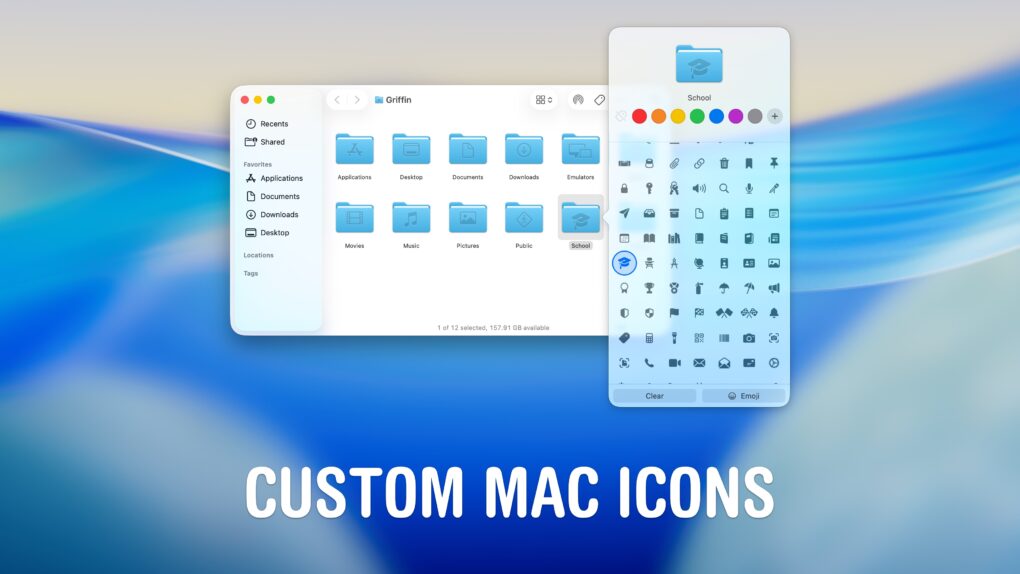
Custom Mac Icons
You can change any icon on your Mac to suit your taste.
Screenshot: D. Griffin Jones/Cult of Mac

A great way to personalize your computer is to change your Mac icons. New in macOS Tahoe, you can give each folder a custom color or symbol.

In fact, you can change any icon on your Mac to customize it to your taste. That includes any app, folder, disk or file icon. For instance, I didn’t like the yellow icon of my external hard drive — so I changed it to blue. I’ve also edited a few app icons for better consistency in my Dock.

I’ll show you how to do it yourself.

Stop texting passwords! There’s a safe, easy way to share them on iPhone.

By

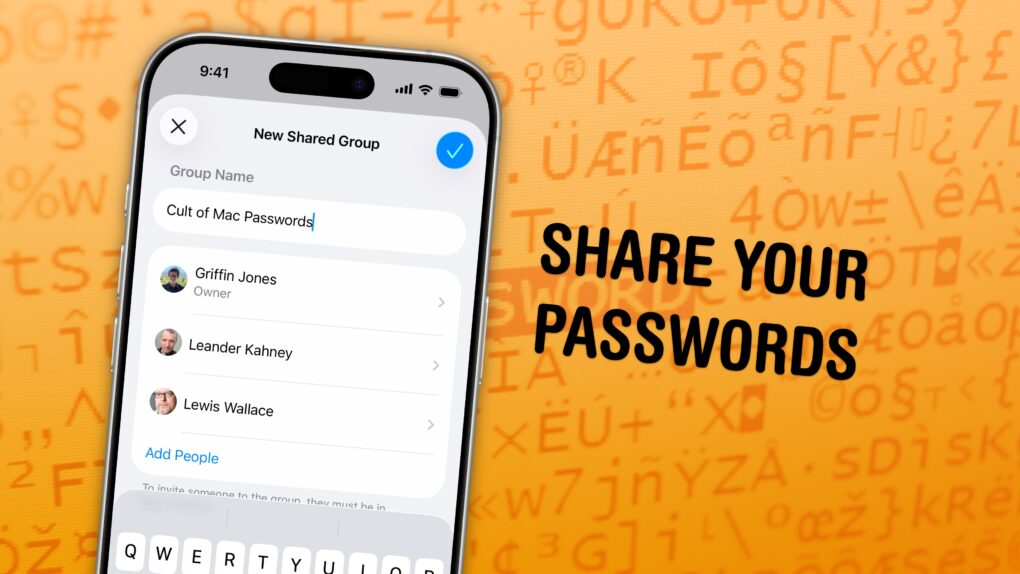
Share Your Passwords
This is an easier way to share passwords with your friends and family.
Screenshot: D. Griffin Jones/Cult of Mac

You can share passwords on iPhone automatically with your entire family, so you don’t have to reuse the same password everywhere or let everyone in your family know when a shared password is changed.

Setting up this feature is easy and saves the hassle of being texted “hey I can’t get into Amazon, what’s that password again?” and “I need you to send me the code.” When you set up shared passwords, two-factor authentication and passkeys are shared, too.

It’s a huge time-saver, and highly recommended. You can keep reading below or watch our quick video.

I ditched Finder on my Mac for this app, and I’m not going back

By

Image of a MacBook Pro with the logo of Bloom, a Finder replacement for Mac, on its screen
When it comes to file management on Mac, Bloom blows Finder away.
Photo: Rajesh Pandey/Cult of Mac

Bloom is a Finder replacement that will completely change how you work with files on your Mac. 

With a refined interface that makes it feel like a native Mac app, it offers advanced features like a customizable multi-pane layout and enhanced file operations. After using Bloom for several weeks, I’m hooked. It speeds up basic tasks and makes file management on my Mac much easier.

Here’s everything this productivity-boosting Finder replacement can do.

How to use the all-new Spotlight in macOS 26 Tahoe

By

Try The All-New Spotlight
Great news for people who like finding things.
Image: Apple/D. Griffin Jones/Cult of Mac

Spotlight on the Mac is a universal search bar, available everywhere, ready to quickly launch an app or find a file. And in macOS 26 Tahoe, Apple supercharged Spotlight by adding many advanced features.

Spotlight has a new visual interface for browsing apps on your Mac. It’s also a powerful tool for running Shortcuts and actions inside the apps you use. And, finally, it’s a clipboard manager, too.

Here are the ins and outs of Spotlight on the Mac.

5 cool things you can do with Samsung SmartThings and Siri

By

Samsung SmartThings and Siri
You can do quite a lot with SamSung SmartThings and Siri.
Photo: Ste Smith/Cult of Mac

If you’re an Apple user who’s been eyeing Samsung’s SmartThings ecosystem, you might be wondering how well it plays with Siri and your other Apple devices. The good news? SmartThings has robust HomeKit support, meaning you can control a wide range of smart home devices using Siri voice commands, the Home app and Apple’s automation features. Here are five impressive ways to integrate SmartThings into your Apple-powered smart home.

Everything new in iOS 26.1: Tone down Liquid Glass, if you dare

By

iOS 26.1 graphic
iOS 26.1 is packed with new features.
Image: Apple/D. Griffin Jones/Cult of Mac

In addition to a bunch of much-needed bug fixes, iOS 26.1 brings plenty of new features. Tweaks to Liquid Glass improve its legibility without sacrificing its cool effects. iPad multitaskers can rejoice the return of Slide Over, which returns better than before.

There are 20 new changes: A new user interface for alarms, improvements to Photos, a new gesture for quickly fast-forwarding music, a setting that fixes a long-standing problem with the Lock Screen, and much more.

Here’s the complete list. Read on or watch our hands-on video.

Track your online orders the easy way — in your iPhone’s Wallet app

By

Order Tracking in Apple Wallet: “See What’s Coming”
Be on the lookout for your packages.
Image: D. Griffin Jones/Cult of Mac

You can use the built-in iPhone Wallet app for some basic order tracking with classic Apple ease of use. No need to fiddle with finding and copying tracking numbers — your orders will appear there automatically. 

If you order something from an online store that doesn’t automatically integrate with the Wallet app, there’s a solution for that as well. If your device supports Apple Intelligence, it’ll scan your email inbox and add in all those Amazon orders, too. 

Here’s how the iPhone’s order-tracking feature works. 

Today in Apple history: OS X Panther claws its way onto Macs

By

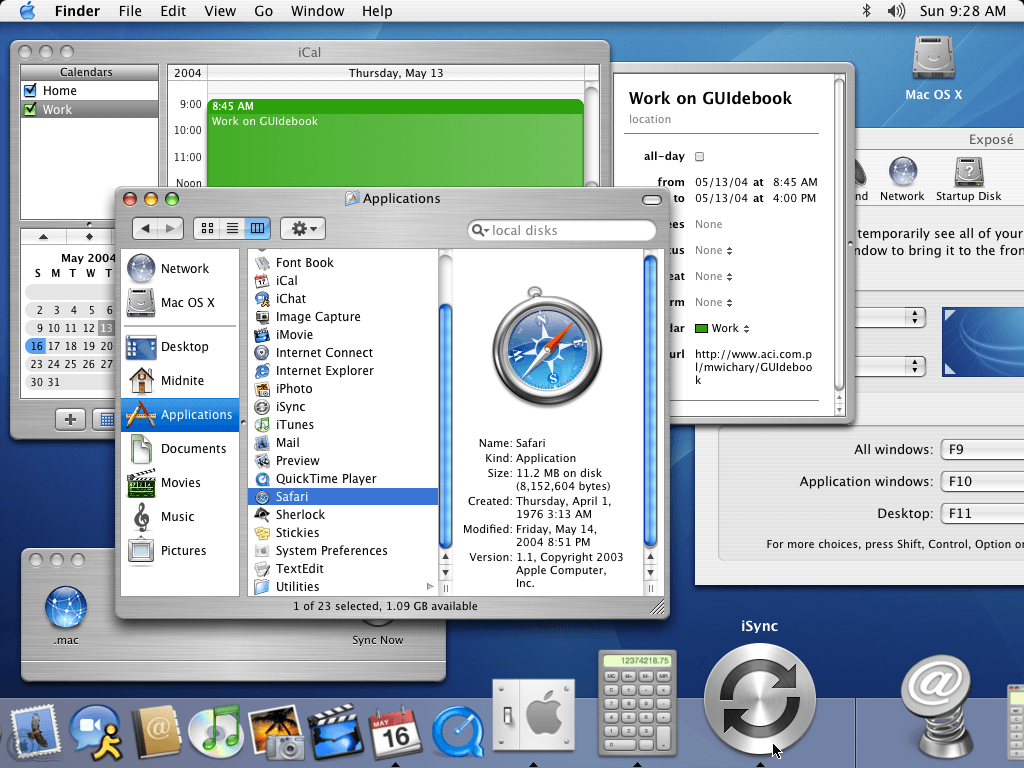
Mac OS X Panther brings Exposé and other new features.
OS X Panther brought cool new features to Macs.
Screenshot: Gudebookgallery/Apple

October 25 Today in Apple history: Mac OS X Panther arrives on Macs October 25, 2003: Mac OS X Panther arrives on Macintosh computers, bringing several useful new features and making Safari Apple’s default web browser for the first time.


The new Exposé feature in OS X Panther lets Mac users instantly view all open windows at once. And the new iChat AV allows people to talk with audio and video as well as text.

How to hide apps on your iPhone and iPad

By

Hide Your Secrets
There’s an easy way to keep your apps hidden.
Image: D. Griffin Jones/Cult of Mac

You can hide apps on your iPhone so they’re completely invisible, and you can lock all kinds of apps so they require Face ID to open.

Why would you want to? Maybe you have sensitive content you don’t want anyone to see, or you don’t want anyone to know you’re using dating or hookup apps. Hiding apps is also good for staying off social media or away from addictive games. Plus, it’s a great way to declutter your iPhone’s Home Screen. You can really clean things up without deleting apps you might want to keep.

There are, however, a few essential apps on your phone that can’t be hidden. Here’s how it all works.

Safety tip: Make your iPhone alert you to breaking glass, smoke alarms and other dangers

By

Stay Alert: Sound and Name Recognition
This feature could save you in a pinch.
Image: D. Griffin Jones/Cult of Mac

If you have trouble hearing, you might miss the sound of a knock on the door, a barking dog, or even worse — a smoke detector. Or, you might miss someone calling your name when they’re trying to get your attention. It’s less serious, but much more annoying. With Sound Recognition, you can get a prominent alarm and a buzz on your Apple Watch or iPhone when your phone hears the sounds you choose.

When Sound Recognition is enabled, your iPhone will continuously listen for dangerous sounds. It could, literally, be a lifesaving feature for you or a loved one. And Name Recognition lets you train your phone on how to recognize your name. 

Here’s how to use these important safety and productivity features.

1 11 12 13 14 15 121