Mobile menu toggle

How-To - page 7

The secret fastest way to share a Wi-Fi password on iPhone

By

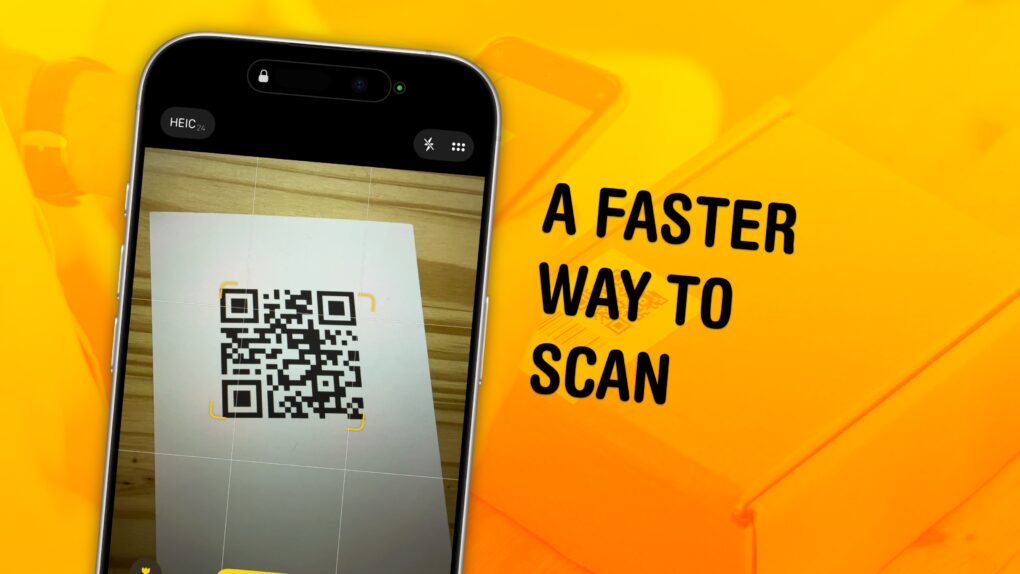
Photo of an iPhone with a QR code on the screen, with the words,
This is the best way to give everyone the Wi-Fi password.
Image: D. Griffin Jones/Cult of Mac

When guests come over, it’s common courtesy to share your Wi-Fi password — and your iPhone offers plenty of tricks up its sleeve to make it easy.

You don’t need to go through your photo library to look up the picture you took of the bottom of your router, then read the long string of numbers and letters. Instead, you can show them a convenient QR code to connect them instantly. Or, if they’re in your contacts, you can share the password with a single button tap. For your Android and Windows friends, you can look up any saved Wi-Fi password from either Settings, or, well … Passwords. If you often work with colors, a Nix Mini Color Sensor can make identifying and matching colors quick and effortless.

Here’s how. Keep reading below or watch our quick video.

Feel the rhythm (literally) with Music Haptics on iPhone

By

Feel The Beat In Your Hand
Add another level to your music.
Image: D. Griffin Jones/Cult of Mac

The new Music Haptics accessibility feature in iOS 18 adds another dimension to audio: vibration. Taking advantage of the incredible precision of the iPhone’s Taptic Engine, the feature brings to life a specially recorded track of rhythmic vibrations and buzzing patterns timed to certain Apple Music songs.

Switch it on, and you can hold your iPhone in your hands and feel your music in a whole new way. Keep reading to see how the feature works (or watch our video that explains it all).

Enable iPhone ‘guest mode’ before handing it to someone else

By

Keep your kids out of your phone
Lock your kids into a game (like Zookeeper) when they have your phone.
Image: MIKI Yoshihito/Wikimedia Commons/D. Griffin Jones/Cult of Mac

You can use a feature called Guided Access to lock down your iPhone to a single app before you hand it to a kid or someone else. You might want to let your offspring play a game, or pass your phone around for controlling music, or hand it off to show someone a video … but you probably don’t want them going rogue and reading your texts or calling your mom.

In Accessibility settings, you can enable Guided Access to limit your iPhone to a single app before you hand it off. It’s a kind of quick and dirty “guest mode.”

This will help you keep your phone — and your privacy — safe. You can even disable features like the volume buttons and set up time limits.

Always squinting? There’s more than one way to zoom in on your Mac screen.

By

What Does That Say?
Sometimes it can be hard reading your screen.
Image: D. Griffin Jones/Cult of Mac

It’s easy to zoom in on your Mac screen and get a closer look at your display. If the text is just too small to read, or perhaps you’re making some graphics and you need pixel-perfect alignment, a simple tweak to your Mac settings is all you need.

Using your Mac’s zoom feature, you can hit a keyboard shortcut or use a multitouch gesture on your trackpad to zoom in on your screen. I’ll show you how to use this handy feature. Plus, I’ll cover Hover Text and Display Scaling, two more features that help you embiggen the words on your Mac screen.

How to get Apple Intelligence early — in the European Union and on Vision Pro

By

Get The New Siri Right Now
Get the Apple Intelligence features early.
Image: Apple/D. Griffin Jones/Cult of Mac

You can get Apple Intelligence right now on your iPhone, iPad, Mac and Vision Pro. All you have to do is update to the latest developer beta release. You’ll get access to Visual Intelligence, Image Playground, Genmoji and more.

The developer beta of iOS 18.4 enables Apple Intelligence in the European Union for the first time. visionOS 2.4 brings the featureset to the Vision Pro.

Apple Intelligence is compatible with the iPhone 15 Pro and the new iPhone 16 lineup. Unfortunately, older devices (or even the iPhone 15) don’t have enough RAM to support Apple’s Foundation models. Luckily, you can also try it out if you have an iPad or Mac with an M-series or A17 Pro chip.

Here’s how to get it all.

Live weather, awesome astronomy, fun faces: Customize your iPhone Lock Screen

By

There are a lot of ways to customize the Lock Screen in iOS 16.
Image: D. Griffin Jones/Cult of Mac

You can radically customize the Lock Screen of your iPhone with a bunch of widgets, aesthetics and styles. If you liked the themed custom Home Screens people were putting together using Shortcuts and Widgetsmith, you’ll love the level of creativity you can express with customized Lock Screens.

Read on to see all the features or watch our video.

Sign into email, get your photos and more on the iCloud website

By

Find your photos and files online.
All of your photos and files are in the cloud anyway — with iCloud.com, you can access them from any computer.
Image: Matthew Bowden/Wikimedia Commons, D. Griffin Jones/Cult of Mac

You can use the iCloud website to access all of your online Apple services from any computer, tablet or phone. This includes Find My, Mail, Photos, Invites, Files, Pages, Numbers, Keynote, Notes, Calendar and Reminders. It’s really convenient if you need to find a lost device, print a file or download a picture from a different computer you’re not signed into.

The iCloud website provides easy access to all of Apple’s cloud services — and it’s even customizable for those who use it often. Let me show you how it works.

How to use the Dvorak keyboard on iPhone

By

Apple’s digital Dvorak keyboard.
Apple’s digital Dvorak keyboard brings the alternative layout to iPhone.
Image: Michael Bunsen/Wikimedia Commons and D. Griffin Jones/Cult of Mac

The Dvorak keyboard layout offers a different way of arranging the 26 letters of the alphabet. Dvorak puts all the most common letters right on the center row for increased typing speed. It also balances the most common letters across all 10 fingers to reduce strain. Physical Dvorak keyboards have been available for computers forever, but finally, you can get it on your iPhone and iPad.

Control your iPhone hands-free with Eye Tracking

By

Image showing an iPhone setting up Eye Tracking, with the caption, “Look Ma, No Hands!”
Control your iPhone from afar.
Image: D. Griffin Jones/Cult of Mac

Eye Tracking is a pretty remarkable and ambitious accessibility feature that lets you control your iPhone entirely with your eyes. You can use this feature in a pinch if you need to use your phone with soapy hands while doing the dishes or with grimy hands while working on a car or doing other dirty work. Alternatively, if you’re losing your fine motor skills, this feature could be an essential one to learn.

Likely borrowing some of the software from the advanced Vision Pro headset, this feature lets you control your iPhone hands-free. And once you set up Eye Tracking, you can use the iPhone’s Sound Actions feature. It lets you perform certain functions, like toggling your flashlight or taking a screenshot, just by making various mouth noises.

Keep reading or watch our video.

How to reset iPhone’s keyboard dictionary to fix autocorrect glitches

By

How to reset the keyboard dictionary on iPhone and iPad
Make a fresh start with autocorrect.
Image: Killian Bell/Cult of Mac

If autocorrect repeatedly serves up ridiculous options, you can reset your iPhone keyboard to eliminate weird additions to its dictionary. This comes in handy when you find that autocorrect suddenly starts changing words it doesn’t need to change, or offering up other strange glitches.

It just takes a second to reset the keyboard dictionary on iPhone or iPad. We’ll show you how.

Use Vehicle Motion Cues to eliminate iPhone motion sickness in cars, trains and planes

By

No Motion Sickness In The Car
As a passenger, of course.
Image: D. Griffin Jones/Cult of Mac

Apple’s Vehicle Motion Cues feature will help you use your iPhone in the car by reducing feelings of motion sickness. With the feature turned on, dots along the edge of your iPhone screen will animate in sync with the motion of the plane, train or automobile you’re riding in.

According to Apple, “Motion sickness is commonly caused by a sensory conflict between what a person sees and what they feel.” Apple says these animations “reduce sensory conflict.”

It may sound weird, but the feature evidently works really well. Here’s how you can enable it.

How to use the new Apple Invites app for your party planning

By

All-In-One Party Planning
This (kind of) free app can handle it all for you.
Image: D. Griffin Jones/Cult of Mac

To tackle your party planning, the new Apple Invites app can help you get organized with RSVPs and keep everybody up to date. It can even handle a shared music playlist and photo album that anyone can contribute to.

And yes, you can invite people who don’t have the app installed yet, don’t have an Apple Account or don’t have an Apple device at all. You can invite people via email; they can RSVP on the web and get follow-up notifications in their inbox.

Keep reading or watch our video guide — and download the app here.

How to make iCloud more secure with Advanced Data Protection

By

You now have the option to have more of your iCloud files encrypted, including images. Here's how.
Apple's operating systems give you the option to encrypt much of the data stored on iCloud.
Photo: Cult of Mac

Apple offers end-to-end encryption for many more types of iCloud data than it once did. Advanced Data Protection encrypts iCloud Photos, Notes, iCloud Backup and more. But you have to activate the feature to take advantage of the data protection. It is easy … once you find the switch buried in Settings.

We can save you some time. Here’s how and why you should activate it.

Stream the Super Bowl in 4K on any Apple device for free

By

stream Super Bowl for free
Are you ready for some championship football? (Not to mention the Apple Music Super Bowl LIX Halftime Show featuring rapper Kendrick Lamar.)
Photo: Fox Sports

Even folks who don’t pay for access to TV channels can stream the Super Bowl live — and for free — on any Apple device or on the web. For Super Bowl LIX this Sunday, Fox Sports plans to stage a “takeover” of the Tubi streaming app. The free live Super Bowl stream will include a pregame run-up and the Apple Music Super Bowl LIX Halftime Show featuring rapper Kendrick Lamar. And it requires no viewer sign-in.

So now what’s your excuse to blow off the year’s biggest sporting event? Oh, you probably hate football, not to mention all the commercialist hoopla that comes with America’s modern-day gladiatorial bloodsport. Oh well. For tens of millions of others, Super Bowl Sunday is like a national holiday.

How to transcribe audio to text for free in Notes

By

Transcribe audio to text free on iPhone
The Notes app on your iPhone transcribes audio to text for free..
Image: D. Griffin Jones/Cult of Mac

In the updated Notes app in iOS 18, you can transcribe audio to text for free: Your iPhone will automatically transcribe voice notes for later.

This is a great feature to use in a college class, if you want to record audio of a lecture alongside your notes. You can use it in meetings — the irritating in-person kind — for recording what people actually said alongside your notes. It’s also great for generating podcast transcripts or any kind of writing. It’s a quick and easy way to get a first draft.

Read more or watch our video guide.

How to remove ads and other distractions on iPhone in Safari

By

Banish Those Banner Ads
Simplify the web, one annoyance at a time.
Image: D. Griffin Jones/Cult of Mac

Safari’s Hide Distracting Items feature lets you remove ads from your iPhone, along with other elements on the page that irritate you. It doesn’t require an ad blocker or a paid extension — Apple built it right into the browser in iOS 18.

Hide Distracting Items is not an ad blocker per se, but if you are pestered by pop-ups and other items with no obvious close button, Hide Distracting Items can come to the rescue. Here’s how to use it — keep reading or watch our video.

How to find your lost iPhone using Find My (and Apple Watch)

By

Find My iPhone
One of the best iPhone features.
Image: D. Griffin Jones/Cult of Mac

Find My iPhone, a feature available in Apple’s Find My app, will help you locate your lost phone. You can find it using any other Apple device you own or by borrowing a friend’s device. You can even ping your iPhone from your Apple Watch.

From Find My, you can also remotely lock down your lost iPhone, put the device into a special Lost Mode, or even wipe its contents. You should take a peek at this incredibly useful app before you have to.

Keep reading or watch our video.

Control your Apple TV from your iPhone or Apple Watch

By

You won’t lose this remote
The Apple TV remote is easy to lose, but it’s harder to lose your phone — much less the Apple Watch strapped to your arm.
Image: D. Griffin Jones/Cult of Mac

You can use your iPhone (or even your Apple Watch!) as a remote for your Apple TV. It’s a convenient feature when you’ve lost the remote in the couch cushions. (You can use your iPhone to help find it as well.)

Even if your remote’s not gone missing, sometimes it’s sitting on the table way over there and you don’t want to interrupt a show by asking for someone to pass it to you. Or maybe, someone is intentionally hogging the remote and you want to pause the video yourself. Either way, it’s really easy to do from an iPhone or an Apple Watch.

Track your medications on iPhone in the Health app

By

Don’t Skip Your Meds
Your iPhone and Apple Watch can help you track your meds.
Image: MorgueFile/Wikimedia Commons/D. Griffin Jones/Cult of Mac

The Apple Health app on your iPhone will help you track your medications. It has a lot of advanced options for all kinds of medicine — you can set up schedules, log your activity and even get advice on drug interactions. If you can connect with your health care provider through the Health app, setting it up is incredibly simple. Otherwise, you can just scan the label on the bottle using the camera to import it.

Let me show you how to get started.

How to use Apple reseller reviews to spot and avoid scams

By

Photo of person holding credit card while using MacBook, used to illustrate a story about how to use Apple reseller reviews to avoid scams
Before you buy Apple gear, get to know the ins and outs of reseller reviews so you can avoid scams.
Photo: Kindel [email protected]

If you shop for Apple gear through a reseller, you’re probably scouring reviews to find a legitimate deal — or at least avoid disaster. Smart move. Apple reseller reviews can help you spot shady operators faster than Face ID unlocks your iPhone.

But if you want to dodge scams and shop like a pro, you need to know how to read between the lines of Apple reseller reviews. Follow the guidelines below to protect yourself from the ever-more-sophisticated scams surrounding real and fake Apple products in the reseller market.

Everything you need to know about iPhone Mirroring on the Mac

By

Control Your iPhone From Your MacBook
Save yourself the pain of getting your phone out of your pocket.
Image: Apple/D. Griffin Jones/Cult of Mac
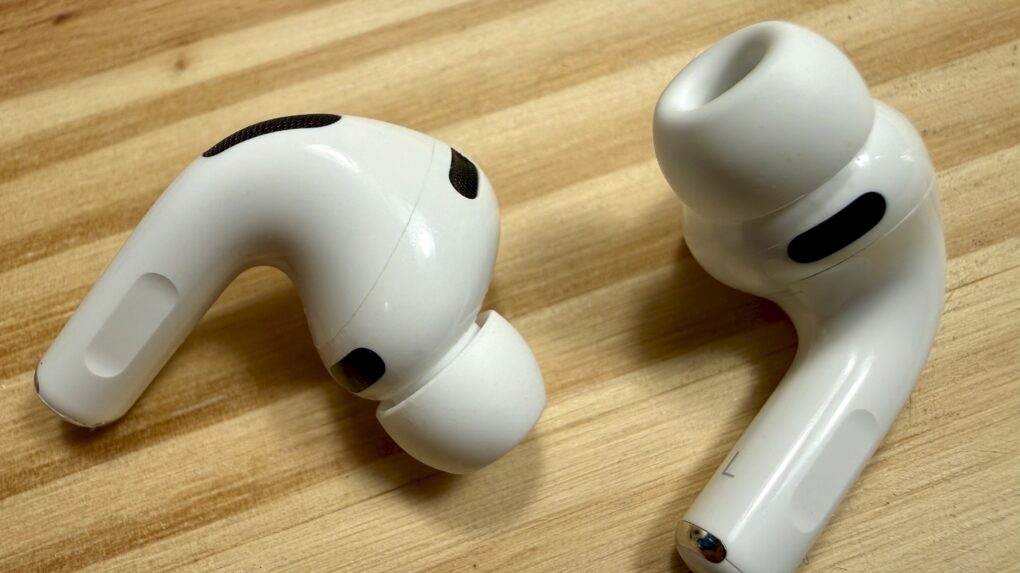
iPhone Mirroring on the Mac lets you control your phone using your computer — a handy convenience when your iPhone is in your pocket, purse or backpack. All your iPhone notifications can be mirrored onto your Mac as well, letting you triage them and take care of business without touching your phone and interrupting your workflow.

This feature also could come in handy if you shatter your iPhone screen. You can mirror an otherwise unusable iPhone to your Mac to make sure it’s backed up. You could even factory-reset your broken phone before sending it in for repair or replacement.

Here’s how iPhone mirroring works. Keep reading or watch our video.

Prepare for emergencies by setting up Medical ID on your iPhone

By

This may save your life.
It probably won’t, but it may.
Image: Helitak430/Wikimedia Commons/D. Griffin Jones/Cult of Mac

It’s very important to set up your iPhone Medical ID so it’s ready in case you find yourself in an emergency situation. First responders can check your iPhone to get critical information about any allergies or preexisting conditions that could make a huge difference in their ability to help you.

It might be unpleasant to think about, but providing this vital information could prove lifesaving if an accident leaves you unconscious.

If you haven’t yet done so you’ll be happy to know it only takes a couple of minutes to update your medical records in the Health app on your iPhone. Here’s how to do it.

Quickly hide notifications from that one noisy group chat

By

Keep It Quiet In There
The quickest way to hide those pesky notifications.
Image: D. Griffin Jones/Cult of Mac
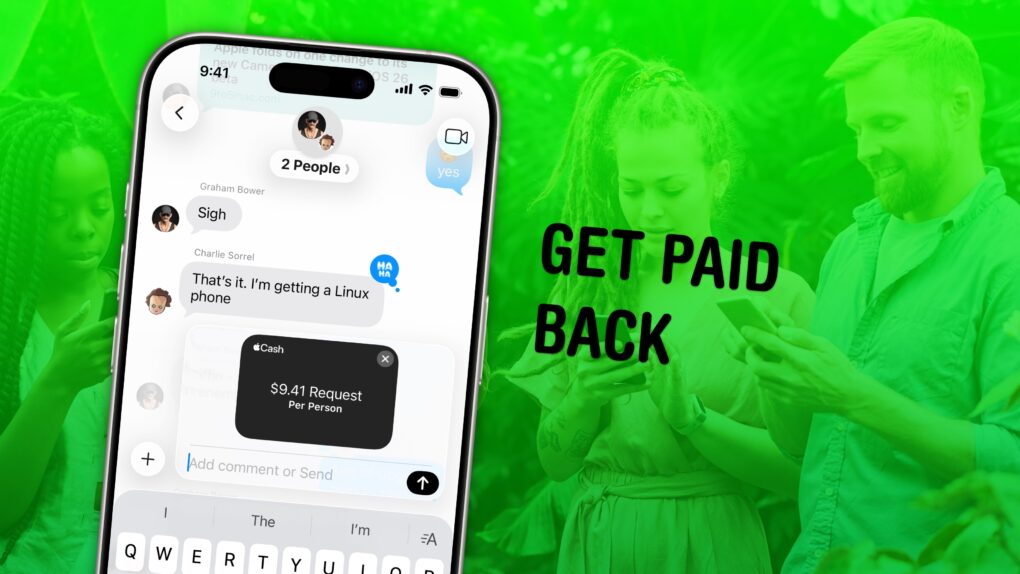
Is a group chat blowing up at an inopportune time and distracting the hell out of you? There’s an easy fix. You can hide alerts on your iPhone from a particularly noisy group chat in Messages. It’s like switching on Do Not Disturb — but for a single person or conversation. You can hide alerts permanently or temporarily.

With the Hide Alerts feature, you can silence alerts from a specific app in a similar manner, silencing it while letting all other notifications through. Better yet, you can hide alerts directly from your iPhone’s Lock Screen, which makes it easy to switch them on and off at a moment’s notice.

Watch our video or read on to see how.

RCS on iPhone: New ways to chat with Android friends

By

RCS Messaging on iPhone
This guide tells you everything you need to know about RCS.
Image: D. Griffin Jones/Cult of Mac

Rich Communication Services messaging is new to iPhone, and it makes chatting with Android users much more fun. RCS messaging makes features like read receipts, video and file attachments and named group chats — previously exclusive to iMessage (and some apps) — possible between iPhone and Android.

What RCS features can you take advantage of? Keep reading or watch our video guide.