Here are six useful things you should consider before you chuck it in a drawer. Image: D. Griffin Jones/Cult of Mac
There are a few useful things you can do with an old Apple Watch after you upgrade to a new one. You might think of the Apple Watch as being a disposable product — because who would wear two watches? But there are actually quite a few surprising use cases for having a daily Apple Watch and a secondary watch.
A Charlie Brown Thanksgiving is available for free later this month. Here’s how to watch it. Photo: Apple TV
With Thanksgiving coming in less than weeks, it’s time to watch the beloved Peanuts special that celebrates this holiday, A Charlie Brown Thanksgiving. While Apple TV subscribers can watch it anytime, Apple made the special free for anyone to stream all this weekend.
You do not need an Apple device to enjoy either. It’s easy on Windows and Android.
Your HomePod can now establish a persistent AirPlay connection to your Mac. Photo: Avinash Kumar/Pexels
The HomePod operating system occasionally needs updating, because the device is a lot more than a simple speaker — it’s a computer. Here’s how to make sure your Apple smart speaker has the software version released on Friday. You’ll want it even though the new HomePod Software version 27.2.1 is just bug fixes.
If you depend on automatic updates, it’s likely your smart speaker hasn’t yet installed the update. Here’s how to do so manually.
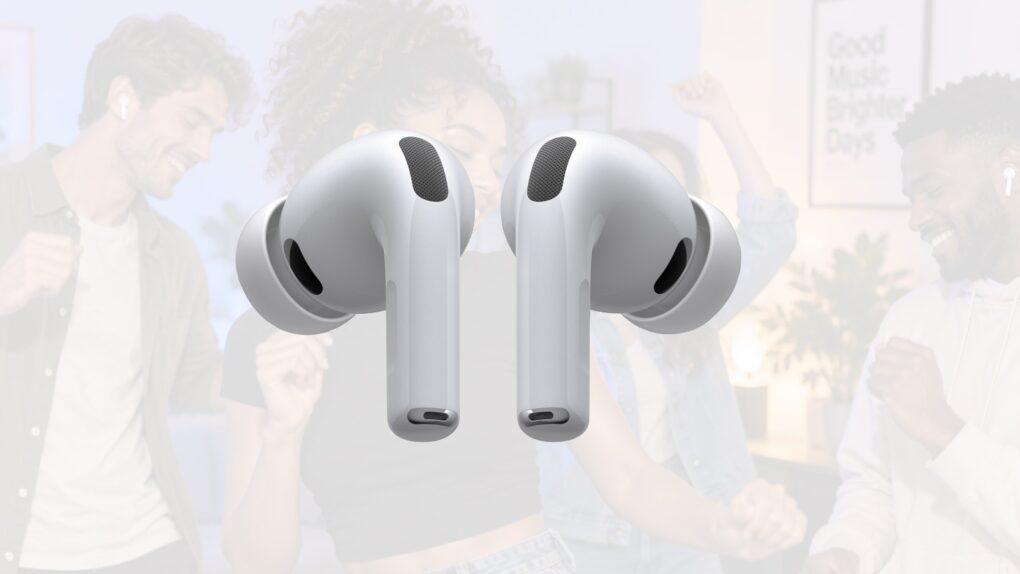
There’s new firmware for a range of recent AirPods models. Get it today. Photo: Apple/Cult of Mac
Apple just released new firmware for a wide range of AirPods models, bringing bug fixes to the company’s wireless earbuds and headphones. Firmware version 9B47 is available for AirPods Pro 3, AirPods Pro 2, AirPods 5, AirPods 4 and AirPods Max 2.
Last year, Apple finally explained exactly how to update your AirPods firmware. The process can happen automatically, in the background, but there is a way to speed things up. It’s a good idea to manually check that you’re running the latest version, which brings bug fixes and sometimes great new features.
Read on for more details, and to find all current AirPods firmware versions along with instructions for getting the AirPods update as quickly as possible.
You can easily deactivate Liquid Glass in iOS 27 and macOS Golden Gate if you really can’t tolerate it. Photo: Gemini/Cult of Mac
The Liquid Glass user interface brought dramatic change to the iPhone with iOS 26, so it’s no surprise that some people hate it. Apple paid attention, and if the translucent look is just not for you, you can tweak or turn off Liquid Glass in iOS 27. And it’s easy.
Plus, you will find the same settings in macOS Golden Gate 27 and iPadOS 27, so you can turn off Liquid Glass on all your Apple devices if you like. Here’s how.
Clarus the Dogcow is back! The beloved Macintosh mascot, famous for her distinctive “Moof!” sound, appears as an Easter egg in iOS 27.
It’s a fun nod to Apple’s early days, when the company had a much quirkier personality and even a tiny illustration created to help demonstrate printer settings could become a beloved part of Mac culture.
Four decades after her debut, Clarus is still finding ways to make Apple fans smile.
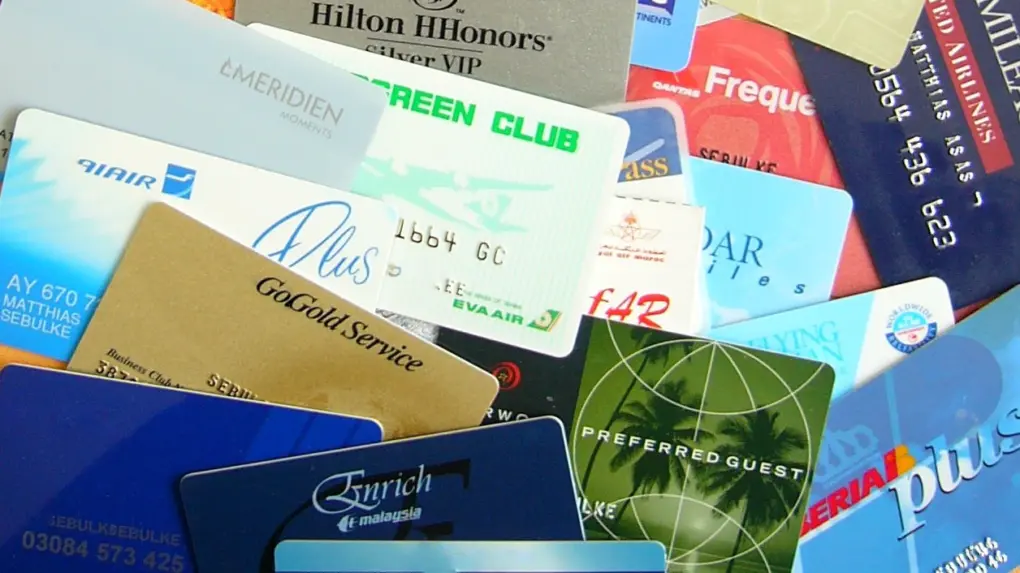
Get rid of the clutter of loyalty cards. Put them on your iPhone! Photo: Wikicommons
Got a gym membership card riding around in your wallet? Or maybe it’s a loyalty card from a store. Even a library card. You can now add these to the Wallet app on your iPhone and leave the plastic at home.
The new feature in iOS 27 means you no longer need to rely on a business or institution to offer an “Add to Apple Wallet” button. Instead, you can use your iPhone to scan an existing card or create a pass manually, then keep it alongside your other Wallet items.
Here’s how to turn almost any physical card or digital pass into a custom Apple Wallet pass.
Let's get that nice new Mac set up, shall we? Photo: Apple
It’s a great season to get a new Mac, since every model is a great buy. If you’re one of the lucky people to get one this year, here’s how to set up your Mac like a pro.
So rip open that box, tear off that plastic, and let’s get to the good stuff.
Here is Cult of Mac’s guide to setting up your new Mac the right way.
I certainly can’t stay up all night, but my Mac can. Image: D. Griffin Jones/Cult of Mac
You can stop your Mac from sleeping if you want it to stay on indefinitely. This might prove handy if you find it locking when you don’t want it to, like during a class or meeting. You don’t need to wiggle the mouse every few minutes to keep the screen on.
There are a few different ways to set this up. The simplest and most permanent way is to disable sleep entirely in your Mac’s System Settings. However, if you just want a quick way to disable sleep temporarily, there’s a simple command you can enter in the Terminal. Or, if you want something more user-friendly and customizable, there’s a free app you can download that you can toggle on and off from your Mac’s menu bar.
Here are the three best solutions if you want to stop your Mac from sleeping.
Unlocking your iPhone Duo can be faster. Try one of these three options. Photo: logrux/Cult of Mac
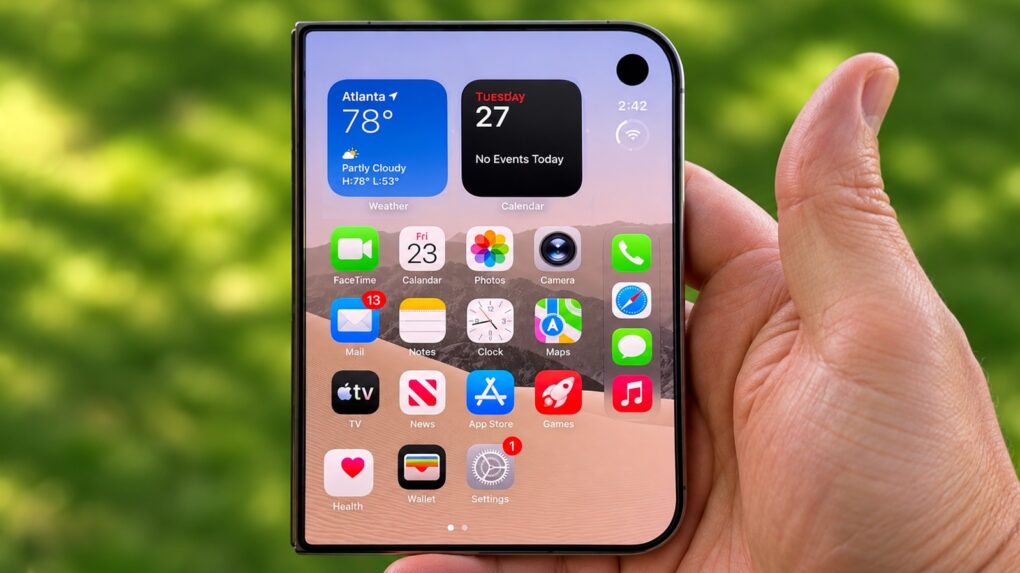
Apple’s iPhone Duo uses Touch ID instead of Face ID to unlock the device. The fingerprint scanner isn’t as convenient as having the handset simply recognize your face, but there are actually three ways to speed up the process.
One involves cutting out a step in signing in with Touch ID, while another lets you skip Touch ID entirely. The third is… odd.
Removing your personal info from data brokers is more important than ever. Photo: cottonbro/Pexels
Knowing how to opt out of data brokers is basic digital hygiene. Your name, home address, and phone number could be up for sale right now.
California has just handed its residents a free shortcut, while everyone else still has some solid options. Here’s what works, what it costs, and why you’ll need to keep at it.
At last! A HomePod can now be the default speaker for your Mac, with a persistent connection. Photo: shyam mishra/Pexels
Apple just added a long-overdue feature to the HomePod: You can finally set it to be the default speaker for your Mac.
Previously, you could send audio from a Mac to the smart speaker over AirPlay, but the connection was temporary. No longer — the HomePod can be the computer’s default speaker with a persistent connection.
Now that you've got the hottest iPhone in the world in hand, what do you do first? Photo: Apple
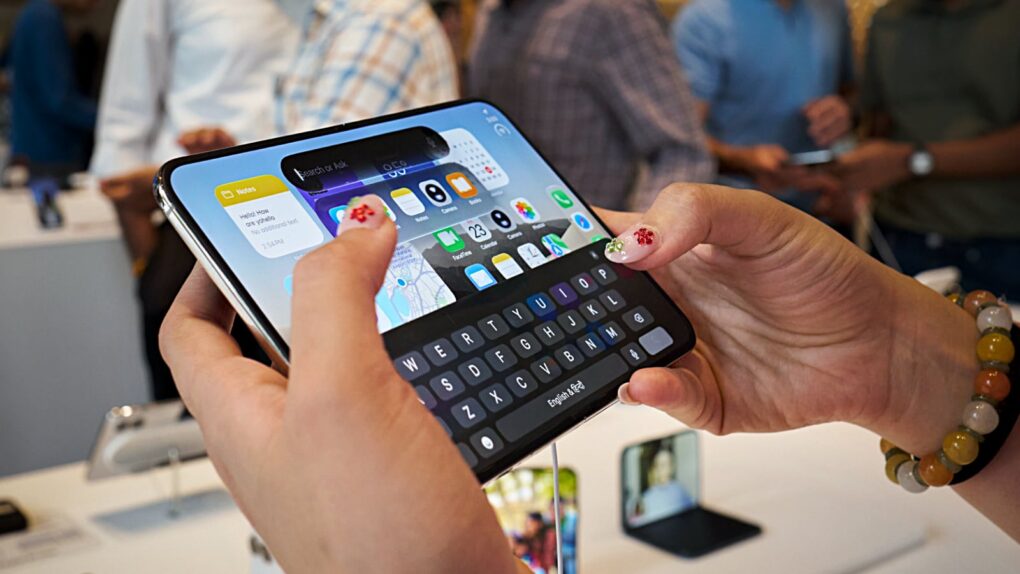
The iPhone Duo is special in many ways. It’s Apple’s first foldable iPhone, and its brand-new form factor means the experience of using it will be unlike previous iPhones.
Before you spend the day folding and unfolding your new iPhone Duo and admiring its design, here are seven things worth doing first.
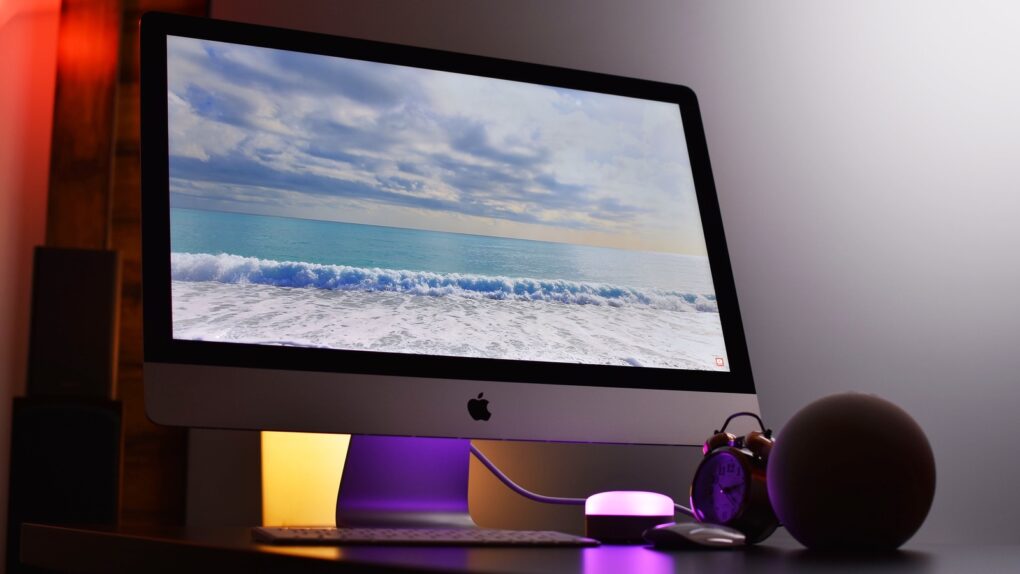
Screen savers fell out of fashion a long time ago, but Apple’s Aerials screen savers look so beautiful, they just might make you reconsider. In fact, with all the stunning visuals, these might just be the best Mac screen savers around.
The Aerials screen savers started on the Apple TV, showing gorgeous helicopter photography of the world’s greatest natural landscapes, underwater sights and cityscapes — even shots from space. Now, if you have a desktop display set up somewhere prominently in your house, you can get the same beautiful vistas on your computer with the Aerials screen savers for Mac.
Here’s where to find these beautiful Mac screen savers, plus some setup tips that will really help them shine.
It's the Great Pumpkin, Charlie Brown is always streaming on the Apple TV service. Photo: Apple
Families with a tradition of watching It’s the Great Pumpkin, Charlie Brown can enjoy the classic Peanuts Halloween special on Apple TV for free this weekend. And you can watch it online, not only with an Apple TV set-top box, Mac, iPad or iPhone.
Plus, Apple TV also announced when the Peanuts Thanksgiving and Christmas specials will stream for free in 2026.
Incogni's free exposure scanner can reveal what websites know about you — and the results can be shocking. Photo: Sora Shimazaki/Pexels CC
Your name, home address and phone number are likely sitting on websites you’ve never heard of. Behind those listings are data brokers that collect and sell your personal information — to marketers, scammers and anyone else willing to pay.
Incogni’s free exposure scanner searches hundreds of these sites and reveals what personal information they publicly list about you. And it does it in less than a minute, with no account or credit card required.
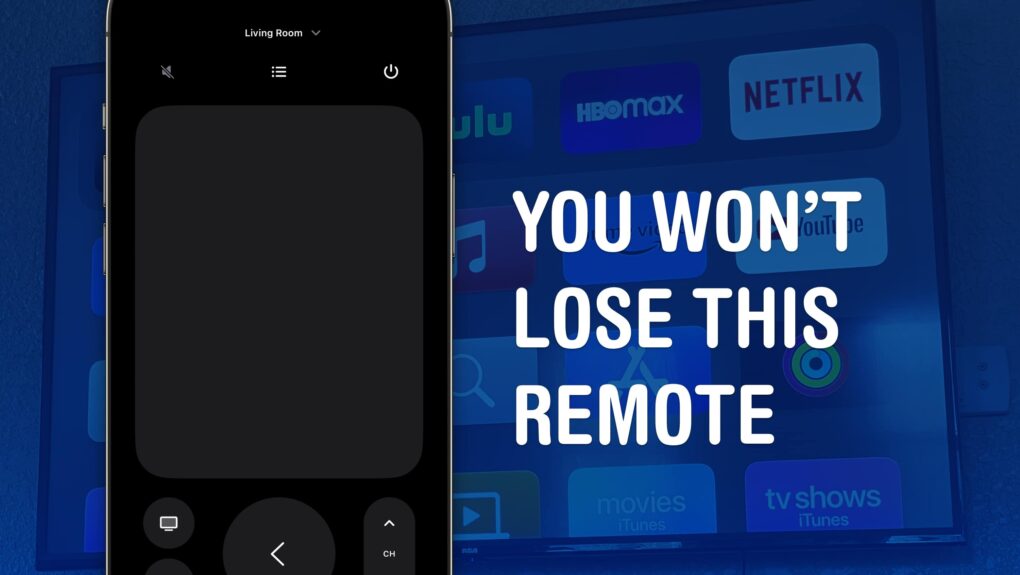
The Apple TV remote is easy to lose, but you have other options. Image: D. Griffin Jones/Cult of Mac
You can use your iPhone, iPad or even your Apple Watch as a remote for your Apple TV. It’s a convenient feature when you’ve lost the remote in the couch cushions.
And even if your remote hasn’t gone missing entirely, sometimes it’s sitting on the table way over there and you don’t want to interrupt a show by asking for someone to pass it to you. Or maybe someone is intentionally hogging the remote, and you want to pause the video on the Apple TV yourself. Either way, it’s really easy to do from an iPhone or an Apple Watch.
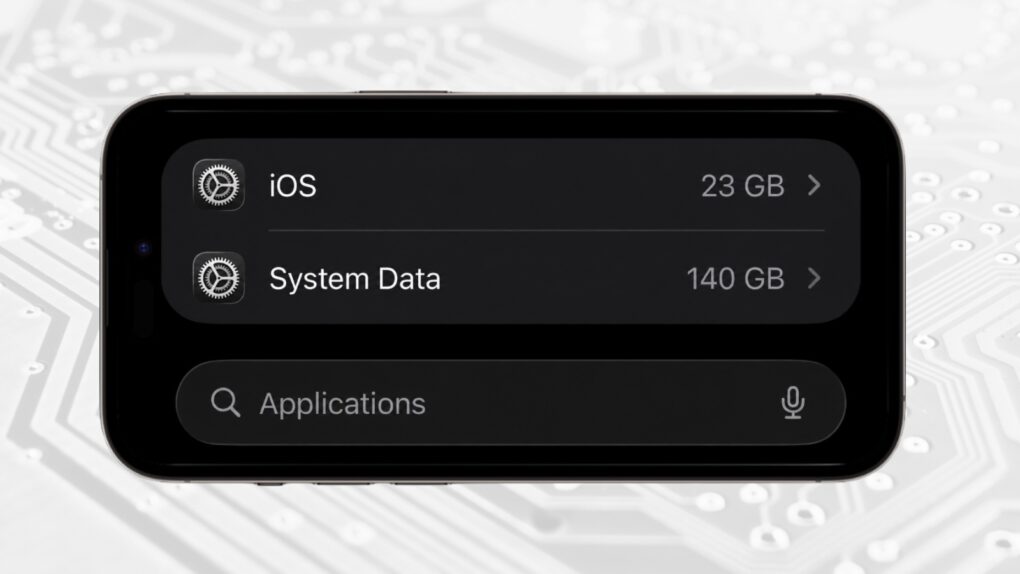
Your iPhone should not have 140GB of System Data. Here's the fix. Image: Ed Hardy/Cult of Mac
If your iPhone is running short of space, the culprit might be a bug in iOS that causes System Data to grow out of control.
It can be a serious problem. Gigabytes of storage can be choked with useless data, preventing you from using it.
Here’s what to do if your iPhone is running out of space because of an enormous iOS System Data collection. And it doesn’t require deleting your precious photos and apps.
Your Apple Watch is right there, ready to help you communicate in real time. Image: D. Griffin Jones/Cult of Mac
The Apple Watch Translate app can help you quickly speak in a different language while you’re abroad, right from your wrist. Translate between 20 different languages by speaking out loud, play translations out of your Apple Watch speaker and build a list of favorite phrases you can play instantly.
Reclaiming your online privacy is perfectly doable. Image: Apple/Cult of Mac
Somewhere out there, a data broker has your name, address and phone number for sale. If you want to remove your personal information from the internet, the process is easier than it sounds.
Data breaches hit a new high this year, and hundreds of broker sites now buy and sell your details without asking. The good news: Reclaiming your privacy doesn’t take a law degree, just a mix of manual steps and automated tools.
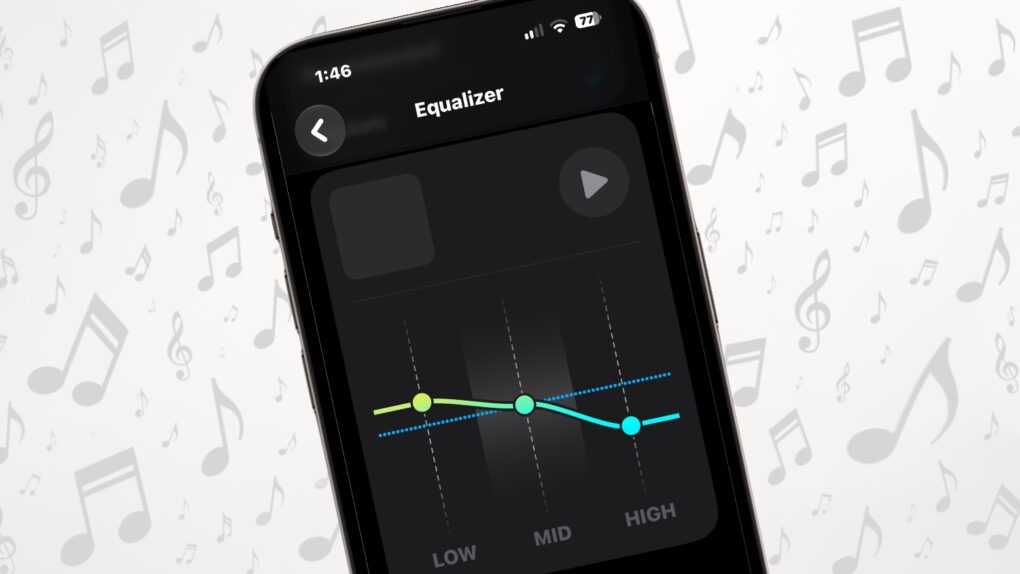
AirPods have an equalizer you can adjust! Finally! Image: Ed Hardy/Cult of Mac
Apple finally gave AirPods something we know you all wanted for years: a built-in equalizer that lets you change how your music sounds.
And unlike the EQ setting buried in Apple Music, this one is tied to your AirPods, not a specific application. That means your custom sound profile isn’t limited to music played through that singular app.
But to be clear: The new Custom EQ feature in iOS 27 isn’t the most sophisticated equalizer you’ll find for a set of headphones. It gives you just three controls — Low, Mid and High. But that’s enough to make a noticeable difference if you think your AirPods sound too bass-heavy, lack vocal clarity or need a little more treble.
Here’s how to set it up … and why you might want to.
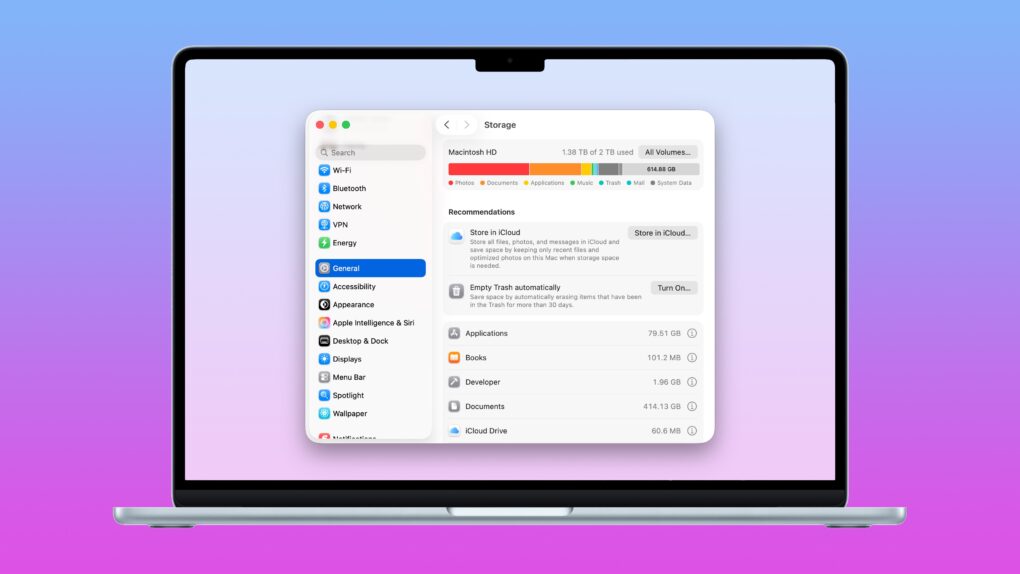
What to do when you run out of space on your Mac. Image: D. Griffin Jones/Cult of Mac
Death, taxes and running out of storage on your Mac — few things in life are as certain. If you’re experiencing the latter, before you go around deleting files, you should take stock of what’s filling up your computer. There are three easy ways to clear disk space on your Mac.
The Mac’s System Settings offers a built-in storage manager that lets you see which categories of files are filling up your drive. It makes clearing out useless junk fast and easy.
A pair of third-party apps can help out, too. Hyperspace removes duplicate data across your Mac’s hard drive, cleaning up your file system without deleting anything. And CleanMyMac can find the system files, junk and other cruft that can build up over time in places you don’t even think to check.
Whatever the reason you need more storage, read on to learn how to tidy up your Mac.
Try these new Mac features after you upgrade to Golden Gate. Photo: Apple/Rajesh Pandey/Cult of Mac
After upgrading your Mac to macOS 27 Golden Gate, you might easily overlook some of the new software’s useful additions, like recording your screen with audio, Liquid Glass customization and more.
While the new Mac software looks mostly the same as macOS 26 Tahoe, it adds plenty of new features and improvements that make it a worthy upgrade. Here are eight things you should do immediately after installing macOS Golden Gate.
Keep on top of things with Safari's new Notify Me feature. Image: Cult of Mac
If you want to monitor a website for changes, you can do it for free with Apple’s Safari web browser. The new Notify Me feature in iOS 27 and macOS 27 makes it easy to watch a webpage for updates — and receive an alert if and when the content is altered.
Let’s say you want to make sure you never miss an update to your favorite band’s tour schedule. Safari’s new capability lets you watch the group’s website so you don’t need to check it yourself every day. Same goes for a city council website you’re monitoring, a local group you want to keep in touch with, etc. Or you could use it to track price drops on a product you want to buy.
Don’t rely on other people to send you an email update. Here’s how to use Safari’s Notify Me feature to monitor the websites that matter to you.
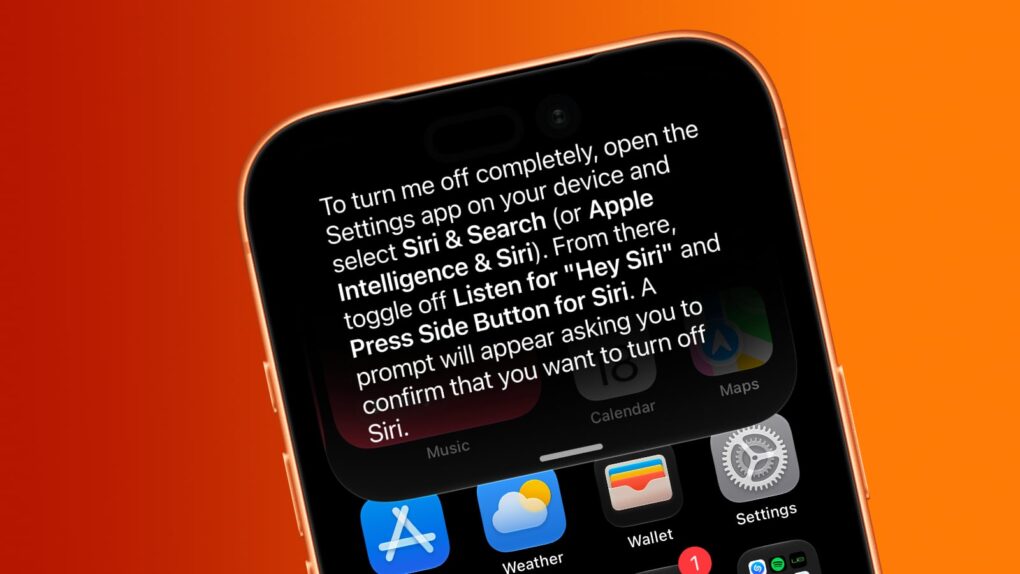
Want Siri AI gone from your iPhone? And other Apple Intelligence features, too? We can help. Image: Cult of Mac
Although Apple is thrilled about the new Siri AI integrated into iOS 27, maybe artificial intelligence isn’t your thing. Fortunately, you can opt out of Apple’s new voice assistant.
iOS 27 lets you turn Siri off completely. Alternatively, you can switch from the new AI-powered Siri back to Siri Classic.
And if you absolutely do not want artificial intelligence in your iPhone, you can disable it … though that process is far more complex than is ideal.