Got a gym membership card riding around in your wallet? Or maybe it’s a loyalty card from a store. Even a library card. You can now add these to the Wallet app on your iPhone and leave the plastic at home.
The new feature in iOS 27 means you no longer have to rely on a business to offer an “Add to Apple Wallet” button. Instead, you can use your iPhone to scan an existing card or create a pass manually, then keep it alongside your other Wallet items.
Here’s how to turn almost any physical card or digital pass into a custom Apple Wallet pass.
Replace your old wallet with the convenient Wallet app
Apple has spent years working to turn the iPhone into a digital replacement for the physical wallet. Apple Pay has largely eliminated the need to carry credit and debit cards, while businesses can offer digital loyalty cards, membership passes and tickets that live in Apple Wallet.
But that still leaves plenty of cards from organizations that don’t provide official digital versions. With iOS 27, Apple takes another step toward a wallet-free future by letting an iPhone create your own digital passes from barcodes and QR codes, bringing even more of the cards you carry into one convenient place.
It’s easy to take advantage of this new feature. Here’s how.
What kinds of cards can you add to Apple Wallet?
Before getting started, it’s important to know what kind of cards you can and can’t add to the Wallet app. It works with cards and passes that have a scannable barcode or QR code. It won’t work for cards that require a magnetic strip.
The genesis of this “How To” is my library card. I’ve carried it for decades, and it looks like it’s been through a war. I’d like to stop needing to carry it — and eventually my whole wallet — and because all the physical card really does is provide a bar code the librarians can scan, it’s perfect for this new feature.
How to scan a card and add it to Apple Wallet
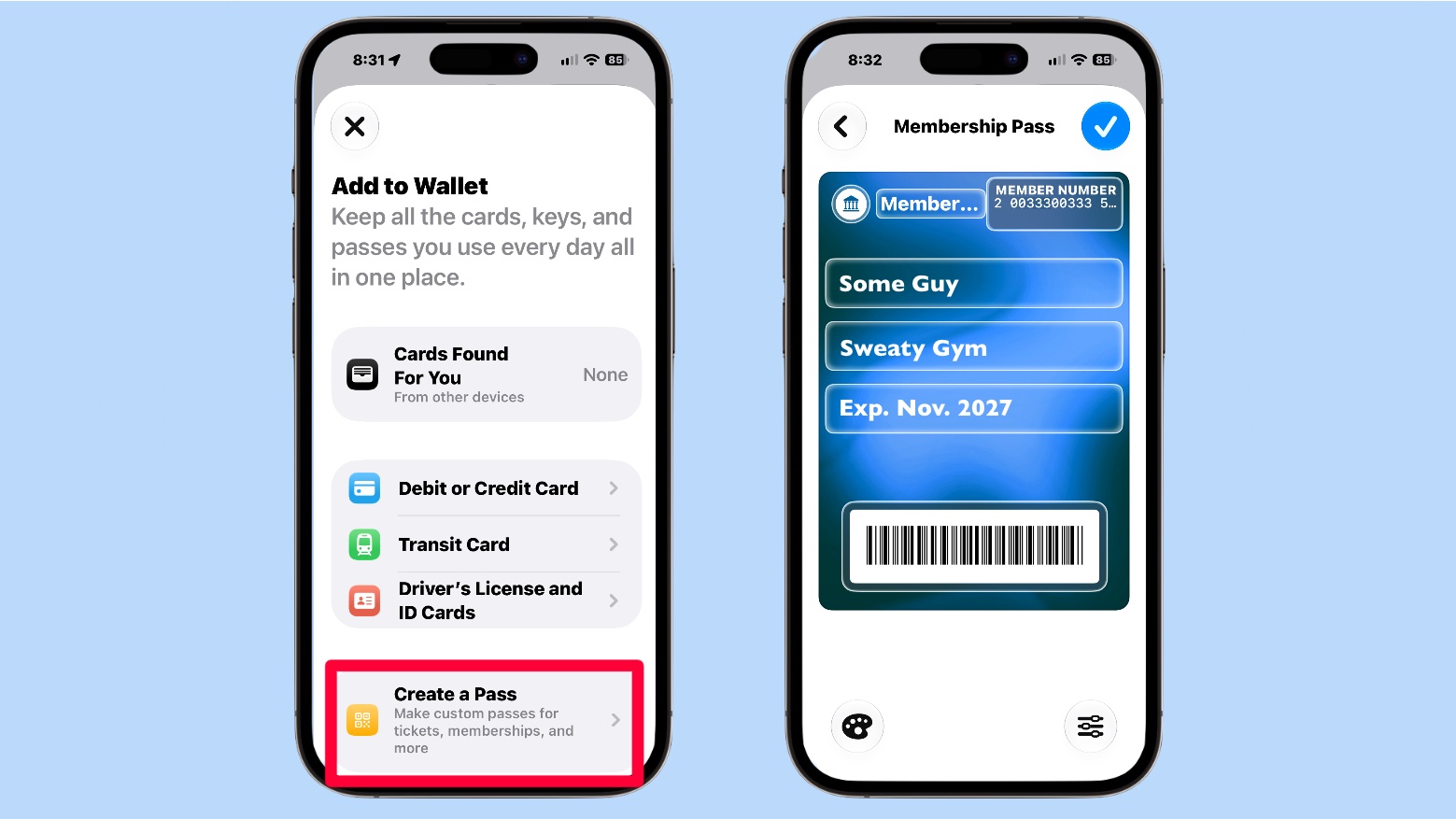
Screenshots: Ed Hardy/Cult of Mac
The easiest way to create a custom pass is to let Apple’s Visual Intelligence feature scan an existing card. You’ll need a compatible iPhone with Apple Intelligence enabled to use this method, though, not just iOS 27.
- Open the Wallet app on your iPhone.
- Tap the Add Card (+) button at the top of the screen.
- Select Create a Pass.
- Tap Continue.
- Use the camera to photograph your physical card, making sure the barcode or QR code is clearly visible. (You can also select an existing photo or screenshot containing the code.)
- Let your iPhone analyze the image and create a pass using the information it recognizes.
- Review the proposed pass and correct any details that weren’t recognized properly.
- Tap Add to save the pass to Apple Wallet.
The new pass should now appear in Wallet alongside your other cards and tickets.
You can open it whenever you need to present its barcode or QR code at a checkout counter, gym entrance or other location that accepts it.
How to manually create a custom Wallet pass
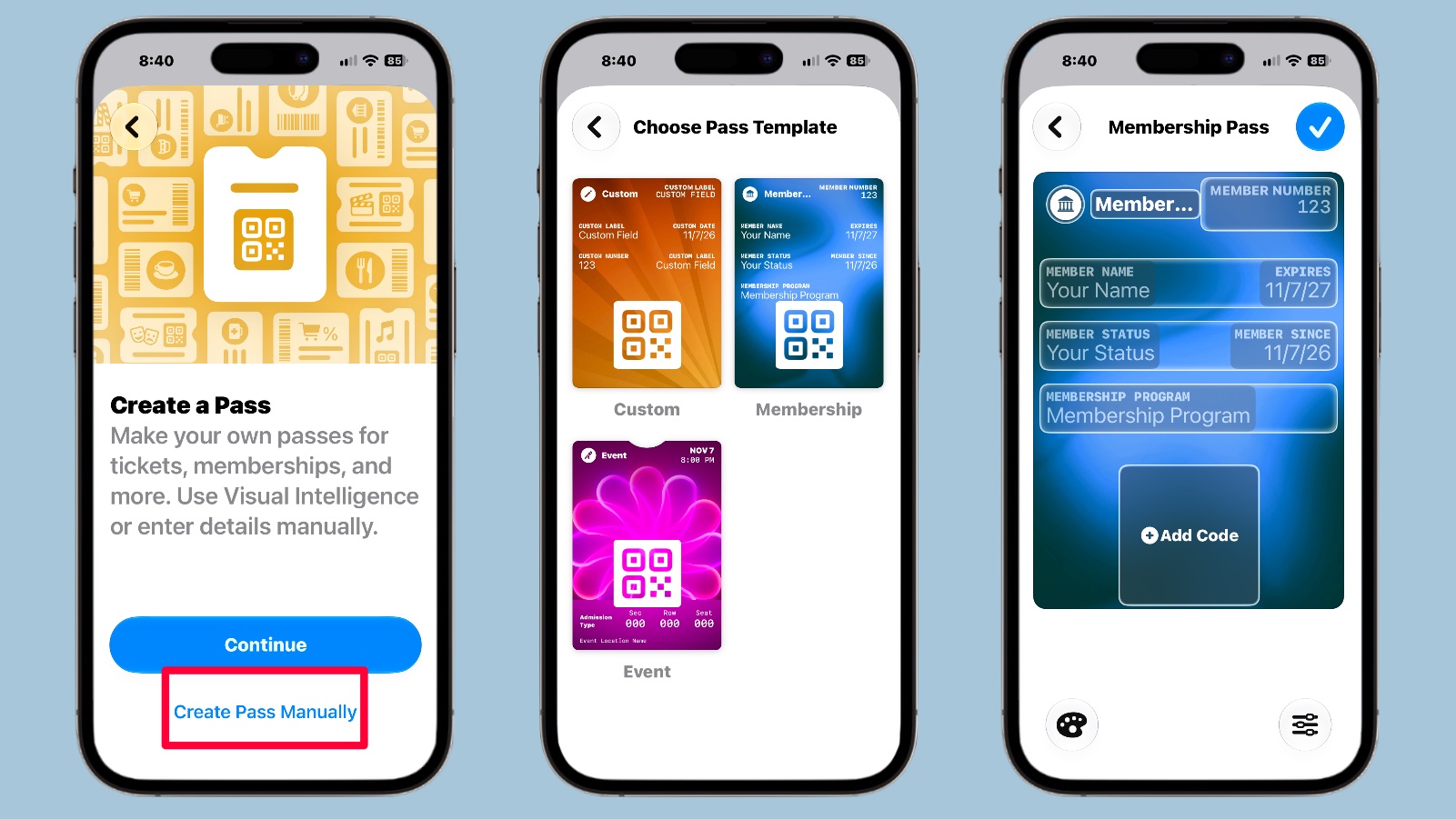
Screenshots: Ed Hardy/Cult of Mac
My library card didn’t come through that scanning process very well — Not because it’s too complex but because it’s too simple. But Apple’s developers thought of that, and Apple Wallet can create a pass from scratch, and then easily add the barcode to it.
- Open the Wallet app on your iPhone.
- Tap the Add Card (+) button and then choose Create a Pass.
- Select Create Pass Manually.
- Choose a template from the options: Standard, Membership or Event.
- Enter the relevant information, including the card’s name, membership number, expiration date or other details.
- Add the barcode or QR code by using the camera to scan it when prompted.
- Customize the pass’s appearance, including its background color and available fields.
- Tap Done to save your changes.
This worked great at creating a library card for me. And I can see it being useful for store loyalty cards or museum memberships that don’t have an official Wallet integration.
On Apple Watch, too
A bonus feature: cards created in Apple Wallet on your iPhone also appear automatically in the Wallet app on your paired Apple Watch.
That makes them even more convenient to use, as you can pull up a loyalty card, membership pass or ticket right on your wrist without taking your iPhone out of your pocket. Just open Wallet on your Apple Watch, find the custom pass and display its barcode or QR code for scanning.
No more wallets!
I am ready for the day I don’t need to carry around a physical wallet. And that happy day just moved a bit closer, thanks to this feature.

Ed Hardy has been writing full-time about tech for 26 years, and using it for much longer than that. His intro to Apple was a Macintosh SE/30 (which he still has), but now he uses a 13-inch iPad Pro as his primary computer.
That’s because he’s a “tablet first” type of guy. Rather than use a Macbook, he connects a keyboard case to the iPad. And instead of a desktop Mac, he connects his tablet to a 27-inch display and full-size keyboard. (So don’t try to tell him that everyone has to use a Mac to be productive.)
Before coming to Cult of Mac, Ed wrote for NotebookReview, TabletPCReview and Brighthand, as well as other sites.