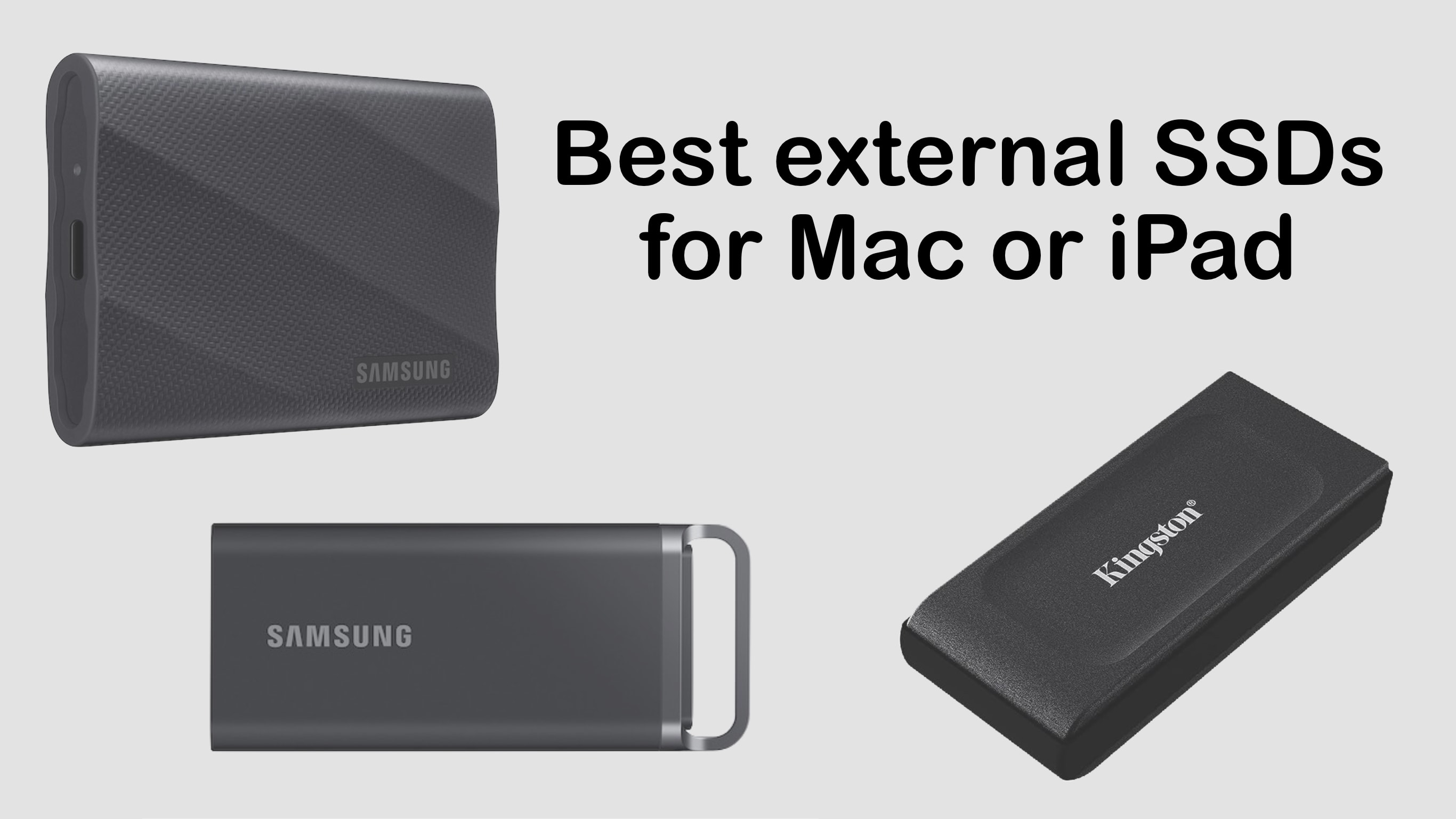
The best external SSD options add terabytes of storage, and are designed for portability. Photo: Ed Hardy/Cult of Mac
Adding high-speed plug-in storage capacity to your computer is so easy it’s something every Mac user should consider. Here are some of the best consumer-oriented external SSDs that are designed for portability. Even better: many of these are on sale.
We did hands-in testing for nearly all of these — look for links to our reviews.
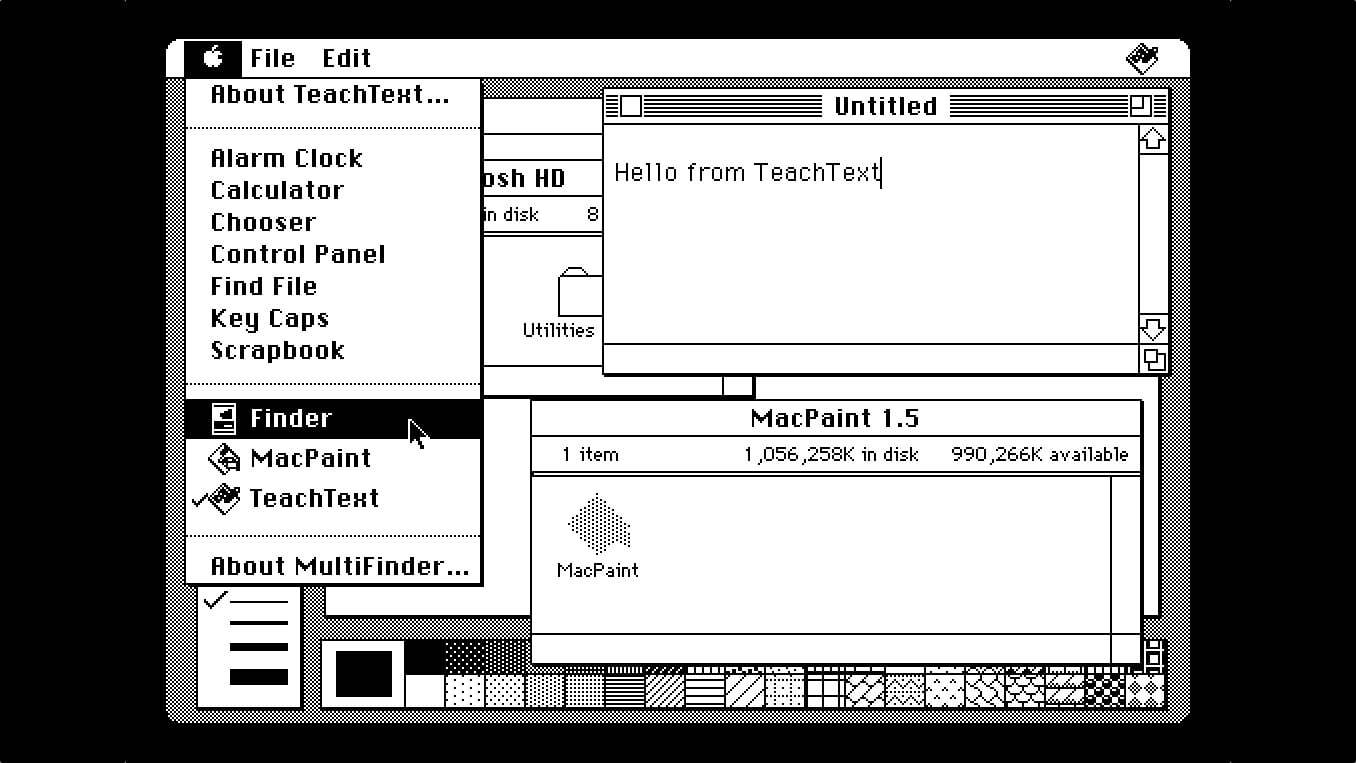
MultiFinder let you switch between running applications from the Apple menu — you could even see two apps side by side on your desktop! Screenshot: D. Griffin Jones/Cult of Mac
August 11, 1987: The MultiFinder app brings the biggest software update to the Mac since the computer’s launch. Baked into Macintosh System Software 5, MultiFinder allows multitasking with two apps on screen for the first time.
While MultiFinder brings an undeniable boost to the Macintosh’s technical capabilities, it is built on a shaky foundation that soon begins to show its age.
And just like that, a catchy slogan turns into an earworm. Image: Apple
August 8, 1997: At Macworld Expo, Apple co-founder Steve Jobs introduces the world to the company’s new slogan, “Think different.” The catchy marketing reassures fans that Apple is exiting its mid-1990s dark age and once again making products customers will love.
What can you use it for? Quite a lot, actually. Image: D. Griffin Jones/Cult of Mac
There are lots of things you can do with an old Mac. No one will fault you for upgrading to Apple’s latest and greatest, but your old Mac can still find a job to do, too.
It used to be that when your old iMac kicked the can, you hollowed it out and made an aquarium or a desk lamp. These days, Macs have a much longer shelf life. The right model can give you years upon years of loyal service. (Not to mention, modern Macs are too thin to house a fish.)
Here are the six best things you can do with an old Mac. Watch our latest video or keep reading below.
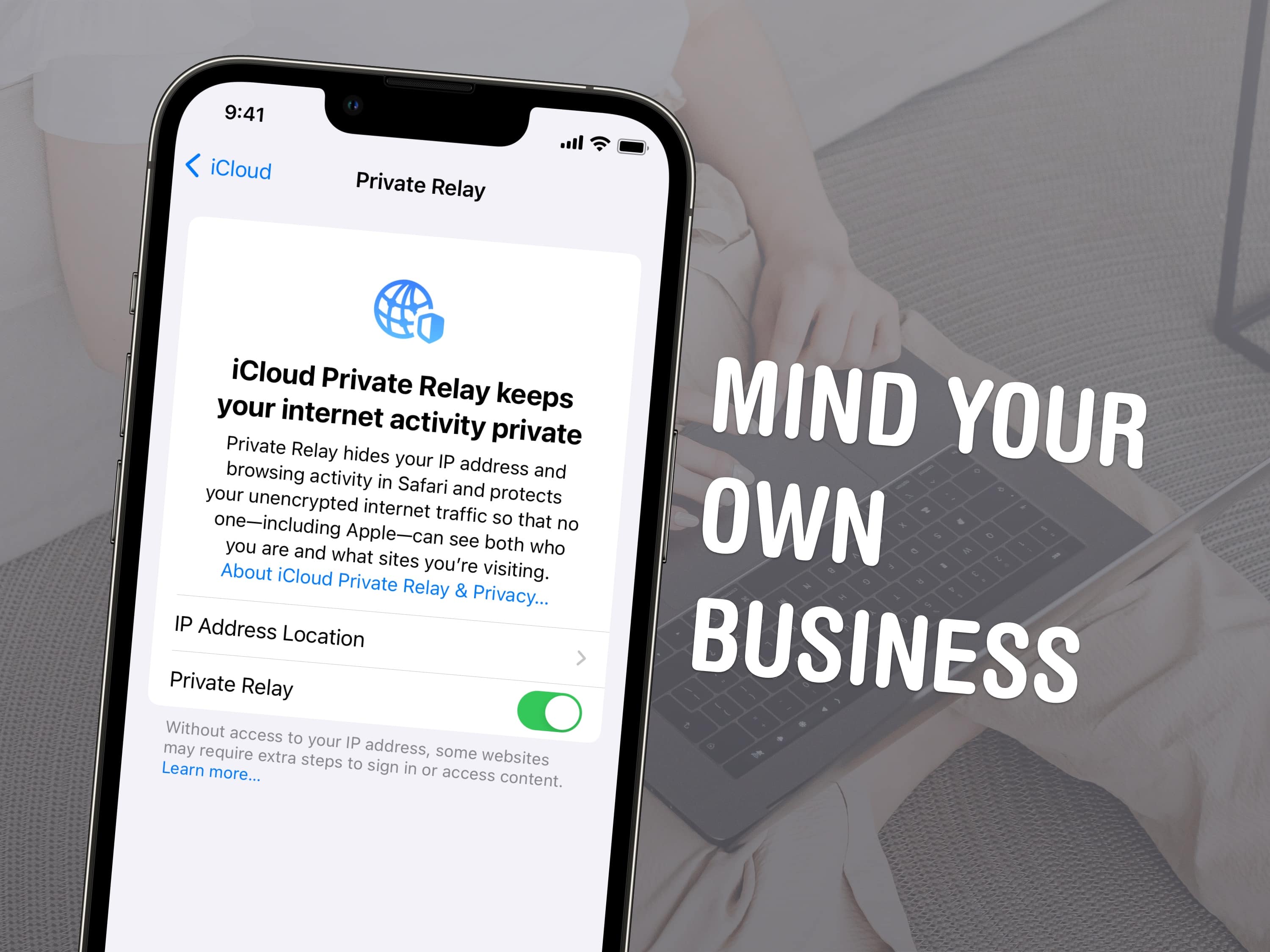
Keep your browsing private. Image: D. Griffin Jones/Cult of Mac
Apple’s Safari web browser packs loads of privacy features that will keep your online activity hidden from ad networks, user tracking and data farms. But are you sure you have everything turned on? Some of Apple’s most important privacy-protecting features don’t come enabled by default.
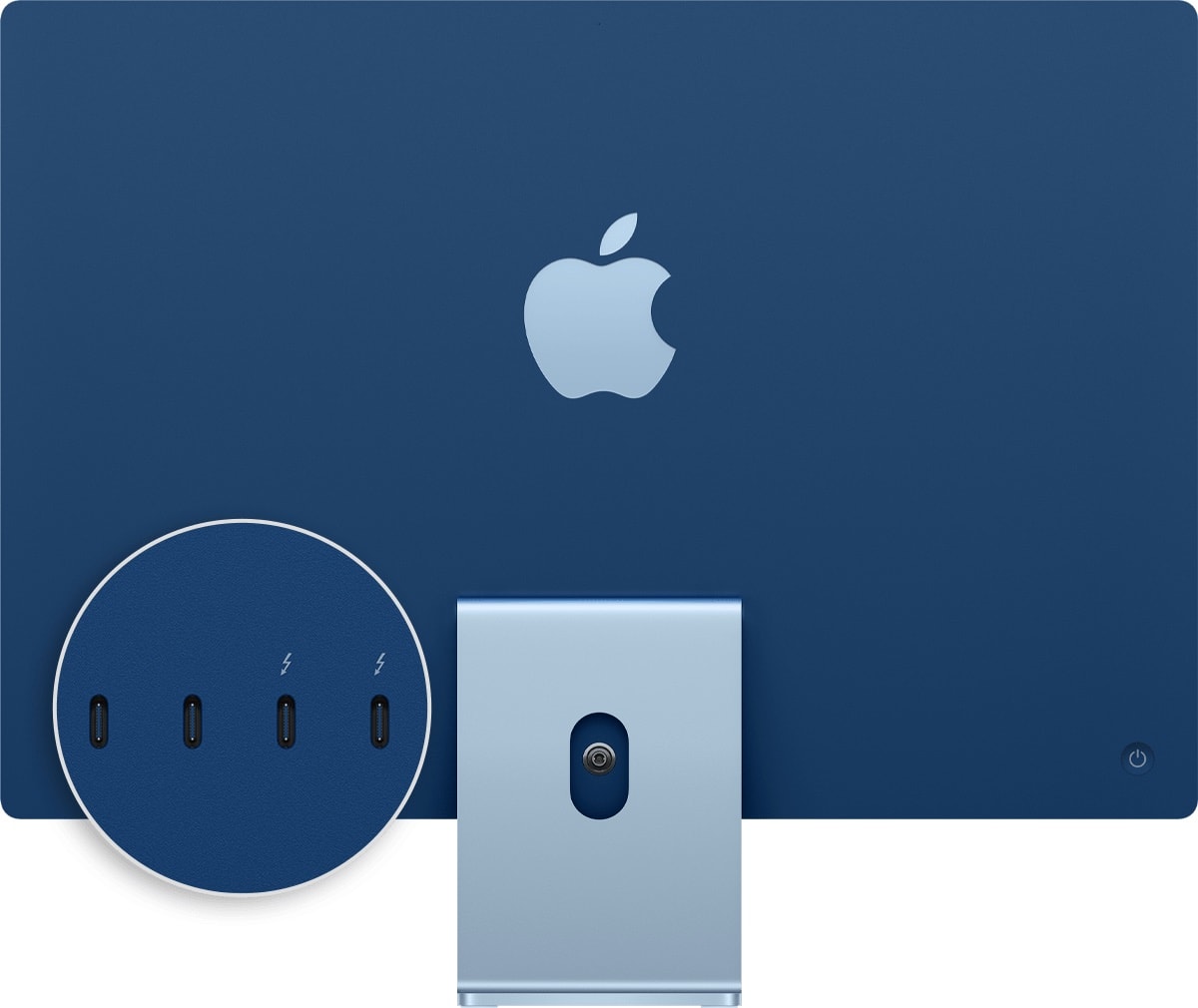
This 2021 iMac shows two of its four rear ports have Thunderbolt capability. Note the lightning-bolt symbol. Photo: Apple
Apple sometimes mixes up connector types among devices, and that might confuse people even more over the differences between USB-C and Thunderbolt. The connectors look alike, work similarly and accept the same cables. Yet they’re not the same.
Let’s look at the key differences, how the ascendant Thunderbolt 5 improves on Thunderbolt 4, and which kind of port and cable best suits your tasks like charging and data transfer.
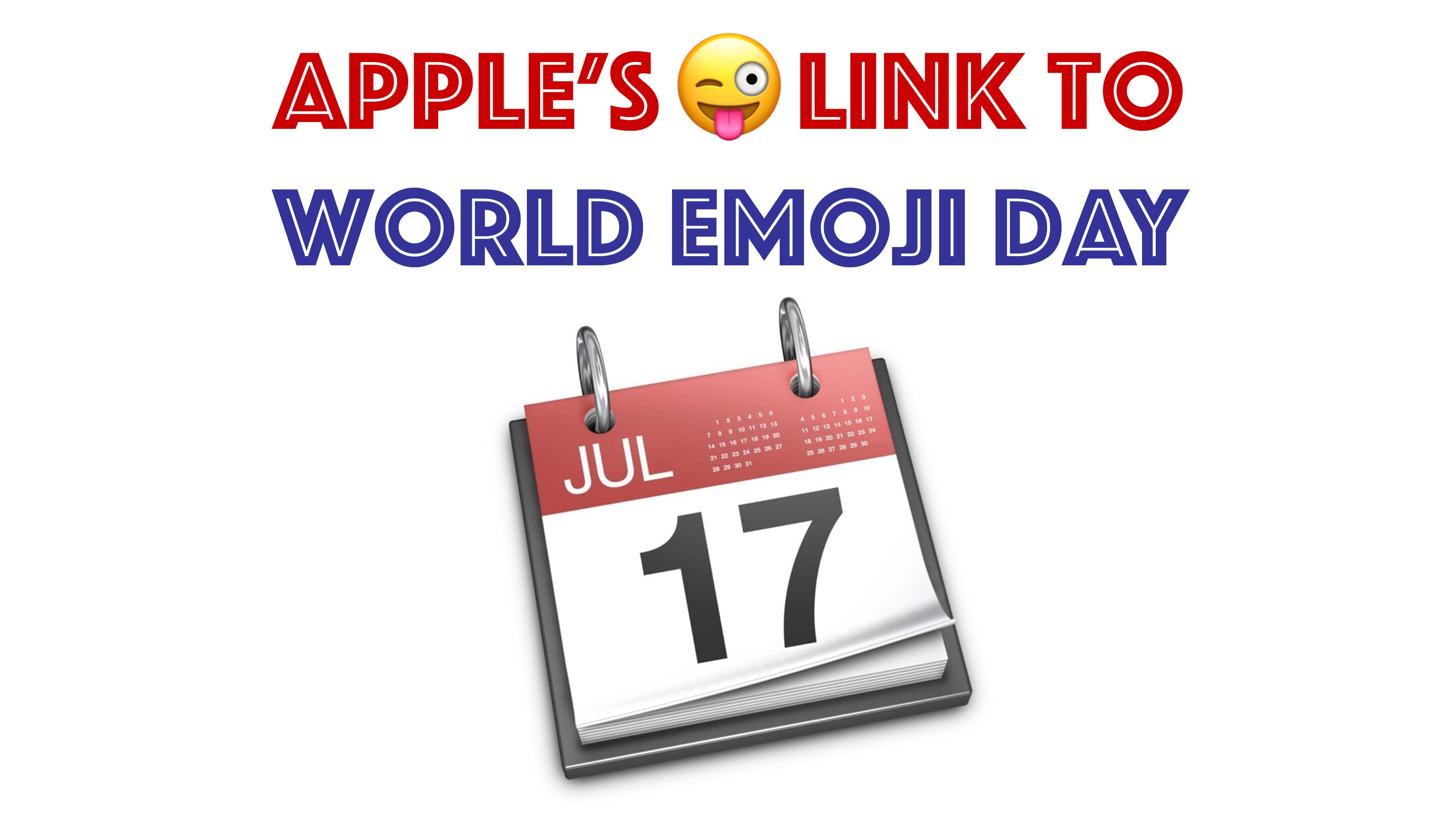
The roots of World Emoji Day go deep into Apple history. Image: Cult of Mac
World Emoji Day happens on July 17 every year — but why? The holiday’s story takes a circuitous path through Apple history, tying together Mac OS X Jaguar, calendar software, Japanese cellphone carriers, Macworld Expo and Emojipedia creator Jeremy Burge.
No more futzing around, looking up a password or email to copy and paste. Image: D. Griffin Jones/Cult of Mac
AutoFill on iPhone is supposed to help you out when you’re entering a password or typing in your email. When it doesn’t work, it can be incredibly frustrating — especially if you don’t know some complicated password offhand. The phone’s supposed to remember it so you don’t have to!
Sure, you could switch over to the Passwords app — or you can instantly autofill passwords right from the text box. AutoFill works anywhere you can input text, including third-party browsers.
In addition to passwords, you can autofill credit cards, contacts and more. You can even autofill scanned text from documents, signs and more using the camera.
With a little know-how, you can photograph fireworks with an iPhone and achieve great results. But just pointing and shooting with no prior planning can lead to blurry, unexciting fireworks photos.
For instance, does this sound familiar? Last year’s fireworks made you say ooh and ahh, but when you look at your iPhone photos from that night, the sound you make is more of an ugh.
Don’t blame Siri or some engineer in Cupertino for previous photo fails. The iPhone camera, as mighty as it is, can’t do all the thinking for you — especially in challenging lighting conditions like a fireworks display. But with a little thought and preparation, you can make this holiday worth reliving on your iPhone camera roll.
Below are some simple tips to make your iPhone fireworks photos sizzle.
There are so many options — and several good ones. Image: D. Griffin Jones/Cult of Mac
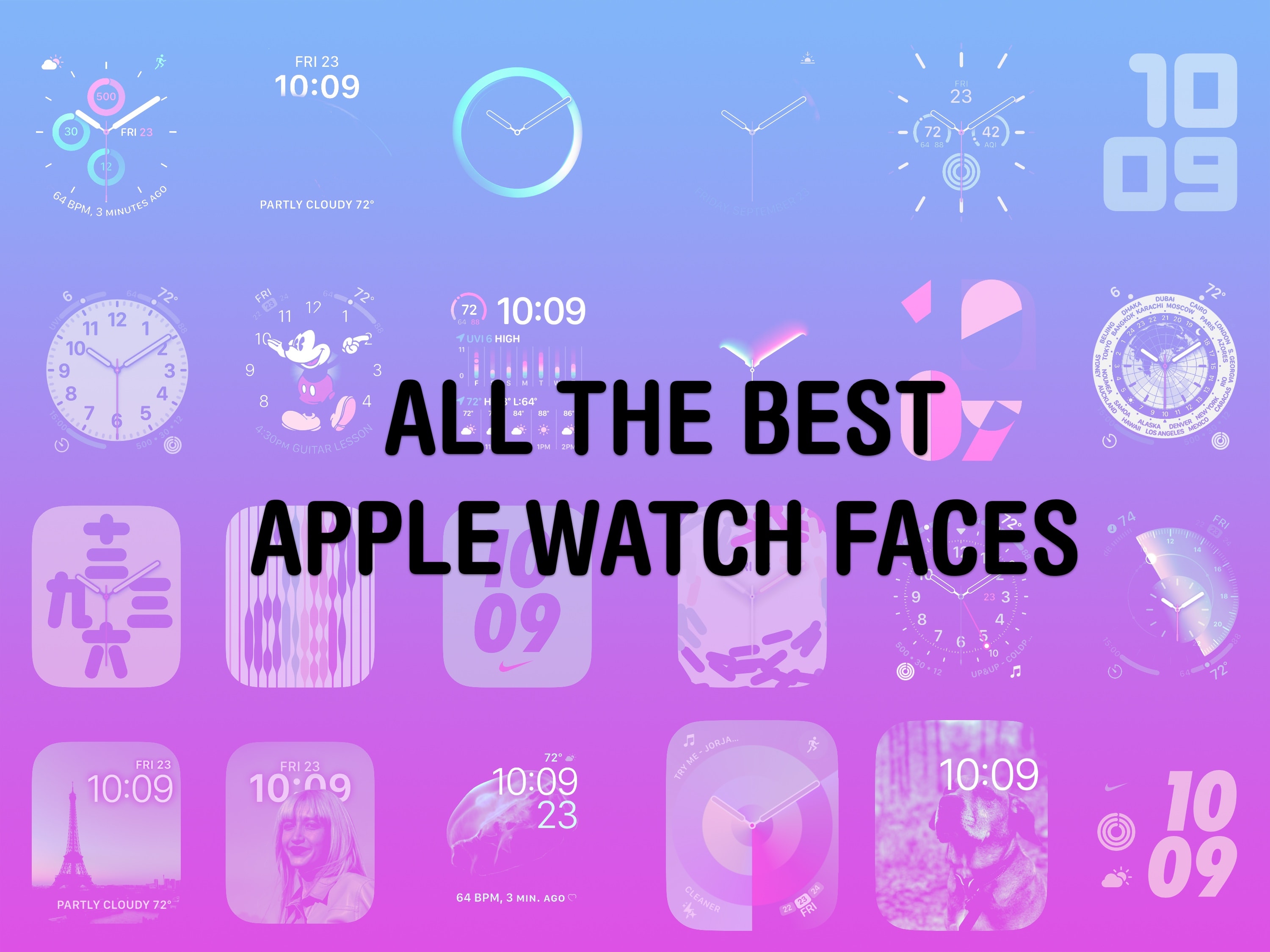
Out of the many dozens of options, which is the coolest Apple Watch face? Every time I see someone wearing an Apple Watch, I try to scope out which watch face they use. Nine times out of 10, they use either the Modular face or the Photo face (with a Sport band).
This is despite the Apple Watch offering dozens of watch faces, allowing for all kinds of customizability.
If you want to spice up and individualize your Apple Watch, here are the best and coolest faces. And in our video, I rank every watch face on a tier list.
July 1, 2012: Apple shuts down its MobileMe web service. Launched in 2008, the subscription-based suite of online services and software offered features like push email, data storage, Find My iPhone, a photo gallery, chat facilities and an online calendar.
After letting the service limp along for four years, Apple finally decides to pull the plug, pushing users to switch to iCloud. The company gives MobileMe users until the end of July to remove their data from the service.
Learn how to get around the keyboard and edit text faster. Photo: Cult of Mac Deals
You want to get faster at typing? Sure, you can hold down the Backspace key or mash it really fast. But there’s a better and more precise way to backspace and delete text on the Mac, using the Option (⌥) and Command (⌘) keys. These Mac typing shortcuts can make editing text lightning-fast and seamless. Here’s how you can be a keyboard wizard.
All of these work on the iPad, too, if you have a physical keyboard connected.
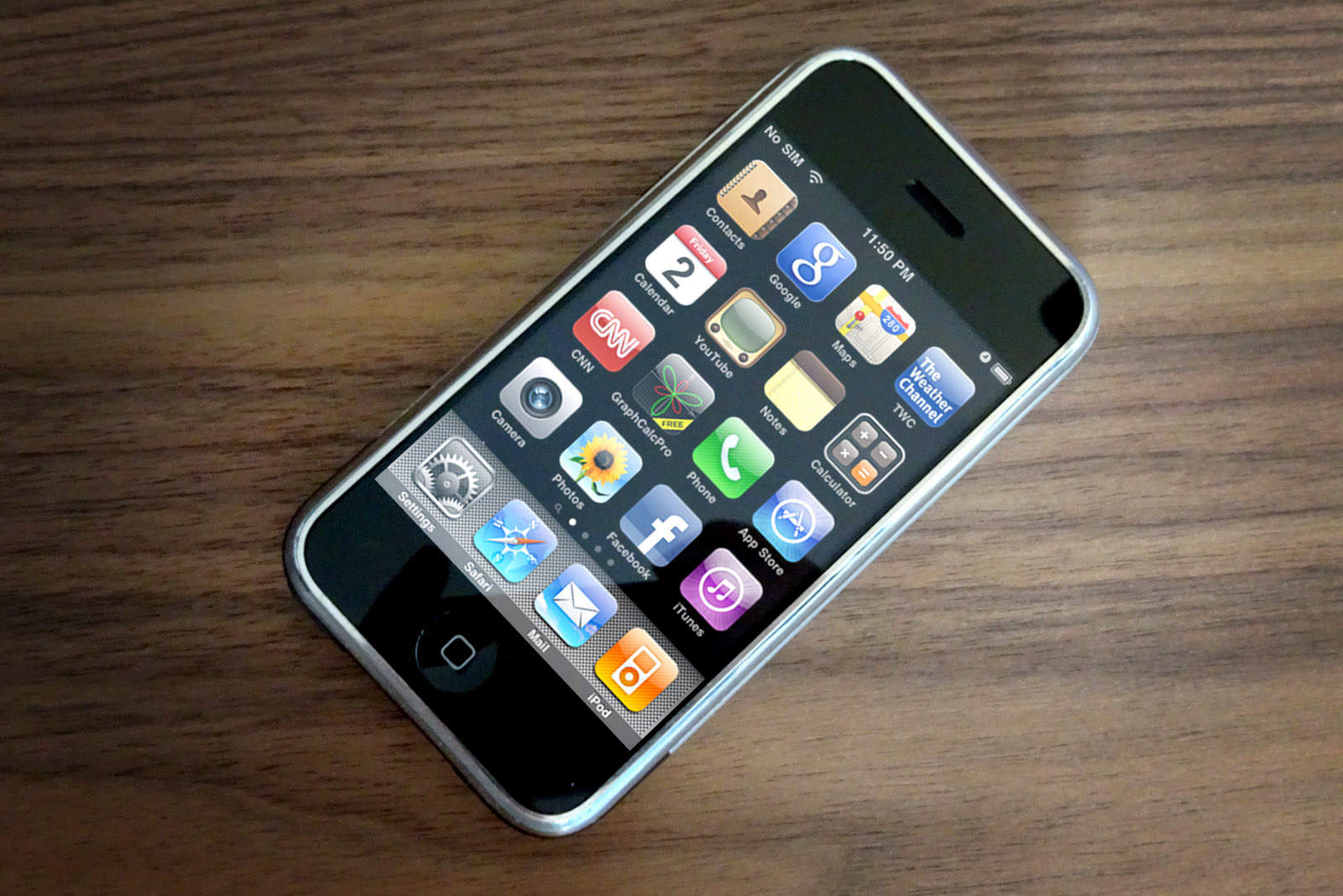
iPhone OS 3 turned Apple's smartphone into a much more capable device. Photo: Ste Smith/Cult of Mac
June 17, 2009: Apple releases iPhone OS 3, the third iteration of its mobile operating system (and the last before a name change). It adds Cut, Copy and Paste functionality, among the most requested features since the original iPhone shipped in 2007.
“iPhone 3.0 has more than 100 new features for our customers,” says Scott Forstall, Apple’s senior vice president of iPhone software, as he demos the new operating system in front of developers. “Let me walk you through just a few, starting with Cut, Copy and Paste. So, we’ve been working really hard to design an easy-to-use, straightforward user interface for Cut, Copy and Paste on our large touchscreen display, and we think we’ve nailed it.”
iPhone OS 3 also brings a host of other new features, including MMS, a landscape keyboard, support for audiobooks and iTunes video, and Spotlight search, which users can access by swiping left on the iPhone’s Home Screen. And the Find My iPhone app comes along for the ride.
Available in certain gyms and equipment. Image: Apple/D. Griffin Jones/Cult of Mac
Connect Apple Watch to a treadmill at Planet Fitness, and other exercise equipment, for more accurate health data inside the Fitness and Health apps on your iPhone. After all, if you’re working out, you want to make sure your Apple Watch gives you credit for it.
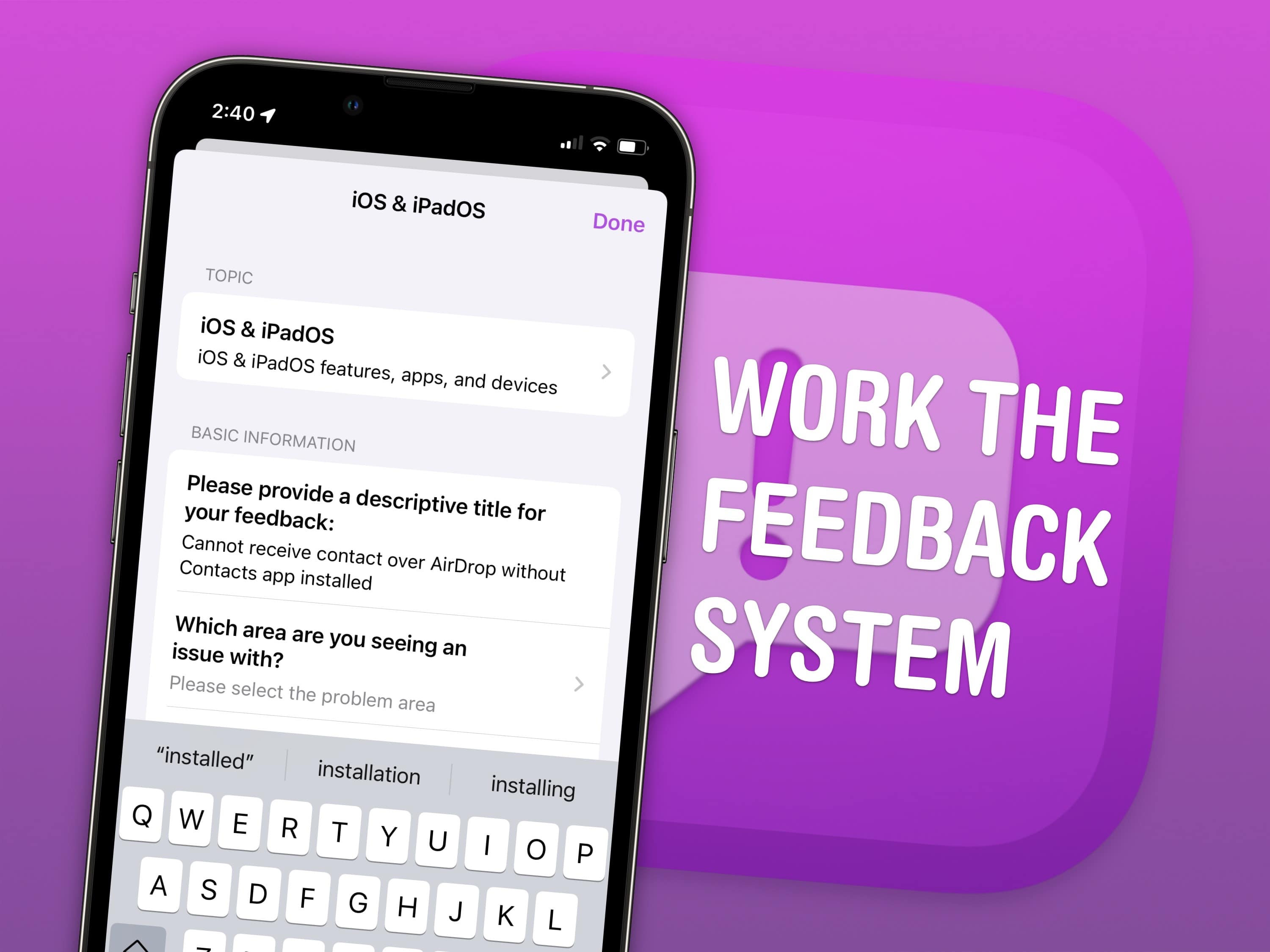
There are unspoken rules and tricks to getting your bug reports fixed. Image: Apple/D. Griffin Jones/Cult of Mac
June is the best time of year to give feedback to Apple on betas for iPhone, Mac, iPad and Apple Watch. Just after the company releases the initial betas of its upcoming software updates, this is when Apple engineers have the most time to address bugs and make changes. And that makes this the optimal time to file an Apple bug report.
It won’t be long before Apple engineers’ task lists fill up through the fall, when the new software will be released. After that, teams are rearranged to make the sprint toward the next year’s updates. So if you have any input, you’d best make yourself heard now.
How do you file a bug report or send in feedback to Apple? Apple made a tool called Feedback Assistant that will guide you through the process. It’s available if you’re running a developer or a public beta of iOS, macOS or iPadOS. Here’s how.
Straighten out images that were taken slightly askew. Image: D. Griffin Jones/Cult of Mac
If you’re traveling this summer, there’s a neat editing trick to get spectacular shots of landmarks or murals. On the iPhone, you can crop, skew and rotate a photo using the Photos app’s advanced editing tools to make adjustments you might not have thought were possible.
You can quickly fix the perspective or angle a picture was taken from, correct the fisheye distortion on an ultra-wide photo and more. You can also precisely rotate and skew the perspective, for those times when you don’t realize until it’s too late that your shot is slightly to the side or slightly off-center.
The best part is you can can fix it all directly in the Photos app. Here’s how.
Set up Game Center and you can compete with friends in the games you both play. Image: Apple/D. Griffin Jones/Cult of Mac
Apple’s Game Center service lets you compete with friends and unlock achievements in the games you play. You can see where you rank among your friends — and globally. Achievements will give you a list of missions to accomplish to prove your mastery of the game. You can even play live multiplayer games on all your separate devices using SharePlay.
Is the best copy of a picture you have blurry and pixellated? Use Google’s image lens tool to find the original. Image: D. Griffin Jones/Cult of Mac
You can use Google reverse image search to find a higher-resolution (and higher-quality) original version of an image online. If you’re putting together a presentation, making a YouTube video or writing a blog post, you want the highest quality versions of every image. You might feel stuck if you only have a low-quality picture and you need to fill a bigger space.
Google reverse image search will let you upload a photo and find matches all around the web. You can find out where it’s from to cite the source and save the uncompressed original image. Let me show you how Google reverse image search works.
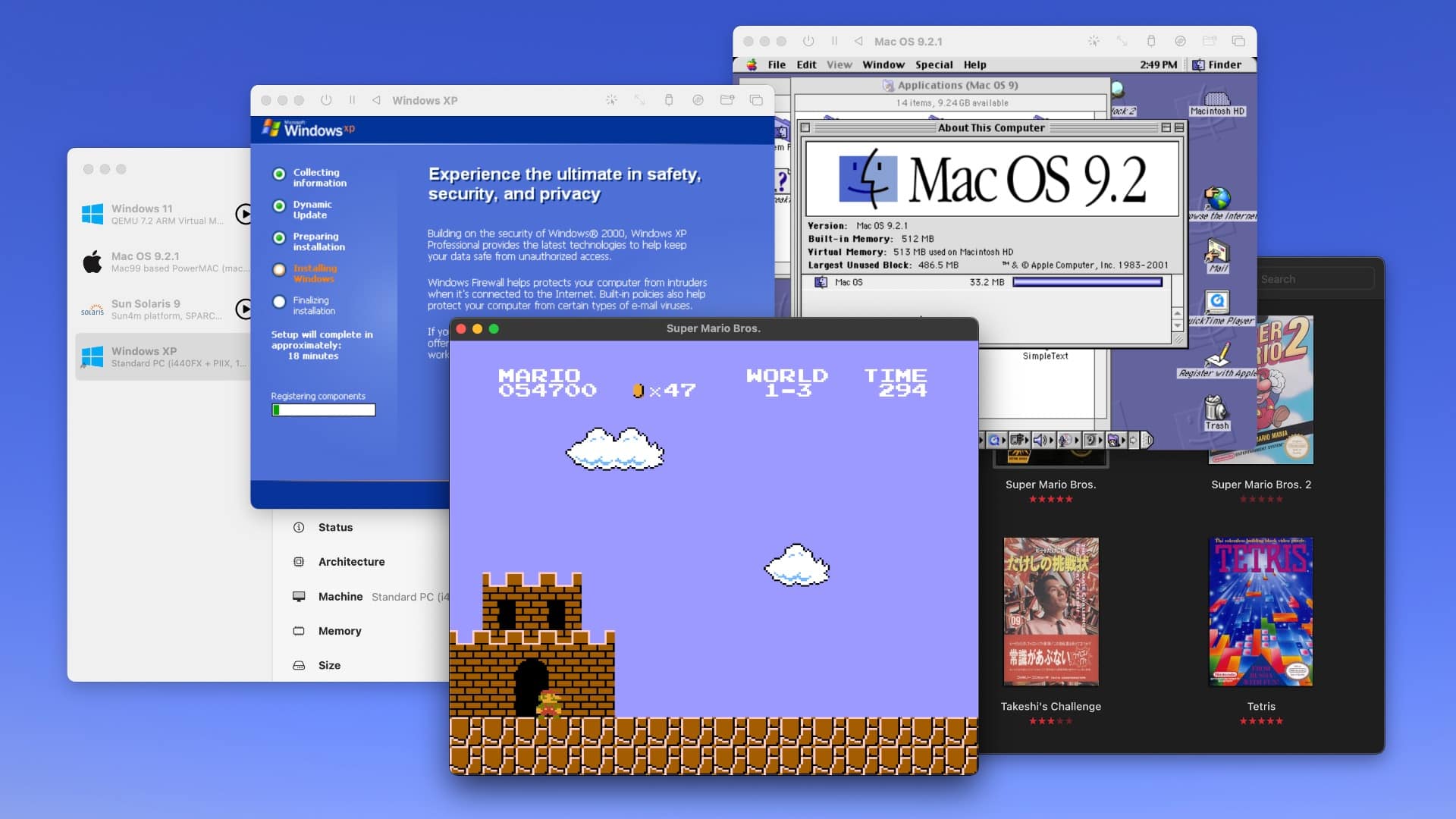
Run Windows XP, Mac OS 9, Windows 11, Super Mario Bros. and more on your Mac. Screenshot: D. Griffin Jones/Cult of Mac
Collecting old video game consoles and vintage computers is a fun hobby, but keeping all that hardware working can quickly become an expensive, never-ending task — not to mention all the space you need just to store the gear. You might instead (wisely) opt to play your favorite games and software using emulators for your Mac.
In this guide to Mac emulation, I’ll walk you through the best apps you can use to accomplish the two most common scenarios: playing old video games, and taking Classic Mac OS for a test drive on a modern Mac. Plus, I’ll wrap up with the easiest way to virtualize modern operating systems like Windows and Linux on your Mac. (This handy virtualization software also works for old and obscure computer operating systems.)
Best of all, each of these Mac emulation methods is free and open source.
In iOS 17, you have an easier path forward if you forget your iPhone's new passcode. Image: D. Griffin Jones/Cult of Mac/Pexels
If you forgot your new iPhone passcode, you can reset it with your old one for up to three days later. This can save you hours of trying to remember the new passcode, or worse, resetting your phone from a backup.
You just have to tap Forgot Passcode? on the Lock Screen after you enter it several incorrect times.
Keep reading for a detailed walkthrough. And don’t worry — if you change your passcode intentionally to keep someone out, you can instantly expire your old one.
Suck away battery life, that is. Image: D. Griffin Jones/Cult of Mac
There are a bunch of not-great apps like Spotify and Slack that suck battery life, because they basically run a full copy of Google Chrome inside each window. Chrome is a notorious energy hog, and running multiple copies of its Blink engine inside four different apps can take unnecessary memory and resources.
But you can create your own, much better versions using web apps based on Safari. Web apps are easily made in Safari and live in your Mac’s Dock.
For apps that you use every day, like Spotify, Discord and Slack, it’s easier to launch them from the Dock and move them around separately from your browser tabs. Let me show you how they work.
Sonos and Ikea loved to make speakers that look like other things. They launched the Symfonisk table lamp speaker, bookshelf speakers and a picture frame, among other products. But now the Sonos-Ikea partnership ends, according to reports.
The Symfonisk line of speakers, which also includes a bookshelf speaker that can hold books and a picture frame speaker that looks like wall art, is designed to blend in with your home decor.
Update: Sonos and Ikea just ended their lengthy partnership on the popular Symfonisk speakers, which included a table lamp and a picture frame, according to various reports.
“Over the past eight years, we’ve had the pleasure of working closely with Ikea and are proud of what we’ve achieved,” Sonos told The Verge. “Although our work together has largely wound down and we won’t be releasing new products as partners, we’ll continue to support every existing Symfonisk product so customers can keep enjoying great sound in their homes for many years to come.”
With a variety of models to choose from, what the best iPad for you? Photo: Apple/Cult of Mac
You want the best iPad, but shopping for one can be overwhelming. Apple sells six iPad models in a wide range of sizes, prices and capabilities. Our iPad comparison explains the strengths and weaknesses of each model. You don’t want to get one that doesn’t have all the features you want, but you also don’t want to pay too much for features you won’t use.
Here’s some straightforward advice on picking the best iPad for you.
Passkeys are here, and I’m here to tell you they’re awesome. Image: Santeri Viinamäki/Wikimedia Commons, D. Griffin Jones/Cult of Mac
Managing passwords is and always has been a giant pain. It isn’t the best system, but it’s the system we’ve got. Well, not if Apple can do anything about it. Passkeys are a new system that automatically signs you in to online services using your phone’s Face ID (or Touch ID) or your computer’s password. It’s one less thing to remember; it works without fiddling around with a password manager.
Passkeys aren’t an Apple-exclusive feature. You can bet the technology will be supported no matter what devices you have because all of these companies are part of the FIDO Alliance that created the system … eventually.

 August 11, 1987: The MultiFinder app brings the biggest software update to the
 August 8, 1997: At Macworld Expo, Apple co-founder Steve Jobs introduces the world to the company’s new slogan, “Think different.” The catchy marketing reassures fans that Apple is
 August 3, 2009: Google CEO Eric Schmidt resigns from Apple’s board of directors amidst increasing competition between the two companies.



 July 1, 2012: Apple shuts down its MobileMe web service. Launched in 2008, the subscription-based suite of online services and software offered features like push email, data storage,
 June 17, 2009: Apple releases iPhone OS 3, the third iteration of its mobile operating system (and the last before a name change). It adds Cut, Copy and Paste functionality, among the most requested features since the original iPhone shipped in 2007.